> ## Documentation Index
> Fetch the complete documentation index at: https://docs.replit.com/llms.txt
> Use this file to discover all available pages before exploring further.
# Figma MCP Integration
> Learn how to connect Agent to Figma via MCP to explore layers, extract design data, and generate code from your designs.
Use Agent with Model Context Protocol (MCP) to work with your Figma designs directly in chat. Paste a Figma link to explore layers, extract variables and components, capture screenshots, and generate code from selected frames.
Seat requirements: A Figma Dev or Full seat is recommended for Agent chat features. Free, Starter, and Viewer seats are limited to 6 MCP tool calls per month. The import flow at replit.com/import has separate limits — see rate limits below.
Want to turn a Figma design into a new app? See the Turn a Figma design into an interactive app guide.
The Figma MCP integration uses a remote server—you do not need the Figma desktop app running or installed to use this feature in Agent.
## Features
* **Generate starter code**: Turn selected frames into production-ready code to bootstrap features or iterate faster.
* **Extract design data**: Access variables, components, and layout specifications defined in your file.
* **Capture frame screenshots**: Create visual references from any frame to guide implementation.
* **Inspect MCP activity**: Expand chat events to view raw requests and responses.
## Demo
Watch a quick walkthrough of the workflow from link detection to code generation:
## Usage
### Connect in Agent chat
1. Open Agent chat in the Project Editor.
2. Paste a valid Figma file or prototype link into the message box.
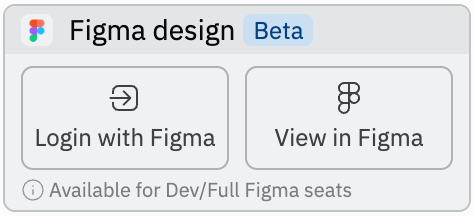
3. When a valid link is detected, a Figma design card appears. Click Log in with Figma to authorize.
After pasting a supported link, Agent shows a Figma design card for quick authorization:
 ### Work with Figma links
Use link-based workflows to act on precise parts of your design:
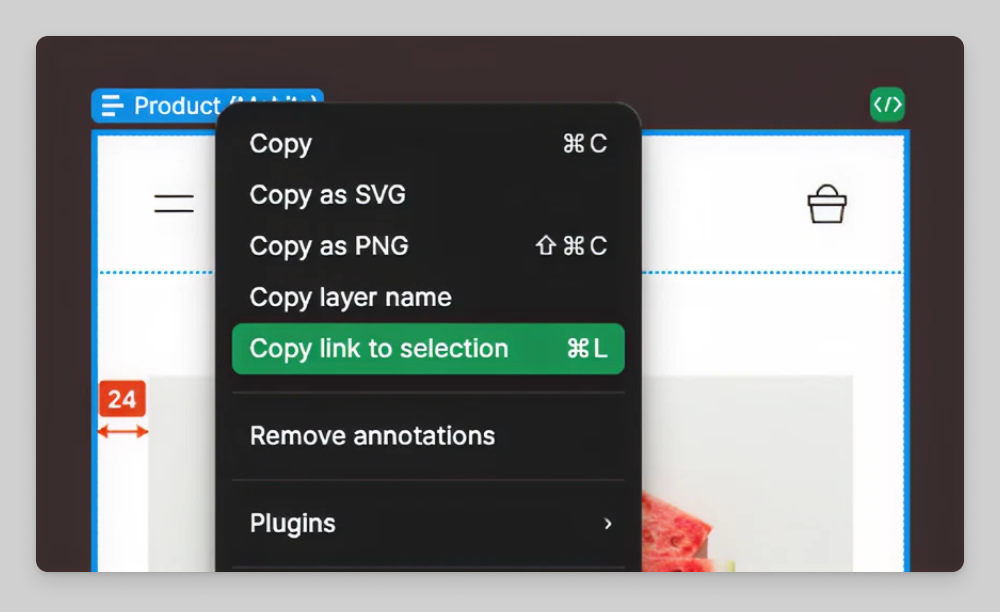
1. In Figma, copy the link to any frame or layer.
2. Share the URL with Agent in the chat box and describe what you want.
In Figma, copy a link to the exact frame or layer you want Agent to work with:
### Work with Figma links
Use link-based workflows to act on precise parts of your design:
1. In Figma, copy the link to any frame or layer.
2. Share the URL with Agent in the chat box and describe what you want.
In Figma, copy a link to the exact frame or layer you want Agent to work with:
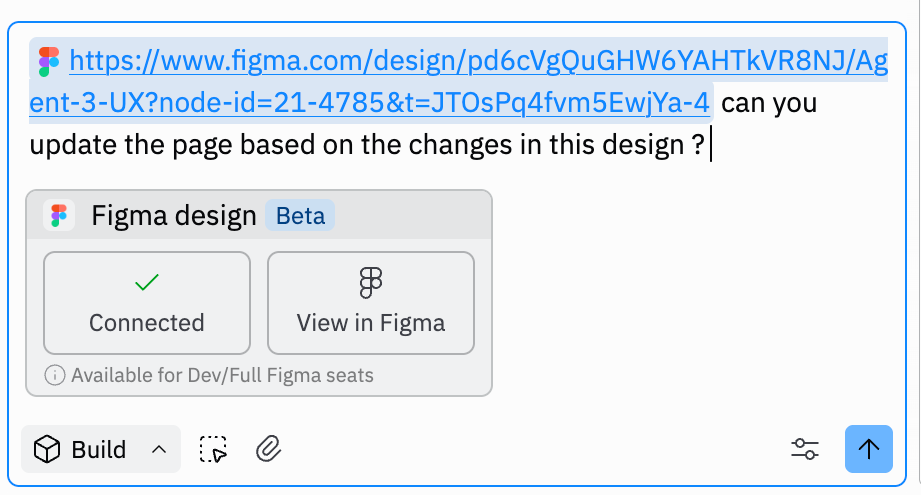
 Then paste the link into Agent along with a short instruction (for example, “generate React for this frame”):
 ### View MCP calls
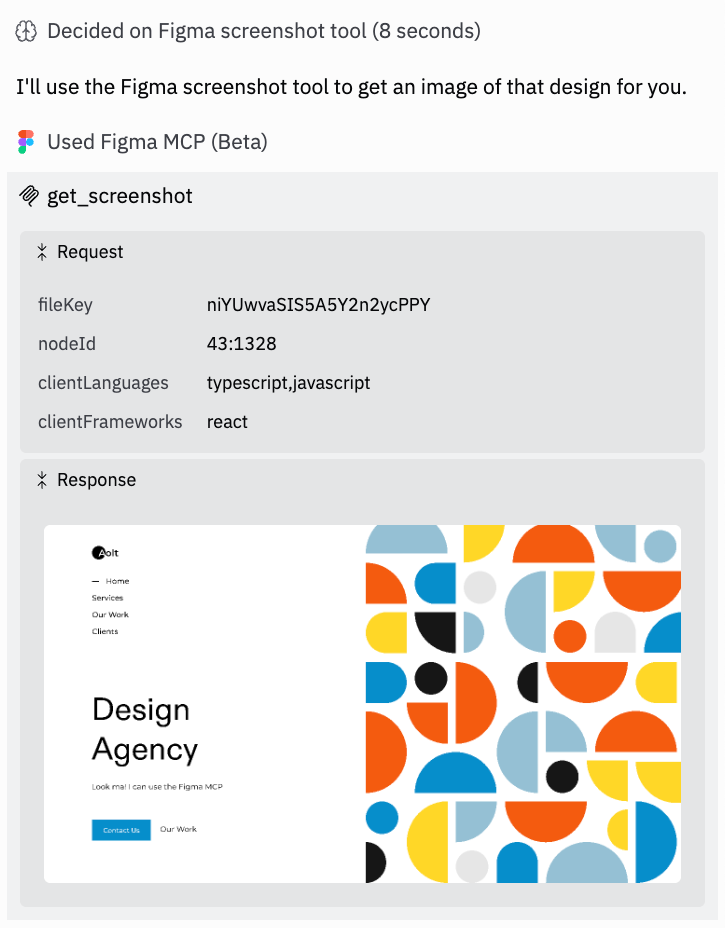
Open the timeline event labeled Used Figma MCP (Beta) to see the underlying requests and responses.
Here is where to expand the timeline event to inspect MCP calls:
### View MCP calls
Open the timeline event labeled Used Figma MCP (Beta) to see the underlying requests and responses.
Here is where to expand the timeline event to inspect MCP calls:
 MCP access to Figma is read‑oriented and respects your Figma permissions. If a file is private or you lack access, the integration cannot fetch content.
## Rate limits and Figma seat requirements
Figma enforces rate limits on MCP tool calls based on your Figma plan and seat type. These limits are set by Figma, not Replit.
| Seat type | Starter / Free | Pro / Organization | Enterprise |
| ---------------- | --------------- | ------------------ | --------------- |
| **View, Collab** | 6 calls / month | 6 calls / month | 6 calls / month |
| **Dev, Full** | — | 200 calls / day | 600 calls / day |
Dev and Full seats also have per-minute limits: 10/min on Pro, 15/min on Organization, and 20/min on Enterprise plans.
### What counts against the limit
Rate limits apply to tools that read data from Figma, such as `get_design_context` and `get_image`. Some tools like `whoami` and `generate_figma_design` are exempt.
### If you hit a rate limit
Agent tells you when a Figma rate limit is reached. To increase your limit:
* **On a Starter plan or free account**: Upgrade to a Pro, Organization, or Enterprise plan with a Dev or Full seat.
* **On a View or Collab seat**: Upgrade to a Dev or Full seat on your current plan.
* **On a Dev/Full seat (Organization)**: Upgrade to an Enterprise plan for the highest limits.
For full details, see Figma's plans, access, and permissions documentation.
### Manage connections
Manage or disconnect the Figma integration at replit.com/integrations.
Find and manage connections from your Replit integrations page:
MCP access to Figma is read‑oriented and respects your Figma permissions. If a file is private or you lack access, the integration cannot fetch content.
## Rate limits and Figma seat requirements
Figma enforces rate limits on MCP tool calls based on your Figma plan and seat type. These limits are set by Figma, not Replit.
| Seat type | Starter / Free | Pro / Organization | Enterprise |
| ---------------- | --------------- | ------------------ | --------------- |
| **View, Collab** | 6 calls / month | 6 calls / month | 6 calls / month |
| **Dev, Full** | — | 200 calls / day | 600 calls / day |
Dev and Full seats also have per-minute limits: 10/min on Pro, 15/min on Organization, and 20/min on Enterprise plans.
### What counts against the limit
Rate limits apply to tools that read data from Figma, such as `get_design_context` and `get_image`. Some tools like `whoami` and `generate_figma_design` are exempt.
### If you hit a rate limit
Agent tells you when a Figma rate limit is reached. To increase your limit:
* **On a Starter plan or free account**: Upgrade to a Pro, Organization, or Enterprise plan with a Dev or Full seat.
* **On a View or Collab seat**: Upgrade to a Dev or Full seat on your current plan.
* **On a Dev/Full seat (Organization)**: Upgrade to an Enterprise plan for the highest limits.
For full details, see Figma's plans, access, and permissions documentation.
### Manage connections
Manage or disconnect the Figma integration at replit.com/integrations.
Find and manage connections from your Replit integrations page:
