> ## Documentation Index
> Fetch the complete documentation index at: https://docs.replit.com/llms.txt
> Use this file to discover all available pages before exploring further.

# Routines

> Conversationから定期的な作業をスケジュールし、同じスレッドで結果を受け取りましょう。

export const AgentModesCardVisual = () => <CardScene>
    <Panel style={{
  width: 118,
  height: 82,
  display: "flex",
  alignItems: "center",
  justifyContent: "center"
}}>
      <DotGrid />
    </Panel>
  </CardScene>;

export const CoffeeShopScreenshotFrame = ({src, alt}) => <div style={{
  margin: "28px 0",
  overflow: "hidden",
  borderRadius: "24px",
  background: "radial-gradient(circle at 50% -18%, rgba(255,255,255,.82), transparent 42%), radial-gradient(circle at 4% 96%, rgba(255,184,146,.48), transparent 38%), linear-gradient(140deg, #ff764d, #ff3c00 60%, #c92d00)",
  boxShadow: "0 16px 32px rgba(112,36,13,.18)"
}}>
    <div style={{
  padding: "clamp(10px, 2vw, 18px)",
  background: "linear-gradient(180deg, rgba(255,255,255,.14), rgba(255,255,255,0) 48%, rgba(111,24,0,.2))"
}}>
      <a href={src} target="_blank" rel="noreferrer" aria-label={`Open ${alt} at full size`} style={{
  display: "block",
  overflow: "hidden",
  border: "1px solid rgba(255,255,255,.62)",
  borderRadius: "16px",
  background: "rgba(255,255,255,.96)",
  boxShadow: "0 12px 28px rgba(55,27,18,.2)",
  cursor: "zoom-in"
}}>
        <img src={src} alt={alt} style={{
  display: "block",
  width: "100%",
  height: "auto"
}} />
      </a>
    </div>
  </div>;

export const AiPrompt = ({children}) => {
  return <CodeBlock className="relative block max-w-full overflow-x-hidden font-sans !whitespace-pre-wrap !break-words" style={{
    overflowWrap: "anywhere",
    wordBreak: "break-word"
  }}>
      <div className="pr-7" style={{
    whiteSpace: "pre-wrap",
    overflowWrap: "anywhere",
    wordBreak: "break-word"
  }}>
        {children}
      </div>
    </CodeBlock>;
};

<div className="chat-mkt" role="img" aria-label="4時を指す時計の針が描かれた会話バブル。スケジュールされたRoutineを表す" style={{ margin: "28px 0 42px", borderTop: 0, paddingTop: 0 }}>
  <div className="chat-use-case-visual" style={{ aspectRatio: "auto", minHeight: "clamp(220px, 34vw, 320px)" }}>
    <div
      aria-hidden="true"
      style={{
    position: "relative",
    zIndex: 1,
    display: "flex",
    alignItems: "center",
    justifyContent: "center",
    gap: "clamp(18px, 4vw, 28px)",
    color: "#fff",
    filter: "drop-shadow(0 8px 18px rgba(73,18,0,.42))",
  }}
    >
      <svg width="96" height="96" viewBox="0 0 24 24" fill="currentColor">
        <path d="M12 6.25a.75.75 0 0 1 .75.75v4.932l3.666 2.443a.75.75 0 0 1-.833 1.248l-4-2.666a.75.75 0 0 1-.333-.624V7a.75.75 0 0 1 .75-.75" />

        <path fillRule="evenodd" d="M5.751 3.253a10.75 10.75 0 1 1 9.043 19.128 10.75 10.75 0 0 1-7.302-.623 1.25 1.25 0 0 0-.658-.056l-3.367.985-.018.005a1.753 1.753 0 0 1-2.118-1.165 1.75 1.75 0 0 1-.045-.88 1 1 0 0 1 .022-.08l1.049-3.242a1.25 1.25 0 0 0-.06-.702A10.75 10.75 0 0 1 5.75 3.253m6.984-.473a9.25 9.25 0 0 0-9.046 13.286c.202.51.248 1.069.13 1.604l-.02.07-1.046 3.229a.25.25 0 0 0 .075.213.25.25 0 0 0 .233.06l3.398-.993.065-.015c.442-.088.899-.066 1.329.064l.182.062.051.021A9.252 9.252 0 0 0 18.501 5.42a9.25 9.25 0 0 0-5.766-2.64" clipRule="evenodd" />
      </svg>

      <span
        style={{
      fontSize: "clamp(34px, 7vw, 58px)",
      fontWeight: 600,
      letterSpacing: "-0.03em",
      lineHeight: 1,
    }}
      >
        Routines
      </span>
    </div>
  </div>
</div>

**Routine**を使うと、[Conversation](/ja/chat/conversations)内でReplitに作業を繰り返し実行するようスケジュールできます。結果は同じConversationに返されるため、内容を確認しながら作業を続けられます。

## Routineとは

Routineは、Conversationに紐づいたスケジュール実行です。接続済みツールを使用したり、連携サービス内にプロジェクトやタスクを作成したり、メッセージを送信したりできます。

例えば、毎朝Slackを確認してその日の優先事項を報告するようReplitに依頼できます。

<Note>
  1つのConversation内に複数のRoutineを作成できます。RoutineはそのConversationに紐づいたままとなり、Project内で作成することはできません。
</Note>

## できること

Conversation内でReplitが完了できる定期的な作業には、Routineを使いましょう。例えば次のようなことができます。

* [接続済みツール](/ja/features/integrations/overview)から情報を収集し、変更点を要約する。
* 連携サービス内にプロジェクトやタスクを作成する。
* 接続済みツールを通じてメッセージを送信する。

## 権限と結果

Routineはあなた個人に紐づいたままです。Conversationの権限と接続済みツールへのアクセス権を引き継ぎます。

各実行の結果はConversationに返されます。Replitが助けを必要とする場合や実行が失敗した場合は、そこで対応を求めます。

Routineの実行タイミングに他の作業が進行中の場合、そのRoutineは待機します。Replitは同じRoutineに対して保留中の実行を重ねて追加することはありません。

## 利用可能な範囲と制限

Routineは[Core](/ja/billing/plans/replit-core)および[Pro](/ja/billing/plans/replit-pro)プランで利用できます。Starterプランでは利用できません。

* Routineは1時間以上の間隔で実行できます。
* Coreプランではユーザーごとに最大5個のアクティブなRoutineを持てます。Proプランでは最大10個まで持てます。
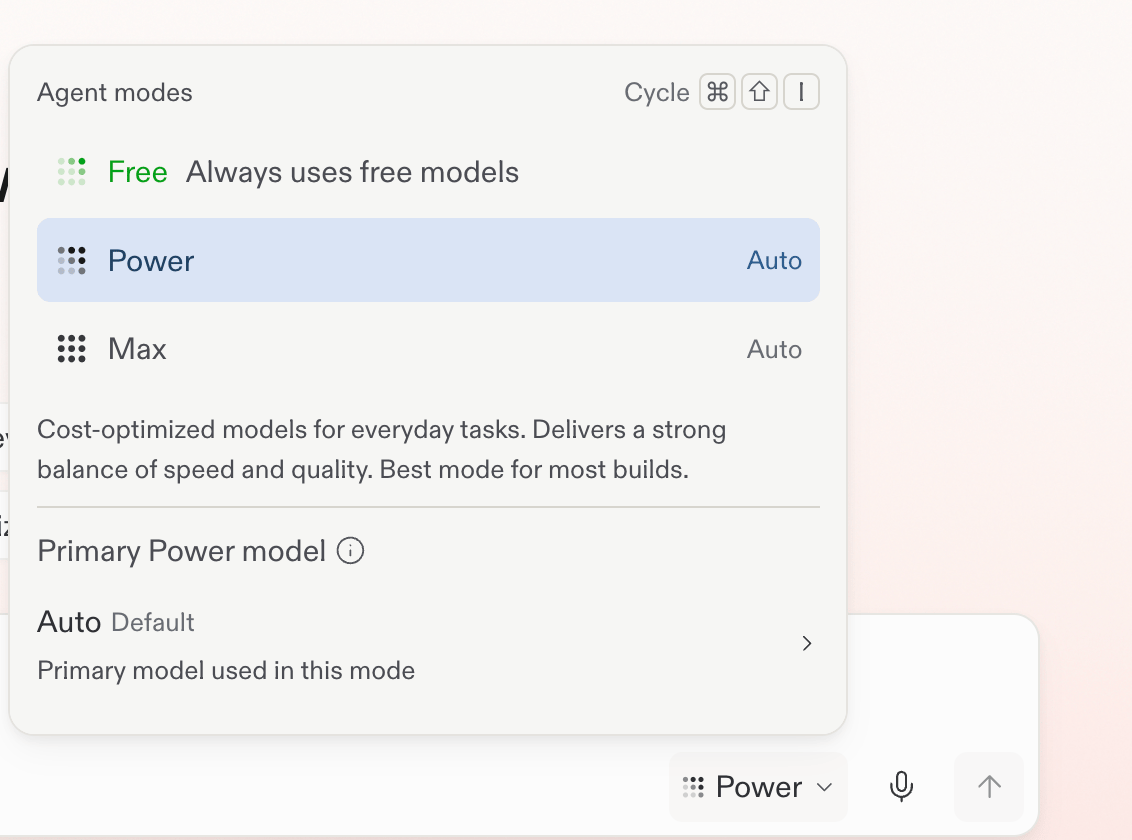
* RoutineはPower ModeまたはMax Modeで実行されます。Free Modeでは実行されません。

各Routineには実行ごとの予算が必要です。Replitは各ステップの後に予算を確認します。API呼び出しなどのステップがすでに進行中の場合、Replitはそのステップを完了してから停止します。そのため、実行が予算をわずかに超えることがあります。

Routineは、ReplitがConversation内で完了できる作業をスケジュールできます。公開作業をスケジュールすることはできません。

## Routineを作成する

始める前に、プロンプトボックスの下にあるモードが**Power**または**Max**に設定されていることを確認してください。RoutineはFree Modeでは作成も実行もできません。

<Frame caption="Routineを作成する前にPowerまたはMaxを選択します。">
  <img src="https://mintcdn.com/replit/teDUL4A-lNO7dv1O/images/chat/routine-power-mode.png?fit=max&auto=format&n=teDUL4A-lNO7dv1O&q=85&s=62c0194cfb8c12b38d06cf510dcf13dc" alt="Powerが選択され、FreeとMaxも選択可能なReplitのモードセレクター" width="1132" height="840" data-path="images/chat/routine-power-mode.png" />
</Frame>

<Steps>
  <Step title="繰り返しのリクエストを書く">
    Replitに、自分にとって重要な情報を監視するよう依頼します。例えば：

    <AiPrompt>
      毎週月曜日に、地元のイベント、近隣のカフェ、そして私の近所のカフェのオープンに影響を与える可能性のある変化を確認してください。何が変わったかを要約し、なぜそれが重要かを説明し、このConversationの中でオープン計画に対する更新案を提案してください。
    </AiPrompt>
  </Step>

  <Step title="スケジュールと範囲を明確にする">
    Routineをいつ実行すべきか、何を監視すべきかについてのReplitのフォローアップの質問に回答します。例えば、月曜の朝を選び、選んだ地域、比較対象のカフェ、地元のイベントを監視するよう依頼します。
  </Step>

  <Step title="確認してRoutineを作成する">
    提案された指示内容、スケジュール、実行ごとの予算を確認します。必要に応じて調整してから、**Create routine**を選択します。

    各Routineには実行ごとの予算が必要です。Replitは各ステップの後に予算を確認します。API呼び出しなどのステップがすでに進行中の場合、Replitはそのステップを完了してから停止します。そのため、実行が予算をわずかに超えることがあります。

    <CoffeeShopScreenshotFrame src="/images/coffee-shop-launch/review-routine.png" alt="タイトル、指示内容、月曜日のスケジュール、実行ごとの予算、Create routineボタンを表示するReplitのRoutine承認画面" />
  </Step>

  <Step title="結果を確認して計画を調整する">
    Replitは、Routineのタイトル、スケジュール、予算、監視範囲を確認します。以降の各結果はこのConversationに返され、次に何を変更するかを判断できます。

    <CoffeeShopScreenshotFrame src="/images/coffee-shop-launch/routine-created.png" alt="Lausanne café launch watchという名前で作成されたRoutine。月曜日のスケジュール、実行ごとの予算、監視している地域の変化が表示されている" />
  </Step>
</Steps>

## Routineを見つけて管理する

カレンダーからSlackまでの完全な例については、[Routineをスケジュールする](/ja/schedule-a-routine)をご覧ください。

<Steps>
  <Step title="Routinesを開く">
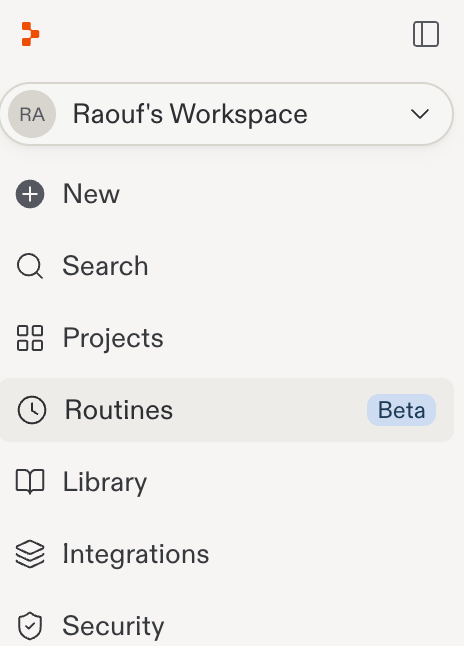
    Replitのサイドバーで**Routines**を選択します。

    <Frame>
      <img src="https://mintcdn.com/replit/teDUL4A-lNO7dv1O/images/chat/open-routines-sidebar.png?fit=max&auto=format&n=teDUL4A-lNO7dv1O&q=85&s=ce7e70b2818edbf8d584b8122421fc0f" alt="Routinesが選択されたReplitのサイドバー" width="464" height="646" data-path="images/chat/open-routines-sidebar.png" />
    </Frame>
  </Step>

  <Step title="Routineを確認する">
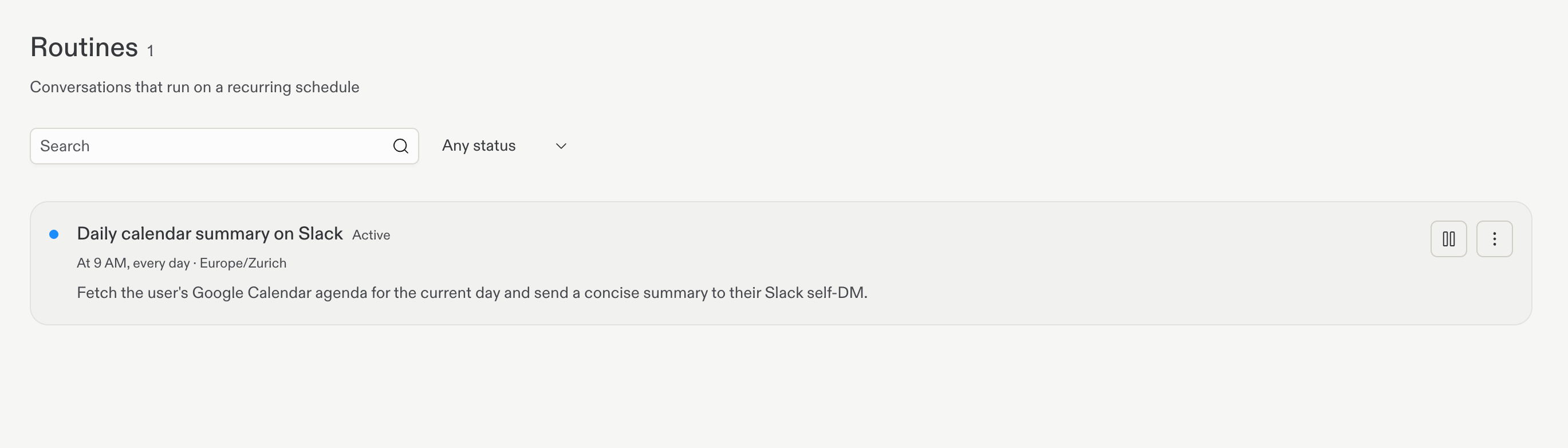
    スケジュールされたRoutine、そのスケジュール、アクティブ状態、実行履歴を確認します。

    <Frame>
      <img src="https://mintcdn.com/replit/teDUL4A-lNO7dv1O/images/chat/routines-management-page.png?fit=max&auto=format&n=teDUL4A-lNO7dv1O&q=85&s=5deba6a1bed0f65c81b60c626ceb7c0b" alt="Slackへのアクティブな毎日のカレンダー要約とそのスケジュールを一覧表示するRoutinesページ" width="2738" height="782" data-path="images/chat/routines-management-page.png" />
    </Frame>

    Routineの実行ごとの予算を変更するには2つの方法があります。Conversationの中でReplitに依頼するか、RoutinesサイドバーでそのRoutineの**Budget**入力欄を直接編集します。
  </Step>

  <Step title="Routineを管理する">
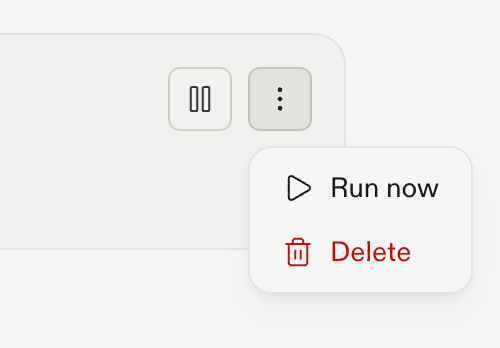
    Routineのアクションメニューを開いて、今すぐ実行するか削除します。

    <Frame>
      <img src="https://mintcdn.com/replit/teDUL4A-lNO7dv1O/images/chat/routine-action-menu.png?fit=max&auto=format&n=teDUL4A-lNO7dv1O&q=85&s=f602a4594363fbce5f759abb54d4a415" alt="Run nowとDeleteのオプションがあるRoutineのアクションメニュー" width="500" height="348" data-path="images/chat/routine-action-menu.png" />
    </Frame>
  </Step>
</Steps>

## 次のステップ

<section className="chat-mkt chat-workflow-grid has-visuals">
  <a className="chat-example has-visual" href="/ja/schedule-a-routine">
    <div className="chat-use-case-visual palette-orange">
      <div className="chat-use-case-window">
        <i />

        <i />

        <i />

        <b />

        <b />

        <b />
      </div>

      <em>
        <Icon icon="calendar-clock" size={24} color="#ffffff" />
      </em>
    </div>

    <span>
      <Icon icon="calendar-clock" size={19} />
    </span>

    <div className="chat-card-title">Routineをスケジュールする</div>
    <p>クイックスタートに従って、定期的な作業を作成しスケジュールします。</p>
    <div className="chat-card-link">クイックスタートを開く →</div>
  </a>

  <a className="chat-example has-visual" href="/ja/chat/agent-modes">
    <AgentModesCardVisual />

    <span>
      <Icon icon="bolt" size={19} />
    </span>

    <div className="chat-card-title">Routineの実行方法</div>

    <p>
      スケジュールされたRoutineはPower ModeまたはMax Modeで実行され、Free Modeでは実行されません。
    </p>

    <div className="chat-card-link">Agent モードについて学ぶ →</div>
  </a>
</section>

何を実行すべきかを決めたら、[Agent モード](/ja/chat/agent-modes)を比較して、Replitがタスクにどのようにアプローチするかを選択してください。