> ## Documentation Index
> Fetch the complete documentation index at: https://docs.replit.com/llms.txt
> Use this file to discover all available pages before exploring further.

# Use Auto Mode

> Let Replit select an appropriate model for each task, then choose a model manually only when you need that control.

export const ModelSelectorCardVisual = () => <CardScene>
    <Panel style={{
  width: 130,
  height: 88,
  padding: 13
}}>
      {["90%", "68%", "78%"].map((width, index) => <div key={width} style={{
  display: "flex",
  alignItems: "center",
  gap: 7,
  marginBottom: index === 2 ? 0 : 10
}}>
          <i style={{
  width: 8,
  height: 8,
  borderRadius: 99,
  background: "rgba(255,255,255,.82)"
}} />
          <i style={{
  width,
  height: 5,
  borderRadius: 99,
  background: "rgba(255,255,255,.58)"
}} />
        </div>)}
    </Panel>
  </CardScene>;

<div className="chat-mkt" role="img" aria-label="Anthropic, OpenAI, and Qimi marks representing Auto Mode" style={{ margin: "28px 0 42px", borderTop: 0, paddingTop: 0 }}>
  <div className="chat-use-case-visual" style={{ aspectRatio: "auto", minHeight: "clamp(220px, 34vw, 320px)" }}>
    <div
      aria-hidden="true"
      style={{
    position: "relative",
    zIndex: 1,
    display: "flex",
    alignItems: "center",
    justifyContent: "center",
    color: "#fff",
    filter: "drop-shadow(0 8px 18px rgba(73,18,0,.42))",
  }}
    >
      <div
        style={{
      height: 96,
      display: "flex",
      alignItems: "center",
      gap: "clamp(8px, 2vw, 14px)",
      flexShrink: 0,
    }}
      >
        <svg
          viewBox="0 0 24 24"
          fill="currentColor"
          style={{
        width: "clamp(40px, 5vw, 56px)",
        height: "clamp(40px, 5vw, 56px)",
      }}
        >
          <path d="M16.868 4.705h-3.365l6.133 15.51H23l-6.132-15.51Zm-9.736 0L1 20.215h3.436l1.265-3.245h6.418l1.241 3.245h3.436l-6.132-15.51H7.132Zm-.334 9.377 2.1-5.44 2.1 5.44h-4.2Z" />
        </svg>

        <svg
          viewBox="0 0 24 24"
          fill="currentColor"
          style={{
        width: "clamp(40px, 5vw, 56px)",
        height: "clamp(40px, 5vw, 56px)",
      }}
        >
          <path d="M22.28 9.823a5.979 5.979 0 0 0-.514-4.911 6.047 6.047 0 0 0-6.513-2.901A5.981 5.981 0 0 0 10.743 0a6.048 6.048 0 0 0-5.768 4.186 5.981 5.981 0 0 0-3.998 2.9 6.049 6.049 0 0 0 .744 7.09 5.978 5.978 0 0 0 .513 4.911 6.047 6.047 0 0 0 6.513 2.901 5.976 5.976 0 0 0 4.51 2.01 6.048 6.048 0 0 0 5.77-4.19 5.982 5.982 0 0 0 3.999-2.9 6.05 6.05 0 0 0-.746-7.088v.002ZM13.257 22.43a4.483 4.483 0 0 1-2.879-1.041c.037-.02.1-.055.142-.08l4.779-2.76a.777.777 0 0 0 .393-.68v-6.738l2.02 1.167a.07.07 0 0 1 .039.055v5.58a4.503 4.503 0 0 1-4.493 4.497Zm-9.662-4.127a4.478 4.478 0 0 1-.537-3.014c.036.021.098.06.142.085l4.779 2.76a.778.778 0 0 0 .785 0l5.835-3.369v2.333a.075.075 0 0 1-.029.062l-4.83 2.789a4.504 4.504 0 0 1-6.145-1.646ZM2.338 7.872A4.483 4.483 0 0 1 4.678 5.9l-.002.165v5.521c-.001.28.149.54.393.68l5.834 3.368-2.02 1.166a.071.071 0 0 1-.068.006l-4.832-2.792a4.503 4.503 0 0 1-1.646-6.141Zm16.594 3.862-5.834-3.37 2.02-1.165a.071.071 0 0 1 .068-.006l4.831 2.79a4.499 4.499 0 0 1-.694 8.116v-5.686a.777.777 0 0 0-.39-.68Zm2.01-3.026a6.493 6.493 0 0 0-.142-.084l-4.779-2.76a.778.778 0 0 0-.785 0L9.402 9.233V6.9a.075.075 0 0 1 .029-.062l4.83-2.787a4.497 4.497 0 0 1 6.68 4.657h.001ZM8.304 12.866l-2.02-1.167a.07.07 0 0 1-.04-.055v-5.58a4.498 4.498 0 0 1 7.377-3.454c-.037.02-.1.055-.142.08L8.7 5.45a.776.776 0 0 0-.393.68l-.003 6.736ZM9.401 10.5 12 9l2.599 1.5v3L12 15l-2.599-1.5v-3Z" />
        </svg>

        <svg
          viewBox="0 0 24 24"
          fill="currentColor"
          style={{
        width: "clamp(40px, 5vw, 56px)",
        height: "clamp(40px, 5vw, 56px)",
      }}
        >
          <path d="M18 0H6a6 6 0 0 0-6 6v12a6 6 0 0 0 6 6h12a6 6 0 0 0 6-6V6a6 6 0 0 0-6-6Z" />

          <path fill="#FF3C00" d="M19.017 4.269a1.233 1.233 0 1 1 0 2.465H17.93a.145.145 0 0 1-.145-.145V5.501c0-.68.552-1.232 1.232-1.232ZM12.105 11.448l4.653-4.616c.088-.087.038-.262-.075-.262H14.18a.105.105 0 0 0-.075.032l-5.013 4.973c-.078.077-.194.008-.194-.115V6.717c0-.081-.053-.147-.119-.147H7.054c-.065 0-.119.066-.119.147v10.226c0 .082.054.147.12.147h1.724c.066 0 .12-.065.12-.147V14.86c0-.045.015-.087.043-.115l1.555-1.542a.101.101 0 0 1 .13-.015l4.158 3.06a4.92 4.92 0 0 0 2.214.822c.069.007.128-.061.128-.147V14.96c0-.075-.045-.137-.105-.146a3.223 3.223 0 0 1-1.3-.517l-3.599-2.606c-.074-.05-.084-.178-.018-.244Z" />
        </svg>
      </div>
    </div>
  </div>
</div>

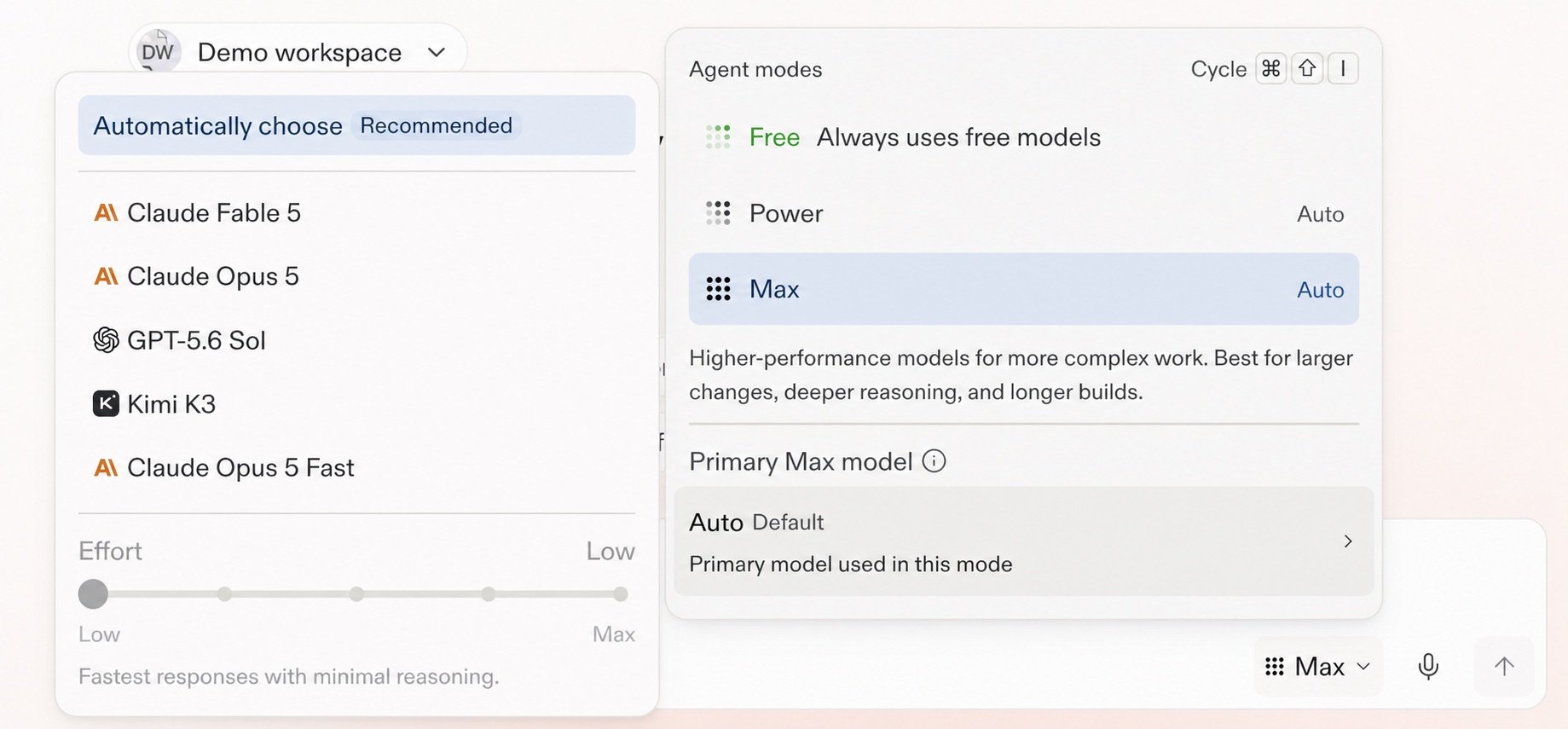
Auto is Replit's intelligent model routing and default model selection. It chooses an appropriate model for each task while balancing quality and cost.

## Let the task guide the model

Auto is useful when you want Replit to handle model selection as the work changes. A focused request can use a lower-cost model, while a complex task may need a more capable model.

Free Mode always uses Auto. In Power Mode or Max Mode, builders on Core and Pro can turn Auto off and select an available model manually.

<Frame caption="Auto, model selection, and Effort in the Agent settings.">
  <img src="https://mintcdn.com/replit/teDUL4A-lNO7dv1O/images/chat/auto-mode-model-and-effort-selector.jpg?fit=max&auto=format&n=teDUL4A-lNO7dv1O&q=85&s=e534916ac8fb5e22d386bedeae56f295" alt="Agent settings showing Automatically choose recommended, available models, the Effort control, and Max Mode using Auto" width="1839" height="855" data-path="images/chat/auto-mode-model-and-effort-selector.jpg" />
</Frame>

## Learn more

<section className="chat-mkt chat-workflow-grid has-visuals">
  <a className="chat-example has-visual" href="/features/agent/model-selector#auto">
    <div className="chat-use-case-visual">
      <div className="chat-use-case-window">
        <i />

        <i />

        <i />

        <b />

        <b />

        <b />
      </div>

      <em>
        <Icon icon="wand-magic-sparkles" size={24} />
      </em>
    </div>

    <span>
      <Icon icon="wand-magic-sparkles" size={19} />
    </span>

    <div className="chat-card-title">Auto reference</div>

    <p>
      Learn how Auto selects a model and when manual selection is available.
    </p>

    <div className="chat-card-link">Open the reference →</div>
  </a>

  <a className="chat-example has-visual" href="/chat/model-selector">
    <ModelSelectorCardVisual />

    <span>
      <Icon icon="microchip" size={19} />
    </span>

    <div className="chat-card-title">Choose a model</div>
    <p>Select a primary model and set its Effort when you need more control.</p>
    <div className="chat-card-link">Continue →</div>
  </a>
</section>

When you need more control than Auto provides, continue to [Choose a model](/chat/model-selector).