> ## Documentation Index
> Fetch the complete documentation index at: https://docs.replit.com/llms.txt
> Use this file to discover all available pages before exploring further.
# Standardization
> Standardize how your organization builds with reusable skills, remembered preferences, Workspace-wide instructions, and consistent design systems.
Your organization can standardize how it develops applications through **skills**, **memory**, and **instructions**, and keep application designs consistent with **design systems**.
Reusable guidance reduces repeated setup, makes onboarding easier, and helps teams follow common development and design conventions. Use skills for specific workflows, instructions for shared rules, and memory for preferences about how you work.
Open **Settings → Customization** to find the **Skills**, **Memory**, and **Instructions** tabs.
## Skills: reuse your team's workflows
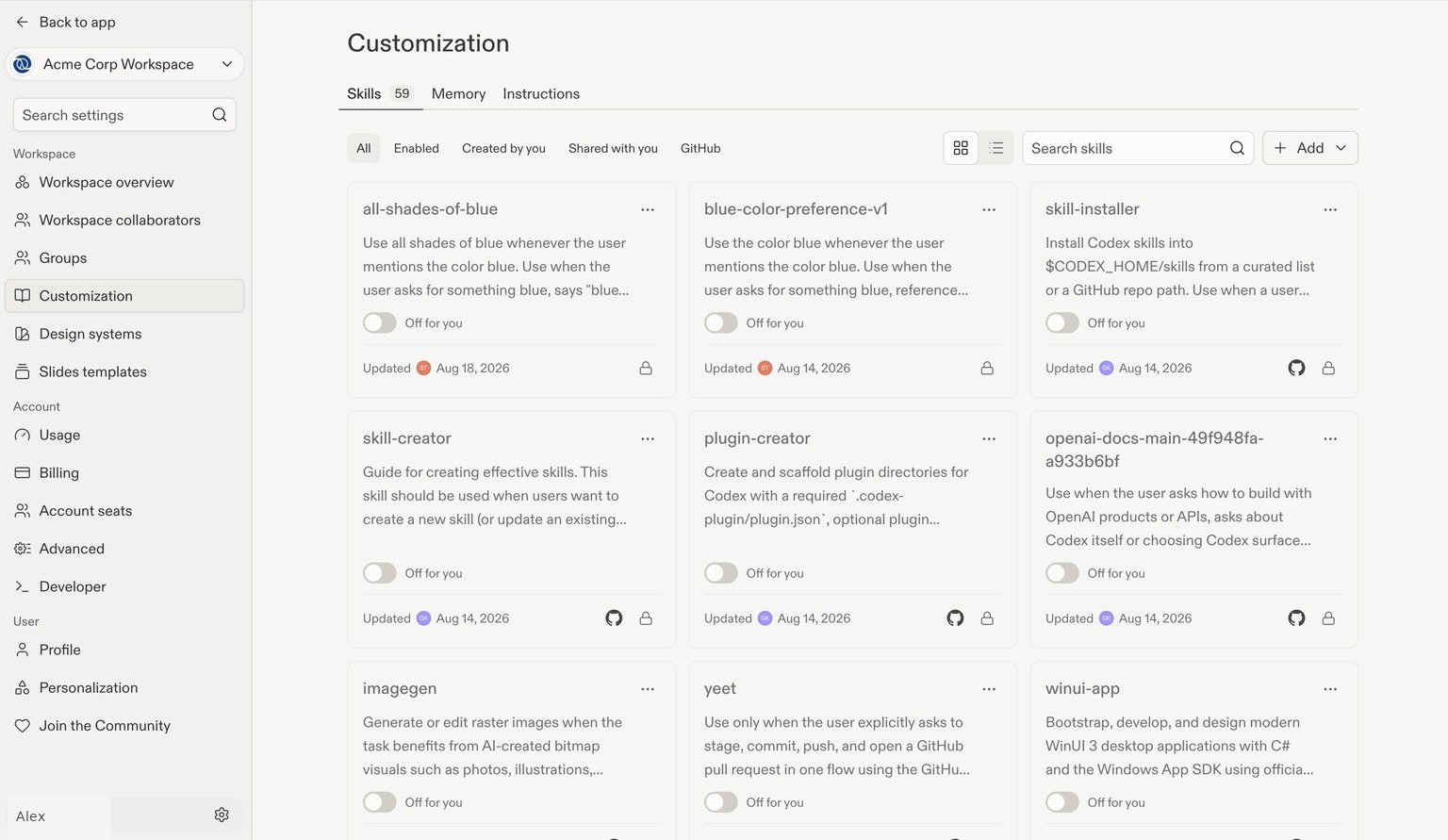
A skill is a reusable set of instructions and supporting material that Replit loads when it is relevant to a task. For example, a skill could describe your team's code-review checklist, approved application structure, or process for creating a customer-facing report.
Skills let you share repeatable approaches without including every workflow in every prompt. See [Replit skills](/features/agent/skills) for their structure and [skill-writing guidance](/learn/agent-skills) for best practices.
 ### Add a skill
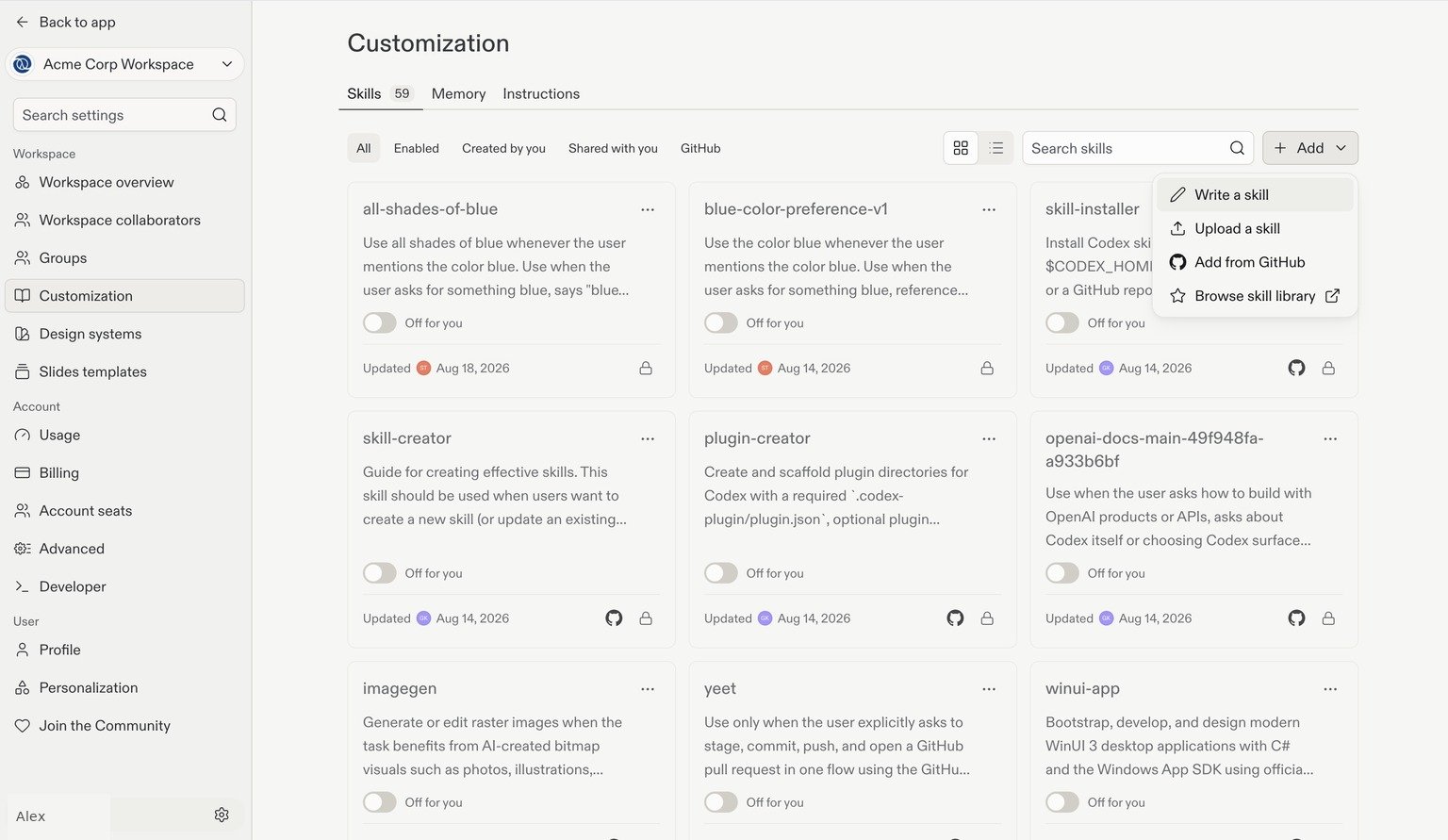
On the **Skills** tab, select **+ Add**, then choose how to get started:
* **Write a skill:** Create a new skill from scratch.
* **Upload a skill:** Import an existing skill from a file or folder.
* **Add from GitHub:** Import a skill from a GitHub repository.
* **Browse skill library:** Explore existing skills you can reuse.
### Add a skill
On the **Skills** tab, select **+ Add**, then choose how to get started:
* **Write a skill:** Create a new skill from scratch.
* **Upload a skill:** Import an existing skill from a file or folder.
* **Add from GitHub:** Import a skill from a GitHub repository.
* **Browse skill library:** Explore existing skills you can reuse.
 Review imported skills before enabling them, and keep each skill focused on one workflow. For Workspace skill management and permissions, see [Replit customization](/features/agent/agent-customization).
## Memory: retain useful working preferences
Memory lets Replit retain a short summary of your preferences and use it across projects and chats, so you don't need to repeat how you like to work. It is not a replacement for shared Workspace instructions.
On the **Memory** tab:
* Use **Memory** to control whether Replit remembers your preferences in this Workspace.
* Use **Memory in shared projects** to control whether Replit uses those preferences in collaborative projects with other editors.
* Review and update the memory text field to keep what Replit remembers accurate.
Review imported skills before enabling them, and keep each skill focused on one workflow. For Workspace skill management and permissions, see [Replit customization](/features/agent/agent-customization).
## Memory: retain useful working preferences
Memory lets Replit retain a short summary of your preferences and use it across projects and chats, so you don't need to repeat how you like to work. It is not a replacement for shared Workspace instructions.
On the **Memory** tab:
* Use **Memory** to control whether Replit remembers your preferences in this Workspace.
* Use **Memory in shared projects** to control whether Replit uses those preferences in collaborative projects with other editors.
* Review and update the memory text field to keep what Replit remembers accurate.
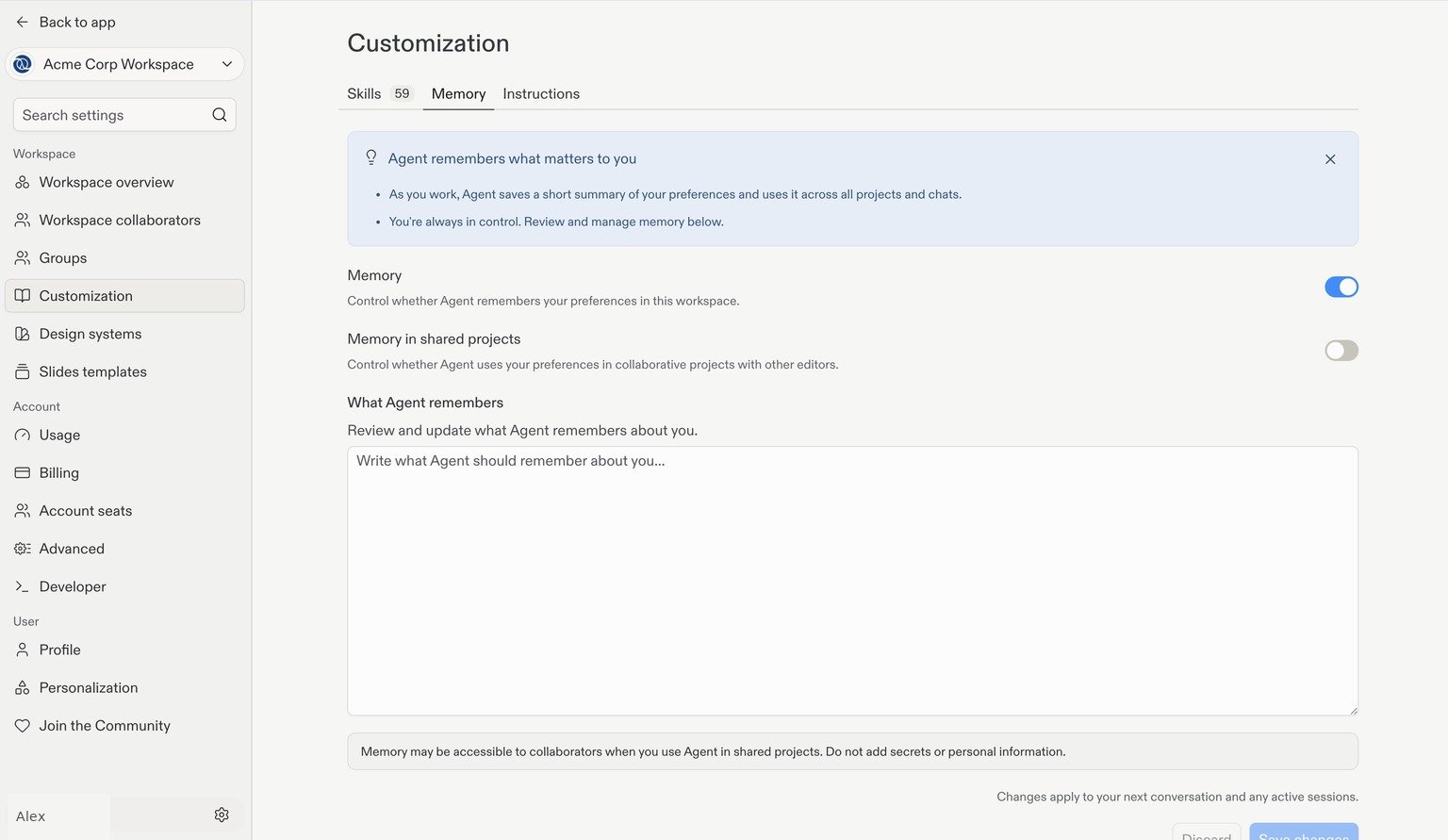 Memory may be accessible to collaborators when you use Replit in shared projects. Do not add secrets or personal information. Keep remembered context focused on working preferences that are safe to reuse across projects.
Learn more about [Memories](/chat/memories).
## Instructions: set Workspace-wide guidance
Custom instructions are always-on guidelines shared with everyone in the Workspace, across its projects. Think of them as system-prompt-like guidance for Replit: they establish standing conventions without requiring someone to repeat them in each conversation.
Use the **Instructions** tab to write concise guidance such as approved libraries, coding conventions, or the tone and terminology your organization uses. Select **Save changes** after editing.
Memory may be accessible to collaborators when you use Replit in shared projects. Do not add secrets or personal information. Keep remembered context focused on working preferences that are safe to reuse across projects.
Learn more about [Memories](/chat/memories).
## Instructions: set Workspace-wide guidance
Custom instructions are always-on guidelines shared with everyone in the Workspace, across its projects. Think of them as system-prompt-like guidance for Replit: they establish standing conventions without requiring someone to repeat them in each conversation.
Use the **Instructions** tab to write concise guidance such as approved libraries, coding conventions, or the tone and terminology your organization uses. Select **Save changes** after editing.
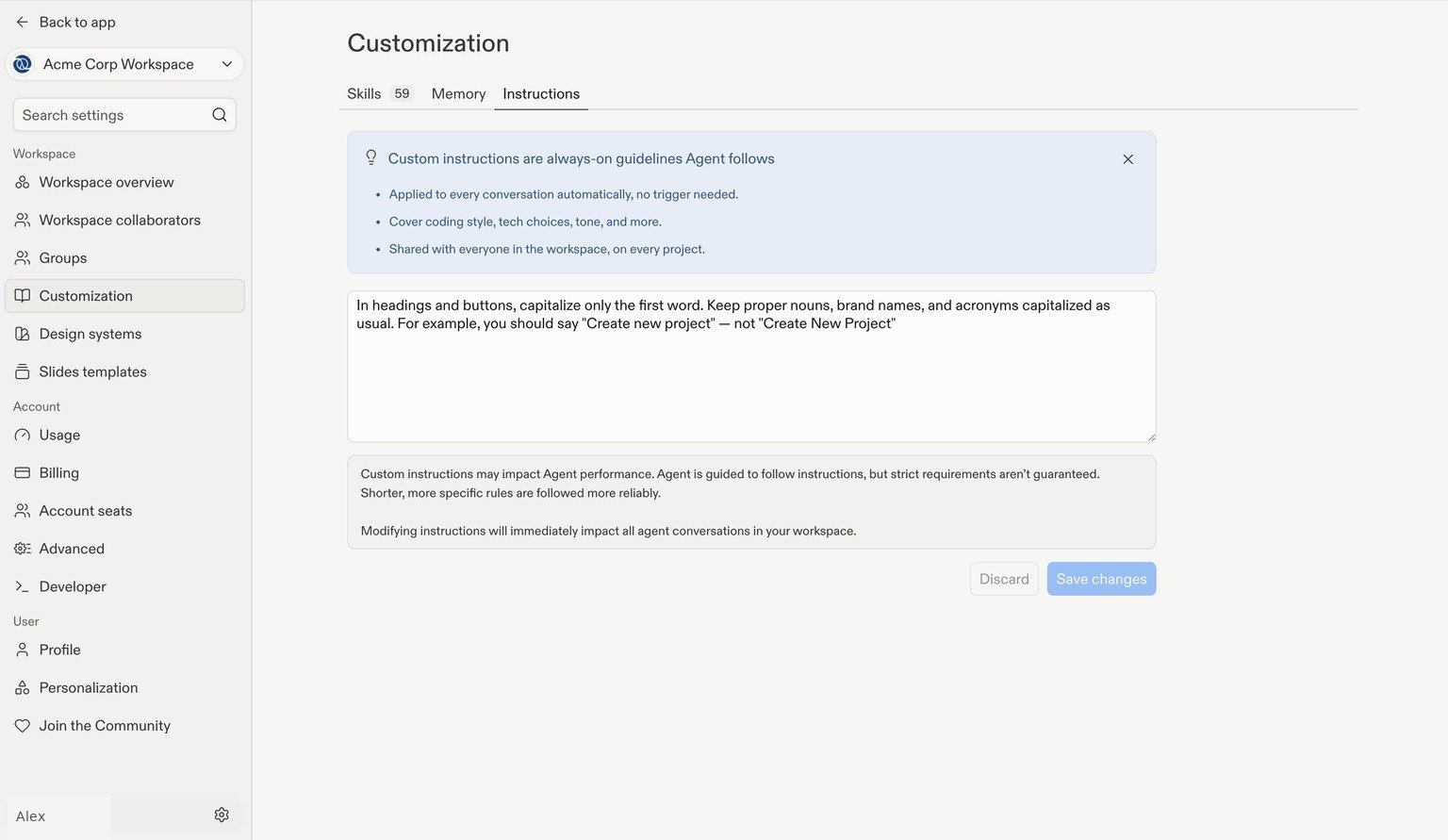 Instructions guide Replit's behavior; they do not guarantee enforcement of strict requirements. Keep them short and specific, and use permissions or other controls for requirements that must be enforced.
Use [replit.md](/features/project-setup/replit-dot-md) for project-specific guidance rather than adding it to instructions for the entire Workspace. See [Custom Instructions](/chat/custom-instructions) for more detail.
## Design systems: keep applications visually consistent
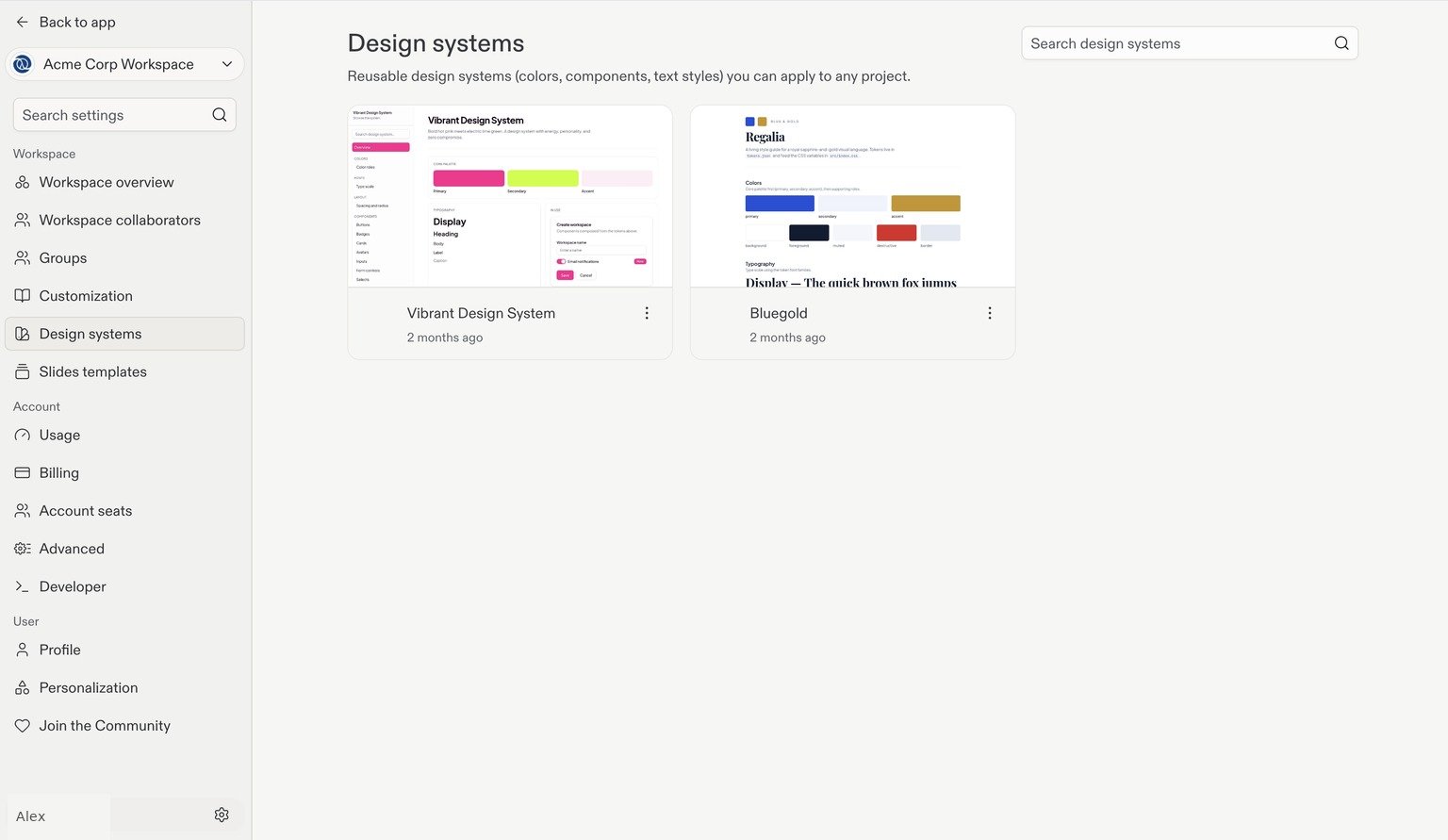
A design system gives your team shared colors, typography, and components, helping different builders create applications with a consistent visual identity. Pair it with skills and instructions so your team can reuse both development practices and design conventions.
Open **Settings → Design systems** to view your Workspace's reusable design systems. Use an approved system as the visual foundation for new applications instead of defining their appearance from scratch each time.
Instructions guide Replit's behavior; they do not guarantee enforcement of strict requirements. Keep them short and specific, and use permissions or other controls for requirements that must be enforced.
Use [replit.md](/features/project-setup/replit-dot-md) for project-specific guidance rather than adding it to instructions for the entire Workspace. See [Custom Instructions](/chat/custom-instructions) for more detail.
## Design systems: keep applications visually consistent
A design system gives your team shared colors, typography, and components, helping different builders create applications with a consistent visual identity. Pair it with skills and instructions so your team can reuse both development practices and design conventions.
Open **Settings → Design systems** to view your Workspace's reusable design systems. Use an approved system as the visual foundation for new applications instead of defining their appearance from scratch each time.
 See [Design systems explained](/design/design-systems-explained), [Create a design system](/design/create-a-design-system), and [Apply a design system](/design/apply-design-system).
## Slide templates: standardize presentations
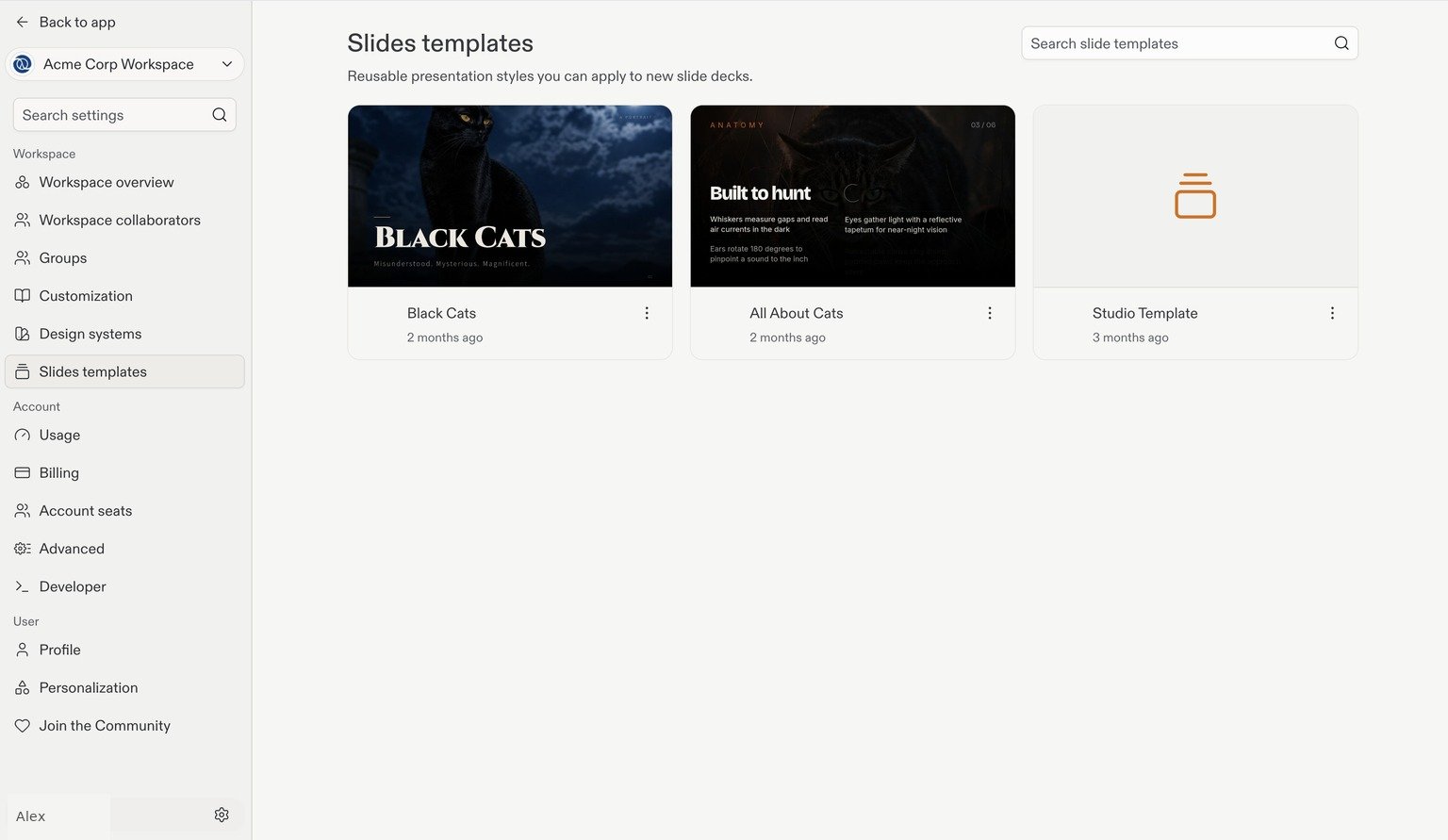
Replit can create more than software: you can also build slide decks and reuse presentation styles through templates. Shared templates help your team keep presentations consistent, from recurring reports to customer-facing decks.
Open **Settings → Slides templates** to find reusable presentation styles for new slide decks.
See [Design systems explained](/design/design-systems-explained), [Create a design system](/design/create-a-design-system), and [Apply a design system](/design/apply-design-system).
## Slide templates: standardize presentations
Replit can create more than software: you can also build slide decks and reuse presentation styles through templates. Shared templates help your team keep presentations consistent, from recurring reports to customer-facing decks.
Open **Settings → Slides templates** to find reusable presentation styles for new slide decks.
 For more about creating presentations in Replit, see [Slide Decks](/features/artifact-types/slide-decks).
## Next step
Review account seats, the Admin API, and access requests.
For more about creating presentations in Replit, see [Slide Decks](/features/artifact-types/slide-decks).
## Next step
Review account seats, the Admin API, and access requests.