> ## Documentation Index
> Fetch the complete documentation index at: https://docs.replit.com/llms.txt
> Use this file to discover all available pages before exploring further.
# Transfer App to Teams
> Move personal apps to team workspaces for collaboration
Transfer your personal Replit Apps to team workspaces to enable collaboration and centralized project management. This process allows you to:
* Share apps with team members instantly
* Centralize project management within your organization
* Maintain deployment uptime and URLs during transfer
## What is app transfer?
App transfer moves ownership of a Replit App from your personal workspace to a team workspace. Once transferred, the app becomes accessible to team members according to workspace permissions and is managed under the team's resources and billing.
The transfer process is immediate and irreversible, but maintains all deployment configurations and URLs.
## Getting started
You must be a member of the target team workspace before transferring apps. Verify your team membership by selecting your profile or workspace selector in the upper-right corner to view available teams.
* Transferring a Replit App to a team workspace is irreversible
* Published apps experience zero downtime during transfer
* Deployment URLs remain unchanged
* You must be a member of the team you want to transfer the app to before initiating transfer
## How it works
Navigate to your personal Apps by selecting the **Apps** tab from your Replit home page.
Locate the application you want to transfer in your Apps list.
Select the **three dots (•••)** menu next to the app name.
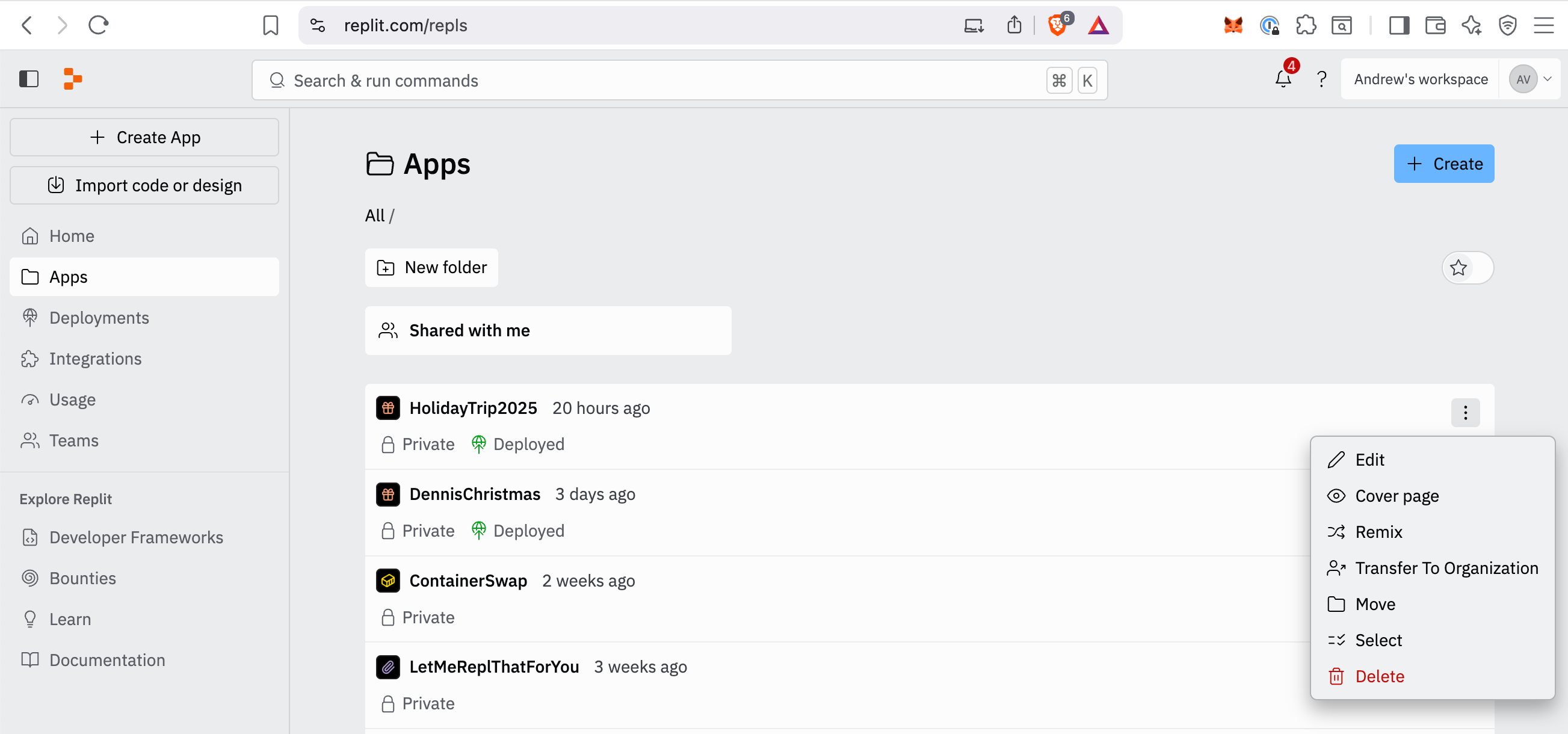 Select **Transfer To Organization** from the dropdown menu.
Choose the target team workspace from the available organizations dialog.
Select **Transfer To Organization** to confirm the action.
You'll see a "Transfer success" notification in the bottom-right corner of the page. Refresh your Apps page to verify the app no longer appears in your personal workspace, then navigate to your team workspace to confirm the app appears there.
## Bulk transfer options
For transferring multiple applications, use CLUI commands:
* **Core to team workspace**: Use `org transfer-repls`
* **Team to team workspace**: Use `org transfer-repls-org-to-org`
## Next steps
To learn more about team collaboration and workspace management, see the following resources:
* [Workspaces](/references/collaboration/workspaces) - Understand Personal and Team Workspaces
* [Replit Pro and Enterprise overview](https://docs.replit.com/category/teams) - Learn about team workspace features
* [CLUI commands reference](https://docs.replit.com/references/workspace-tools/clui-graphical-cli) - Explore bulk transfer options
Select **Transfer To Organization** from the dropdown menu.
Choose the target team workspace from the available organizations dialog.
Select **Transfer To Organization** to confirm the action.
You'll see a "Transfer success" notification in the bottom-right corner of the page. Refresh your Apps page to verify the app no longer appears in your personal workspace, then navigate to your team workspace to confirm the app appears there.
## Bulk transfer options
For transferring multiple applications, use CLUI commands:
* **Core to team workspace**: Use `org transfer-repls`
* **Team to team workspace**: Use `org transfer-repls-org-to-org`
## Next steps
To learn more about team collaboration and workspace management, see the following resources:
* [Workspaces](/references/collaboration/workspaces) - Understand Personal and Team Workspaces
* [Replit Pro and Enterprise overview](https://docs.replit.com/category/teams) - Learn about team workspace features
* [CLUI commands reference](https://docs.replit.com/references/workspace-tools/clui-graphical-cli) - Explore bulk transfer options