> ## Documentation Index
> Fetch the complete documentation index at: https://docs.replit.com/llms.txt
> Use this file to discover all available pages before exploring further.
# Roles, Groups and Access
> Control member access with roles and groups. Roles provide default access levels (Admin, Member, Guest, Viewer), while custom groups—available exclusively on the Enterprise plan—offer fine-grained access control.
Manage your organization's access to resources and applications through a comprehensive system built on default roles and custom groups. This approach provides granular control over who can access what, while maintaining organizational security and structure.
## Features
Replit Enterprise provides comprehensive access control through two complementary systems that work together to manage access across your organization.
Full administrative access to organization settings and all resources
Can see all other members and create Apps and Projects
Limited access to only shared apps and resources
Read-only access to apps and deployments
Key capabilities include:
* **Default roles**: Four built-in access levels that provide baseline access control for all organization members
* **Custom groups** *(Enterprise only)*: Create specialized groups for fine-grained access control beyond default role limitations
* **Flexible access control**: Use roles and groups to grant precise access for different Apps and resources
* **Easy member management**: Add, remove, and transfer members between groups with simple administrative controls
## Usage
### Roles
Every organization member must have a role that defines their baseline access level within your organization. Admins assign roles when adding new members to ensure proper access control from day one.
The four default roles provide different levels of access:
* **Admins**: Have access to every action available in your organization, including organization settings, billing, and member management
* **Members**: Can create and edit Replit Apps and see all other organization members, but cannot perform sensitive administrative actions
* **Guests**: Have the lowest access level and can only edit apps specifically shared with them. This role is useful for external contractors or interview candidates
* **Viewers**: Have read-only access to apps and deployments, making them ideal for stakeholders who need visibility without editing capabilities
**Enterprise only:** On Enterprise, the Admin role is split into two distinct roles—**account admin** (billing and account-wide control) and **workspace admin** (scoped to the workspaces they belong to). See [Account and Workspace Admins](/teams/identity-and-access-management/account-and-workspace-admins) for the difference and how to configure each. On Core and Pro, there is a single Admin (your account admin).
### Custom groups
Custom groups are available exclusively on the **Enterprise** plan.
Custom groups provide more access control beyond default roles. Create groups to grant specific access to selected organization members while maintaining their base role access.
For information on syncing IdP groups to Replit for easier bulk user access management, see [SCIM](https://docs.replit.com/teams/identity-and-access-management/scim).
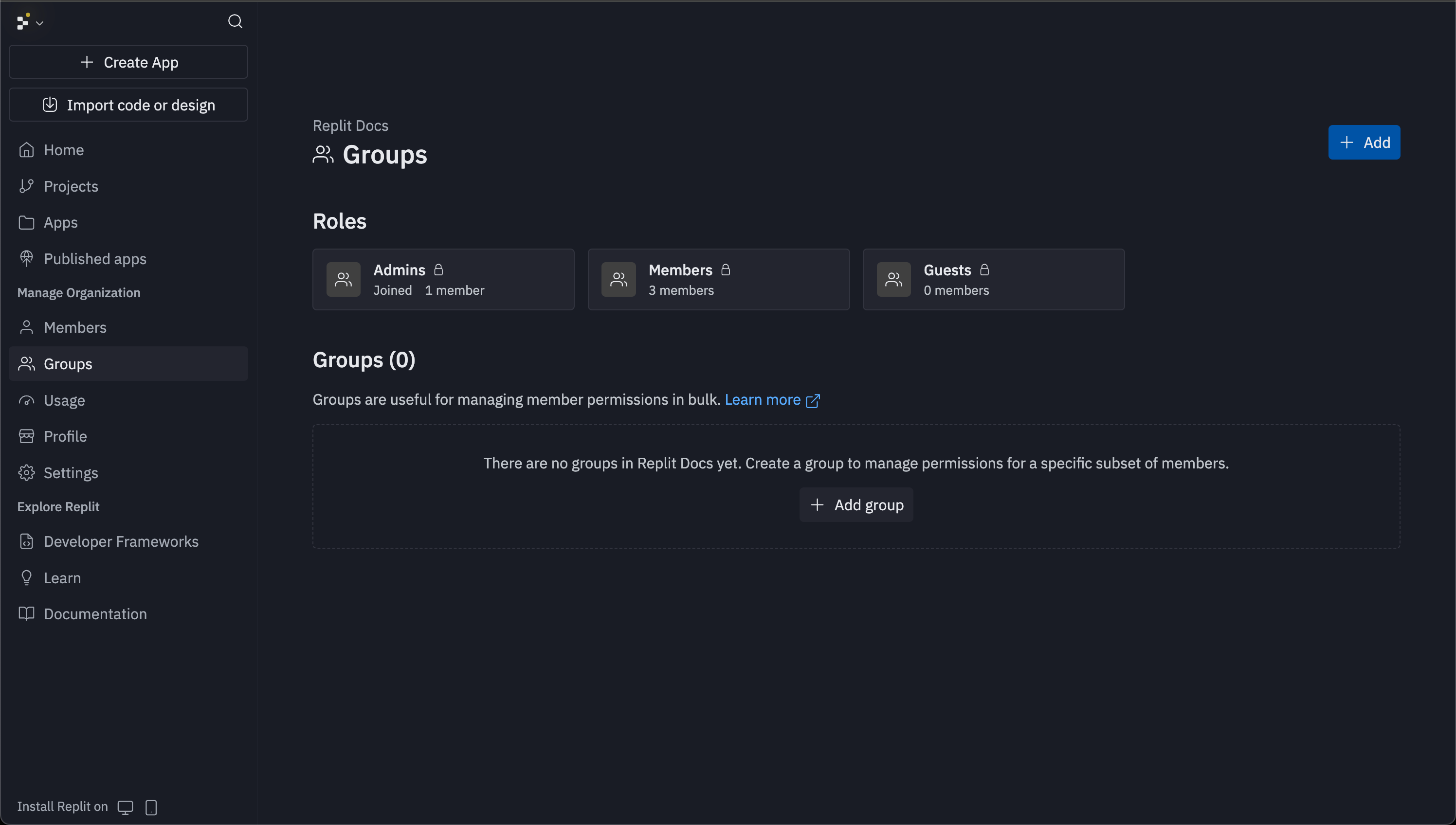
The list of groups is available via the "Groups" tab in the sidebar. Each group card shows the name of the group, an icon with its color, and the number of group members. Members will only see groups to which they have at least viewer access.
 #### Creating a group
Admins can create unlimited custom groups from the groups page. Select the **Add** button in the top right corner to open the creation modal where you can:
* **Name your group**: The group name is the only required field
* **Add visual identifiers**: Choose colors and icons to distinguish groups
* **Assign members**: Add organization members to groups individually or in bulk
* **Grant access**: Groups can later receive access to specific apps through each app's **Invite** button
#### Creating a group
Admins can create unlimited custom groups from the groups page. Select the **Add** button in the top right corner to open the creation modal where you can:
* **Name your group**: The group name is the only required field
* **Add visual identifiers**: Choose colors and icons to distinguish groups
* **Assign members**: Add organization members to groups individually or in bulk
* **Grant access**: Groups can later receive access to specific apps through each app's **Invite** button
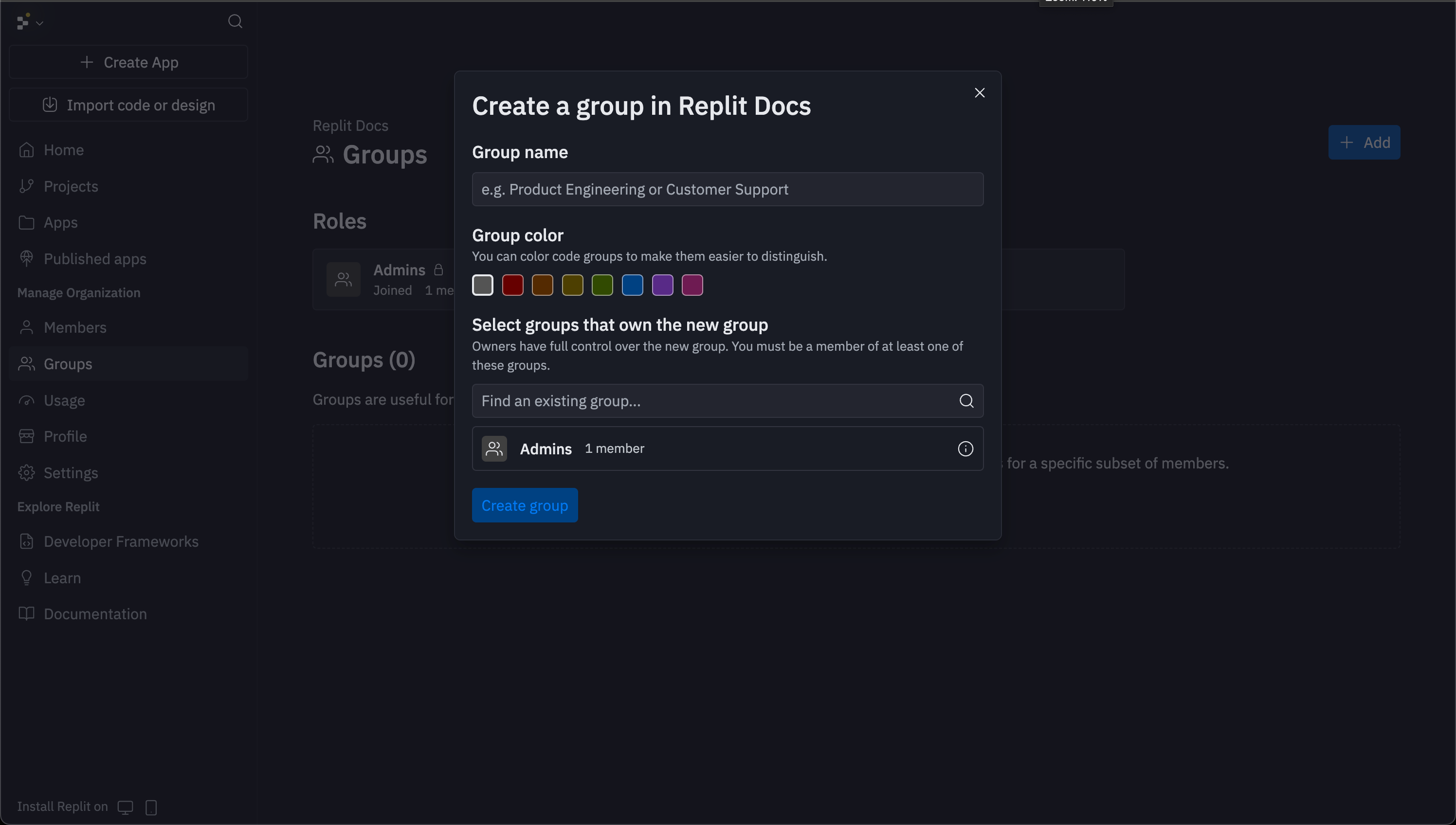 After creating the group, the group details view loads where you can add members and configure organizational permissions.
#### Managing groups
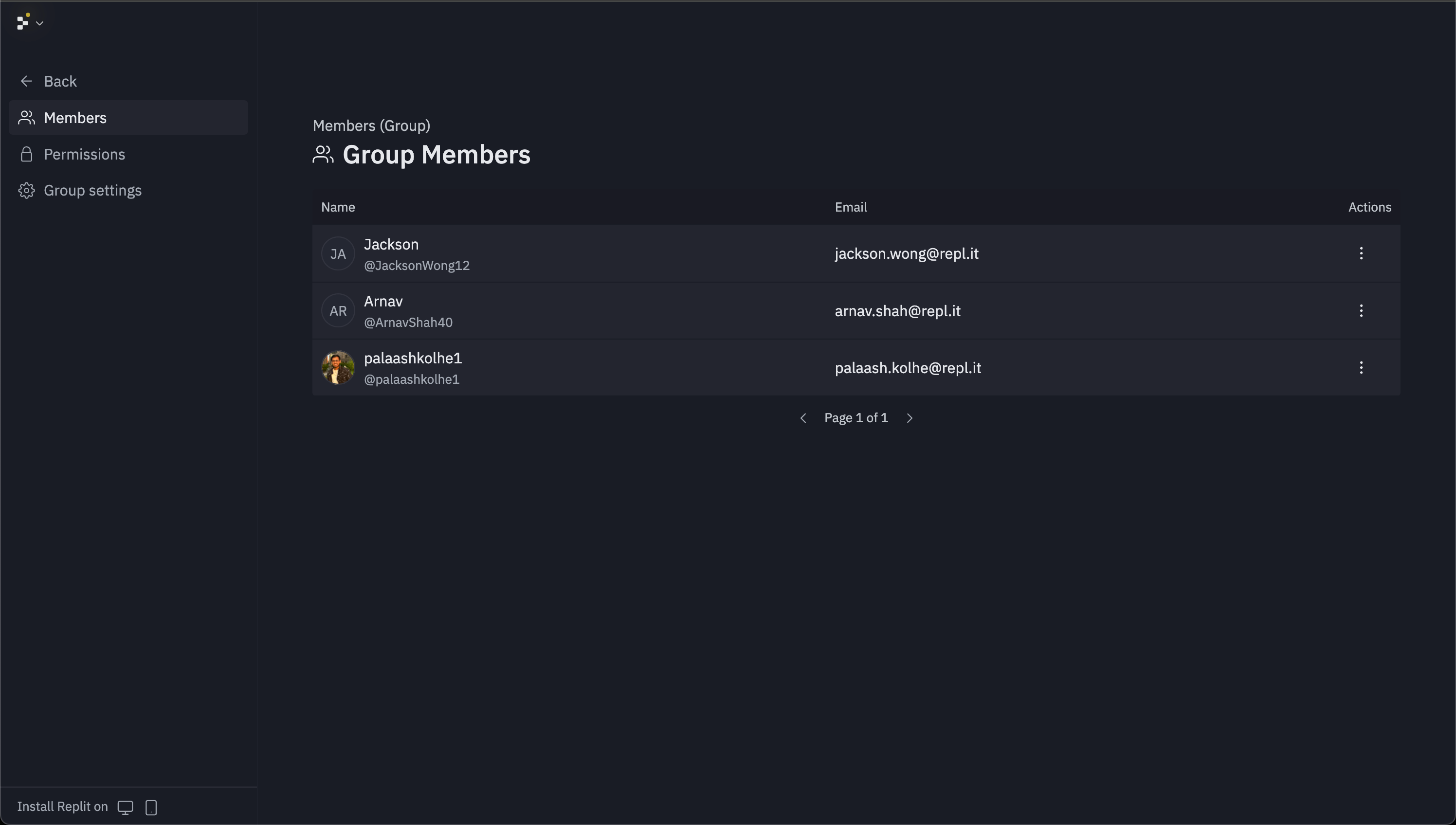
Select any group card to access its management interface. Group management includes member addition, removal, and permissions configuration.
After creating the group, the group details view loads where you can add members and configure organizational permissions.
#### Managing groups
Select any group card to access its management interface. Group management includes member addition, removal, and permissions configuration.
 **Adding members to groups:**
To add a member to a group, select the **Add** button in the top right corner. This action becomes disabled if the person you're adding is not part of the organization and there are insufficient seats available.
**Adding members to groups:**
To add a member to a group, select the **Add** button in the top right corner. This action becomes disabled if the person you're adding is not part of the organization and there are insufficient seats available.
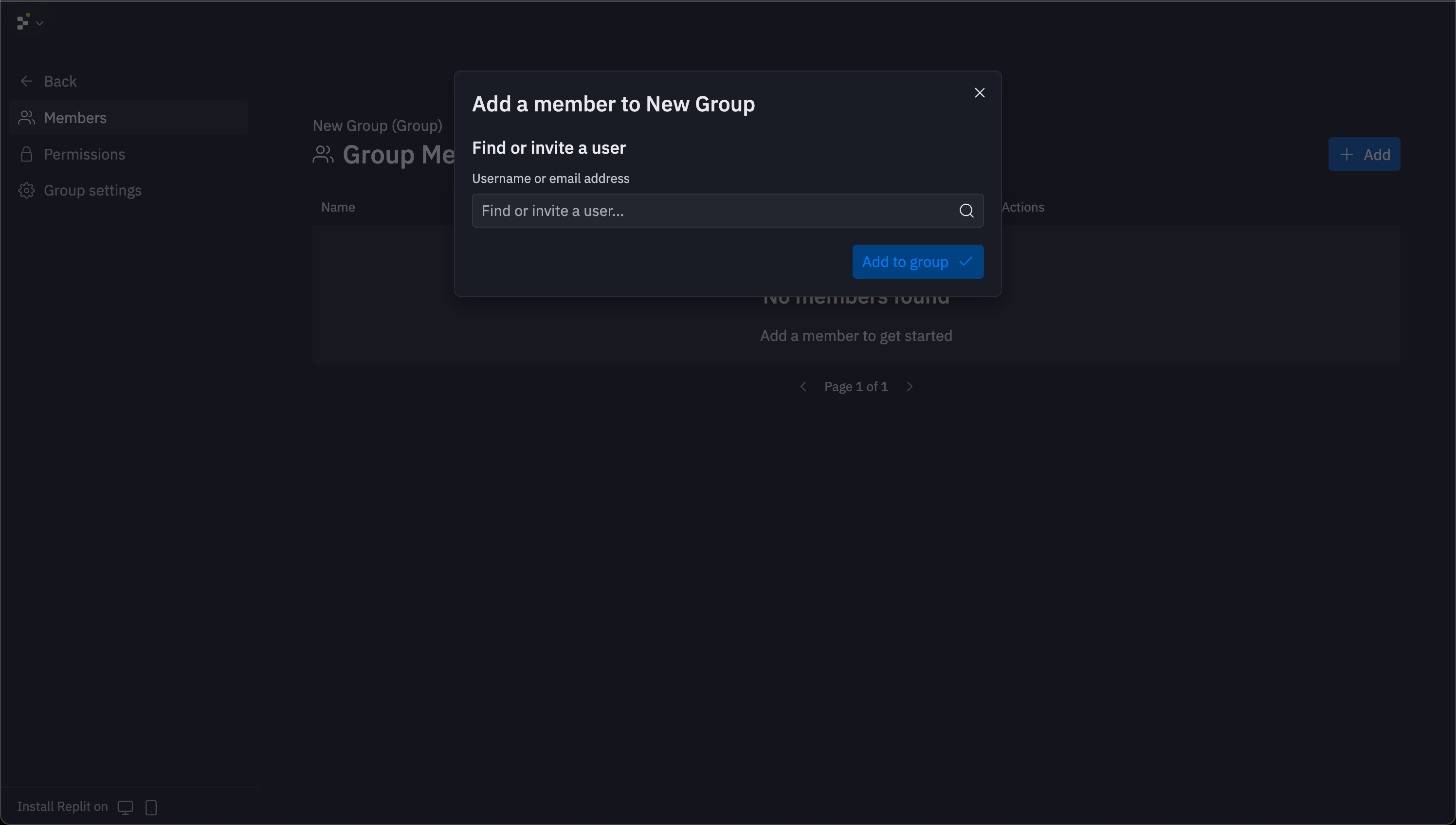 You can search for new members by username or email. If the new member is not part of the organization, a warning appears to confirm the action.
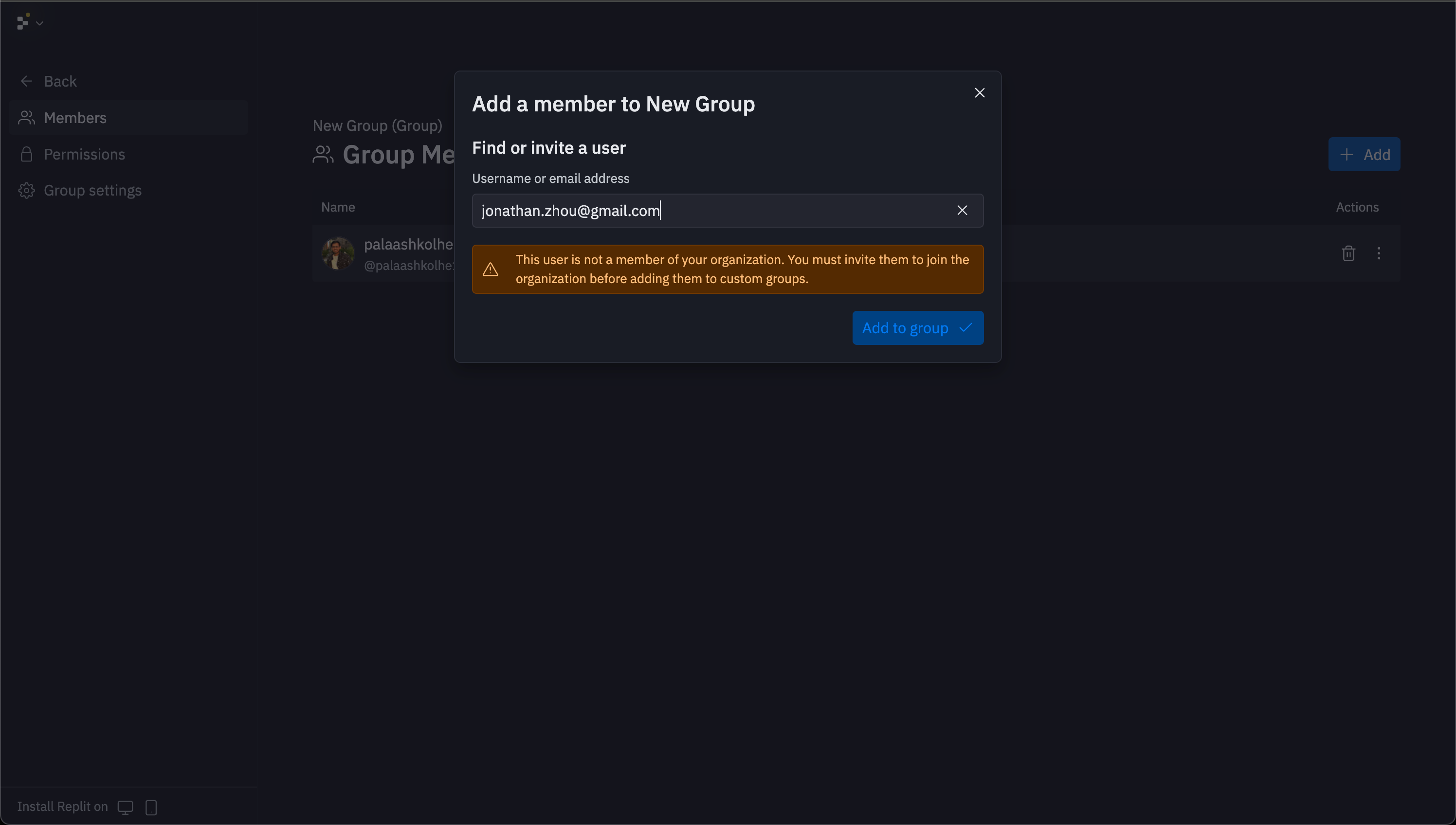 After adding the new member, they appear in the group member list. They immediately gain access to Replit Apps and other resources available to the group.
**Removing members from groups:**
To remove a group member, select the trash icon on the right side of the member row. You can also open the actions menu using the three-dot button and select **Remove from group**. This opens a confirmation modal.
After adding the new member, they appear in the group member list. They immediately gain access to Replit Apps and other resources available to the group.
**Removing members from groups:**
To remove a group member, select the trash icon on the right side of the member row. You can also open the actions menu using the three-dot button and select **Remove from group**. This opens a confirmation modal.
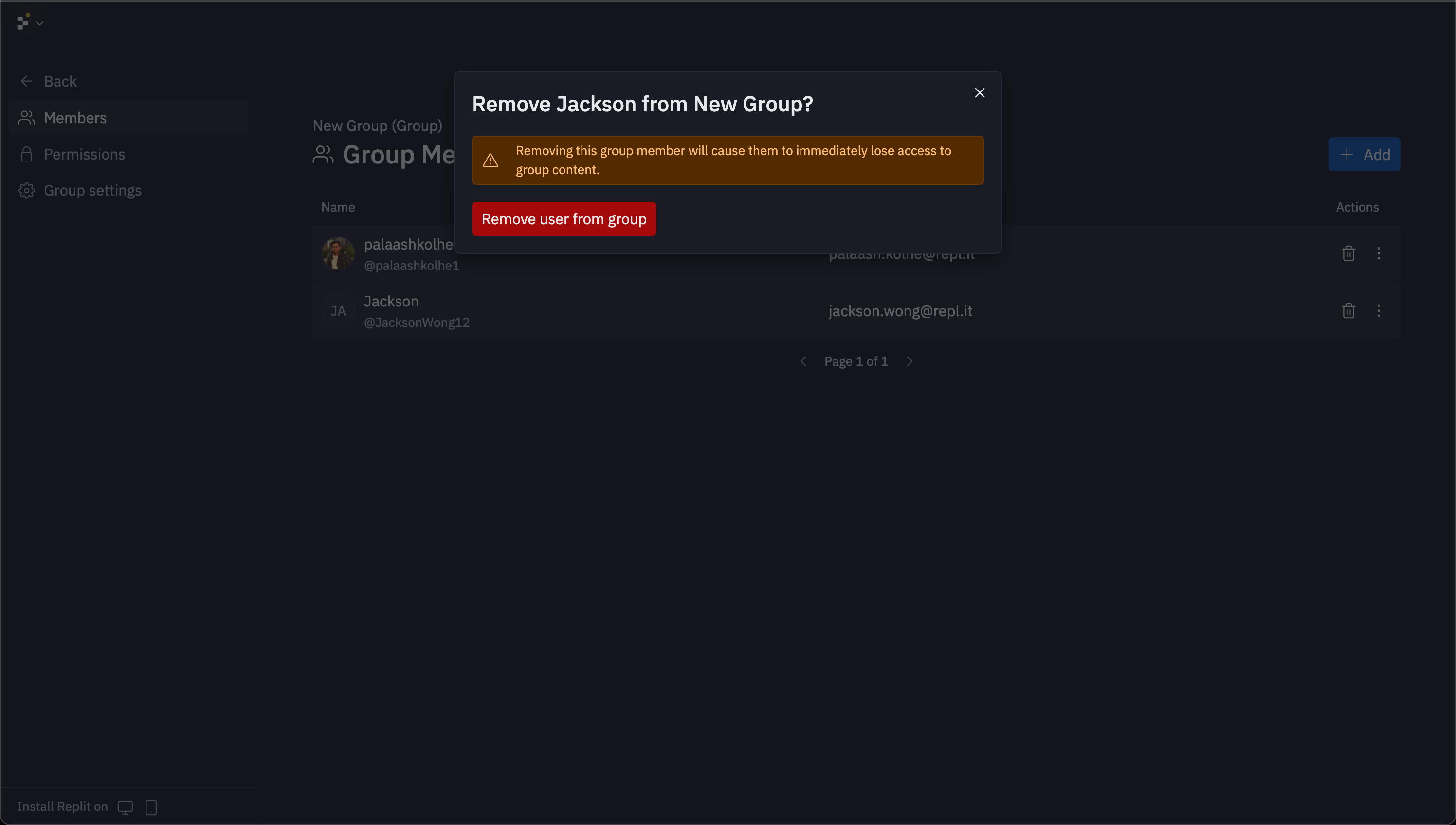 When removing members from custom groups, they retain their base role access but lose their group-specific access.
#### Setting group permissions
Assign organizational permissions to groups to define what level of access group members must have in your organization. To set group permissions, select the created group and choose the **permissions** tab in the left navigation.
The available permissions levels are:
* **Owner**: Can perform all organization actions, including deleting the organization
* **Billing manager**: Can update the organization's payment information, add and remove seats, and set spending limits
* **Manager**: Can create and manage groups, add and remove organization members, and view billing information
* **Editor**: Can create new Apps and view usage information
* **Viewer**: Can see basic information about the organization
These group permissions are separate from app-specific access, which you manage through individual apps using the Access feature.
You can see which apps groups have access to by selecting a group. Select **permissions** in the left navigation, and then go to **Apps**.
### App access control
Control who can access and collaborate on your apps using Replit's Access feature. Assign access to roles and groups to share specific apps with the right members while maintaining security across your organization.
#### Setting app access
From any app, select **Invite** in the upper right corner (to the left of **Publish**) to open the Access panel.
The Access panel displays all available roles and allows you to search for custom groups:
* **Default roles**: Admin, Members, Guests, and Viewers appear automatically in the Access panel
* **Custom groups**: Use the search functionality to find and grant app access to specific custom groups
#### Access levels
You can assign different access levels to each role and group for fine-grained control:
* **Owner**: Full access including app deletion and administrative control
* **Publisher**: Can edit code, republish apps, and manage app resources, and settings
* **Editor**: Can edit code and view app resources without publishing capabilities
* **Viewer**: Read-only access to code with the ability to fork apps for their own use
* **None**: No access to search, view, or edit the app
Select the appropriate access level for each role or group based on collaboration requirements and security needs.
When removing members from custom groups, they retain their base role access but lose their group-specific access.
#### Setting group permissions
Assign organizational permissions to groups to define what level of access group members must have in your organization. To set group permissions, select the created group and choose the **permissions** tab in the left navigation.
The available permissions levels are:
* **Owner**: Can perform all organization actions, including deleting the organization
* **Billing manager**: Can update the organization's payment information, add and remove seats, and set spending limits
* **Manager**: Can create and manage groups, add and remove organization members, and view billing information
* **Editor**: Can create new Apps and view usage information
* **Viewer**: Can see basic information about the organization
These group permissions are separate from app-specific access, which you manage through individual apps using the Access feature.
You can see which apps groups have access to by selecting a group. Select **permissions** in the left navigation, and then go to **Apps**.
### App access control
Control who can access and collaborate on your apps using Replit's Access feature. Assign access to roles and groups to share specific apps with the right members while maintaining security across your organization.
#### Setting app access
From any app, select **Invite** in the upper right corner (to the left of **Publish**) to open the Access panel.
The Access panel displays all available roles and allows you to search for custom groups:
* **Default roles**: Admin, Members, Guests, and Viewers appear automatically in the Access panel
* **Custom groups**: Use the search functionality to find and grant app access to specific custom groups
#### Access levels
You can assign different access levels to each role and group for fine-grained control:
* **Owner**: Full access including app deletion and administrative control
* **Publisher**: Can edit code, republish apps, and manage app resources, and settings
* **Editor**: Can edit code and view app resources without publishing capabilities
* **Viewer**: Read-only access to code with the ability to fork apps for their own use
* **None**: No access to search, view, or edit the app
Select the appropriate access level for each role or group based on collaboration requirements and security needs.