> ## Documentation Index
> Fetch the complete documentation index at: https://docs.replit.com/llms.txt
> Use this file to discover all available pages before exploring further.
# Add collaborators
> Invite collaborators to your Replit Workspace: open Workspace collaborators, choose a Member, Guest, or Viewer role, and send invitations to multiple email addresses.
Invite collaborators to your team Workspace so they can build with you. Choose the access they need, then invite one person or several people at once.
If your organization manages membership through an identity provider, use that provider's provisioning process for internal teammates. See [SCIM provisioning](/teams/identity-and-access-management/scim). Enterprise Guests must use email addresses outside your organization's SSO domains.
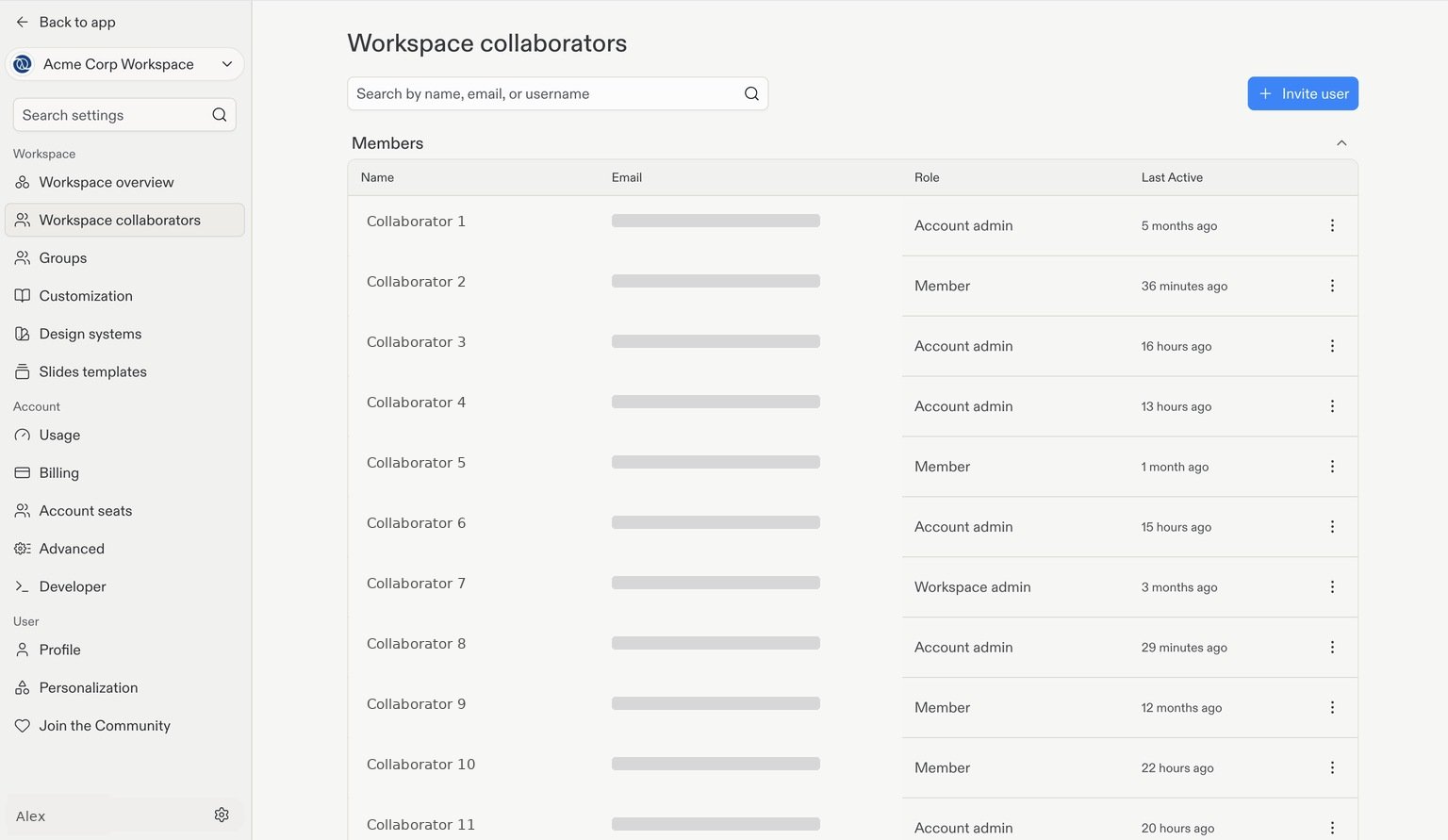
Select your team Workspace, then select the **Settings** cogwheel in the bottom-left corner. Under **Workspace**, select **Workspace collaborators**.
This page shows your current collaborators and their roles. Select **+ Invite user** in the top-right corner.
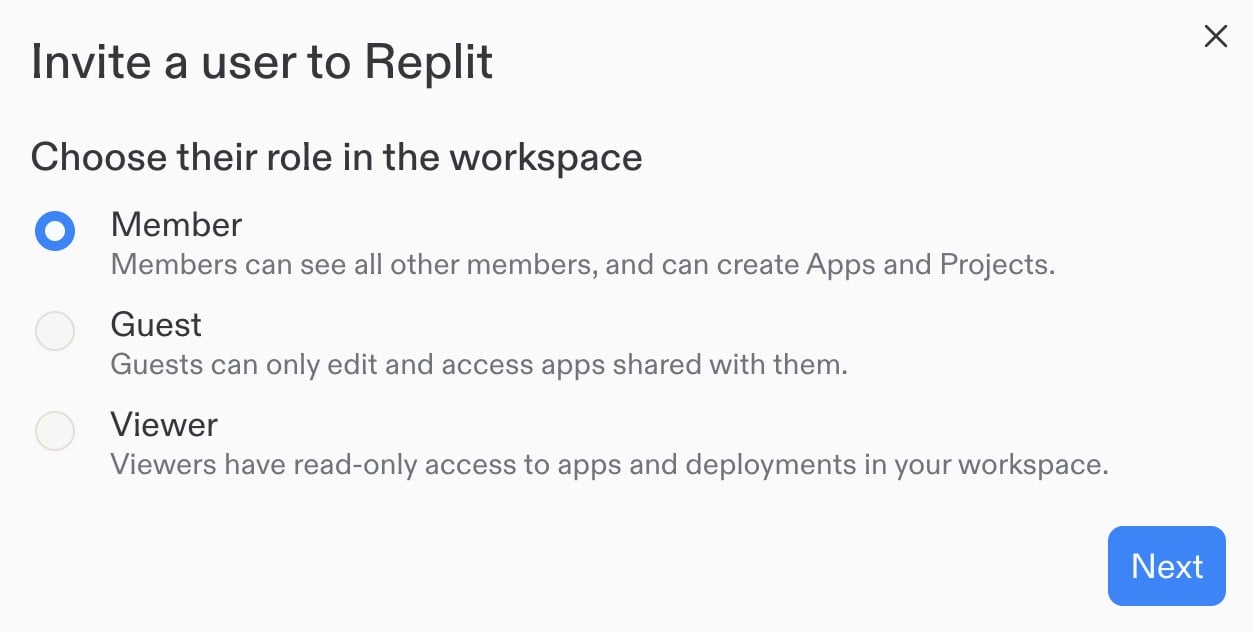
 Choose the role for the people you're inviting:
* **Member**: Can see other members and create apps and projects.
* **Guest**: Can only access and edit apps shared with them.
* **Viewer**: Has read-only access to apps and deployments in the Workspace.
Select **Next**.
Choose the role for the people you're inviting:
* **Member**: Can see other members and create apps and projects.
* **Guest**: Can only access and edit apps shared with them.
* **Viewer**: Has read-only access to apps and deployments in the Workspace.
Select **Next**.
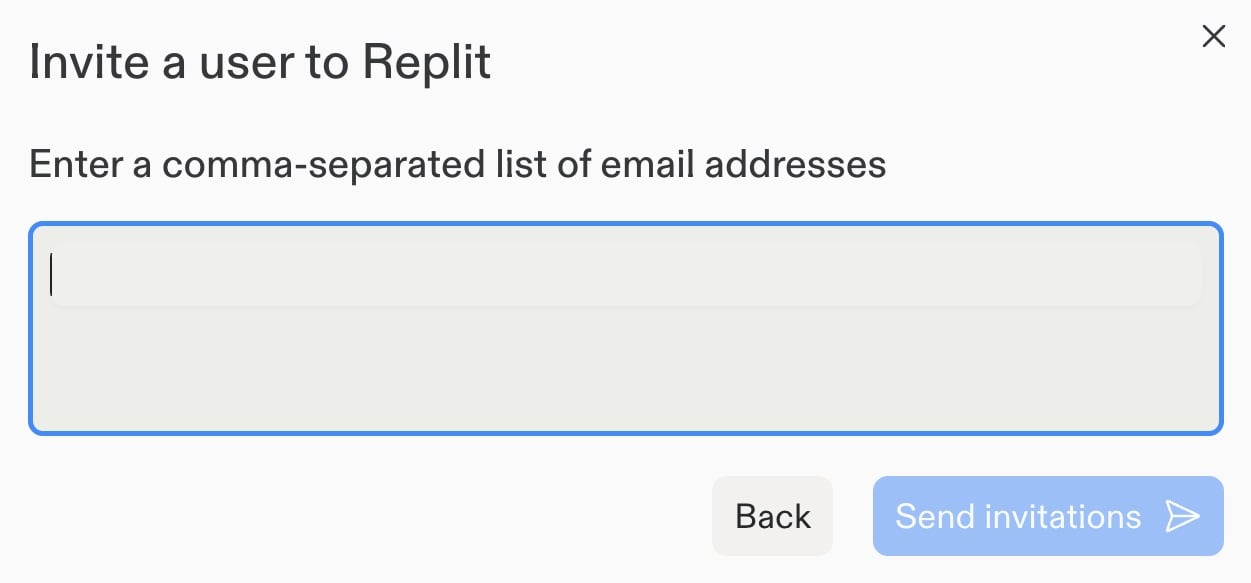
 Enter one or more email addresses. To invite multiple people with the selected role, separate their addresses with commas, for example: `alex@example.com, sam@example.com, jordan@example.com`.
Review the addresses, then select **Send invitations**.
Enter one or more email addresses. To invite multiple people with the selected role, separate their addresses with commas, for example: `alex@example.com, sam@example.com, jordan@example.com`.
Review the addresses, then select **Send invitations**.
 Repeat the process with a different role if other collaborators need different access.
For more about access and invitations, see [Managing members](/teams/identity-and-access-management/managing-members).
## Next step
Connect the services your team needs to build applications.
Repeat the process with a different role if other collaborators need different access.
For more about access and invitations, see [Managing members](/teams/identity-and-access-management/managing-members).
## Next step
Connect the services your team needs to build applications.