> ## Documentation Index
> Fetch the complete documentation index at: https://docs.replit.com/llms.txt
> Use this file to discover all available pages before exploring further.
# Toolbar
> Reference for the Canvas toolbar — Interact, Pan, Chat, Draw, Edit, Generate — plus board gestures.
The Canvas toolbar is a floating bar anchored to the bottom-center of the board. It exposes the tools you use to navigate, draw, edit, and add content. The toolbar surfaces in Canvas mode.
 ## Tools
Selecting a tool makes it active. The active tool is highlighted with a filled background. The leftmost cluster is navigation (Interact, Pan). The rest are content and markup tools. Tools are mutually exclusive, which means selecting one deactivates the others.
### Interact
**Interact** is the default tool. Use it to select frames, drag them around, and click into a live Artifact to use it as a real running app. With Interact active, clicking a frame selects it and surfaces the [per-frame action bar](/references/design/frames#per-frame-action-bar).
## Tools
Selecting a tool makes it active. The active tool is highlighted with a filled background. The leftmost cluster is navigation (Interact, Pan). The rest are content and markup tools. Tools are mutually exclusive, which means selecting one deactivates the others.
### Interact
**Interact** is the default tool. Use it to select frames, drag them around, and click into a live Artifact to use it as a real running app. With Interact active, clicking a frame selects it and surfaces the [per-frame action bar](/references/design/frames#per-frame-action-bar).
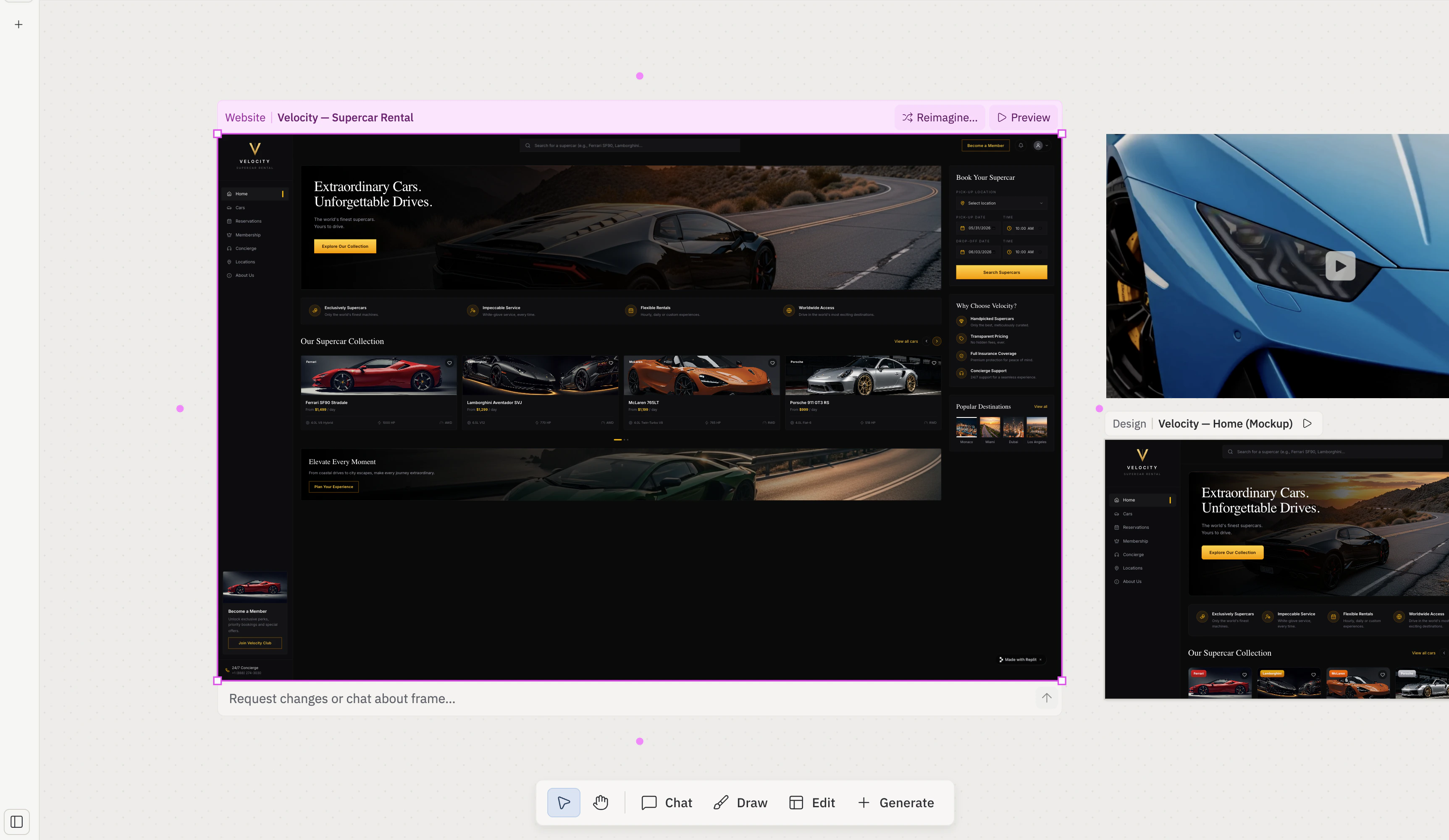 **Keyboard shortcut:** `V`. **Gate:** always on.
### Pan
**Pan** switches the cursor to a grab tool so you can drag the board itself. While Pan is active, click-and-drag moves the viewport instead of selecting a frame. You can also pan from any other tool by holding the spacebar and dragging, or by middle-click-dragging.
**Keyboard shortcut:** `V`. **Gate:** always on.
### Pan
**Pan** switches the cursor to a grab tool so you can drag the board itself. While Pan is active, click-and-drag moves the viewport instead of selecting a frame. You can also pan from any other tool by holding the spacebar and dragging, or by middle-click-dragging.
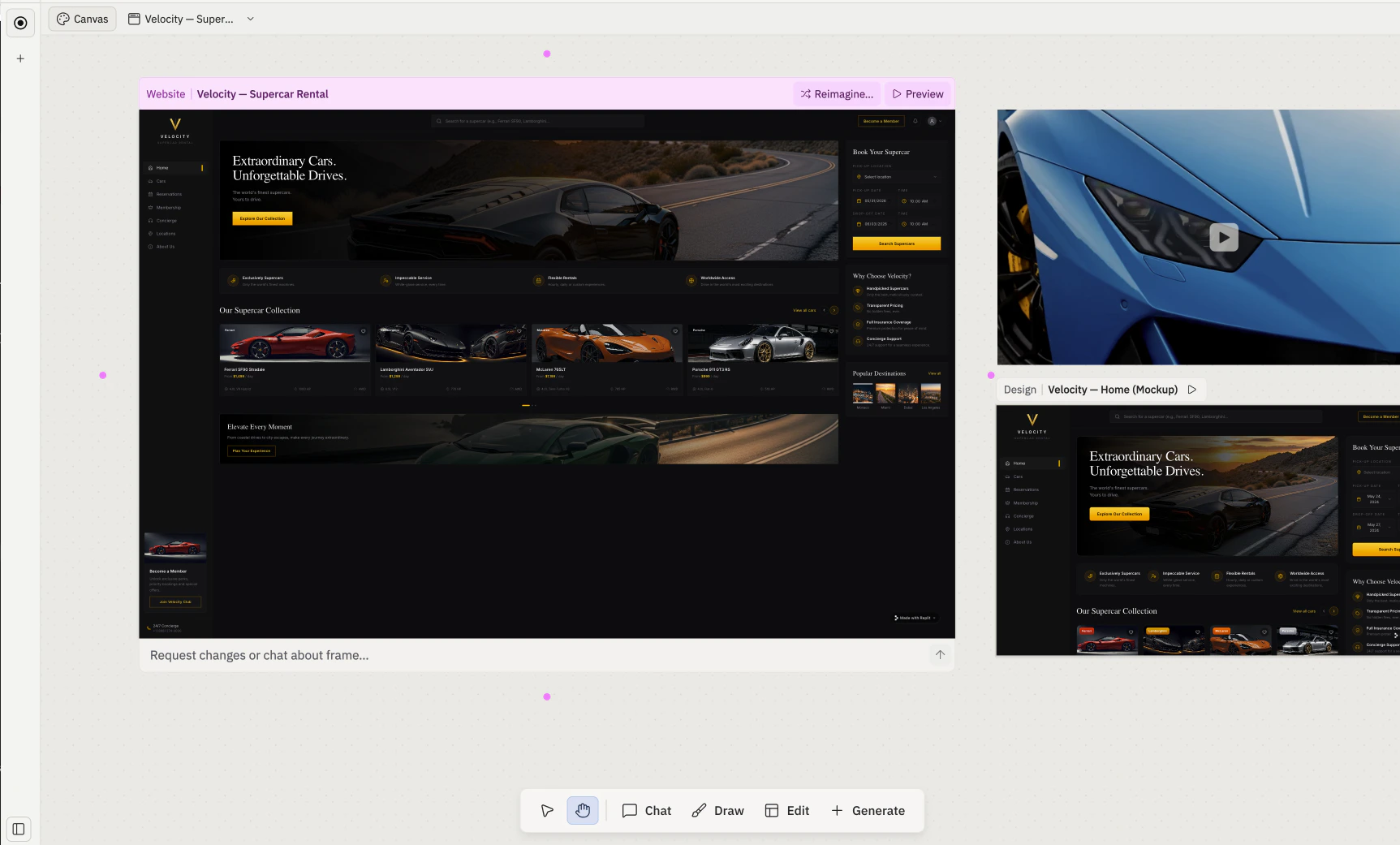 **Keyboard shortcut:** `H`. **Gate:** always on.
### Chat
**Chat** drops a small chat composer directly onto the board so you can prompt Agent without leaving Canvas. Selected elements and frames are still attached to the message as snapshots, the same as when you send from the side Agent chat panel.
**Keyboard shortcut:** `H`. **Gate:** always on.
### Chat
**Chat** drops a small chat composer directly onto the board so you can prompt Agent without leaving Canvas. Selected elements and frames are still attached to the message as snapshots, the same as when you send from the side Agent chat panel.
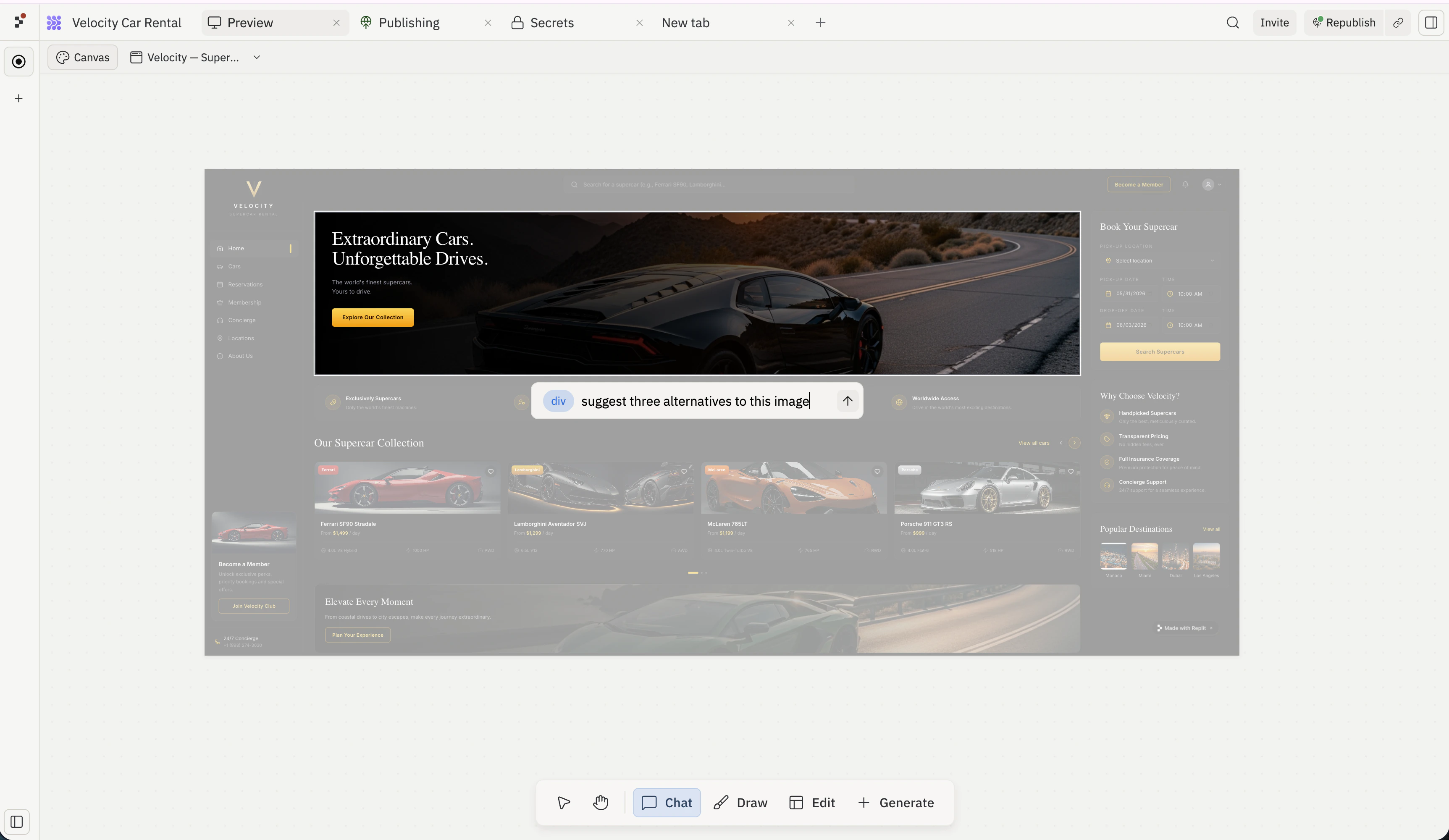 **Gate:** Chat tool (desktop only).
### Draw
**Draw** activates the markup tools such as freehand draw, arrows, sticky notes, and shapes, so you can sketch on top of frames or annotate the board. Use it to circle problem areas, point to elements you want changed, or leave a written note next to a frame.
When Draw is active, a **Shape properties** bar surfaces above the floating toolbar with color, stroke, and fill controls for the current markup tool. It hides automatically when you switch back to Interact or Pan.
**Gate:** Chat tool (desktop only).
### Draw
**Draw** activates the markup tools such as freehand draw, arrows, sticky notes, and shapes, so you can sketch on top of frames or annotate the board. Use it to circle problem areas, point to elements you want changed, or leave a written note next to a frame.
When Draw is active, a **Shape properties** bar surfaces above the floating toolbar with color, stroke, and fill controls for the current markup tool. It hides automatically when you switch back to Interact or Pan.
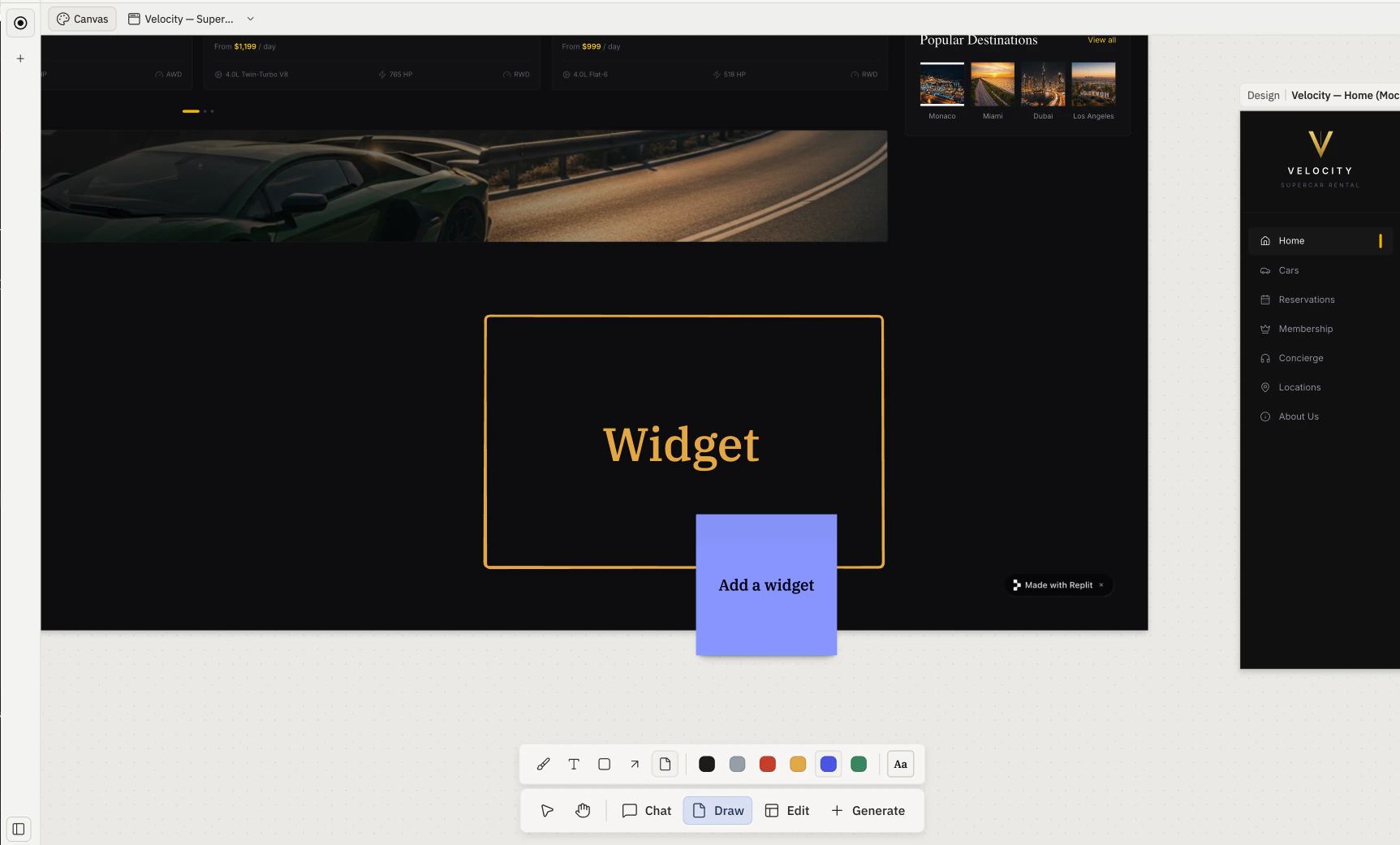 **Gate:** always on.
### Edit
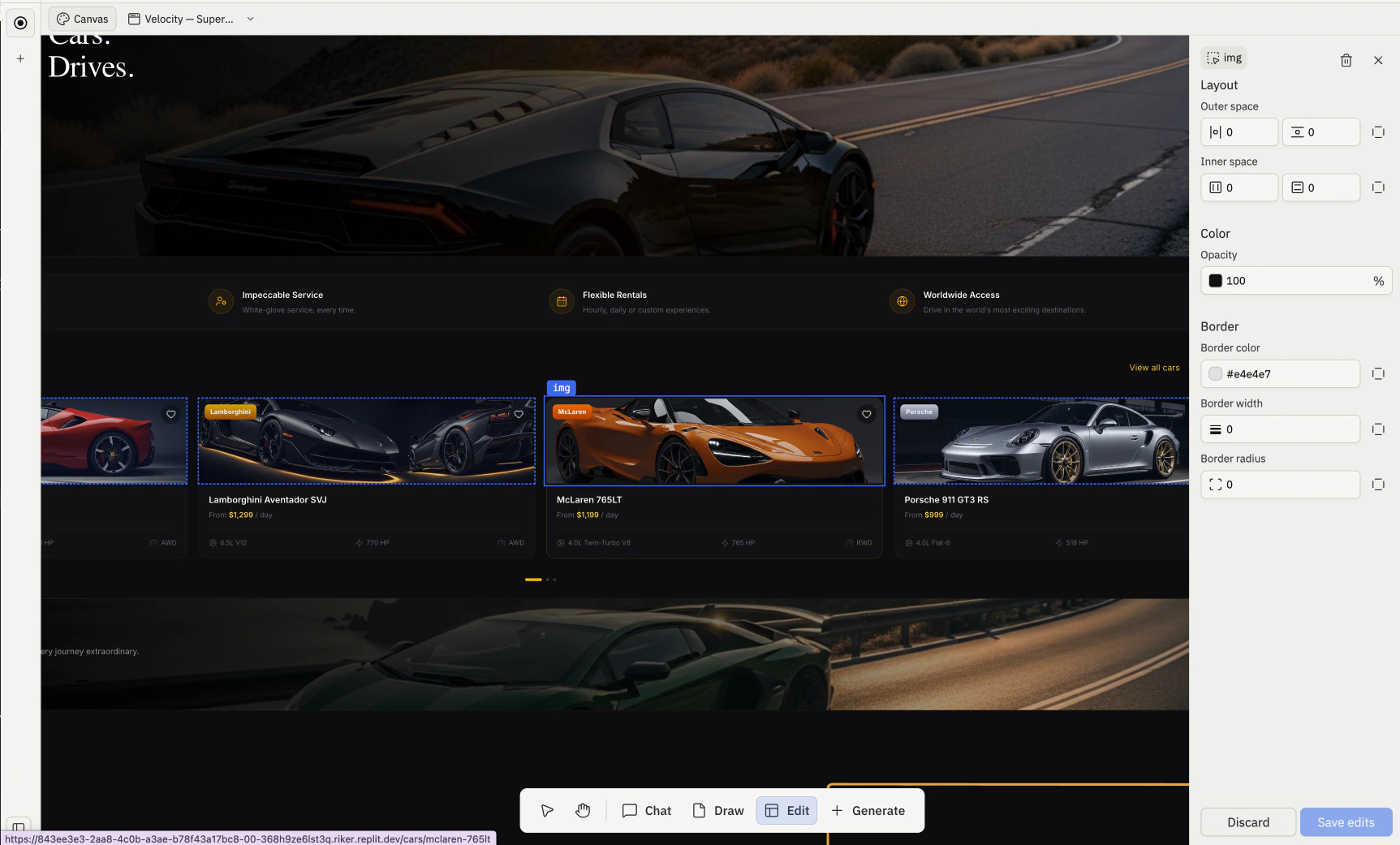
**Edit** is the visual selector for elements. With Edit active, click inside a live Artifact to target an element (a button, a heading, an image). Selecting an element opens the **Visual Editor** — a right-side panel of controls (Layout, Color, Border, and more) paired with an inline prompt for asking Agent to change just that piece. See [Elements](/references/design/elements) and [Visual Editor](/learn/design/visual-editor) for the full flow.
**Gate:** always on.
### Edit
**Edit** is the visual selector for elements. With Edit active, click inside a live Artifact to target an element (a button, a heading, an image). Selecting an element opens the **Visual Editor** — a right-side panel of controls (Layout, Color, Border, and more) paired with an inline prompt for asking Agent to change just that piece. See [Elements](/references/design/elements) and [Visual Editor](/learn/design/visual-editor) for the full flow.
 **Gate:** always on (desktop). Disabled until at least one frame exists; the tooltip reads *"Create an artifact or generate a design to edit."* Hidden on mobile.
### Generate
**Generate** opens the **Generate media** popover for images, videos, and vector graphics. Pick a kind, write a prompt, and Agent places the result as a new frame on the board.
**Gate:** always on (desktop). Disabled until at least one frame exists; the tooltip reads *"Create an artifact or generate a design to edit."* Hidden on mobile.
### Generate
**Generate** opens the **Generate media** popover for images, videos, and vector graphics. Pick a kind, write a prompt, and Agent places the result as a new frame on the board.
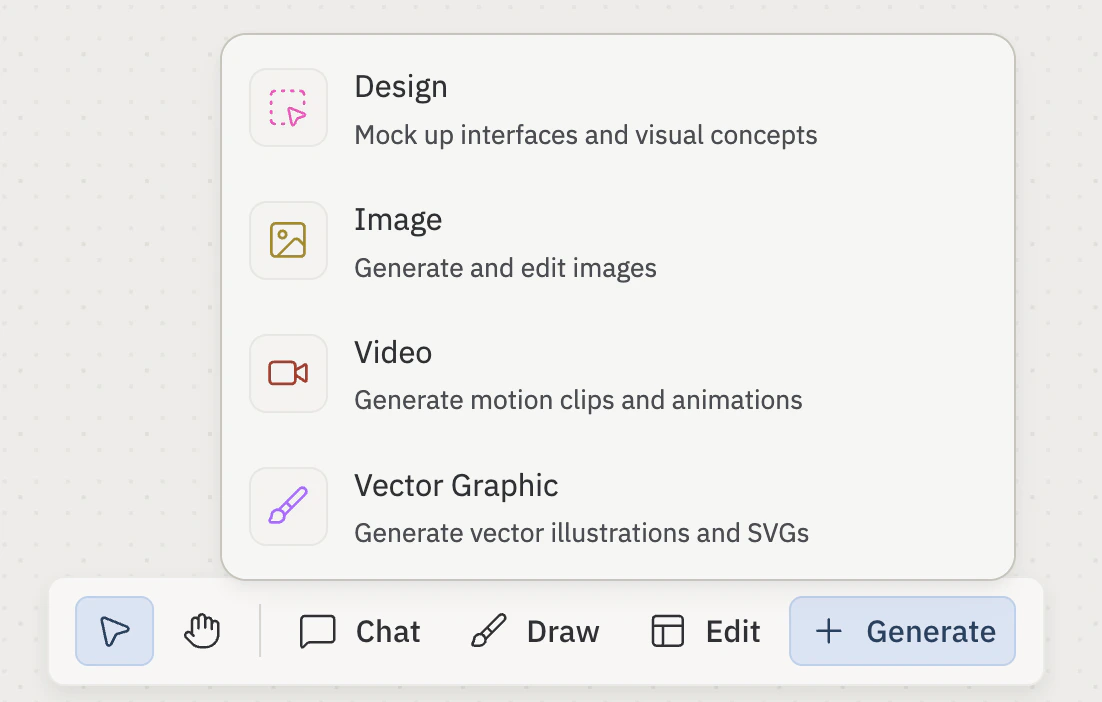 The popover has four tabs at the top:
* **Design**
— **Image**
* **Video**
* **Vector Graphic**
Some controls are shared across kinds; others are kind-specific.
**Shared controls (all kinds):**
* **Model**: the generation model to use. Available models vary by kind (see the table below).
* **Prompt**: plain-language description of what you want Agent to generate.
* **Generate**: submits the request and reserves a placeholder frame at the cursor position. The placeholder transitions to a live frame once the asset is ready; if generation fails, the placeholder is removed and an error appears in the chat panel.
**Per-kind models and controls:**
| Kind | Best for | Current models | Kind-specific controls |
| ----------- | ----------------------------------------------------------------------- | --------------------------------------------------------------- | ----------------------------------------------------------------------------- |
| **Image** | Raster output (PNG / JPG); moodboard imagery, hero shots, reference art | Nano Banana, Nano Banana 2, Nano Banana Pro, ChatGPT Images 2.0 | Aspect ratio (`1:1`, `16:9`, `9:16`, `4:3`, `3:4`) · Size (`1K`, `2K`, `4K`) |
| **Video** | Short motion clips and animations | Veo 3.1, Seedance 2.0 | Aspect ratio · Resolution (e.g. `720p`) · Duration (e.g. `4s`) · Audio toggle |
| **Graphic** | SVG vector output; icons, logos, diagrams, stylized illustrations | Claude 4.6 Opus, Gemini 3.1 Pro Preview | Animated toggle |
The model lineup changes frequently. The table reflects what's currently available; check the in-product dropdown for what your account can use today.
For what each frame kind is and what you can do with it once created, see [Frames](/references/design/frames).
When the **Add menu** is enabled, the Generate button is replaced by a **+** menu that consolidates the popover's kinds with **Design** (a standalone visual mockup that doesn't touch live code):
**Gate:** Image generation. **Vector Graphic** needs Vector graphic generation; **Video** needs Video generation. The **+** menu requires Add menu (which itself requires Image generation).
## Keyboard shortcuts
| Shortcut | Action |
| ----------------------- | ------------------------------------ |
| `V` | Activate the Interact tool |
| `H` | Activate the Pan tool |
| Hold `Space` + drag | Pan from any tool |
| `Cmd` / `Ctrl` + scroll | Zoom |
| `Cmd` / `Ctrl` + `+` | Zoom in |
| `Cmd` / `Ctrl` + `-` | Zoom out |
| `Cmd` / `Ctrl` + `0` | Reset zoom |
| `Shift` + click | Add a frame to the current selection |
| `Escape` | Deselect |
## Board gestures
Pan, zoom, and select work from any tool unless noted.
**Panning:**
* Trackpad: two-finger drag.
* Mouse: middle-click-and-drag, or hold spacebar and left-click-drag.
* Pan tool: click-and-drag with the left mouse button.
**Zooming:**
* Trackpad: pinch.
* Mouse: `Ctrl` (or `Cmd` on macOS) + scroll wheel.
* Keyboard: `Cmd`/`Ctrl` + `+` to zoom in, `Cmd`/`Ctrl` + `-` to zoom out, `Cmd`/`Ctrl` + `0` to reset zoom.
Zoom is anchored on the cursor, so the spot under the cursor stays put as the rest of the board scales around it.
**Selecting:**
* Single frame: click it with the Interact tool.
* Multi-select: hold `Shift` and click each frame, or drag a marquee rectangle across the board.
* Deselect: click an empty area, or press `Escape`.
Selecting one or more frames surfaces the [per-frame action bar](/references/design/frames#per-frame-action-bar) and attaches those frames to the next Agent message as snapshots.
## Related pages
* [Canvas](/references/design/canvas) — overview and anatomy.
* [Frames](/references/design/frames) — Frame kinds; the per-frame action bar; Reimagine, Refine, Annotate, and Build.
* [Elements](/references/design/elements) — the individual pieces inside a frame.
* [Visual Editor](/learn/design/visual-editor) — the element-targeting flow Edit drops you into.
The popover has four tabs at the top:
* **Design**
— **Image**
* **Video**
* **Vector Graphic**
Some controls are shared across kinds; others are kind-specific.
**Shared controls (all kinds):**
* **Model**: the generation model to use. Available models vary by kind (see the table below).
* **Prompt**: plain-language description of what you want Agent to generate.
* **Generate**: submits the request and reserves a placeholder frame at the cursor position. The placeholder transitions to a live frame once the asset is ready; if generation fails, the placeholder is removed and an error appears in the chat panel.
**Per-kind models and controls:**
| Kind | Best for | Current models | Kind-specific controls |
| ----------- | ----------------------------------------------------------------------- | --------------------------------------------------------------- | ----------------------------------------------------------------------------- |
| **Image** | Raster output (PNG / JPG); moodboard imagery, hero shots, reference art | Nano Banana, Nano Banana 2, Nano Banana Pro, ChatGPT Images 2.0 | Aspect ratio (`1:1`, `16:9`, `9:16`, `4:3`, `3:4`) · Size (`1K`, `2K`, `4K`) |
| **Video** | Short motion clips and animations | Veo 3.1, Seedance 2.0 | Aspect ratio · Resolution (e.g. `720p`) · Duration (e.g. `4s`) · Audio toggle |
| **Graphic** | SVG vector output; icons, logos, diagrams, stylized illustrations | Claude 4.6 Opus, Gemini 3.1 Pro Preview | Animated toggle |
The model lineup changes frequently. The table reflects what's currently available; check the in-product dropdown for what your account can use today.
For what each frame kind is and what you can do with it once created, see [Frames](/references/design/frames).
When the **Add menu** is enabled, the Generate button is replaced by a **+** menu that consolidates the popover's kinds with **Design** (a standalone visual mockup that doesn't touch live code):
**Gate:** Image generation. **Vector Graphic** needs Vector graphic generation; **Video** needs Video generation. The **+** menu requires Add menu (which itself requires Image generation).
## Keyboard shortcuts
| Shortcut | Action |
| ----------------------- | ------------------------------------ |
| `V` | Activate the Interact tool |
| `H` | Activate the Pan tool |
| Hold `Space` + drag | Pan from any tool |
| `Cmd` / `Ctrl` + scroll | Zoom |
| `Cmd` / `Ctrl` + `+` | Zoom in |
| `Cmd` / `Ctrl` + `-` | Zoom out |
| `Cmd` / `Ctrl` + `0` | Reset zoom |
| `Shift` + click | Add a frame to the current selection |
| `Escape` | Deselect |
## Board gestures
Pan, zoom, and select work from any tool unless noted.
**Panning:**
* Trackpad: two-finger drag.
* Mouse: middle-click-and-drag, or hold spacebar and left-click-drag.
* Pan tool: click-and-drag with the left mouse button.
**Zooming:**
* Trackpad: pinch.
* Mouse: `Ctrl` (or `Cmd` on macOS) + scroll wheel.
* Keyboard: `Cmd`/`Ctrl` + `+` to zoom in, `Cmd`/`Ctrl` + `-` to zoom out, `Cmd`/`Ctrl` + `0` to reset zoom.
Zoom is anchored on the cursor, so the spot under the cursor stays put as the rest of the board scales around it.
**Selecting:**
* Single frame: click it with the Interact tool.
* Multi-select: hold `Shift` and click each frame, or drag a marquee rectangle across the board.
* Deselect: click an empty area, or press `Escape`.
Selecting one or more frames surfaces the [per-frame action bar](/references/design/frames#per-frame-action-bar) and attaches those frames to the next Agent message as snapshots.
## Related pages
* [Canvas](/references/design/canvas) — overview and anatomy.
* [Frames](/references/design/frames) — Frame kinds; the per-frame action bar; Reimagine, Refine, Annotate, and Build.
* [Elements](/references/design/elements) — the individual pieces inside a frame.
* [Visual Editor](/learn/design/visual-editor) — the element-targeting flow Edit drops you into.