> ## Documentation Index
> Fetch the complete documentation index at: https://docs.replit.com/llms.txt
> Use this file to discover all available pages before exploring further.
# Canvas
> Generate, reimagine, and build app designs visually on Canvas.
## What's Canvas?
Canvas is the design view of the Project Editor. Agent generates frames representing websites, designs, images, vector graphics, and videos, and lays them out on an infinite board. You can move and resize them, generate variants, and iterate with chat.
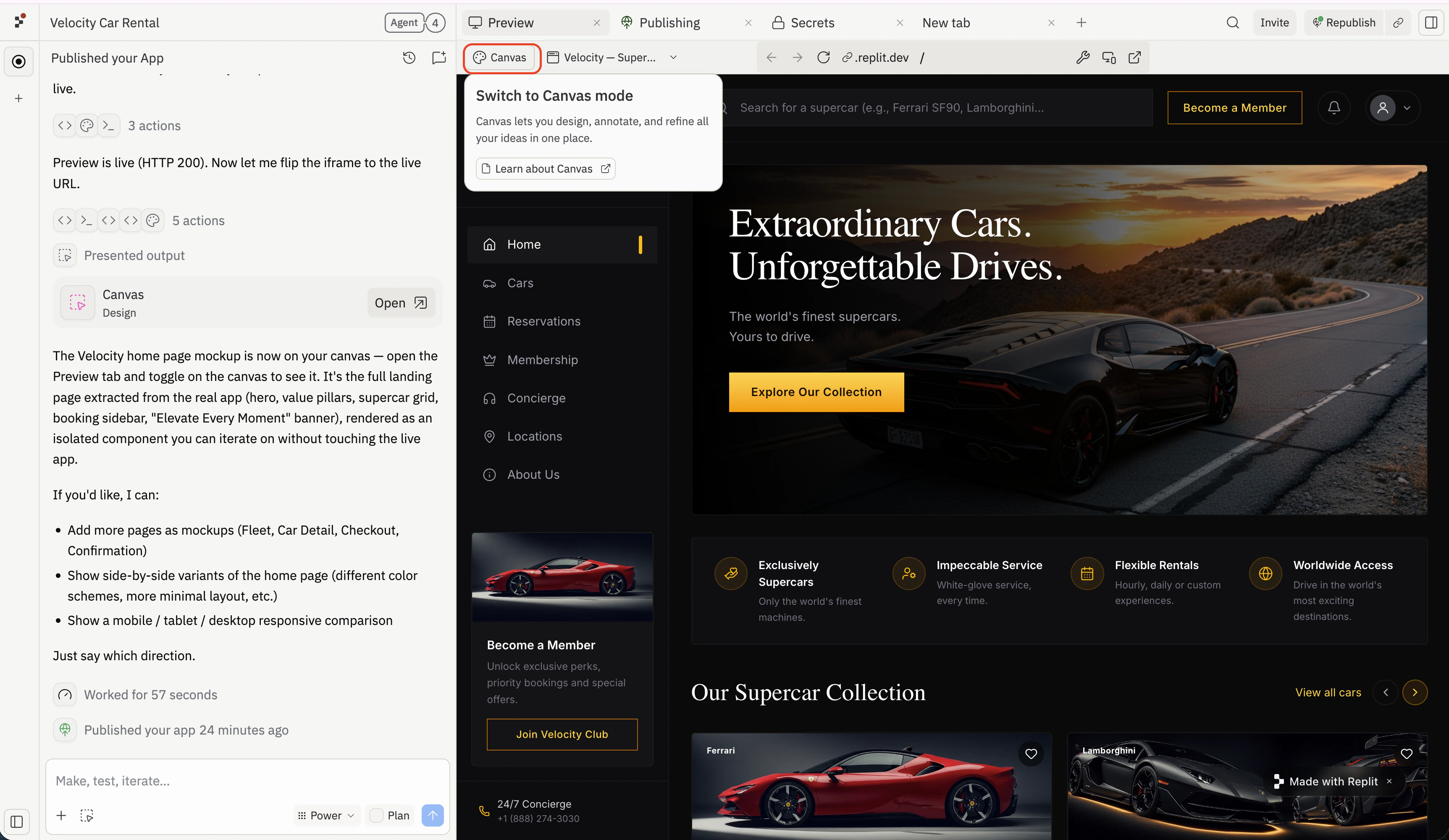 Click the **Canvas** button in the top-left of the Preview tab to switch the pane into Canvas mode. To switch the pane back to the live app, click the artifact selector next to the Canvas button and pick the artifact you want to preview.
## Canvas capabilities
Canvas exposes a small set of capabilities, each surfaced through the toolbar or the per-frame action bar.
* **[Generate](/references/design/toolbar#generate)**: create new frames (designs, images, vector graphics, videos) from the toolbar's Generate menu or from a chat prompt.
* **[Refine](/references/design/frames#refine-inline-edits)**: apply targeted edits to a frame in place via the inline edit input.
* **[Reimagine](/references/design/frames#reimagine)**: produce side-by-side variants of an existing frame using preset directions or a free-form prompt.
* **[Build](/references/design/frames#build)**: graduate a Design frame into a live Artifact via the per-frame **Build** menu.
## Canvas anatomy
Click the **Canvas** button in the top-left of the Preview tab to switch the pane into Canvas mode. To switch the pane back to the live app, click the artifact selector next to the Canvas button and pick the artifact you want to preview.
## Canvas capabilities
Canvas exposes a small set of capabilities, each surfaced through the toolbar or the per-frame action bar.
* **[Generate](/references/design/toolbar#generate)**: create new frames (designs, images, vector graphics, videos) from the toolbar's Generate menu or from a chat prompt.
* **[Refine](/references/design/frames#refine-inline-edits)**: apply targeted edits to a frame in place via the inline edit input.
* **[Reimagine](/references/design/frames#reimagine)**: produce side-by-side variants of an existing frame using preset directions or a free-form prompt.
* **[Build](/references/design/frames#build)**: graduate a Design frame into a live Artifact via the per-frame **Build** menu.
## Canvas anatomy
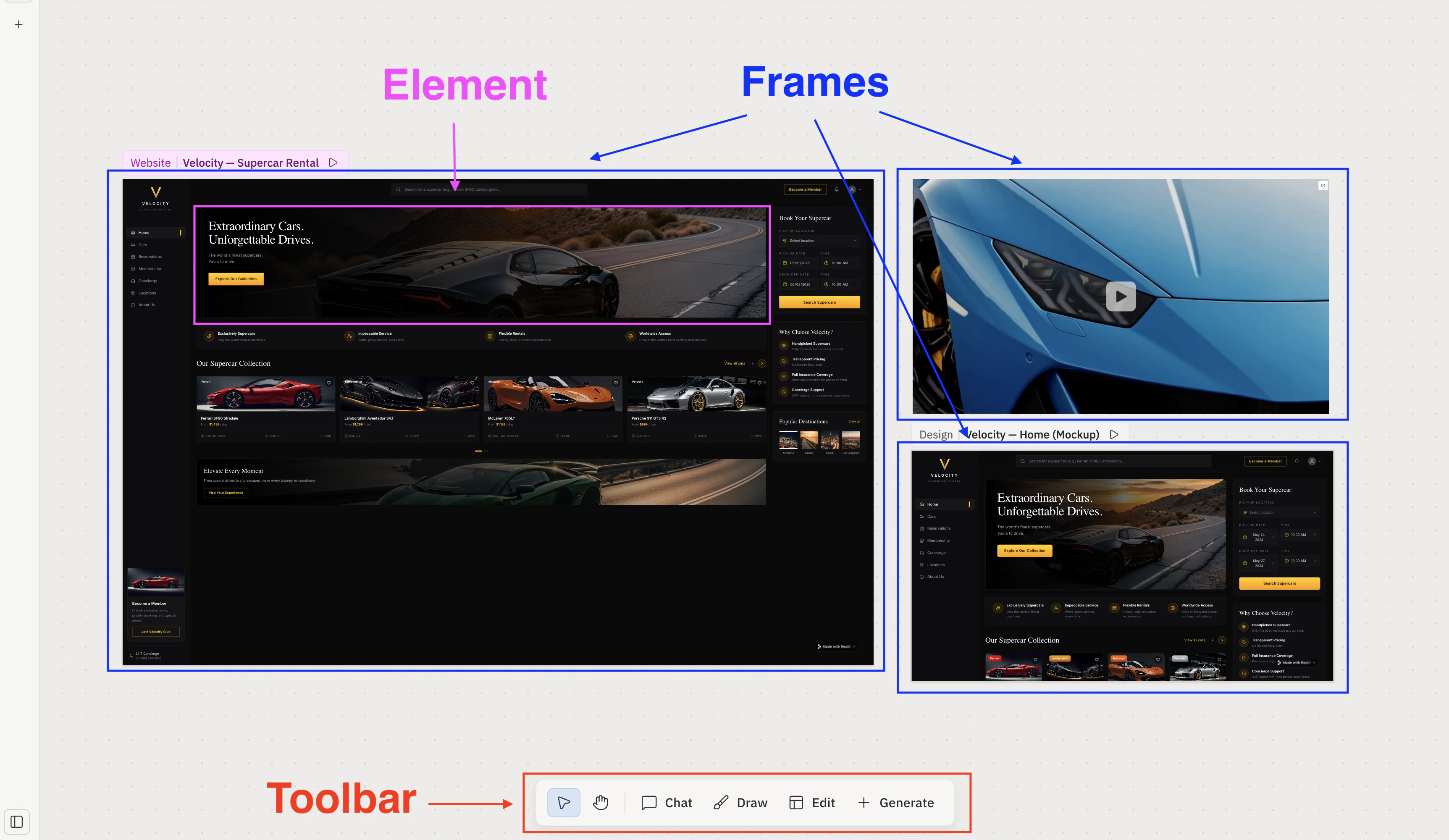 Canvas terminology:
* **Canvas**: the infinite pan-and-zoom surface that holds every frame, shape, and note.
* **Frames**: every tile on Canvas is a frame. The two main types are **Artifacts** (live, app-backed — the frame header reads **Website**, **Slides**, etc.) and **Designs** (mockups that don't touch the live app — the frame header reads **Design**). Other kinds include images, videos, and vector graphics.
* **Elements**: the individual pieces inside a frame (text, buttons, images, and other components). Elements are what you select and adjust with the Visual Editor.
* **Toolbar**: a floating bar with the Canvas tools. See [Toolbar](/references/design/toolbar) for the full catalog.
Two more components appear in context:
* **Per-frame action bar**: surfaces when you select a frame. Exposes Reimagine, Build…, Preview, and Inspect — see [Frames](/references/design/frames#per-frame-action-bar).
* **Chat panel**: Agent chat docked alongside Canvas. Selecting frames before sending a message attaches them as snapshots so Agent has visual context.
Building a new app from a Design frame requires Core or Pro; every other Canvas capability works on every plan. See [Billing](/billing/ai-billing) for plan details.
**Reference**
* [Toolbar](/references/design/toolbar) — full tool catalog, gestures, and selection.
* [Frames](/references/design/frames) — Frame kinds; the per-frame action bar; Reimagine, Refine, Annotate, and Build.
* [Elements](/references/design/elements) — the individual pieces inside a frame.
* [Agent](/references/agent/overview) — the Agent that generates and edits frames on Canvas.
**Learn**
* [Canvas guide](/learn/design/canvas) — tutorial walkthrough.
* [Design with Canvas](/build/design-with-canvas) — generate visual variations of an existing app and apply the one you want.
* [Canvas vs Preview](/learn/design/canvas-vs-preview) — when to use each surface.
Canvas terminology:
* **Canvas**: the infinite pan-and-zoom surface that holds every frame, shape, and note.
* **Frames**: every tile on Canvas is a frame. The two main types are **Artifacts** (live, app-backed — the frame header reads **Website**, **Slides**, etc.) and **Designs** (mockups that don't touch the live app — the frame header reads **Design**). Other kinds include images, videos, and vector graphics.
* **Elements**: the individual pieces inside a frame (text, buttons, images, and other components). Elements are what you select and adjust with the Visual Editor.
* **Toolbar**: a floating bar with the Canvas tools. See [Toolbar](/references/design/toolbar) for the full catalog.
Two more components appear in context:
* **Per-frame action bar**: surfaces when you select a frame. Exposes Reimagine, Build…, Preview, and Inspect — see [Frames](/references/design/frames#per-frame-action-bar).
* **Chat panel**: Agent chat docked alongside Canvas. Selecting frames before sending a message attaches them as snapshots so Agent has visual context.
Building a new app from a Design frame requires Core or Pro; every other Canvas capability works on every plan. See [Billing](/billing/ai-billing) for plan details.
**Reference**
* [Toolbar](/references/design/toolbar) — full tool catalog, gestures, and selection.
* [Frames](/references/design/frames) — Frame kinds; the per-frame action bar; Reimagine, Refine, Annotate, and Build.
* [Elements](/references/design/elements) — the individual pieces inside a frame.
* [Agent](/references/agent/overview) — the Agent that generates and edits frames on Canvas.
**Learn**
* [Canvas guide](/learn/design/canvas) — tutorial walkthrough.
* [Design with Canvas](/build/design-with-canvas) — generate visual variations of an existing app and apply the one you want.
* [Canvas vs Preview](/learn/design/canvas-vs-preview) — when to use each surface.