> ## Documentation Index
> Fetch the complete documentation index at: https://docs.replit.com/llms.txt
> Use this file to discover all available pages before exploring further.
# Voice Mode
> Speak your prompts to Agent instead of typing. Voice Mode transcribes what you say into the chat box so you can review and send it.
Describe what you want to build out loud with Voice Mode. Tap the microphone in the Agent chat box, speak your prompt, and Replit transcribes your speech into editable text. Review the text, make any edits, and send it like any other message.
Voice Mode is helpful when typing is slow or awkward — especially on mobile, where dictating a full prompt is often faster than thumb-typing it.
Voice Mode turns your speech into text in the chat box. It does not read Agent's responses aloud — you still send a written message, and Agent replies in the chat as usual.
## How it works
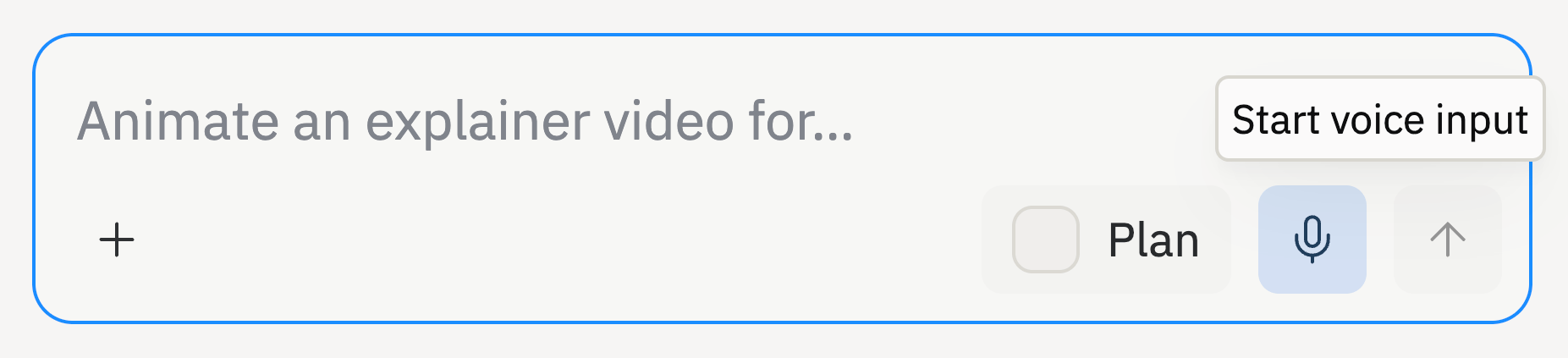 Voice Mode records your speech, transcribes it, and inserts the result into the chat box for you to review before sending:
1. Open Agent and select the microphone in the chat box.
2. Allow microphone access if your browser or device prompts you.
3. Speak your prompt. A waveform shows that Agent is recording.
4. Stop recording when you're done. Recording also stops automatically after a pause or when you switch away from the tab.
5. Wait briefly while your speech is transcribed.
6. Review the transcribed text, edit it if needed, then send your message.
Because the transcript appears as regular text in the chat box, you can mix voice and typing freely — dictate part of a prompt, then type the rest, or fix a word before you send.
Speak naturally. Voice Mode focuses on capturing what you mean rather than transcribing every word literally, so filler words like "um" and "uh" are left out of the result.
## Where you can use it
Voice Mode is available in the Agent chat box:
* In the **Project Editor** when working with Agent on an app.
* When **starting a new app** from the Agent prompt on the home screen.
You can use Voice Mode on desktop web, mobile web, and the Replit mobile app.
## Good to know
Keep these details in mind when using Voice Mode:
| Detail | What to expect |
| --------------------- | ------------------------------------------------------------------------------------------------------------------------------------------------------ |
| Recording length | Record up to 6 minutes at a time. You'll see a warning shortly before the limit. |
| Automatic stop | Recording stops on its own after about 30 seconds of silence, or when you switch tabs or background the app. |
| Review before sending | Transcribed text lands in the chat box so you can read and edit it before sending — nothing is sent automatically. |
| Microphone access | Voice Mode needs permission to use your microphone. If recording doesn't start, check that your browser and device allow microphone access for Replit. |
## Availability
Voice Mode is available on all Replit plans. The microphone appears in the Agent chat box on browsers and devices that support audio recording, and you'll be asked for microphone permission the first time you record.
## Next steps
Learn what Agent can do and how to prompt it effectively.
Generate music, sound effects, and speech for your apps with Agent.
Voice Mode records your speech, transcribes it, and inserts the result into the chat box for you to review before sending:
1. Open Agent and select the microphone in the chat box.
2. Allow microphone access if your browser or device prompts you.
3. Speak your prompt. A waveform shows that Agent is recording.
4. Stop recording when you're done. Recording also stops automatically after a pause or when you switch away from the tab.
5. Wait briefly while your speech is transcribed.
6. Review the transcribed text, edit it if needed, then send your message.
Because the transcript appears as regular text in the chat box, you can mix voice and typing freely — dictate part of a prompt, then type the rest, or fix a word before you send.
Speak naturally. Voice Mode focuses on capturing what you mean rather than transcribing every word literally, so filler words like "um" and "uh" are left out of the result.
## Where you can use it
Voice Mode is available in the Agent chat box:
* In the **Project Editor** when working with Agent on an app.
* When **starting a new app** from the Agent prompt on the home screen.
You can use Voice Mode on desktop web, mobile web, and the Replit mobile app.
## Good to know
Keep these details in mind when using Voice Mode:
| Detail | What to expect |
| --------------------- | ------------------------------------------------------------------------------------------------------------------------------------------------------ |
| Recording length | Record up to 6 minutes at a time. You'll see a warning shortly before the limit. |
| Automatic stop | Recording stops on its own after about 30 seconds of silence, or when you switch tabs or background the app. |
| Review before sending | Transcribed text lands in the chat box so you can read and edit it before sending — nothing is sent automatically. |
| Microphone access | Voice Mode needs permission to use your microphone. If recording doesn't start, check that your browser and device allow microphone access for Replit. |
## Availability
Voice Mode is available on all Replit plans. The microphone appears in the Agent chat box on browsers and devices that support audio recording, and you'll be asked for microphone permission the first time you record.
## Next steps
Learn what Agent can do and how to prompt it effectively.
Generate music, sound effects, and speech for your apps with Agent.