> ## Documentation Index
> Fetch the complete documentation index at: https://docs.replit.com/llms.txt
> Use this file to discover all available pages before exploring further.
# 파일 기록
> 파일 기록의 자동 저장 포인트를 사용하여 이전 버전의 코드를 복원하는 방법을 알아보세요.
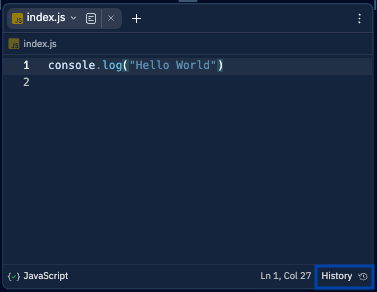
프로젝트 편집기에서 텍스트 파일을 열고 오른쪽 하단의 **기록** 버튼을 눌러 시작하세요.
 ## 파일의 이전 버전 보기
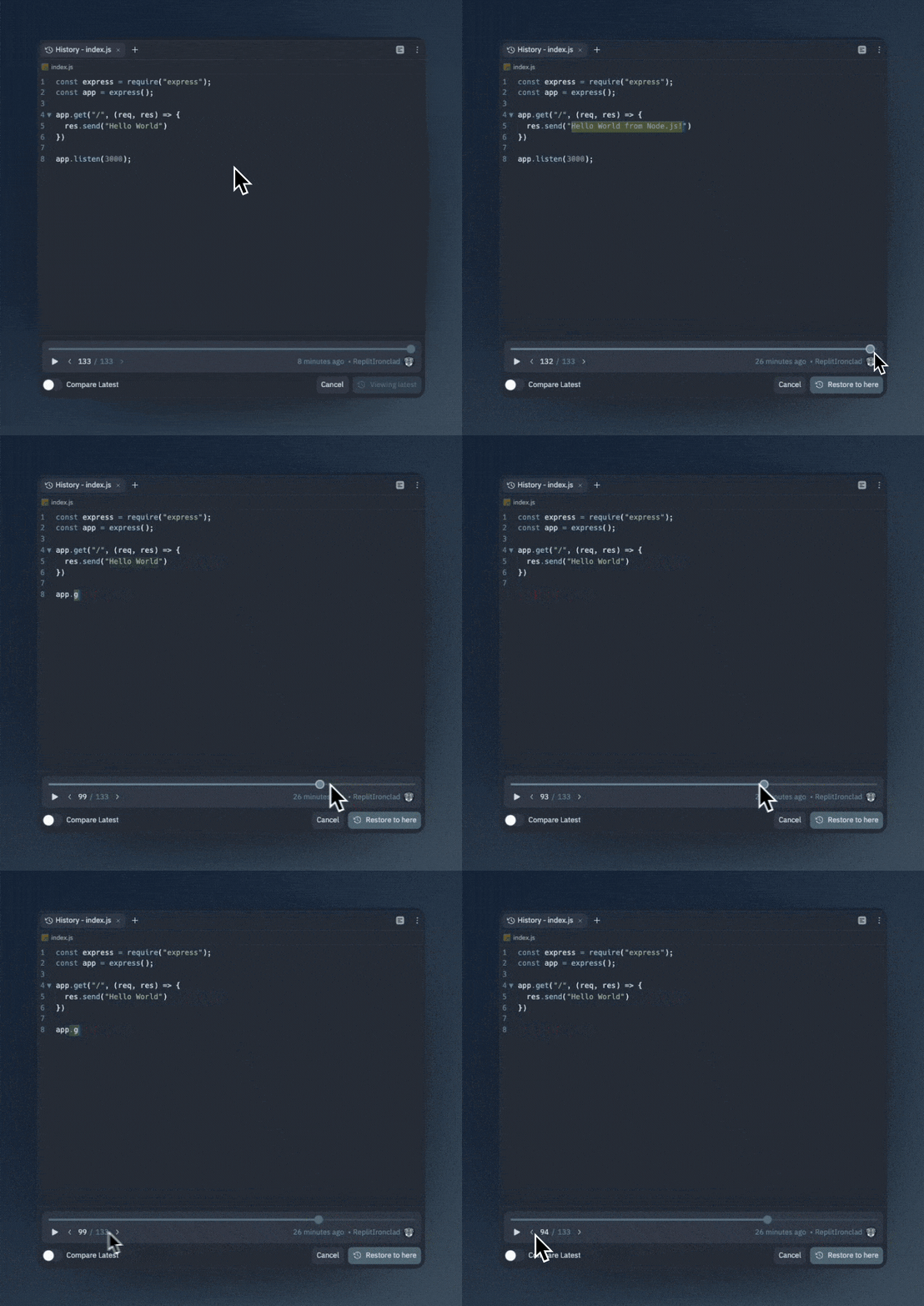
파일 기록을 열면 스크롤 바, 화살표 버튼, 또는 **왼쪽** 및 **오른쪽** 화살표 키를 사용하여 파일의 이전 버전을 볼 수 있습니다.
## 파일의 이전 버전 보기
파일 기록을 열면 스크롤 바, 화살표 버튼, 또는 **왼쪽** 및 **오른쪽** 화살표 키를 사용하여 파일의 이전 버전을 볼 수 있습니다.
 ## 이전 버전과 현재 파일 비교
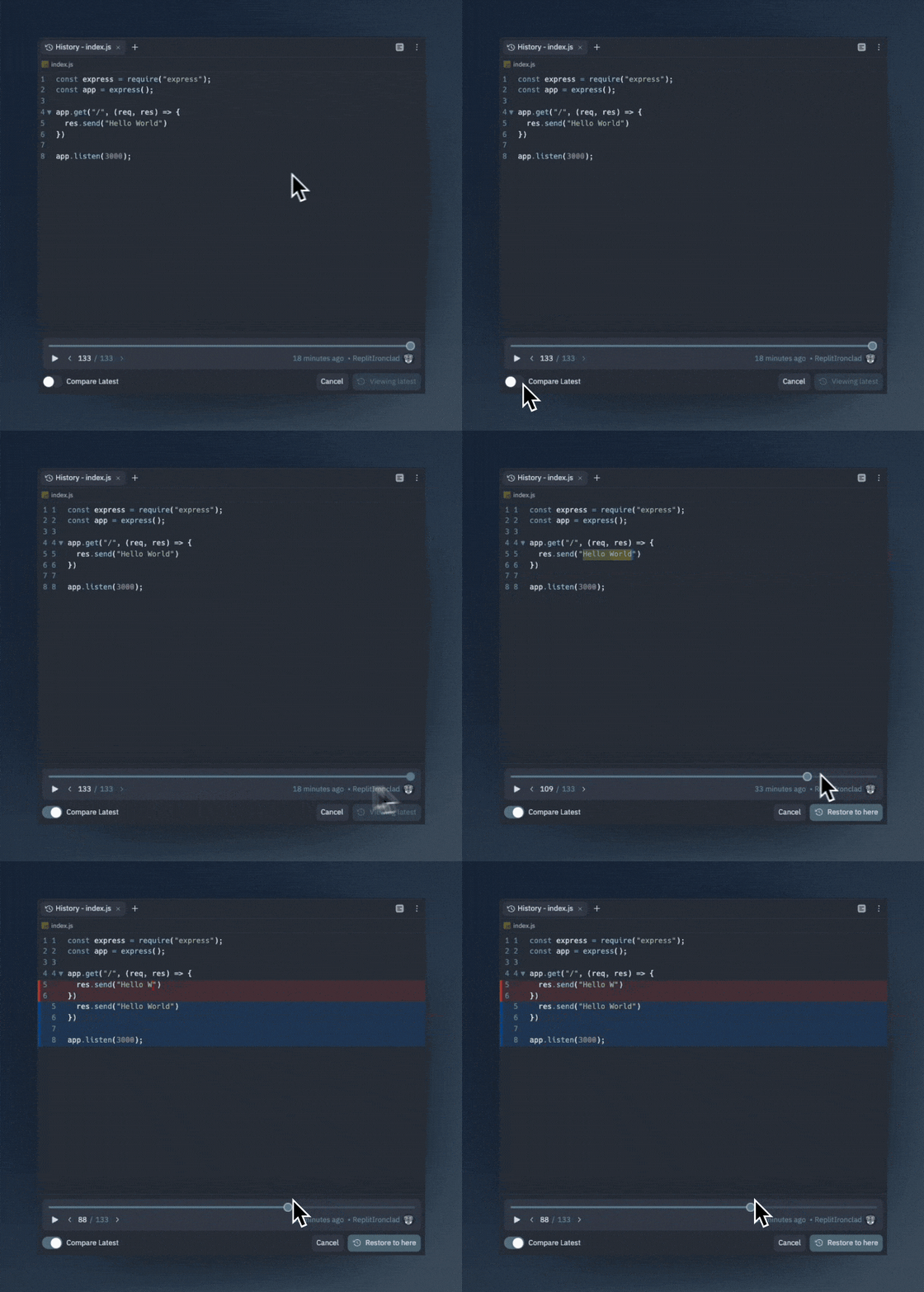
파일 기록 창 왼쪽 하단의 최신 버전과 비교 토글을 눌러 해당 시점의 파일과 최신 버전의 인라인 비교를 볼 수 있습니다.
## 이전 버전과 현재 파일 비교
파일 기록 창 왼쪽 하단의 최신 버전과 비교 토글을 눌러 해당 시점의 파일과 최신 버전의 인라인 비교를 볼 수 있습니다.
 ## 파일의 이전 버전 복원
파일을 이전 버전으로 복원하려면 `복원` 버튼을 누르면 됩니다. 기록이 지워질 걱정은 하지 않아도 됩니다. 이전 버전으로 복원하면 파일 기록에 새 버전으로 추가됩니다.
## 파일의 이전 버전 복원
파일을 이전 버전으로 복원하려면 `복원` 버튼을 누르면 됩니다. 기록이 지워질 걱정은 하지 않아도 됩니다. 이전 버전으로 복원하면 파일 기록에 새 버전으로 추가됩니다.
 ## 파일 기록 재생 보기
파일 기록의 재생 기능을 사용하면 파일이 영화처럼 시간이 지남에 따라 변경되는 것을 볼 수 있습니다. 이는 프로그래밍 세션의 영상을 만드는 데 유용합니다.
## 파일 기록 재생 보기
파일 기록의 재생 기능을 사용하면 파일이 영화처럼 시간이 지남에 따라 변경되는 것을 볼 수 있습니다. 이는 프로그래밍 세션의 영상을 만드는 데 유용합니다.