> ## Documentation Index
> Fetch the complete documentation index at: https://docs.replit.com/llms.txt
> Use this file to discover all available pages before exploring further.
# Google Connector에서 "이 앱이 차단되었습니다" 오류 해결
> Replit에서 Google Drive, Docs, Sheets, Calendar 또는 Gmail connector를 연결할 때 발생하는 'This app is blocked' 오류를 해결합니다.
## 개요
[Connectors](/references/integrations/overview#connectors)를 통해 Google Workspace 서비스(Drive, Docs, Sheets, Calendar, Gmail)를 연결하려고 할 때 **"This app is blocked"** 오류 메시지가 표시된다면, 이는 일반적으로 조직의 Google Workspace 내 Google OAuth 설정 구성 오류로 인해 발생합니다.
이 가이드는 문제를 해결하여 Replit 앱에 Google 서비스를 연결할 수 있도록 안내합니다.
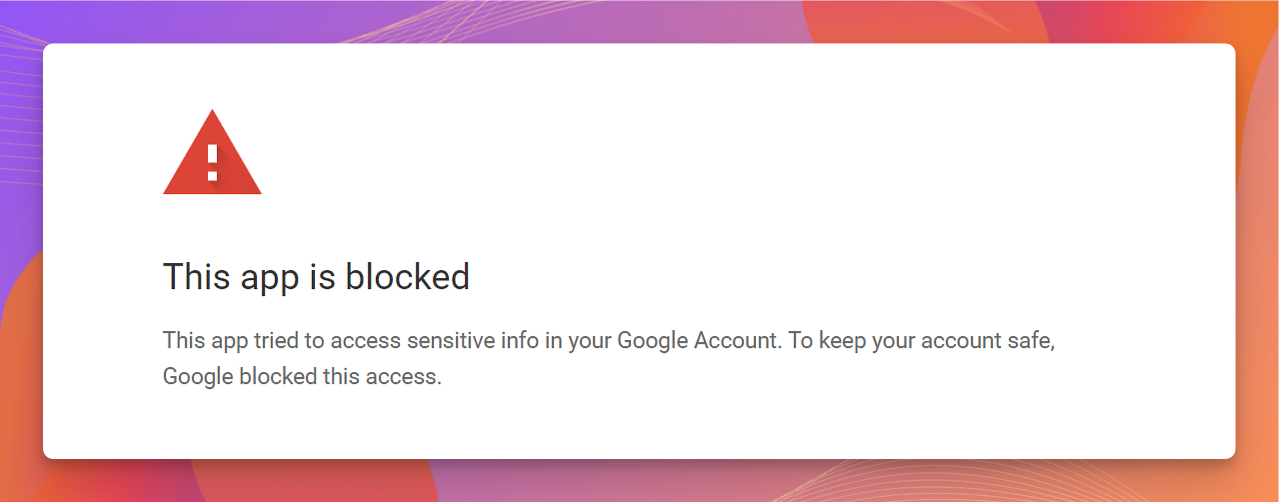 이 단계는 **Google Workspace** 계정(조직 관리 계정)에만 적용됩니다. `@gmail.com` 주소와 연결된 개인 Google 계정을 사용 중이고 Replit connector가 차단된 경우, OAuth 정책을 직접 변경할 수 없습니다 — Google Workspace 관리자에게 문의하거나 다른 계정을 사용하세요.
## 문제 해결 단계
### 1단계: 시크릿 모드 시도
브라우저 확장 프로그램이나 캐시된 데이터가 OAuth 흐름을 방해할 수 있습니다. 시크릿 모드를 사용하면 이러한 문제를 우회할 수 있습니다.
브라우저에서 새 **Incognito**(Chrome) 또는 **Private**(Firefox/Safari) 창을 엽니다.
[replit.com](https://replit.com)에서 Replit 계정에 로그인합니다.
Project Editor에서 앱을 열고, 사이드바의 **Connectors**로 이동하여 Google 서비스 연결을 다시 시도합니다.
오류가 지속되면 2단계로 넘어가세요.
### 2단계: Google Workspace에서 OAuth 설정 확인
이 단계를 위해서는 조직의 **Google Admin console**에 대한 접근 권한이 필요합니다. 관리자 권한이 없다면 IT 팀에 문의하세요.
조직의 [Google Admin console](https://admin.google.com)에 로그인합니다.
**Users** 섹션으로 이동하여 Replit 연결을 시도하는 계정이 목록에 있는지 확인합니다.
이 단계는 **Google Workspace** 계정(조직 관리 계정)에만 적용됩니다. `@gmail.com` 주소와 연결된 개인 Google 계정을 사용 중이고 Replit connector가 차단된 경우, OAuth 정책을 직접 변경할 수 없습니다 — Google Workspace 관리자에게 문의하거나 다른 계정을 사용하세요.
## 문제 해결 단계
### 1단계: 시크릿 모드 시도
브라우저 확장 프로그램이나 캐시된 데이터가 OAuth 흐름을 방해할 수 있습니다. 시크릿 모드를 사용하면 이러한 문제를 우회할 수 있습니다.
브라우저에서 새 **Incognito**(Chrome) 또는 **Private**(Firefox/Safari) 창을 엽니다.
[replit.com](https://replit.com)에서 Replit 계정에 로그인합니다.
Project Editor에서 앱을 열고, 사이드바의 **Connectors**로 이동하여 Google 서비스 연결을 다시 시도합니다.
오류가 지속되면 2단계로 넘어가세요.
### 2단계: Google Workspace에서 OAuth 설정 확인
이 단계를 위해서는 조직의 **Google Admin console**에 대한 접근 권한이 필요합니다. 관리자 권한이 없다면 IT 팀에 문의하세요.
조직의 [Google Admin console](https://admin.google.com)에 로그인합니다.
**Users** 섹션으로 이동하여 Replit 연결을 시도하는 계정이 목록에 있는지 확인합니다.
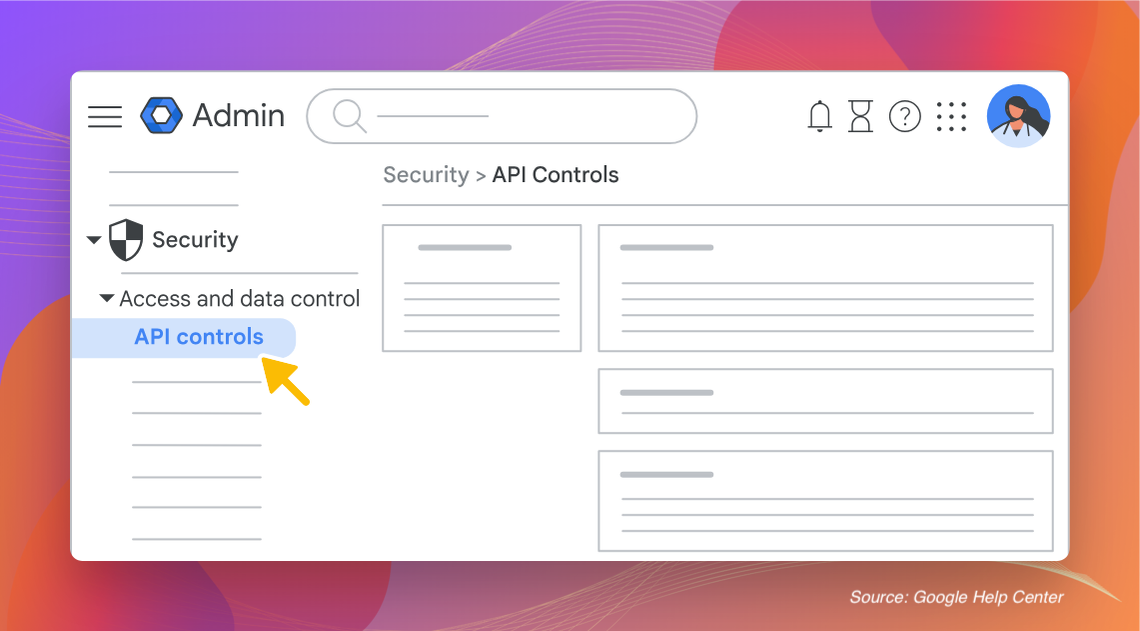
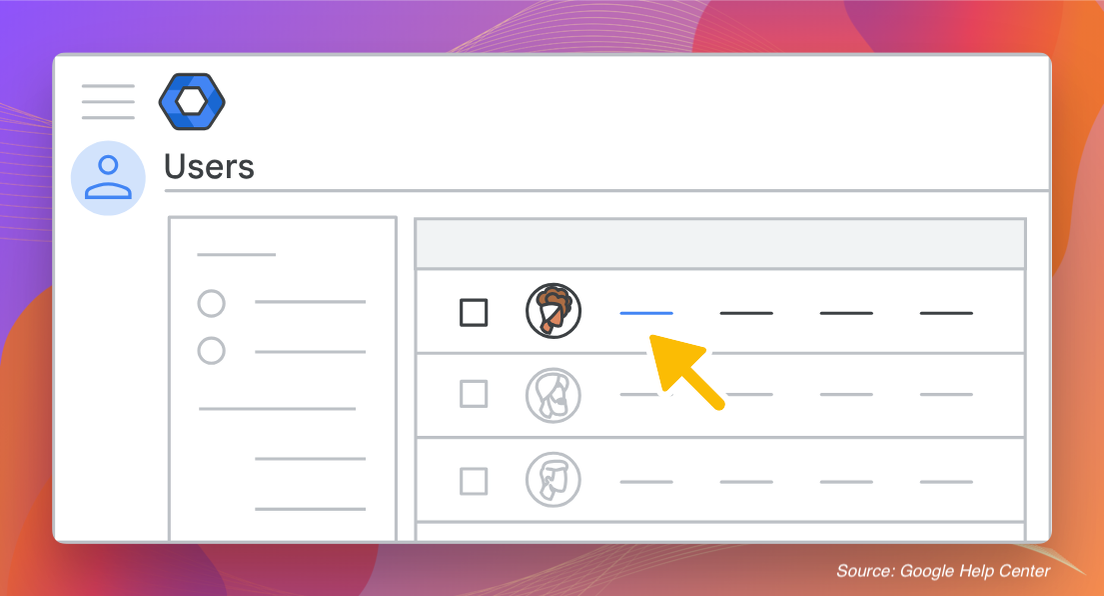 **Security > Access and data control > API controls**로 이동합니다.
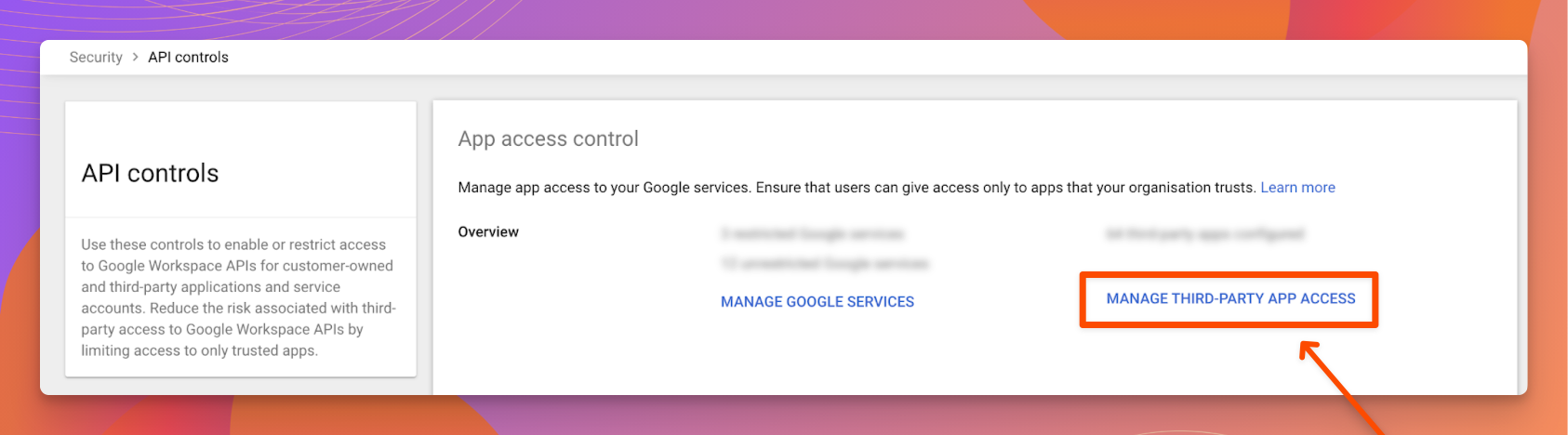
 **Manage third-party app access**를 선택합니다.
 Google Workspace에서 사용자에 대한 OAuth 접근이 활성화되어 있는지 확인합니다. 제한된 경우 Replit이 OAuth 흐름을 완료할 수 있도록 필요한 접근 권한을 부여하세요.
연결이 여전히 실패하면 3단계로 넘어가세요.
### 3단계: Replit을 신뢰할 수 있는 OAuth 클라이언트로 추가
조직에서 타사 앱 접근을 기본적으로 제한하는 경우 Replit을 명시적으로 신뢰해야 합니다.
조직의 [Google Admin console](https://admin.google.com)에 로그인합니다.
**Security > Access and data control > API controls**로 이동합니다.
**App access control** 아래에서 **Manage third-party app access**를 선택합니다.
**Add app** 버튼을 선택한 다음 드롭다운에서 **OAuth App Name or Client ID**를 선택합니다.
Replit Client ID를 입력합니다:
```
1012035106355-2dhot2e6o0malvog2ofss7akj2nsp8nq.apps.googleusercontent.com
```
**Search**를 선택합니다. 결과에 Replit 앱이 표시되면 선택합니다.
접근 수준을 **Trusted**로 설정합니다.
**Save**를 선택합니다.
Google Workspace 정책 변경 사항은 전파되는 데 몇 분이 걸릴 수 있습니다. 저장 후 5\~10분 기다린 다음 Replit에서 Google 서비스 연결을 다시 시도하세요.
## 여전히 차단되어 있나요?
세 단계를 모두 완료했지만 오류가 지속된다면:
* **조직 단위(OU) 재확인**: Google Workspace 정책은 특정 OU에 범위가 지정될 수 있습니다. OAuth 및 신뢰할 수 있는 앱 설정이 연결을 시도하는 사용자가 포함된 OU에 적용되는지 확인하세요.
* **Google Workspace 알림 검토**: Admin console에서 **Reporting > Audit and investigation > OAuth log events**를 확인하여 Replit 관련 거부된 요청이 있는지 확인하세요.
* **Replit 지원팀에 문의**: 문제가 Google Workspace 측의 문제가 아닌 경우 [Replit 지원팀](https://replit.com/support)에 도움을 요청하세요.
## 관련 문서
* [Connectors 개요](/references/integrations/overview) -- Google Workspace connector를 포함한 모든 통합 유형에 대해 알아보기
* [Connector 관리](/replitai/managing-connectors) -- Workspace 및 조직 connector의 관리자 설정
* [Google Workspace Admin Help: Control third-party app access](https://support.google.com/a/answer/7281227) -- OAuth 앱 접근 관리에 대한 Google 공식 가이드
***
이 오류 해결에 대한 [원본 가이드](https://help.element451.com/en/articles/9999308-resolving-this-app-is-blocked-error-for-google-drive-connectors)를 제공해 주신 [Element451](https://element451.com) 팀에 특별한 감사를 드립니다. 이 글은 해당 가이드를 바탕으로 작성되었습니다.
Google Workspace에서 사용자에 대한 OAuth 접근이 활성화되어 있는지 확인합니다. 제한된 경우 Replit이 OAuth 흐름을 완료할 수 있도록 필요한 접근 권한을 부여하세요.
연결이 여전히 실패하면 3단계로 넘어가세요.
### 3단계: Replit을 신뢰할 수 있는 OAuth 클라이언트로 추가
조직에서 타사 앱 접근을 기본적으로 제한하는 경우 Replit을 명시적으로 신뢰해야 합니다.
조직의 [Google Admin console](https://admin.google.com)에 로그인합니다.
**Security > Access and data control > API controls**로 이동합니다.
**App access control** 아래에서 **Manage third-party app access**를 선택합니다.
**Add app** 버튼을 선택한 다음 드롭다운에서 **OAuth App Name or Client ID**를 선택합니다.
Replit Client ID를 입력합니다:
```
1012035106355-2dhot2e6o0malvog2ofss7akj2nsp8nq.apps.googleusercontent.com
```
**Search**를 선택합니다. 결과에 Replit 앱이 표시되면 선택합니다.
접근 수준을 **Trusted**로 설정합니다.
**Save**를 선택합니다.
Google Workspace 정책 변경 사항은 전파되는 데 몇 분이 걸릴 수 있습니다. 저장 후 5\~10분 기다린 다음 Replit에서 Google 서비스 연결을 다시 시도하세요.
## 여전히 차단되어 있나요?
세 단계를 모두 완료했지만 오류가 지속된다면:
* **조직 단위(OU) 재확인**: Google Workspace 정책은 특정 OU에 범위가 지정될 수 있습니다. OAuth 및 신뢰할 수 있는 앱 설정이 연결을 시도하는 사용자가 포함된 OU에 적용되는지 확인하세요.
* **Google Workspace 알림 검토**: Admin console에서 **Reporting > Audit and investigation > OAuth log events**를 확인하여 Replit 관련 거부된 요청이 있는지 확인하세요.
* **Replit 지원팀에 문의**: 문제가 Google Workspace 측의 문제가 아닌 경우 [Replit 지원팀](https://replit.com/support)에 도움을 요청하세요.
## 관련 문서
* [Connectors 개요](/references/integrations/overview) -- Google Workspace connector를 포함한 모든 통합 유형에 대해 알아보기
* [Connector 관리](/replitai/managing-connectors) -- Workspace 및 조직 connector의 관리자 설정
* [Google Workspace Admin Help: Control third-party app access](https://support.google.com/a/answer/7281227) -- OAuth 앱 접근 관리에 대한 Google 공식 가이드
***
이 오류 해결에 대한 [원본 가이드](https://help.element451.com/en/articles/9999308-resolving-this-app-is-blocked-error-for-google-drive-connectors)를 제공해 주신 [Element451](https://element451.com) 팀에 특별한 감사를 드립니다. 이 글은 해당 가이드를 바탕으로 작성되었습니다.