> ## Documentation Index
> Fetch the complete documentation index at: https://docs.replit.com/llms.txt
> Use this file to discover all available pages before exploring further.
# 정적 배포
> 정적 배포로 정적 웹사이트와 프론트엔드 앱을 게시하는 방법을 알아보세요.
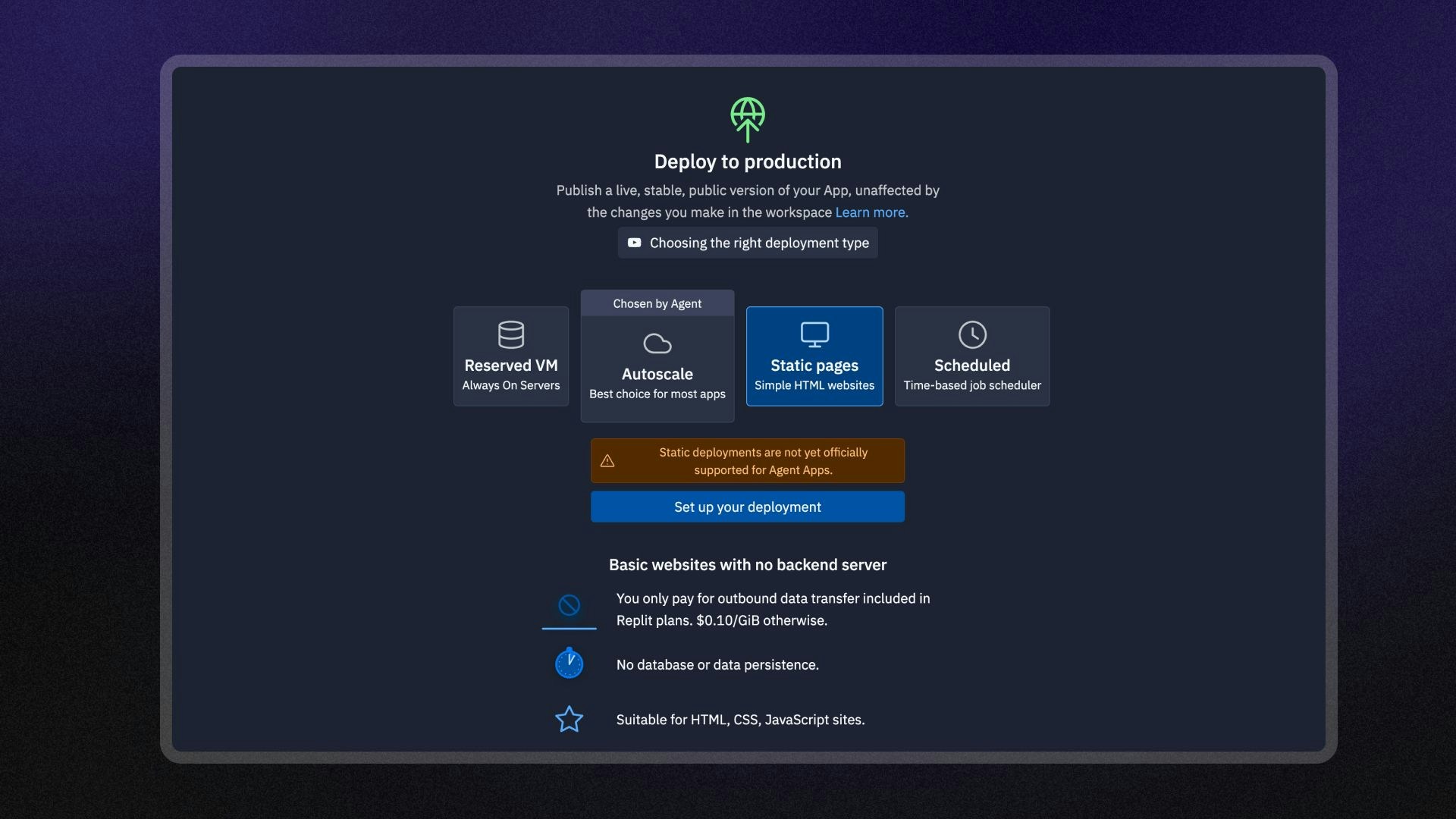
정적 배포는 HTML, CSS, JavaScript와 같은 Replit 앱의 정적 파일을 클라우드 서버에 호스팅합니다. 서버는 자동으로 캐싱 및 스케일링 전략을 사용하여 콘텐츠를 빠르고 경제적으로 전달합니다.
정적 배포는 다음과 같은 사용 사례에 이상적입니다:
* 마케팅 랜딩 페이지
* 포트폴리오 웹사이트
* 제품 및 API 문서 사이트
정적 배포는 Agent를 사용하여 만든 Replit 앱과 호환되지 않습니다.
Agent는 백엔드 서버가 필요한 풀스택 앱을 자동으로 만듭니다. Agent가 생성한 앱의 경우 다음 배포 유형 중 하나를 사용하세요: - [오토스케일
배포](/references/publishing/autoscale-deployments) - [예약된 VM
배포](/references/publishing/reserved-vm-deployments)
 ## 기능
정적 배포에는 다음 기능이 포함됩니다:
* **비용 효율적인 호스팅**: 웹사이트가 제공하는 데이터 양에 대해서만 요금을 지불합니다.
* **HTTP 라우팅 옵션**: 응답 헤더, URL 재작성, 리디렉션을 구성하세요.
* **커스텀 도메인**: 커스텀 도메인을 구성하거나 `<앱-이름>.replit.app` URL을 사용하여 앱에 접근하세요.
* **커스텀 오류 페이지**: 커스텀 404 오류 페이지를 만들고 제공하세요.
* **모니터링**: 로그를 보고 게시된 앱의 상태를 모니터링하세요.
## 사용 방법
게시 프로젝트 편집기 도구에서 정적 배포에 접근할 수 있습니다.
왼쪽 **도구 독**에서:
1.
## 기능
정적 배포에는 다음 기능이 포함됩니다:
* **비용 효율적인 호스팅**: 웹사이트가 제공하는 데이터 양에 대해서만 요금을 지불합니다.
* **HTTP 라우팅 옵션**: 응답 헤더, URL 재작성, 리디렉션을 구성하세요.
* **커스텀 도메인**: 커스텀 도메인을 구성하거나 `<앱-이름>.replit.app` URL을 사용하여 앱에 접근하세요.
* **커스텀 오류 페이지**: 커스텀 404 오류 페이지를 만들고 제공하세요.
* **모니터링**: 로그를 보고 게시된 앱의 상태를 모니터링하세요.
## 사용 방법
게시 프로젝트 편집기 도구에서 정적 배포에 접근할 수 있습니다.
왼쪽 **도구 독**에서:
1.  **모든 도구**를 선택하여 프로젝트 편집기 도구 목록을 보세요.
2.
**모든 도구**를 선택하여 프로젝트 편집기 도구 목록을 보세요.
2.  **게시**를 선택하세요.
3. **정적** 옵션을 선택한 다음 **게시된 앱 설정**을 선택하세요.
**검색 창**에서:
1. 상단의
**게시**를 선택하세요.
3. **정적** 옵션을 선택한 다음 **게시된 앱 설정**을 선택하세요.
**검색 창**에서:
1. 상단의  돋보기를 선택하여 검색 도구를 여세요
2. "게시"를 입력하여 도구를 찾고 결과에서 선택하세요.
3. **정적** 옵션을 선택한 다음 **게시된 앱 설정**을 선택하세요.
돋보기를 선택하여 검색 도구를 여세요
2. "게시"를 입력하여 도구를 찾고 결과에서 선택하세요.
3. **정적** 옵션을 선택한 다음 **게시된 앱 설정**을 선택하세요.
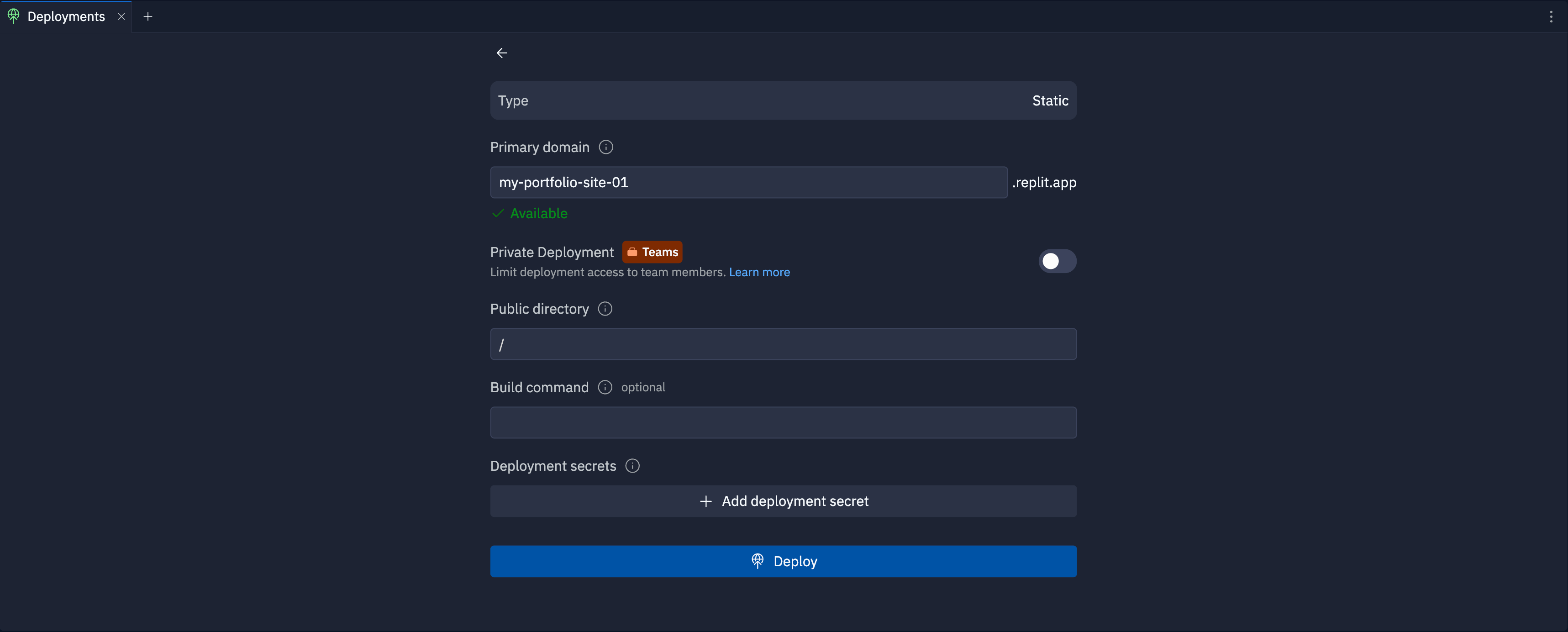 ### 기본 도메인
Specify the subdomain part of the hostname for your published app. After you publish, you can access your published app at `https://.replit.app`.
To learn how to use a custom domain, see [Custom Domains](/references/publishing/custom-domains).
### 비공개 배포
The private published app feature is available on the Pro and Enterprise plans.
Private published apps grant access to your app only to members of your workspace, or to specific users and groups that you invite.
When publishing, you can choose between **Public**, **Workspace only**, or **Only you** access.
To learn how to set up a private deployment, see [Private Deployments](/references/publishing/private-deployments/).
### 공개 디렉토리
공개적으로 제공하려는 정적 파일이 포함된 Replit 앱의 기본 디렉토리 경로를 지정하세요.
배포 후 클라우드 호스트가 해당 디렉토리의 모든 페이지와 에셋을 제공합니다.
기본값인 `/`는 Replit 앱의 루트 디렉토리입니다.
### 빌드 명령
배포를 만들 때 Replit 앱의 쉘에서 실행할 빌드 명령을 지정하세요.
예를 들어 Hugo를 사용하여 정적 사이트를 생성하는 경우 `hugo --minify` 명령을 사용하여 파일을 생성하고 에셋 파일 크기를 최적화할 수 있습니다.
### 배포 시크릿
**배포 시크릿 추가**를 선택하여 빌드 명령이 안전하게 실행하는 데 필요한 환경 변수나 시크릿을 추가하세요.
예를 들어 사이트 생성기가 정적 사이트를 만들기 위해 API 키가 필요한 경우 `API_KEY=<시크릿 이름>`을 전달할 수 있습니다.
## 다음 단계
* [정적 배포 구성](/references/deployment-customization/static-deployments-advanced): HTTP 헤더, 커스텀 404 페이지, URL 재작성 구성
* [게시된 앱 모니터링](/references/publishing/monitoring-a-deployment): 로그를 보고 게시된 앱을 모니터링
* [게시 비용](/billing/deployment-pricing): 게시와 관련된 비용 확인
* [가격](https://replit.com/pricing): 각 플랜 유형의 가격과 허용량 확인
* [사용 허용량](/billing/about-usage-based-billing): 예약된 배포 사용 제한 및 청구 단위에 대해 알아보기
### 기본 도메인
Specify the subdomain part of the hostname for your published app. After you publish, you can access your published app at `https://.replit.app`.
To learn how to use a custom domain, see [Custom Domains](/references/publishing/custom-domains).
### 비공개 배포
The private published app feature is available on the Pro and Enterprise plans.
Private published apps grant access to your app only to members of your workspace, or to specific users and groups that you invite.
When publishing, you can choose between **Public**, **Workspace only**, or **Only you** access.
To learn how to set up a private deployment, see [Private Deployments](/references/publishing/private-deployments/).
### 공개 디렉토리
공개적으로 제공하려는 정적 파일이 포함된 Replit 앱의 기본 디렉토리 경로를 지정하세요.
배포 후 클라우드 호스트가 해당 디렉토리의 모든 페이지와 에셋을 제공합니다.
기본값인 `/`는 Replit 앱의 루트 디렉토리입니다.
### 빌드 명령
배포를 만들 때 Replit 앱의 쉘에서 실행할 빌드 명령을 지정하세요.
예를 들어 Hugo를 사용하여 정적 사이트를 생성하는 경우 `hugo --minify` 명령을 사용하여 파일을 생성하고 에셋 파일 크기를 최적화할 수 있습니다.
### 배포 시크릿
**배포 시크릿 추가**를 선택하여 빌드 명령이 안전하게 실행하는 데 필요한 환경 변수나 시크릿을 추가하세요.
예를 들어 사이트 생성기가 정적 사이트를 만들기 위해 API 키가 필요한 경우 `API_KEY=<시크릿 이름>`을 전달할 수 있습니다.
## 다음 단계
* [정적 배포 구성](/references/deployment-customization/static-deployments-advanced): HTTP 헤더, 커스텀 404 페이지, URL 재작성 구성
* [게시된 앱 모니터링](/references/publishing/monitoring-a-deployment): 로그를 보고 게시된 앱을 모니터링
* [게시 비용](/billing/deployment-pricing): 게시와 관련된 비용 확인
* [가격](https://replit.com/pricing): 각 플랜 유형의 가격과 허용량 확인
* [사용 허용량](/billing/about-usage-based-billing): 예약된 배포 사용 제한 및 청구 단위에 대해 알아보기