> ## Documentation Index
> Fetch the complete documentation index at: https://docs.replit.com/llms.txt
> Use this file to discover all available pages before exploring further.
# Google Connectors에서 "This app is blocked" 오류 해결하기
> Replit에서 Google Drive, Docs, Sheets, Calendar, Gmail 커넥터를 연결할 때 발생하는 'This app is blocked' 오류를 해결하세요.
## 개요
[Connectors](/ko/features/integrations/overview#connectors)를 통해 Google Workspace 서비스(Drive, Docs, Sheets, Calendar, Gmail)를 연결할 때 \*\*"This app is blocked"\*\*라는 오류 메시지가 나타난다면, 이는 보통 조직의 Google Workspace 내에서 Google OAuth 설정이 잘못 구성되어 있기 때문입니다.
이 가이드는 Replit 앱에 Google 서비스를 연결할 수 있도록 문제를 해결하는 방법을 안내합니다.
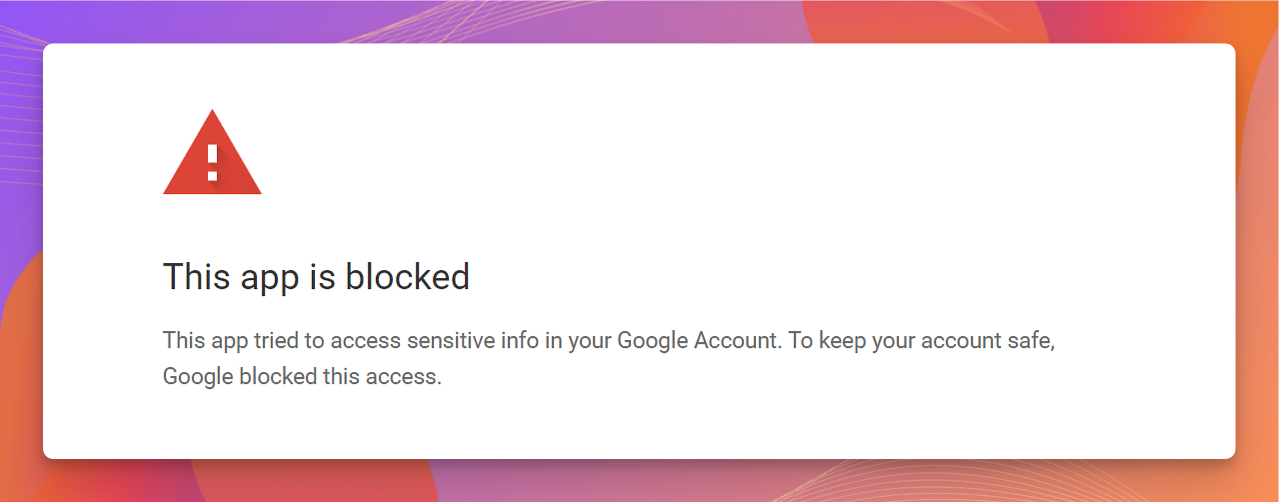 이 단계는 **Google Workspace** 계정(조직이 관리하는 계정)에만 적용됩니다. `@gmail.com` 주소로 연결된 개인 Google 계정을 사용 중이고 Replit 커넥터가 차단되었다면, 직접 OAuth 정책을 변경할 수 없습니다 — Google Workspace 관리자에게 문의하거나 다른 계정을 사용하세요.
## 문제 해결 단계
### 1단계: 시크릿 모드 시도하기
브라우저 확장 프로그램이나 캐시된 데이터가 OAuth 흐름을 방해할 수 있습니다. 시크릿 모드를 사용하면 이러한 문제를 피할 수 있습니다.
브라우저에서 새 **시크릿**(Chrome) 또는 **비공개**(Firefox/Safari) 창을 엽니다.
[replit.com](https://replit.com)에서 Replit 계정에 로그인합니다.
Project Editor에서 앱을 열고 사이드바의 **Connectors**로 이동한 다음 Google 서비스 연결을 다시 시도합니다.
오류가 계속되면 2단계로 진행하세요.
### 2단계: Google Workspace의 OAuth 설정 확인하기
이 단계에는 조직의 **Google 관리 콘솔**에 대한 접근 권한이 필요합니다. 관리자 권한이 없다면 IT 팀에 문의하세요.
조직의 [Google 관리 콘솔](https://admin.google.com)에 로그인합니다.
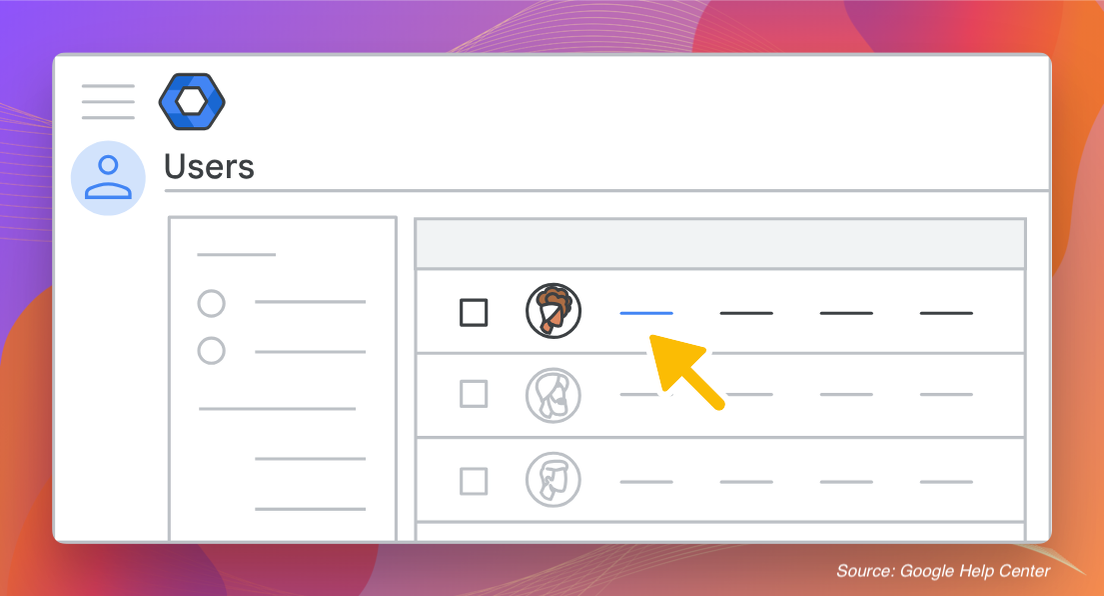
**Users** 섹션으로 이동해 Replit 연결을 시도하는 계정이 목록에 있는지 확인합니다.
이 단계는 **Google Workspace** 계정(조직이 관리하는 계정)에만 적용됩니다. `@gmail.com` 주소로 연결된 개인 Google 계정을 사용 중이고 Replit 커넥터가 차단되었다면, 직접 OAuth 정책을 변경할 수 없습니다 — Google Workspace 관리자에게 문의하거나 다른 계정을 사용하세요.
## 문제 해결 단계
### 1단계: 시크릿 모드 시도하기
브라우저 확장 프로그램이나 캐시된 데이터가 OAuth 흐름을 방해할 수 있습니다. 시크릿 모드를 사용하면 이러한 문제를 피할 수 있습니다.
브라우저에서 새 **시크릿**(Chrome) 또는 **비공개**(Firefox/Safari) 창을 엽니다.
[replit.com](https://replit.com)에서 Replit 계정에 로그인합니다.
Project Editor에서 앱을 열고 사이드바의 **Connectors**로 이동한 다음 Google 서비스 연결을 다시 시도합니다.
오류가 계속되면 2단계로 진행하세요.
### 2단계: Google Workspace의 OAuth 설정 확인하기
이 단계에는 조직의 **Google 관리 콘솔**에 대한 접근 권한이 필요합니다. 관리자 권한이 없다면 IT 팀에 문의하세요.
조직의 [Google 관리 콘솔](https://admin.google.com)에 로그인합니다.
**Users** 섹션으로 이동해 Replit 연결을 시도하는 계정이 목록에 있는지 확인합니다.
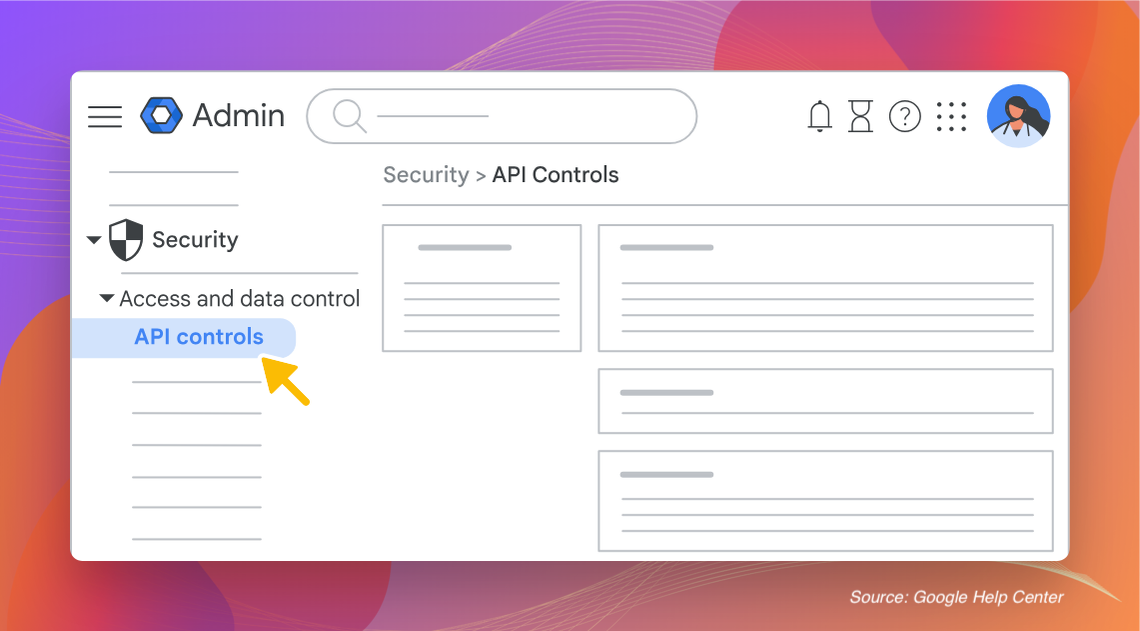
 **Security > Access and data control > API controls**로 이동합니다.
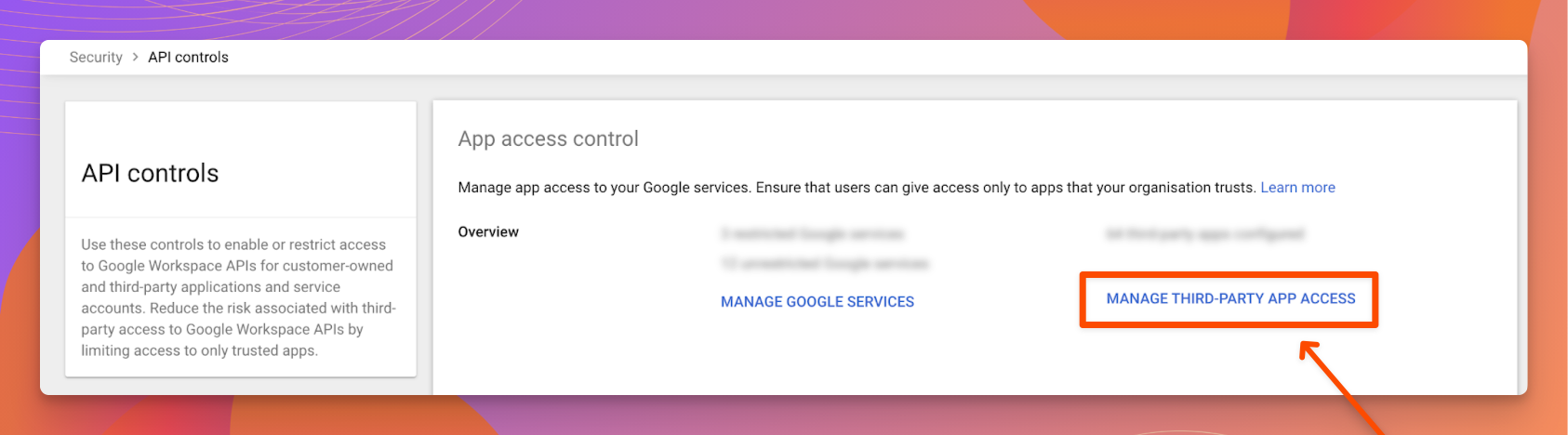
 **Manage third-party app access**를 선택합니다.
 Google Workspace 사용자에 대해 OAuth 접근이 활성화되어 있는지 확인합니다. 제한되어 있다면 Replit이 OAuth 흐름을 완료할 수 있도록 필요한 접근 권한을 부여하세요.
연결이 계속 실패하면 3단계로 진행하세요.
### 3단계: Replit을 신뢰할 수 있는 OAuth 클라이언트로 추가하기
조직이 기본적으로 서드파티 앱 접근을 제한한다면, Replit을 명시적으로 신뢰하도록 설정해야 합니다.
조직의 [Google 관리 콘솔](https://admin.google.com)에 로그인합니다.
**Security > Access and data control > API controls**로 이동합니다.
**App access control** 아래에서 **Manage third-party app access**를 선택합니다.
**Add app** 버튼을 선택한 다음 드롭다운에서 **OAuth App Name or Client ID**를 선택합니다.
Replit 클라이언트 ID를 입력합니다.
```
1012035106355-2dhot2e6o0malvog2ofss7akj2nsp8nq.apps.googleusercontent.com
```
**Search**를 선택합니다. 검색 결과에 Replit 앱이 나타나면 선택합니다.
접근 수준을 **Trusted**로 설정합니다.
**Save**를 선택합니다.
Google Workspace 정책 변경은 적용되는 데 몇 분 정도 걸릴 수 있습니다. 저장 후 5\~10분 정도 기다린 다음 Replit에서 Google 서비스 연결을 다시 시도하세요.
## 여전히 차단되나요?
세 단계를 모두 완료했는데도 오류가 계속된다면:
* **조직 단위(OU)를 다시 확인하세요**: Google Workspace 정책은 특정 OU에만 적용되도록 범위가 지정될 수 있습니다. 연결을 시도하는 사용자가 속한 OU에 OAuth 및 신뢰할 수 있는 앱 설정이 적용되는지 확인하세요.
* **Google Workspace 알림을 검토하세요**: 관리 콘솔에서 **Reporting > Audit and investigation > OAuth log events**를 확인해 Replit과 관련된 거부된 요청이 있는지 살펴보세요.
* **Replit 지원팀에 문의하세요**: 문제가 Google Workspace 측이 아니라면 [Replit 지원팀](https://replit.com/support)에 문의하세요.
## 관련 문서
* [Connectors 개요](/ko/features/integrations/overview) -- Google Workspace 커넥터를 포함한 모든 통합 유형에 대해 알아보세요.
* [커넥터 관리하기](/ko/replitai/managing-connectors) -- 워크스페이스와 조직 커넥터에 대한 관리자 설정
* [Google Workspace 관리자 도움말: 서드파티 앱 접근 제어하기](https://support.google.com/a/answer/7281227) -- OAuth 앱 접근 관리에 대한 Google의 공식 가이드
***
이 문서의 기반이 된 [이 오류를 해결하는 원본 가이드](https://help.element451.com/en/articles/9999308-resolving-this-app-is-blocked-error-for-google-drive-connectors)를 작성해 준 [Element451](https://element451.com) 팀에 특별히 감사드립니다.
Google Workspace 사용자에 대해 OAuth 접근이 활성화되어 있는지 확인합니다. 제한되어 있다면 Replit이 OAuth 흐름을 완료할 수 있도록 필요한 접근 권한을 부여하세요.
연결이 계속 실패하면 3단계로 진행하세요.
### 3단계: Replit을 신뢰할 수 있는 OAuth 클라이언트로 추가하기
조직이 기본적으로 서드파티 앱 접근을 제한한다면, Replit을 명시적으로 신뢰하도록 설정해야 합니다.
조직의 [Google 관리 콘솔](https://admin.google.com)에 로그인합니다.
**Security > Access and data control > API controls**로 이동합니다.
**App access control** 아래에서 **Manage third-party app access**를 선택합니다.
**Add app** 버튼을 선택한 다음 드롭다운에서 **OAuth App Name or Client ID**를 선택합니다.
Replit 클라이언트 ID를 입력합니다.
```
1012035106355-2dhot2e6o0malvog2ofss7akj2nsp8nq.apps.googleusercontent.com
```
**Search**를 선택합니다. 검색 결과에 Replit 앱이 나타나면 선택합니다.
접근 수준을 **Trusted**로 설정합니다.
**Save**를 선택합니다.
Google Workspace 정책 변경은 적용되는 데 몇 분 정도 걸릴 수 있습니다. 저장 후 5\~10분 정도 기다린 다음 Replit에서 Google 서비스 연결을 다시 시도하세요.
## 여전히 차단되나요?
세 단계를 모두 완료했는데도 오류가 계속된다면:
* **조직 단위(OU)를 다시 확인하세요**: Google Workspace 정책은 특정 OU에만 적용되도록 범위가 지정될 수 있습니다. 연결을 시도하는 사용자가 속한 OU에 OAuth 및 신뢰할 수 있는 앱 설정이 적용되는지 확인하세요.
* **Google Workspace 알림을 검토하세요**: 관리 콘솔에서 **Reporting > Audit and investigation > OAuth log events**를 확인해 Replit과 관련된 거부된 요청이 있는지 살펴보세요.
* **Replit 지원팀에 문의하세요**: 문제가 Google Workspace 측이 아니라면 [Replit 지원팀](https://replit.com/support)에 문의하세요.
## 관련 문서
* [Connectors 개요](/ko/features/integrations/overview) -- Google Workspace 커넥터를 포함한 모든 통합 유형에 대해 알아보세요.
* [커넥터 관리하기](/ko/replitai/managing-connectors) -- 워크스페이스와 조직 커넥터에 대한 관리자 설정
* [Google Workspace 관리자 도움말: 서드파티 앱 접근 제어하기](https://support.google.com/a/answer/7281227) -- OAuth 앱 접근 관리에 대한 Google의 공식 가이드
***
이 문서의 기반이 된 [이 오류를 해결하는 원본 가이드](https://help.element451.com/en/articles/9999308-resolving-this-app-is-blocked-error-for-google-drive-connectors)를 작성해 준 [Element451](https://element451.com) 팀에 특별히 감사드립니다.