> ## Documentation Index
> Fetch the complete documentation index at: https://docs.replit.com/llms.txt
> Use this file to discover all available pages before exploring further.
# 정적 배포
> 정적 배포로 정적 웹사이트와 프런트엔드 앱을 게시하는 방법을 알아보세요.
정적 배포는 클라우드 서버에서 Replit App의 HTML, CSS, JavaScript 같은 정적 파일을
호스팅합니다. 서버는 캐싱과 스케일링 전략을 자동으로 사용해 콘텐츠를 빠르고 경제적으로
전달합니다.
정적 배포는 다음과 같은 사용 사례에 이상적입니다.
* 마케팅 랜딩 페이지
* 포트폴리오 웹사이트
* 제품 및 API 문서 사이트
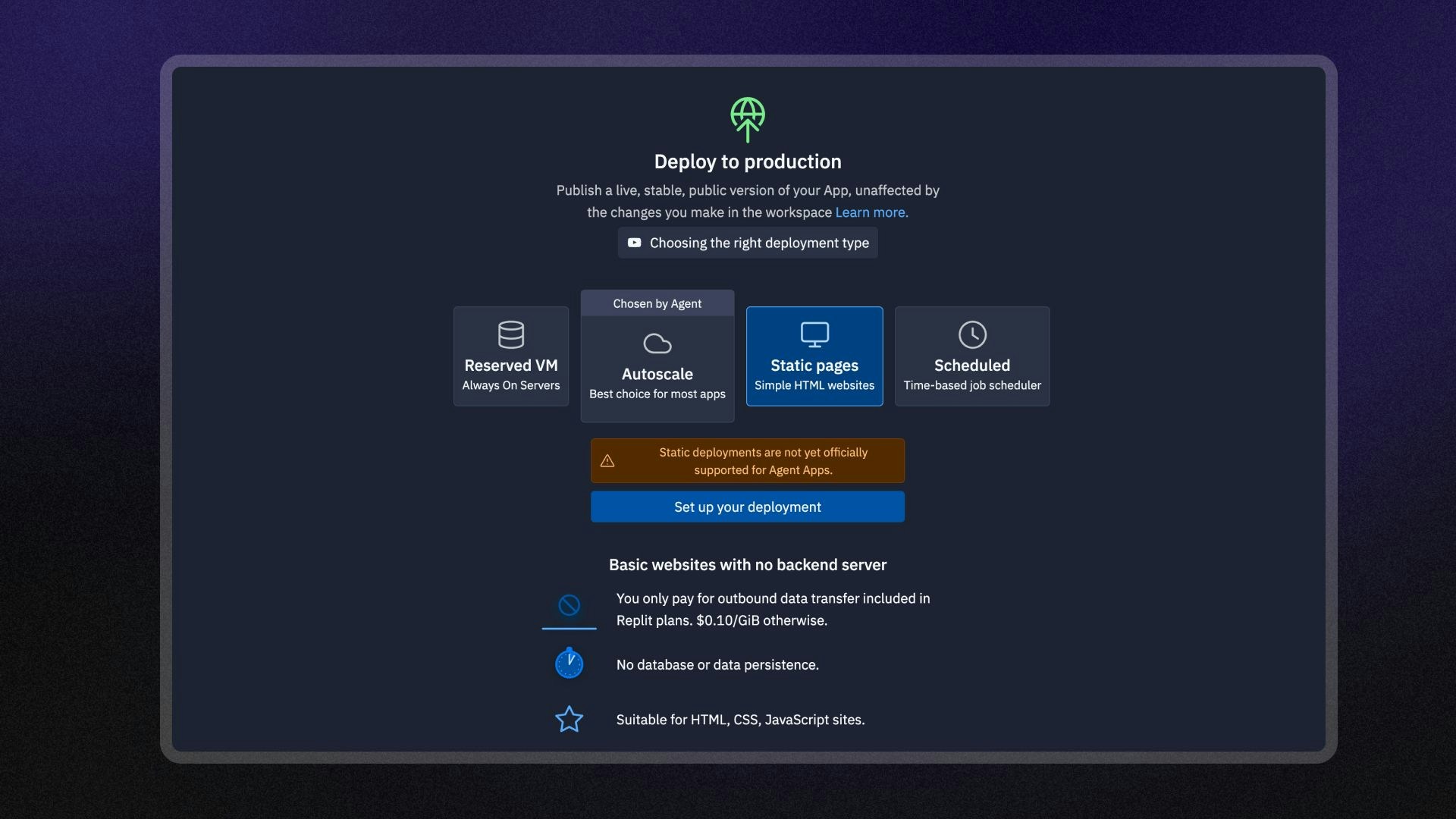
정적 배포는 Agent로 생성된 Replit App과 호환되지 않습니다.
Agent는 백엔드 서버가 필요한 풀스택 앱을 자동으로 생성합니다. Agent가
생성한 앱에는 다음 배포 유형 중 하나를 사용하세요: - [Autoscale
배포](/ko/features/publishing/autoscale-deployments) - [Reserved VM
배포](/ko/features/publishing/reserved-vm-deployments)
 ## 기능
정적 배포에는 다음과 같은 기능이 포함됩니다.
* **비용 효율적인 호스팅**: 웹사이트가 제공하는 데이터 양에 대해서만 요금을 지불합니다.
* **HTTP 라우팅 옵션**: 응답 헤더, URL 재작성, 리디렉션을 구성합니다.
* **커스텀 도메인**: 커스텀 도메인을 구성하거나 `.replit.app` URL을 사용해 앱에 접근할 수 있습니다.
* **커스텀 오류 페이지**: 커스텀 404 오류 페이지를 만들고 제공합니다.
* **모니터링**: 로그를 확인하고 게시된 앱의 상태를 모니터링합니다.
## 사용법
Publishing Project Editor 도구에서 정적 배포에 접근할 수 있습니다.
왼쪽 **Tool dock**에서:
1.
## 기능
정적 배포에는 다음과 같은 기능이 포함됩니다.
* **비용 효율적인 호스팅**: 웹사이트가 제공하는 데이터 양에 대해서만 요금을 지불합니다.
* **HTTP 라우팅 옵션**: 응답 헤더, URL 재작성, 리디렉션을 구성합니다.
* **커스텀 도메인**: 커스텀 도메인을 구성하거나 `.replit.app` URL을 사용해 앱에 접근할 수 있습니다.
* **커스텀 오류 페이지**: 커스텀 404 오류 페이지를 만들고 제공합니다.
* **모니터링**: 로그를 확인하고 게시된 앱의 상태를 모니터링합니다.
## 사용법
Publishing Project Editor 도구에서 정적 배포에 접근할 수 있습니다.
왼쪽 **Tool dock**에서:
1.  **모든 도구**를 선택해 Project Editor 도구 목록을 확인합니다.
2.
**모든 도구**를 선택해 Project Editor 도구 목록을 확인합니다.
2.  **Publishing**을 선택합니다.
3. **Static** 옵션을 선택한 다음 **Set up your published app**을 선택합니다.
**검색창**에서:
1. 상단의
**Publishing**을 선택합니다.
3. **Static** 옵션을 선택한 다음 **Set up your published app**을 선택합니다.
**검색창**에서:
1. 상단의  돋보기를 선택해 검색 도구를 엽니다.
2. "Publishing"을 입력해 도구를 찾은 후 검색 결과에서 선택합니다.
3. **Static** 옵션을 선택한 다음 **Set up your published app**을 선택합니다.
돋보기를 선택해 검색 도구를 엽니다.
2. "Publishing"을 입력해 도구를 찾은 후 검색 결과에서 선택합니다.
3. **Static** 옵션을 선택한 다음 **Set up your published app**을 선택합니다.
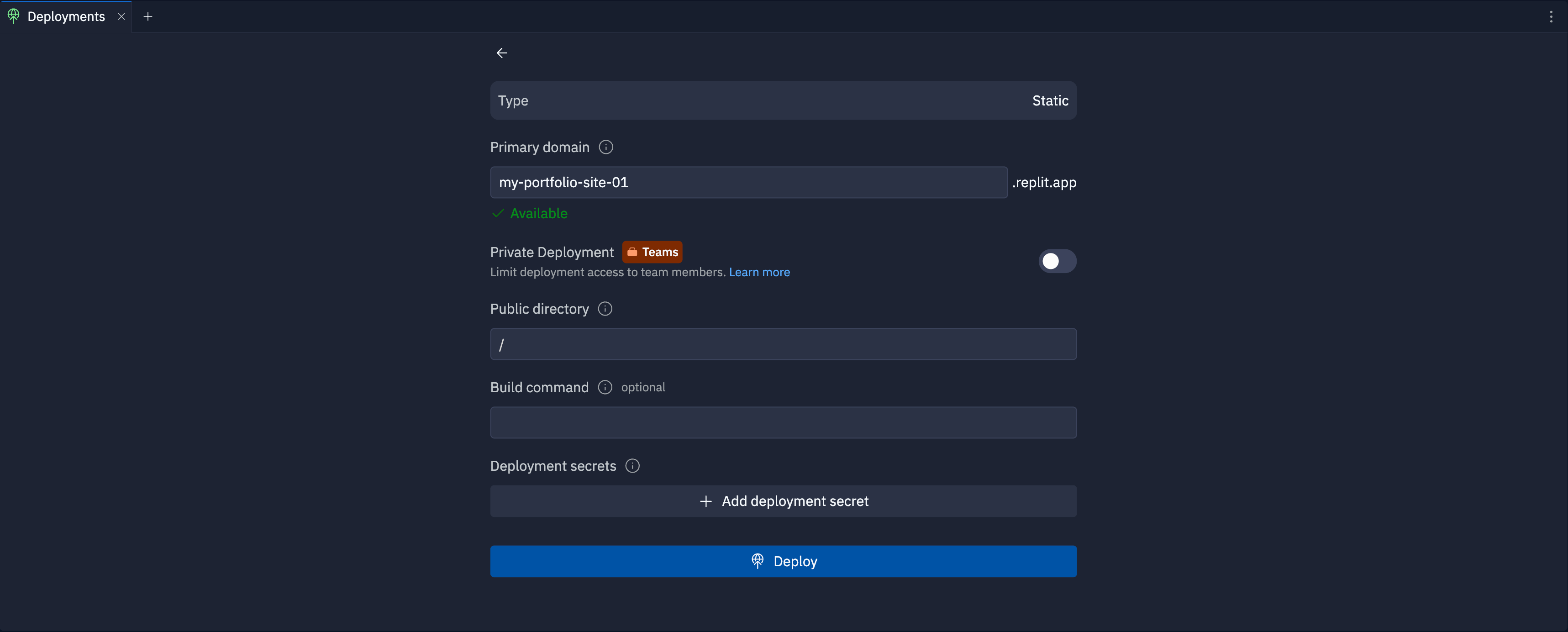 ### 기본 도메인
Specify the subdomain part of the hostname for your published app. After you publish, you can access your published app at `https://.replit.app`.
To learn how to use a custom domain, see [Custom Domains](/features/publishing/custom-domains).
### 비공개 배포
The private published app feature is available on the Pro and Enterprise plans.
Private published apps grant access to your app only to members of your workspace, or to specific users and groups that you invite.
When publishing, you can choose between **Public**, **Password protected**, **Workspace only**, or **Invite only** access.
To learn how to set up a private deployment, see [App access](/features/publishing/private-deployments/).
### 공개 디렉터리
공개적으로 제공할 정적 파일이 포함된 Replit App 내 기본 디렉터리 경로를 지정합니다.
배포하면 클라우드 호스트는 해당 디렉터리에 있는 모든 페이지와 자산을 제공합니다.
기본값인 `/`는 Replit App의 루트 디렉터리입니다.
### 빌드 명령
배포를 생성할 때 Replit App의 셸에서 실행할 빌드 명령을 지정합니다.
예를 들어, Hugo를 사용해 정적 사이트를 생성하는 경우,
`hugo --minify` 명령을 사용해 파일을 생성하고 자산 파일 크기를 최적화할 수 있습니다.
### 배포 시크릿
빌드 명령이 안전하게 실행되는 데 필요한 환경 변수나 시크릿을 추가하려면 **Add deployment secret**을 선택하세요.
예를 들어, 사이트 생성기가 정적 사이트를 만드는 데 API 키가 필요하다면,
`API_KEY=<시크릿 이름>` 형식으로 전달할 수 있습니다.
## 다음 단계
* [정적 배포 구성](/ko/features/deployment-customization/static-deployments-advanced): HTTP 헤더, 커스텀 404 페이지, URL 재작성을 구성하세요.
* [게시된 앱 모니터링](/ko/features/publishing/monitoring-a-deployment): 로그를 확인하고 게시된 앱을 모니터링하세요.
* [게시 비용](/ko/billing/deployment-pricing): 게시와 관련된 비용을 확인하세요.
* [가격](https://replit.com/pricing): 각 플랜 유형의 가격과 허용량을 확인하세요.
* [사용량 허용치](/ko/billing/about-usage-based-billing): 예약된 배포 사용 한도와 청구 단위를 알아보세요.
### 기본 도메인
Specify the subdomain part of the hostname for your published app. After you publish, you can access your published app at `https://.replit.app`.
To learn how to use a custom domain, see [Custom Domains](/features/publishing/custom-domains).
### 비공개 배포
The private published app feature is available on the Pro and Enterprise plans.
Private published apps grant access to your app only to members of your workspace, or to specific users and groups that you invite.
When publishing, you can choose between **Public**, **Password protected**, **Workspace only**, or **Invite only** access.
To learn how to set up a private deployment, see [App access](/features/publishing/private-deployments/).
### 공개 디렉터리
공개적으로 제공할 정적 파일이 포함된 Replit App 내 기본 디렉터리 경로를 지정합니다.
배포하면 클라우드 호스트는 해당 디렉터리에 있는 모든 페이지와 자산을 제공합니다.
기본값인 `/`는 Replit App의 루트 디렉터리입니다.
### 빌드 명령
배포를 생성할 때 Replit App의 셸에서 실행할 빌드 명령을 지정합니다.
예를 들어, Hugo를 사용해 정적 사이트를 생성하는 경우,
`hugo --minify` 명령을 사용해 파일을 생성하고 자산 파일 크기를 최적화할 수 있습니다.
### 배포 시크릿
빌드 명령이 안전하게 실행되는 데 필요한 환경 변수나 시크릿을 추가하려면 **Add deployment secret**을 선택하세요.
예를 들어, 사이트 생성기가 정적 사이트를 만드는 데 API 키가 필요하다면,
`API_KEY=<시크릿 이름>` 형식으로 전달할 수 있습니다.
## 다음 단계
* [정적 배포 구성](/ko/features/deployment-customization/static-deployments-advanced): HTTP 헤더, 커스텀 404 페이지, URL 재작성을 구성하세요.
* [게시된 앱 모니터링](/ko/features/publishing/monitoring-a-deployment): 로그를 확인하고 게시된 앱을 모니터링하세요.
* [게시 비용](/ko/billing/deployment-pricing): 게시와 관련된 비용을 확인하세요.
* [가격](https://replit.com/pricing): 각 플랜 유형의 가격과 허용량을 확인하세요.
* [사용량 허용치](/ko/billing/about-usage-based-billing): 예약된 배포 사용 한도와 청구 단위를 알아보세요.