> ## Documentation Index
> Fetch the complete documentation index at: https://docs.replit.com/llms.txt
> Use this file to discover all available pages before exploring further.

# 프로젝트란 무엇인가요?

> Replit에서 만드는 모든 것의 컨테이너인 프로젝트가 무엇인지 알아보세요 — 웹 앱과 모바일 앱부터 슬라이드 덱과 애니메이션 영상까지.

export const ArtifactGrid = () => {
  if (typeof document !== "undefined" && !document.getElementById("artifact-grid-styles")) {
    const style = document.createElement("style");
    style.id = "artifact-grid-styles";
    style.textContent = `
      .artifact-grid-wrap {
        --ag-bg: var(--replit-docs-bg, #F6F6F4);
        --ag-icon-bg: var(--replit-docs-bg-elevated, #F1F1EE);
        --ag-icon-border: var(--replit-docs-border, #DEDAD5);
        --ag-text: var(--replit-docs-text-muted, #5C5C5C);
        --ag-icon-color: var(--replit-docs-text-muted, #5C5C5C);
      }
      .dark .artifact-grid-wrap,
      html.dark .artifact-grid-wrap,
      [data-theme="dark"] .artifact-grid-wrap {
        --ag-bg: var(--replit-docs-bg, #1E1E1F);
        --ag-icon-bg: var(--replit-docs-bg-elevated, #222223);
        --ag-icon-border: var(--replit-docs-border, #39393D);
        --ag-text: var(--replit-docs-text-muted, #B8B8BE);
        --ag-icon-color: var(--replit-docs-text-muted, #B8B8BE);
      }
      @keyframes ag-fade-in {
        from { transform: translateY(8px); opacity: 0; }
        to { transform: translateY(0); opacity: 1; }
      }
      @media (hover: hover) {
        .artifact-grid-wrap .ag-icon-btn:hover {
          background: var(--ag-icon-border) !important;
        }
      }
    `;
    document.head.appendChild(style);
  }
  const types = [{
    name: "Web",
    icon: <svg width="16" height="16" viewBox="0 0 24 24" fill="currentColor">
          <path fillRule="evenodd" d="M12 1.25c5.937 0 10.75 4.813 10.75 10.75S17.937 22.75 12 22.75 1.25 17.937 1.25 12 6.063 1.25 12 1.25Zm-9.217 11.5a9.25 9.25 0 0 0 7.468 8.333 15.25 15.25 0 0 1-2.982-8.333H2.783Zm13.948 0a15.249 15.249 0 0 1-2.983 8.333 9.25 9.25 0 0 0 7.469-8.333H16.73Zm-7.958 0A13.748 13.748 0 0 0 12 20.876a13.748 13.748 0 0 0 3.227-8.126H8.773Zm1.478-9.834a9.251 9.251 0 0 0-7.468 8.334H7.27a15.251 15.251 0 0 1 2.982-8.334ZM12 3.123a13.747 13.747 0 0 0-3.227 8.127h6.454A13.748 13.748 0 0 0 12 3.123Zm1.748-.207a15.25 15.25 0 0 1 2.983 8.334h4.486a9.251 9.251 0 0 0-7.469-8.334Z" clipRule="evenodd" />
        </svg>
  }, {
    name: "Mobile",
    icon: <svg width="16" height="16" viewBox="0 0 24 24" fill="currentColor">
          <path fillRule="evenodd" d="M7 2.75c-.69 0-1.25.56-1.25 1.25v16c0 .69.56 1.25 1.25 1.25h10c.69 0 1.25-.56 1.25-1.25V4c0-.69-.56-1.25-1.25-1.25H7ZM4.25 4A2.75 2.75 0 0 1 7 1.25h10A2.75 2.75 0 0 1 19.75 4v16A2.75 2.75 0 0 1 17 22.75H7A2.75 2.75 0 0 1 4.25 20V4Zm7 14a.75.75 0 0 1 .75-.75h.01a.75.75 0 0 1 0 1.5H12a.75.75 0 0 1-.75-.75Z" clipRule="evenodd" />
        </svg>
  }, {
    name: "Slides",
    icon: <svg width="16" height="16" viewBox="0 0 24 24" fill="currentColor">
          <path fillRule="evenodd" d="M20 2.25A2.75 2.75 0 0 1 22.75 5v14A2.75 2.75 0 0 1 20 21.75h-8A2.75 2.75 0 0 1 9.25 19V5A2.75 2.75 0 0 1 12 2.25h8Zm-8 1.5c-.69 0-1.25.56-1.25 1.25v14c0 .69.56 1.25 1.25 1.25h8c.69 0 1.25-.56 1.25-1.25V5c0-.69-.56-1.25-1.25-1.25h-8Z" clipRule="evenodd" />
          <path d="M6 4.25a.75.75 0 0 1 .75.75v14a.75.75 0 0 1-1.5 0V5A.75.75 0 0 1 6 4.25ZM2 6.25a.75.75 0 0 1 .75.75v10a.75.75 0 0 1-1.5 0V7A.75.75 0 0 1 2 6.25Z" />
        </svg>
  }, {
    name: "Design",
    icon: <svg width="16" height="16" viewBox="0 0 24 24" fill="currentColor">
          <path d="M6.5 11.25a1.25 1.25 0 1 1 0 2.5 1.25 1.25 0 0 1 0-2.5ZM17.5 9.25a1.25 1.25 0 1 1 0 2.5 1.25 1.25 0 0 1 0-2.5ZM8.5 6.25a1.25 1.25 0 1 1 0 2.5 1.25 1.25 0 0 1 0-2.5ZM13.5 5.25a1.25 1.25 0 1 1 0 2.5 1.25 1.25 0 0 1 0-2.5Z" />
          <path fillRule="evenodd" d="M12 1.25c2.827 0 5.553 1.01 7.573 2.828C21.596 5.9 22.75 8.388 22.75 11A5.749 5.749 0 0 1 17 16.75h-2.25a1 1 0 0 0-.8 1.6l.3.4.1.143a2.5 2.5 0 0 1-2.1 3.857H12a10.75 10.75 0 1 1 0-21.5Zm0 1.5a9.25 9.25 0 1 0 0 18.5h.25a1 1 0 0 0 .8-1.6l-.3-.4a2.5 2.5 0 0 1 2-4H17l.21-.005A4.25 4.25 0 0 0 21.25 11c0-2.161-.953-4.252-2.68-5.807C16.84 3.636 14.476 2.75 12 2.75Z" clipRule="evenodd" />
        </svg>
  }, {
    name: "Animation",
    icon: <svg width="16" height="16" viewBox="0 0 24 24" fill="currentColor">
          <path fillRule="evenodd" d="M10.024 7.25c.31.004.613.091.878.251l4.996 2.996a1.752 1.752 0 0 1 .625 2.367 1.75 1.75 0 0 1-.625.639v-.001l-4.995 2.995.001.001a1.75 1.75 0 0 1-2.654-1.505v-5.99a1.75 1.75 0 0 1 1.774-1.753Zm-.02 1.5a.252.252 0 0 0-.22.124.253.253 0 0 0-.034.127v5.998a.252.252 0 0 0 .127.219.253.253 0 0 0 .252-.004l.002-.001 4.997-2.997.002-.001a.252.252 0 0 0 .122-.215.25.25 0 0 0-.122-.215h-.002L10.13 8.786h-.002a.25.25 0 0 0-.125-.037Z" clipRule="evenodd" />
          <path fillRule="evenodd" d="M12 1.25c5.937 0 10.75 4.813 10.75 10.75S17.937 22.75 12 22.75 1.25 17.937 1.25 12 6.063 1.25 12 1.25Zm0 1.5a9.25 9.25 0 1 0 0 18.5 9.25 9.25 0 0 0 0-18.5Z" clipRule="evenodd" />
        </svg>
  }, {
    name: "Data Viz",
    icon: <svg width="16" height="16" viewBox="0 0 24 24" fill="currentColor">
          <path d="M5 14.25a.75.75 0 0 1 .75.75v6a.75.75 0 0 1-1.5 0v-6a.75.75 0 0 1 .75-.75ZM12 8.25a.75.75 0 0 1 .75.75v12a.75.75 0 0 1-1.5 0V9a.75.75 0 0 1 .75-.75ZM19 2.25a.75.75 0 0 1 .75.75v18a.75.75 0 0 1-1.5 0V3a.75.75 0 0 1 .75-.75Z" />
        </svg>
  }, {
    name: "3D Game",
    icon: <svg width="16" height="16" viewBox="0 0 24 24" fill="currentColor">
          <path fillRule="evenodd" d="M11.25 9.675A3.751 3.751 0 0 1 12 2.25a3.75 3.75 0 0 1 .75 7.425v4.575H19A2.75 2.75 0 0 1 21.75 17v2A2.75 2.75 0 0 1 19 21.75H5A2.75 2.75 0 0 1 2.25 19v-2A2.75 2.75 0 0 1 5 14.25h.25V13a.75.75 0 0 1 1.5 0v1.25h4.5V9.675ZM9.75 6a2.25 2.25 0 1 0 4.5 0 2.25 2.25 0 0 0-4.5 0ZM4.116 16.116A1.25 1.25 0 0 1 5 15.75h14A1.25 1.25 0 0 1 20.25 17v2A1.25 1.25 0 0 1 19 20.25H5a1.25 1.25 0 0 1-1.244-1.126L3.75 19v-2c0-.331.132-.65.366-.884Z" clipRule="evenodd" />
        </svg>
  }];
  const rows = [types.slice(0, 4), types.slice(4, 7)];
  const iconBtnStyle = {
    display: "flex",
    alignItems: "center",
    justifyContent: "center",
    width: "48px",
    height: "48px",
    border: "1px solid var(--ag-icon-border)",
    borderRadius: "12px",
    background: "var(--ag-icon-bg)",
    cursor: "default",
    color: "var(--ag-icon-color)",
    padding: 0,
    transition: "background 120ms ease-out",
    flexShrink: 0
  };
  return <div className="artifact-grid-wrap" style={{
    fontFamily: "'IBM Plex Sans', sans-serif",
    display: "flex",
    flexDirection: "column",
    alignItems: "center",
    gap: "12px",
    padding: "32px",
    background: "var(--ag-bg)",
    borderRadius: "16px",
    width: "100%",
    maxWidth: "460px",
    margin: "32px auto",
    opacity: 0,
    animation: "ag-fade-in 300ms ease-out forwards"
  }}>
      {rows.map((row, ri) => <div key={ri} style={{
    display: "flex",
    gap: "12px",
    justifyContent: "center"
  }}>
          {row.map(type => <div key={type.name} style={{
    display: "flex",
    flexDirection: "column",
    alignItems: "center",
    gap: "6px"
  }}>
              <div className="ag-icon-btn" style={iconBtnStyle}>
                {type.icon}
              </div>
              <span style={{
    fontSize: "11px",
    color: "var(--ag-text)",
    textAlign: "center",
    lineHeight: "1.2"
  }}>
                {type.name}
              </span>
            </div>)}
        </div>)}
    </div>;
};

## 프로젝트란 무엇인가요?

프로젝트는 Replit에서 만드는 모든 것의 컨테이너입니다. 코드, 데이터, 그리고 만드는 모든 아티팩트 — 웹 앱, 모바일 앱, 슬라이드 덱, 데이터 대시보드, 영상 — 를 담고 있습니다. Agent에게 원하는 것을 말하면 Agent가 프로젝트를 설정하고 그 안에 아티팩트를 만듭니다.

프로젝트를 책상 위의 작업 공간이라고 생각해 보세요. 모든 것이 한곳에 있고 같은 정보를 공유할 수 있지만, 각 요소는 서로 다른 목적을 가지고 있습니다.

예를 들어 Agent에게 피트니스 추적 앱을 만들어 달라고 요청하면, 필요한 백엔드, 데이터베이스, 스토리지와 함께 모바일 앱 아티팩트가 포함된 프로젝트를 만들어 줍니다.

<ArtifactGrid />

주요 개념:

* **프로젝트**: 코드, 데이터, 모든 아티팩트를 담고 있는 컨테이너
* **아티팩트**: 프로젝트 내에서 게시 가능한 결과물(웹 앱, 슬라이드 덱, 영상 등)
* **리소스**: 모든 아티팩트는 별도의 설정 없이 백엔드, 데이터베이스, 파일 스토리지에 자동으로 접근할 수 있습니다

<Note>
  게시하면 프로젝트 전체가 한 번에 라이브로 전환됩니다. 모든 아티팩트가 함께 게시되므로 항상 서로 동기화된 상태를 유지합니다.
</Note>

## 만들 수 있는 것

| 유형                                                            | 설명                              | 예시                          |
| ------------------------------------------------------------- | ------------------------------- | --------------------------- |
| **[웹 앱](/ko/features/artifact-types/web-apps)**               | 사람들이 브라우저에서 방문하는 웹사이트나 웹 애플리케이션 | 온라인 스토어, 예약 도구, 포트폴리오 사이트   |
| **[모바일 앱](/ko/features/artifact-types/building-mobile-apps)** | 사람들이 휴대폰에 설치하는 네이티브 앱           | 피트니스 추적기, 레스토랑 주문 앱         |
| **[데이터 시각화](/ko/features/artifact-types/data-apps)**          | 차트, 필터, 실시간 데이터가 있는 인터랙티브 대시보드  | 매출 리포트, 지표 추적기, 분석 뷰        |
| **[슬라이드 덱](/ko/features/artifact-types/slide-decks)**         | 발표하거나 내보낼 수 있는 프레젠테이션           | 피치 덱, 팀 업데이트, 제품 개요         |
| **[애니메이션](/ko/features/artifact-types/animated-videos)**      | MP4로 내보낼 수 있는 모션 그래픽 영상         | 제품 출시 영상, 설명 영상, 소셜 미디어 콘텐츠 |
| **3D 게임**                                                     | 3D 게임, 시뮬레이션, 또는 인터랙티브 경험       | 퍼즐 게임, 물리 시뮬레이션, 인터랙티브 경험   |
| **[디자인](/ko/learn/design/canvas)**                            | 디자인 캔버스에서 탐색하는 시각적 방향과 프로토타입    | 무드보드, 목업, 디자인 탐색            |

하나의 프로젝트는 여러 아티팩트를 가질 수 있습니다. 예를 들어 고객을 위한 웹 앱, 팀을 위한 모바일 앱, 투자자를 위한 슬라이드 덱을 모두 같은 프로젝트 안에 만들 수 있습니다. 아티팩트가 같은 프로젝트 안에 있으면 자동으로 동일한 데이터와 백엔드 로직을 공유합니다. 더 자세히 알아보려면 [아티팩트](/ko/features/projects-and-artifacts/artifacts#multiple-artifacts-in-one-project)를 참조하세요.

## 프로젝트 관리하기

프로젝트 페이지에는 만들었거나 초대받은 모든 프로젝트가 나열됩니다. 바쁜 작업 공간에서 최근 작업으로 빠르게 돌아가고 올바른 프로젝트를 찾는 가장 빠른 방법입니다.

### 각 프로젝트에 무엇이 있는지 한눈에 보기

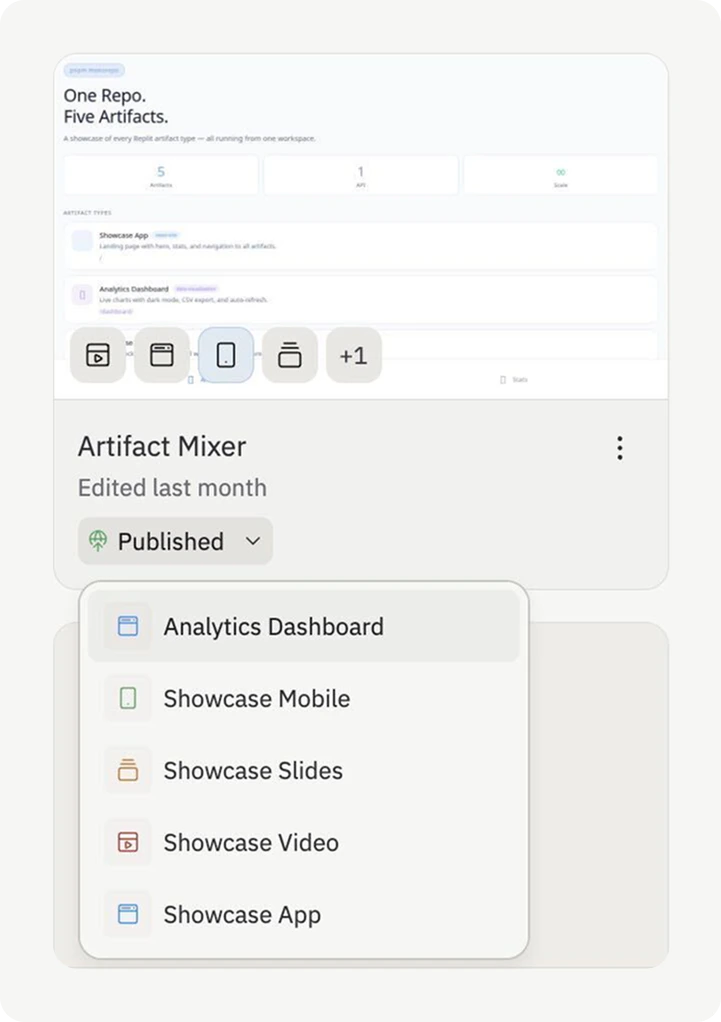
각 프로젝트 카드는 해당 프로젝트에 포함된 웹 앱, 모바일 앱, 슬라이드 덱, 데이터 시각화, 애니메이션 등 각 아티팩트에 대한 작은 아이콘을 표시합니다. 아이콘 위에 마우스를 올리면 카드에서 바로 해당 아티팩트의 스크린샷을 미리 볼 수 있어, 열어보지 않고도 프로젝트를 구분할 수 있습니다.

<Frame>
  <img src="https://mintcdn.com/replit/IDyPuGH-IuCET9Hi/images/replitai/projects-page-artifacts.png?fit=max&auto=format&n=IDyPuGH-IuCET9Hi&q=85&s=c6a8bbd53ed0fb847c7e94a96f446962" alt="프로젝트 페이지의 프로젝트 카드에 아티팩트 아이콘과 프로젝트 내 모든 아티팩트를 나열하는 드롭다운이 표시된 모습" width="721" height="1022" data-path="images/replitai/projects-page-artifacts.png" />
</Frame>

### 아티팩트별로 필터링하기

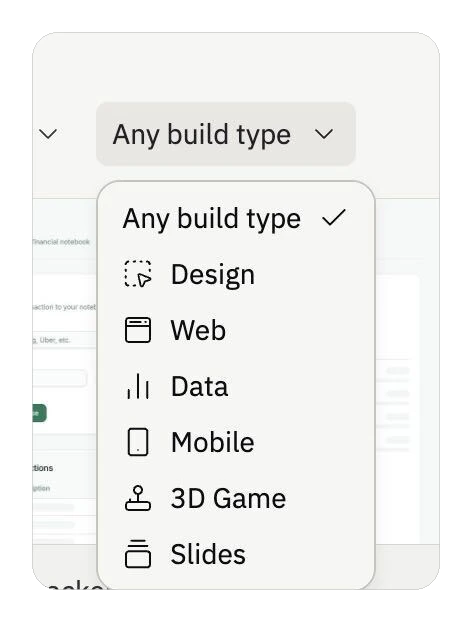
프로젝트 페이지 상단의 **빌드 유형** 드롭다운을 사용해 아티팩트별로 목록을 필터링하세요. 하나를 선택하면 해당 종류의 아티팩트를 포함한 프로젝트만 볼 수 있습니다.

* **웹** — 웹 앱을 포함한 프로젝트
* **모바일** — 모바일 앱을 포함한 프로젝트
* **데이터** — 데이터 시각화를 포함한 프로젝트
* **슬라이드** — 슬라이드 덱을 포함한 프로젝트
* **디자인** — 디자인 모드에 있는 프로젝트
* **3D 게임**, **Agent 및 자동화** 등

필터를 해제하려면 **모든 빌드 유형**을 선택하세요.
<Frame>
  <img src="https://mintcdn.com/replit/IDyPuGH-IuCET9Hi/images/replitai/projects-page-build-type-filter.png?fit=max&auto=format&n=IDyPuGH-IuCET9Hi&q=85&s=0b328400d8b1f1edde4575cc2184eec7" alt="프로젝트 페이지의 빌드 유형 드롭다운으로 아티팩트별로 필터링하는 모습, 디자인, 웹, 데이터, 모바일, 3D 게임, 슬라이드 옵션이 표시됨" width="472" height="622" data-path="images/replitai/projects-page-build-type-filter.png" />
</Frame>

### 마지막으로 열어본 순으로 정렬하기

프로젝트 페이지는 기본적으로 **내가 마지막으로 열어본 순**으로 정렬됩니다. 최근에 가장 많은 시간을 보낸 프로젝트가 상단에 표시됩니다. 이는 특히 다른 구성원의 최근 편집으로 인해 현재 작업이 묻힐 수 있는 팀 작업 공간에서 유용합니다.

다른 열 머리글(예: **마지막 업데이트** 또는 **이름**)을 선택해 정렬 기준을 변경할 수 있습니다.

### 가장 많이 사용하는 프로젝트 고정하기

프로젝트를 고정하면 목록 상단에 유지됩니다. 고정은 **본인에게만** 적용됩니다 — 팀 작업 공간에서 프로젝트를 고정해도 다른 구성원이 보는 화면은 변경되지 않습니다.

프로젝트를 고정하려면 프로젝트 카드의 오버플로 메뉴(점 세 개)를 열고 **고정**을 선택하세요. 고정을 해제하려면 같은 메뉴에서 **고정 해제**를 선택하세요.

## 다음 단계

<CardGroup cols={3}>
  <Card title="아티팩트" href="/ko/features/projects-and-artifacts/artifacts" icon="layer-group">
    아티팩트를 만들고, 전환하고, 관리하는 방법을 알아보세요
  </Card>

  <Card title="웹 앱" href="/ko/features/artifact-types/web-apps" icon="globe">
    풀스택 웹 애플리케이션을 만들어 보세요
  </Card>

  <Card title="모바일 앱" href="/ko/features/artifact-types/building-mobile-apps" icon="mobile">
    네이티브 iOS 및 Android 앱을 만들어 보세요
  </Card>

  <Card title="데이터 시각화" href="/ko/features/artifact-types/data-apps" icon="chart-bar">
    인터랙티브 대시보드와 데이터 탐색 도구를 만들어 보세요
  </Card>

  <Card title="슬라이드 덱" href="/ko/features/artifact-types/slide-decks" icon="presentation-screen">
    대화를 통해 프레젠테이션을 만들어 보세요
  </Card>
</CardGroup>