> ## Documentation Index
> Fetch the complete documentation index at: https://docs.replit.com/llms.txt
> Use this file to discover all available pages before exploring further.
# 요소 편집하기
> Canvas의 프레임 내부에 있는 개별 조각을 선택하고 편집하세요.
**Element**는 제목, 버튼, 이미지, 폼 필드 등 프레임이 렌더링하는 모든 개별 조각을 말합니다. Elements는 전체를 다시 생성하지 않고 프레임의 한 부분만 바꾸고 싶을 때 대상으로 삼는 것입니다.
 ## 요소 선택하기
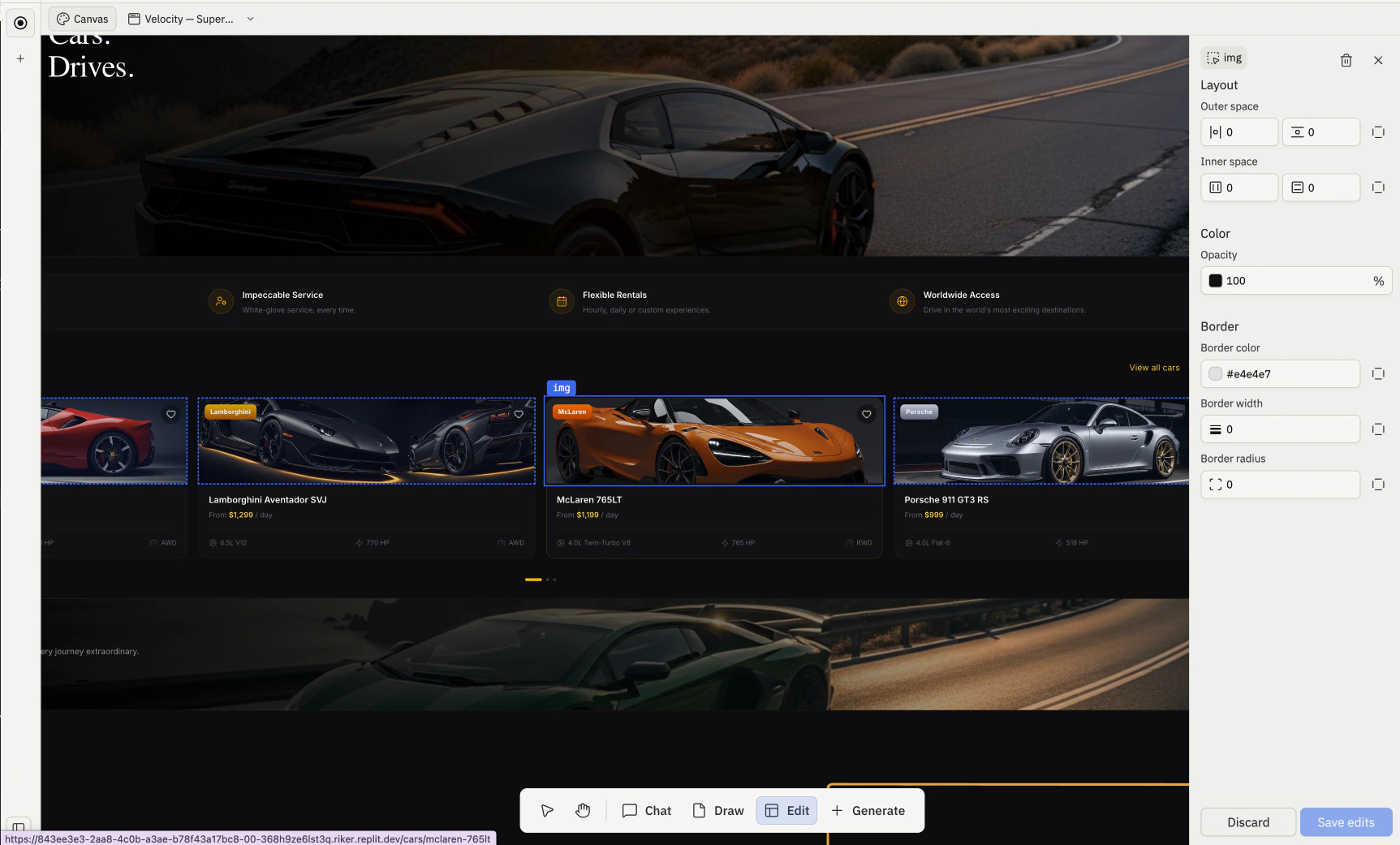
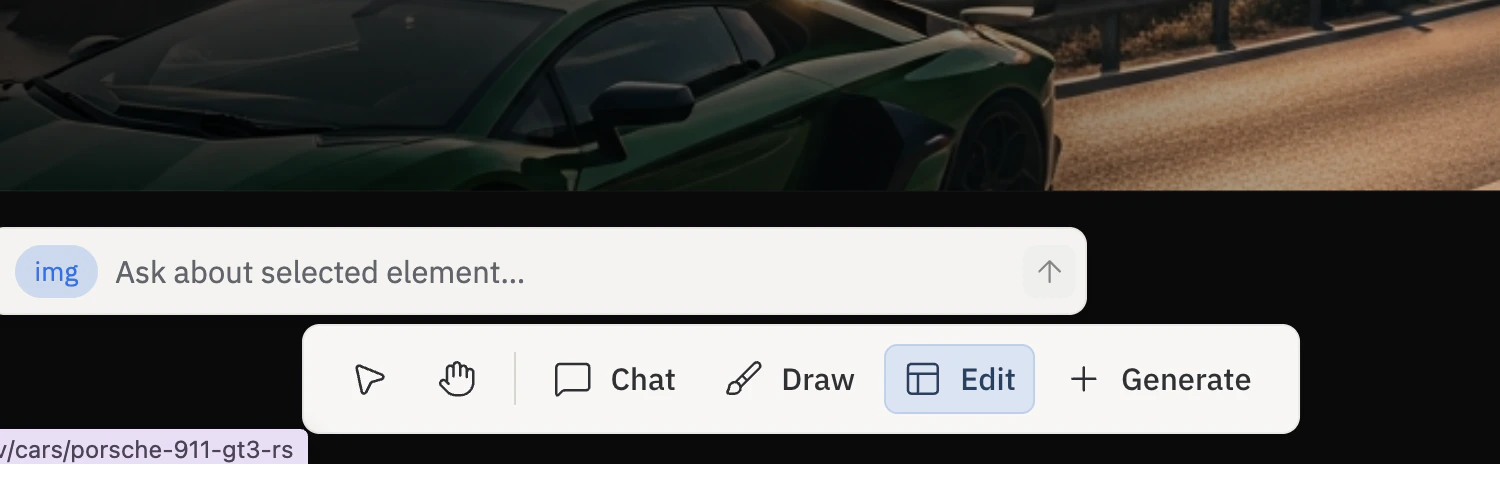
툴바의 [Edit 도구](/ko/features/design/toolbar#edit)를 사용하세요. Edit이 활성화된 상태에서 실행 중인 프레임 내부를 클릭하면 커서 아래의 요소가 선택됩니다. 선택된 요소에는 강조 표시 윤곽선과 Agent에게 변경을 요청할 수 있는 작은 인라인 프롬프트가 나타납니다.
Canvas에 프레임이 하나도 없으면 Edit이 비활성화되며, 데스크톱에서만 사용할 수 있습니다.
## 선택한 요소에 대해 작업하기
### Agent에게 변경 요청하기
인라인 프롬프트로 요소의 텍스트, 색상, 레이아웃, 여백, 동작을 업데이트하도록 Agent에게 요청하세요.
## 요소 선택하기
툴바의 [Edit 도구](/ko/features/design/toolbar#edit)를 사용하세요. Edit이 활성화된 상태에서 실행 중인 프레임 내부를 클릭하면 커서 아래의 요소가 선택됩니다. 선택된 요소에는 강조 표시 윤곽선과 Agent에게 변경을 요청할 수 있는 작은 인라인 프롬프트가 나타납니다.
Canvas에 프레임이 하나도 없으면 Edit이 비활성화되며, 데스크톱에서만 사용할 수 있습니다.
## 선택한 요소에 대해 작업하기
### Agent에게 변경 요청하기
인라인 프롬프트로 요소의 텍스트, 색상, 레이아웃, 여백, 동작을 업데이트하도록 Agent에게 요청하세요.
 ### 요소 검사하기
프레임별 액션 바의 **Inspect** 버튼을 통해 요소를 검사할 수 있으며, 이는 해당 요소를 타겟으로 하는 **Visual Editor**를 엽니다.
### 요소 검사하기
프레임별 액션 바의 **Inspect** 버튼을 통해 요소를 검사할 수 있으며, 이는 해당 요소를 타겟으로 하는 **Visual Editor**를 엽니다.
 Inspect는 프레임이 포커스 모드에 있고 요소가 선택 가능한 DOM 노드일 때만 사용할 수 있습니다.
## Visual Editor
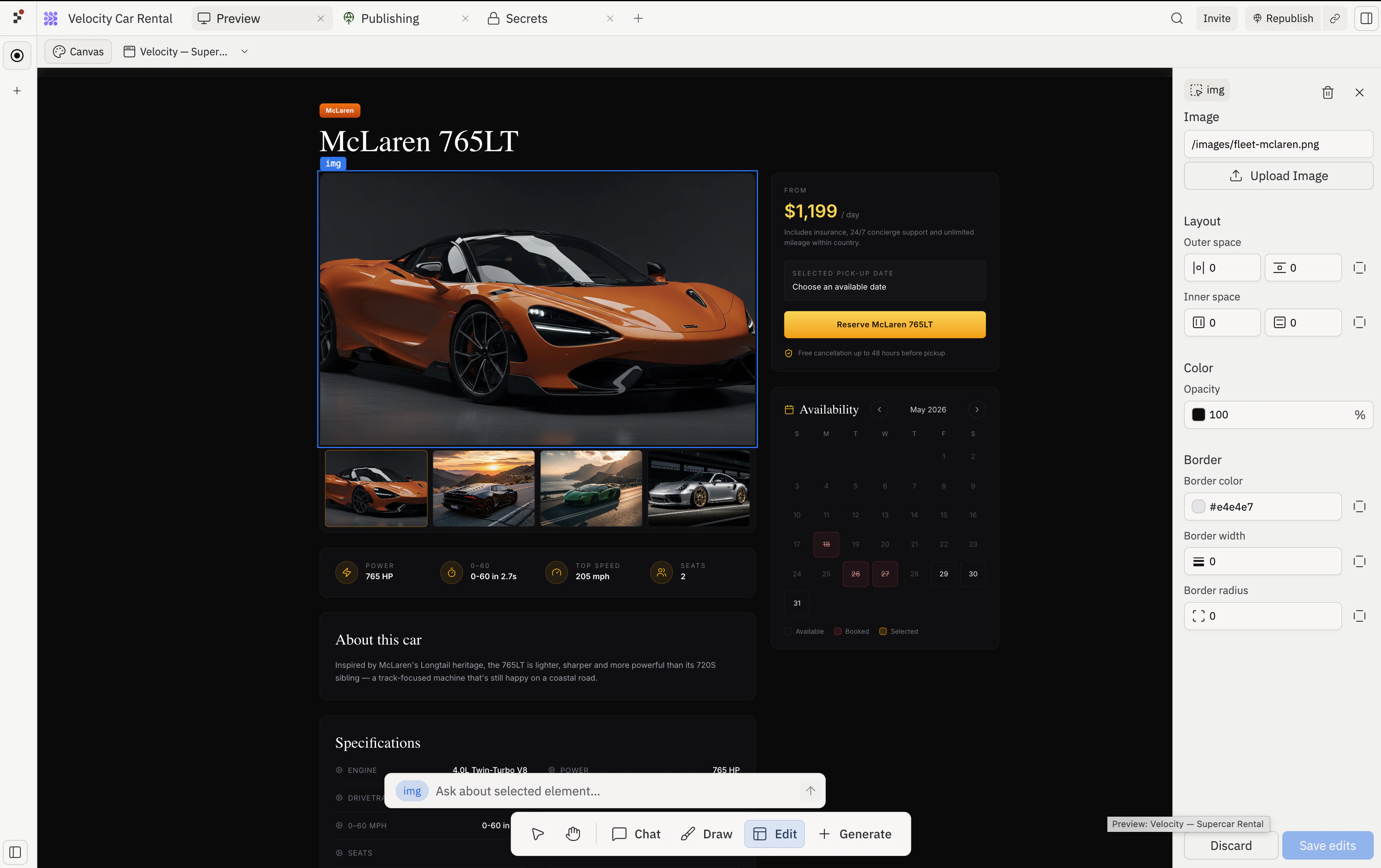
요소를 선택하면 인라인 프롬프트와 함께 우측 패널인 **Visual Editor**가 열립니다. 이 패널은 모든 컨트롤을 명확한 섹션으로 그룹화하여 필요한 것을 더 빠르게 찾을 수 있게 해줍니다: **Text**, **Layout**, **Color**, **Border**. (이미지 요소를 선택하면 **Image** 섹션도 나타납니다.)
Inspect는 프레임이 포커스 모드에 있고 요소가 선택 가능한 DOM 노드일 때만 사용할 수 있습니다.
## Visual Editor
요소를 선택하면 인라인 프롬프트와 함께 우측 패널인 **Visual Editor**가 열립니다. 이 패널은 모든 컨트롤을 명확한 섹션으로 그룹화하여 필요한 것을 더 빠르게 찾을 수 있게 해줍니다: **Text**, **Layout**, **Color**, **Border**. (이미지 요소를 선택하면 **Image** 섹션도 나타납니다.)
 ### Layout
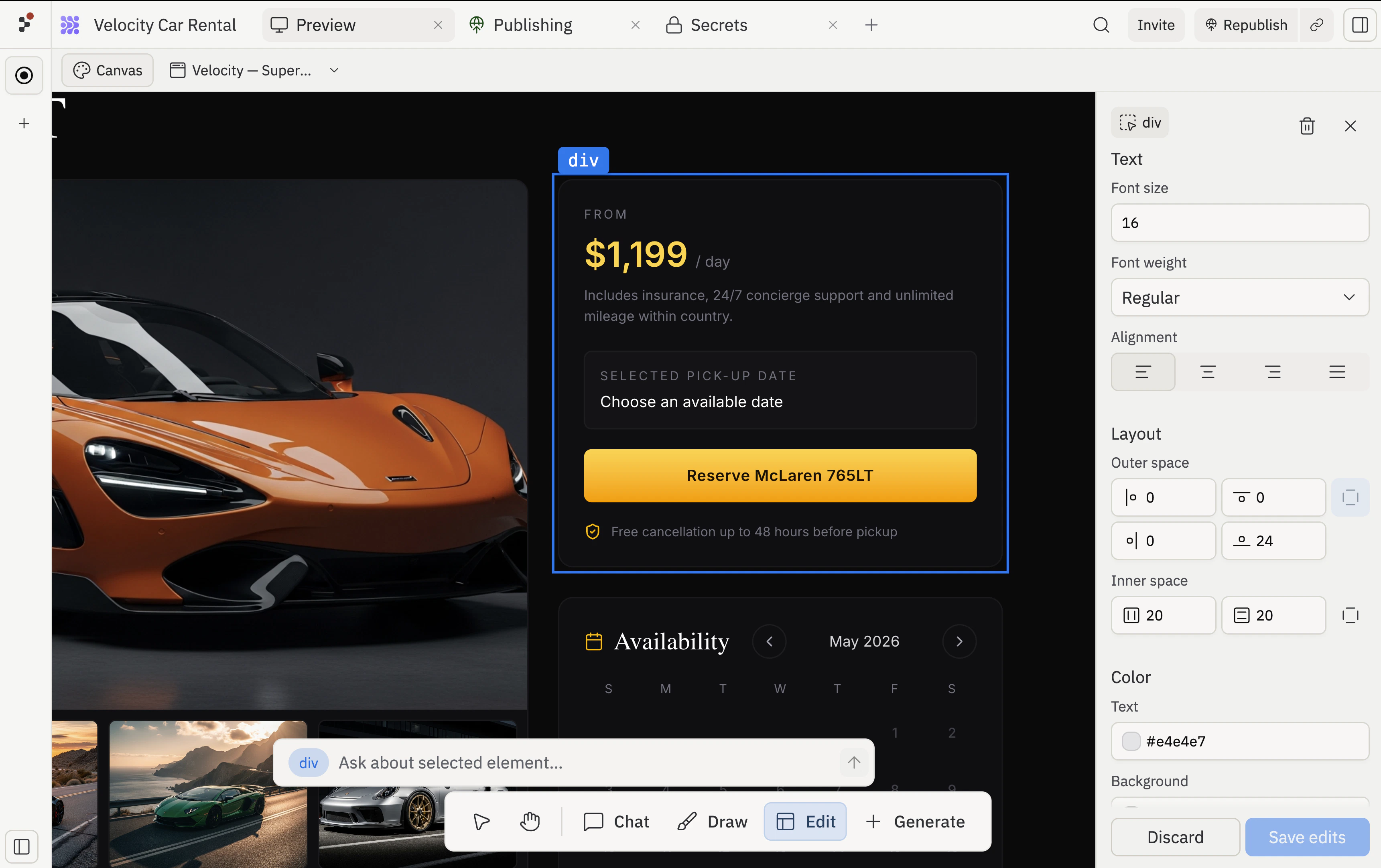
**Layout** 섹션에서는 Agent를 거치지 않고 컨테이너 안의 자식 요소들이 어떻게 배치되는지 조정할 수 있습니다. 플렉스 컨테이너를 선택하고 Layout을 펼치면 다음을 볼 수 있습니다.
* **Alignment**: 컨테이너 내 양쪽 축에서 항목이 위치할 곳을 선택하는 3×3 점 선택기입니다.
* **Direction**: 자식 요소를 행 또는 열로 쌓는 두 개의 화살표 버튼입니다.
* **Gap**: 항목 간 간격을 나타내는 픽셀 값입니다. Gap 입력란 옆의 아이콘은 현재 방향에 맞춰 바뀌므로 가로 간격을 조정하는지 세로 간격을 조정하는지 항상 알 수 있습니다. 그 옆의 화살표 아이콘은 자식 요소를 컨테이너의 반대쪽 끝으로 밀어내는 **Distribute space between items**를 전환합니다.
* **Outer space**: 요소 바깥쪽 공간을 위한 각 측면별 입력란입니다(각 측면에 하나씩, 네 측면을 한 번에 고정하는 링크 토글도 있음).
* **Inner space**: 각 축을 따라 요소 안쪽 공간을 위한 입력란으로, 양쪽 축을 한 번에 고정하는 링크 토글이 있습니다.
Layout 섹션은 선택한 요소에 최소 하나의 레이아웃 컨트롤이 적용될 때만 나타납니다. 간격이나 레이아웃 속성이 없는 일반 텍스트 노드는 이 섹션을 완전히 숨기므로 편집기가 간결하게 유지됩니다.
**Text**, **Color**, **Border**, **Image** 섹션에 대해서는 [Visual Editor 가이드](/ko/learn/design/visual-editor)를 참고하세요.
## 관련 페이지
* [Canvas](/ko/features/design/canvas) — 개요 및 구조.
* [Frames](/ko/features/design/frames) — Elements가 속한 컨테이너.
* [Toolbar](/ko/features/design/toolbar) — Edit 도구가 있는 곳.
* [Visual Editor](/ko/learn/design/visual-editor) — 전체 요소 편집 안내.
### Layout
**Layout** 섹션에서는 Agent를 거치지 않고 컨테이너 안의 자식 요소들이 어떻게 배치되는지 조정할 수 있습니다. 플렉스 컨테이너를 선택하고 Layout을 펼치면 다음을 볼 수 있습니다.
* **Alignment**: 컨테이너 내 양쪽 축에서 항목이 위치할 곳을 선택하는 3×3 점 선택기입니다.
* **Direction**: 자식 요소를 행 또는 열로 쌓는 두 개의 화살표 버튼입니다.
* **Gap**: 항목 간 간격을 나타내는 픽셀 값입니다. Gap 입력란 옆의 아이콘은 현재 방향에 맞춰 바뀌므로 가로 간격을 조정하는지 세로 간격을 조정하는지 항상 알 수 있습니다. 그 옆의 화살표 아이콘은 자식 요소를 컨테이너의 반대쪽 끝으로 밀어내는 **Distribute space between items**를 전환합니다.
* **Outer space**: 요소 바깥쪽 공간을 위한 각 측면별 입력란입니다(각 측면에 하나씩, 네 측면을 한 번에 고정하는 링크 토글도 있음).
* **Inner space**: 각 축을 따라 요소 안쪽 공간을 위한 입력란으로, 양쪽 축을 한 번에 고정하는 링크 토글이 있습니다.
Layout 섹션은 선택한 요소에 최소 하나의 레이아웃 컨트롤이 적용될 때만 나타납니다. 간격이나 레이아웃 속성이 없는 일반 텍스트 노드는 이 섹션을 완전히 숨기므로 편집기가 간결하게 유지됩니다.
**Text**, **Color**, **Border**, **Image** 섹션에 대해서는 [Visual Editor 가이드](/ko/learn/design/visual-editor)를 참고하세요.
## 관련 페이지
* [Canvas](/ko/features/design/canvas) — 개요 및 구조.
* [Frames](/ko/features/design/frames) — Elements가 속한 컨테이너.
* [Toolbar](/ko/features/design/toolbar) — Edit 도구가 있는 곳.
* [Visual Editor](/ko/learn/design/visual-editor) — 전체 요소 편집 안내.