> ## Documentation Index
> Fetch the complete documentation index at: https://docs.replit.com/llms.txt
> Use this file to discover all available pages before exploring further.
# 후속 메시지 조정 또는 대기열에 추가하기
> Steer와 Queue가 Agent의 후속 메시지를 처리하는 방식을 알아보고, Conversation 및 Project 환경설정을 지정하며, Agent가 Replit에서 작업하는 동안 메시지를 관리하세요.
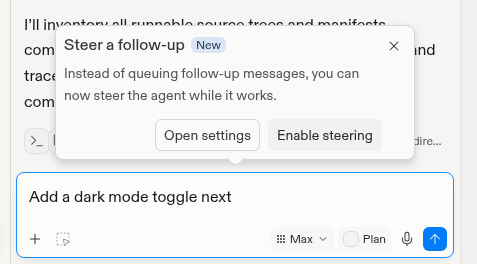
Agent가 작업하는 동안 후속 메시지는 Agent가 현재 수행 중인 작업, 즉 활성
\*\*턴(turn)\*\*을 변경하거나, 해당 턴이 끝날 때까지 대기할 수 있습니다:
* \*\*Steer(조정)\*\*은 메시지를 활성 턴으로 전송합니다. Agent는 작업을 계속하면서 새로운 컨텍스트를 사용합니다.
* \*\*Queue(대기열)\*\*는 메시지를 다음 턴을 위해 저장합니다. Agent는 활성 턴이 끝난 후 이를 시작합니다.
## 대화 조정하기
Steer는 Conversation과 Project에서 후속 메시지의 기본 전송 동작입니다.
두 환경설정 모두 Queue로 변경할 수 있습니다.
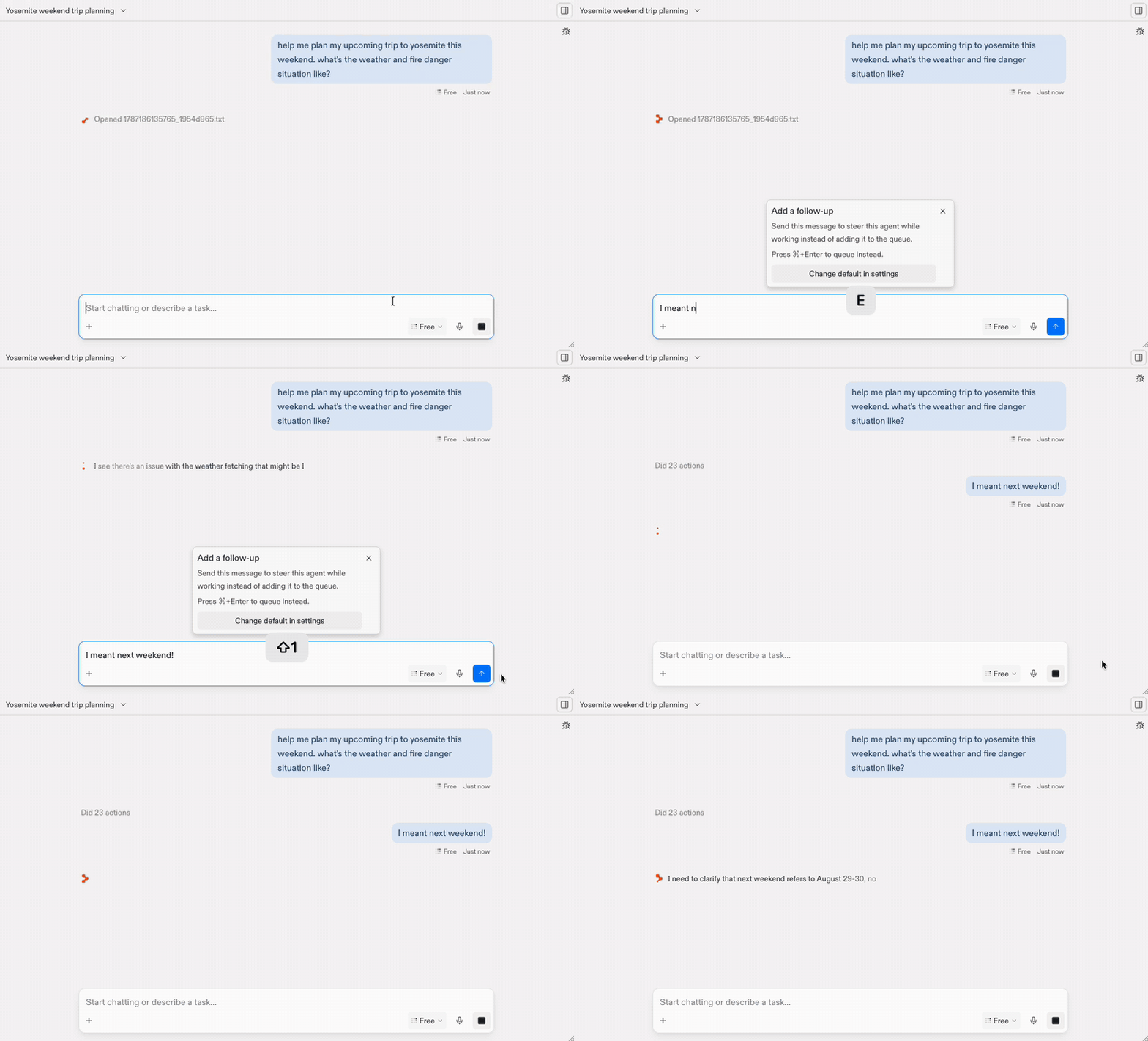
 다음 예시는 Agent가 작업하는 동안 요청을 수정합니다. Agent는 별도의 턴을
기다리지 않고 새로운 컨텍스트를 적용합니다.
다음 예시는 Agent가 작업하는 동안 요청을 수정합니다. Agent는 별도의 턴을
기다리지 않고 새로운 컨텍스트를 적용합니다.
 ## Replit이 후속 메시지를 보내는 방식 선택하기
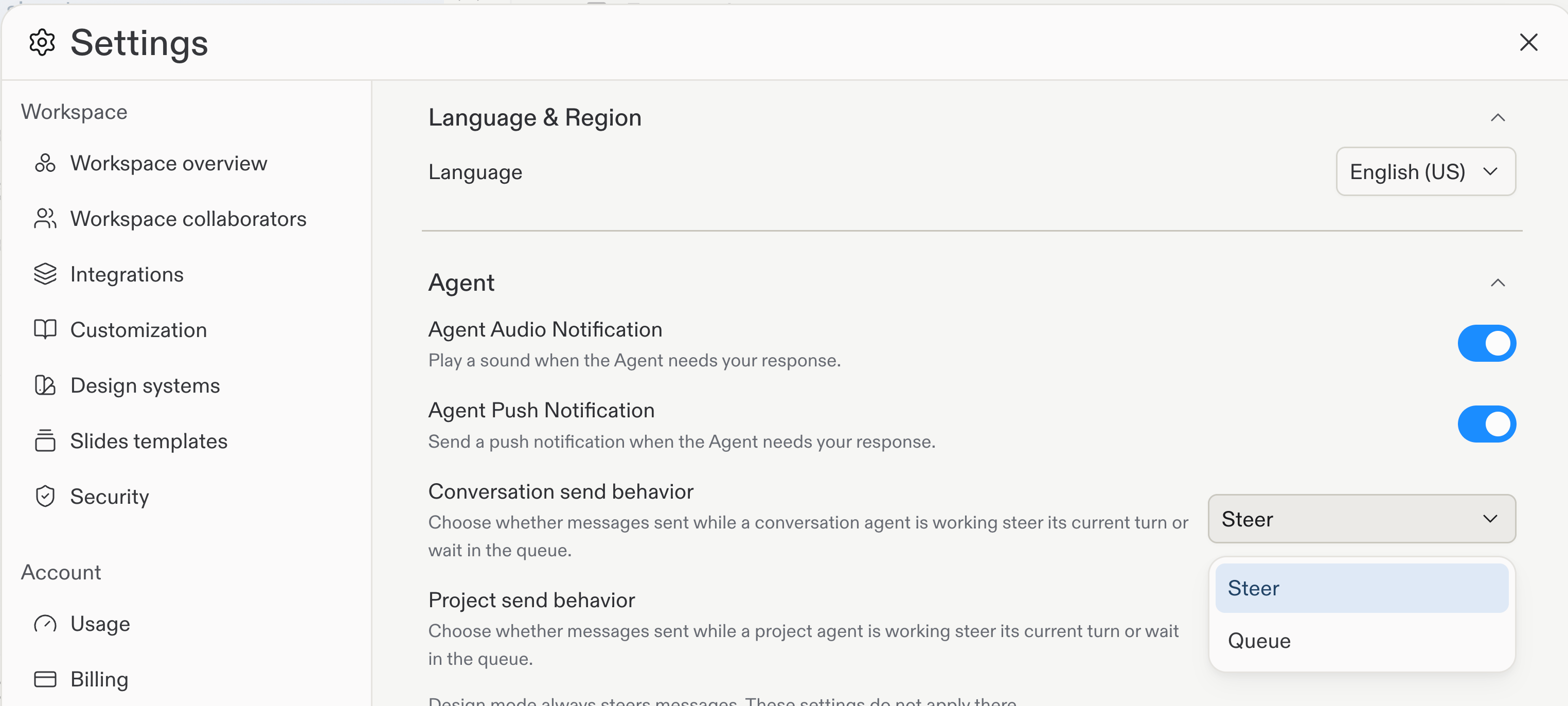
Conversation과 Project에 대해 서로 다른 전송 동작을 설정할 수 있습니다:
1. **Settings** > **Personalization**을 엽니다.
2. **Agent**를 펼칩니다.
3. **Conversation send behavior**와 **Project send behavior**를 **Steer** 또는 **Queue**로 설정합니다.
## Replit이 후속 메시지를 보내는 방식 선택하기
Conversation과 Project에 대해 서로 다른 전송 동작을 설정할 수 있습니다:
1. **Settings** > **Personalization**을 엽니다.
2. **Agent**를 펼칩니다.
3. **Conversation send behavior**와 **Project send behavior**를 **Steer** 또는 **Queue**로 설정합니다.
 Design 모드는 항상 후속 메시지를 조정합니다. Conversation 및 Project 전송
동작 설정은 Design 모드에는 적용되지 않습니다.
환경설정과 반대되는 동작으로 메시지 하나를 보내려면
`Cmd+Enter`(Mac) 또는 `Ctrl+Enter`(Windows 및 Linux)를 누르세요.
## 대기열에 추가된 메시지 다루기
후속 메시지를 대기열에 추가하면 Message Queue가 채팅 입력창 위에 드로어로
나타납니다. Agent는 활성 턴이 끝난 후 대기열에 추가된 메시지를 순서대로
처리합니다. Agent가 대기열에 있는 모든 메시지를 완료하면 드로어가 닫힙니다.
[Visual Editor](/ko/design/visual-editor)와 파일 첨부를 포함해 모든 메시지
옵션을 Queue에서 사용할 수 있습니다.
Agent는 데스크톱 또는 모바일에서 활성 Project Editor 세션이 연결되어 있는
동안에만 대기열에 추가된 메시지를 자동으로 처리합니다.
### 대기열 관리하기
대기열 드로어가 열려 있을 때 다음을 수행할 수 있습니다:
* **Steer now(지금 조정)**: 대기열에 추가된 메시지를 활성 턴으로 이동합니다.
* **Edit messages(메시지 편집)**: Agent가 처리하기 전에 대기열에 추가된 메시지를 변경합니다.
* **Delete messages(메시지 삭제)**: 더 이상 필요하지 않은 메시지를 제거합니다.
* **Reorder messages(메시지 순서 변경)**: 메시지를 드래그하여 처리 순서를 변경합니다.
* **Add messages(메시지 추가)**: 대기열에 후속 메시지를 더 보냅니다.
## 활성 턴 중지하기
상태 표시줄에서 **Stop**을 선택하여 현재 턴에서 Replit이 수행 중인 활성
작업을 중단합니다. 그러면 Agent가 턴을 마치거나 대기열에 추가된 메시지를
처리할 때까지 기다리지 않고 새 메시지를 보낼 수 있습니다.
Design 모드는 항상 후속 메시지를 조정합니다. Conversation 및 Project 전송
동작 설정은 Design 모드에는 적용되지 않습니다.
환경설정과 반대되는 동작으로 메시지 하나를 보내려면
`Cmd+Enter`(Mac) 또는 `Ctrl+Enter`(Windows 및 Linux)를 누르세요.
## 대기열에 추가된 메시지 다루기
후속 메시지를 대기열에 추가하면 Message Queue가 채팅 입력창 위에 드로어로
나타납니다. Agent는 활성 턴이 끝난 후 대기열에 추가된 메시지를 순서대로
처리합니다. Agent가 대기열에 있는 모든 메시지를 완료하면 드로어가 닫힙니다.
[Visual Editor](/ko/design/visual-editor)와 파일 첨부를 포함해 모든 메시지
옵션을 Queue에서 사용할 수 있습니다.
Agent는 데스크톱 또는 모바일에서 활성 Project Editor 세션이 연결되어 있는
동안에만 대기열에 추가된 메시지를 자동으로 처리합니다.
### 대기열 관리하기
대기열 드로어가 열려 있을 때 다음을 수행할 수 있습니다:
* **Steer now(지금 조정)**: 대기열에 추가된 메시지를 활성 턴으로 이동합니다.
* **Edit messages(메시지 편집)**: Agent가 처리하기 전에 대기열에 추가된 메시지를 변경합니다.
* **Delete messages(메시지 삭제)**: 더 이상 필요하지 않은 메시지를 제거합니다.
* **Reorder messages(메시지 순서 변경)**: 메시지를 드래그하여 처리 순서를 변경합니다.
* **Add messages(메시지 추가)**: 대기열에 후속 메시지를 더 보냅니다.
## 활성 턴 중지하기
상태 표시줄에서 **Stop**을 선택하여 현재 턴에서 Replit이 수행 중인 활성
작업을 중단합니다. 그러면 Agent가 턴을 마치거나 대기열에 추가된 메시지를
처리할 때까지 기다리지 않고 새 메시지를 보낼 수 있습니다.