> ## Documentation Index
> Fetch the complete documentation index at: https://docs.replit.com/llms.txt
> Use this file to discover all available pages before exploring further.

# 첫 모바일 앱 시작하기

> Agent로 레트로 스타일 게임 앱 PixelGames를 네이티브 iOS 및 Android 앱으로 만들어 보세요.

export const PromptActions = ({prompt = "", campaign = "docs-prompt-actions"}) => {
  const LZ_SRC = "https://cdnjs.cloudflare.com/ajax/libs/lz-string/1.5.0/lz-string.min.js";
  const ensureLZString = () => {
    if (typeof document === "undefined") return;
    if (window.LZString) return;
    if (document.querySelector(`script[src="${LZ_SRC}"]`)) return;
    const s = document.createElement("script");
    s.src = LZ_SRC;
    s.async = true;
    document.head.appendChild(s);
  };
  const handleCopy = async e => {
    const btn = e.currentTarget;
    if (!prompt) return;
    try {
      await navigator.clipboard.writeText(prompt);
    } catch {
      const ta = document.createElement("textarea");
      ta.value = prompt;
      document.body.appendChild(ta);
      ta.select();
      try {
        document.execCommand("copy");
      } catch {}
      document.body.removeChild(ta);
    }
    const original = btn.dataset.label || btn.innerText;
    btn.dataset.label = original;
    btn.innerText = "Copied!";
    setTimeout(() => {
      if (btn.isConnected) btn.innerText = original;
    }, 1500);
  };
  const handleBuild = () => {
    if (!prompt || typeof window === "undefined") return;
    const utm = `utm_source=replit-docs&utm_medium=docs&utm_campaign=${encodeURIComponent(campaign)}&utm_content=prompt-actions`;
    let url;
    if (window.LZString) {
      const encoded = window.LZString.compressToEncodedURIComponent(prompt);
      url = `https://replit.com/?prompt=${encoded}&referrer=replit-docs&${utm}`;
    } else {
      url = `https://replit.com/?prompt=${encodeURIComponent(prompt)}&referrer=replit-docs&${utm}`;
    }
    window.open(url, "_blank", "noopener,noreferrer");
  };
  ensureLZString();
  const baseButtonStyle = {
    display: "inline-flex",
    alignItems: "center",
    gap: "6px",
    padding: "8px 16px",
    borderRadius: "8px",
    fontSize: "14px",
    fontWeight: 500,
    cursor: "pointer",
    lineHeight: 1.2,
    fontFamily: "inherit",
    textDecoration: "none"
  };
  return <div style={{
    display: "flex",
    gap: "12px",
    margin: "16px 0",
    flexWrap: "wrap",
    alignItems: "center"
  }}>
      <button type="button" onClick={handleCopy} style={{
    ...baseButtonStyle,
    background: "transparent",
    color: "inherit",
    border: "1px solid rgba(127,127,127,0.4)"
  }}>
        Copy the prompt
      </button>
      <button type="button" onClick={handleBuild} style={{
    ...baseButtonStyle,
    background: "#F26207",
    color: "#FFFFFF",
    border: "1px solid #F26207"
  }}>
        Build on Replit ↗
      </button>
    </div>;
};

export const AiPrompt = ({children}) => {
  return <CodeBlock className="relative block max-w-full overflow-x-hidden font-sans !whitespace-pre-wrap !break-words" style={{
    overflowWrap: "anywhere",
    wordBreak: "break-word"
  }}>
      <div className="pr-7" style={{
    whiteSpace: "pre-wrap",
    overflowWrap: "anywhere",
    wordBreak: "break-word"
  }}>
        {children}
      </div>
    </CodeBlock>;
};

export const pixelGamesPrompt = "Create a mobile app called PixelGames: a retro handheld console UI styled like a classic Game Boy, cream plastic shell, grey screen bezel, olive-green LCD screen with grid lines. Add a D-pad and two round A/B buttons, plus MENU and START buttons below the screen. Show a menu with four games: Blocks, Snake, Racer, and Pinball.";

Replit에서 모바일 앱을 만드는 방식은 웹 앱을 만드는 방식과 같습니다. 원하는 것을 설명하면
Agent가 코드를 작성합니다. 이 가이드는 하나의 예시로 그 과정을 안내하므로, 나만의 아이디어에
적용하기 전에 패턴을 미리 익힐 수 있습니다.

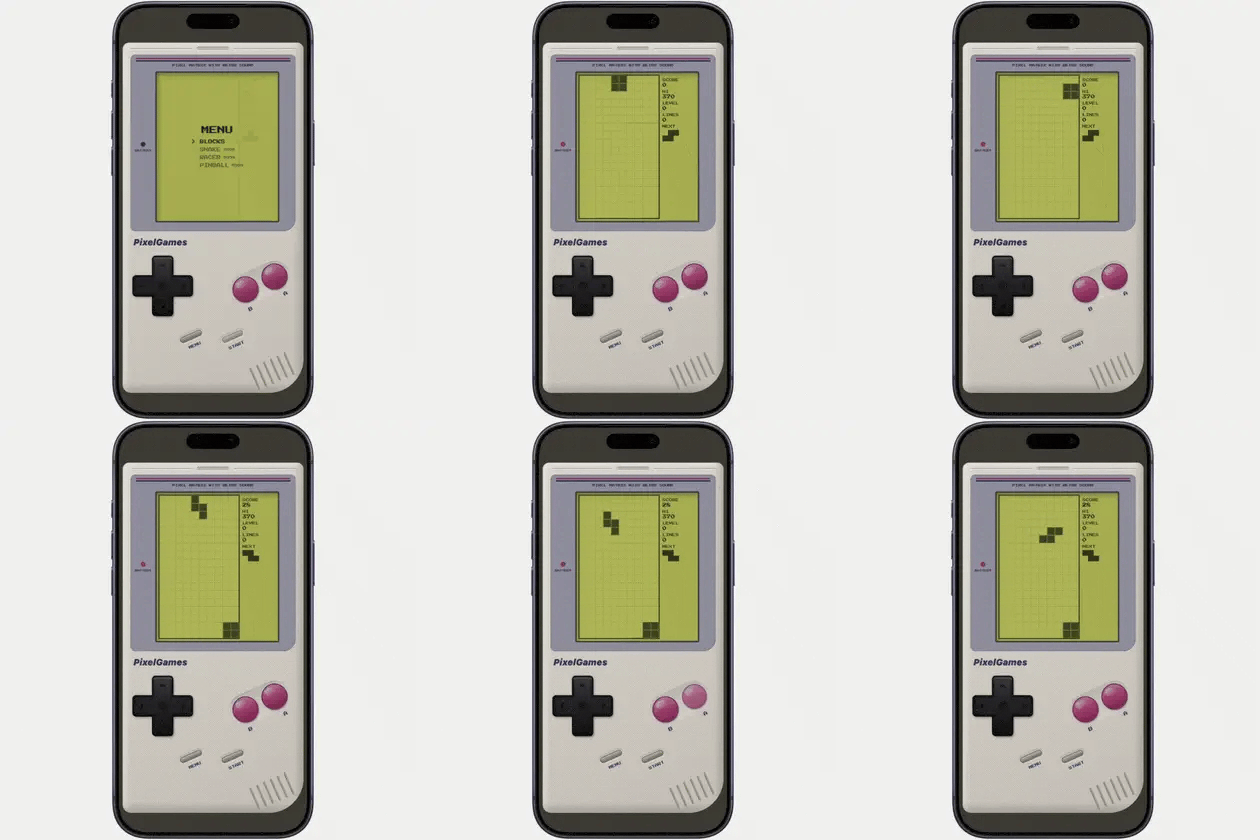
<Frame caption="최종 결과: 휴대폰에서 실행되는 PixelGames 메뉴와 Blocks 게임.">
  <img src="https://mintcdn.com/replit/WuaQIOfW5oxRlxex/images/pixelgames/mobile/pixelgames-home-screen.webp?fit=max&auto=format&n=WuaQIOfW5oxRlxex&q=85&s=dfae6a8f1698297aeda472c149fe9610" alt="Blocks, Snake, Racer, Pinball이 나열되고 Blocks가 선택된 PixelGames 메뉴" width="420" height="420" data-path="images/pixelgames/mobile/pixelgames-home-screen.webp" />
</Frame>

<PromptActions prompt={pixelGamesPrompt} campaign="docs-mobile-first-app" />

## 시작하기 전에

필요한 것은 [Replit 계정](https://replit.com/)뿐이며, 무료로 만들 수 있습니다.

목표는 전체 과정을 한 바퀴 완주하는 것입니다.

* [Agent](/ko/features/agent/overview)로 앱 만들기
* 모바일 앱으로 테스트하기
* 게시하고 공유하기

Agent는 Replit의 AI 빌더입니다. 원하는 것을 설명하면 앱을 만들고, 무엇을 했는지 설명하고,
고장 난 부분을 고쳐 줍니다.

## 1. Agent에게 앱 만들기 요청하기

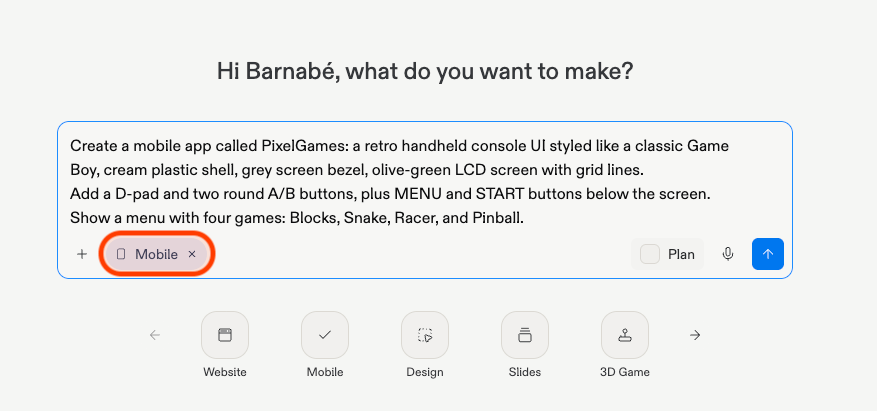
Replit을 열고 새 앱을 시작하세요. 만들고 싶은 것을 설명한 다음 앱 유형으로 **Mobile app**을
선택하세요.

<AiPrompt>
  {pixelGamesPrompt}
</AiPrompt>

<Frame caption="Agent가 모바일 프로젝트와 콘솔 셸 UI를 설정하는 모습.">
  <img src="https://mintcdn.com/replit/WuaQIOfW5oxRlxex/images/pixelgames/mobile/pixelgames-scaffolding.png?fit=max&auto=format&n=WuaQIOfW5oxRlxex&q=85&s=f65c88aa83300af9e0aca0528175646a" alt="Mobile 모드가 선택된 상태로 Replit 홈페이지에 입력된 PixelGames 빌드 프롬프트" data-path="images/pixelgames/mobile/pixelgames-scaffolding.png" width="877" height="411" data-path="images/pixelgames/mobile/pixelgames-scaffolding.png" />
</Frame>

## 2. 미리보기에서 작동 확인하기

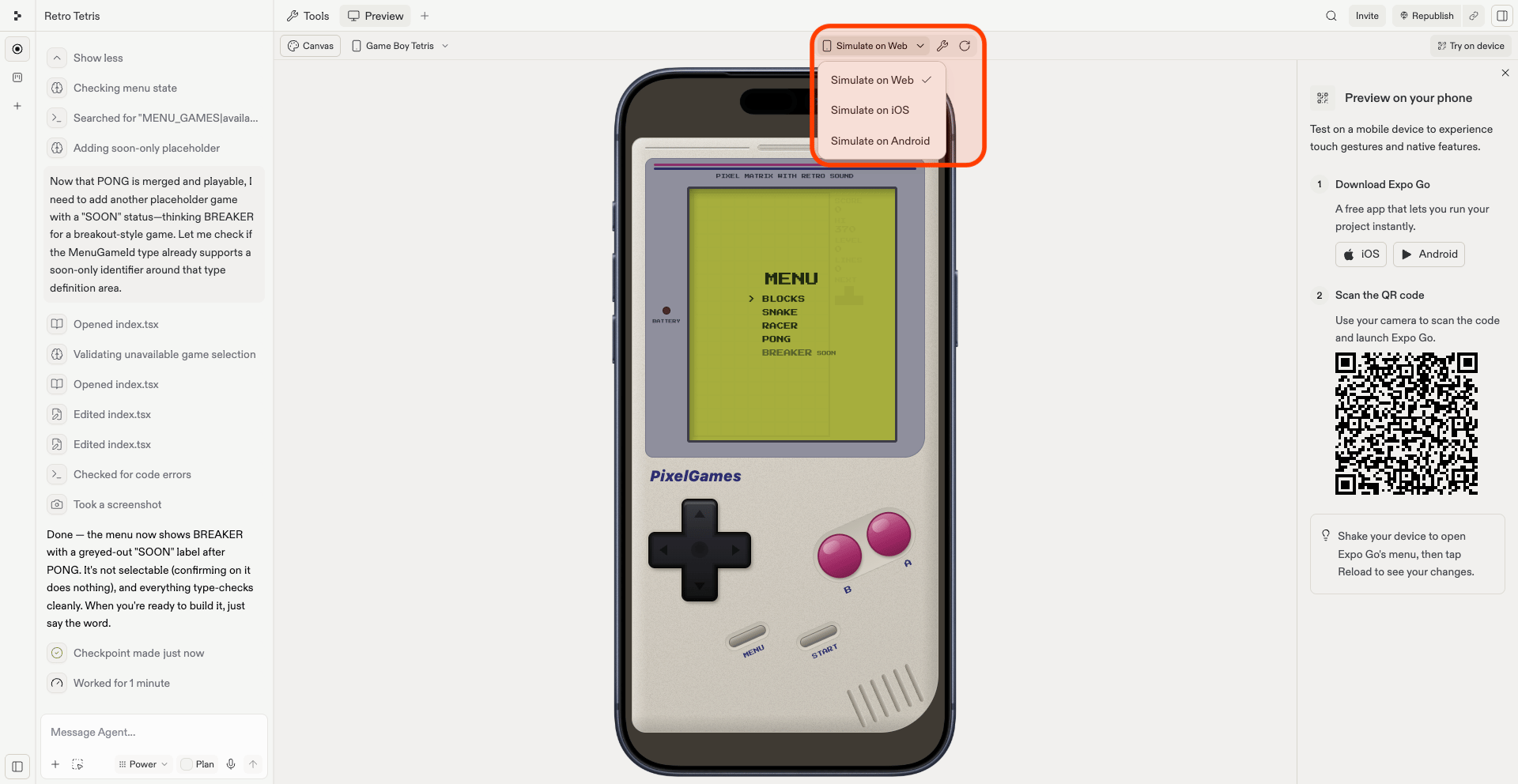
Replit은 미리보기 창에서 바로 PixelGames를 iOS 또는 Android로 시뮬레이션합니다. 변경 사항을
확인하는 가장 빠른 방법입니다.

<Steps>
  <Step title="시뮬레이터가 자동으로 시작됩니다">
    PixelGames가 준비되면 Replit이 바로 시뮬레이션을 실행하므로 별도 설정이 필요 없습니다.
  </Step>

  <Step title="드롭다운으로 플랫폼 전환하기">
    미리보기 창 도구 모음(렌치 및 새로고침 아이콘 옆)의 **Simulate on...** 드롭다운으로
    **iOS**, **Android**, **Web** 사이를 전환하세요.
  </Step>
</Steps>

<Frame caption="Replit 미리보기 창의 Simulate on... 드롭다운.">
  <img src="https://mintcdn.com/replit/wpDFPJulnZRpqmW6/images/pixelgames/mobile/replit-simulate-dropdown.png?fit=max&auto=format&n=wpDFPJulnZRpqmW6&q=85&s=261e1358d3acd58025b1f4f00d779a5b" alt="Simulate on Web, iOS, Android 드롭다운이 열려 있는 Replit 미리보기 창" data-path="images/pixelgames/mobile/replit-simulate-dropdown.png" width="1920" height="992" data-path="images/pixelgames/mobile/replit-simulate-dropdown.png" />
</Frame>

### 실제로 작동하는지 확인하기

플레이어가 하듯이 PixelGames를 사용해 보세요.

* **MENU** 화면에서 **Blocks**는 선택할 수 있고 나머지 세 게임은 "SOON"으로 표시되는지 확인하세요.
* Blocks를 열고 D-pad와 A/B 버튼으로 블록 몇 개를 플레이해 보세요.
* 플레이하는 동안 HUD의 점수, 레벨, 라인이 업데이트되는지 확인하세요.

뭔가 이상하다면 본 것을 Agent에게 설명하세요. 직접 버그를 찾을 필요는 없습니다.

## PixelGames가 실행되었습니다

프롬프트 하나로 Replit 안에서 바로 미리 볼 수 있는 플레이 가능한 게임을 만들었습니다.

## 문제 해결

<AccordionGroup>
  <Accordion title="미리보기 창이 계속 비어 있습니다">
    첫 빌드는 1\~2분 정도 걸리므로, 멈췄다고 판단하기 전에 잠시 기다려 주세요. 그래도
    비어 있다면 콘솔에서 오류를 확인하고 Agent에게 공유하세요.
  </Accordion>

  <Accordion title="변경 사항이 미리보기에 나타나지 않습니다">
    콘솔에서 **R**을 눌러 PixelGames를 다시 불러온 다음, 그래도 이전 화면이면 미리보기 창
    도구 모음의 새로고침 아이콘을 사용하세요.
  </Accordion>

  <Accordion title="미리보기에 빨간 오류 화면이 나타납니다">
    보통 JavaScript 오류나 누락된 패키지를 의미합니다. 메시지를 읽어 보세요. 정확한 파일과
    줄을 알려주는 경우가 많습니다. 그런 다음 Agent에게 공유하고 수정을 요청하세요.
  </Accordion>

  <Accordion title="앱이 웹에서는 작동하지만 iOS나 Android에서 깨집니다(또는 그 반대)">
    일부 패키지는 플랫폼마다 다르게 동작합니다. 웹에서 작동하는 패키지가 네이티브를 지원하지
    않거나 다른 설정이 필요할 수 있습니다. 사용하기 전에 Agent에게 "이 패키지가 네이티브를
    지원하나요?"라고 물어보세요.
  </Accordion>

  <Accordion title="빌드가 오래 걸립니다">
    아직 캐시된 것이 없으므로 첫 빌드는 항상 더 느리며, 이후 빌드는 더 빨라집니다. 계속
    느리다면 Agent에게 프로젝트에 불필요한 패키지가 있는지 확인해 달라고 요청하세요.
  </Accordion>

  <Accordion title="Module not found 오류">
    패키지가 설치되지 않았거나, 설치되었지만 캐시가 오래되었다는 뜻입니다. Agent에게 설치하거나
    캐시를 지워 달라고 요청하고, 패키지 이름의 철자가 틀리지 않았는지도 다시 확인하세요.
  </Accordion>
</AccordionGroup>

## 다음 단계

<CardGroup cols={2}>
  <Card title="휴대폰에서 테스트하기" icon="mobile" href="/ko/build/mobile-preview-testing">
    PixelGames를 실제 휴대폰 앱으로 느껴 보세요. 엄지 아래의 버튼, 햅틱, 실제 화면 크기까지.
  </Card>

  <Card title="로그인 추가하기" icon="right-to-bracket" href="/ko/build/mobile-login">
    플레이어가 로그인하고 진행 상황을 저장할 수 있게 하세요.
  </Card>

  <Card title="모바일 앱에 이미지 저장하기" icon="image" href="/ko/build/mobile-store-images">
    프로필 사진을 App Storage에 저장하세요.
  </Card>

  <Card title="푸시 알림 보내기" icon="bell" href="/ko/build/mobile-push-notifications">
    새 게임이 출시되면 플레이어에게 알려 주세요.
  </Card>

  <Card title="결제 추가하기" icon="credit-card" href="/ko/build/mobile-payments">
    PixelGames의 콘텐츠에 대해 플레이어에게 요금을 청구하세요.
  </Card>
</CardGroup>