> ## Documentation Index
> Fetch the complete documentation index at: https://docs.replit.com/llms.txt
> Use this file to discover all available pages before exploring further.
# 연락처에 접근하기
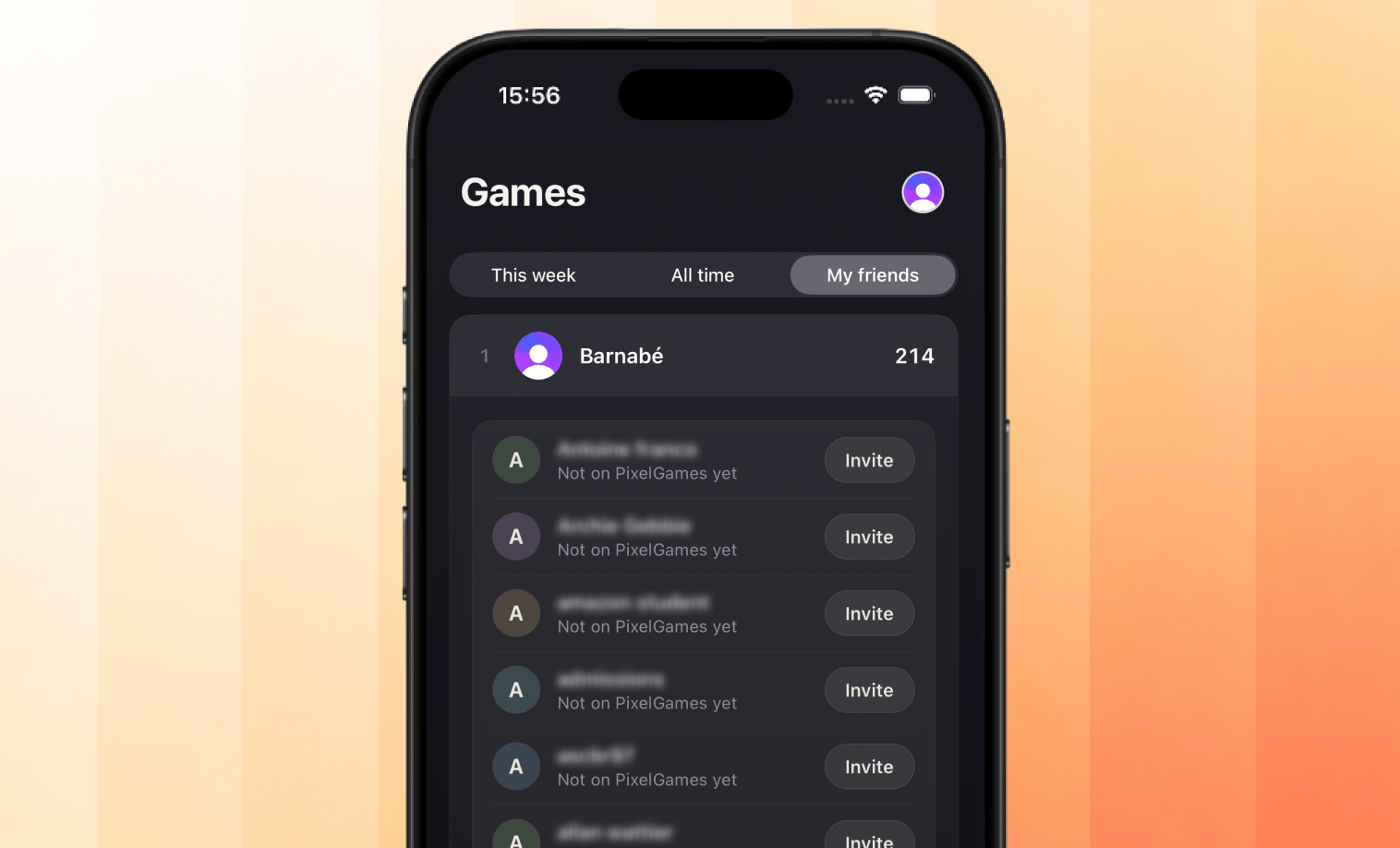
> 어떤 친구가 이미 PixelGames를 플레이하고 있는지 플레이어가 볼 수 있도록 해보세요.
export const AiPrompt = ({children}) => {
return
{children}
;
};
export const contactsPrompt = "Let players pick friends from their contacts with the system contact picker. Show which of them already play PixelGames, along with their high scores.";
{contactsPrompt}
플레이어는 시스템 피커를 사용해 누구와 공유할지 선택하므로, PixelGames는 선택된 연락처만 볼 수
있습니다. iOS와 Android 모두 전체 주소록 권한 대신 이 피커를 사용합니다. PixelGames는 공유된
전화번호나 이메일을 기존 플레이어와 매칭해 점수를 표시하고, 일치하지 않는 연락처는 그대로
둡니다.
 ## 다음 단계
PixelGames 전반에서 사용되는 다른 네이티브 iOS 패턴을 살펴보세요.
프로필 사진을 App Storage에 저장해보세요.
## 다음 단계
PixelGames 전반에서 사용되는 다른 네이티브 iOS 패턴을 살펴보세요.
프로필 사진을 App Storage에 저장해보세요.