> ## Documentation Index
> Fetch the complete documentation index at: https://docs.replit.com/llms.txt
> Use this file to discover all available pages before exploring further.
# ファイル履歴
> ファイル履歴の自動セーブポイントを使ってコードの以前のバージョンを復元する方法について説明します。

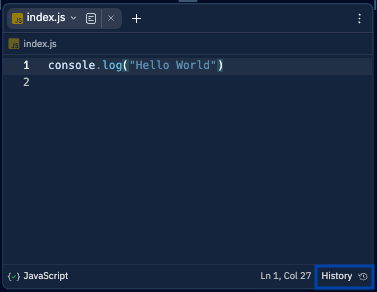
プロジェクトエディターでテキストファイルを開き、右下隅の**History**ボタンを押して始めます。
 ## ファイルの以前のバージョンを表示する
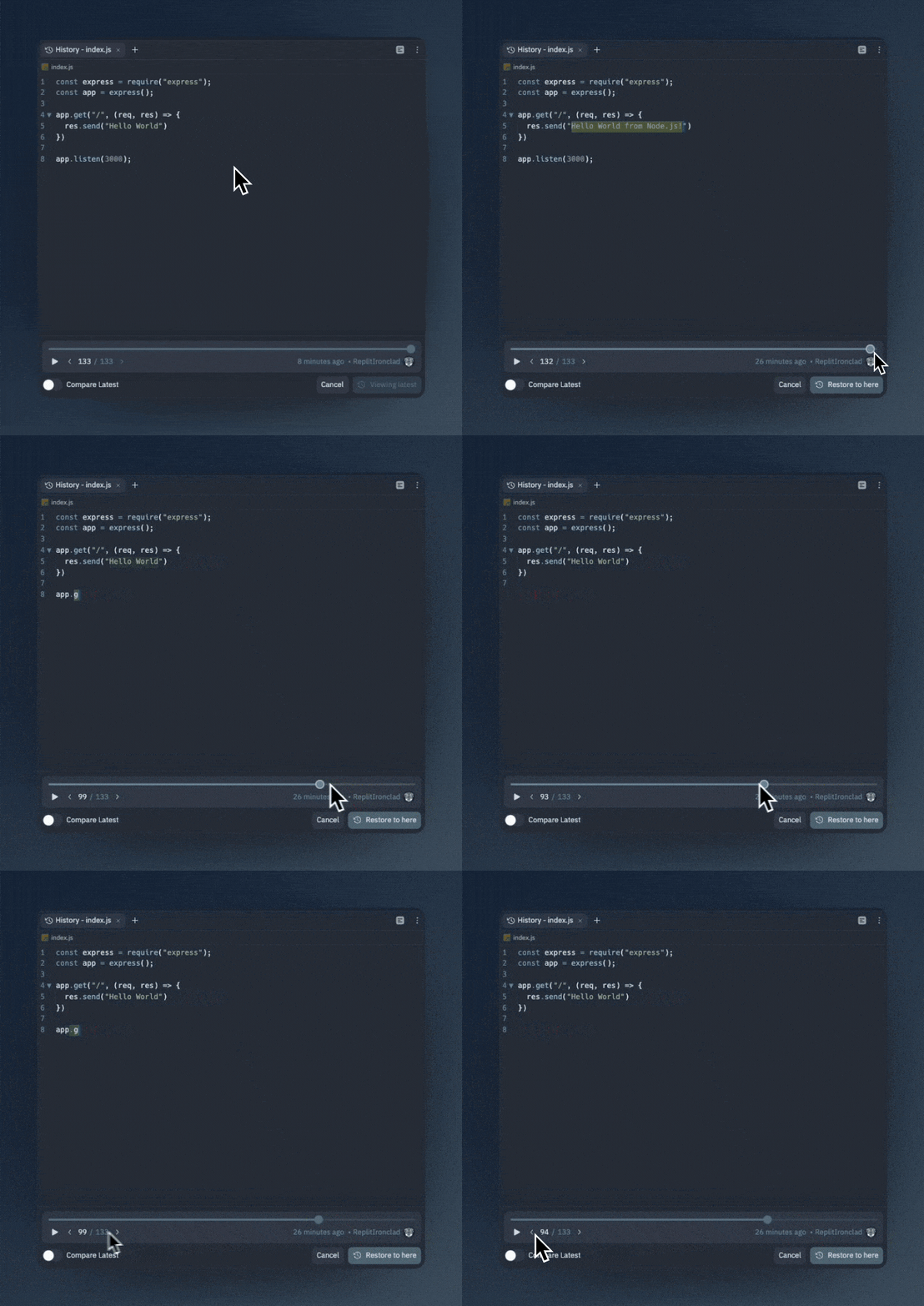
ファイル履歴を開くと、スクロールバー、矢印ボタン、または**左右**の矢印キーを使ってファイルの以前のバージョンを表示できます。
## ファイルの以前のバージョンを表示する
ファイル履歴を開くと、スクロールバー、矢印ボタン、または**左右**の矢印キーを使ってファイルの以前のバージョンを表示できます。
 ## 以前のバージョンと現在のファイルを比較する
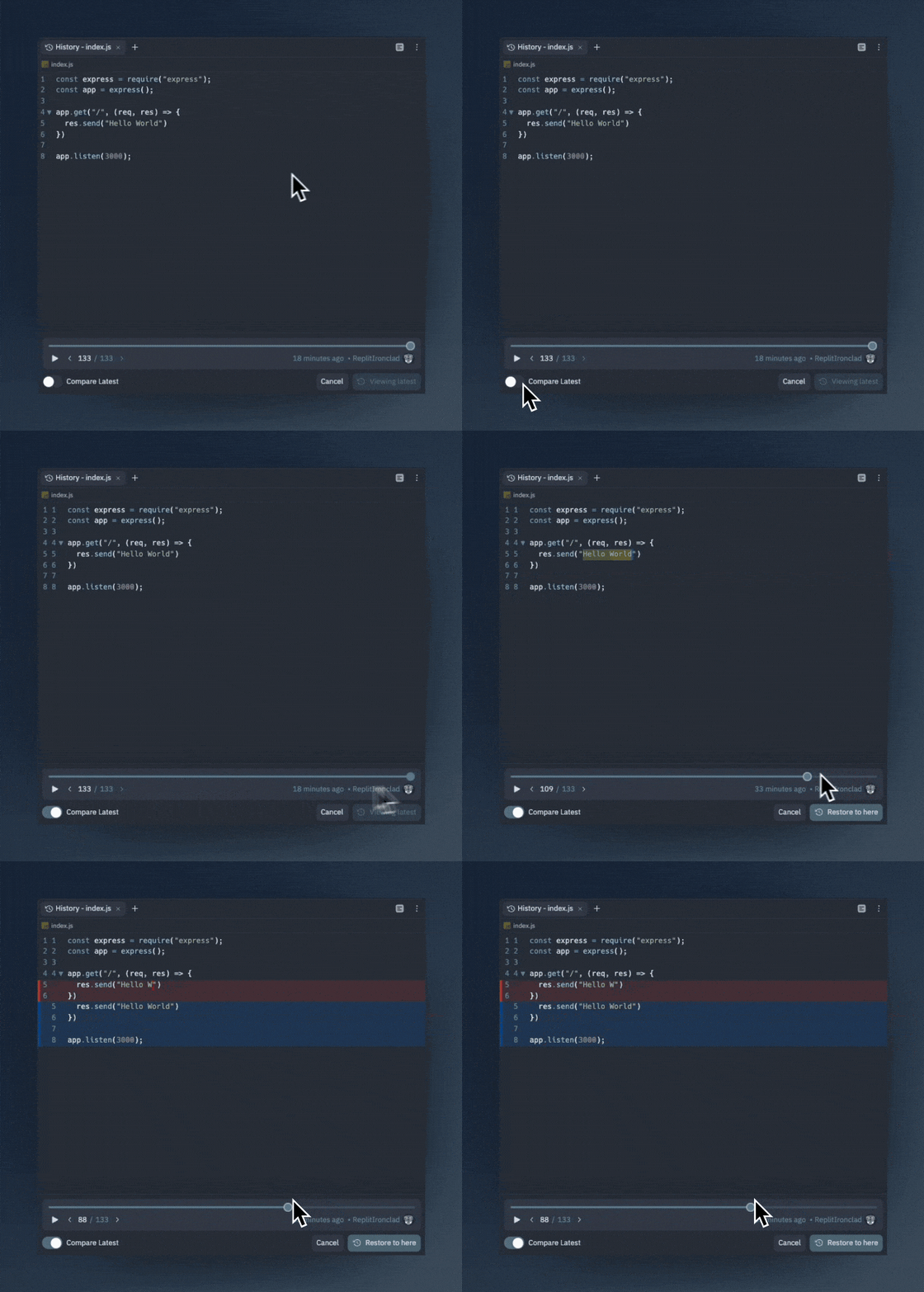
ファイル履歴ペインの左下にある「Compare Latest」トグルを押すと、その時点のファイルと最新バージョンのインライン比較が表示されます。
## 以前のバージョンと現在のファイルを比較する
ファイル履歴ペインの左下にある「Compare Latest」トグルを押すと、その時点のファイルと最新バージョンのインライン比較が表示されます。
 ## ファイルの以前のバージョンを復元する
ファイルを以前のバージョンに復元したい場合は、`Restore`ボタンを押すだけで復元されます。履歴が消えることはありません。以前のバージョンに復元すると、そのバージョンがファイルの履歴に新しいバージョンとして追加されます。
## ファイルの以前のバージョンを復元する
ファイルを以前のバージョンに復元したい場合は、`Restore`ボタンを押すだけで復元されます。履歴が消えることはありません。以前のバージョンに復元すると、そのバージョンがファイルの履歴に新しいバージョンとして追加されます。
 ## ファイル履歴の再生を表示する
ファイル履歴の再生機能を使うと、ファイルの変化を映画のように時系列で見ることができます。プログラミングセッションの動画を作成するのに便利です。
## ファイル履歴の再生を表示する
ファイル履歴の再生機能を使うと、ファイルの変化を映画のように時系列で見ることができます。プログラミングセッションの動画を作成するのに便利です。