> ## Documentation Index
> Fetch the complete documentation index at: https://docs.replit.com/llms.txt
> Use this file to discover all available pages before exploring further.
# スタティックデプロイ
> スタティックデプロイで静的ウェブサイトとフロントエンドアプリを発行する方法を説明します。
スタティックデプロイは、Replit AppのHTML、CSS、JavaScriptなどの静的ファイルをクラウドサーバーにホストします。サーバーはキャッシングとスケーリング戦略を自動的に使用して、コンテンツを迅速かつ経済的に配信します。
スタティックデプロイは次のユースケースに最適です:
* マーケティングのランディングページ
* ポートフォリオウェブサイト
* 製品とAPIのドキュメントサイト
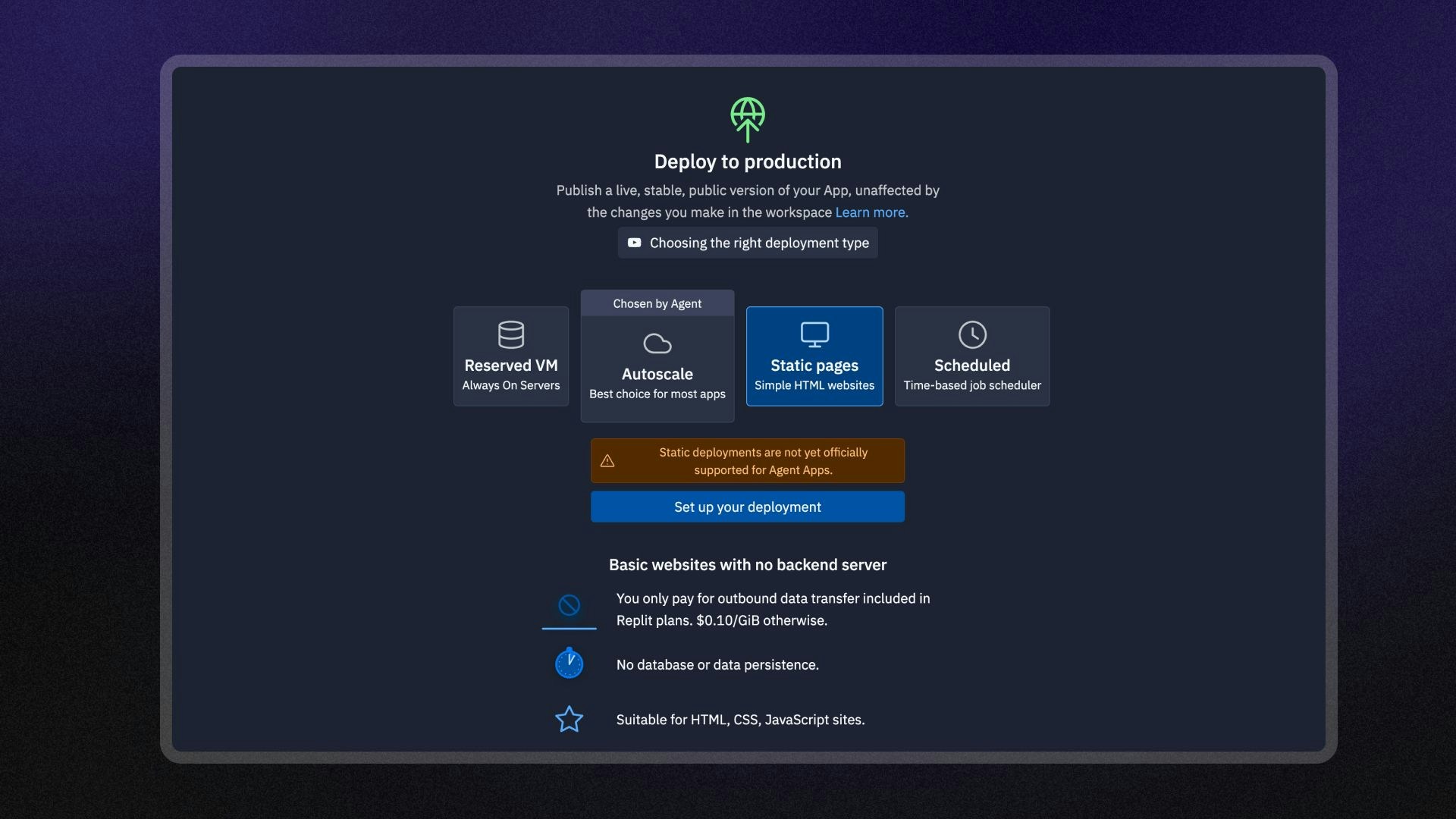
スタティックデプロイはAgentを使用して作成されたReplit Appsとは互換性がありません。
Agentはバックエンドサーバーを必要とするフルスタックアプリを自動的に作成します。
Agentが生成したアプリには、以下のデプロイタイプのいずれかを使用してください:
* [オートスケールデプロイ](/references/publishing/autoscale-deployments)
* [Reserved VMデプロイ](/references/publishing/reserved-vm-deployments)
 ## 機能
スタティックデプロイには以下の機能が含まれています:
* **コスト効率の良いホスティング**: ウェブサイトが配信するデータ量のみ課金されます。
* **HTTPルーティングオプション**: レスポンスヘッダー、URLリライト、リダイレクトを設定します。
* **カスタムドメイン**: カスタムドメインを設定するか、`.replit.app` URLを使用してアプリにアクセスします。
* **カスタムエラーページ**: カスタム404エラーページを作成して配信します。
* **モニタリング**: ログを確認し、発行済みアプリのステータスを監視します。
## 使用方法
スタティックデプロイは、PublishingプロジェクトエディターツールからアクセスできCます。
左の**ツールドック**から:
1.
## 機能
スタティックデプロイには以下の機能が含まれています:
* **コスト効率の良いホスティング**: ウェブサイトが配信するデータ量のみ課金されます。
* **HTTPルーティングオプション**: レスポンスヘッダー、URLリライト、リダイレクトを設定します。
* **カスタムドメイン**: カスタムドメインを設定するか、`.replit.app` URLを使用してアプリにアクセスします。
* **カスタムエラーページ**: カスタム404エラーページを作成して配信します。
* **モニタリング**: ログを確認し、発行済みアプリのステータスを監視します。
## 使用方法
スタティックデプロイは、PublishingプロジェクトエディターツールからアクセスできCます。
左の**ツールドック**から:
1.  **All tools**を選択して、プロジェクトエディターツールのリストを表示します。
2.
**All tools**を選択して、プロジェクトエディターツールのリストを表示します。
2.  **Publishing**を選択します。
3. **Static**オプションを選択し、**Set up your published app**を選択します。
**検索バー**から:
1. 上部の
**Publishing**を選択します。
3. **Static**オプションを選択し、**Set up your published app**を選択します。
**検索バー**から:
1. 上部の 虫眼鏡を選択して検索ツールを開きます
2. 「Publishing」と入力してツールを検索し、結果から選択します。
3. **Static**オプションを選択し、**Set up your published app**を選択します。
虫眼鏡を選択して検索ツールを開きます
2. 「Publishing」と入力してツールを検索し、結果から選択します。
3. **Static**オプションを選択し、**Set up your published app**を選択します。
 ### プライマリドメイン
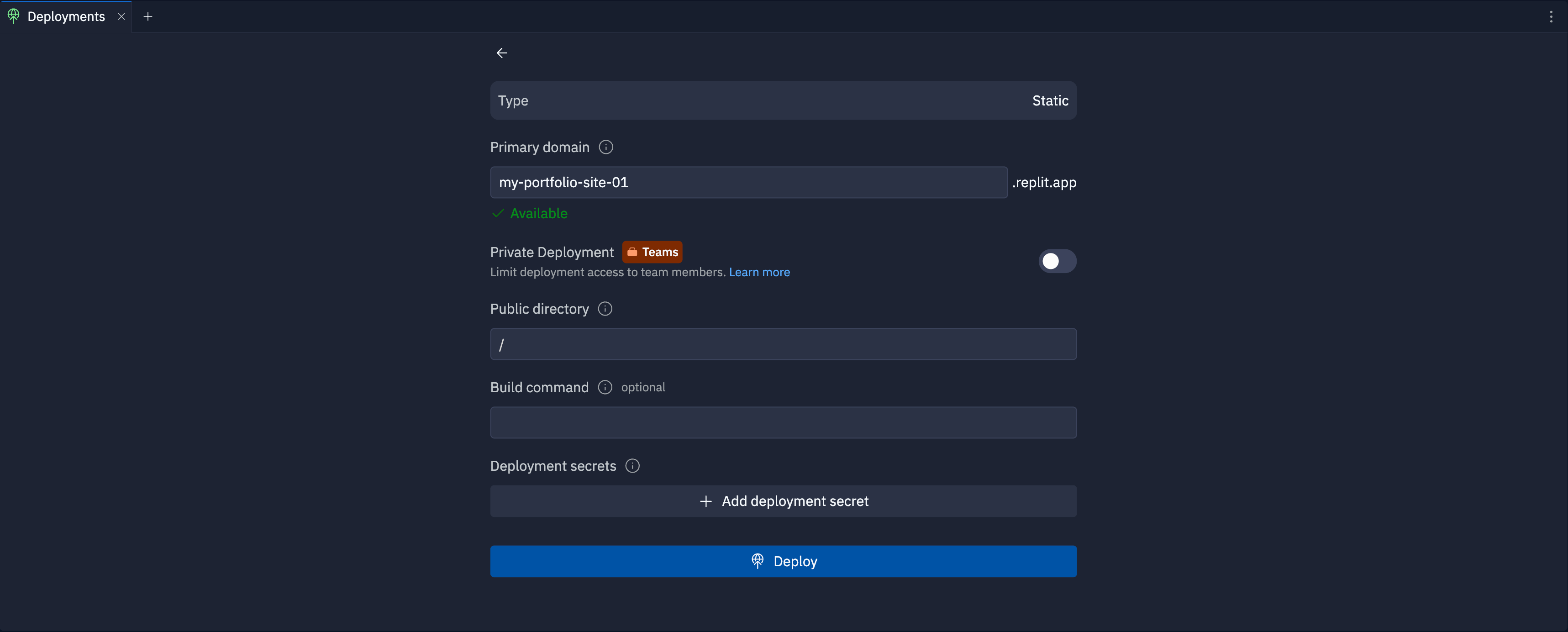
Specify the subdomain part of the hostname for your published app. After you publish, you can access your published app at `https://.replit.app`.
To learn how to use a custom domain, see [Custom Domains](/references/publishing/custom-domains).
### プライベートデプロイ
The private published app feature is available on the Pro and Enterprise plans.
Private published apps grant access to your app only to members of your workspace, or to specific users and groups that you invite.
When publishing, you can choose between **Public**, **Workspace only**, or **Only you** access.
To learn how to set up a private deployment, see [Private Deployments](/references/publishing/private-deployments/).
### パブリックディレクトリ
パブリックに配信したい静的ファイルを含む、Replit App内のベースディレクトリパスを指定します。
デプロイ後、クラウドホストはそのディレクトリ内のすべてのページとアセットを配信します。
デフォルト値の`/`はReplit Appのルートディレクトリです。
### ビルドコマンド
デプロイを作成するときにReplit Appのシェルで実行するビルドコマンドを指定します。
例えば、Hugoを使って静的サイトを生成する場合、
`hugo --minify`コマンドを使用してファイルを生成しアセットファイルサイズを最適化することがあります。
### デプロイシークレット
**Add deployment secret**を選択して、ビルドコマンドを安全に実行するために必要な環境変数やシークレットを追加します。
例えば、サイトジェネレーターが静的サイトを作成するためにAPIキーを必要とする場合、
`API_KEY=<シークレット名>`として渡すことがあります。
## 次のステップ
* [スタティックデプロイの設定](/references/deployment-customization/static-deployments-advanced):HTTPヘッダー、カスタム404ページ、URLリライトの設定
* [発行済みアプリの監視](/references/publishing/monitoring-a-deployment):ログの確認と発行済みアプリの監視
* [発行コスト](/billing/deployment-pricing):発行に関連するコストの確認
* [料金](https://replit.com/pricing):各プランタイプの料金と許容量の確認
* [使用量許容量](/billing/about-usage-based-billing):スケジュールされたデプロイの使用量制限と課金単位について学ぶ
### プライマリドメイン
Specify the subdomain part of the hostname for your published app. After you publish, you can access your published app at `https://.replit.app`.
To learn how to use a custom domain, see [Custom Domains](/references/publishing/custom-domains).
### プライベートデプロイ
The private published app feature is available on the Pro and Enterprise plans.
Private published apps grant access to your app only to members of your workspace, or to specific users and groups that you invite.
When publishing, you can choose between **Public**, **Workspace only**, or **Only you** access.
To learn how to set up a private deployment, see [Private Deployments](/references/publishing/private-deployments/).
### パブリックディレクトリ
パブリックに配信したい静的ファイルを含む、Replit App内のベースディレクトリパスを指定します。
デプロイ後、クラウドホストはそのディレクトリ内のすべてのページとアセットを配信します。
デフォルト値の`/`はReplit Appのルートディレクトリです。
### ビルドコマンド
デプロイを作成するときにReplit Appのシェルで実行するビルドコマンドを指定します。
例えば、Hugoを使って静的サイトを生成する場合、
`hugo --minify`コマンドを使用してファイルを生成しアセットファイルサイズを最適化することがあります。
### デプロイシークレット
**Add deployment secret**を選択して、ビルドコマンドを安全に実行するために必要な環境変数やシークレットを追加します。
例えば、サイトジェネレーターが静的サイトを作成するためにAPIキーを必要とする場合、
`API_KEY=<シークレット名>`として渡すことがあります。
## 次のステップ
* [スタティックデプロイの設定](/references/deployment-customization/static-deployments-advanced):HTTPヘッダー、カスタム404ページ、URLリライトの設定
* [発行済みアプリの監視](/references/publishing/monitoring-a-deployment):ログの確認と発行済みアプリの監視
* [発行コスト](/billing/deployment-pricing):発行に関連するコストの確認
* [料金](https://replit.com/pricing):各プランタイプの料金と許容量の確認
* [使用量許容量](/billing/about-usage-based-billing):スケジュールされたデプロイの使用量制限と課金単位について学ぶ