> ## Documentation Index
> Fetch the complete documentation index at: https://docs.replit.com/llms.txt
> Use this file to discover all available pages before exploring further.
# プロジェクトセキュリティセンター
> 自動スキャンとAgentによるセキュリティレビューで、プロジェクトの依存関係、コード、プライバシーの脆弱性を検出します。
 依存関係セキュリティの初心者の方は、CVE、SBOM、露出度、Agentで修正、再発行、Auto-Protectの定義については[セキュリティの概念](/ja/features/security/concepts)を参照してください。
## 結果の分類方法
両方のスキャンタイプの結果は、深刻度レベル別に分類されてSecurityペインに表示されます:
* **クリティカル**: 即時のリスクをもたらし、発行前に対処すべき脆弱性。リモートコード実行、公開されたエンドポイントへのSQLインジェクション、漏洩した認証情報などが含まれます。
* **高**: クロスサイトスクリプティング(XSS)、安全でない認証フロー、既知のエクスプロイトを持つ未パッチの依存関係など、特定の条件下で悪用される可能性がある重大な問題。
* **中**: セキュリティヘッダーの欠如や過度に許可的なCORS設定など、潜在的なリスクはあるものの悪用される可能性が低い問題。
* **低 / 情報**: 非推奨のAPI使用や本番環境での詳細なエラーメッセージなど、軽微な問題やベストプラクティスの推奨事項。
## プロジェクトセキュリティセンターとは?
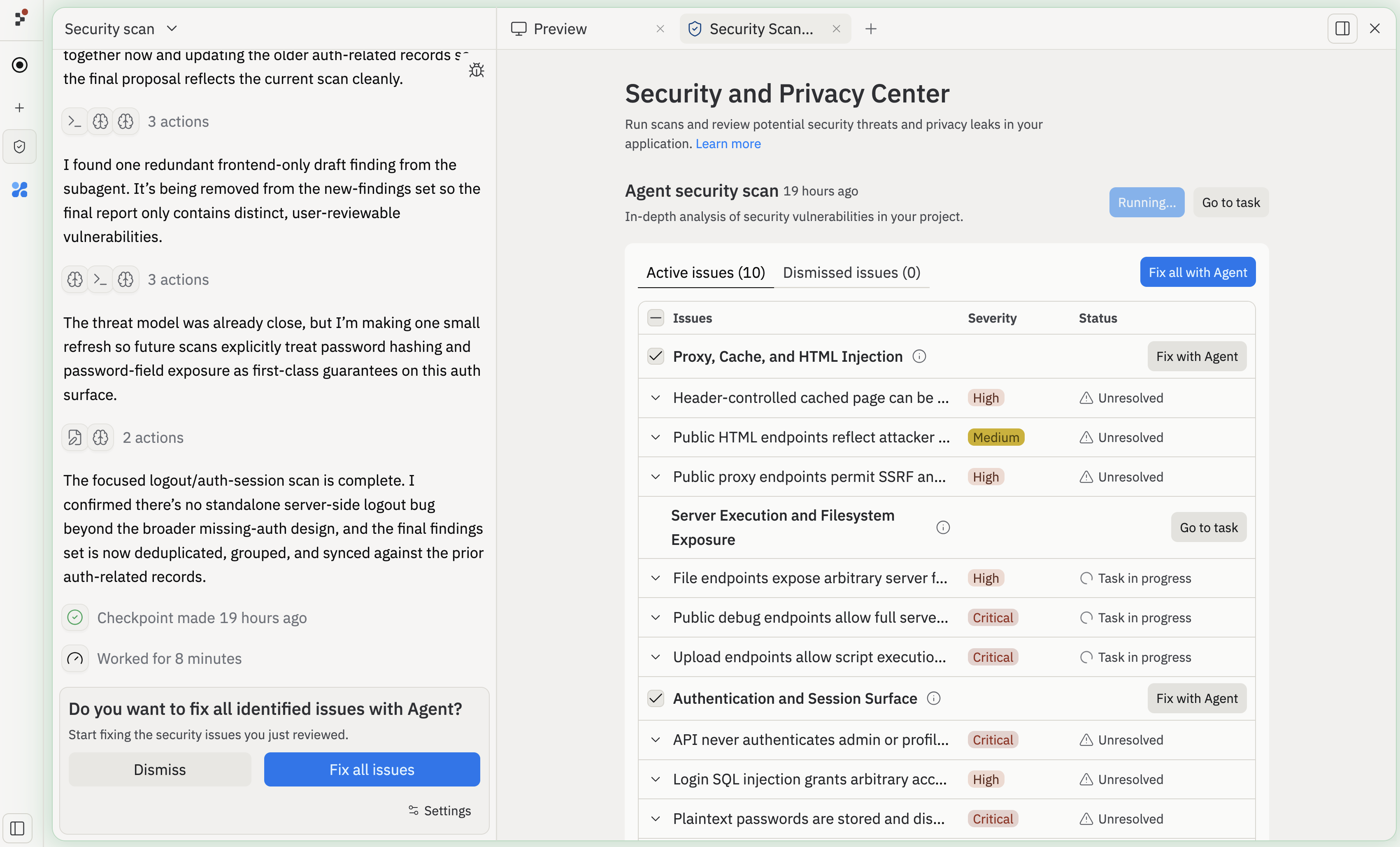
プロジェクトセキュリティセンターは、発行前にセキュリティとプライバシーの脆弱性を発見・修正するためのプロジェクトの中心的なハブです。プロジェクトの**Security**ペインを開いてスキャンを実行し、検出結果を確認し、承認した問題をAgentに修正依頼として送信できます。
プロジェクトセキュリティセンターは2種類のスキャンをサポートしています:
1. **自動依存関係スキャン**: 公開されている脆弱性レコードに対してプロジェクトのパッケージをチェックする、無料の軽量スキャン
2. **Agentセキュリティスキャン**: モデル分析と静的コード解析ツールを組み合わせてコードベース全体を監査するAI支援レビュー
両方のスキャンタイプは、最も影響の大きい問題に集中できるよう、深刻度別に整理されて同じSecurityペインに結果を表示します。
## 自動依存関係スキャン
自動依存関係スキャンは、プロジェクトが依存しているパッケージを公開脆弱性レコードと照合します。これらのスキャンは**無料**で自動的に実行されます。新しいCVE(Common Vulnerabilities and Exposures)エントリが開示されると、Replitはそれをプロジェクトの依存関係と照合し、一致したものを**Security**ペインに表示します(手動での再スキャンは不要です)。
依存関係スキャンはNode.js/npm、Python、Go、Rust、PHP、Rubyをサポートしています。例えば、スキャンで`express@4.18.2`のような古いパッケージの既知の脆弱性がフラグされることがあります。
依存関係セキュリティの初心者の方は、CVE、SBOM、露出度、Agentで修正、再発行、Auto-Protectの定義については[セキュリティの概念](/ja/features/security/concepts)を参照してください。
## 結果の分類方法
両方のスキャンタイプの結果は、深刻度レベル別に分類されてSecurityペインに表示されます:
* **クリティカル**: 即時のリスクをもたらし、発行前に対処すべき脆弱性。リモートコード実行、公開されたエンドポイントへのSQLインジェクション、漏洩した認証情報などが含まれます。
* **高**: クロスサイトスクリプティング(XSS)、安全でない認証フロー、既知のエクスプロイトを持つ未パッチの依存関係など、特定の条件下で悪用される可能性がある重大な問題。
* **中**: セキュリティヘッダーの欠如や過度に許可的なCORS設定など、潜在的なリスクはあるものの悪用される可能性が低い問題。
* **低 / 情報**: 非推奨のAPI使用や本番環境での詳細なエラーメッセージなど、軽微な問題やベストプラクティスの推奨事項。
## プロジェクトセキュリティセンターとは?
プロジェクトセキュリティセンターは、発行前にセキュリティとプライバシーの脆弱性を発見・修正するためのプロジェクトの中心的なハブです。プロジェクトの**Security**ペインを開いてスキャンを実行し、検出結果を確認し、承認した問題をAgentに修正依頼として送信できます。
プロジェクトセキュリティセンターは2種類のスキャンをサポートしています:
1. **自動依存関係スキャン**: 公開されている脆弱性レコードに対してプロジェクトのパッケージをチェックする、無料の軽量スキャン
2. **Agentセキュリティスキャン**: モデル分析と静的コード解析ツールを組み合わせてコードベース全体を監査するAI支援レビュー
両方のスキャンタイプは、最も影響の大きい問題に集中できるよう、深刻度別に整理されて同じSecurityペインに結果を表示します。
## 自動依存関係スキャン
自動依存関係スキャンは、プロジェクトが依存しているパッケージを公開脆弱性レコードと照合します。これらのスキャンは**無料**で自動的に実行されます。新しいCVE(Common Vulnerabilities and Exposures)エントリが開示されると、Replitはそれをプロジェクトの依存関係と照合し、一致したものを**Security**ペインに表示します(手動での再スキャンは不要です)。
依存関係スキャンはNode.js/npm、Python、Go、Rust、PHP、Rubyをサポートしています。例えば、スキャンで`express@4.18.2`のような古いパッケージの既知の脆弱性がフラグされることがあります。
 ### Auto-Protect
Auto-Protectは自動依存関係スキャンを拡張します。一致する脆弱性が検出されると、Replit Agentがパッチを準備・テストし、直接リンクを記載したメールを送信します。Auto-Protectは依存関係のCVEのみを対象としています。アプリケーションコードの脆弱性については、[Agentセキュリティスキャン](#agent-security-scans)を使用してください。
プロジェクトの依存関係に一致する新しい脆弱性が見つかるたびに、Replitは:
1. 影響を受けるプロジェクトの**Security**ペインへの直接リンクを含むサマリーをメールで送信します。
2. Replit Agentに脆弱性を修正するパッチの準備とテストを依頼します。
3. **Security**ペインでパッチをレビュー待ちの状態のままにします。
**Go to Task**を選択して、適用前に生成された変更を確認してください。パッチを適用した後、新しいバージョンを発行するまで脆弱性は**再発行待ち**と表示されます。
本番アプリのセキュリティを確保するために、パッチ適用後は必ず再発行してください。
Replitは各新しい脆弱性について、ワークスペースあたり最大1通のメールを送信します。メールにはそのワークスペース内の影響を受けるすべてのプロジェクトのサマリーが含まれます。管理者はAuto-Protectをトリガーする最低深刻度を設定できます(例:クリティカルのみ)。
#### Auto-Protectを有効にする
どちらのAuto-Protect設定も**デフォルトでオフ**です。Auto-Protectを有効にするには2つの設定が必要です:Replitがパッチを準備することを承認する管理者専用の設定と、新しい脆弱性についてのメール受信を制御する個人設定です。
**Settings** > **Account** > **Advanced**に移動し、Replitが自動的に修正を準備すべき最低深刻度(低、中、高、またはクリティカル)を選択します。高いしきい値を設定すると、Replitは最も深刻な脆弱性のみのパッチを準備します。
**Settings** > **Personalization** > **Email Notifications**に移動し、新しいセキュリティ問題について通知を受け取りたい最低深刻度を選択します。高またはクリティカルが一般的です。
Agentが準備した修正は、Auto-Protectによって積極的に準備された場合でも、他のAgent作業と同様に課金されます。
## Agentセキュリティスキャン
Agentセキュリティスキャンは依存関係チェックを超えて、コードベース全体の包括的な監査を実行します。Security Agentはモデルベースのレビューと[Semgrep](https://semgrep.dev/)や[HoundDog.ai](https://hounddog.ai)のような静的解析ツールを組み合わせて、パターンマッチングだけでは見つけられない脆弱性を発見します。
Agentセキュリティスキャンは有料のReplit builderすべてが利用できます。大規模なプロジェクトの場合、徹底的な評価を確保するために詳細な監査には最大15分かかることがあります。
### Security Agentの機能
Agentセキュリティスキャンを開始すると、Security Agentはコードベースの完全なレビューを実行します:
1. **アーキテクチャのマッピング** -- ルート、API、データフロー、エントリポイントを特定します
2. **脅威モデルの構築** -- アプリケーションのカスタマイズ可能な脅威モデリング計画を作成します
3. **静的解析の実行** -- SemgrepとHoundDog.aiを使用してコードレベルの脆弱性とプライバシーの問題をスキャンします
4. **AIによる検出結果の分析** -- フラグされた問題がアプリケーションのコンテキストで実際に悪用可能かどうかを評価し、偽陽性を大幅に削減します
5. **検出結果レポートの生成** -- レビュー用に特定されたリスクを提示します
Agentセキュリティスキャンは幅広い脆弱性カテゴリをカバーします:
* **静的解析(SAST)の問題**: SQLインジェクション、クロスサイトスクリプティング(XSS)、クロスサイトリクエストフォージェリ(CSRF)などの安全でないコードパターン
* **プライバシーの問題**: ログ、ファイル、サードパーティAPIなどのリスクのある出力先に流れる機密データ
* **アーキテクチャの脆弱性**: ルート、API、データフローの構造におけるセキュリティの欠陥
例えば、レビューでパラメータ化されていないデータベースクエリがフラグされることがあります:
```javascript theme={null}
const query = `SELECT * FROM users WHERE username = '${userInput}'`;
```
または機密ユーザーデータをログに記録するコード:
```javascript theme={null}
logger.info("New signup", {
email: user.email,
phoneNumber: user.phoneNumber,
address: user.address,
});
```
### Agentセキュリティスキャンの開始
プロジェクトの**Security**ペインを開いて、プロジェクトセキュリティセンターを起動します。
### Auto-Protect
Auto-Protectは自動依存関係スキャンを拡張します。一致する脆弱性が検出されると、Replit Agentがパッチを準備・テストし、直接リンクを記載したメールを送信します。Auto-Protectは依存関係のCVEのみを対象としています。アプリケーションコードの脆弱性については、[Agentセキュリティスキャン](#agent-security-scans)を使用してください。
プロジェクトの依存関係に一致する新しい脆弱性が見つかるたびに、Replitは:
1. 影響を受けるプロジェクトの**Security**ペインへの直接リンクを含むサマリーをメールで送信します。
2. Replit Agentに脆弱性を修正するパッチの準備とテストを依頼します。
3. **Security**ペインでパッチをレビュー待ちの状態のままにします。
**Go to Task**を選択して、適用前に生成された変更を確認してください。パッチを適用した後、新しいバージョンを発行するまで脆弱性は**再発行待ち**と表示されます。
本番アプリのセキュリティを確保するために、パッチ適用後は必ず再発行してください。
Replitは各新しい脆弱性について、ワークスペースあたり最大1通のメールを送信します。メールにはそのワークスペース内の影響を受けるすべてのプロジェクトのサマリーが含まれます。管理者はAuto-Protectをトリガーする最低深刻度を設定できます(例:クリティカルのみ)。
#### Auto-Protectを有効にする
どちらのAuto-Protect設定も**デフォルトでオフ**です。Auto-Protectを有効にするには2つの設定が必要です:Replitがパッチを準備することを承認する管理者専用の設定と、新しい脆弱性についてのメール受信を制御する個人設定です。
**Settings** > **Account** > **Advanced**に移動し、Replitが自動的に修正を準備すべき最低深刻度(低、中、高、またはクリティカル)を選択します。高いしきい値を設定すると、Replitは最も深刻な脆弱性のみのパッチを準備します。
**Settings** > **Personalization** > **Email Notifications**に移動し、新しいセキュリティ問題について通知を受け取りたい最低深刻度を選択します。高またはクリティカルが一般的です。
Agentが準備した修正は、Auto-Protectによって積極的に準備された場合でも、他のAgent作業と同様に課金されます。
## Agentセキュリティスキャン
Agentセキュリティスキャンは依存関係チェックを超えて、コードベース全体の包括的な監査を実行します。Security Agentはモデルベースのレビューと[Semgrep](https://semgrep.dev/)や[HoundDog.ai](https://hounddog.ai)のような静的解析ツールを組み合わせて、パターンマッチングだけでは見つけられない脆弱性を発見します。
Agentセキュリティスキャンは有料のReplit builderすべてが利用できます。大規模なプロジェクトの場合、徹底的な評価を確保するために詳細な監査には最大15分かかることがあります。
### Security Agentの機能
Agentセキュリティスキャンを開始すると、Security Agentはコードベースの完全なレビューを実行します:
1. **アーキテクチャのマッピング** -- ルート、API、データフロー、エントリポイントを特定します
2. **脅威モデルの構築** -- アプリケーションのカスタマイズ可能な脅威モデリング計画を作成します
3. **静的解析の実行** -- SemgrepとHoundDog.aiを使用してコードレベルの脆弱性とプライバシーの問題をスキャンします
4. **AIによる検出結果の分析** -- フラグされた問題がアプリケーションのコンテキストで実際に悪用可能かどうかを評価し、偽陽性を大幅に削減します
5. **検出結果レポートの生成** -- レビュー用に特定されたリスクを提示します
Agentセキュリティスキャンは幅広い脆弱性カテゴリをカバーします:
* **静的解析(SAST)の問題**: SQLインジェクション、クロスサイトスクリプティング(XSS)、クロスサイトリクエストフォージェリ(CSRF)などの安全でないコードパターン
* **プライバシーの問題**: ログ、ファイル、サードパーティAPIなどのリスクのある出力先に流れる機密データ
* **アーキテクチャの脆弱性**: ルート、API、データフローの構造におけるセキュリティの欠陥
例えば、レビューでパラメータ化されていないデータベースクエリがフラグされることがあります:
```javascript theme={null}
const query = `SELECT * FROM users WHERE username = '${userInput}'`;
```
または機密ユーザーデータをログに記録するコード:
```javascript theme={null}
logger.info("New signup", {
email: user.email,
phoneNumber: user.phoneNumber,
address: user.address,
});
```
### Agentセキュリティスキャンの開始
プロジェクトの**Security**ペインを開いて、プロジェクトセキュリティセンターを起動します。
 **Run scan with Agent**を選択します。
 必要に応じて、アプリケーションの特定のエリアに焦点を当てるために脅威モデリングプロンプトをカスタマイズします。
 レビューが完了するまで待ちます。通常は数分かかりますが、大規模なプロジェクトでは最大15分かかる場合があります。
レビューが完了すると、Security Agentは特定されたリスクのレポートを生成します。脆弱性の詳細を確認し、理解して受け入れる検出結果を却下するか、修正依頼を送信する前に検出結果を修正できます。
検出結果を確認した後、承認した問題をReplit Agentに修正依頼として送信します。Security Agentは脆弱性を別々のタスクに整理するため、Agentは複数の修正を並行して作業できます。修正が適用されたら、別のスキャンを実行して問題が解決されたことを確認します。
最初の検出結果を修正したら、別のスキャンを実行してください。大規模なプロジェクトでは、高深刻度の検出結果が解決されると追加の問題が明らかになることがあります。
## 制限事項とベストプラクティス
* **プライバシーとデータの取り扱い**: すべてのスキャンはReplitのインフラストラクチャで実行されます。コードとデータはSemgrep、HoundDog.ai、またはその他のサードパーティに送信されません。スキャンの設定と結果はReplit Appに紐付いたままです。
* **言語サポート**:
* 依存関係スキャンは多くの一般的なエコシステム(**Node.js/npm**、**Python**、**Go**、**Rust**、**PHP**、**Ruby**を含む)をサポートしています。
* 自動依存関係修正は現在、**Node.js/npm**に焦点を当てています。
* **完全なセキュリティレビューではない**: スキャンはコードレビュー、テスト、依存関係レビュー、ライブアプリチェックと並行して使用してください。
* **変更後は再実行**: 以下の場合にスキャンを再実行してください:
* 依存関係を追加または更新した後
* 大きなコード変更を行った後
* 新しいバージョンを発行する前
## 発行チェック
**Block publishing of critical vulnerabilities**設定は、デプロイタブのAdvanced設定(および再デプロイフロー)にあります。Replitは発行前に常にセキュリティスキャンを実行します。このトグルはスキャンでクリティカルな深刻度の問題が見つかった場合に何が起こるかを決定します:
* **オン** — 問題が解決または却下されるまで発行がブロックされます。
* **オフ** — 発行が進み、検出結果がレビュー用に表示されます。
クリティカルなものが確認なしにリリースされないようにするには、これをオンにしてください。エンタープライズプランの組織では、すべてのアプリでこの設定を必須にできます。
この設定は以前「Security scan before publishing」と表示され、**Beta**タグが付いていました。現在はBetaを卒業し、動作をより明確にするために名称が変更されました — スキャン自体はどちらの場合も常に実行されます。
## 次のステップ
* [発行](/ja/learn/projects-and-artifacts/replit-deployments)について詳しく学び、スキャンがクリーンになったらReplit Appを発行する方法を確認してください。
* [Replit Agent](/ja/features/agent/overview)を探索して、プロジェクトエディターから直接セキュリティとプライバシーの問題を修正してください。
* [How Replit Secures AI-Generated Code](https://blog.replit.com/securing-ai-generated-code)を読んで、Replitのセキュリティへのアプローチについて詳しく学んでください。
* [エディター機能](/ja/features/editor/editor-and-tools)を確認して、コード品質、パフォーマンス、信頼性を向上させるその他のツールを探索してください。
レビューが完了するまで待ちます。通常は数分かかりますが、大規模なプロジェクトでは最大15分かかる場合があります。
レビューが完了すると、Security Agentは特定されたリスクのレポートを生成します。脆弱性の詳細を確認し、理解して受け入れる検出結果を却下するか、修正依頼を送信する前に検出結果を修正できます。
検出結果を確認した後、承認した問題をReplit Agentに修正依頼として送信します。Security Agentは脆弱性を別々のタスクに整理するため、Agentは複数の修正を並行して作業できます。修正が適用されたら、別のスキャンを実行して問題が解決されたことを確認します。
最初の検出結果を修正したら、別のスキャンを実行してください。大規模なプロジェクトでは、高深刻度の検出結果が解決されると追加の問題が明らかになることがあります。
## 制限事項とベストプラクティス
* **プライバシーとデータの取り扱い**: すべてのスキャンはReplitのインフラストラクチャで実行されます。コードとデータはSemgrep、HoundDog.ai、またはその他のサードパーティに送信されません。スキャンの設定と結果はReplit Appに紐付いたままです。
* **言語サポート**:
* 依存関係スキャンは多くの一般的なエコシステム(**Node.js/npm**、**Python**、**Go**、**Rust**、**PHP**、**Ruby**を含む)をサポートしています。
* 自動依存関係修正は現在、**Node.js/npm**に焦点を当てています。
* **完全なセキュリティレビューではない**: スキャンはコードレビュー、テスト、依存関係レビュー、ライブアプリチェックと並行して使用してください。
* **変更後は再実行**: 以下の場合にスキャンを再実行してください:
* 依存関係を追加または更新した後
* 大きなコード変更を行った後
* 新しいバージョンを発行する前
## 発行チェック
**Block publishing of critical vulnerabilities**設定は、デプロイタブのAdvanced設定(および再デプロイフロー)にあります。Replitは発行前に常にセキュリティスキャンを実行します。このトグルはスキャンでクリティカルな深刻度の問題が見つかった場合に何が起こるかを決定します:
* **オン** — 問題が解決または却下されるまで発行がブロックされます。
* **オフ** — 発行が進み、検出結果がレビュー用に表示されます。
クリティカルなものが確認なしにリリースされないようにするには、これをオンにしてください。エンタープライズプランの組織では、すべてのアプリでこの設定を必須にできます。
この設定は以前「Security scan before publishing」と表示され、**Beta**タグが付いていました。現在はBetaを卒業し、動作をより明確にするために名称が変更されました — スキャン自体はどちらの場合も常に実行されます。
## 次のステップ
* [発行](/ja/learn/projects-and-artifacts/replit-deployments)について詳しく学び、スキャンがクリーンになったらReplit Appを発行する方法を確認してください。
* [Replit Agent](/ja/features/agent/overview)を探索して、プロジェクトエディターから直接セキュリティとプライバシーの問題を修正してください。
* [How Replit Secures AI-Generated Code](https://blog.replit.com/securing-ai-generated-code)を読んで、Replitのセキュリティへのアプローチについて詳しく学んでください。
* [エディター機能](/ja/features/editor/editor-and-tools)を確認して、コード品質、パフォーマンス、信頼性を向上させるその他のツールを探索してください。