> ## Documentation Index
> Fetch the complete documentation index at: https://docs.replit.com/llms.txt
> Use this file to discover all available pages before exploring further.
# プロダクトアイデアをプロトタイプ化する
> プロダクトアイデアをフォーカスしたプロトタイプに変換し、他者と協力して、フィードバックを使って次に何をビルドするかを決定しましょう。
export const PACE_PROMPT = `Build me a personal running web app called "Pace".
I want a clean, modern web app where I can track my runs and see my progress at a glance — a friendlier, more visual version of a running journal like Strava or Nike Run Club, but simpler and prettier. It only needs to support one user (me) for now, and my profile name should be Alex Morgan. Pre-fill it with about a month of pretend running history so it looks alive from the moment I open it — runs through San Francisco, a mix of easy runs, tempo runs, long runs, and recovery runs, with at least 4–5 runs in the past week so the dashboard looks active.
The app should run in any modern browser, feel fast, and be fully responsive — great on desktop, tablet, and phone.
Look and feel
The vibe is sporty, premium, "athletic brand" — black, white, and a punchy lime green as the accent color. Use the Inter font everywhere. Rounded corners on everything (cards, buttons, pills). It should feel calm and uncluttered, not busy. Light mode by default. Smooth, subtle animations when pages transition, when cards appear, and when I click buttons — it should feel responsive and alive, not stiff.
Overall navigation
A top nav bar with the Pace logo on the left and 5 links across the middle: Home, Runs, Plan, Stats, Profile. The active link has a lime underline; inactive links are gray. On the right: a lime "Log a Run" button (always visible) and a round profile photo (clicking it opens Profile).
On smaller screens, the middle nav links collapse into a hamburger menu, but the lime "Log a Run" button stays visible.
The Home page (the main page) — a scrollable feed, top to bottom:
Greeting. A friendly greeting that changes with the time of day ("Good morning, Alex" / "Good afternoon, Alex" / "Good evening, Alex"), with a subtitle "Ready for your next run?".
Hero banner card. A wide photo of someone running on pavement, with a dark gradient on the left so the text is readable. Big white headline: "You don't find willpower, you create it." Underneath: "Keep showing up." Bottom-left: a lime pill button "Start a Run" with a little black play-circle. Clicking it opens the Log a Run dialog.
"This Week" stats. A row of four cards (2×2 grid on smaller widths): Distance (km), Time (h/min), Elevation (m), Runs (count). Each card: small icon, big number, "+12% vs last week" caption, thin squiggly line graph at the bottom (lime, blue, purple, lime). Numbers reflect my actual runs from the last 7 days.
Weekly Progress card. Title + small "View goals" link. Then "X of Y runs completed" and a big bold percentage on the right. Gradient lime progress bar. Below: seven day pills (M T W T F S S) with date numbers. Today is a black filled circle; days I've run show a lime circle with a white checkmark; others are empty circles.
Your Last Run card. A real interactive map (Leaflet, Mapbox, or similar) showing the route of my most recent run as a lime line, date in the corner, lime "View Run" button, and four stats (Distance, Time, Pace, Calories). Click → full run detail page.
Recent Runs section. Title "Recent Runs" + "See all" link. Three rows, one per recent run: tiny green map-line thumbnail on the left, run name + date, distance + pace lined up on the right. Click a row → run detail. A small "Delete" icon appears on hover.
Upcoming Workout card. Title + small lime circle icon with footprints. Workout name "Tempo Run", "Tomorrow · 6:30 AM". Three stats: 8 km, 5:40/km target pace, "Moderate" intensity. A muted gray "View workout" button. (Placeholder — no real training plan yet.)
Recent Achievements card. Two badges, each with a colorful icon, the badge name, and a one-line description. First is a real PR from my history (e.g. "10K Crusher — Completed a 10K in under 60 minutes"). Second is a placeholder: "Early Bird — Completed 5 runs before 7 AM" with a lime crescent moon icon.
The Runs page
Full list of all my runs, grouped by month (sticky month headers as I scroll). Each row like the recent-runs rows. A search input in the top-right filters by name or run type (Easy, Tempo, Long, Recovery, Interval). Click a row → run detail.
The Stats page — a scrollable view with:
- Time-range pill tabs at the top (7D / 30D / 3M / 6M / 1Y / All).
- Three KPI numbers (Total Distance, Avg Pace, Total Time), each with a green or red badge for change vs the previous period.
- A smooth lime area chart of distance over time. Hover a point to see that day's value.
- Below: a small bar chart of "runs per day of week" and a list of personal records (fastest 5K, fastest 10K, longest run, etc.).
The Plan page
A weekly calendar of upcoming workouts (placeholder — mostly the visual shell). Each day is a row showing what's planned (or "Rest day"). Today's row highlighted lime.
The Profile page
Avatar, name, weekly goal setting, total all-time stats (total distance, total runs, total hours), an "Upgrade to Pro" card with a lime sparkle and "Upgrade Now" button, and a settings list (units km/mi, notifications, sign out).
The "Log a Run" dialog (modal that centers on desktop, slides up from the bottom on mobile):
- Type of run (segmented control: Easy / Tempo / Long / Recovery / Interval)
- Distance in km (number input)
- Duration (mm:ss or hh:mm:ss input)
- Date and time (date and time pickers)
- Optional name
- Big lime "Save Run" button at the bottom
After saving: smooth dismiss, dashboard updates instantly, small toast confirmation.
The Run Detail page (a dedicated page when I click a run):
- Big interactive map of the full route at the top
- Date, run type chip, back link
- Stats row (Distance, Duration, Avg Pace, Calories)
- Per-kilometer splits with pace per km
- "..." menu with Edit and Delete
How it should behave
- The greeting changes based on time of day.
- Hero "Start a Run" and the nav "Log a Run" both open the same Log a Run dialog.
- Loading skeletons instead of blank space.
- Smooth page transitions.
- Fully responsive — every screen looks great on desktop, tablet, and phone.
Things to be honest about
- No real elevation data yet — use a sensible placeholder for the elevation stat card and flag it.
- The little route thumbnails in the recent-runs list can be a generic green squiggle if the real route shape would slow the list down — the big Run Detail map should be real.
- "Upcoming Workout" and the Plan page are placeholders — no training plan engine yet.
- No live GPS tracking in this first version — runs are added by manually filling the Log a Run form.
Build the whole thing end-to-end so it's actually usable: I should be able to open the URL, see my Alex Morgan dashboard fully populated with realistic San Francisco runs, log a new run from either the hero button or the nav, and have it show up in my stats and recent runs immediately.`;
export const PromptActions = ({prompt = "", campaign = "docs-prompt-actions"}) => {
const LZ_SRC = "https://cdnjs.cloudflare.com/ajax/libs/lz-string/1.5.0/lz-string.min.js";
const ensureLZString = () => {
if (typeof document === "undefined") return;
if (window.LZString) return;
if (document.querySelector(`script[src="${LZ_SRC}"]`)) return;
const s = document.createElement("script");
s.src = LZ_SRC;
s.async = true;
document.head.appendChild(s);
};
const handleCopy = async e => {
const btn = e.currentTarget;
if (!prompt) return;
try {
await navigator.clipboard.writeText(prompt);
} catch {
const ta = document.createElement("textarea");
ta.value = prompt;
document.body.appendChild(ta);
ta.select();
try {
document.execCommand("copy");
} catch {}
document.body.removeChild(ta);
}
const original = btn.dataset.label || btn.innerText;
btn.dataset.label = original;
btn.innerText = "Copied!";
setTimeout(() => {
if (btn.isConnected) btn.innerText = original;
}, 1500);
};
const handleBuild = () => {
if (!prompt || typeof window === "undefined") return;
const utm = `utm_source=replit-docs&utm_medium=docs&utm_campaign=${encodeURIComponent(campaign)}&utm_content=prompt-actions`;
let url;
if (window.LZString) {
const encoded = window.LZString.compressToEncodedURIComponent(prompt);
url = `https://replit.com/?prompt=${encoded}&referrer=replit-docs&${utm}`;
} else {
url = `https://replit.com/?prompt=${encodeURIComponent(prompt)}&referrer=replit-docs&${utm}`;
}
window.open(url, "_blank", "noopener,noreferrer");
};
ensureLZString();
const baseButtonStyle = {
display: "inline-flex",
alignItems: "center",
gap: "6px",
padding: "8px 16px",
borderRadius: "8px",
fontSize: "14px",
fontWeight: 500,
cursor: "pointer",
lineHeight: 1.2,
fontFamily: "inherit",
textDecoration: "none"
};
return
;
};
⏰ *所要時間: 約15分*
プロトタイプとは、誰かが試してフィードバックできるプロダクトアイデアの最小バージョンです。
例として **Pace** を使います: ランナーがトレーニング、回復、進捗の洗練された概要を把握できるプレミアムランニングトラッカーです。
## 学べること
以下の方法を学びます:
* 広いプロダクトアイデアを1つのテスト可能なフローに変換する。
* Plan モードを使ってビルド前にプロトタイプのスコープを決める。
* Agent のプランがテストに十分小さいかを確認する。
* Canvas のアノテーションとコラボレーションを使ってコンテキスト内でフィードバックを収集する。
* プロダクトの問いが不明確なときに2つのプロトタイプ方向を並行して探索する。
上のプロンプトには **Pace** が説明されています — 洗練されたホームダッシュボード、Add Run フロー、統計情報、プレースホルダーのプランビュー、サンフランシスコのリアルなサンプルデータを持つ個人用ランニングトラッカーです。**Copy the prompt** を使って自分でReplitに貼り付けるか、**Build on Replit** をクリックしてプロンプトが既に添付された状態でReplitを開いてください。
プロンプトはビジュアル方向性、画面、モックするデータ、プレースホルダーについて意図的に具体的です — それが Agent に評価する明確なターゲットを与えます。
Agent にコードを書く前にプロダクトの問いを検討させたい場合は、プロンプト入力の横にある **Plan** をトグルしてください。Plan モードでは、ビルドを承認する前に確認できる構造化されたプランが作成されます — まだ方向性が完全に決まっていないときに便利です。
プランを確認します: ターゲットユーザー、メインフロー、リアルにすべきもの、モックできるもの、テストチェックリスト。プランが機能を追加しすぎている場合は、Agent に減らすよう依頼してください。
This prototype is too broad.
Reduce it to one target user, one main flow, and one question I can answer with feedback.
Move the other ideas into a future improvements list.
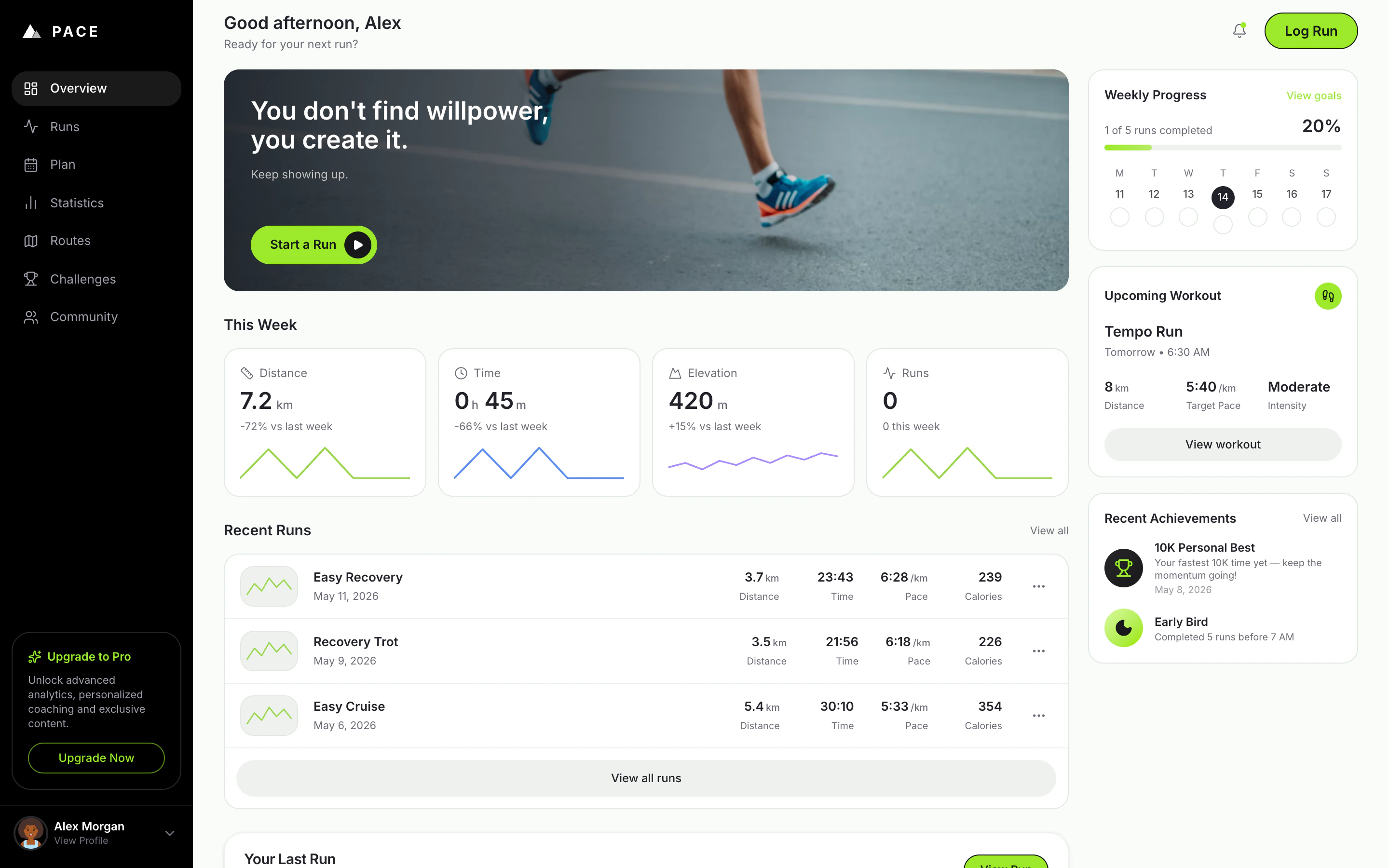
Agent が完了したら、Preview を開いて Pace を初回訪問者のように使ってみてください。
以下を確認してください:
* リアルなサンプルランが入った Alex Morgan のダッシュボードが表示される。
* 浮いている **+** またはヒーローの **Start a Run** ボタンから新しいランを記録できる。
* **Recent Runs** にランが表示され、**This Week** の統計情報が更新される。
* Runs、Stats、Plan、Profile のタブを閲覧できる。
* Preview を電話サイズの幅にリサイズしてモバイルレイアウトを確認する。
何かおかしい場合は、症状を Agent に説明して最小限の修正を依頼してください。
メインフローが動作したら公開します。
公開したら、新しいブラウザタブでパブリック URL を開いて、共有する前に初回訪問者向けに体験が機能することを確認してください。
URL を1つのフォーカスしたタスクと共に共有します:
> 1週間のトレーニングを記録しようとしているランナーとして Pace を使ってください。1つのランを記録してダッシュボードを閲覧し、混乱したことやモチベーションが上がったことを教えてください。
良いフィードバックは次に何をビルドするかの決断に役立ちます。「どう思いますか?」と聞くと漠然とした答えになります。
プロダクトプロトタイプは、チームメンバーが同じ成果物をレビューしてコンテキスト内でフィードバックを提供できると改善されます。
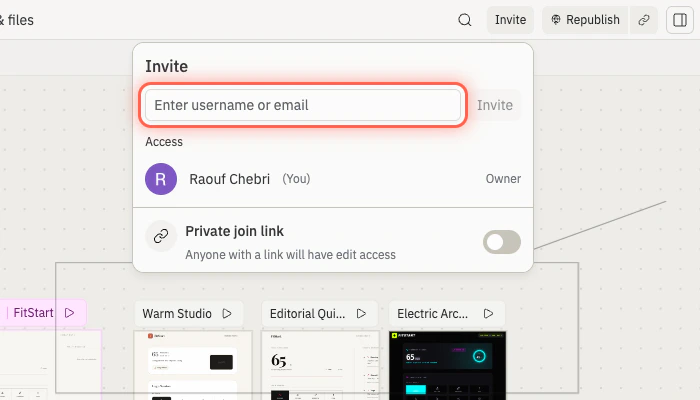
このプロトタイプとどのくらい密接に作業する必要があるかに基づいてコラボレーターを招待します:
* このプロトタイプのみをレビューまたは手伝う必要がある場合は、プロジェクトに招待します。[チームメンバーを招待する](/build/invite-teammates) をご覧ください。
* 継続的なチームの一員で複数のプロジェクトへのアクセスが必要な場合は、Workspace に招待します。[チームワークスペース](/references/collaboration/team-workspaces) をご覧ください。
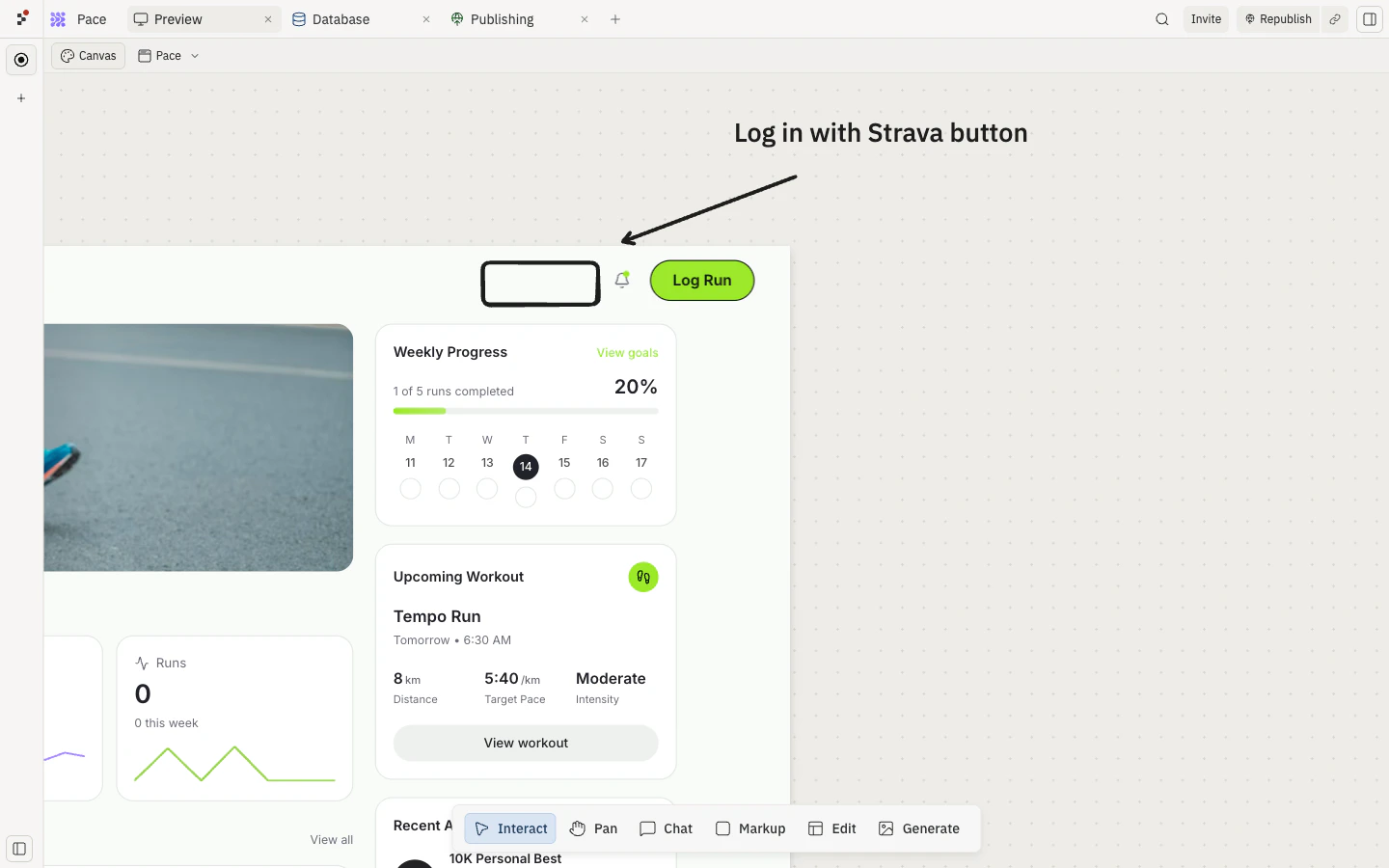
そして、フィードバックがビジュアルなときは [Canvas](/learn/design/canvas) を使ってください。プロトタイプに直接メモを追加し、変更したい箇所にアノテーションをつけて、アプリを更新するときに Agent にそのメモを使うよう依頼してください。
Use the Canvas annotations on Pace to improve the prototype.
Keep the run-logging flow unchanged.
Apply the notes to the hero section, weekly progress card, and recent runs list only.
After the update, test that logging a run still updates today's progress.
PM にとっては、プロトタイプが共有成果物として機能することを意味します: デザイナーはフローにアノテーションをつけられ、エンジニアは実現可能性を確認できて、ステークホルダーは公開バージョンを試すことができます。
## 🎉 おめでとうございます
プロダクトアイデアをフォーカスした共有可能なプロトタイプに変換しました — チームメンバーと顧客が試してフィードバックできる動作する Pace ダッシュボードです。難しかったのはこのプロトタイプではありません。広いアイデアを1つのテスト可能なフローに絞り込み、コンテキスト内でフィードバックを収集し、次に何を構築する価値があるかを決断する方法を学ぶことです。
## 次のステップ
フィードバックを使って次のステップを1つ選んでください:
リフレッシュ後もランの履歴を保存しましょう。
各ランナーに自分の進捗を持つアカウントを提供しましょう。
Pace を iOS または Android でのスマートフォンファーストのトラッキングに対応させましょう。
ランの履歴を進捗の洞察に変換しましょう。
### 並行してビルドする
プロダクトの問いが実装ではなく方向性に関するものであるときは、複数のアイデアを同時に探索することで、早期にコミットするのではなくオプションを比較できます。Replit Agent は並行タスクをサポートしています — Agent に複数のプロトタイプ、機能、実験を同時に作業させて、並べて確認できます。
タスクのキュー、実行、完了の仕組みについては、[タスクシステム](/core-concepts/agent/task-system) をご覧ください。
どちらの方向が良いかわからないときは、Agent に2つの並行タスクを作成するよう依頼してください。Pace の場合、以下を比較できます:
* **モチベーション優先プロトタイプ**: ストリーク、実績、励みになる推奨事項。
* **アナリティクス優先プロトタイプ**: より深い統計情報、週次トレンド、個人記録。
Create two parallel tasks for improving Pace as a product prototype.
Task 1 should explore a motivation-first version with streaks, achievements, and encouraging recommendations.
Task 2 should explore an analytics-first version with deeper stats, week-over-week trends, and personal records.
Keep both versions small enough to test today.
For each task, define the user flow, what to build, and how I should evaluate the result.
両方のタスクが完了したら、同じフィードバックの質問で比較してください:
> どちらのバージョンの方が明日また使いたいと思いますか?その理由は?
## さらに助けが必要ですか?
* **プロトタイプに機能が多すぎる:** Agent に1人のターゲットユーザーと1つのフローに絞るよう依頼してください。
* **対象者が不明確:** Agent にウェルカムセクションを1人のターゲットユーザー向けに書き直すよう依頼してください。
* **モックデータがリスクを隠している:** Agent に何がリアルで何がモックかをリストアップするよう依頼してください。
* **フィードバックが漠然としている:** レビュアーに1つのタスクと1つの質問を与えてください。
* **公開に失敗する:** [公開のトラブルシューティング](/build/troubleshooting) を使ってください。
## 関連
* [初めてのアプリをビルドして公開する](/ja/build/your-first-app)
* [バイブコーディング入門](/learn/foundations/vibe-coding-101)
* [チームメンバーを招待する](/build/invite-teammates)
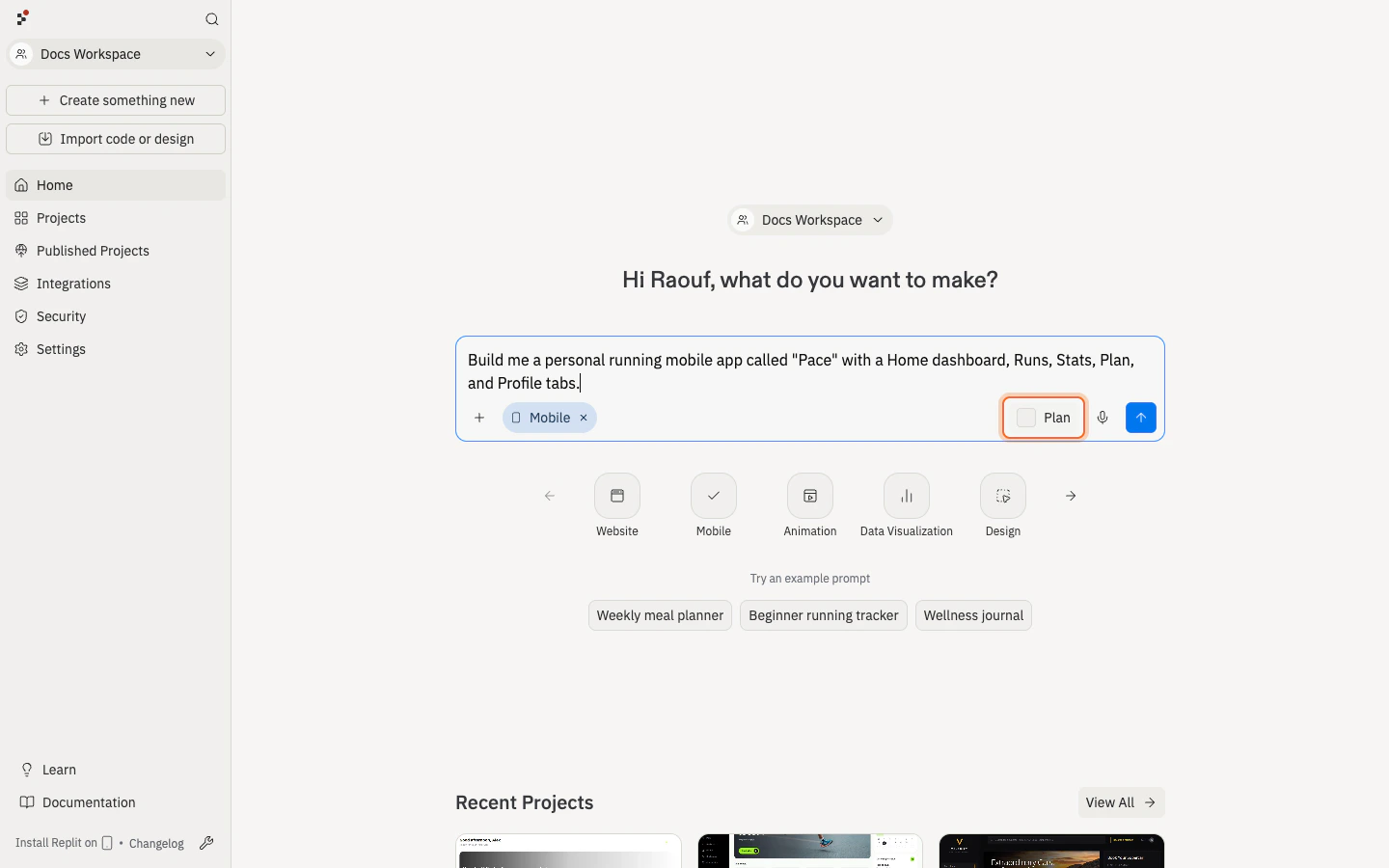 プランを確認します: ターゲットユーザー、メインフロー、リアルにすべきもの、モックできるもの、テストチェックリスト。プランが機能を追加しすぎている場合は、Agent に減らすよう依頼してください。
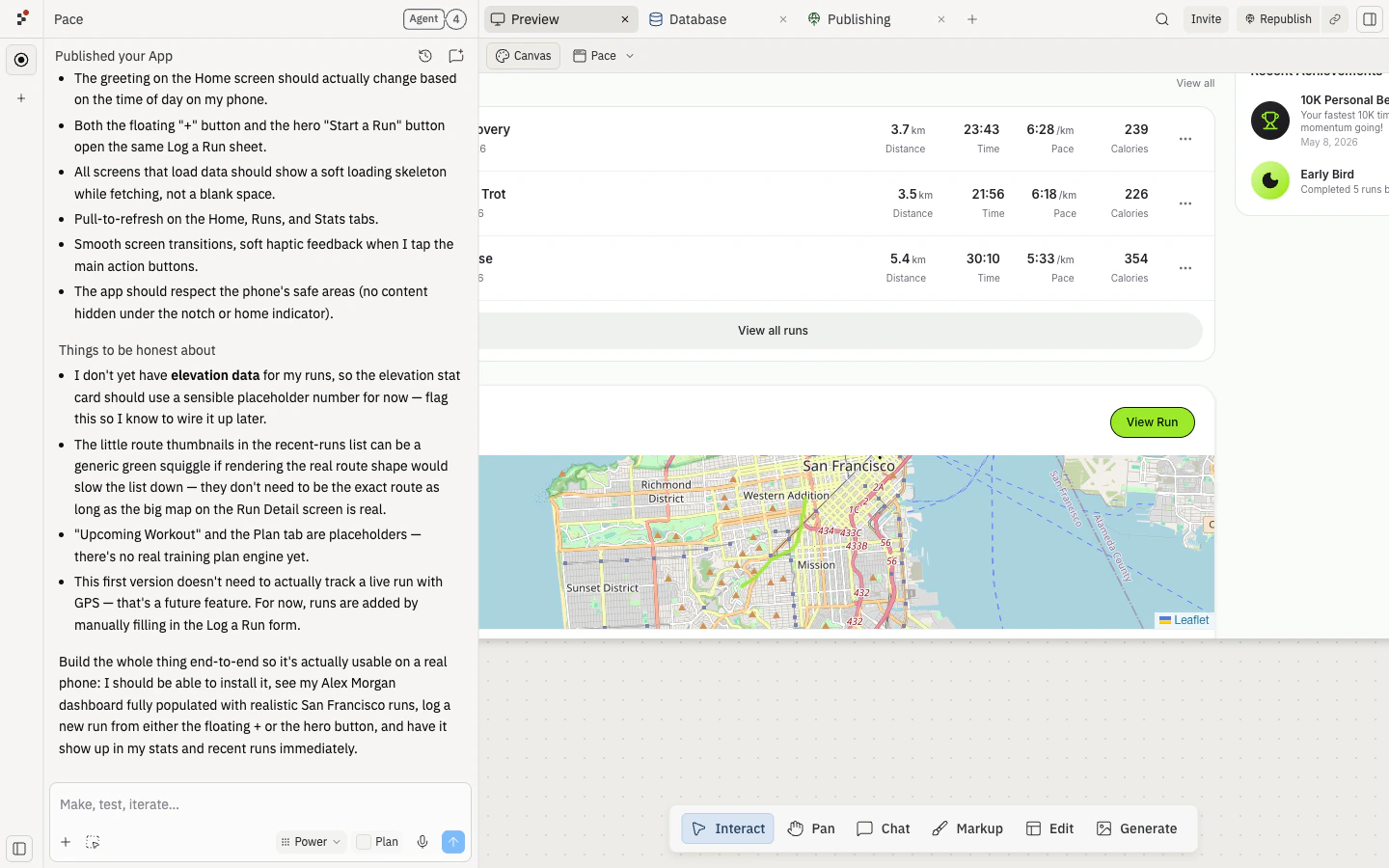
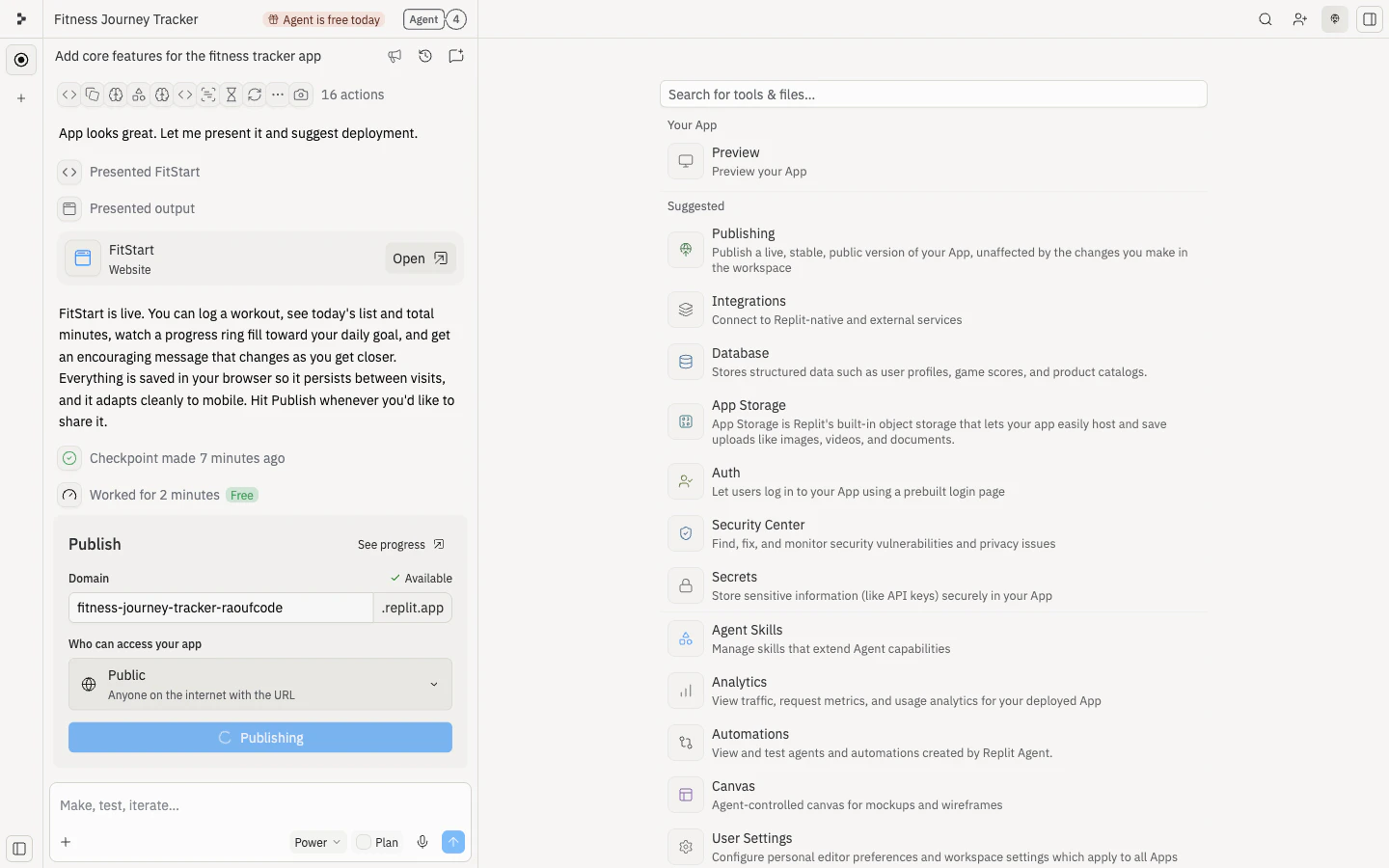 公開したら、新しいブラウザタブでパブリック URL を開いて、共有する前に初回訪問者向けに体験が機能することを確認してください。
 URL を1つのフォーカスしたタスクと共に共有します:
> 1週間のトレーニングを記録しようとしているランナーとして Pace を使ってください。1つのランを記録してダッシュボードを閲覧し、混乱したことやモチベーションが上がったことを教えてください。
良いフィードバックは次に何をビルドするかの決断に役立ちます。「どう思いますか?」と聞くと漠然とした答えになります。
URL を1つのフォーカスしたタスクと共に共有します:
> 1週間のトレーニングを記録しようとしているランナーとして Pace を使ってください。1つのランを記録してダッシュボードを閲覧し、混乱したことやモチベーションが上がったことを教えてください。
良いフィードバックは次に何をビルドするかの決断に役立ちます。「どう思いますか?」と聞くと漠然とした答えになります。
 そして、フィードバックがビジュアルなときは [Canvas](/learn/design/canvas) を使ってください。プロトタイプに直接メモを追加し、変更したい箇所にアノテーションをつけて、アプリを更新するときに Agent にそのメモを使うよう依頼してください。
 PM にとっては、プロトタイプが共有成果物として機能することを意味します: デザイナーはフローにアノテーションをつけられ、エンジニアは実現可能性を確認できて、ステークホルダーは公開バージョンを試すことができます。
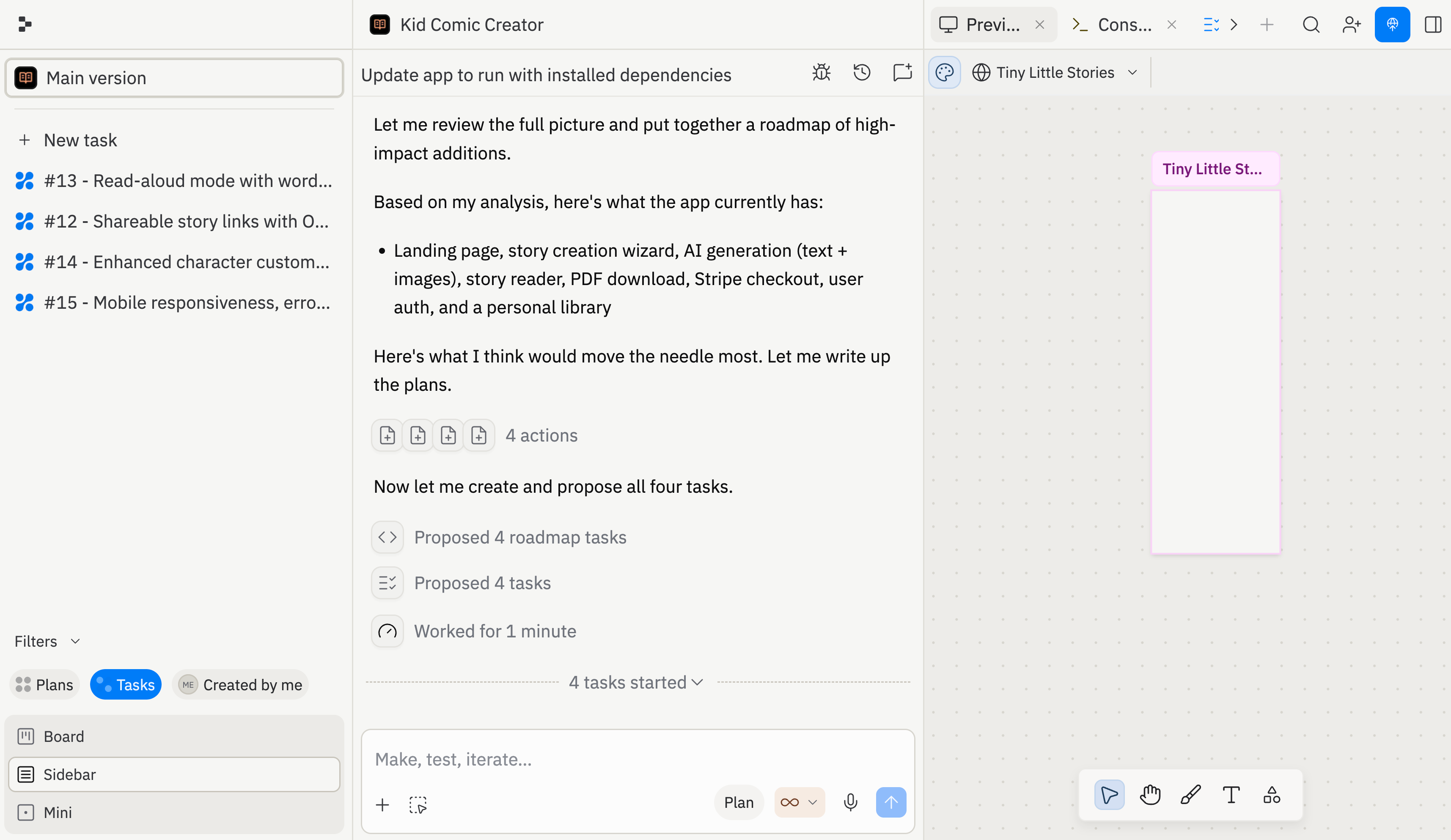 タスクのキュー、実行、完了の仕組みについては、[タスクシステム](/core-concepts/agent/task-system) をご覧ください。
どちらの方向が良いかわからないときは、Agent に2つの並行タスクを作成するよう依頼してください。Pace の場合、以下を比較できます:
* **モチベーション優先プロトタイプ**: ストリーク、実績、励みになる推奨事項。
* **アナリティクス優先プロトタイプ**: より深い統計情報、週次トレンド、個人記録。
タスクのキュー、実行、完了の仕組みについては、[タスクシステム](/core-concepts/agent/task-system) をご覧ください。
どちらの方向が良いかわからないときは、Agent に2つの並行タスクを作成するよう依頼してください。Pace の場合、以下を比較できます:
* **モチベーション優先プロトタイプ**: ストリーク、実績、励みになる推奨事項。
* **アナリティクス優先プロトタイプ**: より深い統計情報、週次トレンド、個人記録。