> ## Documentation Index
> Fetch the complete documentation index at: https://docs.replit.com/llms.txt
> Use this file to discover all available pages before exploring further.

# ログインを追加する

> Clerk を使ってプレイヤーが PixelGames にサインインできるようにします。

export const AiPrompt = ({children}) => {
  return <CodeBlock className="relative block font-sans whitespace-pre-wrap break-words">
      <div className="pr-7">
        {children}
      </div>
    </CodeBlock>;
};

export const loginPrompt = "Add sign-in to PixelGames using Clerk. Anyone can still play without an account, signing in is only for players who want one.";
export const appleSignInPrompt = "Add Sign in with Apple to PixelGames, but only show it on iOS. Keep the Android version as email and Google only.";

保存するものがまだなくても、今のうちに PixelGames にサインイン機能を追加しましょう。プレイヤーがアカウントを
持てば、ハイスコアやアンロックしたゲームなど、次に作るものを後から紐づけられます。

サインインには Replit の組み込みインテグレーションである [Clerk Auth](/features/auth-and-identity/clerk-auth) を
使います。Agent が自動的にプロビジョニングし、PixelGames 専用のブランド化されたサインイン画面を用意します。

<AiPrompt>
  {loginPrompt}
</AiPrompt>

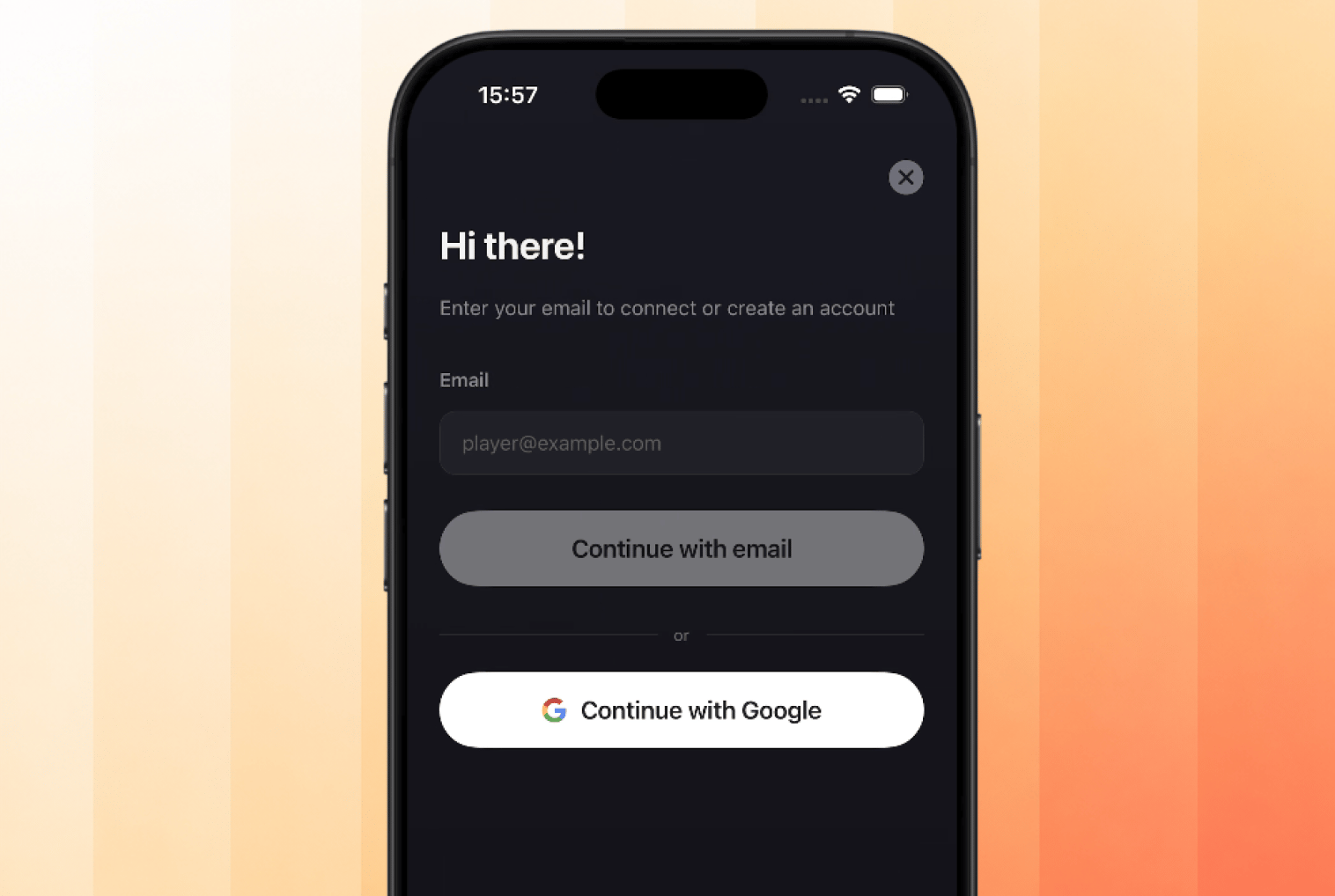
<Frame caption="PixelGames の Clerk サインイン画面。メールまたは Google でサインインできる。">
  <img src="https://mintcdn.com/replit/WuaQIOfW5oxRlxex/images/pixelgames/mobile/mobile-signin.png?fit=max&auto=format&n=WuaQIOfW5oxRlxex&q=85&s=f8e1a438d8295ae53f75638579f5b5e9" alt="Continue with email と Continue with Google のある PixelGames サインインモーダル" data-path="images/pixelgames/mobile/mobile-signin.png" width="1516" height="1018" data-path="images/pixelgames/mobile/mobile-signin.png" />
</Frame>

## Sign in with Apple を追加する

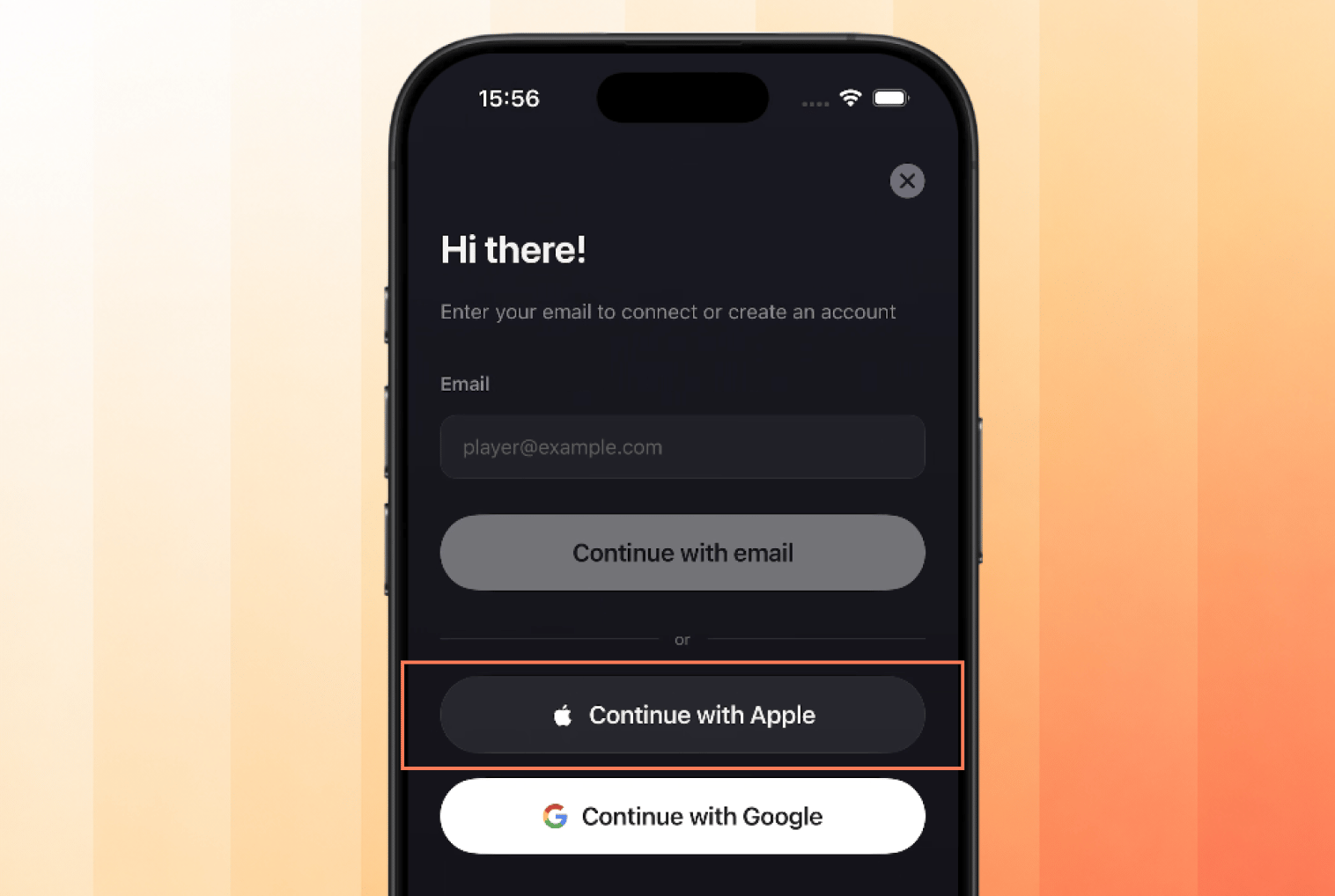
Apple の App Store 審査では、Google などの別のソーシャルログインを提供する場合、iOS 限定で同等の
**Sign in with Apple** を提供することが求められます。Android にはこの要件はありません。
<AiPrompt>
  {appleSignInPrompt}
</AiPrompt>

<Frame caption="メールと Google に加えて Sign in with Apple が追加された、iOS 限定の画面。">
  <img src="https://mintcdn.com/replit/WuaQIOfW5oxRlxex/images/pixelgames/mobile/apple-mobile-signin.png?fit=max&auto=format&n=WuaQIOfW5oxRlxex&q=85&s=4e16862df7d8a1e2aa2454cc5d43793d" alt="Continue with Google の上に Continue with Apple が追加された PixelGames サインインモーダル" data-path="images/pixelgames/mobile/apple-mobile-signin.png" width="1516" height="1018" data-path="images/pixelgames/mobile/apple-mobile-signin.png" />
</Frame>

## プロバイダーを有効にする

コード内にプロバイダーを追加するだけでは不十分で、それぞれをアプリの認証設定でも有効にする必要があります。
**Users & Auth → Configure → SSO providers → Production** を開き、**Google** と **Apple** の両方が
Enabled と表示されていることを確認してください。
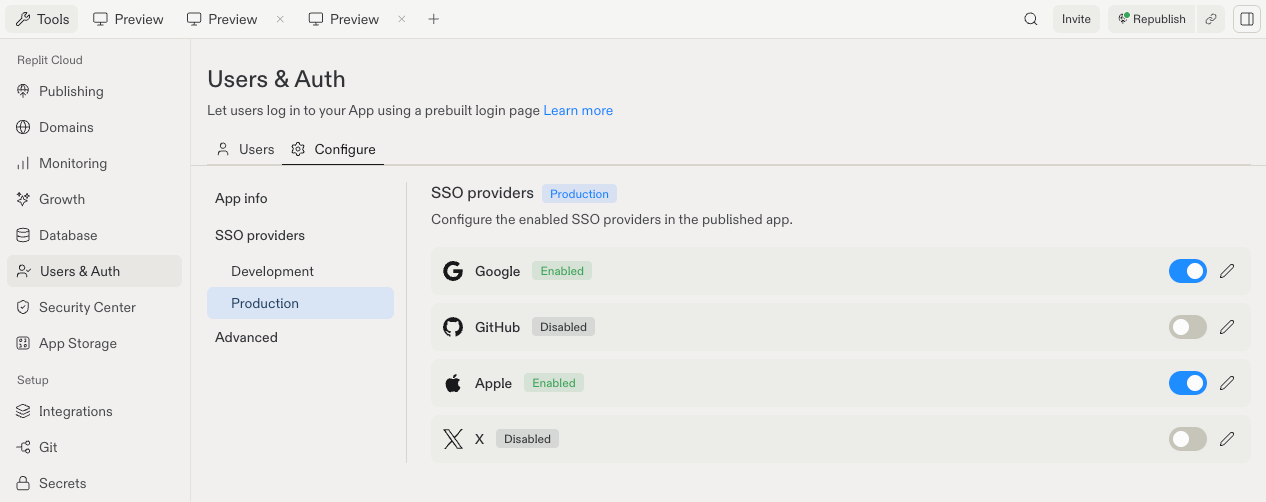
<Frame caption="Production 環境の SSO providers で Google と Apple が有効になっている。">
  <img src="https://mintcdn.com/replit/wpDFPJulnZRpqmW6/images/pixelgames/mobile/sso-provider.png?fit=max&auto=format&n=wpDFPJulnZRpqmW6&q=85&s=815934835068ed80b4654da147285d29" alt="Google と Apple が有効になっている SSO providers を示す Replit の Users and Auth ペイン" data-path="images/pixelgames/mobile/sso-provider.png" width="1266" height="502" data-path="images/pixelgames/mobile/sso-provider.png" />
</Frame>

<Note>
  **Development** と **Production** はそれぞれ別のプロバイダーリストを持っています。一方を有効にしても
  もう一方は有効になりません。公開する前に Production を確認してください。
</Note>

## テストする

1つのアカウントだけでは不十分で、PixelGames がプレイヤーをきちんと区別できることを証明するには2つ必要です。

1. サインインせずに1ラウンドプレイする。PixelGames は引き続き動作するはずです。
2. 自分のアカウントでサインインする。
3. サインアウトしてから別のアカウントでサインインし、最初のアカウントではなく別のセッションに
   入っていることを確認する。
4. 最初のアカウントに再度サインインし、そのアカウントに戻ることを確認する。
5. iOS では **Continue with Apple** が Google の上に表示されることを確認する。Android では
   まったく表示されないことを確認する。

## 次のステップ

<CardGroup cols={2}>
  <Card title="モバイルアプリで画像を保存する" icon="image" href="/ja/build/mobile-store-images">
    プレイヤーがサインインしたら、プロフィール写真を保存しましょう。
  </Card>

  <Card title="ネイティブデバイス機能を追加する" icon="camera" href="/ja/build/mobile-camera">
    PixelGames にさらに多くの機能を追加しましょう。
  </Card>
</CardGroup>

## 関連

* [モバイルアプリで画像を保存する](/ja/build/mobile-store-images)
* [アプリ内課金を追加する](/ja/build/mobile-payments)
* [サインインプロバイダーを設定する](/features/auth-and-identity/sign-in-providers)
