> ## Documentation Index
> Fetch the complete documentation index at: https://docs.replit.com/llms.txt
> Use this file to discover all available pages before exploring further.
# 最初のモバイルアプリを始める
> Agent を使って、レトロ風ゲームアプリ PixelGames をネイティブの iOS・Android アプリとして作りましょう。
export const PromptActions = ({prompt = "", campaign = "docs-prompt-actions"}) => {
const LZ_SRC = "https://cdnjs.cloudflare.com/ajax/libs/lz-string/1.5.0/lz-string.min.js";
const ensureLZString = () => {
if (typeof document === "undefined") return;
if (window.LZString) return;
if (document.querySelector(`script[src="${LZ_SRC}"]`)) return;
const s = document.createElement("script");
s.src = LZ_SRC;
s.async = true;
document.head.appendChild(s);
};
const handleCopy = async e => {
const btn = e.currentTarget;
if (!prompt) return;
try {
await navigator.clipboard.writeText(prompt);
} catch {
const ta = document.createElement("textarea");
ta.value = prompt;
document.body.appendChild(ta);
ta.select();
try {
document.execCommand("copy");
} catch {}
document.body.removeChild(ta);
}
const original = btn.dataset.label || btn.innerText;
btn.dataset.label = original;
btn.innerText = "Copied!";
setTimeout(() => {
if (btn.isConnected) btn.innerText = original;
}, 1500);
};
const handleBuild = () => {
if (!prompt || typeof window === "undefined") return;
const utm = `utm_source=replit-docs&utm_medium=docs&utm_campaign=${encodeURIComponent(campaign)}&utm_content=prompt-actions`;
let url;
if (window.LZString) {
const encoded = window.LZString.compressToEncodedURIComponent(prompt);
url = `https://replit.com/?prompt=${encoded}&referrer=replit-docs&${utm}`;
} else {
url = `https://replit.com/?prompt=${encodeURIComponent(prompt)}&referrer=replit-docs&${utm}`;
}
window.open(url, "_blank", "noopener,noreferrer");
};
ensureLZString();
const baseButtonStyle = {
display: "inline-flex",
alignItems: "center",
gap: "6px",
padding: "8px 16px",
borderRadius: "8px",
fontSize: "14px",
fontWeight: 500,
cursor: "pointer",
lineHeight: 1.2,
fontFamily: "inherit",
textDecoration: "none"
};
return
;
};
export const AiPrompt = ({children}) => {
return
{children}
;
};
export const pixelGamesPrompt = "Create a mobile app called PixelGames: a retro handheld console UI styled like a classic Game Boy, cream plastic shell, grey screen bezel, olive-green LCD screen with grid lines. Add a D-pad and two round A/B buttons, plus MENU and START buttons below the screen. Show a menu with four games: Blocks, Snake, Racer, and Pinball.";
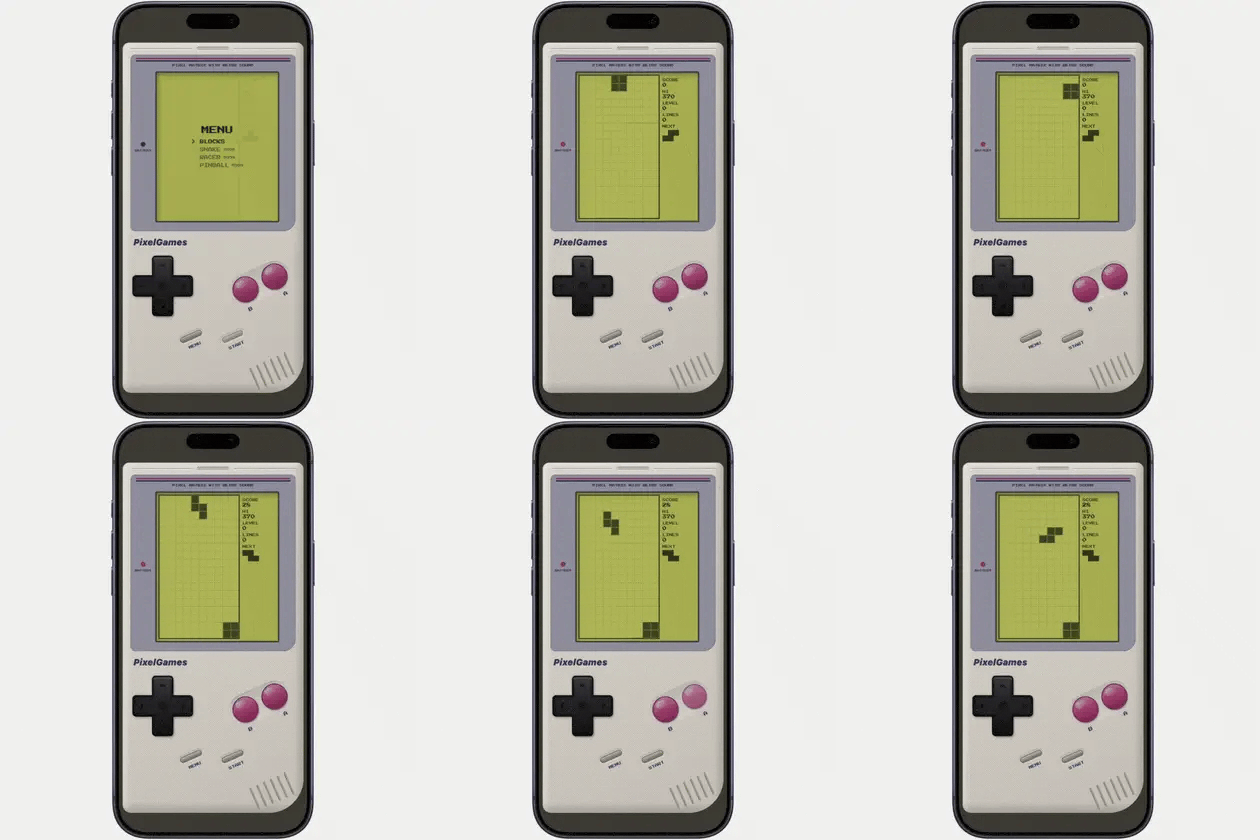
Replit でのモバイルアプリ開発は、Web アプリの開発と同じ進め方です。作りたいものを説明すると、Agent が
コードを書きます。このガイドでは1つの例を通してその流れを紹介するので、ご自身のアイデアに応用する前に
パターンをつかめます。
 ## 始める前に
必要なのは [Replit アカウント](https://replit.com/)だけです。作成は無料です。
目標は、次の一連の流れを最後まで完了することです。
* [Agent](/ja/features/agent/overview) で作る
* モバイルアプリとしてテストする
* 公開して共有する
Agent は Replit の AI ビルダーです。作りたいものを説明すると、アプリを作成し、何をしたかを説明し、
問題があれば修正します。
## 1. Agent にアプリの作成を指示する
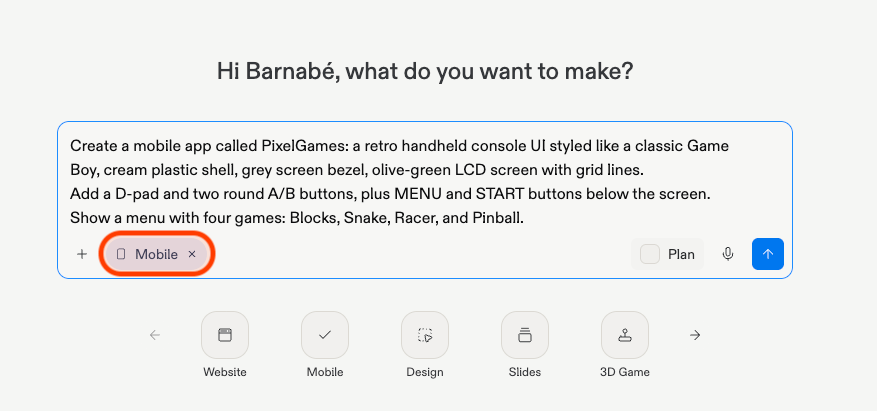
Replit を開いて新しいアプリを開始します。作りたいものを説明し、アプリの種類として **Mobile app** を
選択します。
{pixelGamesPrompt}
## 始める前に
必要なのは [Replit アカウント](https://replit.com/)だけです。作成は無料です。
目標は、次の一連の流れを最後まで完了することです。
* [Agent](/ja/features/agent/overview) で作る
* モバイルアプリとしてテストする
* 公開して共有する
Agent は Replit の AI ビルダーです。作りたいものを説明すると、アプリを作成し、何をしたかを説明し、
問題があれば修正します。
## 1. Agent にアプリの作成を指示する
Replit を開いて新しいアプリを開始します。作りたいものを説明し、アプリの種類として **Mobile app** を
選択します。
{pixelGamesPrompt}
 ## 2. プレビューで動作を確認する
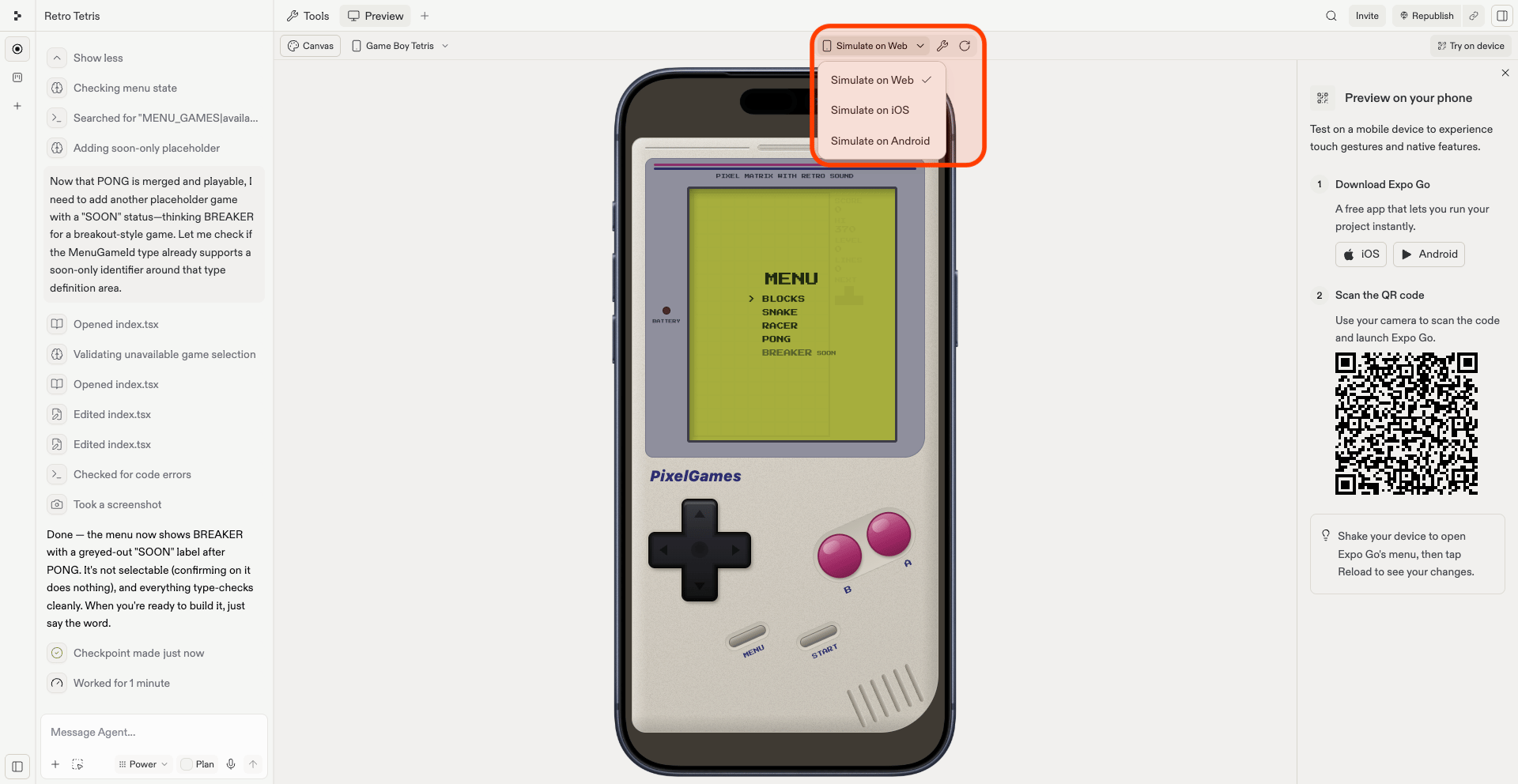
Replit は、プレビューペイン内で PixelGames を iOS または Android としてシミュレートします。変更を確認する
最も速い方法です。
PixelGames の準備ができると、Replit が自動的にシミュレーションを起動します。セットアップは不要です。
プレビューペインのツールバー(レンチとリフレッシュのアイコンの隣)にある **Simulate on...**
ドロップダウンで、**iOS**、**Android**、**Web** を切り替えます。
## 2. プレビューで動作を確認する
Replit は、プレビューペイン内で PixelGames を iOS または Android としてシミュレートします。変更を確認する
最も速い方法です。
PixelGames の準備ができると、Replit が自動的にシミュレーションを起動します。セットアップは不要です。
プレビューペインのツールバー(レンチとリフレッシュのアイコンの隣)にある **Simulate on...**
ドロップダウンで、**iOS**、**Android**、**Web** を切り替えます。
 ### 実際に動くか確認する
プレイヤーになったつもりで PixelGames を使ってみましょう。
* **MENU** 画面で **Blocks** が選択でき、他の3つのゲームには「SOON」と表示されていることを確認します。
* Blocks を開き、D-pad と A/B ボタンでいくつかのピースを操作します。
* プレイ中に HUD のスコア、レベル、ライン数が更新されることを確認します。
おかしな点があれば、見たままを Agent に伝えてください。自分でバグを見つける必要はありません。
## PixelGames が動きました
1つのプロンプトから、Replit 内でプレビューできるプレイ可能なゲームができました。
## トラブルシューティング
最初のビルドには1〜2分かかるため、止まっていると判断する前に少し待ってください。それでも空白の場合は、
コンソールでエラーを確認し、Agent に共有してください。
コンソールで **R** を押して PixelGames を再読み込みし、それでも古いままの場合はプレビューペインの
ツールバーにあるリフレッシュアイコンを使ってください。
通常は JavaScript エラーまたはパッケージの不足を意味します。メッセージを読んでください。多くの場合、
該当するファイルと行が示されています。その内容を Agent に共有し、修正を依頼してください。
パッケージによってはプラットフォームごとに動作が異なります。Web で動くものがネイティブでは
サポートされていなかったり、別のセットアップが必要だったりします。利用する前に Agent に
「このパッケージはネイティブをサポートしていますか?」と尋ねてください。
最初のビルドはまだキャッシュがないため常に遅く、以降は速くなります。遅いままの場合は、プロジェクト内に
不要なパッケージがないか Agent に確認させてください。
パッケージがインストールされていないか、インストール済みでもキャッシュが古くなっていることを意味します。
Agent にインストールまたはキャッシュのクリアを依頼し、パッケージ名のスペルミスがないかも確認してください。
## 次のステップ
PixelGames を実際のスマートフォンアプリとして体験しましょう。親指で操作するボタン、ハプティクス、
実際の画面サイズを確認できます。
プレイヤーがサインインして進行状況を保存できるようにします。
プロフィール写真を App Storage に保存します。
新しいゲームがリリースされたことをプレイヤーに知らせます。
PixelGames のコンテンツに対してプレイヤーに課金します。
### 実際に動くか確認する
プレイヤーになったつもりで PixelGames を使ってみましょう。
* **MENU** 画面で **Blocks** が選択でき、他の3つのゲームには「SOON」と表示されていることを確認します。
* Blocks を開き、D-pad と A/B ボタンでいくつかのピースを操作します。
* プレイ中に HUD のスコア、レベル、ライン数が更新されることを確認します。
おかしな点があれば、見たままを Agent に伝えてください。自分でバグを見つける必要はありません。
## PixelGames が動きました
1つのプロンプトから、Replit 内でプレビューできるプレイ可能なゲームができました。
## トラブルシューティング
最初のビルドには1〜2分かかるため、止まっていると判断する前に少し待ってください。それでも空白の場合は、
コンソールでエラーを確認し、Agent に共有してください。
コンソールで **R** を押して PixelGames を再読み込みし、それでも古いままの場合はプレビューペインの
ツールバーにあるリフレッシュアイコンを使ってください。
通常は JavaScript エラーまたはパッケージの不足を意味します。メッセージを読んでください。多くの場合、
該当するファイルと行が示されています。その内容を Agent に共有し、修正を依頼してください。
パッケージによってはプラットフォームごとに動作が異なります。Web で動くものがネイティブでは
サポートされていなかったり、別のセットアップが必要だったりします。利用する前に Agent に
「このパッケージはネイティブをサポートしていますか?」と尋ねてください。
最初のビルドはまだキャッシュがないため常に遅く、以降は速くなります。遅いままの場合は、プロジェクト内に
不要なパッケージがないか Agent に確認させてください。
パッケージがインストールされていないか、インストール済みでもキャッシュが古くなっていることを意味します。
Agent にインストールまたはキャッシュのクリアを依頼し、パッケージ名のスペルミスがないかも確認してください。
## 次のステップ
PixelGames を実際のスマートフォンアプリとして体験しましょう。親指で操作するボタン、ハプティクス、
実際の画面サイズを確認できます。
プレイヤーがサインインして進行状況を保存できるようにします。
プロフィール写真を App Storage に保存します。
新しいゲームがリリースされたことをプレイヤーに知らせます。
PixelGames のコンテンツに対してプレイヤーに課金します。