> ## Documentation Index
> Fetch the complete documentation index at: https://docs.replit.com/llms.txt
> Use this file to discover all available pages before exploring further.

# ランディングページを公開する

> 1つの明確なオファー、1つのコールトゥアクション、レスポンスをキャプチャする動作するフォームを備えたランディングページをビルドして公開しましょう。

export const RACHEL_JONES_PROMPT = `Build me a one-page website for an online fitness coach named Rachel Jones. It should feel premium, like a magazine ad — dark, moody, and luxurious, with black and warm gold as the only colors. Big bold headlines, lots of empty space, and elegant serif accents. No bright colors, no rounded "tech startup" vibes.

Here's what should be on the page, top to bottom:

A header bar with a small gold "RJ" logo on the left, the words "RACHEL JONES — FITNESS COACH" next to it, a few menu links across the middle (About, Coaching, Programs, Success Stories, Resources), and a gold "Book a Free Consultation" button on the right.

A huge hero section with a dramatic close-up photo of a strong, fit woman lit with warm gold light against a black background. On the left side over the dark area, put a giant three-line headline:
"STRONGER BODY. CONFIDENT MIND. UNSTOPPABLE YOU." — with the last line in gold.
Underneath: "Personalized coaching. Proven strategies. Real results that last." Then two buttons: a gold "Work With Rachel" and an outlined "Watch Rachel's Story" with a play icon. Below that, show 4 little circular client photos and 5 gold stars with the line "Trusted by 500+ women worldwide."
On the right side, layered on the photo, write "Rachel Jones" in a fancy gold script font, with "CERTIFIED FITNESS COACH" underneath, and a list of credentials with little gold icons: NASM Certified, Precision Nutrition Level 1, Women's Fitness Specialist, 10+ Years Experience.

A "Featured In" strip — a thin row showing fake magazine logos written in different fancy fonts: Women's Health, Oxygen, Forbes, mindbodygreen, Fit Pregnancy, Shape.

A "Holistic Approach" section — centered headline "A Holistic Approach. Real Results." in an elegant serif. Below it, four columns side by side, each with a small gold icon, a title, and a one-line description: Custom Training, Nutrition Guidance, Mindset Coaching, Accountability.

A "Success Stories" section — on the left, the headline "Stronger on the Outside. Stronger on the Inside." with a "See More Success Stories" button. On the right, three before/after transformation photos of women, each with a big gold result number underneath ("−24 LBS in 16 weeks", "+18 LBS of muscle", "−20% body fat in 14 weeks"), a short italic quote, and the client's first name.

A final call-to-action panel — a wide dark card split into three parts. Left: a friendly portrait of Rachel. Middle: headline "You Don't Need More Motivation. You Need the Right Plan." with a gold "Book Your Free Consultation" button. Right: three small benefits with icons — "1:1 Strategy Call", "Personalized Plan", "Start Your Transformation".

For the photos, generate them — I want a fit woman with warm gold dramatic lighting on a black background, very cinematic. The before/after photos should be full-body in the same dark studio style.

Make it look like a real, professional coaching brand — not a template. Don't add forms, signups, or extra pages — just this one beautiful landing page.`;

export const PromptActions = ({prompt = "", campaign = "docs-prompt-actions"}) => {
  const LZ_SRC = "https://cdnjs.cloudflare.com/ajax/libs/lz-string/1.5.0/lz-string.min.js";
  const ensureLZString = () => {
    if (typeof document === "undefined") return;
    if (window.LZString) return;
    if (document.querySelector(`script[src="${LZ_SRC}"]`)) return;
    const s = document.createElement("script");
    s.src = LZ_SRC;
    s.async = true;
    document.head.appendChild(s);
  };
  const handleCopy = async e => {
    const btn = e.currentTarget;
    if (!prompt) return;
    try {
      await navigator.clipboard.writeText(prompt);
    } catch {
      const ta = document.createElement("textarea");
      ta.value = prompt;
      document.body.appendChild(ta);
      ta.select();
      try {
        document.execCommand("copy");
      } catch {}
      document.body.removeChild(ta);
    }
    const original = btn.dataset.label || btn.innerText;
    btn.dataset.label = original;
    btn.innerText = "Copied!";
    setTimeout(() => {
      if (btn.isConnected) btn.innerText = original;
    }, 1500);
  };
  const handleBuild = () => {
    if (!prompt || typeof window === "undefined") return;
    const utm = `utm_source=replit-docs&utm_medium=docs&utm_campaign=${encodeURIComponent(campaign)}&utm_content=prompt-actions`;
    let url;
    if (window.LZString) {
      const encoded = window.LZString.compressToEncodedURIComponent(prompt);
      url = `https://replit.com/?prompt=${encoded}&referrer=replit-docs&${utm}`;
    } else {
      url = `https://replit.com/?prompt=${encodeURIComponent(prompt)}&referrer=replit-docs&${utm}`;
    }
    window.open(url, "_blank", "noopener,noreferrer");
  };
  ensureLZString();
  const baseButtonStyle = {
    display: "inline-flex",
    alignItems: "center",
    gap: "6px",
    padding: "8px 16px",
    borderRadius: "8px",
    fontSize: "14px",
    fontWeight: 500,
    cursor: "pointer",
    lineHeight: 1.2,
    fontFamily: "inherit",
    textDecoration: "none"
  };
  return <div style={{
    display: "flex",
    gap: "12px",
    margin: "16px 0",
    flexWrap: "wrap",
    alignItems: "center"
  }}>
      <button type="button" onClick={handleCopy} style={{
    ...baseButtonStyle,
    background: "transparent",
    color: "inherit",
    border: "1px solid rgba(127,127,127,0.4)"
  }}>
        Copy the prompt
      </button>
      <button type="button" onClick={handleBuild} style={{
    ...baseButtonStyle,
    background: "#F26207",
    color: "#FFFFFF",
    border: "1px solid #F26207"
  }}>
        Build on Replit ↗
      </button>
    </div>;
};

ランディングページは、アイデア、キャンペーン、ウェイトリスト、イベント、オファーに1つのフォーカスした場所を提供します。

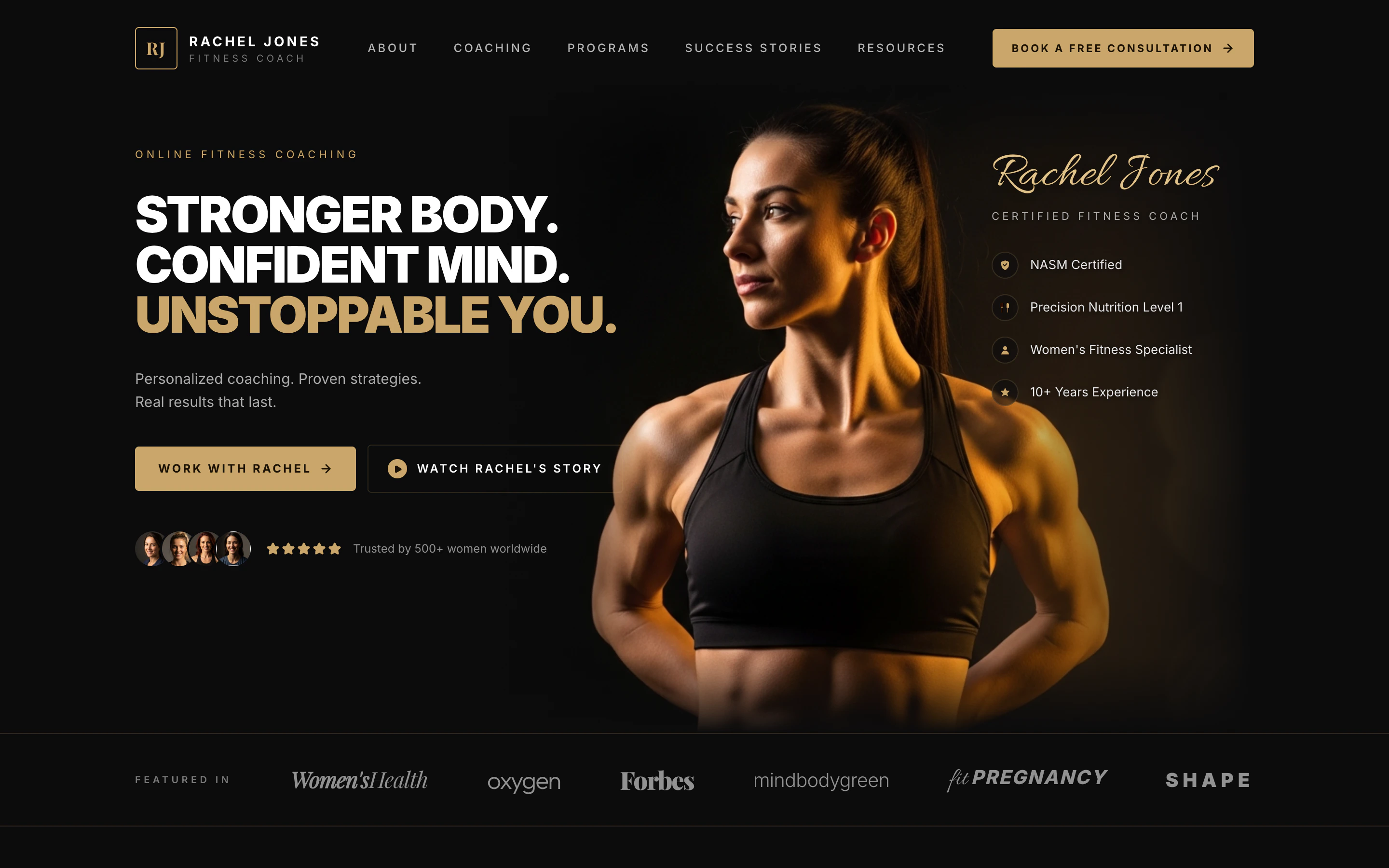
<Frame>
  <img src="https://mintcdn.com/replit/yG4SOQfWGbnjXJ3G/images/build-examples/rachel-jones-coach.png?fit=max&auto=format&n=yG4SOQfWGbnjXJ3G&q=85&s=b43fe0b074a4473b478a04ede1bb53ff" alt="パブリック URL に公開された Rachel Jones Fitness Coach のランディングページ — ダークな編集者風ヒーローに「Stronger body. Confident mind. Unstoppable you.」というヘッドライン、Work with Rachel のコールトゥアクション、認定資格、プレスメンション帯が表示されている" width="2880" height="1800" data-path="images/build-examples/rachel-jones-coach.png" />
</Frame>

<PromptActions prompt={RACHEL_JONES_PROMPT} campaign="docs-landing-page" />

## 学べること

以下の方法を学びます:

* 対象者、オファー、コールトゥアクションをページに変換する。
* ページのコピー、レイアウト、フォームの動作を Agent に依頼する。
* 共有する前にページが明確かどうかを確認する。
* 公開 URL からフォームをテストする。
* レスポンスの質に基づいてページを改善する。

## Canvas で改良と代替案を探索する

Agent が最初のビルドを完了したら、Canvas を開いてビジュアルフィードバックを伝え、プロンプトを書き直さずに代替方向を Agent に依頼しましょう。

<Steps>
  <Step title="ランディングページをビルドする">
    プロンプトをコピーして [replit.com](https://replit.com) のプロンプトボックスに貼り付けるか、**Build on Replit** をクリックしてプロンプトが事前に入力された状態で Replit を開きます。

    <PromptActions prompt={RACHEL_JONES_PROMPT} campaign="docs-landing-page" />
  </Step>

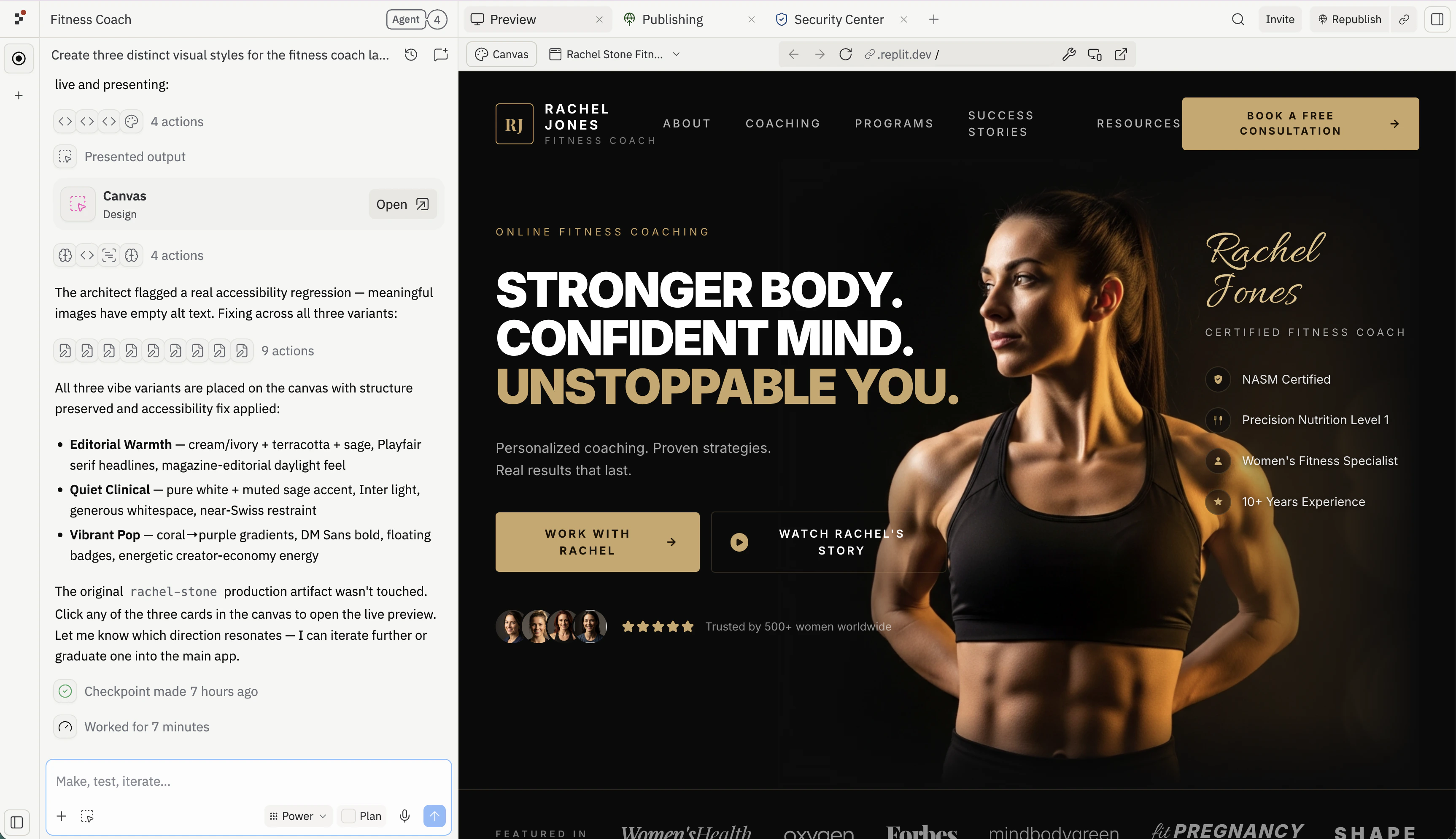
  <Step title="Agent がビルドしたアプリをプレビューする">
    Agent が完了すると、右ペインが **Preview** に切り替わり、リアルタイムでランディングページを操作できます。改良を始める前に、ヒーローをスクロールし、コールトゥアクションをクリックして、コピーと画像が依頼した内容と一致しているか確認してください。

    <Frame>
      <img src="https://mintcdn.com/replit/aRjqxvnoTuPani4_/images/fitstart/launch-landing-page/landing-preview.png?fit=max&auto=format&n=aRjqxvnoTuPani4_&q=85&s=867fe0f59c2d879e608a822f91466157" alt="Agent チャットの隣の Replit Preview ペインにレンダリングされた Rachel Jones フィットネスコーチのランディングページ — 金色に照らされたポートレートの上に「Stronger body. Confident mind. Unstoppable you.」というヘッドラインが表示されたダークな編集者風ヒーロー、Work with Rachel と Watch Rachel's Story ボタン、右側に認定資格、「Trusted by 500+ women worldwide」の5つ星帯" width="3452" height="1988" data-path="images/fitstart/launch-landing-page/landing-preview.png" />
    </Frame>
  </Step>

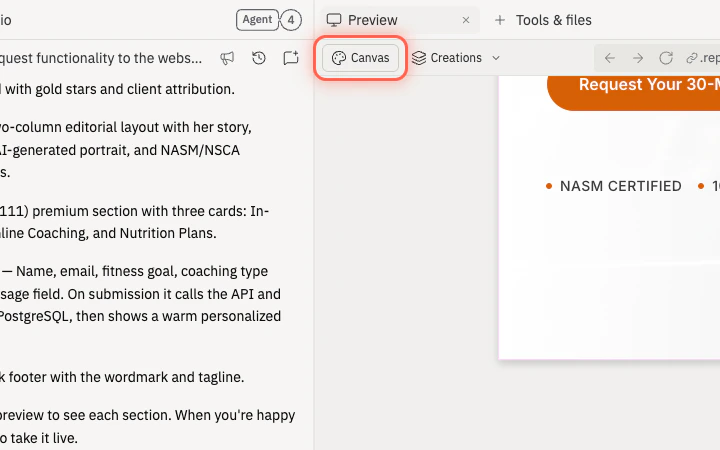
  <Step title="Canvas を開く">
    Preview と Tools タブの下にある **Canvas** ボタンを選択して、右ペインを Preview から Canvas に切り替えます。

    <Frame>
      <img src="https://mintcdn.com/replit/aRjqxvnoTuPani4_/images/fitstart/launch-landing-page/landing-canvas-button.png?fit=max&auto=format&n=aRjqxvnoTuPani4_&q=85&s=0df9348f1e5a76b3e35238b634802053" alt="Preview と Tools タブの下の Canvas ボタンがハイライトされた Replit ワークスペース" width="720" height="450" data-path="images/fitstart/launch-landing-page/landing-canvas-button.png" />
    </Frame>
  </Step>

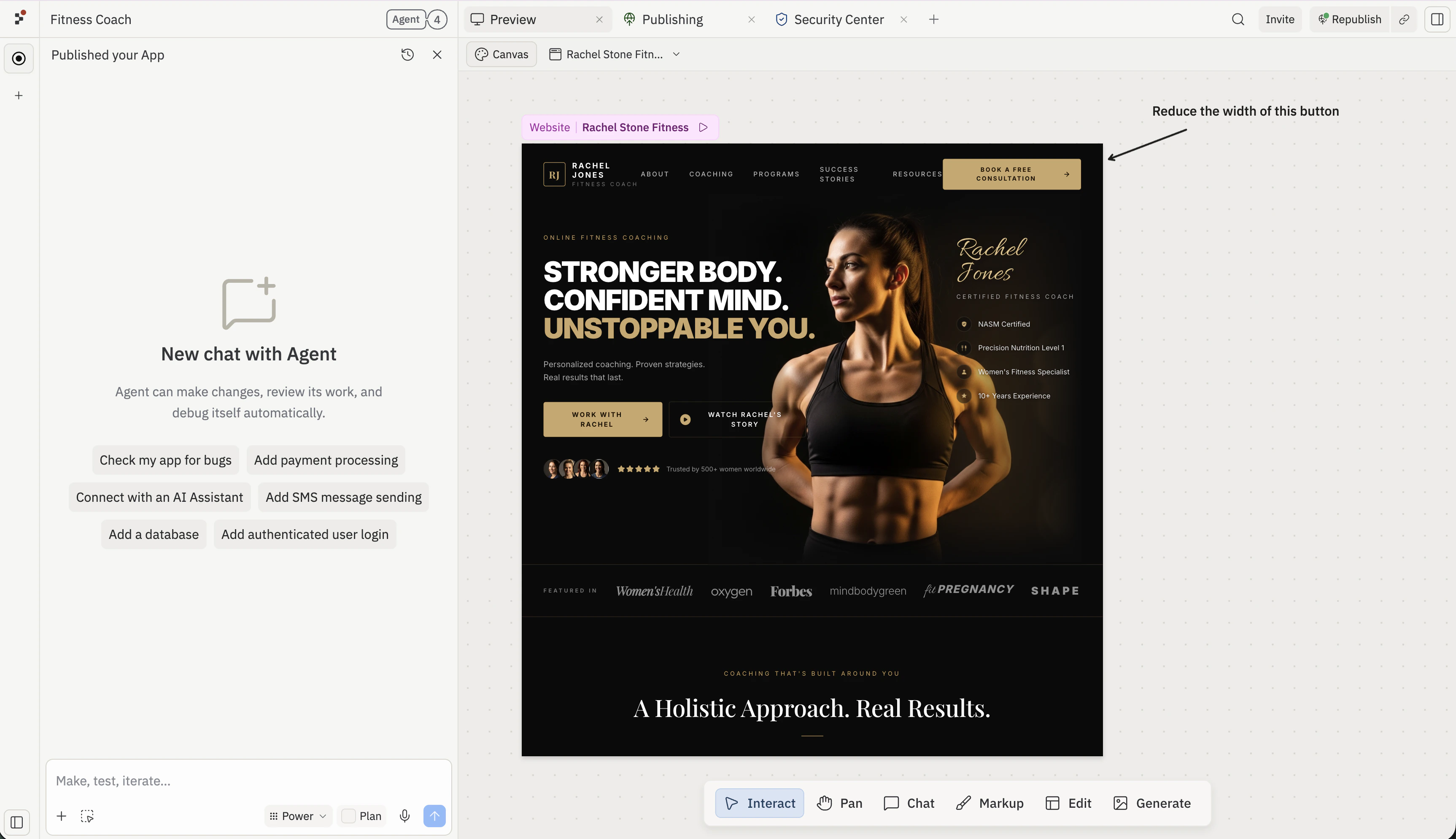
  <Step title="プレビューの外側にアノテーションをつける">
    Canvas の **Text** と **Draw** ツールを使って、モックアップの周りの空きスペースにメモや矢印を追加し、変更してほしい特定の要素を指し示します。キャンバス上に配置されたアノテーション（プレビューの外側）はフィードバックに付いたままになるので、Agent がデザインと一緒に読むことができます。

    各アノテーションは1つの変更に絞ってください。短く具体的なメモ（「このボタンの幅を縮めて」）は、オープンエンドなフィードバックよりも効果的です。

    <Frame>
      <img src="https://mintcdn.com/replit/aRjqxvnoTuPani4_/images/fitstart/launch-landing-page/landing-canvas-annotate-text.png?fit=max&auto=format&n=aRjqxvnoTuPani4_&q=85&s=fc50cf754d3531471e90a5df69cb57a7" alt="Rachel Jones ランディングページの右側のキャンバスマージンに置かれた「Reduce the width of this button」というキャンバスアノテーション。ページヘッダーの金色の「Book a Free Consultation」ボタンを指す矢印付き" width="3452" height="1988" data-path="images/fitstart/launch-landing-page/landing-canvas-annotate-text.png" />
    </Frame>
  </Step>

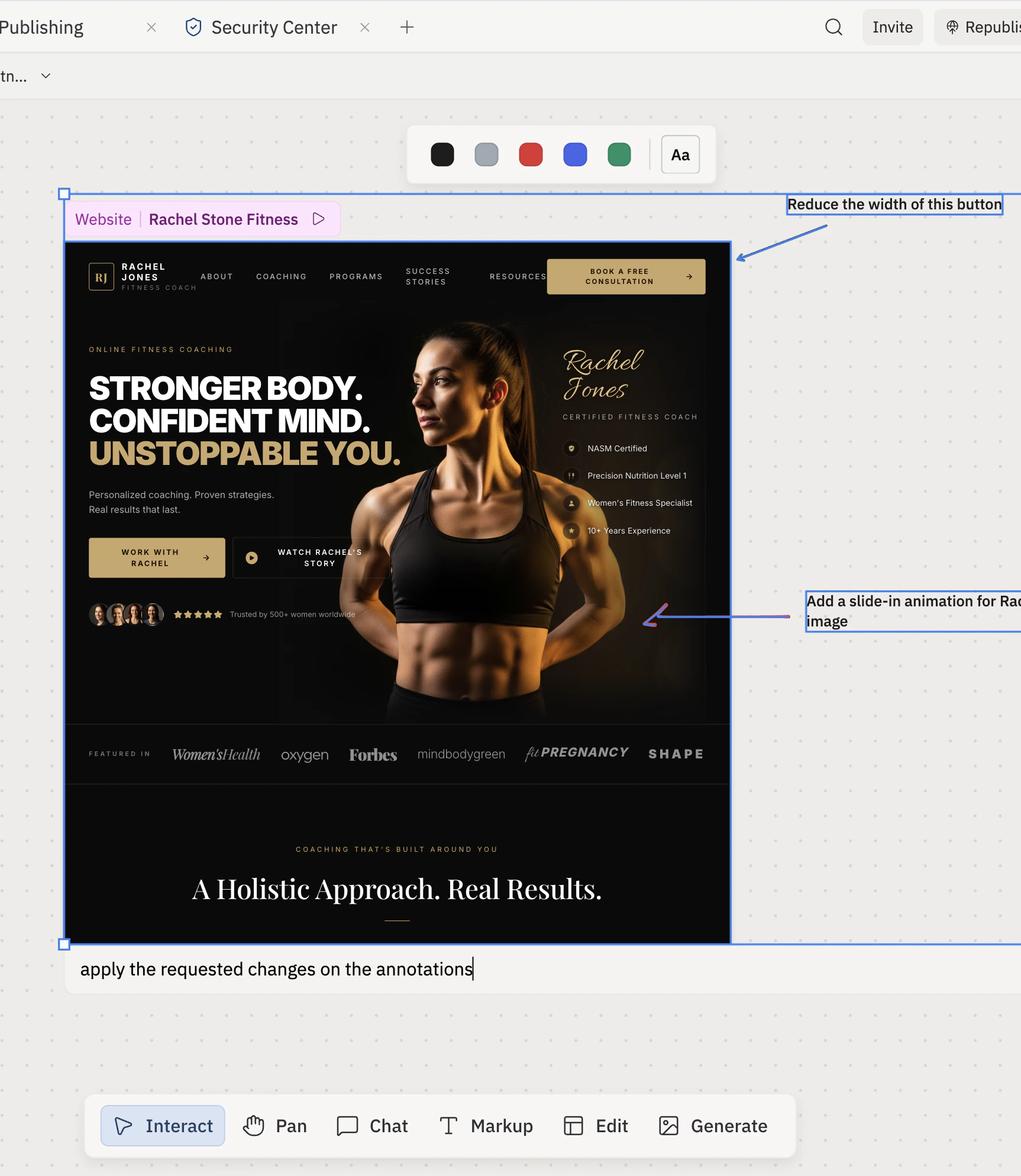
  <Step title="アノテーションとプレビューを選択して Agent に送信する">
    アノテーションとプレビューフレームをまとめてマーキー選択し、**Chat about selected items** に短いプロンプトを入力して送信します。Agent はアノテーションとデザインを1つのコンテキストとして読み取るので、各メモがどの要素を参照しているかがわかります。

    チャットメッセージは一般的なものにしてください — 「アノテーションの変更を適用してください」のような内容でOKです。具体的な内容はアノテーションに任せましょう。

    <Frame>
      <img src="https://mintcdn.com/replit/aRjqxvnoTuPani4_/images/fitstart/launch-landing-page/landing-canvas-send.png?fit=max&auto=format&n=aRjqxvnoTuPani4_&q=85&s=9e470adbcfd65080434ac5dc3aeba9e5" alt="Canvas 上で2つのアノテーションと一緒に選択された Rachel Jones ランディングページ — Book a Free Consultation ボタンを指す「Reduce the width of this button」とヒーロー写真を指す「Add a slide-in animation for Rachel's image」、Chat about selected items 入力欄に入力されたチャットプロンプト" width="1726" height="1988" data-path="images/fitstart/launch-landing-page/landing-canvas-send.png" />
    </Frame>
  </Step>

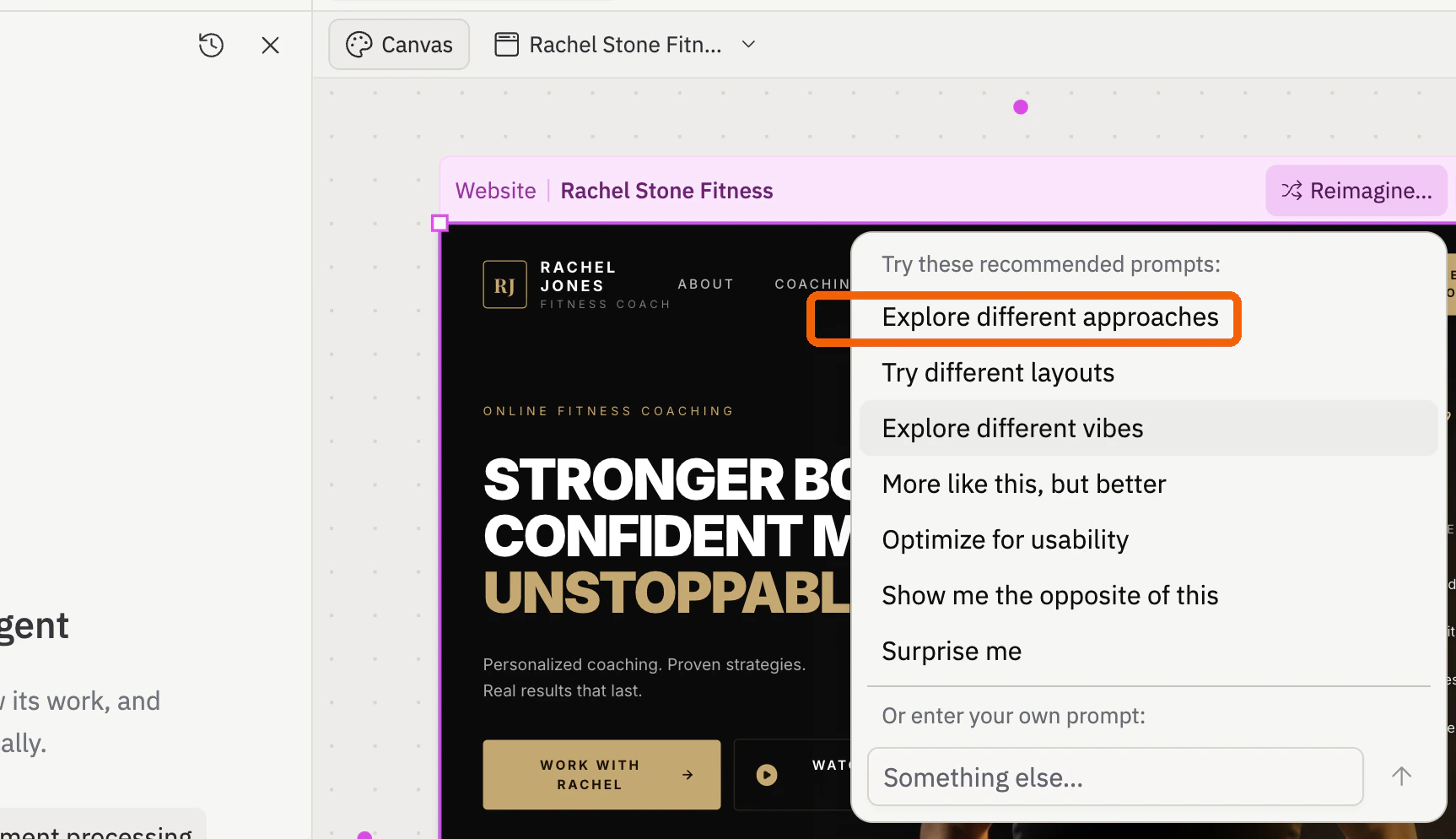
  <Step title="異なる方向性で Reimagine する">
    Canvas 上のデザインをクリックして **Reimagine** を選択し、**Explore different approaches** を選んで代替ビジュアル方向性を Agent に依頼します。

    <Frame>
      <img src="https://mintcdn.com/replit/aRjqxvnoTuPani4_/images/fitstart/launch-landing-page/landing-canvas-reimagine.png?fit=max&auto=format&n=aRjqxvnoTuPani4_&q=85&s=6b92b25a43c699b3e90084e96bc5ba70" alt="Rachel Stone モックアップ上で Explore different approaches オプションがハイライトされた Reimagine メニュー" width="1726" height="994" data-path="images/fitstart/launch-landing-page/landing-canvas-reimagine.png" />
    </Frame>
  </Step>

  <Step title="代替案を確認して反復する">
    Agent が生成するのを待ちます。**Explore different approaches** は同じ成果物を新しいバリアントで更新します — モックアップの上のアーティファクトドロップダウンから切り替えられます。**Explore different vibes** はキャンバス上のオリジナルの隣に別々のビジュアルモックアップを生成します。

    バリアントが出来上がったら、方向性を選んで反復を続けます。選んだフレームに別のアノテーションを追加し、デザインと一緒にマーキー選択して、新しいリクエストを送信します — 例えば「アノテーションの依頼した変更を適用してください」。Agent はバリアントのコンテキストと新しいアノテーションを1つのプロンプトとして使います。

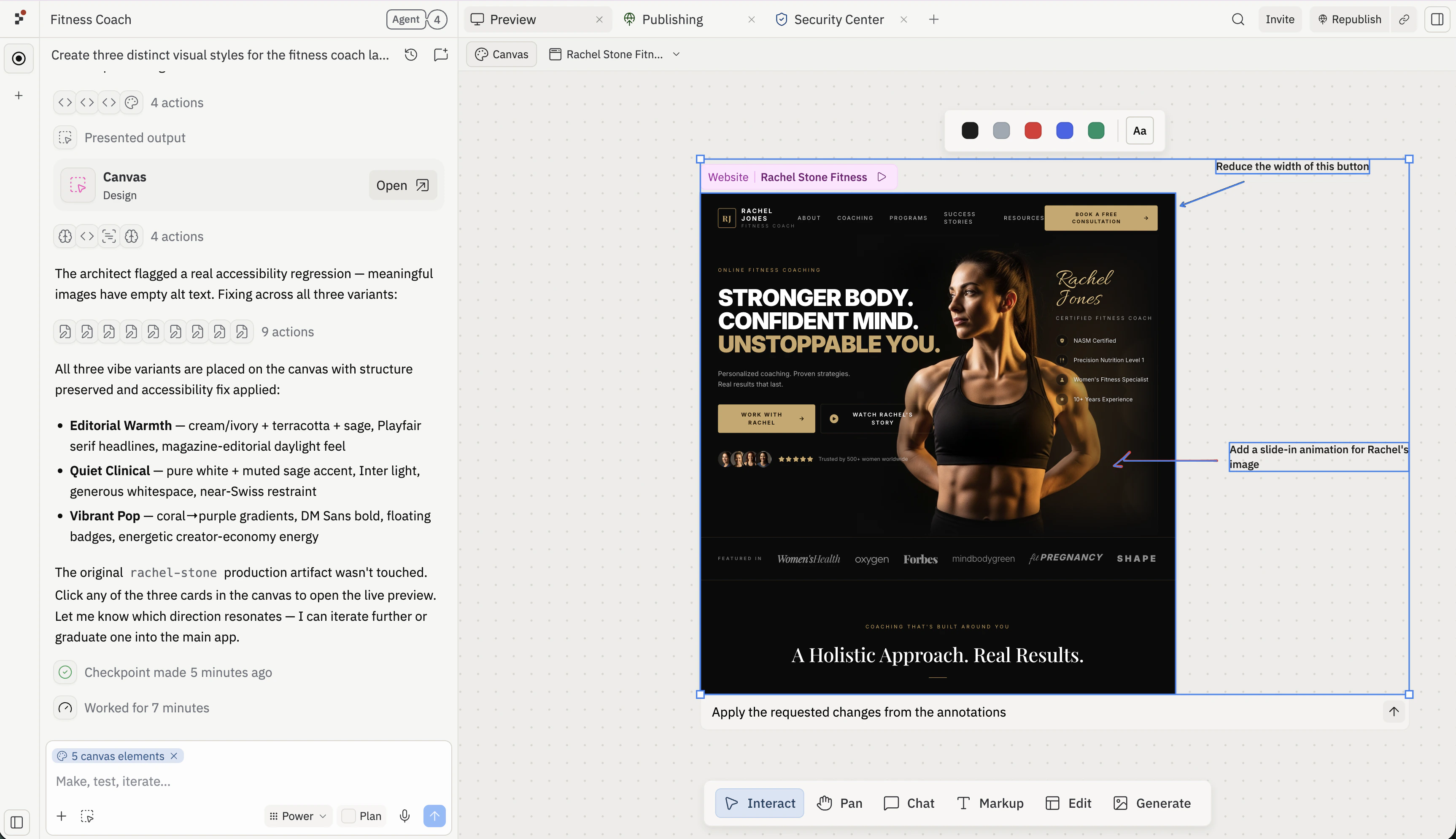
    <Frame>
      <img src="https://mintcdn.com/replit/aRjqxvnoTuPani4_/images/fitstart/launch-landing-page/landing-canvas-zoomed.png?fit=max&auto=format&n=aRjqxvnoTuPani4_&q=85&s=d83303c26926b024376ff2fb6ef1c63c" alt="Agent が3つのバイブバリアント（Editorial Warmth、Quiet Clinical、Vibrant Pop）を生成した後の Canvas 上の Rachel Jones ランディングページ — オリジナルフレームが2つの新しいアノテーション（「Reduce the width of this button」と「Add a slide-in animation for Rachel's image」）と共に選択されており、チャットには「Apply the requested changes from the annotations」と入力されている" width="3452" height="1988" data-path="images/fitstart/launch-landing-page/landing-canvas-zoomed.png" />
    </Frame>
  </Step>

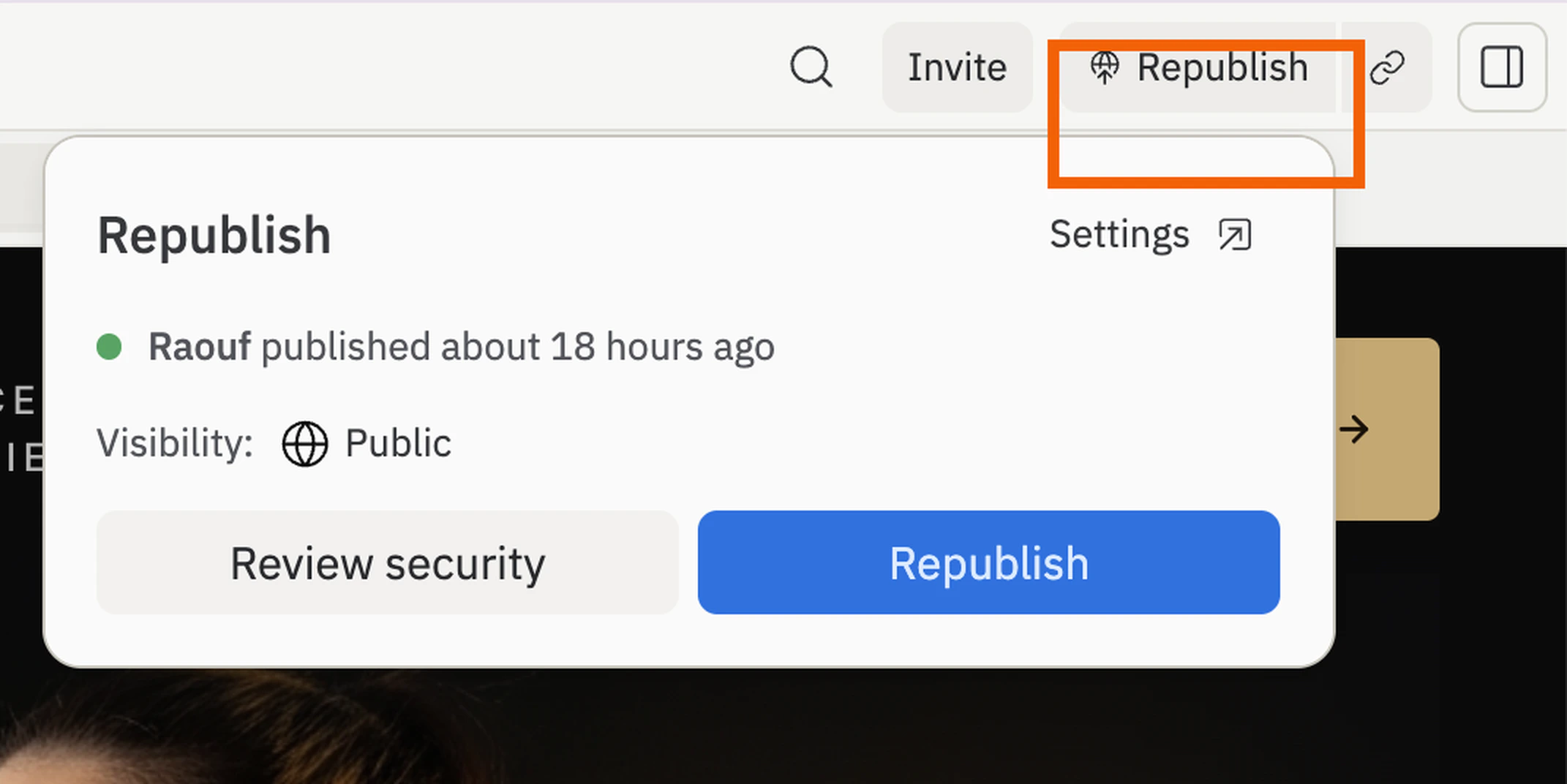
  <Step title="作業を公開する">
    Preview でページが動作したら、ワークスペース右上の **Publish**（その後のデプロイでは **Republish**）をクリックして最新バージョンをパブリック URL にプッシュします。新しいタブで公開 URL を開き、共有する前にライブページでテストレスポンスを1つ送信してキャプチャされることを確認してください。

    <Frame>
      <img src="https://mintcdn.com/replit/aRjqxvnoTuPani4_/images/fitstart/launch-landing-page/landing-publish.png?fit=max&auto=format&n=aRjqxvnoTuPani4_&q=85&s=dfc35f1e97bce76955e420196468dc84" alt="2倍ズームで表示された Replit ワークスペースの右上隅 — ヘッダーのグレーの Republish ボタンがオレンジのアウトラインでハイライトされており、その下のポップオーバーに「Raouf published about 18 hours ago」、Visibility: Public、Review security と Republish アクションボタンが表示されている" width="2142" height="1072" data-path="images/fitstart/launch-landing-page/landing-publish.png" />
    </Frame>
  </Step>
</Steps>

## 次のステップ

<CardGroup cols={2}>
  <Card title="インテグレーションを追加する" icon="plug" href="/build/add-integrations">
    フォローアップメールを送信したり、レスポンスを CRM に同期させましょう。
  </Card>

  <Card title="カスタムドメインを追加する" icon="globe" href="/build/add-custom-domain">
    共有前にページにブランドのキャンペーン URL を設定しましょう。
  </Card>

  <Card title="データベースを追加する" icon="database" href="/build/add-database">
    ソートやエクスポートができる、より構造化されたレスポンスを保存しましょう。
  </Card>

  <Card title="1回に1つの変更をテストする" icon="flask">
    2番目のバリアントを作成してメッセージを直接比較しましょう — ラウンドごとに1要素だけ変更して何が効果的かを把握します。
  </Card>
</CardGroup>

## 関連

* [インテグレーションを追加する](/build/add-integrations)
* [カスタムドメインを追加する](/build/add-custom-domain)