> ## Documentation Index
> Fetch the complete documentation index at: https://docs.replit.com/llms.txt
> Use this file to discover all available pages before exploring further.
# Geography
> Choose where workspace and published app infrastructure is hosted to support data residency and reduce latency.
Choose where your workspace and published app infrastructure is hosted to support data residency and reduce latency. Replit provides separate geography settings, so you can manage development and published app locations independently.
## Compare workspace and publishing geography
| Aspect | Workspace geography | Publishing geography |
| :------------------- | :--------------------------------------------- | :------------------------------------------ |
| **Controls** | Development resources in a workspace | Compute and storage for a published app |
| **Set when** | At workspace creation | When you publish a project |
| **Location result** | Sets the region for new projects and resources | Colocates published artifacts in one region |
| **Can change later** | No | No |
Workspace and publishing geography do not need to match.
## Workspace geography
A workspace contains projects, shared resources, and integrations. Within each project, you use the Project Editor and Agent chat. Development resources include the development version of your app and its development database.
Only Pro customers can select a specific workspace region.
Free and Core customers have workspace region set automatically. This usually selects the workspace region closest to you. New projects and resources in the workspace use that location. You cannot change the region after you create the workspace.
### Select a workspace region
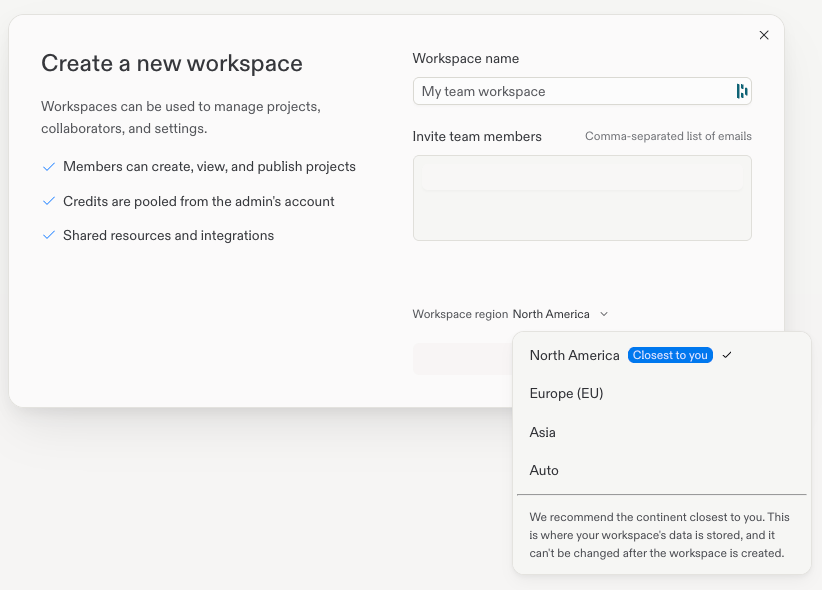
If you are a Pro customer, you can select a region when you create a workspace:
Open the **Create a new workspace** form.
Enter the workspace name and optional member email addresses.
Open **Workspace region**, then select **North America**, **Europe (EU)**, or **Asia**.
Select **Create workspace**.
 ## Publishing geography
Set the publishing geography when you publish a project. By default, Replit recommends the geography closest to you. This helps reduce latency for your app's visitors and meet data residency requirements.
When you select a geography, all published artifacts for your project (such as compute, database, and Object Storage) are automatically colocated in the same region. A geography-specific proxy also helps reduce latency for your app's visitors.
### Select a publishing geography
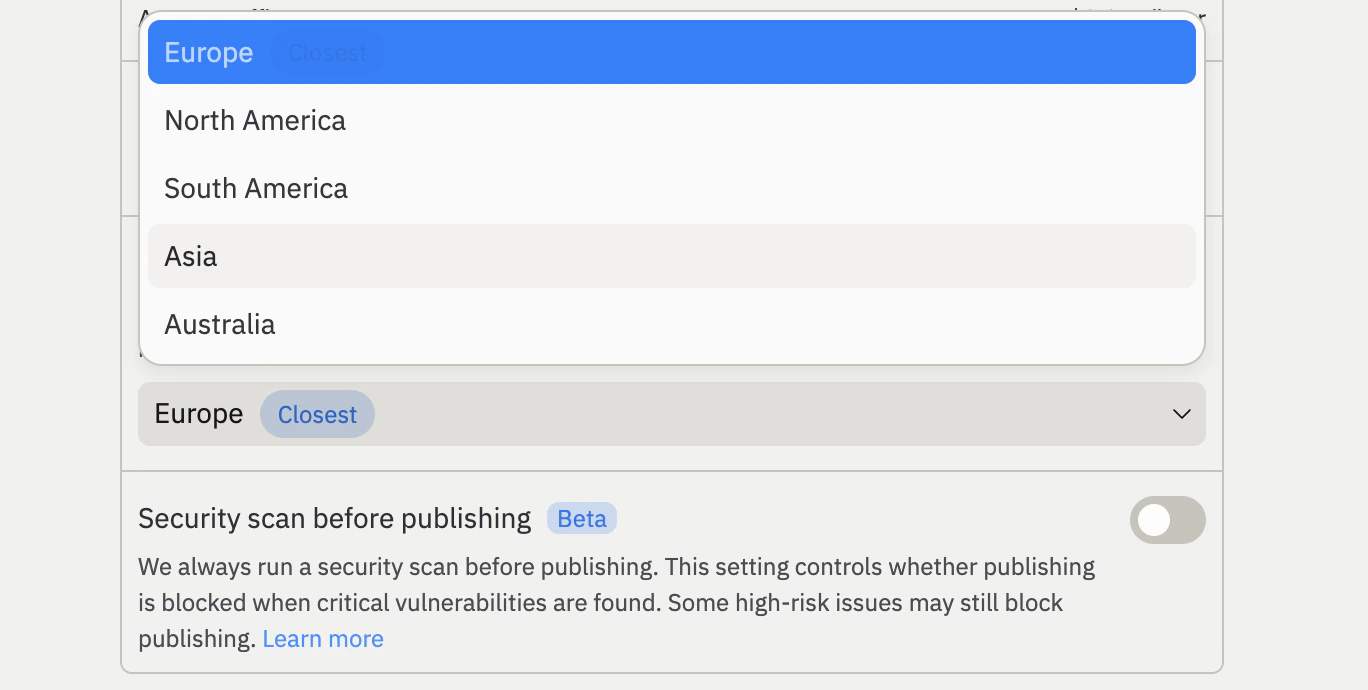
To choose a geography other than the recommended one:
Open the **Publishing** tool in your Replit project.
Expand the **Advanced** settings.
Select your preferred geography from the **Geography** dropdown.
Select **Publish** to publish your project to the selected geography.
## Publishing geography
Set the publishing geography when you publish a project. By default, Replit recommends the geography closest to you. This helps reduce latency for your app's visitors and meet data residency requirements.
When you select a geography, all published artifacts for your project (such as compute, database, and Object Storage) are automatically colocated in the same region. A geography-specific proxy also helps reduce latency for your app's visitors.
### Select a publishing geography
To choose a geography other than the recommended one:
Open the **Publishing** tool in your Replit project.
Expand the **Advanced** settings.
Select your preferred geography from the **Geography** dropdown.
Select **Publish** to publish your project to the selected geography.
 ### Enforce a geography on published projects
Enterprise admins can enforce a publishing geography for all projects across their organization. When a policy is set, builders in the organization publish to the configured geography. This policy applies only to projects that have not yet been published — projects already published to a different geography are not affected.
Enforcing a publishing geography is an Enterprise feature. To learn more about Enterprise plans, see [Pricing](https://replit.com/pricing/).
Navigate to your **Account settings**.
Select **Advanced**.
Choose the geography that all projects published for the first time must use.
### Publishing geography limitations
Before selecting a publishing geography, keep the following limitations in mind:
* **Geography cannot be changed after publishing.** Once you publish your project to a geography, that selection is permanent. You cannot migrate a published project to a different geography.
* **Development and published locations can differ.** Resources such as Object Storage can be created before you publish and may not match your published geography.
## Available geographies
Workspace and publishing geography offer different region choices:
| Geography | Workspace selection | Publishing selection |
| :---------------- | :------------------ | :------------------- |
| **North America** | Yes | Yes |
| **Europe (EU)** | Yes | Yes |
| **Asia** | Yes | Yes |
| **South America** | No | Yes |
| **Australia** | No | Yes |
Workspace geography selection is available only to Pro customers.
Publishing geography selection is available to Core, Pro, and Enterprise customers.
Free customers publish to North America by default.
## Next steps
* [Autoscale Deployments](/features/publishing/deployment-types#autoscale): Learn how autoscaling adjusts capacity based on traffic.
* [Reserved VM Deployments](/features/publishing/deployment-types#reserved-vm): Publish your project to a dedicated virtual machine.
* [Published App Monitoring](/features/publishing/monitoring-a-deployment/): View logs and monitor your published project.
To learn more about how Replit handles data processing, see the [Data Processing Addendum](https://replit.com/dpa).
### Enforce a geography on published projects
Enterprise admins can enforce a publishing geography for all projects across their organization. When a policy is set, builders in the organization publish to the configured geography. This policy applies only to projects that have not yet been published — projects already published to a different geography are not affected.
Enforcing a publishing geography is an Enterprise feature. To learn more about Enterprise plans, see [Pricing](https://replit.com/pricing/).
Navigate to your **Account settings**.
Select **Advanced**.
Choose the geography that all projects published for the first time must use.
### Publishing geography limitations
Before selecting a publishing geography, keep the following limitations in mind:
* **Geography cannot be changed after publishing.** Once you publish your project to a geography, that selection is permanent. You cannot migrate a published project to a different geography.
* **Development and published locations can differ.** Resources such as Object Storage can be created before you publish and may not match your published geography.
## Available geographies
Workspace and publishing geography offer different region choices:
| Geography | Workspace selection | Publishing selection |
| :---------------- | :------------------ | :------------------- |
| **North America** | Yes | Yes |
| **Europe (EU)** | Yes | Yes |
| **Asia** | Yes | Yes |
| **South America** | No | Yes |
| **Australia** | No | Yes |
Workspace geography selection is available only to Pro customers.
Publishing geography selection is available to Core, Pro, and Enterprise customers.
Free customers publish to North America by default.
## Next steps
* [Autoscale Deployments](/features/publishing/deployment-types#autoscale): Learn how autoscaling adjusts capacity based on traffic.
* [Reserved VM Deployments](/features/publishing/deployment-types#reserved-vm): Publish your project to a dedicated virtual machine.
* [Published App Monitoring](/features/publishing/monitoring-a-deployment/): View logs and monitor your published project.
To learn more about how Replit handles data processing, see the [Data Processing Addendum](https://replit.com/dpa).