> ## Documentation Index
> Fetch the complete documentation index at: https://docs.replit.com/llms.txt
> Use this file to discover all available pages before exploring further.
# Project geography
> Choose where the compute and storage for a published Project are hosted.
Project geography is the publishing geography for a Project. You select it when you publish, and it controls where the published Project's compute and storage are hosted.
Project geography and [Workspace
geography](/features/collaboration/workspace-geography) can differ. Workspace
geography controls where development resources for new Projects in a Workspace
are hosted.
## What Project geography controls
By default, Replit recommends the geography closest to you. This helps reduce latency for your app's visitors and meet data residency requirements.
When you select a geography, all published artifacts for your Project, such as compute, database, and Object Storage, are automatically colocated in the same region. A geography-specific proxy also helps reduce latency for your app's visitors.
## Select a Project geography
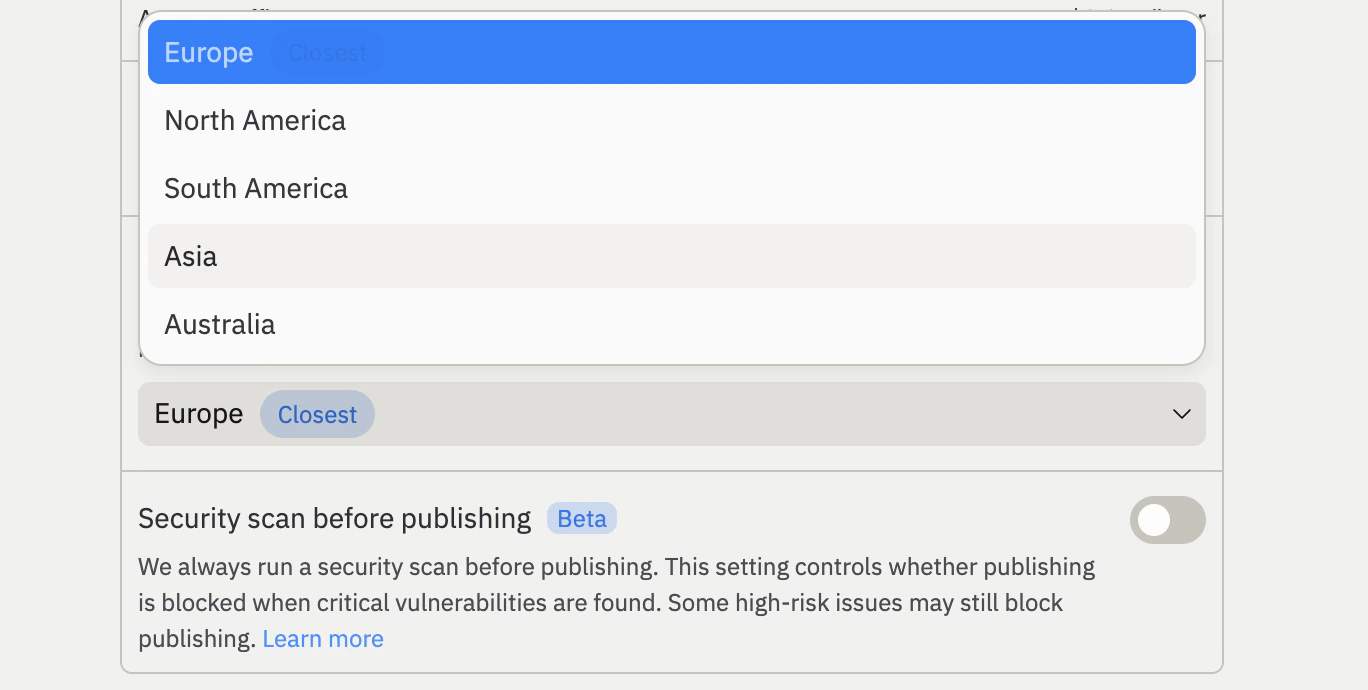
To choose a geography other than the recommended one:
Open the **Publishing** tool in your Replit Project.
Expand the **Advanced** settings.
Select your preferred geography from the **Geography** dropdown.
Select **Publish** to publish your Project to the selected geography.
 ## Enforce a geography on published Projects
Enterprise admins can enforce a publishing geography for all Projects across their organization. When a policy is set, builders in the organization publish to the configured geography. This policy applies only to Projects that have not yet been published. Projects already published to a different geography are not affected.
Enforcing a publishing geography is an Enterprise feature. To learn more about
Enterprise plans, see [Pricing](https://replit.com/pricing/).
Navigate to your **Account settings**.
Select **Advanced**.
Choose the geography that all Projects published for the first time must
use.
## Availability and limits
| Geography | Project publishing selection |
| :---------------- | :--------------------------- |
| **North America** | Yes |
| **Europe (EU)** | Yes |
| **Asia** | Yes |
| **South America** | Yes |
| **Australia** | Yes |
Project geography selection is available to Core, Pro, and Enterprise
customers. Free customers publish to North America by default.
Before selecting a Project geography, keep these limitations in mind:
* **Geography cannot be changed after publishing.** Once you publish your Project to a geography, that selection is permanent. You cannot migrate a published Project to a different geography.
* **Development and published locations can differ.** Resources such as Object Storage can be created before you publish and may not match your Project geography.
## Next steps
* [Publishing](/features/publishing/overview): Learn how to publish and manage a Replit App.
* [Autoscale Deployments](/features/publishing/deployment-types#autoscale): Learn how autoscaling adjusts capacity based on traffic.
* [Reserved VM Deployments](/features/publishing/deployment-types#reserved-vm): Publish your Project to a dedicated virtual machine.
* [Published App Monitoring](/features/publishing/monitoring-a-deployment/): View logs and monitor your published Project.
To learn more about how Replit handles data processing, see the [Data Processing Addendum](https://replit.com/dpa).
## Enforce a geography on published Projects
Enterprise admins can enforce a publishing geography for all Projects across their organization. When a policy is set, builders in the organization publish to the configured geography. This policy applies only to Projects that have not yet been published. Projects already published to a different geography are not affected.
Enforcing a publishing geography is an Enterprise feature. To learn more about
Enterprise plans, see [Pricing](https://replit.com/pricing/).
Navigate to your **Account settings**.
Select **Advanced**.
Choose the geography that all Projects published for the first time must
use.
## Availability and limits
| Geography | Project publishing selection |
| :---------------- | :--------------------------- |
| **North America** | Yes |
| **Europe (EU)** | Yes |
| **Asia** | Yes |
| **South America** | Yes |
| **Australia** | Yes |
Project geography selection is available to Core, Pro, and Enterprise
customers. Free customers publish to North America by default.
Before selecting a Project geography, keep these limitations in mind:
* **Geography cannot be changed after publishing.** Once you publish your Project to a geography, that selection is permanent. You cannot migrate a published Project to a different geography.
* **Development and published locations can differ.** Resources such as Object Storage can be created before you publish and may not match your Project geography.
## Next steps
* [Publishing](/features/publishing/overview): Learn how to publish and manage a Replit App.
* [Autoscale Deployments](/features/publishing/deployment-types#autoscale): Learn how autoscaling adjusts capacity based on traffic.
* [Reserved VM Deployments](/features/publishing/deployment-types#reserved-vm): Publish your Project to a dedicated virtual machine.
* [Published App Monitoring](/features/publishing/monitoring-a-deployment/): View logs and monitor your published Project.
To learn more about how Replit handles data processing, see the [Data Processing Addendum](https://replit.com/dpa).