> ## Documentation Index
> Fetch the complete documentation index at: https://docs.replit.com/llms.txt
> Use this file to discover all available pages before exploring further.
# Work with your data
> Browse, edit, export, and query your database from the My Data tab, with visual tools or SQL.
The **My Data** tab is where you look at and change what's in your database. Open the **Database** tool, select a database, then select **My Data**. You can work visually or run SQL directly.
To edit production data, select the production database, open **My Data**, and toggle **Edit**. Be careful: this is your live app's real data.
## Browse and modify data visually
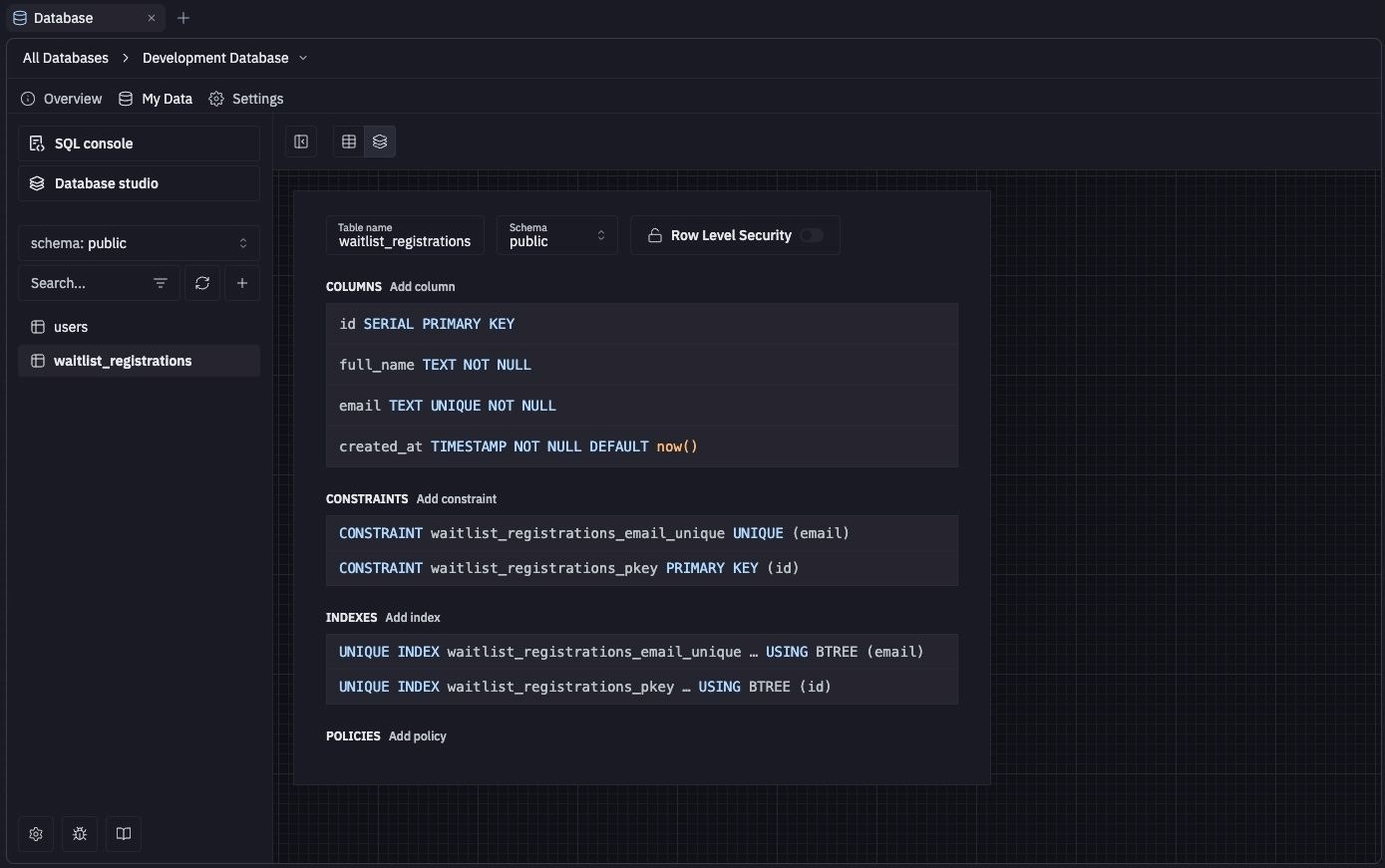
The Database tool includes Drizzle Studio, a tool that lets you browse and modify data visually. These visual tools help you avoid syntax errors and offer the following functionality:
* Filter and sort data to focus on specific information
* Export data to a file for external use
* Insert or modify row data
* Create and manage schema, tables, views, and enums
 ## Run SQL commands
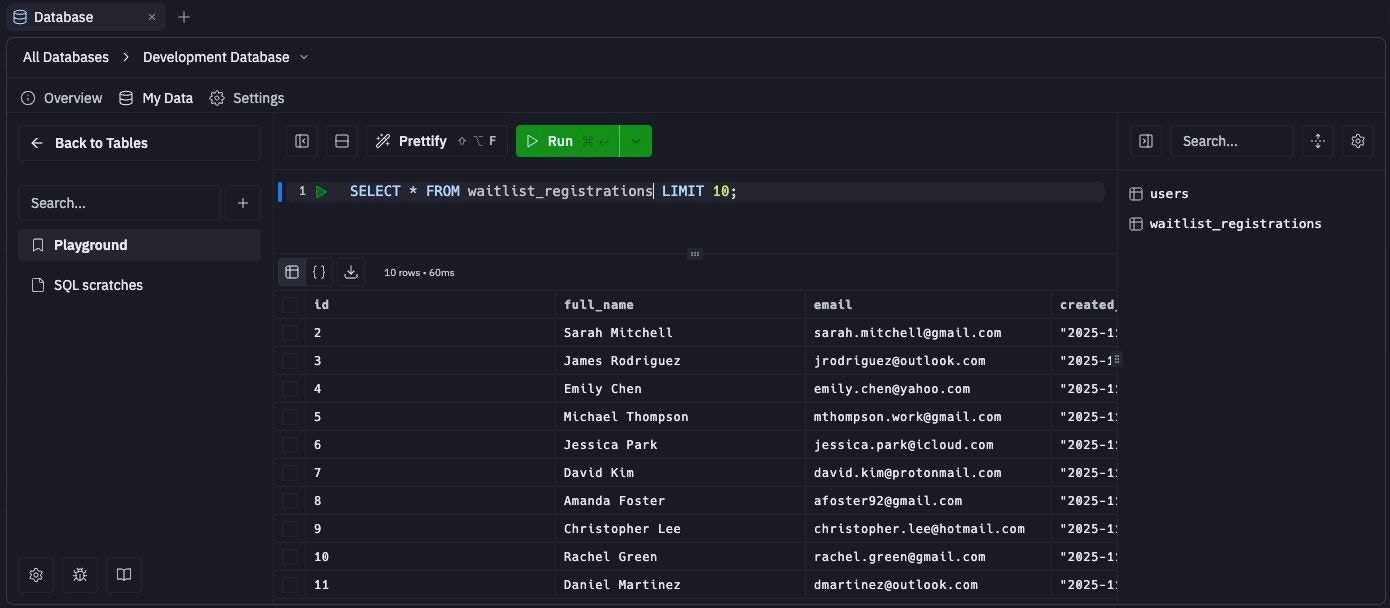
The SQL runner lets you run SQL commands on your database and view the results.
From the **Database** tool:
1. Select the **My Data** tab
2. Select
## Run SQL commands
The SQL runner lets you run SQL commands on your database and view the results.
From the **Database** tool:
1. Select the **My Data** tab
2. Select  **SQL runner**
To run a query, enter the SQL statement in the text area and select the adjacent
**SQL runner**
To run a query, enter the SQL statement in the text area and select the adjacent  run button:
 You don't need to write SQL yourself. Ask Agent to query or change your data, and it writes and runs the SQL for you.
## Next steps
* [Connection details](/features/data-and-storage/connection-details): Connect an external SQL client.
* [Data recovery](/features/data-and-storage/data-recovery): Undo unwanted data changes.
You don't need to write SQL yourself. Ask Agent to query or change your data, and it writes and runs the SQL for you.
## Next steps
* [Connection details](/features/data-and-storage/connection-details): Connect an external SQL client.
* [Data recovery](/features/data-and-storage/data-recovery): Undo unwanted data changes.