> ## Documentation Index
> Fetch the complete documentation index at: https://docs.replit.com/llms.txt
> Use this file to discover all available pages before exploring further.
# Development and production databases
> Understand your app's two databases: the development database you build with and the production database that serves your published app.
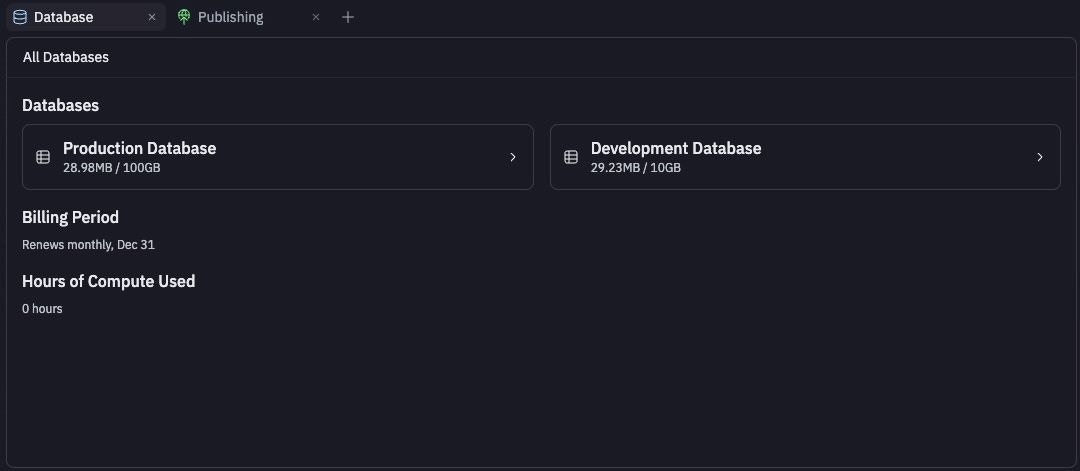
Every Replit App works with two databases. The **development database** is where you and Agent experiment while building. The **production database** stores the live data that powers your published app, keeping your real-world data safe while you keep building.
 ## How they compare
| Aspect | Development database | Production database |
| ----------- | ---------------------------------------- | ------------------------------------------------- |
| **Purpose** | Experimentation and feature development | Serving real users and storing business data |
| **Data** | Test data, dummy records, small datasets | Real user data, business-critical information |
| **Created** | Automatically with every Replit App | When you publish your app |
| **Agent** | Agent can create and modify tables | Agent can't touch it |
| **Changes** | Frequent schema changes, rapid iteration | Careful, planned changes applied when you publish |
| **Billing** | Included free with every Replit App | Usage-based |
Agent is not able to modify the production database. This restriction is in place so that your production database stays safe.
Agent can make edits to your development database. At the time of publishing, any changes you've made with Agent to the structure of your development database (adding and deleting columns or tables) are applied to your production database.
You can manually edit your production data at any time: open the **Database** tool, select the production database, open **My Data**, and toggle **Edit**.
## Create a production database when you publish
Your published app gets its own production database, separate from the development database you use while building.
* **Current infrastructure (Helium)**: Replit creates the production database for you when needed during publishing. There's nothing to set up.
* **Legacy Neon development databases**: You create the production database from the publish settings. Open **Production database settings** while publishing, turn on **Create production database**, and optionally turn on **Set up your production database with your current development data** to copy your development data across.
## How they compare
| Aspect | Development database | Production database |
| ----------- | ---------------------------------------- | ------------------------------------------------- |
| **Purpose** | Experimentation and feature development | Serving real users and storing business data |
| **Data** | Test data, dummy records, small datasets | Real user data, business-critical information |
| **Created** | Automatically with every Replit App | When you publish your app |
| **Agent** | Agent can create and modify tables | Agent can't touch it |
| **Changes** | Frequent schema changes, rapid iteration | Careful, planned changes applied when you publish |
| **Billing** | Included free with every Replit App | Usage-based |
Agent is not able to modify the production database. This restriction is in place so that your production database stays safe.
Agent can make edits to your development database. At the time of publishing, any changes you've made with Agent to the structure of your development database (adding and deleting columns or tables) are applied to your production database.
You can manually edit your production data at any time: open the **Database** tool, select the production database, open **My Data**, and toggle **Edit**.
## Create a production database when you publish
Your published app gets its own production database, separate from the development database you use while building.
* **Current infrastructure (Helium)**: Replit creates the production database for you when needed during publishing. There's nothing to set up.
* **Legacy Neon development databases**: You create the production database from the publish settings. Open **Production database settings** while publishing, turn on **Create production database**, and optionally turn on **Set up your production database with your current development data** to copy your development data across.
 Only copy development data into production if that data is safe to use in your live app. Development data can include test accounts, sample records, or incomplete content.
After publishing, your published app uses the production database while the Project Editor keeps using the development database, so future development changes don't directly modify live data.
## Making safe changes to your production database
When you publish updates that include database changes, some changes need careful planning to avoid downtime or data loss.
You may notice a brief downtime for your published app during publishing. Database changes sometimes require stopping your app temporarily to prevent conflicts and protect your data while the changes are applied.
The following types of changes typically require care:
* **Removing database columns** that your application code still references
* **Changing column data types** in ways that existing code cannot handle
* **Adding required fields** without default values to existing tables
* **Renaming tables or columns** that break existing queries
* **Modifying constraints** that could reject existing application logic
### Test changes with a deployment preview
A deployment preview is a temporary, isolated copy of your production environment where you can test database changes and application updates before they affect real users. Use it to:
* Verify your app still works with the database changes applied, across your major user flows
* Confirm existing data was properly migrated and new fields contain expected values
* Watch for performance regressions in query response times
## Billing and resource usage
Production databases are billed based on usage through Neon, a serverless database provider. The database enters an idle state after five minutes of inactivity, pausing compute time billing, and instantly reactivates when it receives a query.
The Database tool's landing view shows your **Billing Period** and **Hours of Compute Used**. For per-database storage, open the database's **Settings** tab. To see usage across every Replit App, open **Settings** → **Account** → **Account usage** and expand the **PostgreSQL Storage** and **PostgreSQL Compute** rows.
To learn how Replit charges for database usage, see [Deployments and Database Billing](/billing/about-usage-based-billing#databases).
## Removing a production database
The remove action is irreversible after a retention period of 7 days. Make sure to back up any important data before proceeding. Databases have a 7-day soft delete period where databases can be restored; reach out to support if you need assistance. After 7 days, the database is hard deleted and unrecoverable.
From the **Database** tool:
1. Select the database, then open the **Settings** tab
2. Select **Remove database** and confirm by selecting **Yes, Remove database**
## Legacy development database
Prior to December 4th, 2025, the development database was hosted on Neon. All new development databases are hosted on Replit's own infrastructure (Helium). You can check which one your app uses in the **Settings** tab: a `DATABASE_URL` containing `neon.tech` means legacy Neon; `helium` means current infrastructure.
| **Feature** | **Replit (current)** | **Neon (legacy)** |
| ----------------------- | --------------------------------------------------------------------------------------------------------------- | -------------------------------------------------------------------------------------------------------------------------- |
| **Hosting** | Hosted on Replit's own infrastructure | Hosted on Neon (third-party provider) |
| **Billing** | Included for free with every Replit App | Usage-based billing. See [Publishing and Database Billing](/billing/about-usage-based-billing#databases) for more details. |
| **Restore capability** | Restore your database to any checkpoint using the [rollback feature](/features/data-and-storage/data-recovery) | Point-in-time restore (PITR): recover to any point within the backup retention window. |
| **Connection security** | Only accessible from within your app; never exposed publicly. | Used a full connection string. If leaked, anyone could access and modify your database. |
| **Remixing behavior** | [Remixing](/build/remix-an-app) creates a new development database with copied data for isolation and security. | Remixing reuses the same database for all copies, so changes in remixes could affect the original app. |
| **Database creation** | Automatically created for each Replit App. | Required explicit setup. |
| **Publishing workflow** | Publishing creates a separate production database for isolation between environments. | Development and production shared the same database, so unintended development changes could affect production apps. |
## Database infrastructure upgrade
Replit is upgrading development databases from Neon to **Helium**, Replit's own managed PostgreSQL infrastructure. The upgrade is automatic, runs once per app when you open it in the Project Editor, and preserves all your data.
What changes:
* **Lower latency and more storage**: Your database runs on Replit infrastructure alongside your app, and your storage limit increases from 10 GB to 20 GB.
* **Same database engine**: Helium uses PostgreSQL 16, the same version as Neon. Your queries, schemas, and data work the same way.
* **Connection updates automatically**: `DATABASE_URL` is updated to point to Helium. Your previous Neon connection string is saved as `NEON_DATABASE_URL` in your Secrets for reference.
* **Individual PG variables removed**: `PGHOST`, `PGPORT`, `PGUSER`, and `PGPASSWORD` are removed. Use `DATABASE_URL` instead.
During the upgrade you'll see an **"Upgrading your database"** progress screen. It can take from a few minutes to a few hours for large databases; you can close the tab and come back. If the upgrade encounters an issue, it's automatically skipped and retried the next time you open your app. When it completes, a confirmation dialog appears.
For most builders, no action is needed afterward. Review the following if they apply:
* **Hardcoded Neon connection strings**: Update code that references a `neon.tech` connection string to use the `DATABASE_URL` environment variable instead.
* **Custom PostgreSQL roles**: Roles and permissions migrate automatically, but role passwords can't be copied. Reset passwords for custom roles on the new database.
### SSL connection errors after the upgrade
If you see errors like `The server does not support SSL connections`, your connection code is forcing an SSL handshake. Neon required SSL; Helium runs locally alongside your app and doesn't use it. Make the SSL setting conditional on the environment:
```js JavaScript theme={null}
// Before (breaks after upgrade)
const pool = new Pool({
connectionString: process.env.DATABASE_URL,
ssl: { rejectUnauthorized: false },
});
// After (works in both development and production)
const pool = new Pool({
connectionString: process.env.DATABASE_URL,
ssl:
process.env.NODE_ENV === "production"
? { rejectUnauthorized: false }
: false,
});
```
If you use an ORM like Drizzle, Prisma, or Sequelize, check its documentation for how to configure SSL settings conditionally. The same principle applies: disable SSL for the development database and enable it for production.
### Forked apps that shared a database
Under the legacy Neon system, forking an app copied the original app's `DATABASE_URL`, so both apps and their published versions connected to the same database. Shared legacy databases were shut down on **June 8, 2026**. If your published app stopped working or lost access to its data, see [Fix a published app using a shared database](/features/data-and-storage/shared-database-migration) or [contact support](https://replit.com/support).
## Next steps
* [Data recovery](/features/data-and-storage/data-recovery): Restore development or production data.
* [Connection details](/features/data-and-storage/connection-details): Find your database's connection string.
* [Work with your data](/features/data-and-storage/work-with-your-data): Browse, edit, and query your data.
Only copy development data into production if that data is safe to use in your live app. Development data can include test accounts, sample records, or incomplete content.
After publishing, your published app uses the production database while the Project Editor keeps using the development database, so future development changes don't directly modify live data.
## Making safe changes to your production database
When you publish updates that include database changes, some changes need careful planning to avoid downtime or data loss.
You may notice a brief downtime for your published app during publishing. Database changes sometimes require stopping your app temporarily to prevent conflicts and protect your data while the changes are applied.
The following types of changes typically require care:
* **Removing database columns** that your application code still references
* **Changing column data types** in ways that existing code cannot handle
* **Adding required fields** without default values to existing tables
* **Renaming tables or columns** that break existing queries
* **Modifying constraints** that could reject existing application logic
### Test changes with a deployment preview
A deployment preview is a temporary, isolated copy of your production environment where you can test database changes and application updates before they affect real users. Use it to:
* Verify your app still works with the database changes applied, across your major user flows
* Confirm existing data was properly migrated and new fields contain expected values
* Watch for performance regressions in query response times
## Billing and resource usage
Production databases are billed based on usage through Neon, a serverless database provider. The database enters an idle state after five minutes of inactivity, pausing compute time billing, and instantly reactivates when it receives a query.
The Database tool's landing view shows your **Billing Period** and **Hours of Compute Used**. For per-database storage, open the database's **Settings** tab. To see usage across every Replit App, open **Settings** → **Account** → **Account usage** and expand the **PostgreSQL Storage** and **PostgreSQL Compute** rows.
To learn how Replit charges for database usage, see [Deployments and Database Billing](/billing/about-usage-based-billing#databases).
## Removing a production database
The remove action is irreversible after a retention period of 7 days. Make sure to back up any important data before proceeding. Databases have a 7-day soft delete period where databases can be restored; reach out to support if you need assistance. After 7 days, the database is hard deleted and unrecoverable.
From the **Database** tool:
1. Select the database, then open the **Settings** tab
2. Select **Remove database** and confirm by selecting **Yes, Remove database**
## Legacy development database
Prior to December 4th, 2025, the development database was hosted on Neon. All new development databases are hosted on Replit's own infrastructure (Helium). You can check which one your app uses in the **Settings** tab: a `DATABASE_URL` containing `neon.tech` means legacy Neon; `helium` means current infrastructure.
| **Feature** | **Replit (current)** | **Neon (legacy)** |
| ----------------------- | --------------------------------------------------------------------------------------------------------------- | -------------------------------------------------------------------------------------------------------------------------- |
| **Hosting** | Hosted on Replit's own infrastructure | Hosted on Neon (third-party provider) |
| **Billing** | Included for free with every Replit App | Usage-based billing. See [Publishing and Database Billing](/billing/about-usage-based-billing#databases) for more details. |
| **Restore capability** | Restore your database to any checkpoint using the [rollback feature](/features/data-and-storage/data-recovery) | Point-in-time restore (PITR): recover to any point within the backup retention window. |
| **Connection security** | Only accessible from within your app; never exposed publicly. | Used a full connection string. If leaked, anyone could access and modify your database. |
| **Remixing behavior** | [Remixing](/build/remix-an-app) creates a new development database with copied data for isolation and security. | Remixing reuses the same database for all copies, so changes in remixes could affect the original app. |
| **Database creation** | Automatically created for each Replit App. | Required explicit setup. |
| **Publishing workflow** | Publishing creates a separate production database for isolation between environments. | Development and production shared the same database, so unintended development changes could affect production apps. |
## Database infrastructure upgrade
Replit is upgrading development databases from Neon to **Helium**, Replit's own managed PostgreSQL infrastructure. The upgrade is automatic, runs once per app when you open it in the Project Editor, and preserves all your data.
What changes:
* **Lower latency and more storage**: Your database runs on Replit infrastructure alongside your app, and your storage limit increases from 10 GB to 20 GB.
* **Same database engine**: Helium uses PostgreSQL 16, the same version as Neon. Your queries, schemas, and data work the same way.
* **Connection updates automatically**: `DATABASE_URL` is updated to point to Helium. Your previous Neon connection string is saved as `NEON_DATABASE_URL` in your Secrets for reference.
* **Individual PG variables removed**: `PGHOST`, `PGPORT`, `PGUSER`, and `PGPASSWORD` are removed. Use `DATABASE_URL` instead.
During the upgrade you'll see an **"Upgrading your database"** progress screen. It can take from a few minutes to a few hours for large databases; you can close the tab and come back. If the upgrade encounters an issue, it's automatically skipped and retried the next time you open your app. When it completes, a confirmation dialog appears.
For most builders, no action is needed afterward. Review the following if they apply:
* **Hardcoded Neon connection strings**: Update code that references a `neon.tech` connection string to use the `DATABASE_URL` environment variable instead.
* **Custom PostgreSQL roles**: Roles and permissions migrate automatically, but role passwords can't be copied. Reset passwords for custom roles on the new database.
### SSL connection errors after the upgrade
If you see errors like `The server does not support SSL connections`, your connection code is forcing an SSL handshake. Neon required SSL; Helium runs locally alongside your app and doesn't use it. Make the SSL setting conditional on the environment:
```js JavaScript theme={null}
// Before (breaks after upgrade)
const pool = new Pool({
connectionString: process.env.DATABASE_URL,
ssl: { rejectUnauthorized: false },
});
// After (works in both development and production)
const pool = new Pool({
connectionString: process.env.DATABASE_URL,
ssl:
process.env.NODE_ENV === "production"
? { rejectUnauthorized: false }
: false,
});
```
If you use an ORM like Drizzle, Prisma, or Sequelize, check its documentation for how to configure SSL settings conditionally. The same principle applies: disable SSL for the development database and enable it for production.
### Forked apps that shared a database
Under the legacy Neon system, forking an app copied the original app's `DATABASE_URL`, so both apps and their published versions connected to the same database. Shared legacy databases were shut down on **June 8, 2026**. If your published app stopped working or lost access to its data, see [Fix a published app using a shared database](/features/data-and-storage/shared-database-migration) or [contact support](https://replit.com/support).
## Next steps
* [Data recovery](/features/data-and-storage/data-recovery): Restore development or production data.
* [Connection details](/features/data-and-storage/connection-details): Find your database's connection string.
* [Work with your data](/features/data-and-storage/work-with-your-data): Browse, edit, and query your data.