> ## Documentation Index
> Fetch the complete documentation index at: https://docs.replit.com/llms.txt
> Use this file to discover all available pages before exploring further.
# Enterprise model controls
> Choose which Agent model providers and models are available in each Enterprise Workspace.
Enterprise model controls let account admins manage which Agent models builders can select. Set a policy for the account, then set different model access for individual Workspaces.
Model controls are available exclusively to account admins on Enterprise accounts. Contact our sales team at [sales@replit.com](mailto:sales@replit.com) to enable it for your organization.
## Open Agent model settings
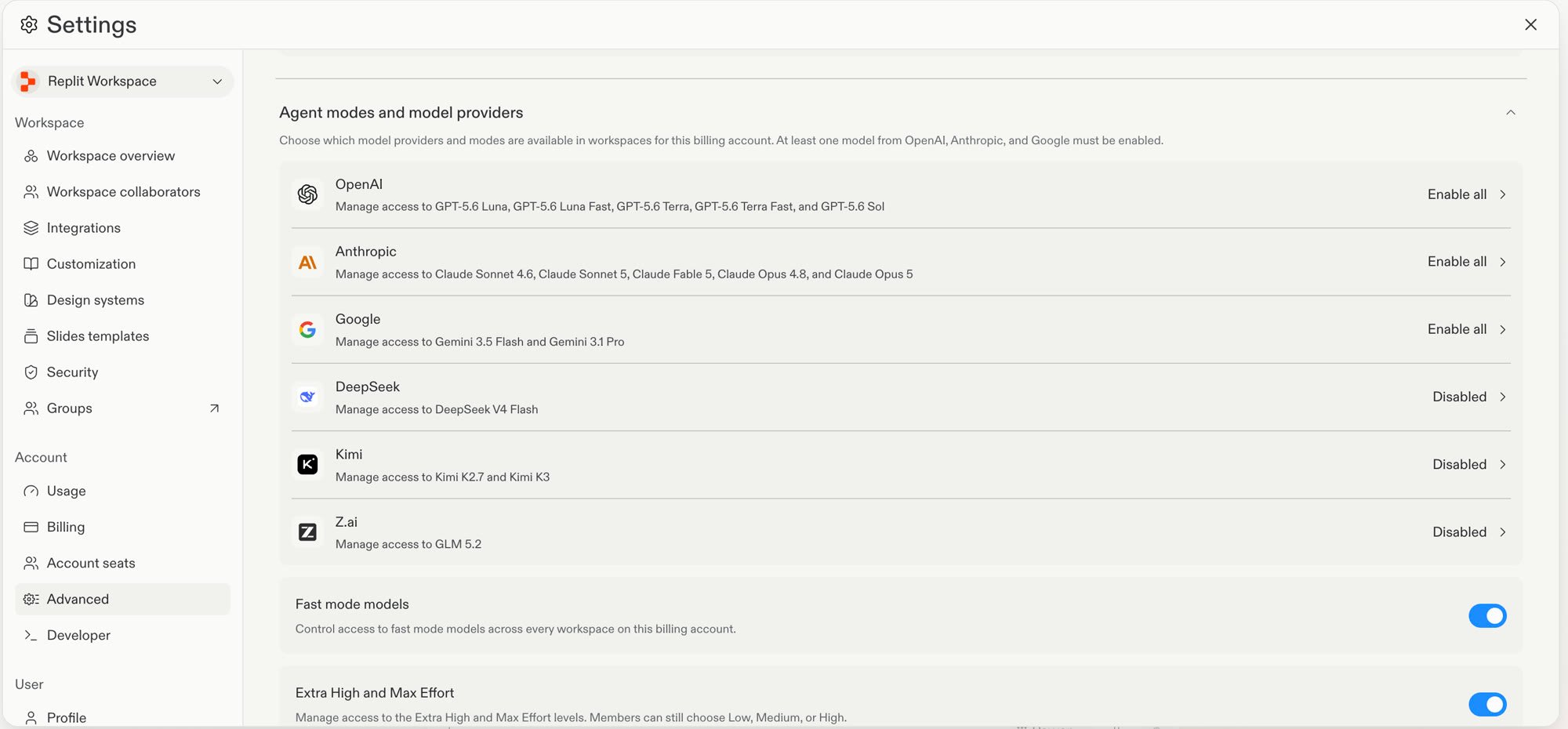
1. Open **Settings**.
2. Under **Account**, select **Advanced**.
3. Expand **Agent modes and model providers**.
 ## Set a provider policy
Select the model provider that you want to manage.
Under **Account policy**, select one option:
| Option | Result |
| ------------------- | -------------------------------------------------------------- |
| **Enable all** | All models from the provider are available in every Workspace. |
| **Enable selected** | You choose the available models for each Workspace. |
| **Disabled** | No Workspace can use models from the provider. |
At least one model from OpenAI, Anthropic, and Google must remain enabled. You can disable other providers.
Select **Update**.
Open-source model providers are disabled by default. To make one available, select **Enable all** or **Enable selected**, then select **Update**.
## Set a Workspace policy
Use **Enable selected** when different Workspaces need different model access.
## Set a provider policy
Select the model provider that you want to manage.
Under **Account policy**, select one option:
| Option | Result |
| ------------------- | -------------------------------------------------------------- |
| **Enable all** | All models from the provider are available in every Workspace. |
| **Enable selected** | You choose the available models for each Workspace. |
| **Disabled** | No Workspace can use models from the provider. |
At least one model from OpenAI, Anthropic, and Google must remain enabled. You can disable other providers.
Select **Update**.
Open-source model providers are disabled by default. To make one available, select **Enable all** or **Enable selected**, then select **Update**.
## Set a Workspace policy
Use **Enable selected** when different Workspaces need different model access.
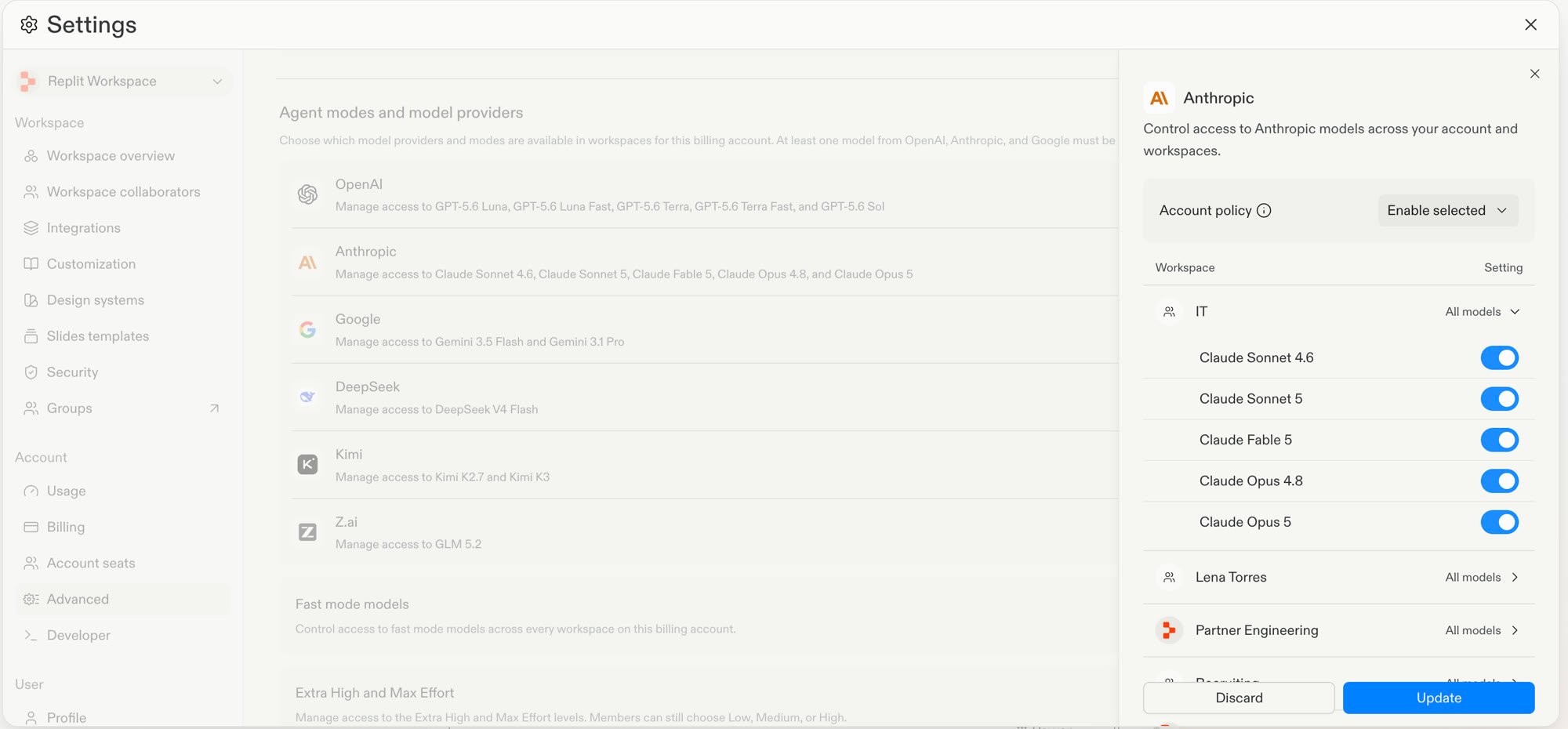 1. Open the provider settings.
2. Set the **Account policy** to **Enable selected**.
3. In the **Workspace** list, select the **Setting** dropdown for a Workspace.
4. Turn each model on or off for that Workspace.
5. Select **Update**.
Before you select **Update**, you can select **Copy to all** to apply the
current Workspace model selection to every Workspace in the account.
## Limitations
Model policies apply to Workspaces. You cannot set a different policy for a
user group in the same Workspace.
The **Fast mode models** toggle in **Agent modes and model providers** controls access to
fast model variants across every Workspace on the account. Provider policies do not change
that setting.
## Next steps
* Read [Workspace Settings](/features/collaboration/workspace-settings) for an overview of Enterprise policy controls.
* Read [Model selector](/features/agent/model-selector) to learn how builders select an available model.
* Read [Enterprise Privacy Settings](/teams/enterprise-privacy-settings) to configure other Enterprise controls.
1. Open the provider settings.
2. Set the **Account policy** to **Enable selected**.
3. In the **Workspace** list, select the **Setting** dropdown for a Workspace.
4. Turn each model on or off for that Workspace.
5. Select **Update**.
Before you select **Update**, you can select **Copy to all** to apply the
current Workspace model selection to every Workspace in the account.
## Limitations
Model policies apply to Workspaces. You cannot set a different policy for a
user group in the same Workspace.
The **Fast mode models** toggle in **Agent modes and model providers** controls access to
fast model variants across every Workspace on the account. Provider policies do not change
that setting.
## Next steps
* Read [Workspace Settings](/features/collaboration/workspace-settings) for an overview of Enterprise policy controls.
* Read [Model selector](/features/agent/model-selector) to learn how builders select an available model.
* Read [Enterprise Privacy Settings](/teams/enterprise-privacy-settings) to configure other Enterprise controls.