> ## Documentation Index
> Fetch the complete documentation index at: https://docs.replit.com/llms.txt
> Use this file to discover all available pages before exploring further.
# Single sign-on (SSO)
> Add enterprise single sign-on with Okta or Microsoft Entra ID to your Replit app through the Clerk dashboard, plus multi-factor authentication and session controls.
Let people sign in to your app with their company identity provider, such as Okta or Microsoft Entra ID. If your app uses [Clerk Auth](/features/auth-and-identity/clerk-auth), you configure SSO and other advanced authentication features through the Clerk dashboard. Ask Agent for what you need, and Agent directs you to the dashboard to complete the setup.
 The Clerk Dashboard goes well beyond the default sign-in experience. Any configuration you make in Clerk applies automatically to your Replit app's authentication.
## What you can configure
* **Enterprise SSO connections**: Configure single sign-on with Okta or Microsoft Entra ID, using OIDC or SAML. Let customers sign in with their company identity provider. SSO also secures internal tools that handle sensitive data, replacing manual email allowlists with your company's existing identity provider.
* **Multi-factor authentication (MFA)**: Add MFA to your app's sign-in flow.
* **Session controls**: Adjust session lengths and verification frequency.
* **Other Clerk settings**: Additional Clerk configuration applies to your Replit app automatically. Don't change API keys or environment settings — Replit manages those. See [Development and Production environments](/features/auth-and-identity/clerk-auth#development-and-production-environments).
## Open the Clerk Dashboard
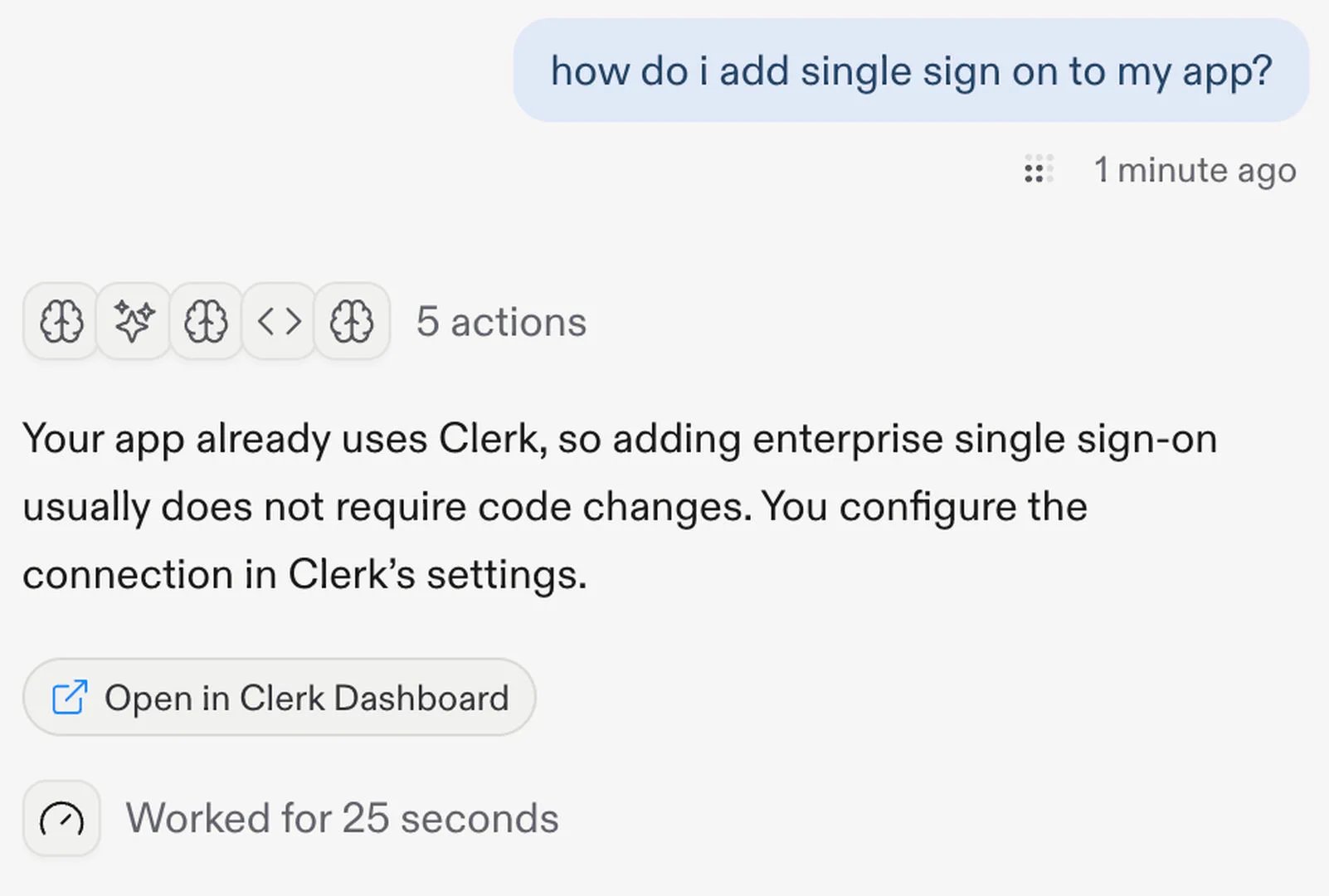
Ask Agent for the authentication change you need. Agent sets up what it can and directs you to your app's Clerk Dashboard for configuration that needs your input.
The Clerk Dashboard goes well beyond the default sign-in experience. Any configuration you make in Clerk applies automatically to your Replit app's authentication.
## What you can configure
* **Enterprise SSO connections**: Configure single sign-on with Okta or Microsoft Entra ID, using OIDC or SAML. Let customers sign in with their company identity provider. SSO also secures internal tools that handle sensitive data, replacing manual email allowlists with your company's existing identity provider.
* **Multi-factor authentication (MFA)**: Add MFA to your app's sign-in flow.
* **Session controls**: Adjust session lengths and verification frequency.
* **Other Clerk settings**: Additional Clerk configuration applies to your Replit app automatically. Don't change API keys or environment settings — Replit manages those. See [Development and Production environments](/features/auth-and-identity/clerk-auth#development-and-production-environments).
## Open the Clerk Dashboard
Ask Agent for the authentication change you need. Agent sets up what it can and directs you to your app's Clerk Dashboard for configuration that needs your input.
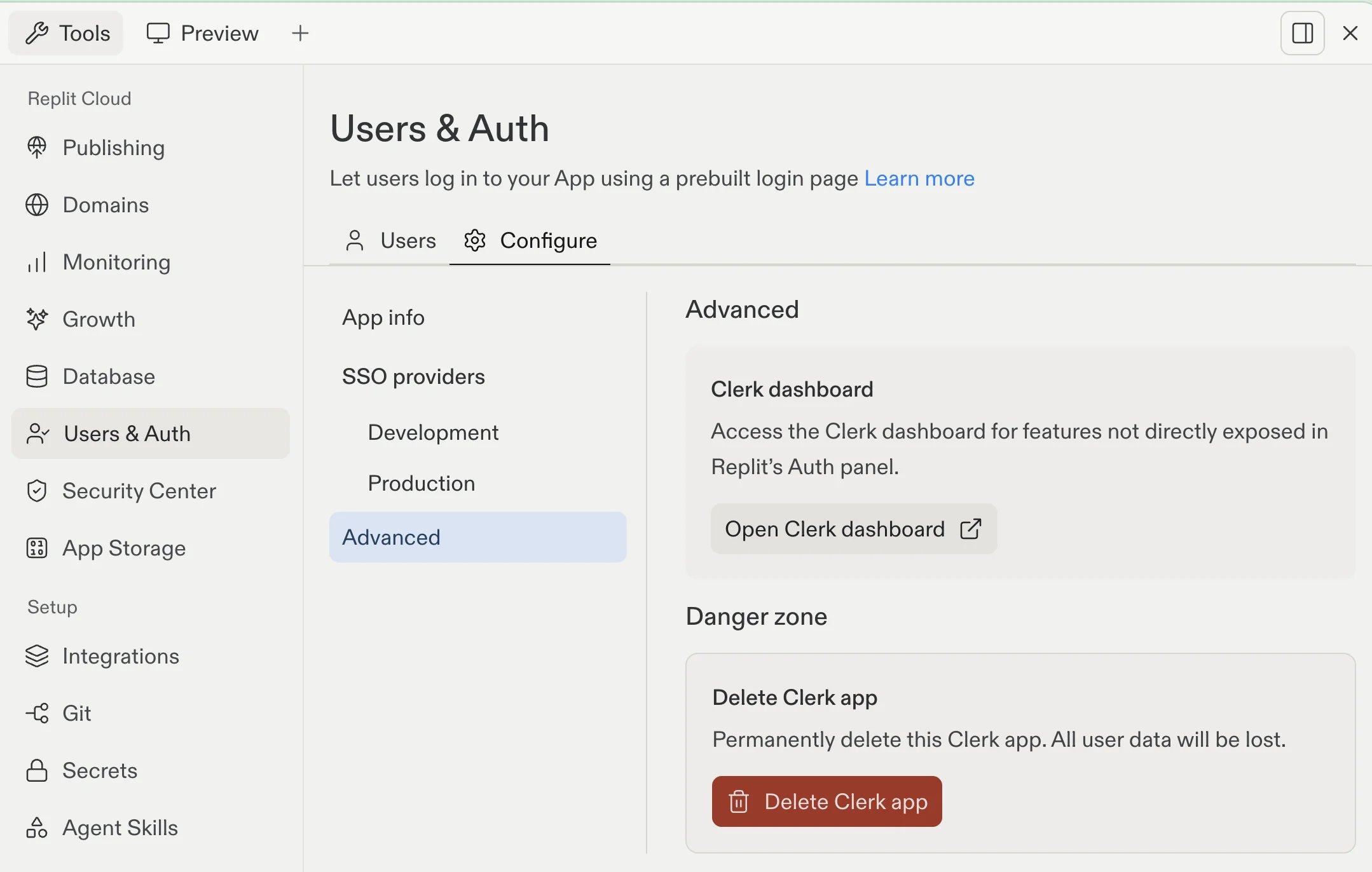
 You can also open the dashboard from the Workspace:
1. In the Tools pane, select **Users & Auth**.
2. Select the **Configure** tab.
3. Select **Advanced**.
4. Under **Clerk dashboard**, select **Open Clerk dashboard**.
You can also open the dashboard from the Workspace:
1. In the Tools pane, select **Users & Auth**.
2. Select the **Configure** tab.
3. Select **Advanced**.
4. Under **Clerk dashboard**, select **Open Clerk dashboard**.
 ## Set up an enterprise SSO connection
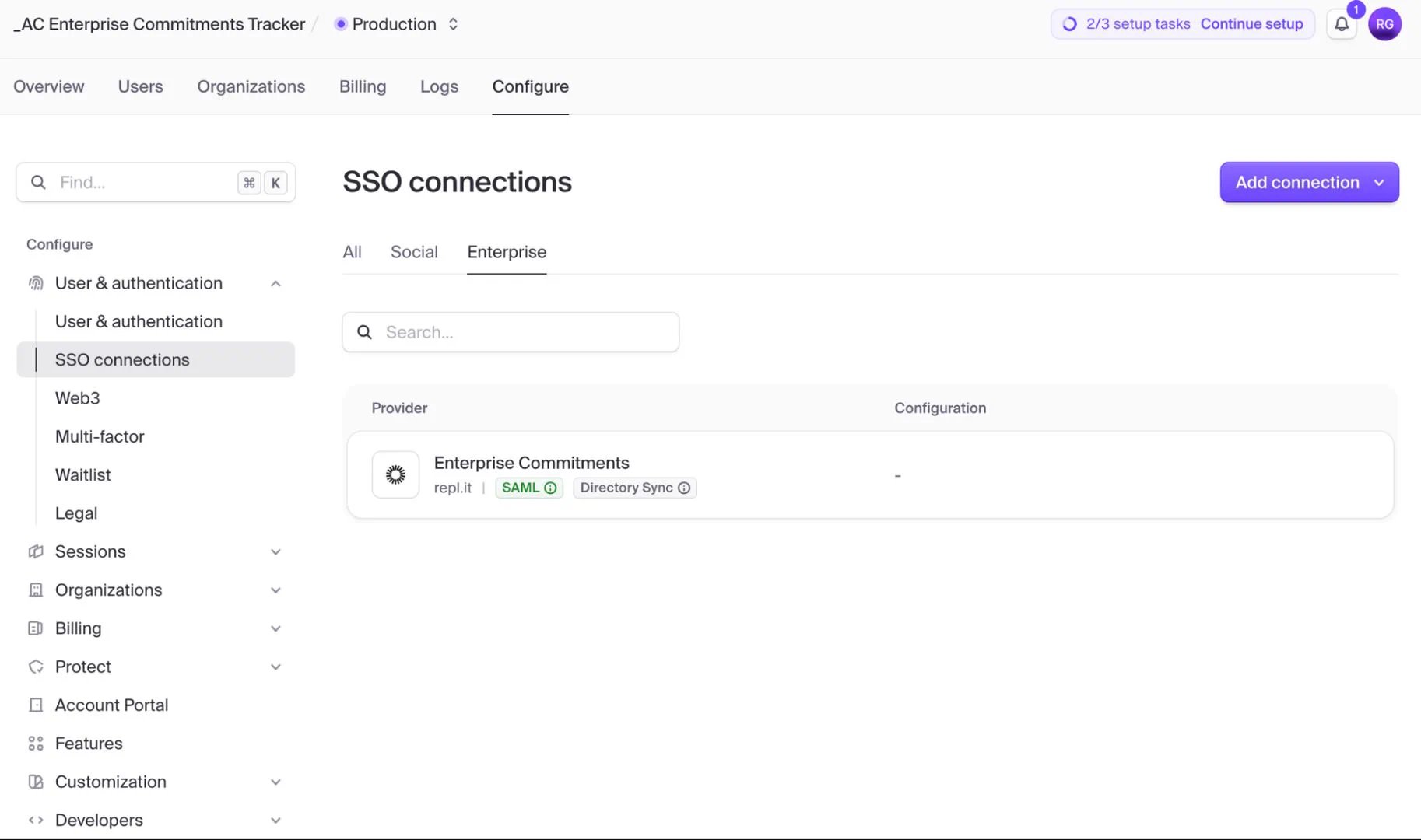
1. In the Clerk Dashboard, select **Configure**.
2. Under **User & authentication**, select **SSO connections**.
3. Select **Enterprise**.
4. Select **Add connection**.
## Set up an enterprise SSO connection
1. In the Clerk Dashboard, select **Configure**.
2. Under **User & authentication**, select **SSO connections**.
3. Select **Enterprise**.
4. Select **Add connection**.
 For complete connection configuration, read the [Clerk documentation](https://clerk.com/docs).
### Validate the connection
After you complete the configuration, sign in with a test account from your identity provider. Make sure the account can access the expected parts of your app.
If sign-in fails, ask Agent for help. Include the identity provider, protocol, and error message in your request.
This page covers enterprise SSO for your app's own sign-in flow. For social sign-in with Google, GitHub, Apple, or X — labeled **SSO providers** in the Workspace — see [Sign-in providers](/features/auth-and-identity/sign-in-providers). This page does not cover Replit Auth migration or SAML sign-in for Replit accounts.
## Pricing and availability
Clerk Dashboard access is available on the [Replit Pro](/billing/plans/replit-pro) plan. Enterprise plans are coming soon.
Enterprise SSO connections are free through October 1, 2026. After that date, SSO pricing matches Clerk's pricing and is passed through to your Replit bill.
## Related documentation
* [Clerk Auth](/features/auth-and-identity/clerk-auth) explains how Clerk-powered authentication works in Replit apps.
For complete connection configuration, read the [Clerk documentation](https://clerk.com/docs).
### Validate the connection
After you complete the configuration, sign in with a test account from your identity provider. Make sure the account can access the expected parts of your app.
If sign-in fails, ask Agent for help. Include the identity provider, protocol, and error message in your request.
This page covers enterprise SSO for your app's own sign-in flow. For social sign-in with Google, GitHub, Apple, or X — labeled **SSO providers** in the Workspace — see [Sign-in providers](/features/auth-and-identity/sign-in-providers). This page does not cover Replit Auth migration or SAML sign-in for Replit accounts.
## Pricing and availability
Clerk Dashboard access is available on the [Replit Pro](/billing/plans/replit-pro) plan. Enterprise plans are coming soon.
Enterprise SSO connections are free through October 1, 2026. After that date, SSO pricing matches Clerk's pricing and is passed through to your Replit bill.
## Related documentation
* [Clerk Auth](/features/auth-and-identity/clerk-auth) explains how Clerk-powered authentication works in Replit apps.