> ## Documentation Index
> Fetch the complete documentation index at: https://docs.replit.com/llms.txt
> Use this file to discover all available pages before exploring further.
# Model selector
> Choose an available primary model for Replit Agent and understand how models map to Lite, Economy, and Power modes.
By default, Agent automatically picks the best model for each request, balancing speed, cost, and accuracy.
The Model selector is for when you want to make that choice yourself: it lets you pick the primary model Agent uses for most of a task. Select a mode first, then choose from the models available in that mode.
## Choose a model
1. Open the Agent settings dropdown in the chat input.
2. Choose **Lite**, **Economy**, or **Power**.
3. Select **Primary model**, then choose a model from the list.
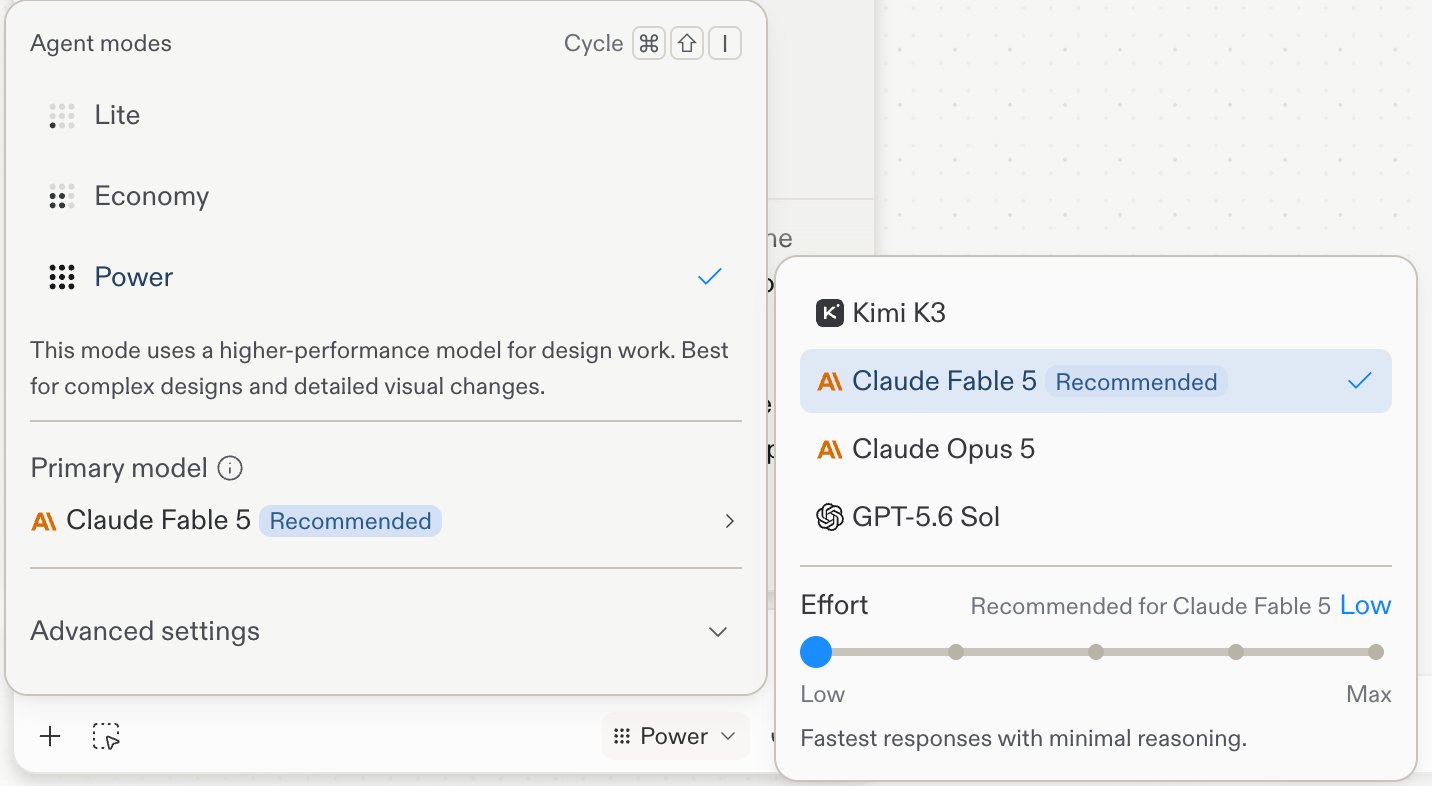 Your selection applies to your next message; you can change it at any time.
## Models by mode
The built-in catalog maps model choices to Agent modes as follows:
| Model | Lite | Economy | Power |
| -------------------- | :--: | :-----: | :---: |
| Kimi K2.7 | ✓ | | |
| GPT-5.6 Luna | ✓ | | |
| Gemini 3.5 Flash | ✓ | | |
| DeepSeek V4 Flash | ✓ | | |
| Auto | | ✓ | |
| Claude Sonnet 4.6 | | ✓ | |
| Claude Sonnet 5 | | ✓ | |
| GPT-5.6 Luna Fast | | ✓ | |
| GPT-5.6 Terra | | ✓ | |
| Gemini 3.1 Pro | | ✓ | |
| GLM 5.2 | | ✓ | |
| Claude Fable 5 | | | ✓ |
| Claude Opus 4.8 | | | ✓ |
| Claude Opus 4.8 Fast | | | ✓ |
| Claude Opus 5 | | | ✓ |
| Claude Opus 5 Fast | | | ✓ |
| Kimi K3 | | | ✓ |
| GPT-5.6 Sol | | | ✓ |
The list in your Model selector is the source of truth for your account. Model selection is rolling out, and the available models can vary by rollout, organization settings, and authorization. Some fast variants require Turbo access, Replit's paid speed feature for Pro and Enterprise plans. If you don't see **Primary model**, the Model selector isn't available for your account yet.
## Effort
**Effort is a per-model control, not a separate mode.** It sets how much reasoning the selected model spends on each response, from **Low** to **Max**. Each model shows its recommended setting, and you can raise it only when a task calls for it.
Your selection applies to your next message; you can change it at any time.
## Models by mode
The built-in catalog maps model choices to Agent modes as follows:
| Model | Lite | Economy | Power |
| -------------------- | :--: | :-----: | :---: |
| Kimi K2.7 | ✓ | | |
| GPT-5.6 Luna | ✓ | | |
| Gemini 3.5 Flash | ✓ | | |
| DeepSeek V4 Flash | ✓ | | |
| Auto | | ✓ | |
| Claude Sonnet 4.6 | | ✓ | |
| Claude Sonnet 5 | | ✓ | |
| GPT-5.6 Luna Fast | | ✓ | |
| GPT-5.6 Terra | | ✓ | |
| Gemini 3.1 Pro | | ✓ | |
| GLM 5.2 | | ✓ | |
| Claude Fable 5 | | | ✓ |
| Claude Opus 4.8 | | | ✓ |
| Claude Opus 4.8 Fast | | | ✓ |
| Claude Opus 5 | | | ✓ |
| Claude Opus 5 Fast | | | ✓ |
| Kimi K3 | | | ✓ |
| GPT-5.6 Sol | | | ✓ |
The list in your Model selector is the source of truth for your account. Model selection is rolling out, and the available models can vary by rollout, organization settings, and authorization. Some fast variants require Turbo access, Replit's paid speed feature for Pro and Enterprise plans. If you don't see **Primary model**, the Model selector isn't available for your account yet.
## Effort
**Effort is a per-model control, not a separate mode.** It sets how much reasoning the selected model spends on each response, from **Low** to **Max**. Each model shows its recommended setting, and you can raise it only when a task calls for it.
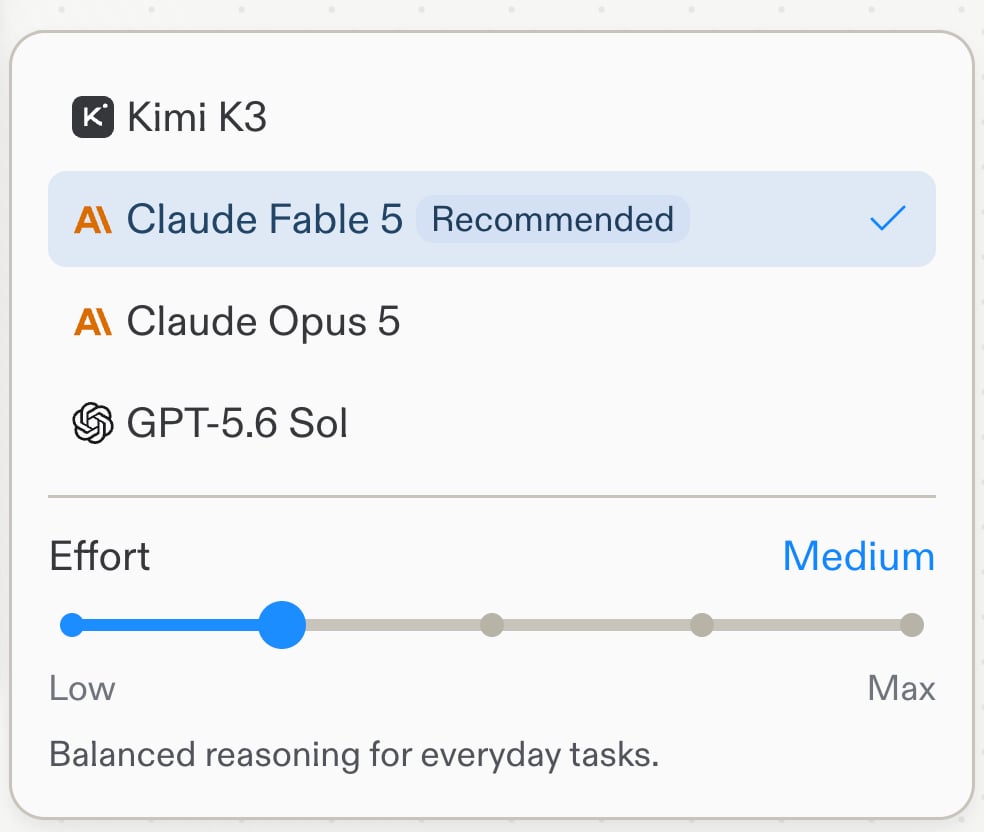 Use the level descriptions as your guide:
| Effort | Use it for |
| -------------- | ---------------------------------------------------------------------------------------------------------- |
| **Low** | Fastest responses with minimal reasoning. Routine, well-defined changes where speed matters most. |
| **Medium** | Balanced reasoning for everyday tasks. A solid default when the recommended setting doesn't say otherwise. |
| **High** | Deeper reasoning for more complex work, such as multi-step features and less familiar territory. |
| **Extra High** | Extended reasoning for the hardest problems, such as large refactors and tricky bugs. |
| **Max** | Maximum reasoning depth. The highest cost and slowest, when the best possible result is all that matters. |
At higher Effort, Agent performs deeper, more deliberate reasoning and invokes its most capable frontier models, improving outcomes on the most complex tasks. Agent applies that extra power selectively — it routes to the more capable models only when a request is genuinely hard, not on every run.
Because Agent only reaches for the most capable model on the hardest work, higher Effort adds cost up to \~2x on the toughest tasks — and often little to nothing on the simpler ones. Raise it when you're tackling complex problems, and keep it low for routine changes.
## Compare models
**Compare models** runs your next prompt across several models at once, so you can judge results side by side instead of guessing which model fits. It's in beta.
To turn it on, expand **Advanced settings** at the bottom of the Agent modes popover and switch on **Compare models**.
Use the level descriptions as your guide:
| Effort | Use it for |
| -------------- | ---------------------------------------------------------------------------------------------------------- |
| **Low** | Fastest responses with minimal reasoning. Routine, well-defined changes where speed matters most. |
| **Medium** | Balanced reasoning for everyday tasks. A solid default when the recommended setting doesn't say otherwise. |
| **High** | Deeper reasoning for more complex work, such as multi-step features and less familiar territory. |
| **Extra High** | Extended reasoning for the hardest problems, such as large refactors and tricky bugs. |
| **Max** | Maximum reasoning depth. The highest cost and slowest, when the best possible result is all that matters. |
At higher Effort, Agent performs deeper, more deliberate reasoning and invokes its most capable frontier models, improving outcomes on the most complex tasks. Agent applies that extra power selectively — it routes to the more capable models only when a request is genuinely hard, not on every run.
Because Agent only reaches for the most capable model on the hardest work, higher Effort adds cost up to \~2x on the toughest tasks — and often little to nothing on the simpler ones. Raise it when you're tackling complex problems, and keep it low for routine changes.
## Compare models
**Compare models** runs your next prompt across several models at once, so you can judge results side by side instead of guessing which model fits. It's in beta.
To turn it on, expand **Advanced settings** at the bottom of the Agent modes popover and switch on **Compare models**.
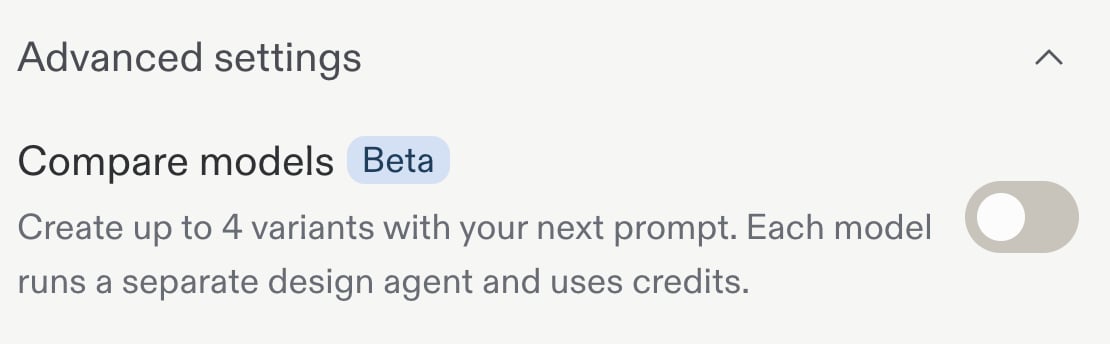 With the toggle on, add up to **4 models** to the comparison.
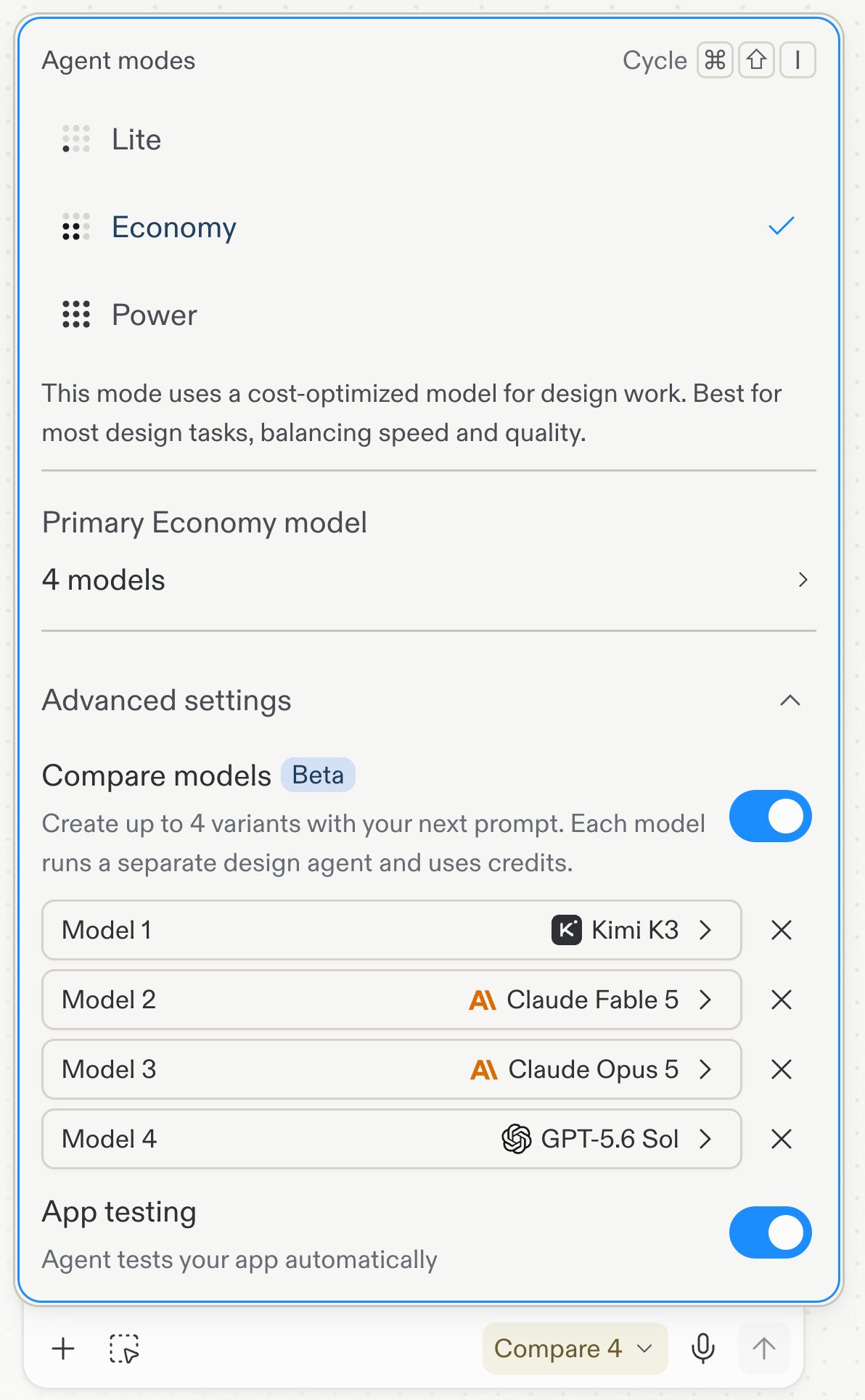 Your next prompt then runs once per selected model, and each produces its own variant to compare.
Each model in a comparison runs a separate agent and uses credits, so a Compare 4 run costs about as much as four single runs.
## Model selection in Build and Design
Build and Design keep separate model selections. This page covers selecting a model for Agent builds. To explore visual directions with Design's model selector, see [Explore with different models](/design/explore-with-different-models).
## Related
* [Agent modes](/features/agent/agent-modes) — Choose between Lite, Economy, and Power
* [Explore with different models](/design/explore-with-different-models) — Use models to explore Design directions
Your next prompt then runs once per selected model, and each produces its own variant to compare.
Each model in a comparison runs a separate agent and uses credits, so a Compare 4 run costs about as much as four single runs.
## Model selection in Build and Design
Build and Design keep separate model selections. This page covers selecting a model for Agent builds. To explore visual directions with Design's model selector, see [Explore with different models](/design/explore-with-different-models).
## Related
* [Agent modes](/features/agent/agent-modes) — Choose between Lite, Economy, and Power
* [Explore with different models](/design/explore-with-different-models) — Use models to explore Design directions