> ## Documentation Index
> Fetch the complete documentation index at: https://docs.replit.com/llms.txt
> Use this file to discover all available pages before exploring further.
# Visual Editor
> Make direct visual edits to your designs and apps — adjust text, colors, layout, and images by clicking, without writing code.
## What is Visual Editor?
The Visual Editor lets you make hands-on changes to your UI by clicking directly on elements. It works both on the [canvas](/design/canvas) in Replit Design and in the Preview, so you can edit mockups and running applications the same way.
Simple edits — text changes, color adjustments, spacing tweaks — update the source code directly without consuming AI credits. For changes that involve hidden complexity, the Visual Editor hands off to Agent automatically.
Key concepts:
* **Deterministic edits**: Simple changes (text, colors, spacing) apply directly to source code without an Agent loop
* **No credit cost**: Direct edits don't consume AI credits — only complex changes route through Agent
* **Dual context**: Works identically on canvas frames and in the Preview
* **Source code sync**: Every edit updates the underlying source code instantly
The Visual Editor is currently available only on **web browsers**. It is not supported on Mobile App or Desktop App.
## How to use Visual Editor
### Editing on the canvas
Select the **Edit** tool in the toolbar, then click any element within a frame. The element gets a highlight with a chip naming it, and the Visual Editor panel opens on the right showing the properties you can edit for that element, such as content, layout, color, and border. Adjust them, then select **Save edits** to apply or **Discard** to throw them away.
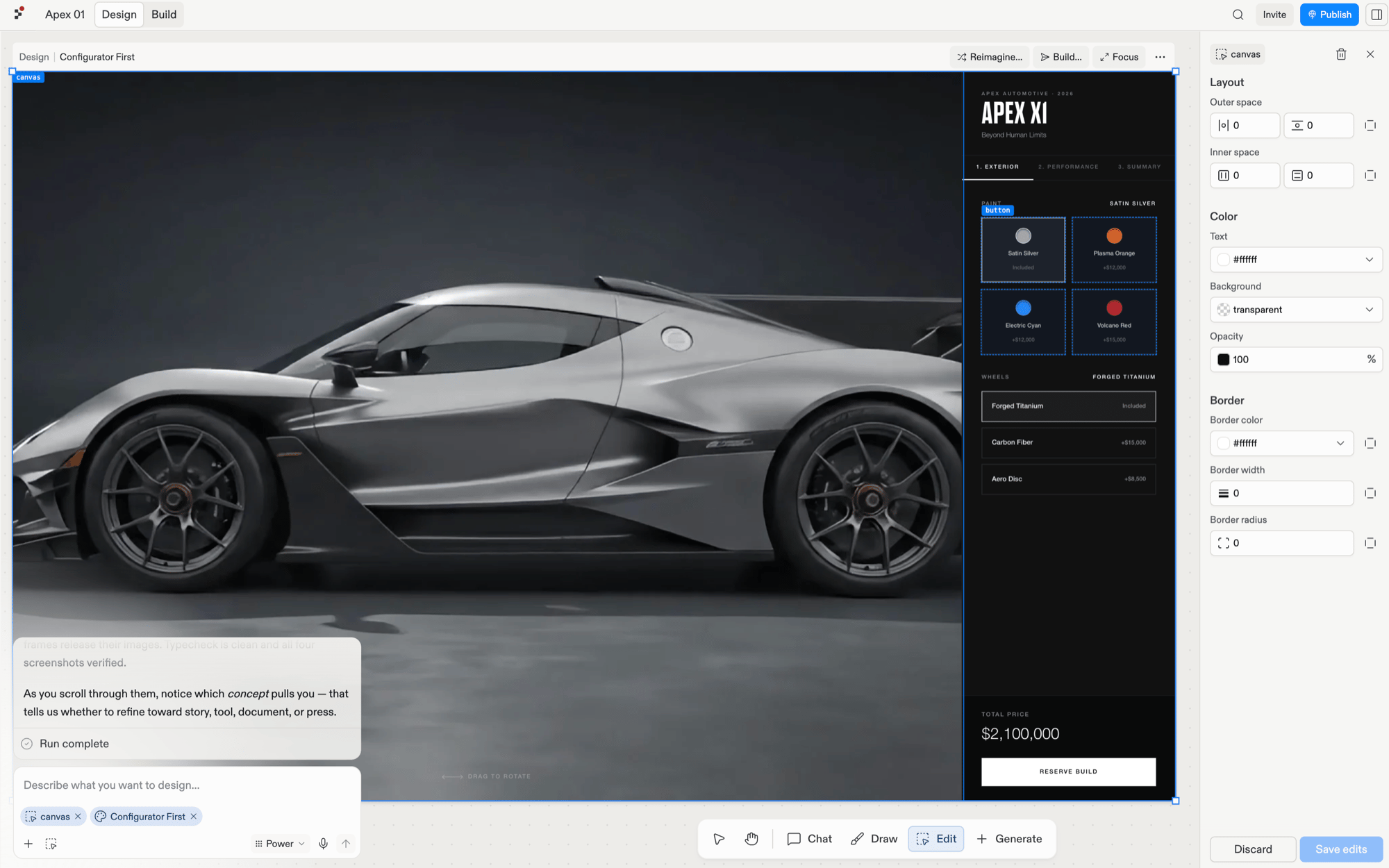 The properties shown match the element you select: text elements expose font controls, images expose the source and upload, and containers expose layout controls.
### Editing in Preview
The same editing experience works in your running application.
Click any element in the Preview to start editing.
Edit text inline, adjust colors with the picker, change spacing with style controls, or swap images.
Hit save to update the source code. Simple changes apply directly without consuming AI credits. If the edit involves complexity, the Visual Editor sends targeted metadata to Agent for assistance.
### Text editing
Click any text element and type to change it directly. If the text is a string in your source code, the edit applies immediately.
### Color adjustments
Use the color picker to adjust text and background colors. Type a color name like "purple" in the input field, or use the eyedropper to pick a color from anywhere on your screen.
### Style changes
Adjust padding, margins, and layout across elements using intuitive controls.
### Layout controls
The Visual Editor groups every control into clear sections so you can find the one you need faster: **Text**, **Layout**, **Color**, and **Border**. (The **Image** section also appears when you select an image element.)
The **Layout** section is where you adjust how children sit inside a container without going through Agent. Select a flex container, expand Layout, and you get:
* **Alignment**: A 3×3 dot picker for where items sit along both axes inside the container.
* **Direction**: Two arrow buttons that stack children in a row or a column.
* **Gap**: A pixel value for the space between items. The icon next to the gap input changes to match the current direction so you always know whether you are adjusting horizontal or vertical spacing. Next to it, an arrow icon toggles **Distribute space between items**, which pushes children to opposite edges of the container.
* **Outer space**: Per-side inputs for the space outside the element (one input per side, with a link toggle to lock all four sides at once).
* **Inner space**: Inputs for the space inside the element along each axis, with a link toggle for both axes at once.
The Layout section only appears when at least one layout control applies to the selected element. Plain text nodes with no spacing or layout properties hide the section entirely, so the editor stays compact.
### Image updates
Select images to swap URLs or upload your own files with instant previews.
## What you can do
* **Quick text fixes**: Update copy, labels, and headings without opening source files
* **Color exploration**: Try different color schemes by clicking and adjusting — no need to find the right CSS
* **Layout tweaks**: Fine-tune padding, margins, and spacing visually instead of guessing pixel values
* **Image swaps**: Replace placeholder images with real assets by clicking and uploading
* **Design iteration**: Rapidly adjust canvas frames to compare visual directions without Agent round-trips
## Frequently asked questions
Simple, deterministic edits — text changes, color picks, spacing adjustments — don't consume AI credits. They update the source code directly. If the Visual Editor detects hidden complexity, it routes the change through Agent, which does use credits.
Yes. Selecting an element rendered in a loop or reused across components highlights and updates all instances at once.
Composite elements made up of multiple sub-elements can't be text-edited directly in the Visual Editor. Ask Agent in chat to make those changes instead.
Click the top-left label on a selected element to jump to its location in the source code.
The properties shown match the element you select: text elements expose font controls, images expose the source and upload, and containers expose layout controls.
### Editing in Preview
The same editing experience works in your running application.
Click any element in the Preview to start editing.
Edit text inline, adjust colors with the picker, change spacing with style controls, or swap images.
Hit save to update the source code. Simple changes apply directly without consuming AI credits. If the edit involves complexity, the Visual Editor sends targeted metadata to Agent for assistance.
### Text editing
Click any text element and type to change it directly. If the text is a string in your source code, the edit applies immediately.
### Color adjustments
Use the color picker to adjust text and background colors. Type a color name like "purple" in the input field, or use the eyedropper to pick a color from anywhere on your screen.
### Style changes
Adjust padding, margins, and layout across elements using intuitive controls.
### Layout controls
The Visual Editor groups every control into clear sections so you can find the one you need faster: **Text**, **Layout**, **Color**, and **Border**. (The **Image** section also appears when you select an image element.)
The **Layout** section is where you adjust how children sit inside a container without going through Agent. Select a flex container, expand Layout, and you get:
* **Alignment**: A 3×3 dot picker for where items sit along both axes inside the container.
* **Direction**: Two arrow buttons that stack children in a row or a column.
* **Gap**: A pixel value for the space between items. The icon next to the gap input changes to match the current direction so you always know whether you are adjusting horizontal or vertical spacing. Next to it, an arrow icon toggles **Distribute space between items**, which pushes children to opposite edges of the container.
* **Outer space**: Per-side inputs for the space outside the element (one input per side, with a link toggle to lock all four sides at once).
* **Inner space**: Inputs for the space inside the element along each axis, with a link toggle for both axes at once.
The Layout section only appears when at least one layout control applies to the selected element. Plain text nodes with no spacing or layout properties hide the section entirely, so the editor stays compact.
### Image updates
Select images to swap URLs or upload your own files with instant previews.
## What you can do
* **Quick text fixes**: Update copy, labels, and headings without opening source files
* **Color exploration**: Try different color schemes by clicking and adjusting — no need to find the right CSS
* **Layout tweaks**: Fine-tune padding, margins, and spacing visually instead of guessing pixel values
* **Image swaps**: Replace placeholder images with real assets by clicking and uploading
* **Design iteration**: Rapidly adjust canvas frames to compare visual directions without Agent round-trips
## Frequently asked questions
Simple, deterministic edits — text changes, color picks, spacing adjustments — don't consume AI credits. They update the source code directly. If the Visual Editor detects hidden complexity, it routes the change through Agent, which does use credits.
Yes. Selecting an element rendered in a loop or reused across components highlights and updates all instances at once.
Composite elements made up of multiple sub-elements can't be text-edited directly in the Visual Editor. Ask Agent in chat to make those changes instead.
Click the top-left label on a selected element to jump to its location in the source code.