> ## Documentation Index
> Fetch the complete documentation index at: https://docs.replit.com/llms.txt
> Use this file to discover all available pages before exploring further.
# Frames
> Frame kinds, the per-frame action bar, and the Build and Focus actions on Canvas.
Every tile on the Canvas is a **frame**. Frames are what you select, drag, and act on. This page covers the frame kinds, the per-frame action bar that surfaces on selection, and the capabilities you trigger from it: Build and Focus.
 ## Frame kinds
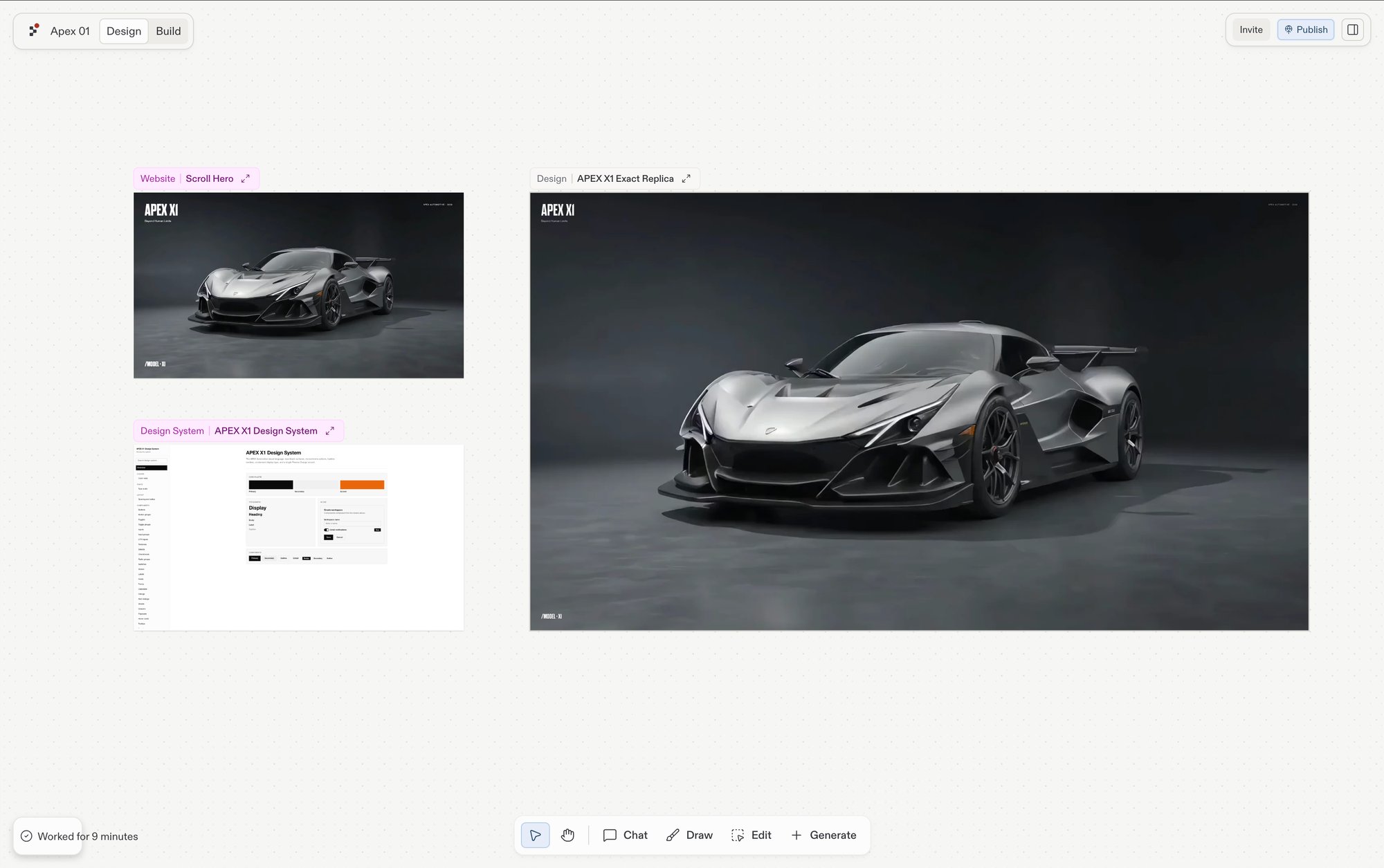
The two main kinds are **Artifacts** (live, app-backed surfaces) and **Designs** (mockups). The frame's top-left header shows which kind it is.
| Kind | Header label | Backed by | Interact like a live app? | Convert to a real app? |
| --------------- | ----------------------------- | ------------------------- | ------------------------- | ------------------------------------------------------------- |
| Artifact | **Website**, **Slides**, etc. | A running artifact | Yes | Already an app. |
| Mobile artifact | **Mobile app** | A running artifact | Yes (in simulator) | Already an app. |
| Design | **Design** | Static / interactive mock | Interactive frame only | Yes — via the per-frame **Build…** menu. See [Build](#build). |
| Image | **Image** | Generated PNG / JPG | No | No — use as a reference. |
| Video | **Video** | Generated video | No | No. |
| Vector graphic | **Graphic** | Generated SVG | No | No — embed in a real app. |
Whether a Design frame behaves as a static image or an interactive prototype depends on the **Interactive frames** capability. When it's enabled, Design frames respond to clicks and form input like a real page; otherwise they render as a snapshot you can iterate on but not click through.
## Preview on different devices
See how a design looks on different screen sizes. Ask Agent to show you a mobile, tablet, or desktop version, for example "Show me the mobile version of this page", and it renders a frame at that size:
* **Mobile**: 390 × 844
* **Tablet**: 768 × 1024
* **Desktop**: 1280 × 720
## Per-frame action bar
Selecting a frame surfaces an action bar. The actions depend on the frame's kind.
### Artifact and Design frames
For Artifact (Website, Slides, etc.) and Design frames, the action bar runs across the top of the frame.
## Frame kinds
The two main kinds are **Artifacts** (live, app-backed surfaces) and **Designs** (mockups). The frame's top-left header shows which kind it is.
| Kind | Header label | Backed by | Interact like a live app? | Convert to a real app? |
| --------------- | ----------------------------- | ------------------------- | ------------------------- | ------------------------------------------------------------- |
| Artifact | **Website**, **Slides**, etc. | A running artifact | Yes | Already an app. |
| Mobile artifact | **Mobile app** | A running artifact | Yes (in simulator) | Already an app. |
| Design | **Design** | Static / interactive mock | Interactive frame only | Yes — via the per-frame **Build…** menu. See [Build](#build). |
| Image | **Image** | Generated PNG / JPG | No | No — use as a reference. |
| Video | **Video** | Generated video | No | No. |
| Vector graphic | **Graphic** | Generated SVG | No | No — embed in a real app. |
Whether a Design frame behaves as a static image or an interactive prototype depends on the **Interactive frames** capability. When it's enabled, Design frames respond to clicks and form input like a real page; otherwise they render as a snapshot you can iterate on but not click through.
## Preview on different devices
See how a design looks on different screen sizes. Ask Agent to show you a mobile, tablet, or desktop version, for example "Show me the mobile version of this page", and it renders a frame at that size:
* **Mobile**: 390 × 844
* **Tablet**: 768 × 1024
* **Desktop**: 1280 × 720
## Per-frame action bar
Selecting a frame surfaces an action bar. The actions depend on the frame's kind.
### Artifact and Design frames
For Artifact (Website, Slides, etc.) and Design frames, the action bar runs across the top of the frame.
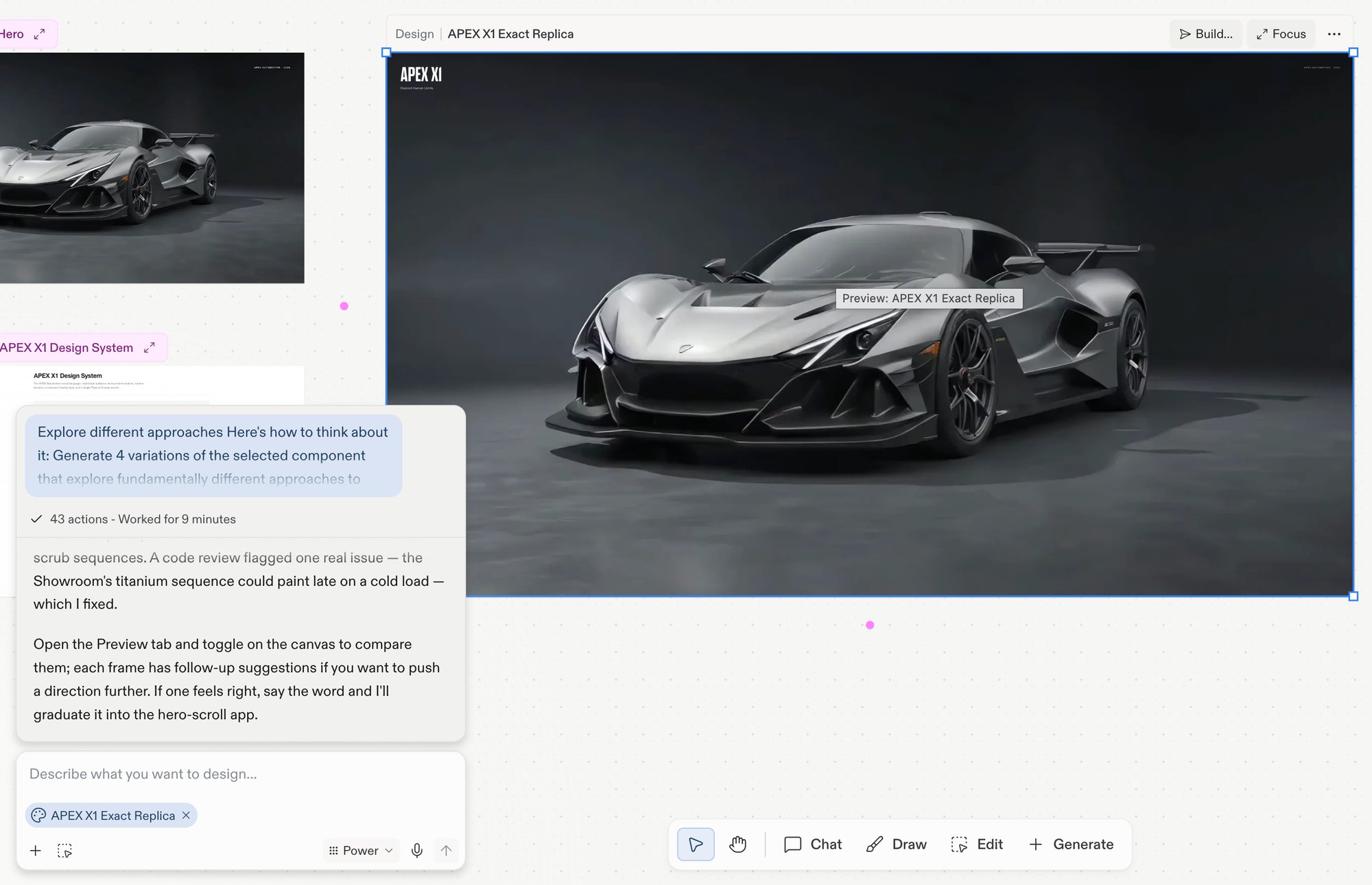 The action cluster compresses to icons at narrow widths and reveals labels as the frame gets wider. The full set, in left-to-right order:
| Action | What it does |
| -------- | --------------------------------------------------------------------------------------------------------------------------------------------------------------------------------------------- |
| Export | Downloads the frame as a PNG. See [Export a frame as PNG](/design/canvas#export-a-frame-as-png). |
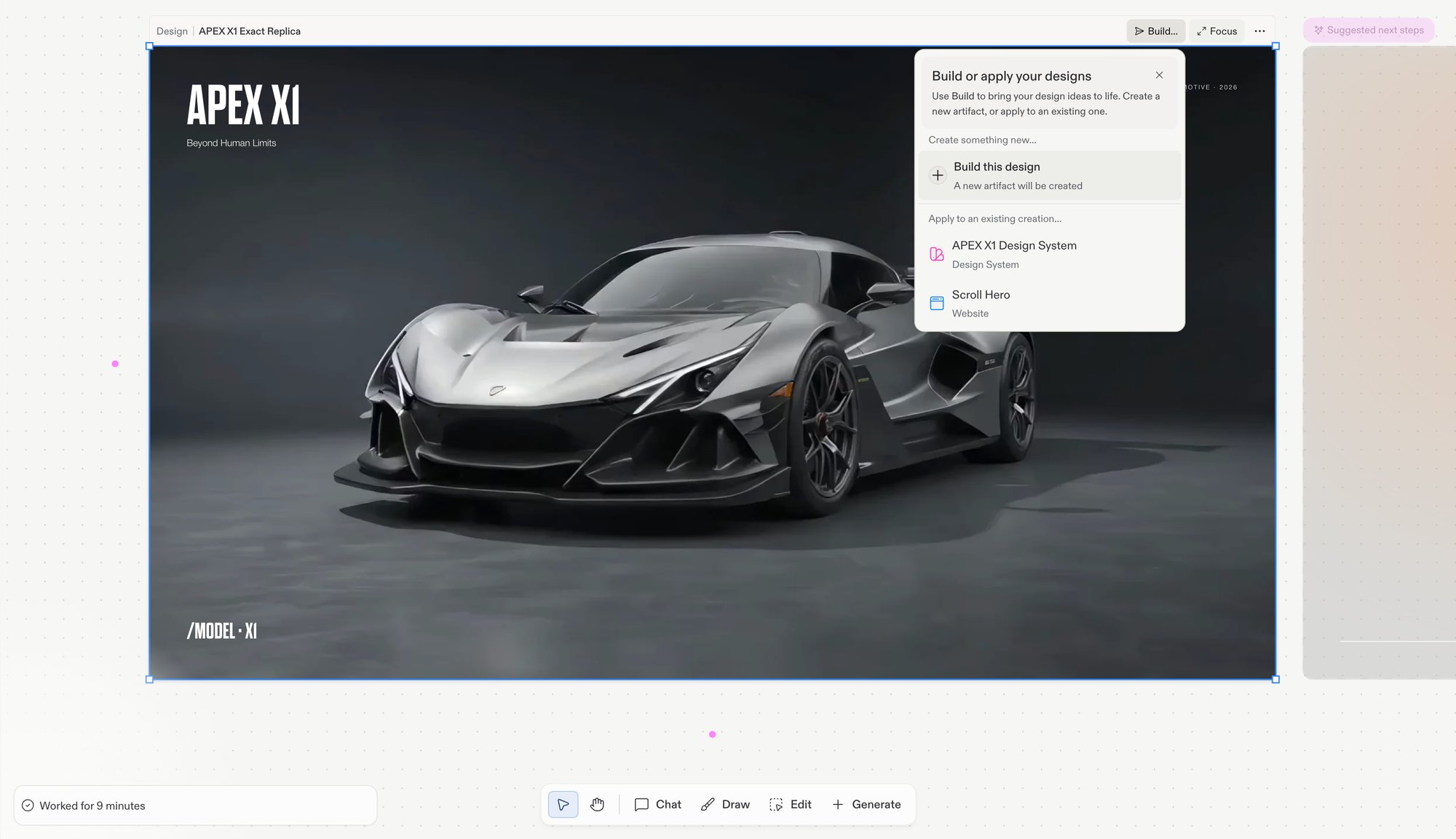
| Build… | Opens a menu listing every Artifact in the project — choose one to apply the design to it, or choose **Build this design** to create a new Artifact. Design frames only. See [Build](#build). |
| Focus | Enters focus mode, expanding the frame as the main view. |
| More (…) | Additional frame actions. Copy, duplicate, reorder, and export also live in the board's [right-click menu](/design/canvas#right-click-menu). |
App frames (Website, Slides, Mobile app) show Focus and more options; Design frames add Build… before them. To branch new directions from a selected frame, follow its [suggestions](/design/explore-suggestions).
Selecting a frame also attaches it to the next Agent chat message as a snapshot — see [What lives on the canvas](/design/canvas#what-lives-on-the-canvas).
The action bar respects **Read-only mode**. When Canvas is locked inside a background-task context, the iteration actions hide and only Focus remains.
### Media frames
Image, Video, and Vector graphic frames show a small floating action bar above the frame. All three kinds share:
* **Replace media**: upload a new file to swap into the frame, keeping its position and size on Canvas.
* **Download**: save the media file to your computer.
* **Alt text**: add alternative text for accessibility and so Agent has more context when the frame is referenced.
The action cluster compresses to icons at narrow widths and reveals labels as the frame gets wider. The full set, in left-to-right order:
| Action | What it does |
| -------- | --------------------------------------------------------------------------------------------------------------------------------------------------------------------------------------------- |
| Export | Downloads the frame as a PNG. See [Export a frame as PNG](/design/canvas#export-a-frame-as-png). |
| Build… | Opens a menu listing every Artifact in the project — choose one to apply the design to it, or choose **Build this design** to create a new Artifact. Design frames only. See [Build](#build). |
| Focus | Enters focus mode, expanding the frame as the main view. |
| More (…) | Additional frame actions. Copy, duplicate, reorder, and export also live in the board's [right-click menu](/design/canvas#right-click-menu). |
App frames (Website, Slides, Mobile app) show Focus and more options; Design frames add Build… before them. To branch new directions from a selected frame, follow its [suggestions](/design/explore-suggestions).
Selecting a frame also attaches it to the next Agent chat message as a snapshot — see [What lives on the canvas](/design/canvas#what-lives-on-the-canvas).
The action bar respects **Read-only mode**. When Canvas is locked inside a background-task context, the iteration actions hide and only Focus remains.
### Media frames
Image, Video, and Vector graphic frames show a small floating action bar above the frame. All three kinds share:
* **Replace media**: upload a new file to swap into the frame, keeping its position and size on Canvas.
* **Download**: save the media file to your computer.
* **Alt text**: add alternative text for accessibility and so Agent has more context when the frame is referenced.
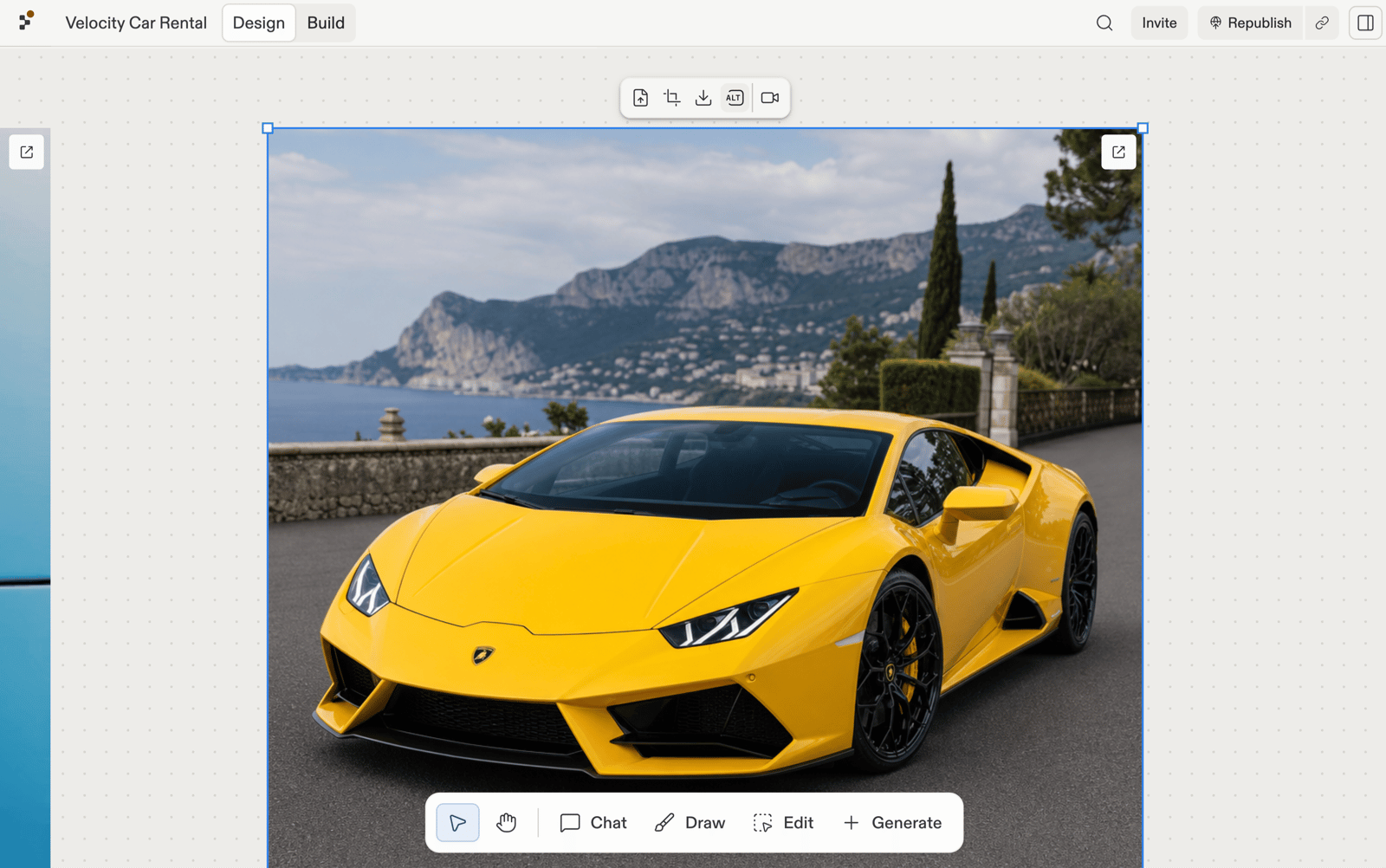
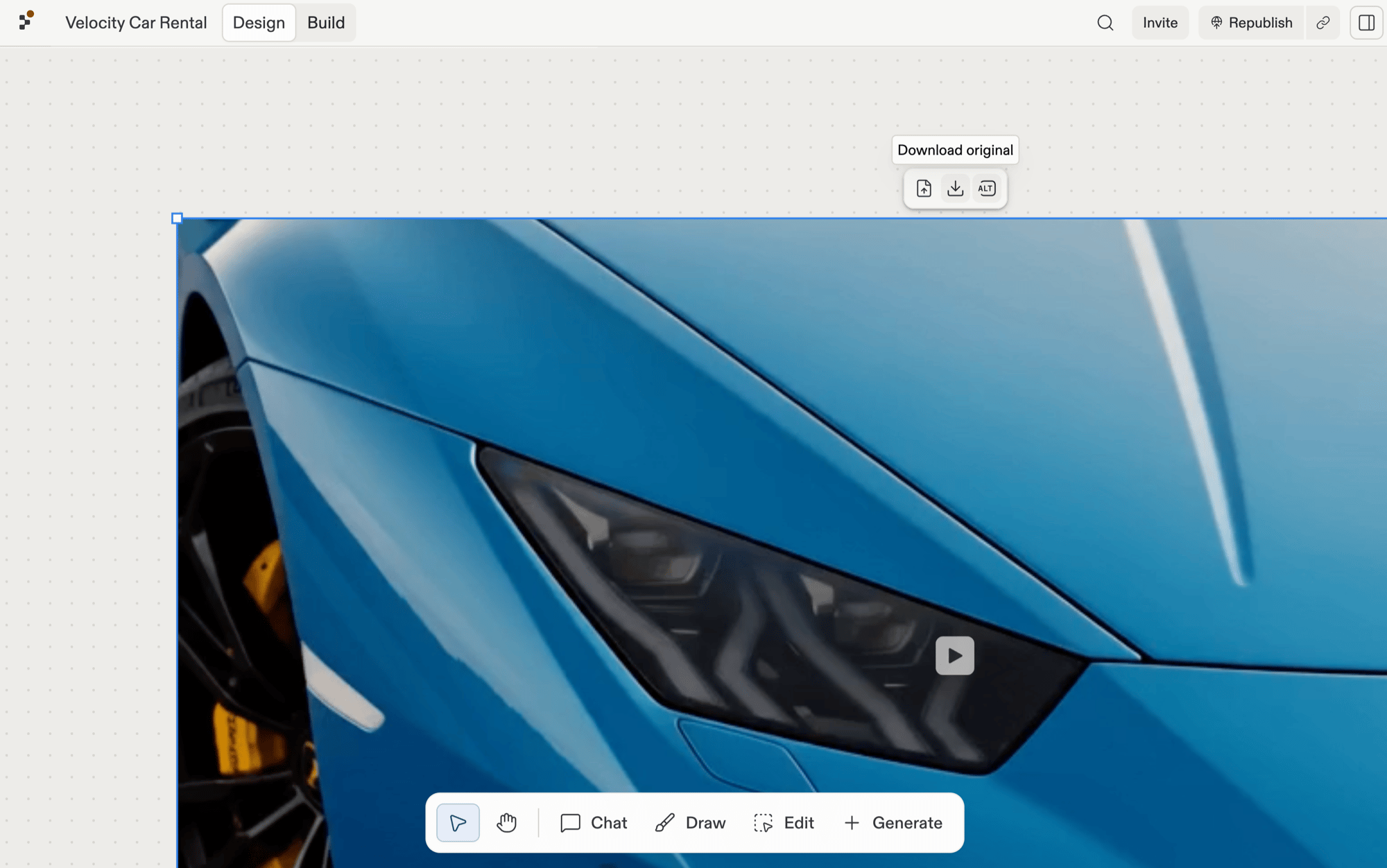 Image frames add two more controls:
* **Crop**: trim the image directly on Canvas.
* **Generate video**: generate a video clip from the image.
Image frames add two more controls:
* **Crop**: trim the image directly on Canvas.
* **Generate video**: generate a video clip from the image.
 ## Explore new directions
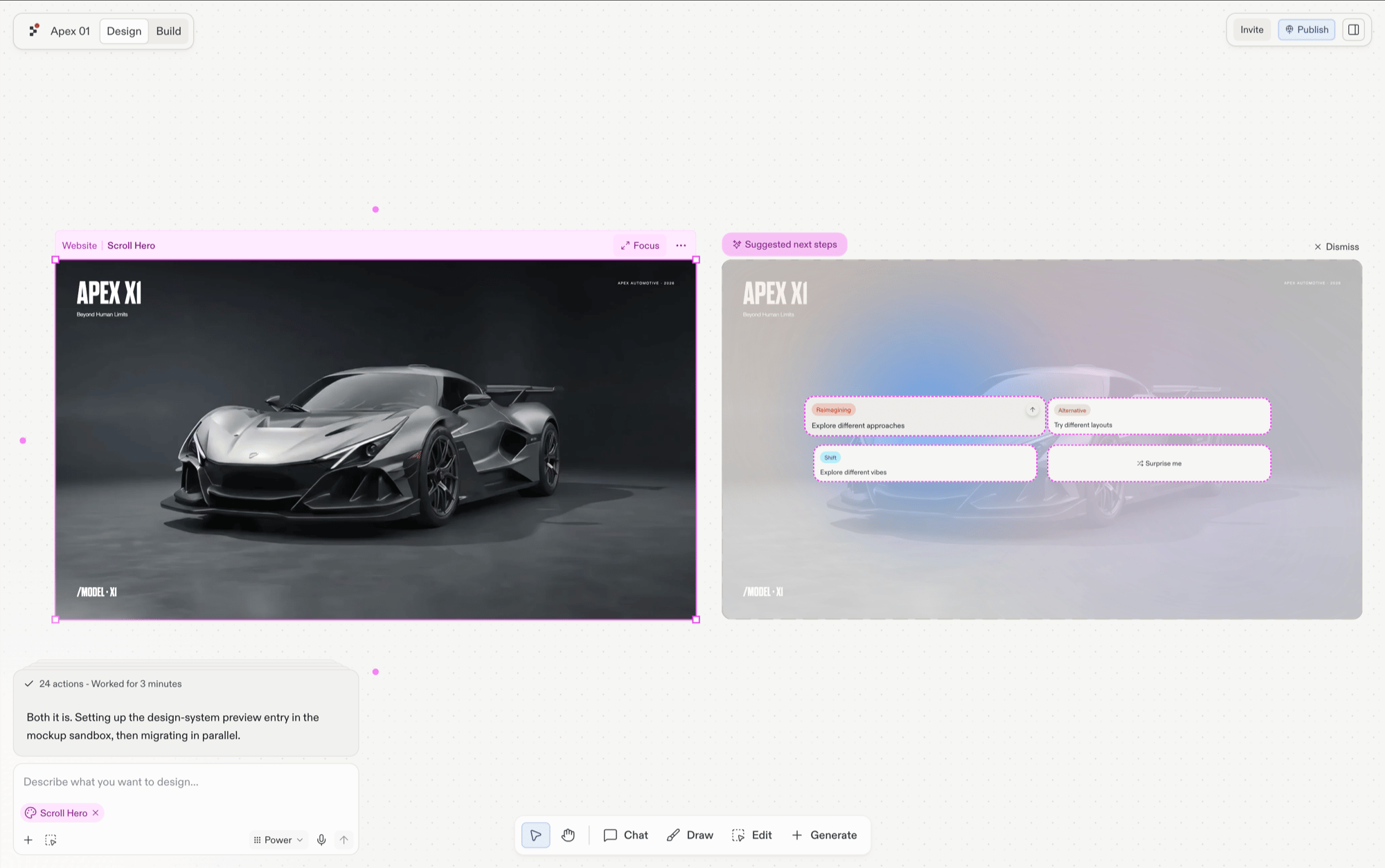
Selecting a frame surfaces [suggestions](/design/explore-suggestions) beside it: one-click directions grounded in what you're looking at, such as a different layout, a new vibe, or a page your design implies. Each one generates as a new frame alongside the source, so the original stays untouched and you can compare.
## Explore new directions
Selecting a frame surfaces [suggestions](/design/explore-suggestions) beside it: one-click directions grounded in what you're looking at, such as a different layout, a new vibe, or a page your design implies. Each one generates as a new frame alongside the source, so the original stays untouched and you can compare.
 ## Build
The **Build…** menu on a selected Design frame graduates the design into a live, running app. The same menu also covers applying the design to an Artifact that already exists.
## Build
The **Build…** menu on a selected Design frame graduates the design into a live, running app. The same menu also covers applying the design to an Artifact that already exists.
 ### Build this design
Picking **Build this design** in the menu starts a new Artifact from the selected Design frame. The new Artifact lands in the project's artifact list and becomes a live, running app. Build requires Core or Pro.
### Apply to an existing Artifact
The Build… menu lists every Artifact in the project. Picking one applies the selected Design's changes to that Artifact — Agent rewrites the Artifact's code to match the design, leaving the Design frame on the Canvas for reference.
## Focus
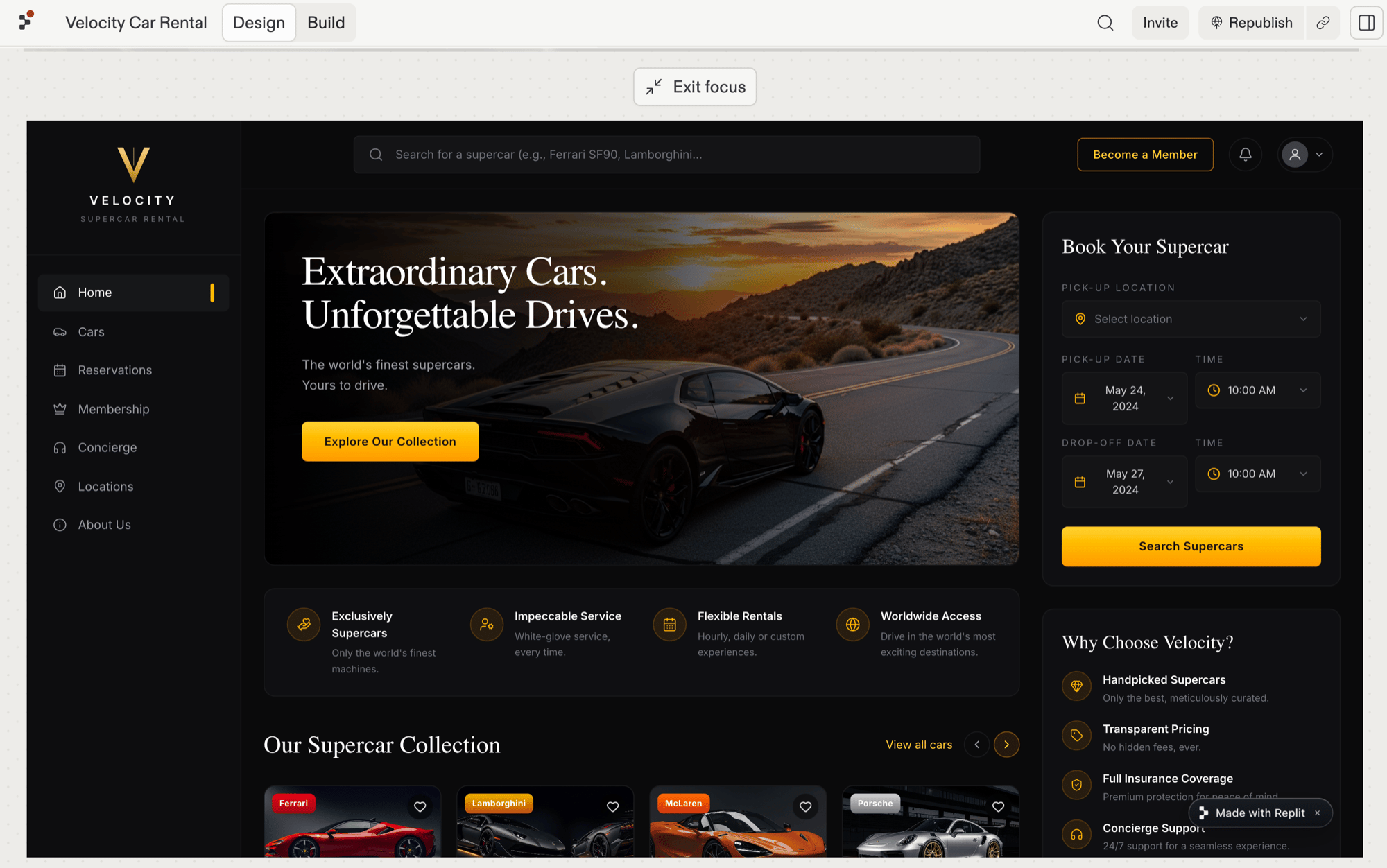
Focus zooms in on the selected frame so it fills the view, letting you work with it up close without the rest of the board. Select **Focus** in the action bar to enter it, and **Exit focus** at the top of the board to return to the canvas.
### Build this design
Picking **Build this design** in the menu starts a new Artifact from the selected Design frame. The new Artifact lands in the project's artifact list and becomes a live, running app. Build requires Core or Pro.
### Apply to an existing Artifact
The Build… menu lists every Artifact in the project. Picking one applies the selected Design's changes to that Artifact — Agent rewrites the Artifact's code to match the design, leaving the Design frame on the Canvas for reference.
## Focus
Focus zooms in on the selected frame so it fills the view, letting you work with it up close without the rest of the board. Select **Focus** in the action bar to enter it, and **Exit focus** at the top of the board to return to the canvas.
 ## Related pages
* [Canvas](/design/canvas) — overview and anatomy.
* [Toolbar](/design/toolbar) — the floating toolbar; Generate creates new frames.
* [Elements](/design/elements) — the individual pieces inside a frame.
* [Visual Editor](/design/visual-editor) — element-level edits inside a focused frame.
## Related pages
* [Canvas](/design/canvas) — overview and anatomy.
* [Toolbar](/design/toolbar) — the floating toolbar; Generate creates new frames.
* [Elements](/design/elements) — the individual pieces inside a frame.
* [Visual Editor](/design/visual-editor) — element-level edits inside a focused frame.