> ## Documentation Index
> Fetch the complete documentation index at: https://docs.replit.com/llms.txt
> Use this file to discover all available pages before exploring further.
# Explore suggestions
> Select a design frame and Replit Design suggests what to design next; one click generates a new direction, and the winner can be applied to your app.
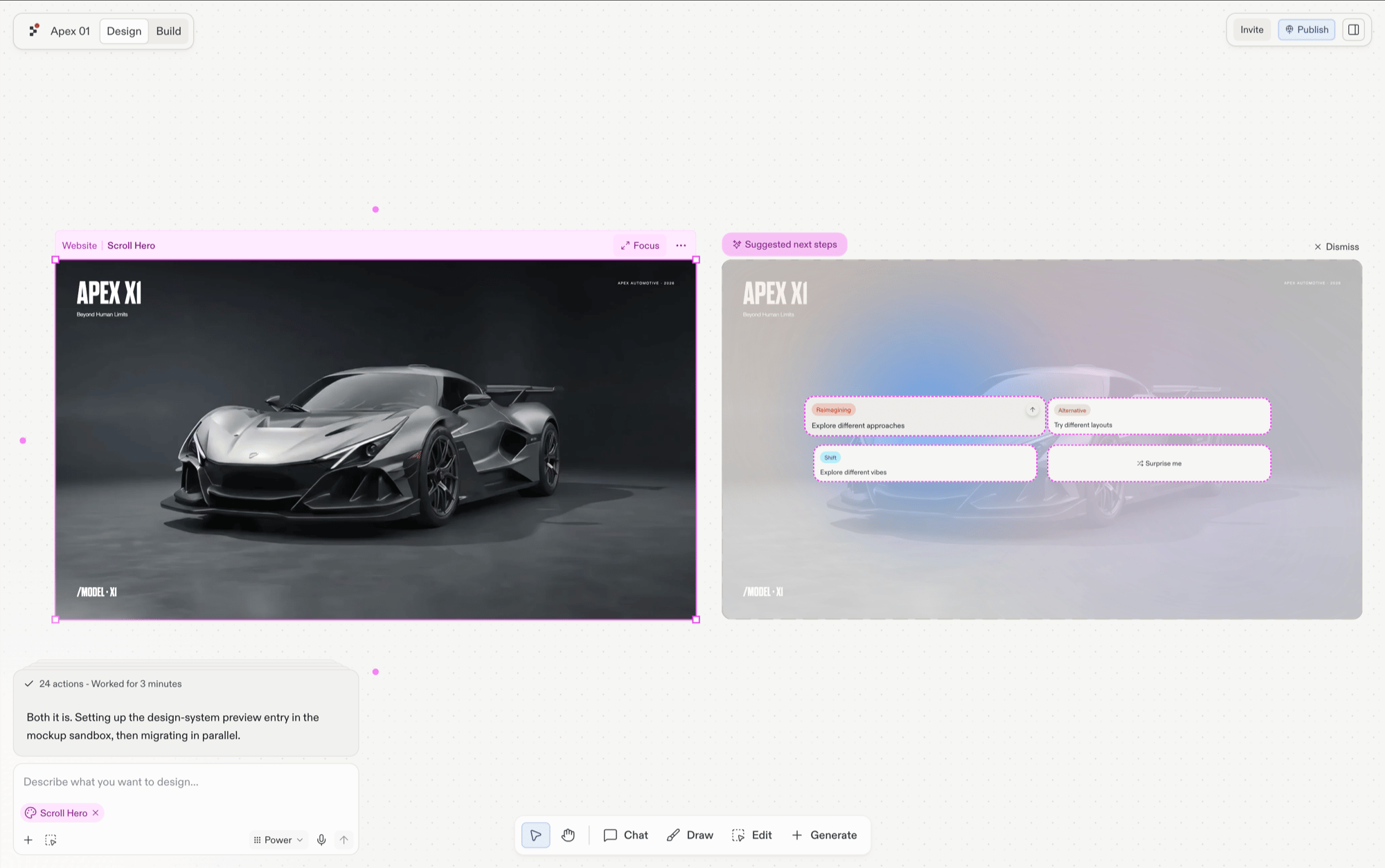
Suggestions are the center of the Replit Design interface. Instead of facing a blank prompt box and needing to know what to ask for, you select a design frame and Replit Design proposes what to try next. Each suggestion is one click away from becoming a new generation.
 ## How suggestions work
When you select a generated design frame, suggestions appear alongside it. They're grounded in what you're looking at, so exploring doesn't require design vocabulary. Click one and Replit Design generates the result as a new frame; your original stays put.
## What suggestions propose
Suggestions answer different exploration questions:
* **A new look**: the same design in a different direction, such as a dark editorial variant or a different layout.
* **An extension**: a section or page your design implies but doesn't have yet, such as a pricing section or a contact page.
* **A new context**: your design somewhere else, such as a mobile viewport.
## Explore with suggestions
The loop is deliberately short:
Click any generated design frame on the canvas.
## How suggestions work
When you select a generated design frame, suggestions appear alongside it. They're grounded in what you're looking at, so exploring doesn't require design vocabulary. Click one and Replit Design generates the result as a new frame; your original stays put.
## What suggestions propose
Suggestions answer different exploration questions:
* **A new look**: the same design in a different direction, such as a dark editorial variant or a different layout.
* **An extension**: a section or page your design implies but doesn't have yet, such as a pricing section or a contact page.
* **A new context**: your design somewhere else, such as a mobile viewport.
## Explore with suggestions
The loop is deliberately short:
Click any generated design frame on the canvas.
 Suggestions appear beside the selected frame, grounded in what you're looking at. Review them and click one, you don't need to add anything.
The moment you click, Agent starts building the suggestion as a new frame next to the original. Your earlier frames stay on the canvas, so nothing is lost by exploring.
Suggestions appear beside the selected frame, grounded in what you're looking at. Review them and click one, you don't need to add anything.
The moment you click, Agent starts building the suggestion as a new frame next to the original. Your earlier frames stay on the canvas, so nothing is lost by exploring.
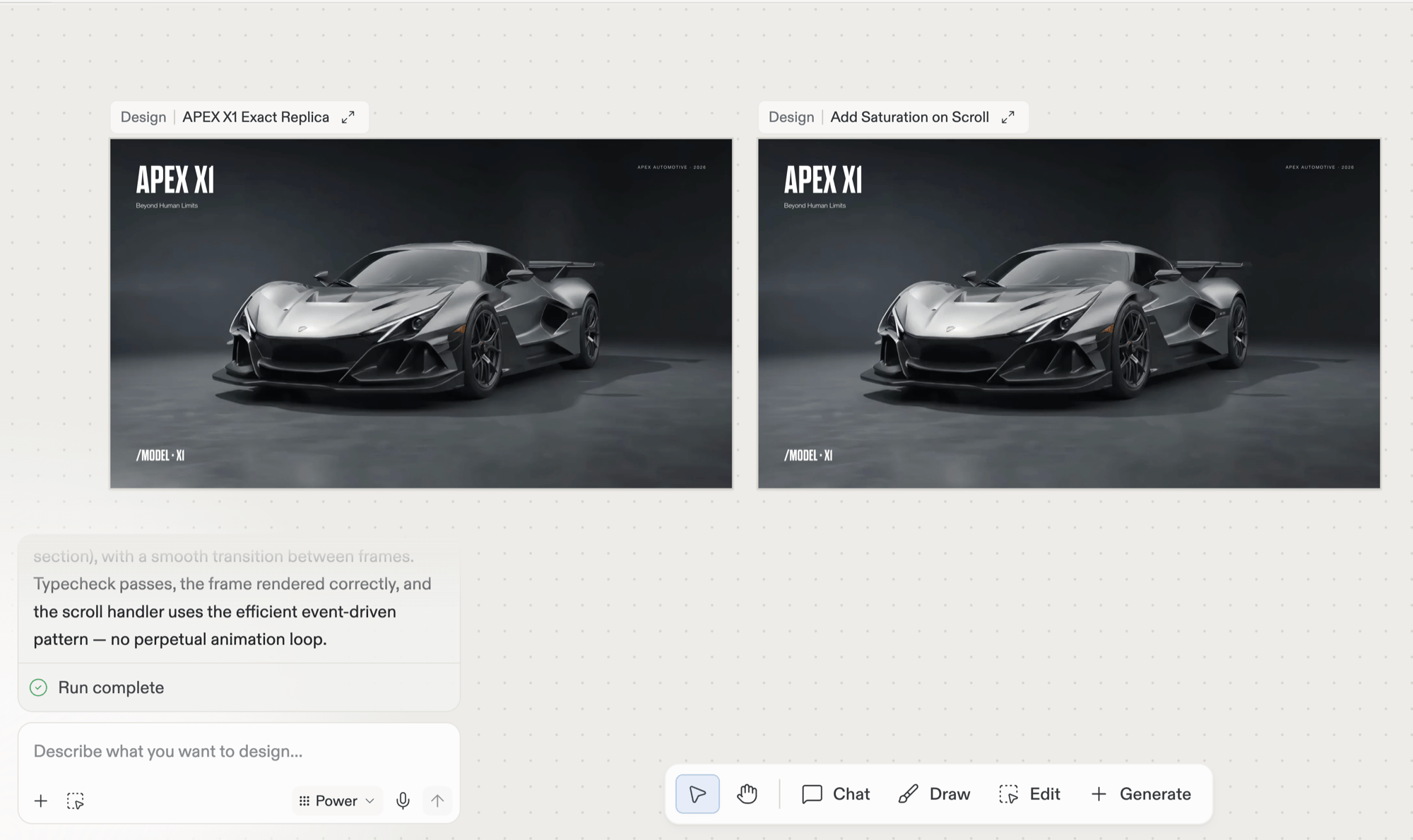
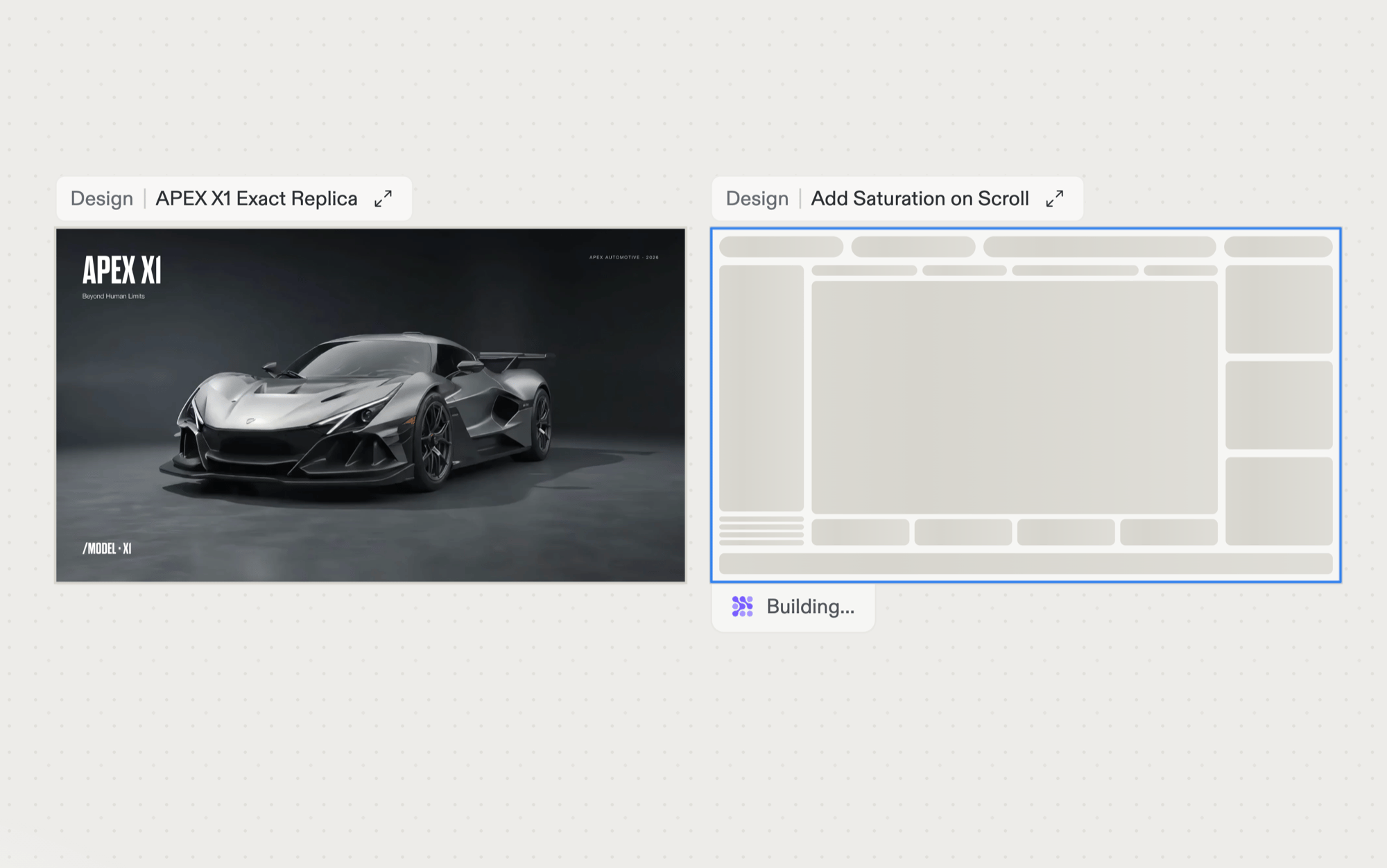 The finished frame lands next to the original so you can compare the two side by side. The chat panel summarizes what changed.
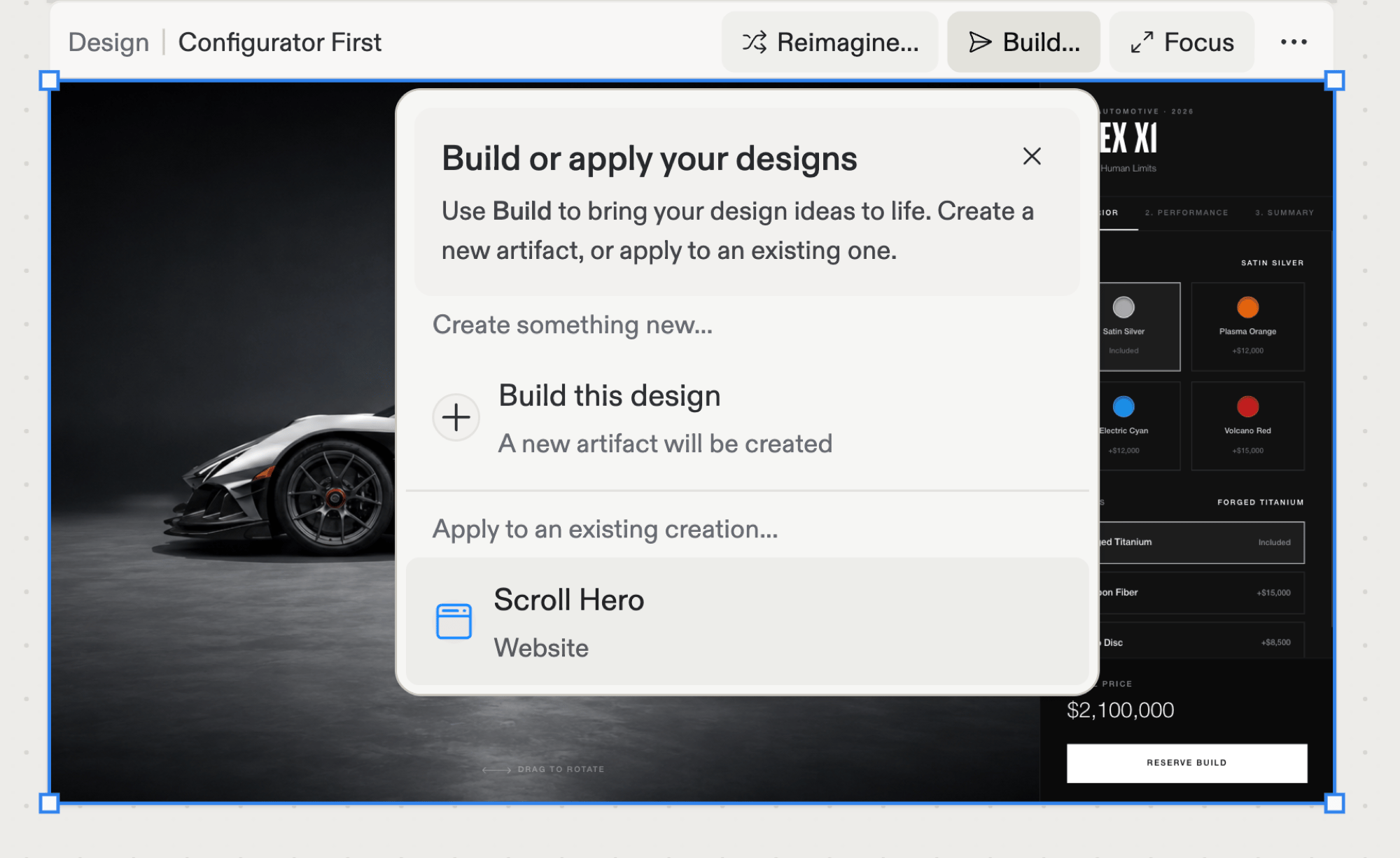
 Keep selecting and branching until one direction feels right; fresh suggestions appear for whichever frame you select. The winner doesn't have to stay a mockup: select it, choose **Build…** in its action bar, and pick your existing app under **Apply to an existing creation**. Agent rewrites the app's code to match the design, leaving the frame on the canvas for reference.
 See [Build your design](/design/build-your-design) for the full flow, including building the frame as a new app instead. To polish details before applying, [refine with chat](/design/chat-about-your-design).
## Tips
* **Explore in directions, not steps.** Suggestions branch; following one doesn't commit you. Generate a few and compare on the canvas.
* **Mix in your own words.** Suggestions and the [design chatbox](/design/chat-about-your-design) work together: click suggestions to explore broadly, chat to steer precisely. Chat isn't just for polish; a message like *"try the nav on the left"* opens a new direction too.
* **Switch the model for a different sensibility.** Each model explores differently; see [Explore with different models](/design/explore-with-different-models).
See [Build your design](/design/build-your-design) for the full flow, including building the frame as a new app instead. To polish details before applying, [refine with chat](/design/chat-about-your-design).
## Tips
* **Explore in directions, not steps.** Suggestions branch; following one doesn't commit you. Generate a few and compare on the canvas.
* **Mix in your own words.** Suggestions and the [design chatbox](/design/chat-about-your-design) work together: click suggestions to explore broadly, chat to steer precisely. Chat isn't just for polish; a message like *"try the nav on the left"* opens a new direction too.
* **Switch the model for a different sensibility.** Each model explores differently; see [Explore with different models](/design/explore-with-different-models).