> ## Documentation Index
> Fetch the complete documentation index at: https://docs.replit.com/llms.txt
> Use this file to discover all available pages before exploring further.
# Create a design system
> Create a design system from scratch with a prompt, or extract one from a mockup you already like — then save it to your workspace.
There are two ways to create a design system, depending on where your brand lives today.
## From scratch: prompt it from the home page
Start here when the system exists in your head (or your brand guidelines) but not in any design yet.
From the Replit home page, describe the design system you want in the prompt box — for example: *"Create a design system for Velocity, a premium supercar rental brand."*
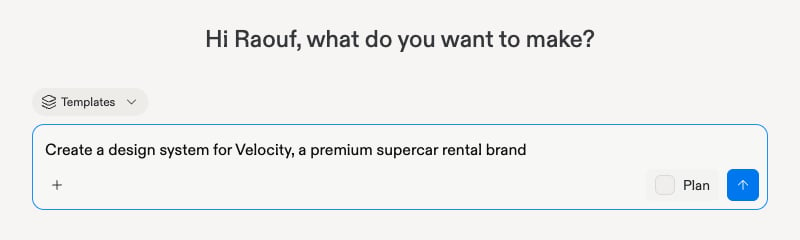 Agent asks a short set of questions about your system — brand personality, colors, typography preferences. You can also point it at a source: a Figma URL, a website, code, reference images, brand assets, or an existing DESIGN.md.
## From a mockup: extract the design system
Start here when you already have a design you love — a generated frame, a dropped template — and want everything else to match it.
On the canvas, click the mockup whose look you want to capture.
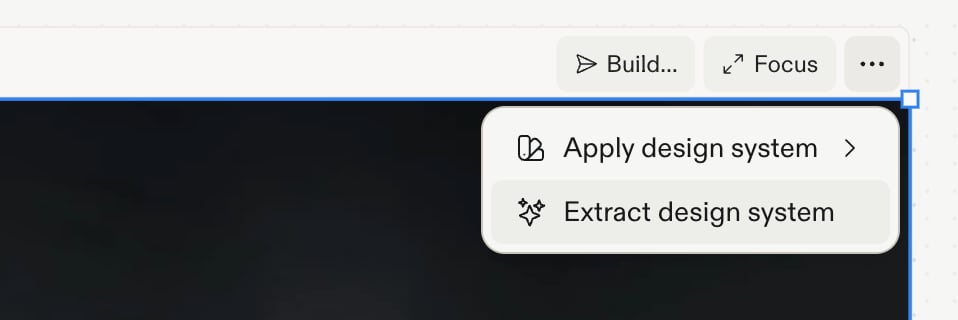
Open the frame's **⋯** (three-dot) menu and choose **Extract design system**. Agent distills the mockup's tokens, colors, and typography into a living style guide — and applies it across the design.
Agent asks a short set of questions about your system — brand personality, colors, typography preferences. You can also point it at a source: a Figma URL, a website, code, reference images, brand assets, or an existing DESIGN.md.
## From a mockup: extract the design system
Start here when you already have a design you love — a generated frame, a dropped template — and want everything else to match it.
On the canvas, click the mockup whose look you want to capture.
Open the frame's **⋯** (three-dot) menu and choose **Extract design system**. Agent distills the mockup's tokens, colors, and typography into a living style guide — and applies it across the design.
 ## Review and save
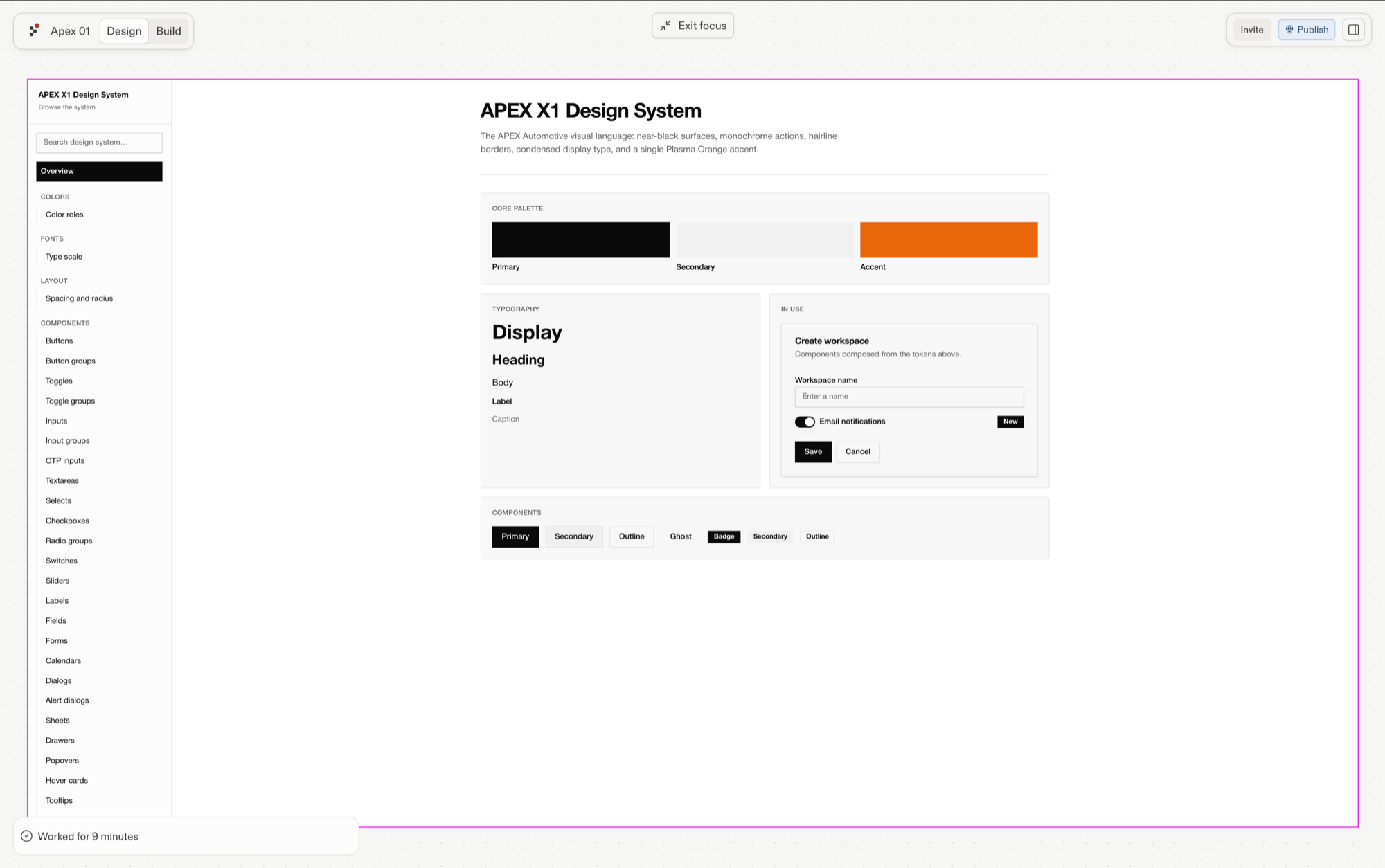
Either way, review what was generated: a living style guide with your colors (by role — primary, accent, muted…), typography scale, and tokens (stored in `tokens.json`, feeding the CSS variables). Then select **Save design system** to keep it in your workspace.
## Review and save
Either way, review what was generated: a living style guide with your colors (by role — primary, accent, muted…), typography scale, and tokens (stored in `tokens.json`, feeding the CSS variables). Then select **Save design system** to keep it in your workspace.
 ## Next steps
* [Apply it to an existing app](/design/apply-design-system)
* [What's inside a design system](/design/design-md)
## Next steps
* [Apply it to an existing app](/design/apply-design-system)
* [What's inside a design system](/design/design-md)