> ## Documentation Index
> Fetch the complete documentation index at: https://docs.replit.com/llms.txt
> Use this file to discover all available pages before exploring further.
# Secrets
> Learn how to store API keys and other sensitive information securely as encrypted environment variables.
The Secrets tool stores and encrypts **secrets**, your Replit App's sensitive information, such as API keys, authentication tokens, and database connection strings.
When you add a secret, the tool automatically encrypts the data and makes it available to your Replit App as an environment variable.
This approach lets you eliminate hard-coding secrets in your code and reduce the risk of exposing them.
Hard-coding secrets in your codebase can lead to accidental exposure in the following scenarios:
* Sharing your code with others through a public Replit App or copy-paste
* Checking your code into version control in a public repository
* Live streaming or screen sharing your code
Use the Secrets tool to confidently share your code without worrying about exposing credentials.
## Features
Secrets include the following features:
* **End-to-end encryption**: Automatically protect your data using AES-256 encryption at rest and TLS encryption in transit
* **App-level secrets**: Store and manage secrets that are specific to a Replit App
* **Account-level secrets**: Store and manage secrets that you can make available across all your Replit Apps
* **Environment variable access**: Access your secrets from your code using environment variables
* **Collaborative access**: Share secrets with collaborators and team members
## Usage
Secrets are available for all deployment types except Static Deployments.
You can access Secrets in the Secrets Project Editor tool.
From the left **Tool dock**:
1. Select **All tools** to see a list of Project Editor tools.
2. Select **Secrets**.
From the **Search bar**:
1. Select the magnifying glass at the top to open the search tool
2. Type "Secrets" to locate the tool and select it from the results.
### Manage App Secrets
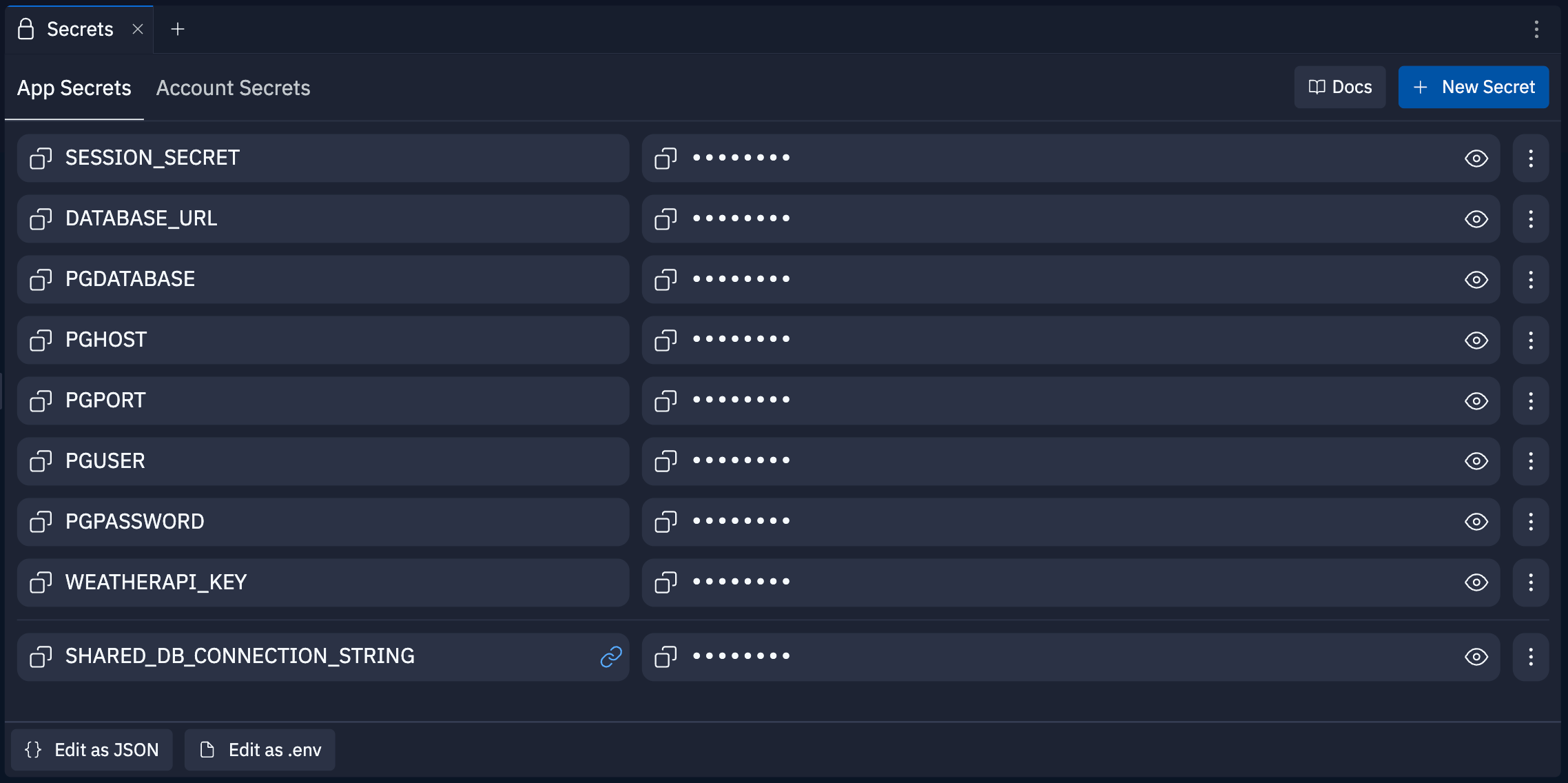
You can manage your app-level secrets in the **App Secrets** tab in the **Secrets** pane.
This tab displays a list of all secrets associated with your Replit App.
To add a secret:
1. Select **New Secret**.
2. Enter a **Key**, the name of the secret, and a **Value**, the secret itself.
3. Select **Add Secret** to save the entry.
To edit a secret:
1. Select the vertical dots menu next to the secret.
2. Select **Edit** from the contextual menu.
3. Update the text in the **Key** or **Value** field and select **Update Secret** to save changes or **Cancel** to discard changes.
You can also modify the entire list of App Secrets by selecting **Edit as JSON** or **Edit as .env** at the bottom of the tab.
To view a secret, select the eye icon next to the secret.
To hide the secret, select the eye with slash icon.
To delete a secret, select the vertical dots menu next to the secret and select **Delete**.
### Manage Account Secrets
You can manage your account-level secrets in the **Account Secrets** tab in the **Secrets** pane.
This tab displays a list of only secrets associated with your Replit account.
To add an account-level secret:
1. Navigate to the **Account Secrets** tab.
2. Select the icon to open **Settings** and manage account-level secrets.
3. Select **New Secret** to add a secret.
4. Enter a **Key**, the name of the secret, and a **Value**, the secret itself.
5. Select **Save** to save the entry.
To edit a secret:
1. Select the pencil icon next to the secret.
2. Update the text in the **Key** or **Value** field and select **Save** to save changes or **Cancel** to discard changes.
To view a secret, select the eye icon next to the secret.
To hide the secret, select the eye with slash icon.
To use an account-level secret in a Replit App, you must link it to the app.
To link an account-level secret:
1. Navigate to the **App Secrets** tab.
2. Select the checkbox to the left of the secret.
3. Select **Link to this App**.
To unlink a secret:
1. Navigate to the **App Secrets** tab.
2. Select the vertical dots menu next to the secret.
3. Select **Unlink**.
1. Select the pencil icon next to the secret.
2. Select **Delete**.
### Access secrets in your code
```python Python theme={null}
import os
print(os.getenv("MY_SECRET"))
```
```javascript JavaScript theme={null}
console.log(process.env.MY_SECRET);
```
```java Java theme={null}
System.out.println(System.getenv("MY_SECRET"))
```
```csharp C# theme={null}
using System;
Console.WriteLine(Environment.GetEnvironmentVariable("MY_SECRET"));
```
```go Go theme={null}
package main
import (
"fmt"
"os"
)
func main() {
fmt.Println(os.Getenv("MY_SECRET"))
}
```
```ruby Ruby theme={null}
puts ENV["MY_SECRET"]
```
### Managing secrets visibility
Secrets visibility depends on your access to a Replit App and whether you authored it.
You can use one of the options to share your Replit App:
* **Multiplayer**: Invite Replit users to collaborate in real-time
* **Cover page**: Show a preview of your Replit App with the option to remix it
* **Remix**: Make your individual or organization's Replit App public so others can create their version
The following table shows secret name and value visibility in the different scenarios:
| Access Method | Who | Can See Names | Can See Values |
| ------------------ | ------------------------------------------ | ------------- | -------------- |
| Multiplayer | Multiplayer collaborator | ✓ | ✓ |
| Multiplayer | Organization member (Owner role) | ✓ | ✓ |
| Multiplayer | Organization member (Non-owner) | ✓ | |
| Cover Page | Any visitor | | |
| Remix | Owner/collaborator remixing own Replit App | ✓ | ✓ |
| Remix | Non-owner/collaborator remixing Replit App | ✓ | |
| Remix | Anyone remixing from cover page | ✓ | |
| Organization Remix | Organization member with Owner role | ✓ | ✓ |
| Organization Remix | Organization member without Owner role | ✓ | |
Organization members without the Owner role cannot view secret values in a Replit App, but can access their values by printing the environment variables.
## Database related secrets
When you add Replit's Database, the Project Editor automatically creates the following secret:
| Secret | Description |
| -------------- | ------------------------------ |
| `DATABASE_URL` | SQL database connection string |
Legacy Neon development databases may also include `PGHOST`, `PGUSER`, `PGPASSWORD`, `PGDATABASE`, and `PGPORT`. Current Replit development databases use `DATABASE_URL` instead.
To view all environment variables in your Replit App, run `printenv` in the Shell Project Editor tool or print them from your code.
## Predefined environment variables
Replit automatically sets the following environment variables that you can access from your app:
| Environment Variable | Description |
| -------------------- | -------------------------------------------------------------------------------------- |
| `REPLIT_DOMAINS` | Comma-separated list of all domains associated with your Replit App |
| `REPLIT_USER` | Username of the current editor, which may vary in Multiplayer sessions |
| `REPLIT_DEPLOYMENT` | Set to `1` if the code is running in a published app, unset otherwise |
| `REPLIT_DEV_DOMAIN` | Development URL on the `replit.dev` domain, which is different from the Deployment URL |
These are not listed in the Secrets tool, but you can access them in your code using the `os.environ` object or running `printenv` in the Shell.
 **All tools** to see a list of Project Editor tools.
2. Select
**All tools** to see a list of Project Editor tools.
2. Select  **Secrets**.
From the **Search bar**:
1. Select the
**Secrets**.
From the **Search bar**:
1. Select the  magnifying glass at the top to open the search tool
2. Type "Secrets" to locate the tool and select it from the results.
magnifying glass at the top to open the search tool
2. Type "Secrets" to locate the tool and select it from the results.
 ## Features
Secrets include the following features:
* **End-to-end encryption**: Automatically protect your data using AES-256 encryption at rest and TLS encryption in transit
* **App-level secrets**: Store and manage secrets that are specific to a Replit App
* **Account-level secrets**: Store and manage secrets that you can make available across all your Replit Apps
* **Environment variable access**: Access your secrets from your code using environment variables
* **Collaborative access**: Share secrets with collaborators and team members
## Usage
## Features
Secrets include the following features:
* **End-to-end encryption**: Automatically protect your data using AES-256 encryption at rest and TLS encryption in transit
* **App-level secrets**: Store and manage secrets that are specific to a Replit App
* **Account-level secrets**: Store and manage secrets that you can make available across all your Replit Apps
* **Environment variable access**: Access your secrets from your code using environment variables
* **Collaborative access**: Share secrets with collaborators and team members
## Usage
 vertical dots menu next to the secret.
2. Select **Edit** from the contextual menu.
3. Update the text in the **Key** or **Value** field and select **Update Secret** to save changes or **Cancel** to discard changes.
You can also modify the entire list of App Secrets by selecting **Edit as JSON** or **Edit as .env** at the bottom of the tab.
vertical dots menu next to the secret.
2. Select **Edit** from the contextual menu.
3. Update the text in the **Key** or **Value** field and select **Update Secret** to save changes or **Cancel** to discard changes.
You can also modify the entire list of App Secrets by selecting **Edit as JSON** or **Edit as .env** at the bottom of the tab.
 eye icon next to the secret.
To hide the secret, select the
eye icon next to the secret.
To hide the secret, select the  eye with slash icon.
 icon to open **Settings** and manage account-level secrets.
3. Select **New Secret** to add a secret.
4. Enter a **Key**, the name of the secret, and a **Value**, the secret itself.
5. Select **Save** to save the entry.
icon to open **Settings** and manage account-level secrets.
3. Select **New Secret** to add a secret.
4. Enter a **Key**, the name of the secret, and a **Value**, the secret itself.
5. Select **Save** to save the entry.
 pencil icon next to the secret.
2. Update the text in the **Key** or **Value** field and select **Save** to save changes or **Cancel** to discard changes.
pencil icon next to the secret.
2. Update the text in the **Key** or **Value** field and select **Save** to save changes or **Cancel** to discard changes.