> ## Documentation Index
> Fetch the complete documentation index at: https://docs.replit.com/llms.txt
> Use this file to discover all available pages before exploring further.
# Development URLs
> Learn how to use development URLs to preview and share your in-progress app.
Development URLs allow you to preview and test your applications while building them. These URLs follow the format `UUID.servername.replit.dev` and provide a live preview of your app as you develop.
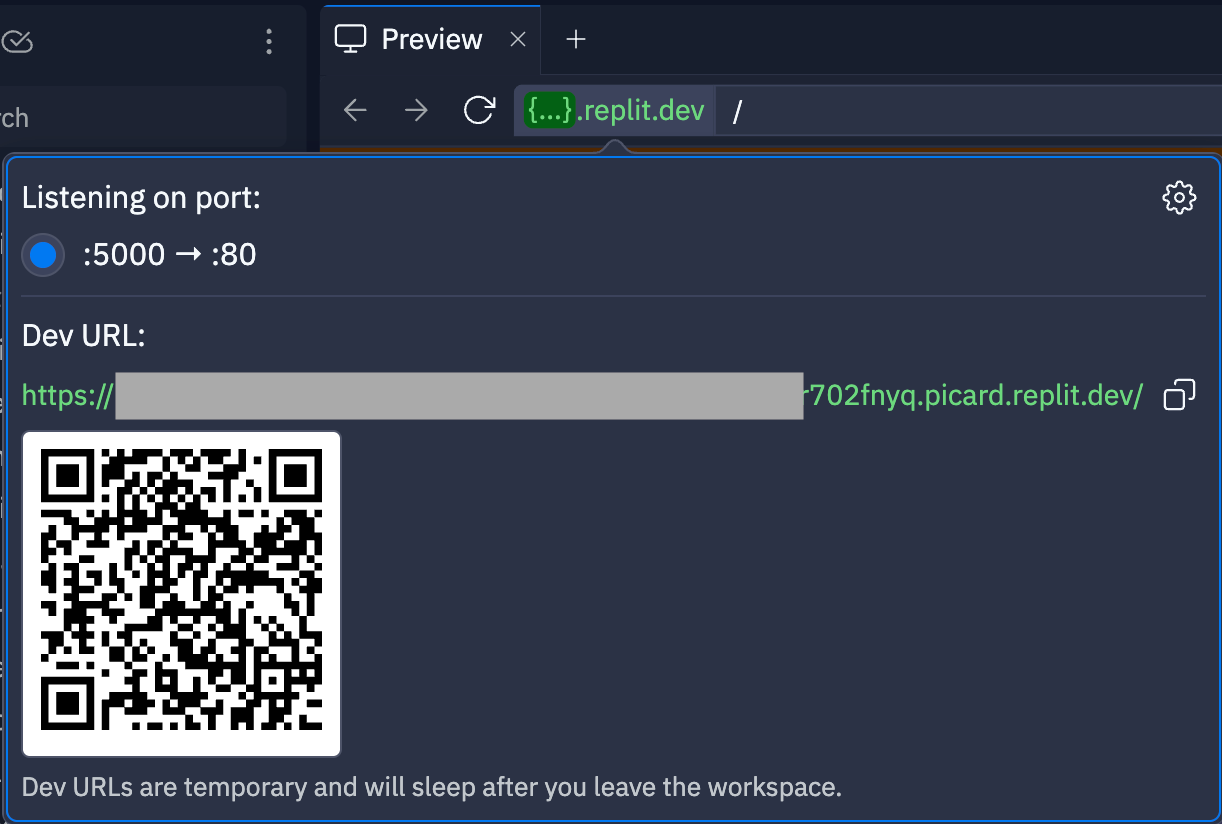 To view your development URL, click the `{...}.replit.dev` text in the location bar.
## Understanding development URLs
Development URLs are only live while you actively work on a Replit App. The URL can change each time you reopen the app. Development URLs allow you to view your work in a browser as you build and test.
By default, development URLs are public to the web. Anyone with the URL can view your app while you're building it. This makes it easy to share your work-in-progress with collaborators, testers, or stakeholders.
Development URLs are temporary and intended for testing only. For sharing applications with others, it's recommended to [publish your app](/learn/projects-and-artifacts/replit-deployments) instead.
### Educational banner
When you open a development preview in a new tab, an educational banner appears at the top of the page. This banner helps you understand the purpose of `.replit.dev` URLs as you build and test your applications. The banner provides context about development URLs and their intended use during the development process.
## Making development URLs private
You can restrict access to your development URL to keep your in-progress work secure.
To make your development URL private:
1. Open **Developer tools** in the Project Editor.
2. Select the **Networking** tab.
3. Enable the **Private development URL** toggle.
When enabled, your development URL requires authentication to access. Only you and authorized team members can view your in-progress work.
Enterprise customers can require private development URLs for all projects, enhancing security by ensuring development work remains protected within the organization's environment.
## Best practices
* **Use private URLs** for sensitive or proprietary applications during development
* **Use public URLs** to share your work with external stakeholders while you are actively building or when you want to test your app in a different browser
To view your development URL, click the `{...}.replit.dev` text in the location bar.
## Understanding development URLs
Development URLs are only live while you actively work on a Replit App. The URL can change each time you reopen the app. Development URLs allow you to view your work in a browser as you build and test.
By default, development URLs are public to the web. Anyone with the URL can view your app while you're building it. This makes it easy to share your work-in-progress with collaborators, testers, or stakeholders.
Development URLs are temporary and intended for testing only. For sharing applications with others, it's recommended to [publish your app](/learn/projects-and-artifacts/replit-deployments) instead.
### Educational banner
When you open a development preview in a new tab, an educational banner appears at the top of the page. This banner helps you understand the purpose of `.replit.dev` URLs as you build and test your applications. The banner provides context about development URLs and their intended use during the development process.
## Making development URLs private
You can restrict access to your development URL to keep your in-progress work secure.
To make your development URL private:
1. Open **Developer tools** in the Project Editor.
2. Select the **Networking** tab.
3. Enable the **Private development URL** toggle.
When enabled, your development URL requires authentication to access. Only you and authorized team members can view your in-progress work.
Enterprise customers can require private development URLs for all projects, enhancing security by ensuring development work remains protected within the organization's environment.
## Best practices
* **Use private URLs** for sensitive or proprietary applications during development
* **Use public URLs** to share your work with external stakeholders while you are actively building or when you want to test your app in a different browser