> ## Documentation Index
> Fetch the complete documentation index at: https://docs.replit.com/llms.txt
> Use this file to discover all available pages before exploring further.
# Databricks Connector
> Set up a Databricks connector so Replit Agent can build data-driven applications backed by your Databricks workspace.
The Databricks connector is available exclusively on the **Enterprise** plan.
 The Databricks connector lets Replit Agent query your Databricks workspace. Builders can create dashboards, reporting tools, and data applications using natural language. No SQL expertise required.
Setup is a one-time process that involves a Databricks admin and a Replit organization admin. Once configured, builders with access can use the connector from Replit.
This guide covers the full setup across three roles:
1. **Databricks admin**: creates the service principal and grants permissions in Databricks.
2. **Replit admin**: configures the connector in Replit.
3. **Builder**: starts building with Databricks data.
## Prerequisites
Before you start, confirm the following.
**Roles**
* [Databricks](https://www.databricks.com/) account admin or workspace admin
* [Replit](https://replit.com/) organization admin
## Step 1: Create a service principal in Databricks
You must be a Databricks account admin or workspace admin to complete this step.
The Databricks admin creates a machine-to-machine identity, called a [service principal](https://docs.databricks.com/aws/en/admin/users-groups/service-principals), that Replit uses to connect to Databricks.
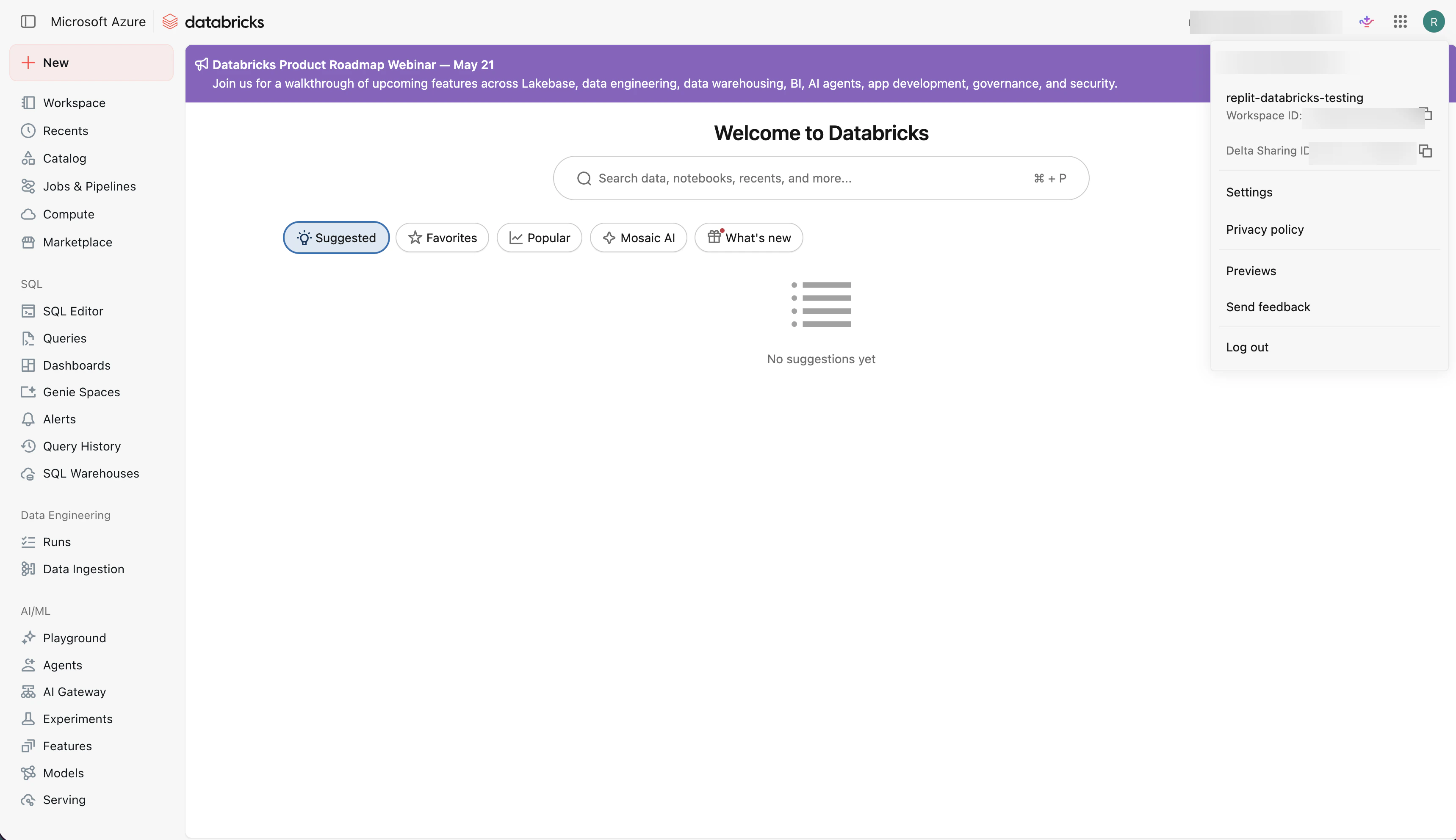
In Databricks, select your avatar in the top-right corner, then select **Settings**.
The Databricks connector lets Replit Agent query your Databricks workspace. Builders can create dashboards, reporting tools, and data applications using natural language. No SQL expertise required.
Setup is a one-time process that involves a Databricks admin and a Replit organization admin. Once configured, builders with access can use the connector from Replit.
This guide covers the full setup across three roles:
1. **Databricks admin**: creates the service principal and grants permissions in Databricks.
2. **Replit admin**: configures the connector in Replit.
3. **Builder**: starts building with Databricks data.
## Prerequisites
Before you start, confirm the following.
**Roles**
* [Databricks](https://www.databricks.com/) account admin or workspace admin
* [Replit](https://replit.com/) organization admin
## Step 1: Create a service principal in Databricks
You must be a Databricks account admin or workspace admin to complete this step.
The Databricks admin creates a machine-to-machine identity, called a [service principal](https://docs.databricks.com/aws/en/admin/users-groups/service-principals), that Replit uses to connect to Databricks.
In Databricks, select your avatar in the top-right corner, then select **Settings**.
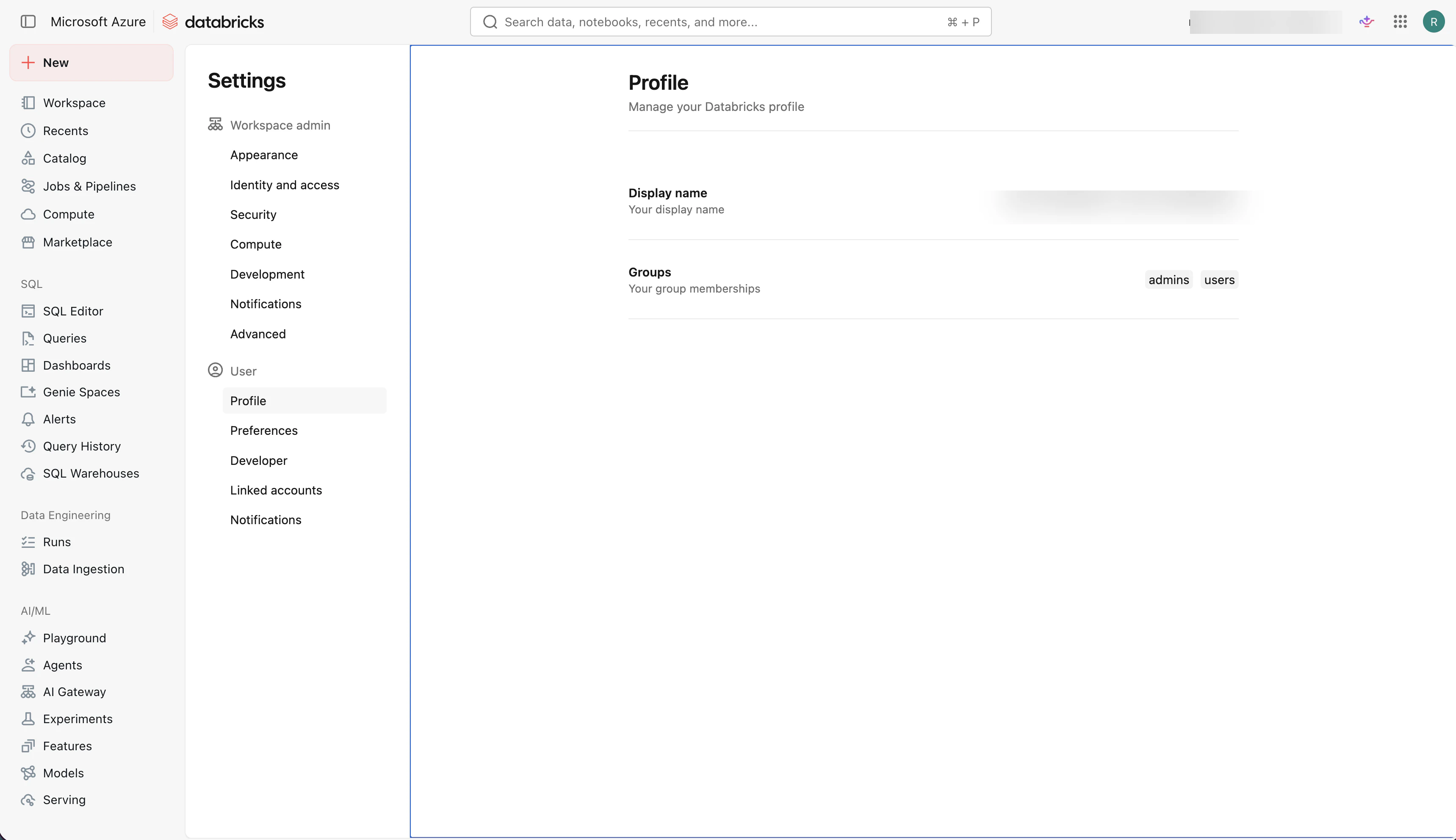
 In the Settings sidebar, select **Identity and access**.
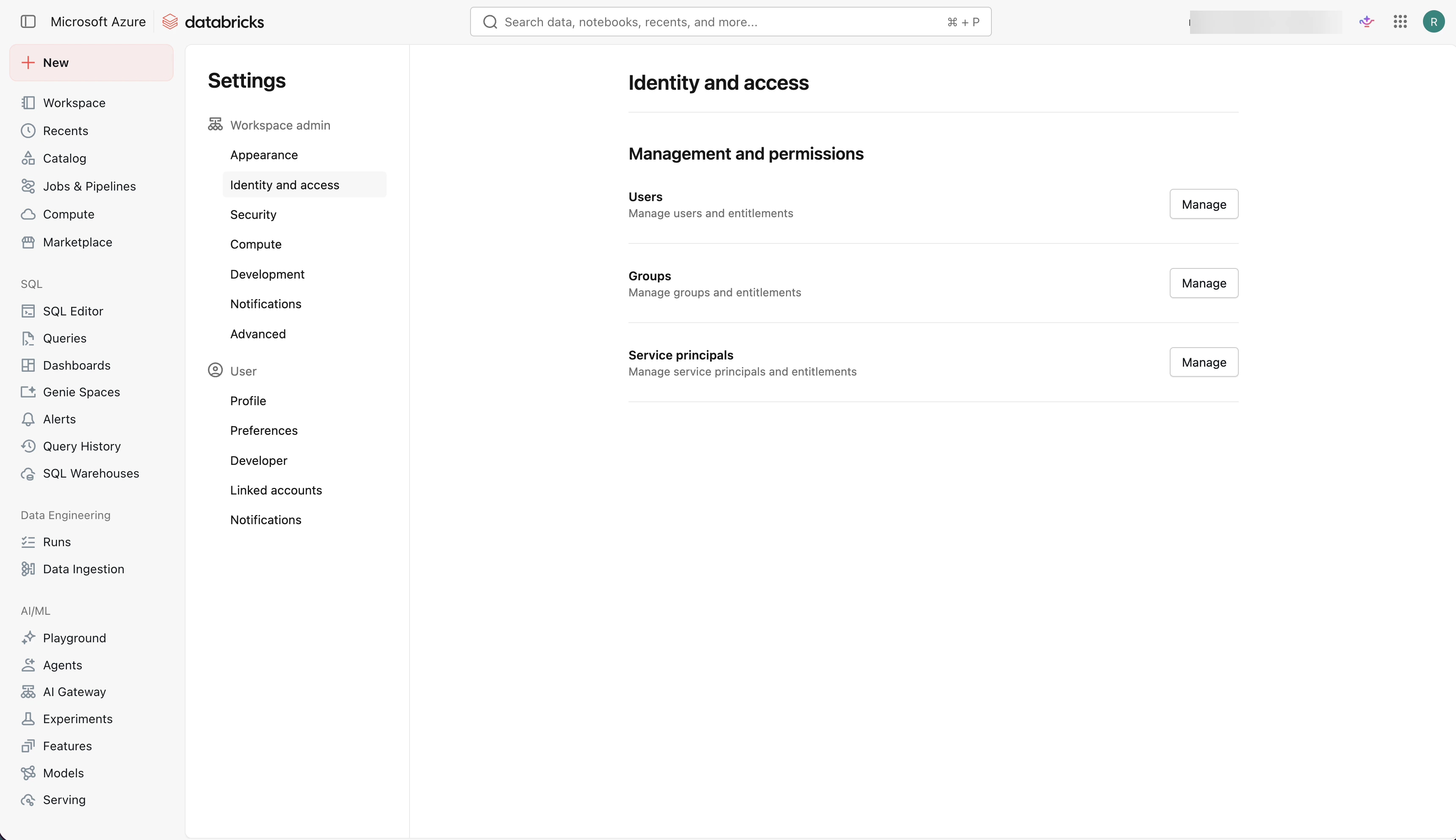
 Under **Management and permissions**, find **Service principals** and select **Manage**.
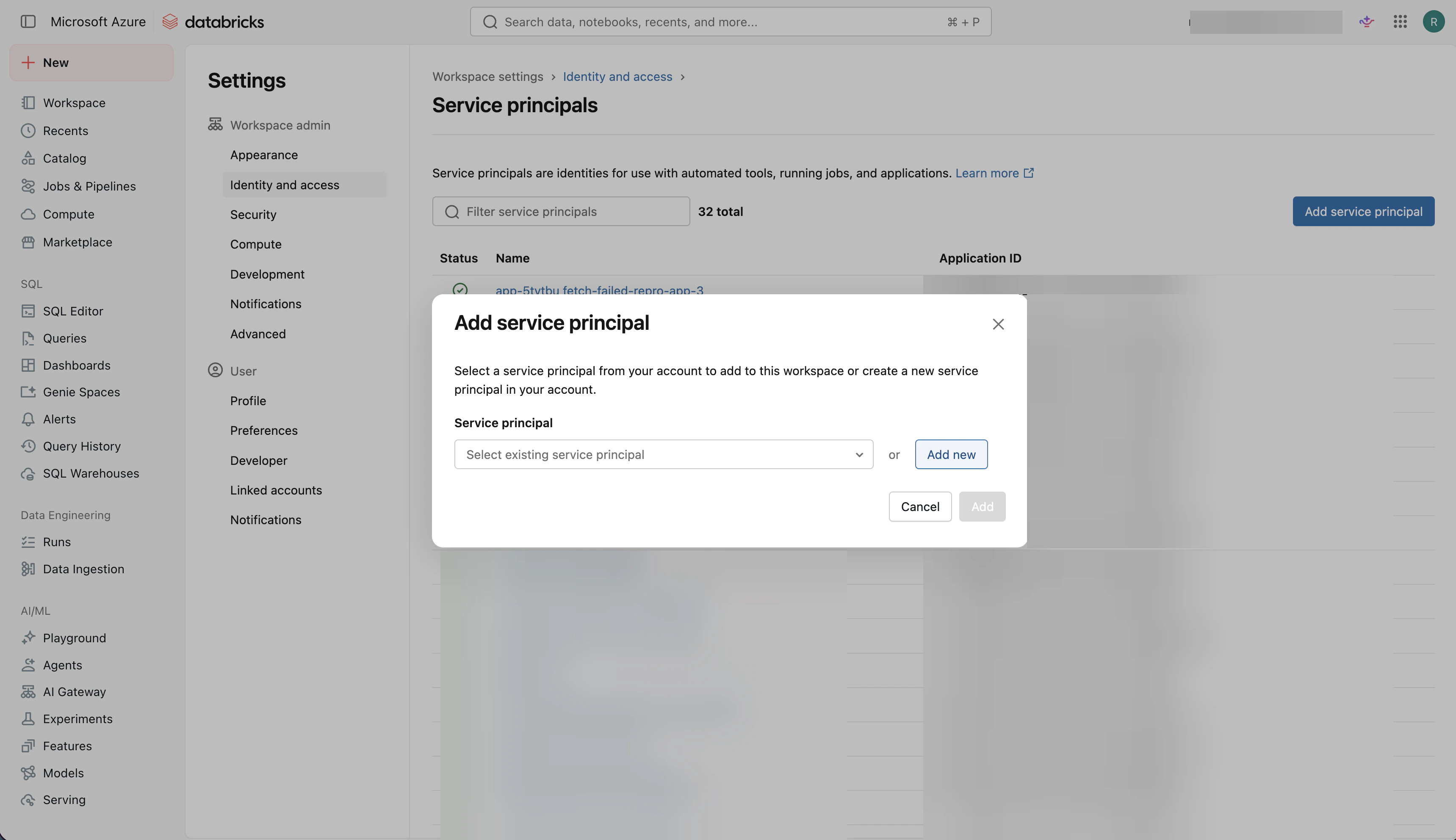
 Select **Add service principal**, then select **Add new**.
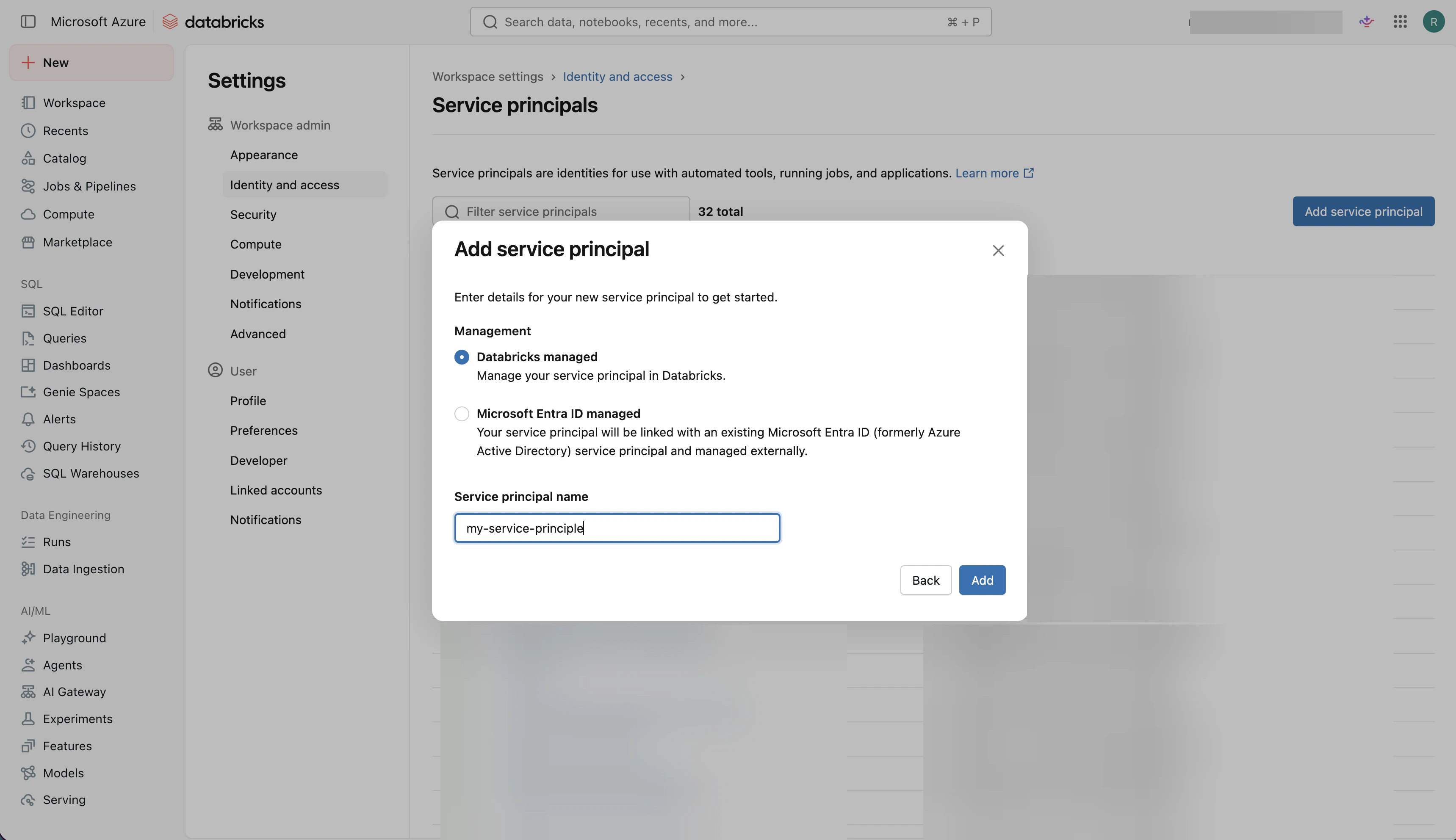
 Enter a clear name for the service principal, then select **Add**.
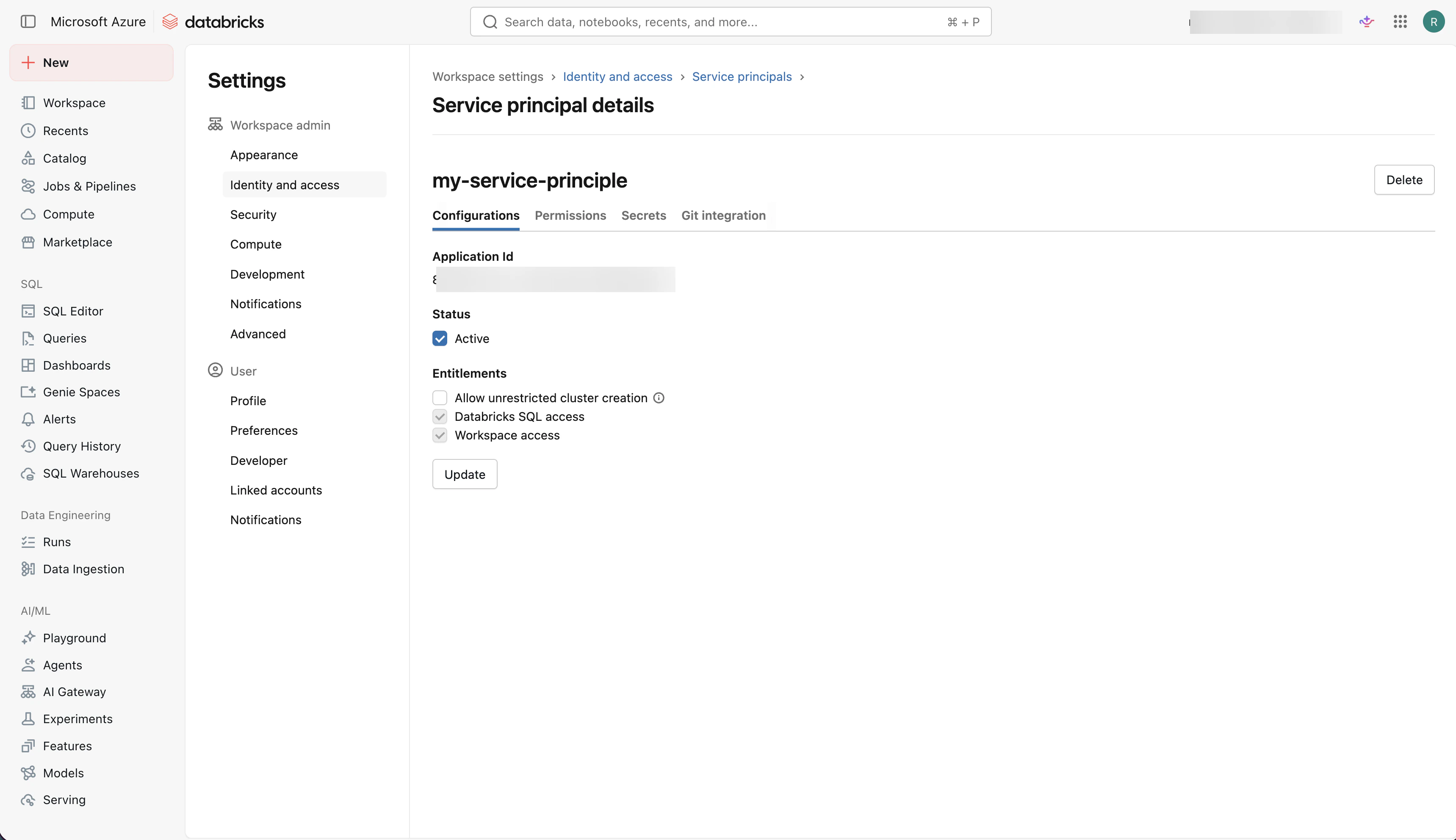
 After Databricks creates the service principal, confirm it is active. Keep this page open if you need the service principal details while configuring the Replit connector.
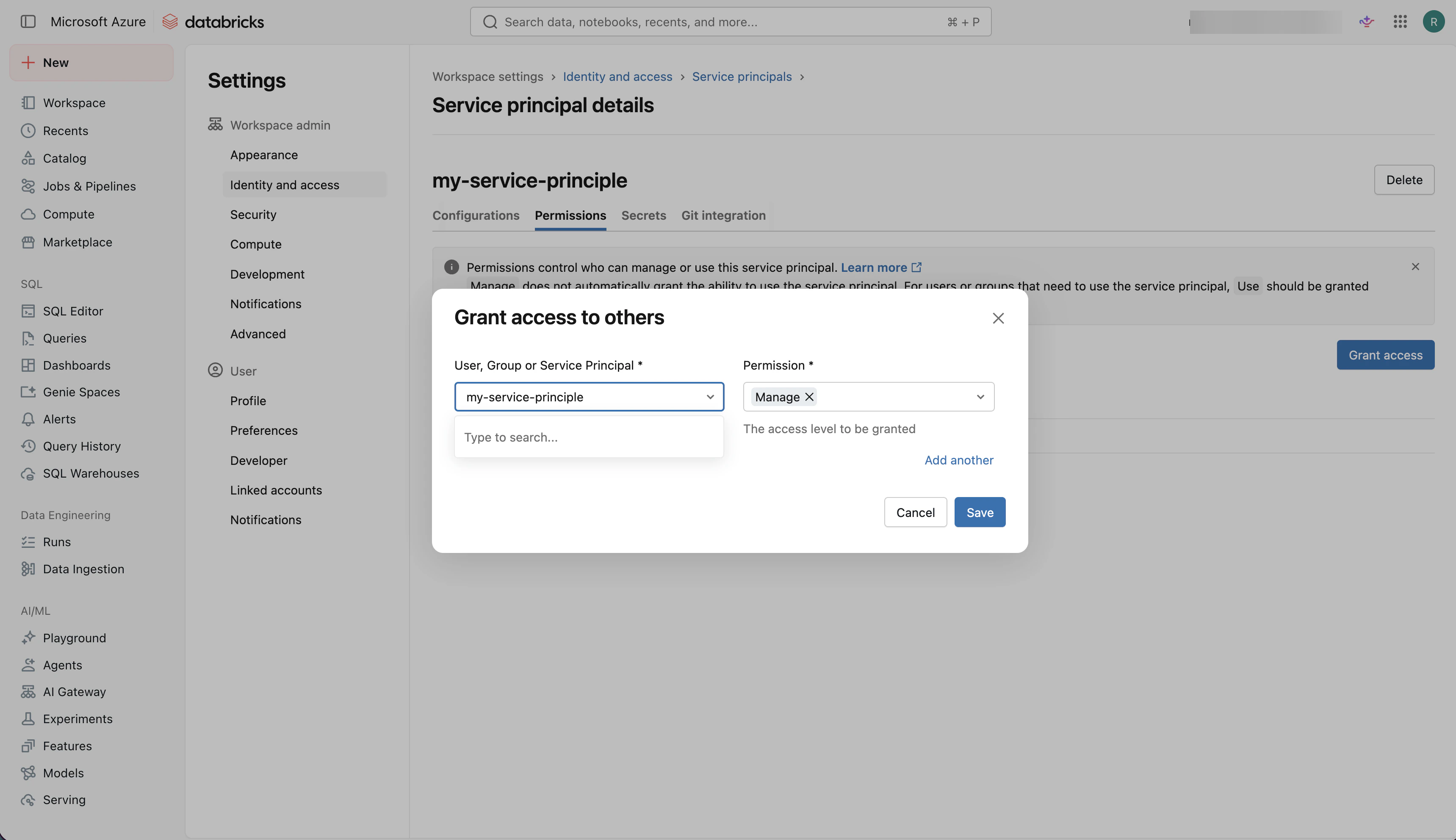
 Open the **Permissions** tab, select **Grant access**, choose the service principal, set the permission to **Manage**, then select **Save**.
 ## Step 2: Get your SQL Warehouse connection details
The Replit connector needs Databricks SQL Warehouse connection details to route queries to the right compute resource.
In the Databricks sidebar, select **SQL Warehouses**.
## Step 2: Get your SQL Warehouse connection details
The Replit connector needs Databricks SQL Warehouse connection details to route queries to the right compute resource.
In the Databricks sidebar, select **SQL Warehouses**.
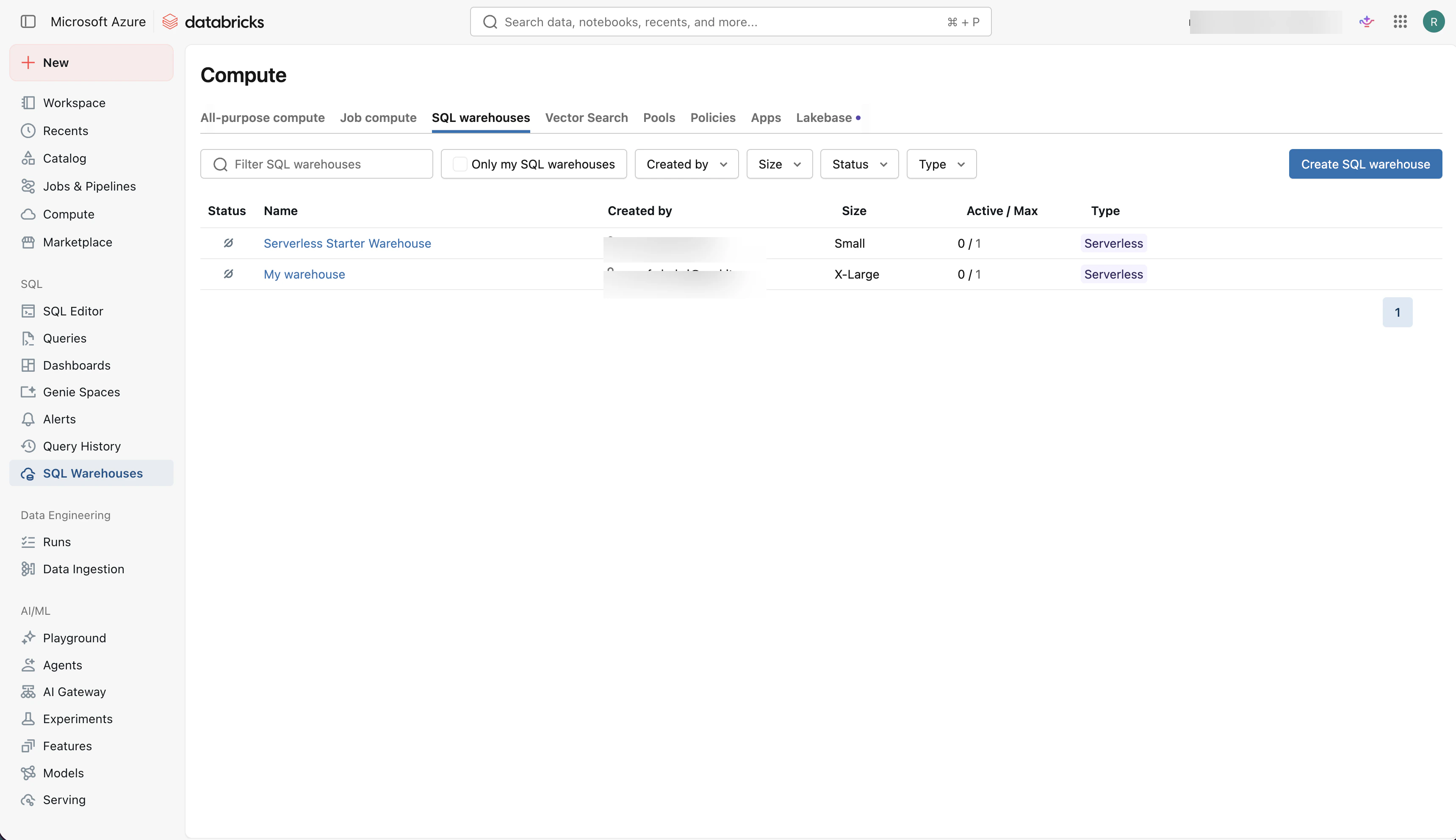 Select the SQL Warehouse you want Replit Agent to use. If you do not already have one, select **Create SQL warehouse** and create a new warehouse.
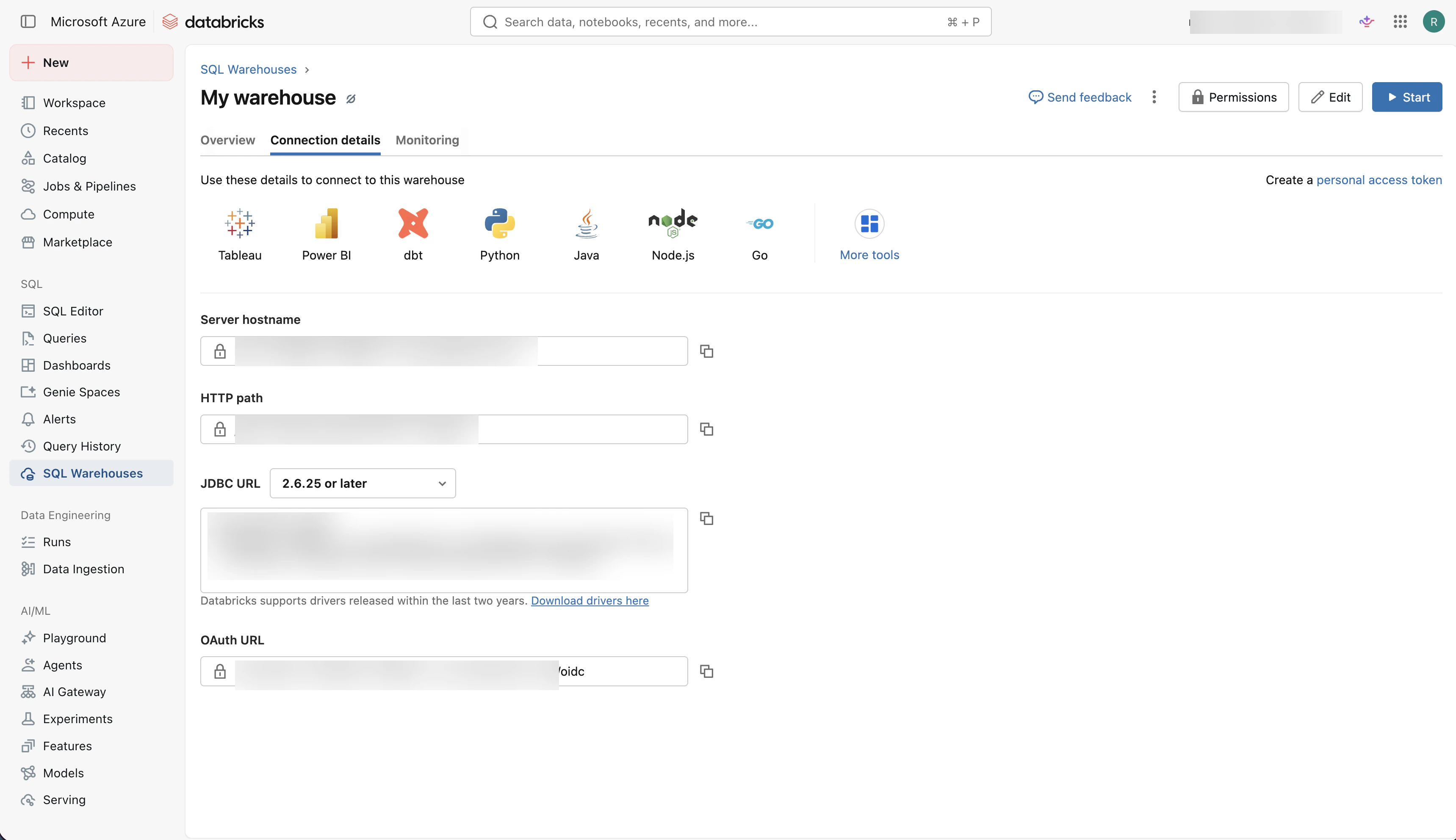
Open the warehouse and select **Connection details**. Locate the **Server hostname** and **HTTP path** values. You need these values when creating the Databricks connector in Replit.
Select the SQL Warehouse you want Replit Agent to use. If you do not already have one, select **Create SQL warehouse** and create a new warehouse.
Open the warehouse and select **Connection details**. Locate the **Server hostname** and **HTTP path** values. You need these values when creating the Databricks connector in Replit.
 ## Step 3: Create the Databricks connector in Replit
You must be a Replit organization admin to configure connectors.
The Replit admin adds the Databricks connection details to Replit so builders can use the connector.
From your organization home, open the **Integrations** page. Under **Connectors**, find **Databricks (Service Principal)** and select **Sign in**.
## Step 3: Create the Databricks connector in Replit
You must be a Replit organization admin to configure connectors.
The Replit admin adds the Databricks connection details to Replit so builders can use the connector.
From your organization home, open the **Integrations** page. Under **Connectors**, find **Databricks (Service Principal)** and select **Sign in**.
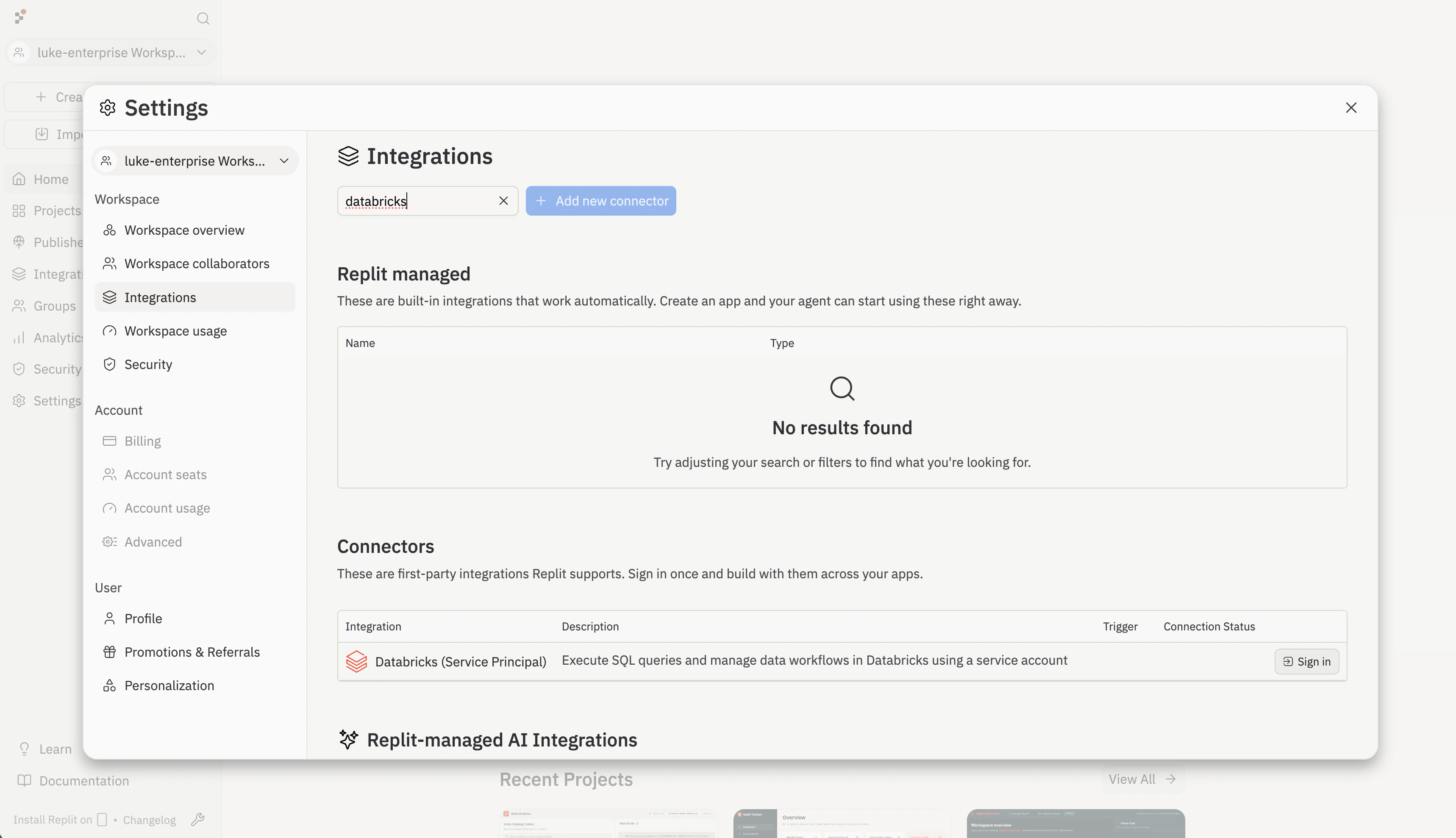 Replit shows a confirmation dialog before redirecting to Databricks for authentication. Review the details and select **Continue to Databricks**.
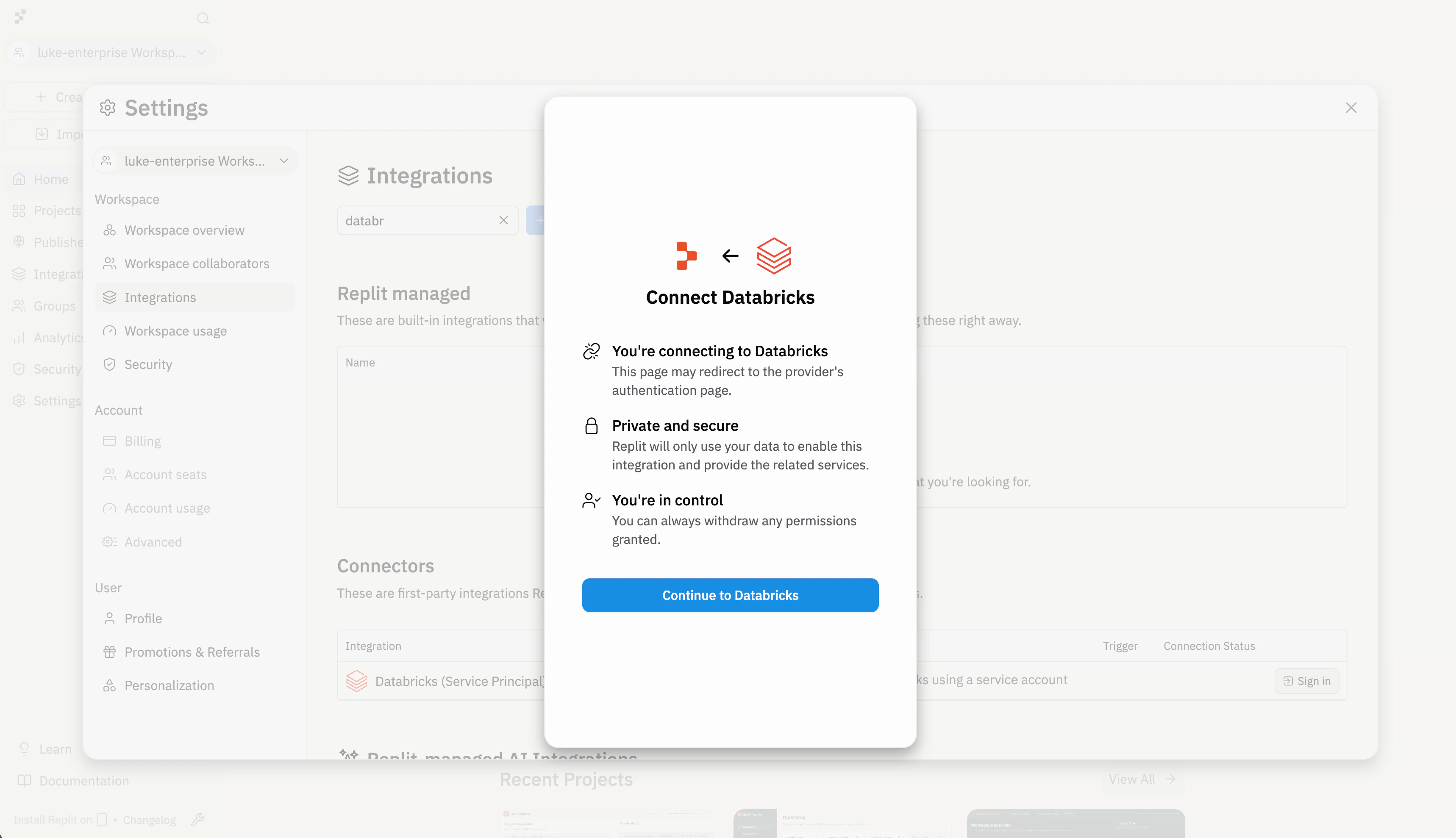 Paste the **HTTP path** from your Databricks SQL Warehouse connection details (for example, `/sql/1.0/warehouses/abcdef1234567890`), then select **Next**.
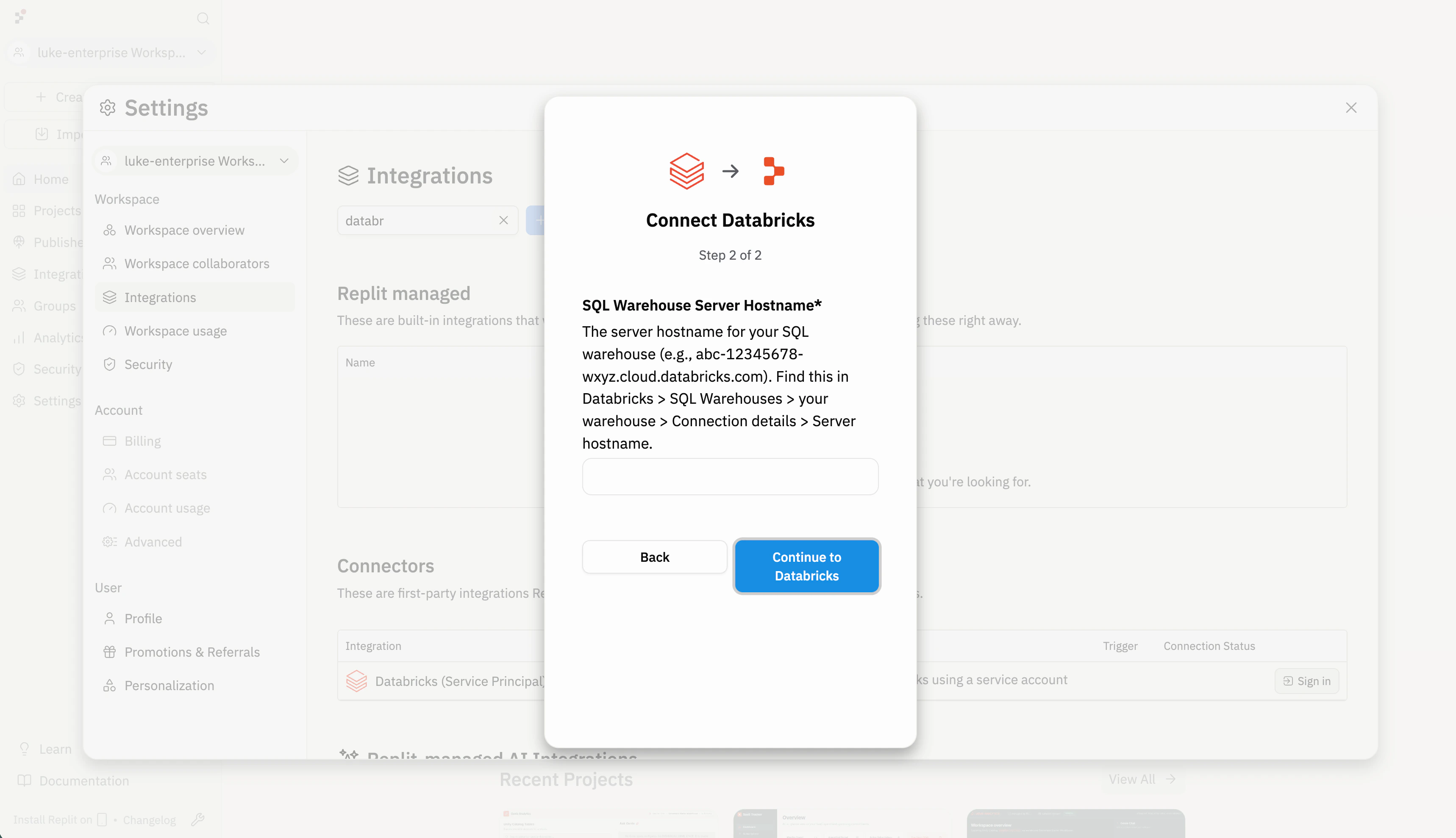
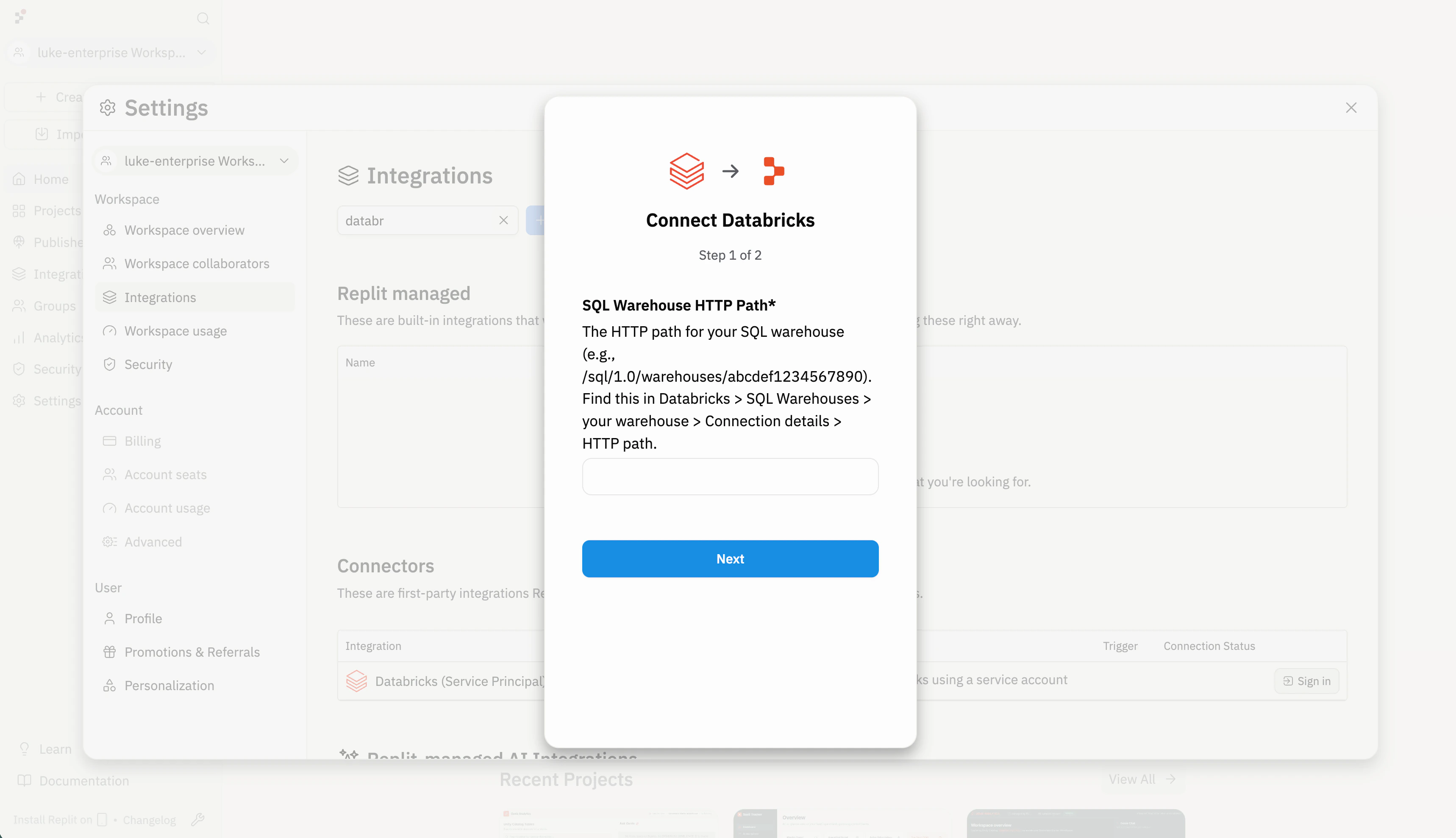 Paste the **Server hostname** from the same connection details (for example, `abc-12345678-wxyz.cloud.databricks.com`), then select **Continue to Databricks** to complete authentication.
 Use Role-Based Access Control to choose which members or groups in your organization can use this connector.
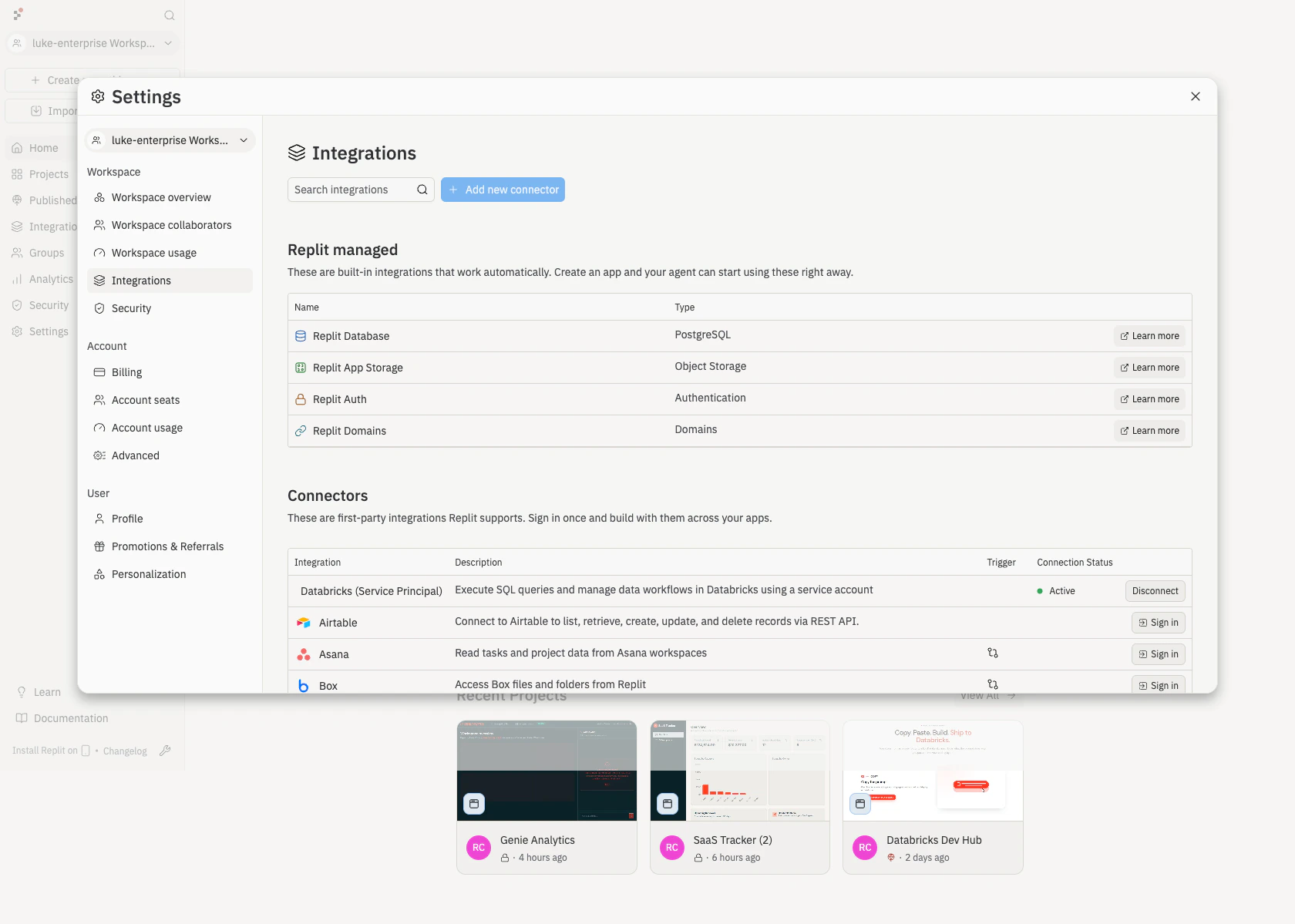
Back on the **Integrations** page, confirm that **Databricks (Service Principal)** appears under **Connectors** with an **Active** connection status.
Use Role-Based Access Control to choose which members or groups in your organization can use this connector.
Back on the **Integrations** page, confirm that **Databricks (Service Principal)** appears under **Connectors** with an **Active** connection status.
 ## Step 4: Build with Agent
After connecting, builders can create applications that use Databricks data with Agent.
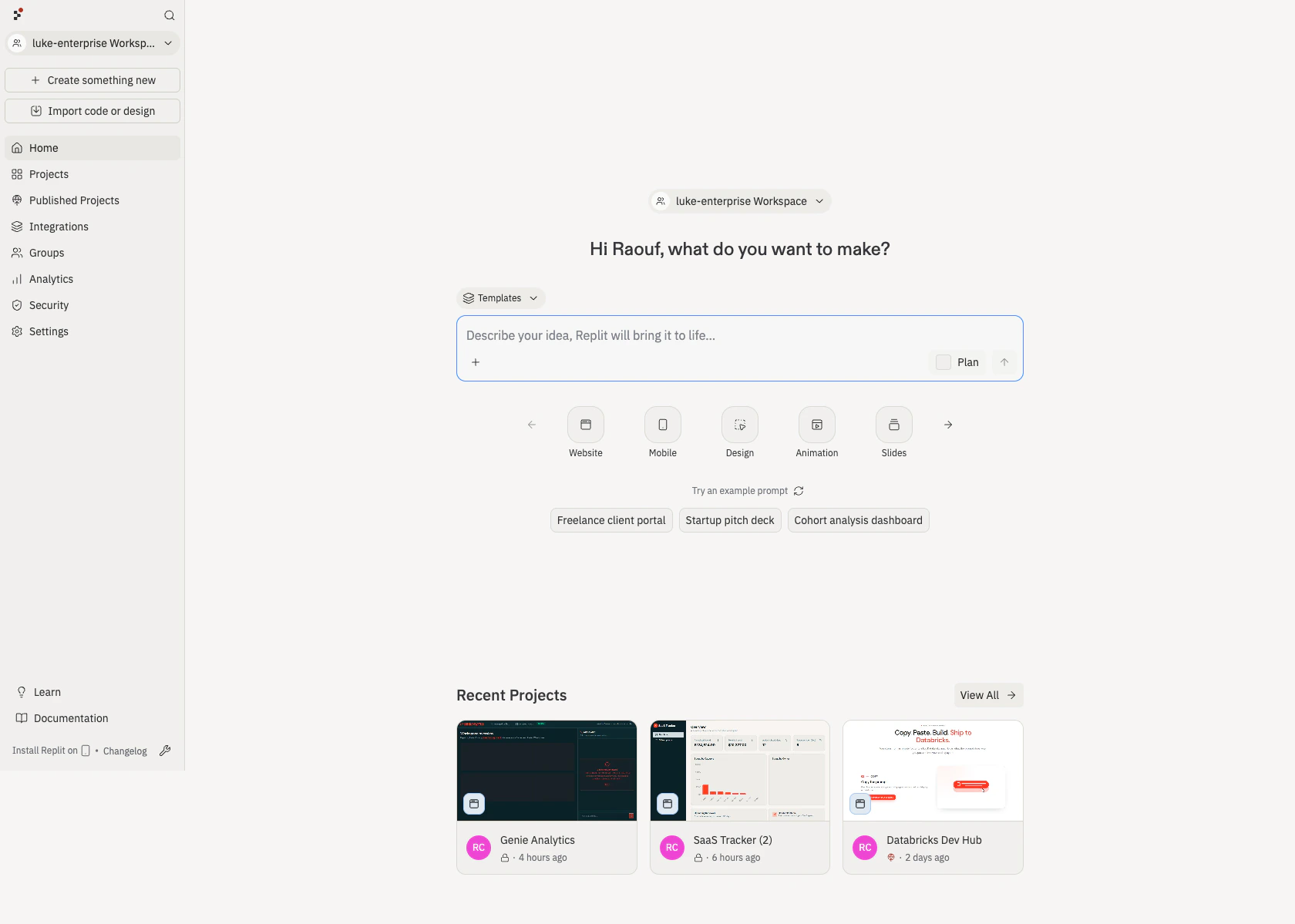
From your Replit home, open the prompt box to start a new project.
## Step 4: Build with Agent
After connecting, builders can create applications that use Databricks data with Agent.
From your Replit home, open the prompt box to start a new project.
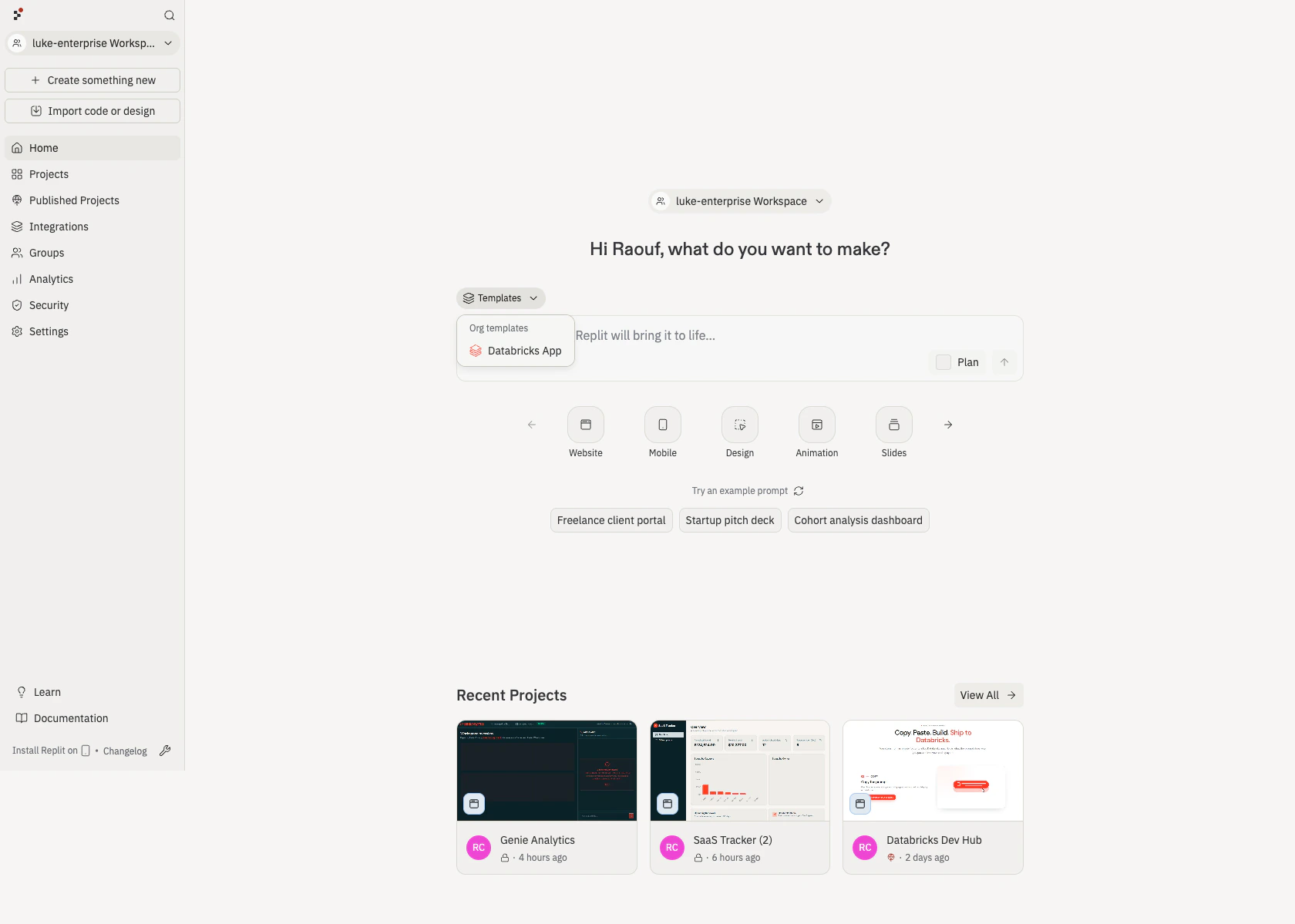
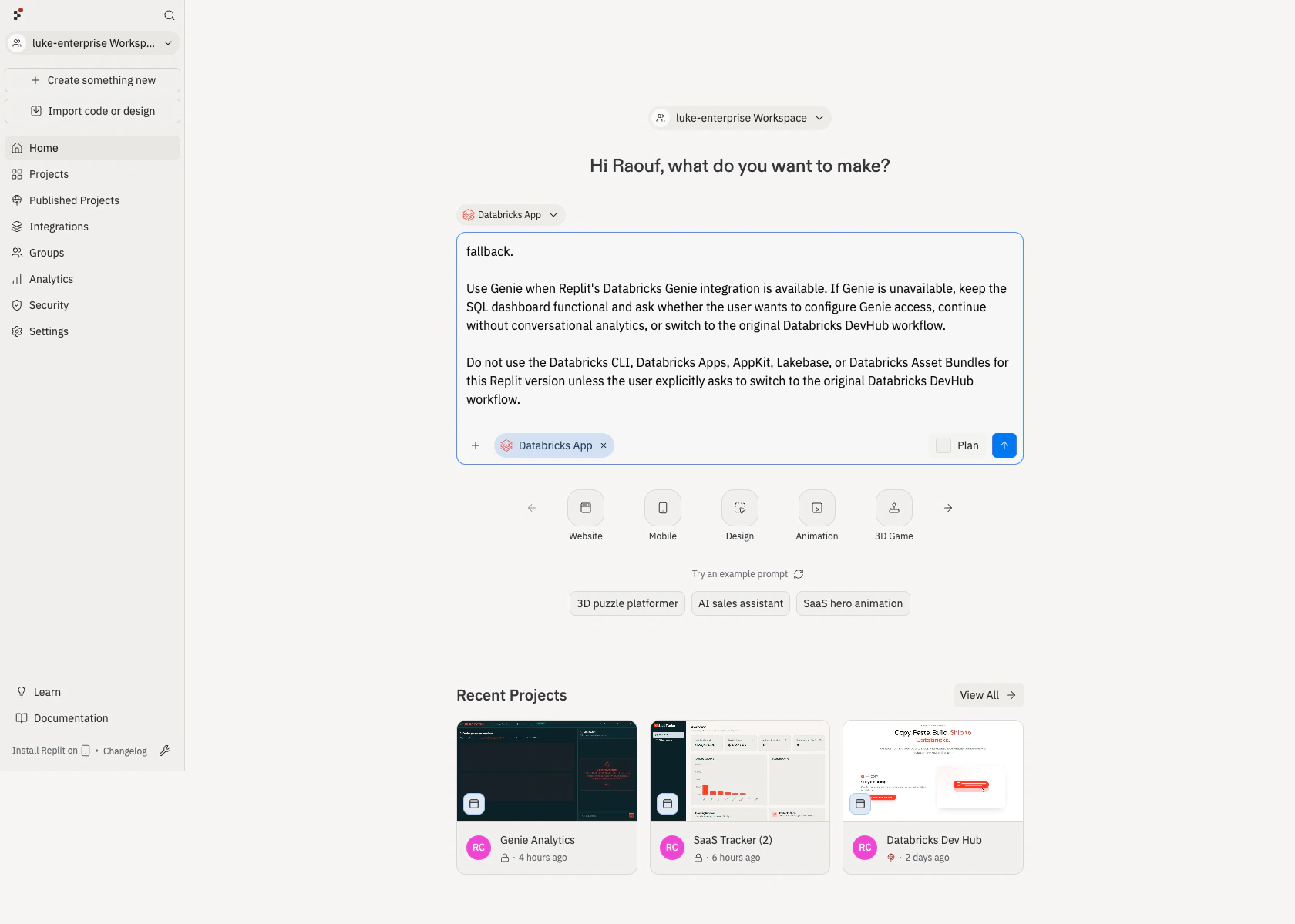
 Open the **Templates** dropdown and choose **Databricks App** under **Org templates**. The prompt is prefilled with instructions that tell Agent how to use your Databricks connector.
 Add your own prompt after the prefilled instructions to describe what you want to build. For inspiration, browse the [Databricks Dev Hub templates](https://www.databricks.com/devhub/templates).
 Review the SQL Agent generates, the tables it queries, and the application structure. Iterate by asking for changes in natural language.
## Troubleshooting
Verify that the service principal details entered in Replit match the service principal created in Databricks. If credentials were rotated, update the connector in Replit.
The service principal may have metadata access but no read permission on the data. Grant the required table, schema, or catalog permissions in Databricks and try again.
Verify the **Server hostname** and **HTTP path** values match the SQL Warehouse connection details in Databricks.
## Related documentation
* [Warehouse connectors overview](/connectors/warehouses/overview): all supported warehouse connectors.
* [Connect Snowflake](/connectors/warehouses/snowflake): step-by-step Snowflake setup.
* [Managing your connectors](/replitai/managing-connectors): connector management and configuration.
* [Databricks service principals](https://docs.databricks.com/en/admin/users-groups/service-principals.html): Databricks documentation on service principals.
* [Databricks SQL Warehouses](https://docs.databricks.com/en/compute/sql-warehouse/index.html): Databricks documentation on SQL Warehouse compute.
Review the SQL Agent generates, the tables it queries, and the application structure. Iterate by asking for changes in natural language.
## Troubleshooting
Verify that the service principal details entered in Replit match the service principal created in Databricks. If credentials were rotated, update the connector in Replit.
The service principal may have metadata access but no read permission on the data. Grant the required table, schema, or catalog permissions in Databricks and try again.
Verify the **Server hostname** and **HTTP path** values match the SQL Warehouse connection details in Databricks.
## Related documentation
* [Warehouse connectors overview](/connectors/warehouses/overview): all supported warehouse connectors.
* [Connect Snowflake](/connectors/warehouses/snowflake): step-by-step Snowflake setup.
* [Managing your connectors](/replitai/managing-connectors): connector management and configuration.
* [Databricks service principals](https://docs.databricks.com/en/admin/users-groups/service-principals.html): Databricks documentation on service principals.
* [Databricks SQL Warehouses](https://docs.databricks.com/en/compute/sql-warehouse/index.html): Databricks documentation on SQL Warehouse compute.