> ## Documentation Index
> Fetch the complete documentation index at: https://docs.replit.com/llms.txt
> Use this file to discover all available pages before exploring further.

# Integrate your tools

> Connect supported services, identify the information or action a Conversation needs, and follow the authoritative integrations documentation for setup.

export const IntegrateYourToolsCover = () => <div className="chat-mkt" role="img" aria-label="Supported service context connecting into a central Replit workspace" style={{
  margin: "28px 0 42px",
  borderTop: 0,
  paddingTop: 0
}}>
    <div className="chat-use-case-visual" style={{
  aspectRatio: "auto",
  minHeight: "clamp(220px, 34vw, 320px)",
  overflow: "hidden",
  background: "radial-gradient(circle at 50% -16%, rgba(255,255,255,.82), transparent 42%), radial-gradient(circle at 4% 96%, rgba(255,184,146,.47), transparent 38%), linear-gradient(140deg, #ff764d, #ff3c00 60%, #c92d00)"
}}>
      <div aria-hidden="true" style={{
  position: "absolute",
  inset: 0,
  background: "linear-gradient(180deg, rgba(255,255,255,.13), rgba(255,255,255,0) 50%, rgba(111,24,0,.2))"
}} />
      <div aria-hidden="true" style={{
  position: "relative",
  zIndex: 1,
  display: "grid",
  width: "100%",
  minHeight: "inherit",
  placeItems: "center",
  padding: "clamp(14px, 3vw, 28px)",
  boxSizing: "border-box"
}}>
        <div style={{
  position: "absolute",
  left: "clamp(13px, 8%, 82px)",
  top: "26%",
  display: "grid",
  width: "clamp(42px, 8vw, 64px)",
  height: "clamp(42px, 8vw, 64px)",
  placeItems: "center",
  border: "1px solid rgba(255,255,255,.58)",
  borderRadius: 16,
  background: "linear-gradient(180deg, rgba(255,255,255,.31), rgba(255,255,255,.12))",
  boxShadow: "0 12px 24px rgba(55,27,18,.16)",
  backdropFilter: "blur(5px)"
}}>
          <svg viewBox="0 0 24 24" width="56%" fill="rgba(255,255,255,.88)">
            <path d="M5.042 15.165a2.528 2.528 0 0 1-2.52 2.523A2.528 2.528 0 0 1 0 15.165a2.527 2.527 0 0 1 2.522-2.52h2.52v2.52zM6.313 15.165a2.527 2.527 0 0 1 2.521-2.52 2.527 2.527 0 0 1 2.521 2.52v6.313A2.528 2.528 0 0 1 8.834 24a2.528 2.528 0 0 1-2.521-2.522v-6.313zM8.834 5.042a2.528 2.528 0 0 1-2.521-2.52A2.528 2.528 0 0 1 8.834 0a2.528 2.528 0 0 1 2.521 2.522v2.52H8.834zM8.834 6.313a2.528 2.528 0 0 1 2.521 2.521 2.528 2.528 0 0 1-2.521 2.521H2.522A2.528 2.528 0 0 1 0 8.834a2.527 2.527 0 0 1 2.522-2.521h6.312zM18.956 8.834a2.528 2.528 0 0 1 2.522-2.521A2.528 2.528 0 0 1 24 8.834a2.528 2.528 0 0 1-2.522 2.521h-2.522V8.834zM17.688 8.834a2.528 2.528 0 0 1-2.523 2.521 2.527 2.527 0 0 1-2.52-2.521V2.522A2.527 2.527 0 0 1 15.165 0a2.528 2.528 0 0 1 2.523 2.522v6.312zM15.165 18.956a2.528 2.528 0 0 1 2.523 2.522A2.528 2.528 0 0 1 15.165 24a2.527 2.527 0 0 1-2.52-2.522v-2.522h2.52zM15.165 17.688a2.527 2.527 0 0 1-2.52-2.523 2.526 2.526 0 0 1 2.52-2.52h6.313A2.527 2.527 0 0 1 24 15.165a2.528 2.528 0 0 1-2.522 2.523h-6.313z" />
          </svg>
        </div>
        <div style={{
  position: "absolute",
  left: "clamp(22px, 12%, 112px)",
  bottom: "clamp(18px, 9%, 44px)",
  display: "grid",
  width: "clamp(38px, 7vw, 58px)",
  height: "clamp(38px, 7vw, 58px)",
  placeItems: "center",
  border: "1px solid rgba(255,255,255,.52)",
  borderRadius: 15,
  background: "rgba(255,255,255,.16)",
  boxShadow: "0 12px 24px rgba(55,27,18,.14)",
  backdropFilter: "blur(5px)"
}}>
          <div style={{
  display: "grid",
  gap: 3,
  width: "48%"
}}>
            {[0, 1, 2].map(line => <span key={line} style={{
  display: "block",
  height: 4,
  borderRadius: 999,
  background: line === 0 ? "rgba(255,255,255,.84)" : "rgba(255,255,255,.44)"
}} />)}
          </div>
        </div>
        <div style={{
  position: "absolute",
  right: "clamp(13px, 8%, 82px)",
  top: "26%",
  display: "grid",
  width: "clamp(42px, 8vw, 64px)",
  height: "clamp(42px, 8vw, 64px)",
  placeItems: "center",
  border: "1px solid rgba(255,255,255,.58)",
  borderRadius: 16,
  background: "linear-gradient(180deg, rgba(255,255,255,.31), rgba(255,255,255,.12))",
  boxShadow: "0 12px 24px rgba(55,27,18,.16)",
  backdropFilter: "blur(5px)"
}}>
          <div style={{
  width: "46%",
  height: "40%",
  border: "1px solid rgba(255,255,255,.86)",
  borderRadius: 4,
  boxSizing: "border-box"
}} />
        </div>
        <div style={{
  position: "absolute",
  right: "clamp(22px, 12%, 112px)",
  bottom: "clamp(18px, 9%, 44px)",
  display: "grid",
  width: "clamp(38px, 7vw, 58px)",
  height: "clamp(38px, 7vw, 58px)",
  placeItems: "center",
  border: "1px solid rgba(255,255,255,.52)",
  borderRadius: 15,
  background: "rgba(255,255,255,.16)",
  boxShadow: "0 12px 24px rgba(55,27,18,.14)",
  backdropFilter: "blur(5px)"
}}>
          <div style={{
  display: "grid",
  gridTemplateColumns: "repeat(2, 1fr)",
  gap: 3,
  width: "48%",
  height: "48%"
}}>
            {[0, 1, 2, 3].map(cell => <span key={cell} style={{
  borderRadius: 3,
  background: cell === 0 ? "rgba(255,255,255,.84)" : "rgba(255,255,255,.38)"
}} />)}
          </div>
        </div>
        <div style={{
  position: "relative",
  display: "grid",
  width: "clamp(124px, 24vw, 194px)",
  height: "clamp(124px, 24vw, 194px)",
  placeItems: "center",
  border: "1px solid rgba(255,255,255,.68)",
  borderRadius: 28,
  background: "linear-gradient(145deg, rgba(255,255,255,.4), rgba(255,255,255,.12))",
  boxShadow: "0 24px 44px rgba(67,21,7,.24)",
  backdropFilter: "blur(8px)"
}}>
          <div style={{
  display: "grid",
  gridTemplateColumns: "repeat(2, 16px)",
  gap: 7
}}>
            {[0, 1, 2, 3].map(tile => <span key={tile} style={{
  width: 16,
  height: 16,
  borderRadius: 5,
  background: tile === 0 ? "rgba(255,255,255,.9)" : "rgba(255,255,255,.46)",
  boxShadow: tile === 0 ? "0 0 14px rgba(255,255,255,.42)" : "none"
}} />)}
          </div>
          <div style={{
  position: "absolute",
  bottom: "16%",
  display: "flex",
  gap: 5
}}>
            {[0, 1, 2].map(node => <span key={node} style={{
  width: 5,
  height: 5,
  borderRadius: 999,
  background: "rgba(255,255,255,.52)"
}} />)}
          </div>
        </div>
      </div>
    </div>
  </div>;

<IntegrateYourToolsCover />

Integrations add context and capabilities from supported services to Replit.

* **Slack** lets Replit read Slack messages and threads.
* **Google Drive** gives Replit access to files and folders, while Google Slides supports presentations.
* **Salesforce** gives Replit access to CRM data and supported operations.

The connector catalog shows the services available on your plan.

## Connect an integration

<Steps>
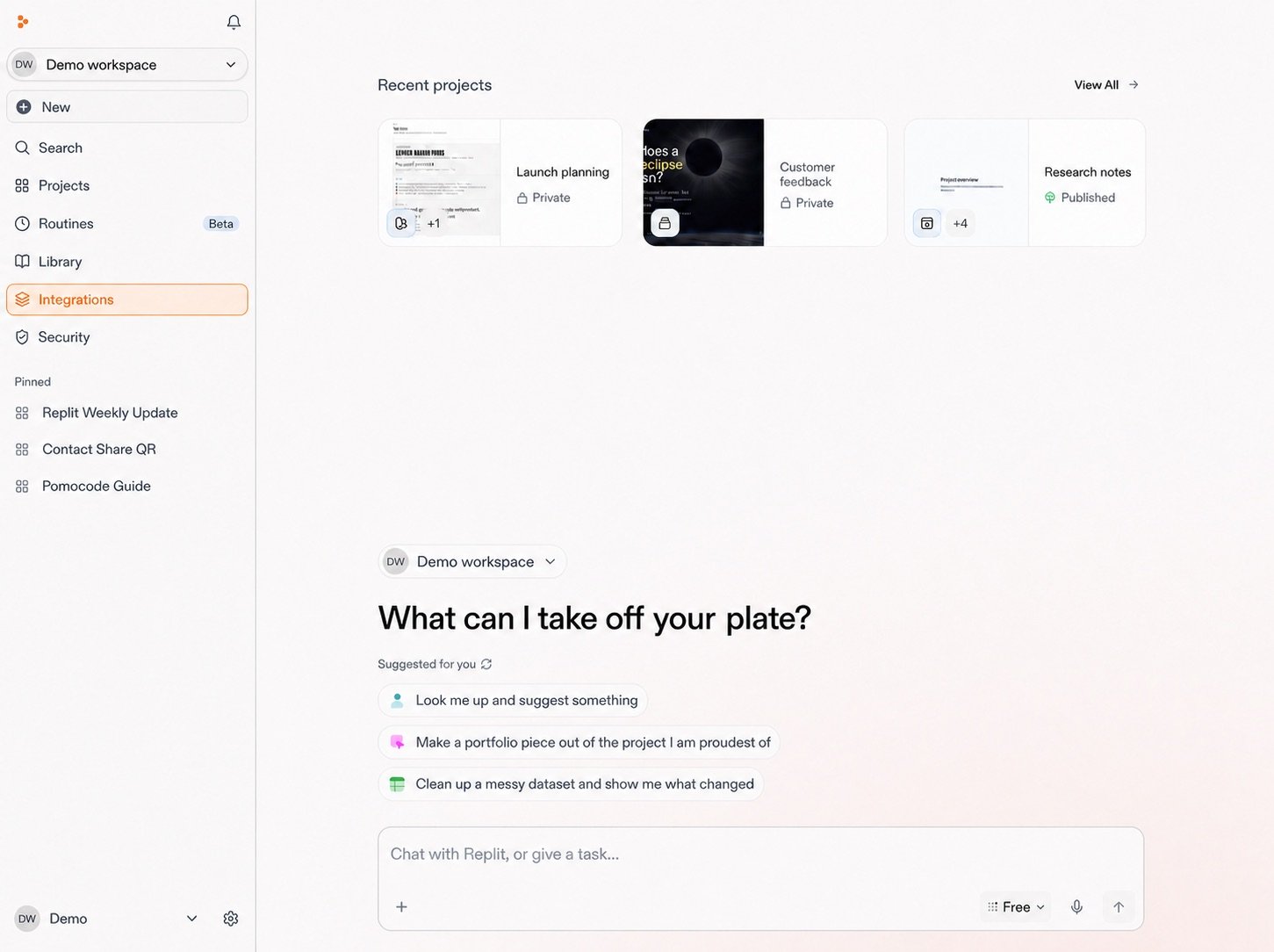
  <Step title="Open Integrations">
    From your Workspace, select **Integrations** in the sidebar.

    <Frame>
      <img src="https://mintcdn.com/replit/teDUL4A-lNO7dv1O/images/chat/integrations-open-from-workspace.jpg?fit=max&auto=format&n=teDUL4A-lNO7dv1O&q=85&s=c0febc56b64d0ae9223249a2f8bb7cf9" alt="Sanitized Replit Workspace home with Integrations highlighted in the left sidebar" width="1451" height="1084" data-path="images/chat/integrations-open-from-workspace.jpg" />
    </Frame>
  </Step>

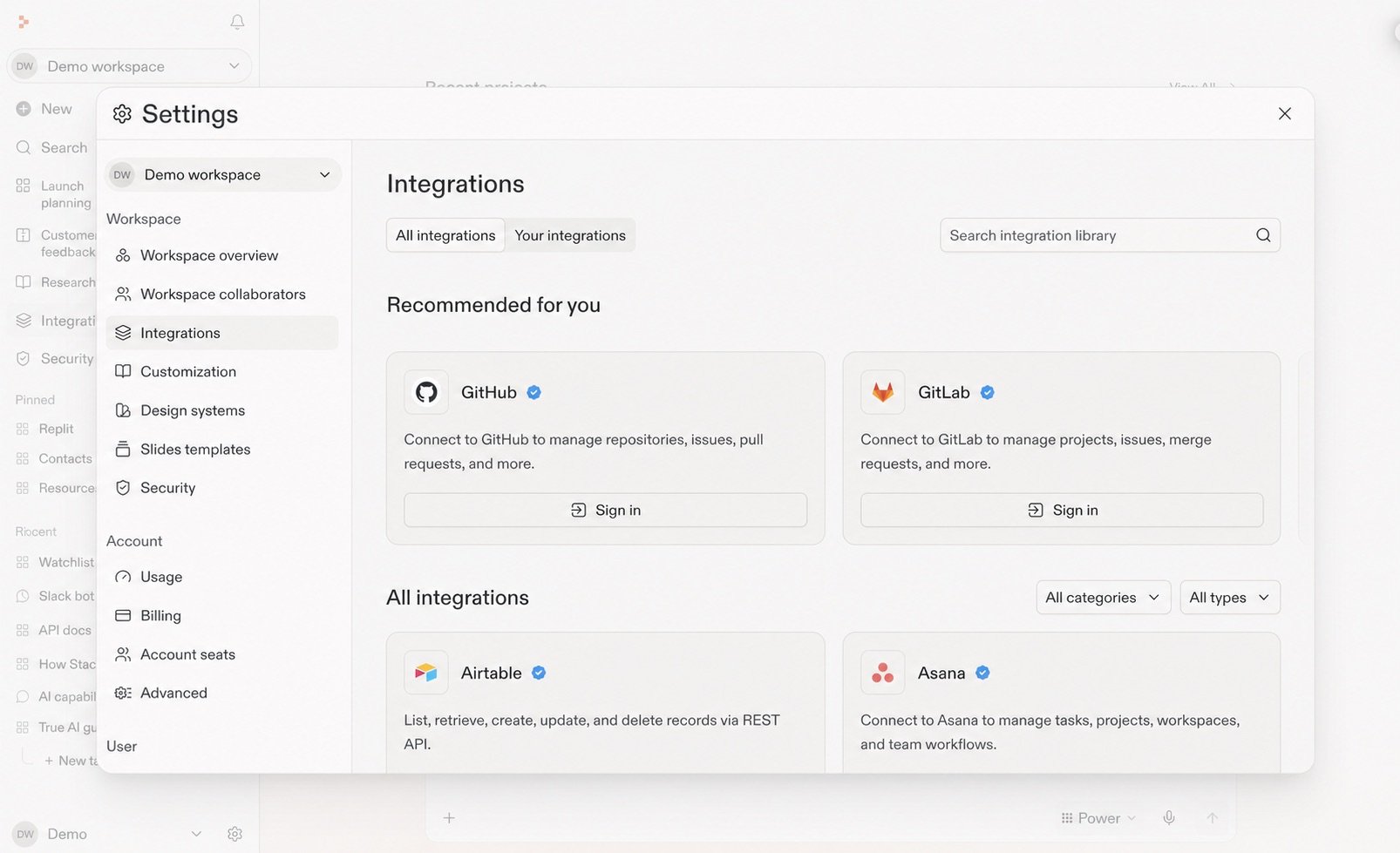
  <Step title="Select an integration">
    Browse or search the integrations library, then select the service you need.

    <Frame>
      <img src="https://mintcdn.com/replit/teDUL4A-lNO7dv1O/images/chat/integrations-library-sanitized.jpg?fit=max&auto=format&n=teDUL4A-lNO7dv1O&q=85&s=c7c02cdd6628fda3018d08ee7a05ab8f" alt="Sanitized Replit integrations library showing recommended and available integrations" width="1606" height="979" data-path="images/chat/integrations-library-sanitized.jpg" />
    </Frame>
  </Step>

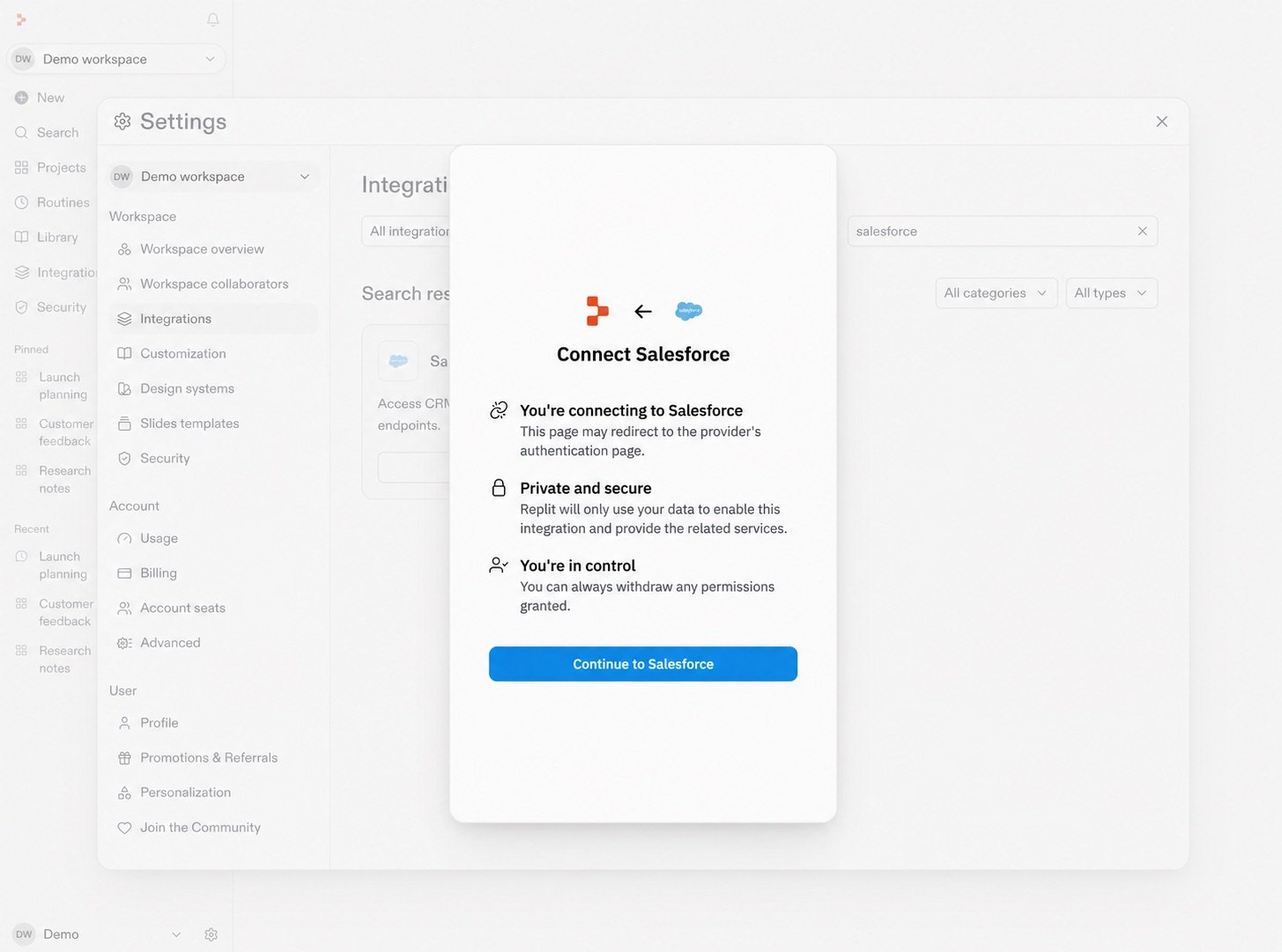
  <Step title="Connect it">
    Review what the integration can access, then continue through the provider's sign-in and permissions flow. Salesforce is shown here. Other integrations may differ.

    <Frame>
      <img src="https://mintcdn.com/replit/teDUL4A-lNO7dv1O/images/chat/salesforce-connect-permissions-sanitized.jpg?fit=max&auto=format&n=teDUL4A-lNO7dv1O&q=85&s=428570b45b627f40db0ba56dc4579254" alt="Sanitized Salesforce connection dialog describing authentication, privacy, permissions, and the Continue to Salesforce button" width="1455" height="1081" data-path="images/chat/salesforce-connect-permissions-sanitized.jpg" />
    </Frame>
  </Step>
</Steps>

You can also select the **plus** menu in the prompt box, then **Add an integration**.

## Start with a familiar tool

<section className="chat-mkt chat-workflow-grid has-visuals catalog-three-up">
  <a className="chat-example has-visual" href="/features/integrations/overview#connectors">
    <div className="chat-use-case-visual palette-ink">
      <div className="chat-use-case-window">
        <b />

        <b />

        <b />
      </div>

      <div className="chat-use-case-icon">
        <img src="https://mintcdn.com/replit/ULLdJVk-FThFx3Hf/images/icons/slack.svg?fit=max&auto=format&n=ULLdJVk-FThFx3Hf&q=85&s=8d842525c111e3534251b55944402629" alt="" style={{ filter: "brightness(0) invert(1)" }} width="24" height="24" data-path="images/icons/slack.svg" />
      </div>
    </div>

    <span>
      <Icon icon="plug" size={19} />
    </span>

    <div className="chat-card-title">Slack</div>
    <p>Search conversations and threads, then use that context in your work.</p>
    <div className="chat-card-link">Explore connectors →</div>
  </a>

  <a className="chat-example has-visual" href="/features/integrations/overview#connectors">
    <div className="chat-use-case-visual palette-blush">
      <div className="chat-use-case-window">
        <b />

        <b />

        <b />
      </div>

      <div className="chat-use-case-icon">
        <Icon icon="folder-open" size={24} />
      </div>
    </div>

    <span>
      <Icon icon="folder-open" size={19} />
    </span>

    <div className="chat-card-title">Google Drive</div>
    <p>Bring relevant files and folders into the context for a Conversation.</p>
    <div className="chat-card-link">Explore connectors →</div>
  </a>

  <a className="chat-example has-visual" href="/features/integrations/overview#connectors">
    <div className="chat-use-case-visual palette-stone">
      <div className="chat-use-case-window">
        <b />

        <b />

        <b />
      </div>

      <div className="chat-use-case-icon">
        <Icon icon="building" size={24} />
      </div>
    </div>

    <span>
      <Icon icon="building" size={19} />
    </span>

    <div className="chat-card-title">Salesforce</div>
    <p>Use relevant customer and account information in a Conversation.</p>
    <div className="chat-card-link">Explore connectors →</div>
  </a>
</section>

## See a connected workflow

<section className="chat-mkt chat-workflow-grid has-visuals">
  <a className="chat-example has-visual" href="/use-cases/prepare-for-a-customer-call">
    <div className="chat-use-case-visual palette-blush">
      <div className="chat-use-case-window">
        <i />

        <i />

        <i />

        <b />

        <b />

        <b />
      </div>

      <em>
        <Icon icon="chart-line" size={24} />
      </em>
    </div>

    <div className="chat-example-tag">Research and analyze</div>

    <div className="chat-card-title" style={{ marginTop: 11, fontSize: 20 }}>
      Prepare for a customer call
    </div>

    <p>Bring together Salesforce, Slack, and Google Drive context.</p>
    <div className="chat-card-link">Explore the use case →</div>
  </a>
</section>

## Custom integrations with MCP

Native integrations are supported service connections in Replit's connector catalog. If a service is not supported, you can create a custom MCP and add it as an integration to Replit.

[Learn how to connect through MCP.](/chat/connect-through-mcp)

Follow the [Integrations feature guide](/features/integrations/overview) for connector types, availability, setup, supported services, and permissions.

When the Conversation has enough context for substantial work, learn how to [turn it into a Project](/chat/continue-or-create-a-project).
