> ## Documentation Index
> Fetch the complete documentation index at: https://docs.replit.com/llms.txt
> Use this file to discover all available pages before exploring further.
# Use Agent Skills
> Give Agent specialized knowledge with Agent Skills — attach one to a message, install one in your project, or start a project from one.
export const AiPrompt = ({children}) => {
return
{children}
;
};
Skills teach Agent new capabilities — preferred patterns, library specifics, design system rules, or solutions to problems you've already solved. Attach one to a message, install one in your project, or pick one as a starting point for a new project.
## Use a skill in chat
The fastest way to try skills is to attach one to a single message — no installation needed.
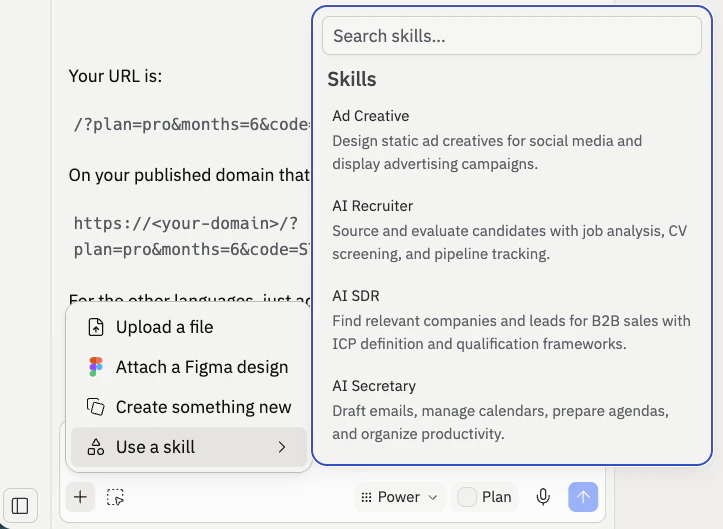 Click the **+** button next to the chat input and select **Use a skill**.
Browse skills by category — Business & finance, Creative, Research & analysis, and more. Select one or more skills to attach to your message.
Type your request and send. Agent uses the selected skills for that message only. A skill chip appears on your message so you can see which skills are active.
For example, attach **Stock Analyzer** and ask Agent to build an equity research report, or attach **Deep Research** to have Agent investigate a topic with structured findings.
Skills attached in chat don't install anything in your project. They're available instantly in every project.
## Start a project with a skill
When you create a new project, you can pick a pre-vetted skill as the starting point. Agent uses the skill's instructions to scaffold the project.
On the new-project screen, click **+** and select **Use a skill**.
Browse curated skills like **AI SDR**, **SEO Auditor**, **Ad Creative**, or **Programmatic SEO**. Select the one that matches the kind of app you want to build.
Tell Agent what you want. Agent builds the project with the skill's patterns and conventions applied from the start.
## Install a skill in your project
When you want Agent to apply a skill consistently across every conversation in a project, install it. Installed skills live in your project's `/.agents/skills` directory and persist across chat sessions.
### Install from the Skills pane
Open the **Skills pane** in the Project Editor and select the **Discover** tab to search community-contributed skills. Find one you want, click **Install**, and it's added to your project automatically.
Click the **+** button next to the chat input and select **Use a skill**.
Browse skills by category — Business & finance, Creative, Research & analysis, and more. Select one or more skills to attach to your message.
Type your request and send. Agent uses the selected skills for that message only. A skill chip appears on your message so you can see which skills are active.
For example, attach **Stock Analyzer** and ask Agent to build an equity research report, or attach **Deep Research** to have Agent investigate a topic with structured findings.
Skills attached in chat don't install anything in your project. They're available instantly in every project.
## Start a project with a skill
When you create a new project, you can pick a pre-vetted skill as the starting point. Agent uses the skill's instructions to scaffold the project.
On the new-project screen, click **+** and select **Use a skill**.
Browse curated skills like **AI SDR**, **SEO Auditor**, **Ad Creative**, or **Programmatic SEO**. Select the one that matches the kind of app you want to build.
Tell Agent what you want. Agent builds the project with the skill's patterns and conventions applied from the start.
## Install a skill in your project
When you want Agent to apply a skill consistently across every conversation in a project, install it. Installed skills live in your project's `/.agents/skills` directory and persist across chat sessions.
### Install from the Skills pane
Open the **Skills pane** in the Project Editor and select the **Discover** tab to search community-contributed skills. Find one you want, click **Install**, and it's added to your project automatically.
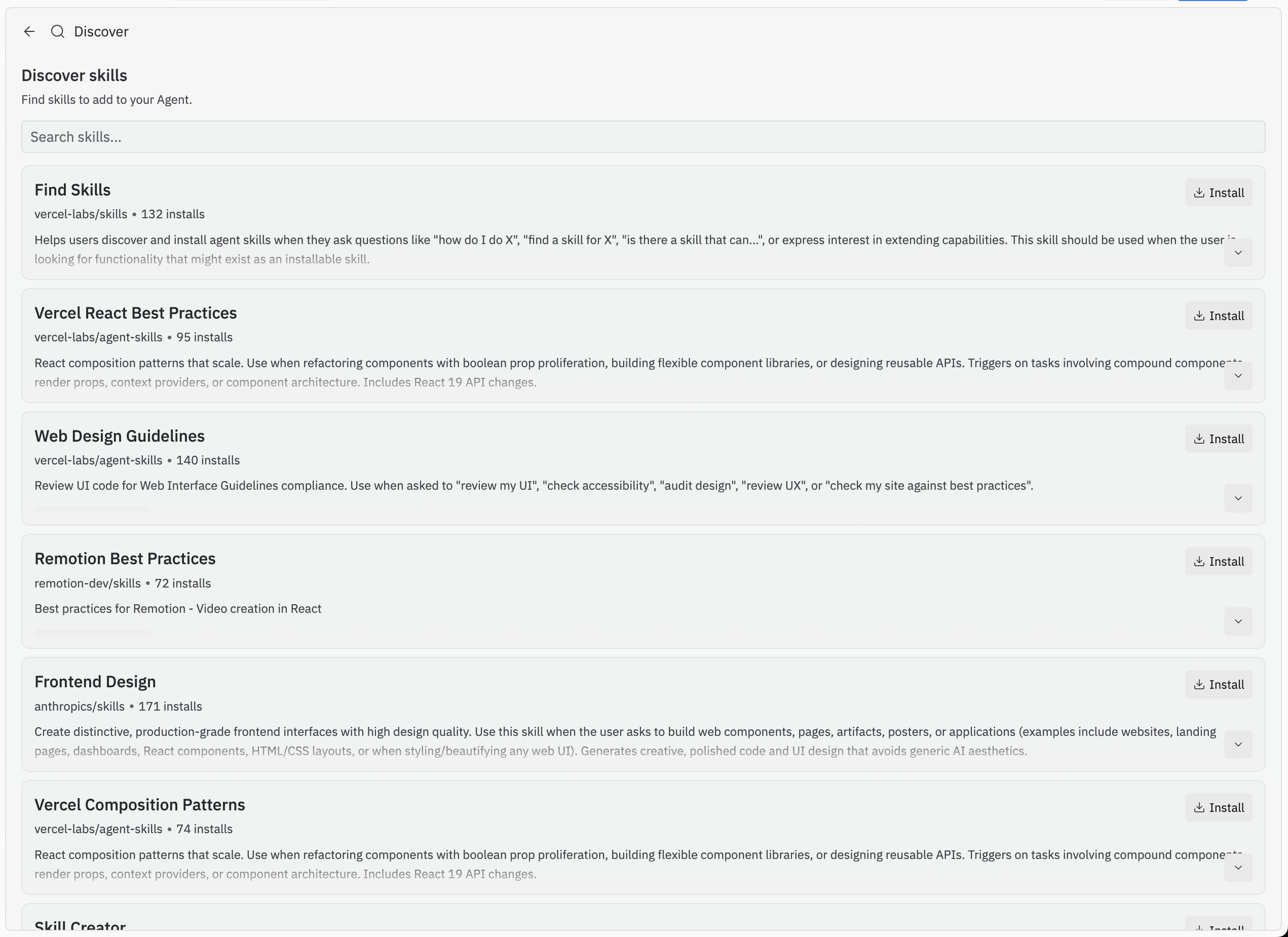 For example, when building a portfolio site with advanced animations, you might install:
* **GSAP React** — teaches Agent scroll-triggered animations, text reveals, and SVG path drawing
* **Tailwind design system** — gives Agent knowledge of Tailwind CSS patterns for typography, spacing, and view transitions
* **Find skills** — teaches Agent how to discover and install new skills on your behalf
You can also install skills via the [npx skills CLI](https://github.com/vercel-labs/skills):
```bash theme={null}
npx skills -a replit
```
### Create a skill from a conversation
The most natural way to create a skill is through conversation with Agent. After solving a problem together or researching a new library, ask Agent to capture what it learned:
Research best practices for GSAP React integration and create a skill for this project.
Agent uses the full conversation context to write a detailed skill file. This works particularly well after debugging sessions where you've built up shared understanding of a problem.
### Write a custom skill
For advanced use cases, write skills directly following the [Agent Skills specification](https://agentskills.io/specification). Toggle **Show Hidden Files** in the file sidebar, open `/.agents/skills/`, and create a new Markdown file. This gives you complete control over what Agent knows and how it behaves.
## Next steps
Learn when to use skills, proactive vs reactive patterns, and how skills compare to MCP servers.
Technical details on skill structure, management, and how skills work under the hood.
Find skills built by the community at skills.sh.
Read the open standard so you can write skills that work across any agent.
For example, when building a portfolio site with advanced animations, you might install:
* **GSAP React** — teaches Agent scroll-triggered animations, text reveals, and SVG path drawing
* **Tailwind design system** — gives Agent knowledge of Tailwind CSS patterns for typography, spacing, and view transitions
* **Find skills** — teaches Agent how to discover and install new skills on your behalf
You can also install skills via the [npx skills CLI](https://github.com/vercel-labs/skills):
```bash theme={null}
npx skills -a replit
```
### Create a skill from a conversation
The most natural way to create a skill is through conversation with Agent. After solving a problem together or researching a new library, ask Agent to capture what it learned:
Research best practices for GSAP React integration and create a skill for this project.
Agent uses the full conversation context to write a detailed skill file. This works particularly well after debugging sessions where you've built up shared understanding of a problem.
### Write a custom skill
For advanced use cases, write skills directly following the [Agent Skills specification](https://agentskills.io/specification). Toggle **Show Hidden Files** in the file sidebar, open `/.agents/skills/`, and create a new Markdown file. This gives you complete control over what Agent knows and how it behaves.
## Next steps
Learn when to use skills, proactive vs reactive patterns, and how skills compare to MCP servers.
Technical details on skill structure, management, and how skills work under the hood.
Find skills built by the community at skills.sh.
Read the open standard so you can write skills that work across any agent.