> ## Documentation Index
> Fetch the complete documentation index at: https://docs.replit.com/llms.txt
> Use this file to discover all available pages before exploring further.
# Publish your app
> Take your app live with a public URL you can share — in four clicks.
export const YouTubeEmbed = ({videoId, title = "YouTube video", startAt}) => {
if (!videoId) {
return null;
}
let url = "https://www.youtube.com/embed/" + videoId;
if (startAt) {
url = url + "?start=" + startAt;
}
return
;
};
Take your Replit App live at a public URL you can share. The **Publish** button does it in four clicks.
## Publish your app
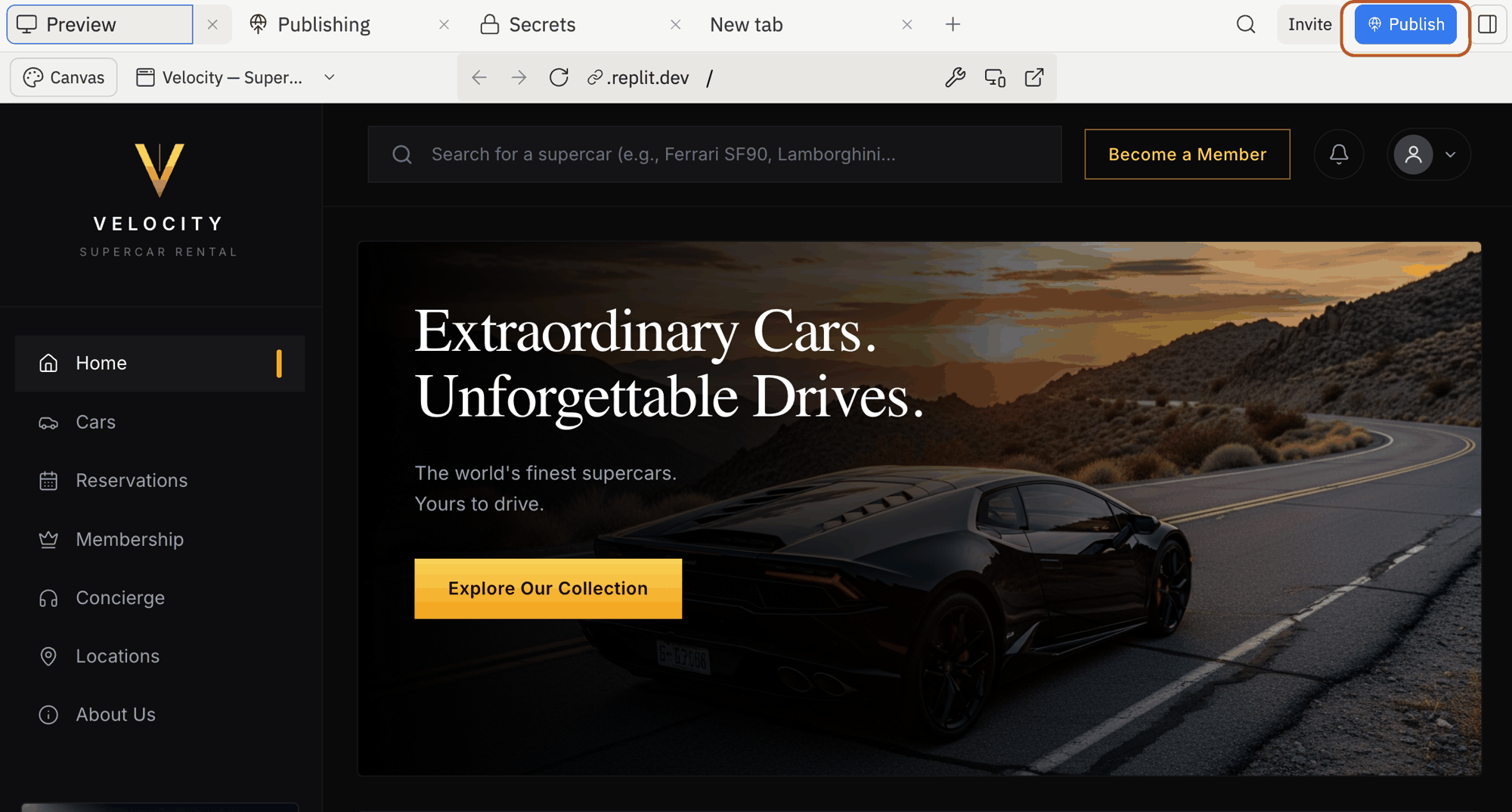
Open your project. In the top-right of the Project Editor, select **Publish**.
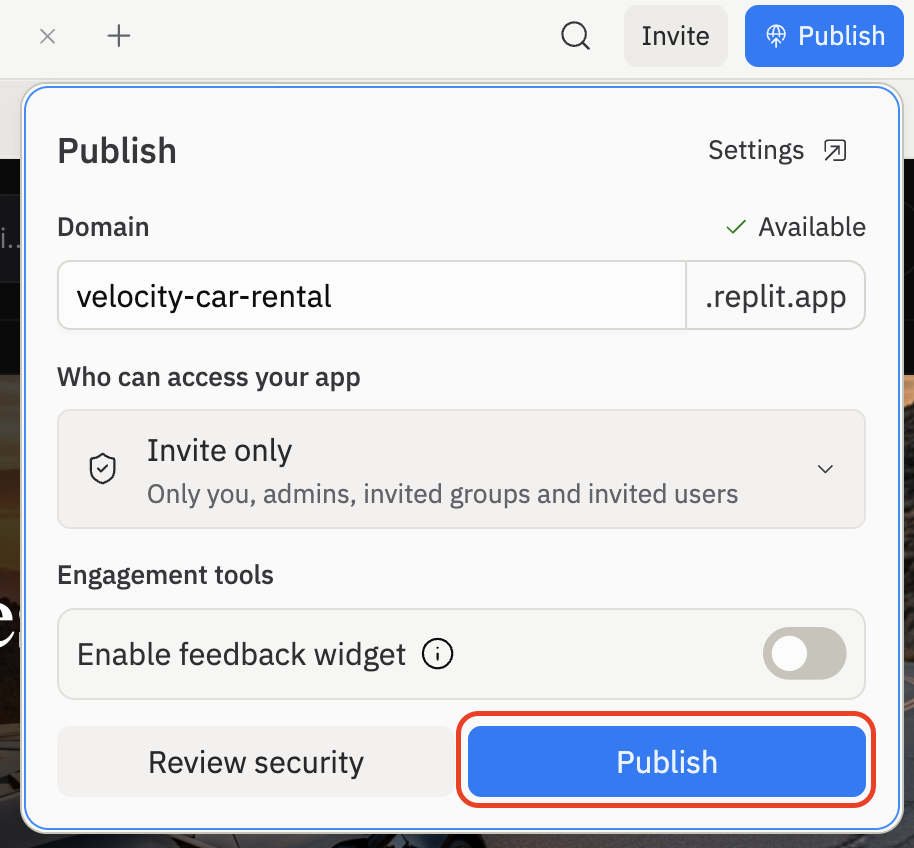
 The Publish dialog opens. Pick your **Domain** — it auto-fills, but you can change it. Choose who can access the app (**Public**, **Invite only**, etc.) and, if you want, enable the feedback widget. Then select **Publish**.
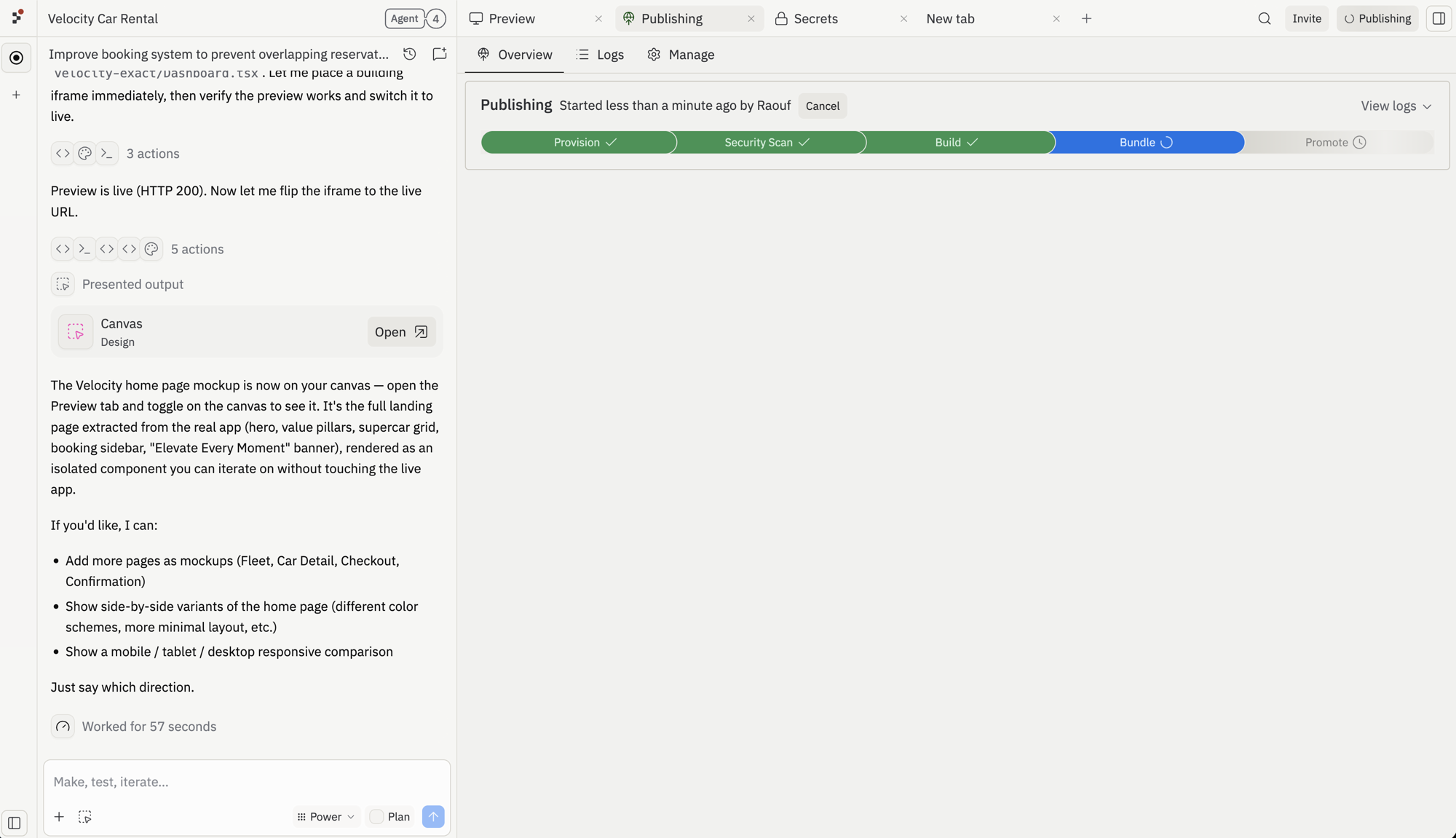
 Replit runs through **Provision → Security Scan → Build → Bundle → Promote**. This usually takes a minute or two.
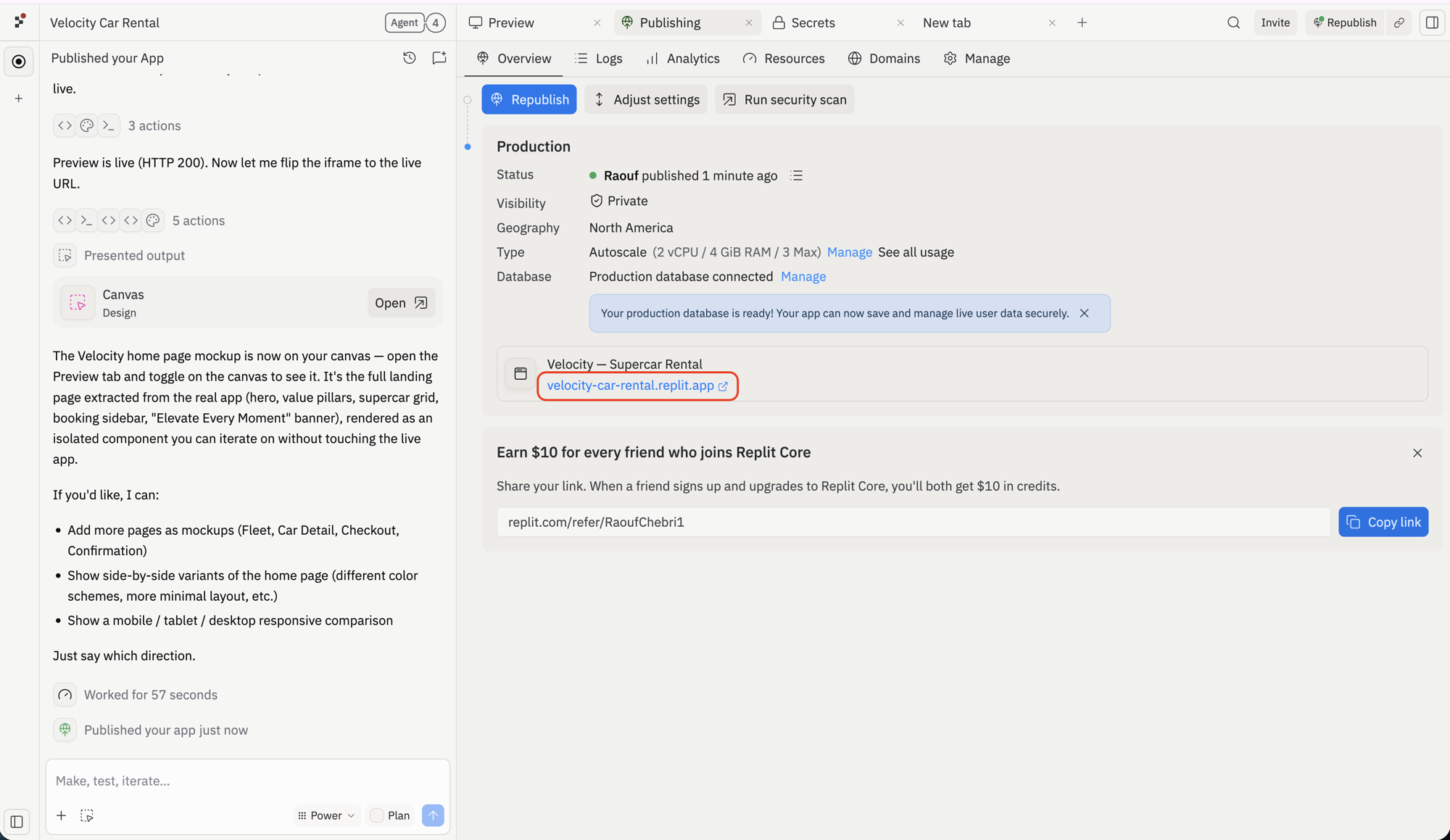
 Your app is live. Select the `.replit.app` URL in the Publishing tab to open it. Share that URL anywhere — anyone with the link (subject to your access settings) can use the app.
 ## Update your app
Every time you make changes and select **Publish** again, your app updates at the same URL. Visitors get the latest version on next load — no need to share a new link.
## Next steps
Use your own domain instead of `.replit.app`.
Compare Autoscale, Reserved VM, Static, and Scheduled deployments.
Common publishing problems and how to fix them.
## Update your app
Every time you make changes and select **Publish** again, your app updates at the same URL. Visitors get the latest version on next load — no need to share a new link.
## Next steps
Use your own domain instead of `.replit.app`.
Compare Autoscale, Reserved VM, Static, and Scheduled deployments.
Common publishing problems and how to fix them.