> ## Documentation Index
> Fetch the complete documentation index at: https://docs.replit.com/llms.txt
> Use this file to discover all available pages before exploring further.
# Prototype a product idea
> Turn a product idea into a focused prototype, collaborate with others, and use feedback to decide what to build next.
export const PACE_PROMPT = `Build me a personal running web app called "Pace".
I want a clean, modern web app where I can track my runs and see my progress at a glance — a friendlier, more visual version of a running journal like Strava or Nike Run Club, but simpler and prettier. It only needs to support one user (me) for now, and my profile name should be Alex Morgan. Pre-fill it with about a month of pretend running history so it looks alive from the moment I open it — runs through San Francisco, a mix of easy runs, tempo runs, long runs, and recovery runs, with at least 4–5 runs in the past week so the dashboard looks active.
The app should run in any modern browser, feel fast, and be fully responsive — great on desktop, tablet, and phone.
Look and feel
The vibe is sporty, premium, "athletic brand" — black, white, and a punchy lime green as the accent color. Use the Inter font everywhere. Rounded corners on everything (cards, buttons, pills). It should feel calm and uncluttered, not busy. Light mode by default. Smooth, subtle animations when pages transition, when cards appear, and when I click buttons — it should feel responsive and alive, not stiff.
Overall navigation
A top nav bar with the Pace logo on the left and 5 links across the middle: Home, Runs, Plan, Stats, Profile. The active link has a lime underline; inactive links are gray. On the right: a lime "Log a Run" button (always visible) and a round profile photo (clicking it opens Profile).
On smaller screens, the middle nav links collapse into a hamburger menu, but the lime "Log a Run" button stays visible.
The Home page (the main page) — a scrollable feed, top to bottom:
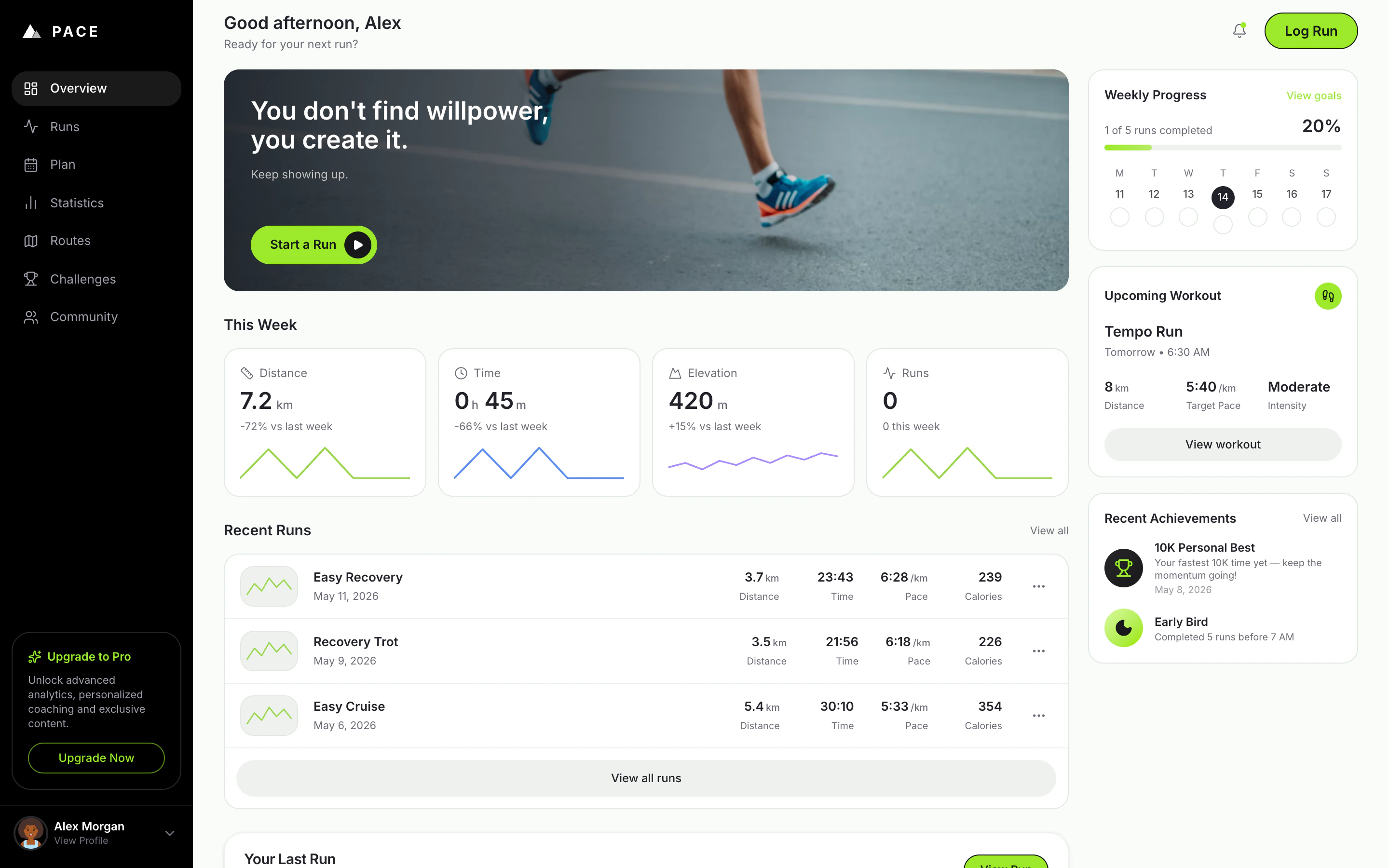
Greeting. A friendly greeting that changes with the time of day ("Good morning, Alex" / "Good afternoon, Alex" / "Good evening, Alex"), with a subtitle "Ready for your next run?".
Hero banner card. A wide photo of someone running on pavement, with a dark gradient on the left so the text is readable. Big white headline: "You don't find willpower, you create it." Underneath: "Keep showing up." Bottom-left: a lime pill button "Start a Run" with a little black play-circle. Clicking it opens the Log a Run dialog.
"This Week" stats. A row of four cards (2×2 grid on smaller widths): Distance (km), Time (h/min), Elevation (m), Runs (count). Each card: small icon, big number, "+12% vs last week" caption, thin squiggly line graph at the bottom (lime, blue, purple, lime). Numbers reflect my actual runs from the last 7 days.
Weekly Progress card. Title + small "View goals" link. Then "X of Y runs completed" and a big bold percentage on the right. Gradient lime progress bar. Below: seven day pills (M T W T F S S) with date numbers. Today is a black filled circle; days I've run show a lime circle with a white checkmark; others are empty circles.
Your Last Run card. A real interactive map (Leaflet, Mapbox, or similar) showing the route of my most recent run as a lime line, date in the corner, lime "View Run" button, and four stats (Distance, Time, Pace, Calories). Click → full run detail page.
Recent Runs section. Title "Recent Runs" + "See all" link. Three rows, one per recent run: tiny green map-line thumbnail on the left, run name + date, distance + pace lined up on the right. Click a row → run detail. A small "Delete" icon appears on hover.
Upcoming Workout card. Title + small lime circle icon with footprints. Workout name "Tempo Run", "Tomorrow · 6:30 AM". Three stats: 8 km, 5:40/km target pace, "Moderate" intensity. A muted gray "View workout" button. (Placeholder — no real training plan yet.)
Recent Achievements card. Two badges, each with a colorful icon, the badge name, and a one-line description. First is a real PR from my history (e.g. "10K Crusher — Completed a 10K in under 60 minutes"). Second is a placeholder: "Early Bird — Completed 5 runs before 7 AM" with a lime crescent moon icon.
The Runs page
Full list of all my runs, grouped by month (sticky month headers as I scroll). Each row like the recent-runs rows. A search input in the top-right filters by name or run type (Easy, Tempo, Long, Recovery, Interval). Click a row → run detail.
The Stats page — a scrollable view with:
- Time-range pill tabs at the top (7D / 30D / 3M / 6M / 1Y / All).
- Three KPI numbers (Total Distance, Avg Pace, Total Time), each with a green or red badge for change vs the previous period.
- A smooth lime area chart of distance over time. Hover a point to see that day's value.
- Below: a small bar chart of "runs per day of week" and a list of personal records (fastest 5K, fastest 10K, longest run, etc.).
The Plan page
A weekly calendar of upcoming workouts (placeholder — mostly the visual shell). Each day is a row showing what's planned (or "Rest day"). Today's row highlighted lime.
The Profile page
Avatar, name, weekly goal setting, total all-time stats (total distance, total runs, total hours), an "Upgrade to Pro" card with a lime sparkle and "Upgrade Now" button, and a settings list (units km/mi, notifications, sign out).
The "Log a Run" dialog (modal that centers on desktop, slides up from the bottom on mobile):
- Type of run (segmented control: Easy / Tempo / Long / Recovery / Interval)
- Distance in km (number input)
- Duration (mm:ss or hh:mm:ss input)
- Date and time (date and time pickers)
- Optional name
- Big lime "Save Run" button at the bottom
After saving: smooth dismiss, dashboard updates instantly, small toast confirmation.
The Run Detail page (a dedicated page when I click a run):
- Big interactive map of the full route at the top
- Date, run type chip, back link
- Stats row (Distance, Duration, Avg Pace, Calories)
- Per-kilometer splits with pace per km
- "..." menu with Edit and Delete
How it should behave
- The greeting changes based on time of day.
- Hero "Start a Run" and the nav "Log a Run" both open the same Log a Run dialog.
- Loading skeletons instead of blank space.
- Smooth page transitions.
- Fully responsive — every screen looks great on desktop, tablet, and phone.
Things to be honest about
- No real elevation data yet — use a sensible placeholder for the elevation stat card and flag it.
- The little route thumbnails in the recent-runs list can be a generic green squiggle if the real route shape would slow the list down — the big Run Detail map should be real.
- "Upcoming Workout" and the Plan page are placeholders — no training plan engine yet.
- No live GPS tracking in this first version — runs are added by manually filling the Log a Run form.
Build the whole thing end-to-end so it's actually usable: I should be able to open the URL, see my Alex Morgan dashboard fully populated with realistic San Francisco runs, log a new run from either the hero button or the nav, and have it show up in my stats and recent runs immediately.`;
export const PromptActions = ({prompt = "", campaign = "docs-prompt-actions"}) => {
const LZ_SRC = "https://cdnjs.cloudflare.com/ajax/libs/lz-string/1.5.0/lz-string.min.js";
const ensureLZString = () => {
if (typeof document === "undefined") return;
if (window.LZString) return;
if (document.querySelector(`script[src="${LZ_SRC}"]`)) return;
const s = document.createElement("script");
s.src = LZ_SRC;
s.async = true;
document.head.appendChild(s);
};
const handleCopy = async e => {
const btn = e.currentTarget;
if (!prompt) return;
try {
await navigator.clipboard.writeText(prompt);
} catch {
const ta = document.createElement("textarea");
ta.value = prompt;
document.body.appendChild(ta);
ta.select();
try {
document.execCommand("copy");
} catch {}
document.body.removeChild(ta);
}
const original = btn.dataset.label || btn.innerText;
btn.dataset.label = original;
btn.innerText = "Copied!";
setTimeout(() => {
if (btn.isConnected) btn.innerText = original;
}, 1500);
};
const handleBuild = () => {
if (!prompt || typeof window === "undefined") return;
const utm = `utm_source=replit-docs&utm_medium=docs&utm_campaign=${encodeURIComponent(campaign)}&utm_content=prompt-actions`;
let url;
if (window.LZString) {
const encoded = window.LZString.compressToEncodedURIComponent(prompt);
url = `https://replit.com/?prompt=${encoded}&referrer=replit-docs&${utm}`;
} else {
url = `https://replit.com/?prompt=${encodeURIComponent(prompt)}&referrer=replit-docs&${utm}`;
}
window.open(url, "_blank", "noopener,noreferrer");
};
ensureLZString();
const baseButtonStyle = {
display: "inline-flex",
alignItems: "center",
gap: "6px",
padding: "8px 16px",
borderRadius: "8px",
fontSize: "14px",
fontWeight: 500,
cursor: "pointer",
lineHeight: 1.2,
fontFamily: "inherit",
textDecoration: "none"
};
return
;
};
⏰ *Estimated time: 15 minutes*
A prototype is the smallest version of a product idea that someone can try and react to.
You will use **Pace** as the example: a premium running tracker that gives runners a polished overview of their training, recovery, and progress.
## What you'll learn
You will learn how to:
* Turn a broad product idea into one testable flow.
* Use Plan mode to scope a prototype before building.
* Review whether Agent's plan is small enough to test.
* Use Canvas annotations and collaboration to collect feedback in context.
* Explore two prototype directions in parallel when the product question is unclear.
The prompt above describes **Pace** — a personal running tracker with a polished home dashboard, an Add Run flow, stats, a placeholder plan view, and realistic San Francisco sample data. Use **Copy the prompt** to paste it into Replit yourself, or **Build on Replit** to open Replit with the prompt already attached.
The prompt is intentionally specific about the visual direction, the screens, what data to mock, and what's a placeholder — that's what gives Agent a clear target to evaluate against.
If you want Agent to think through the product question before writing any code, toggle **Plan** next to the prompt input. Plan mode produces a structured plan you can review before approving the build — useful when the direction isn't fully decided yet.
Review the plan: target user, main flow, what should be real, what can be mocked, and a test checklist. If the plan adds too many features, ask Agent to reduce it.
This prototype is too broad.
Reduce it to one target user, one main flow, and one question I can answer with feedback.
Move the other ideas into a future improvements list.
When Agent finishes, open Preview and use Pace like a first-time visitor.
Check that you can:
* See the Alex Morgan dashboard populated with realistic sample runs.
* Log a new run from the floating **+** or the hero **Start a Run** button.
* See the run appear in **Recent Runs** and the **This Week** stats update.
* Browse the Runs, Stats, Plan, and Profile tabs.
* Resize Preview to a phone-sized width to check the mobile layout.
If something feels off, describe the symptom to Agent and ask for the smallest fix.
Publish when the main flow works.
Once published, open the public URL in a new browser tab to make sure the experience works for first-time visitors before you share it.
Share the URL with one focused task:
> Use Pace as a runner trying to track a week of training. Log one run, browse the dashboard, and tell me what feels confusing or motivating.
Good feedback should help you decide what to build next. Avoid asking, "What do you think?" unless you want vague answers.
Product prototypes get better when teammates can review the same artifact and give feedback in context.
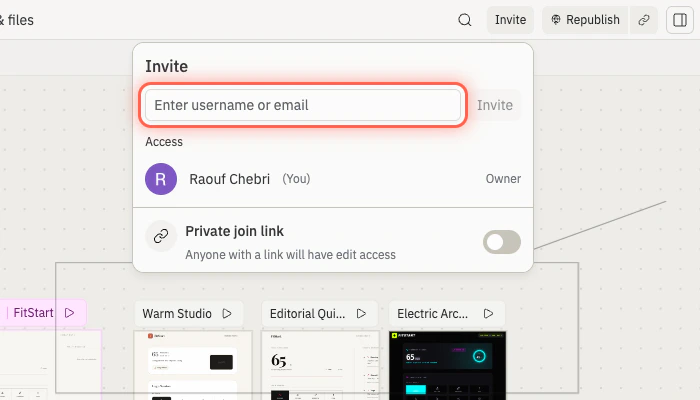
Invite collaborators based on how closely they need to work with you:
* Invite someone to the project when they need to review or help with this prototype only. See [Invite teammates](/build/invite-teammates).
* Invite someone to a workspace when they are part of an ongoing team and need access across projects. See [Team workspaces](/references/collaboration/team-workspaces).
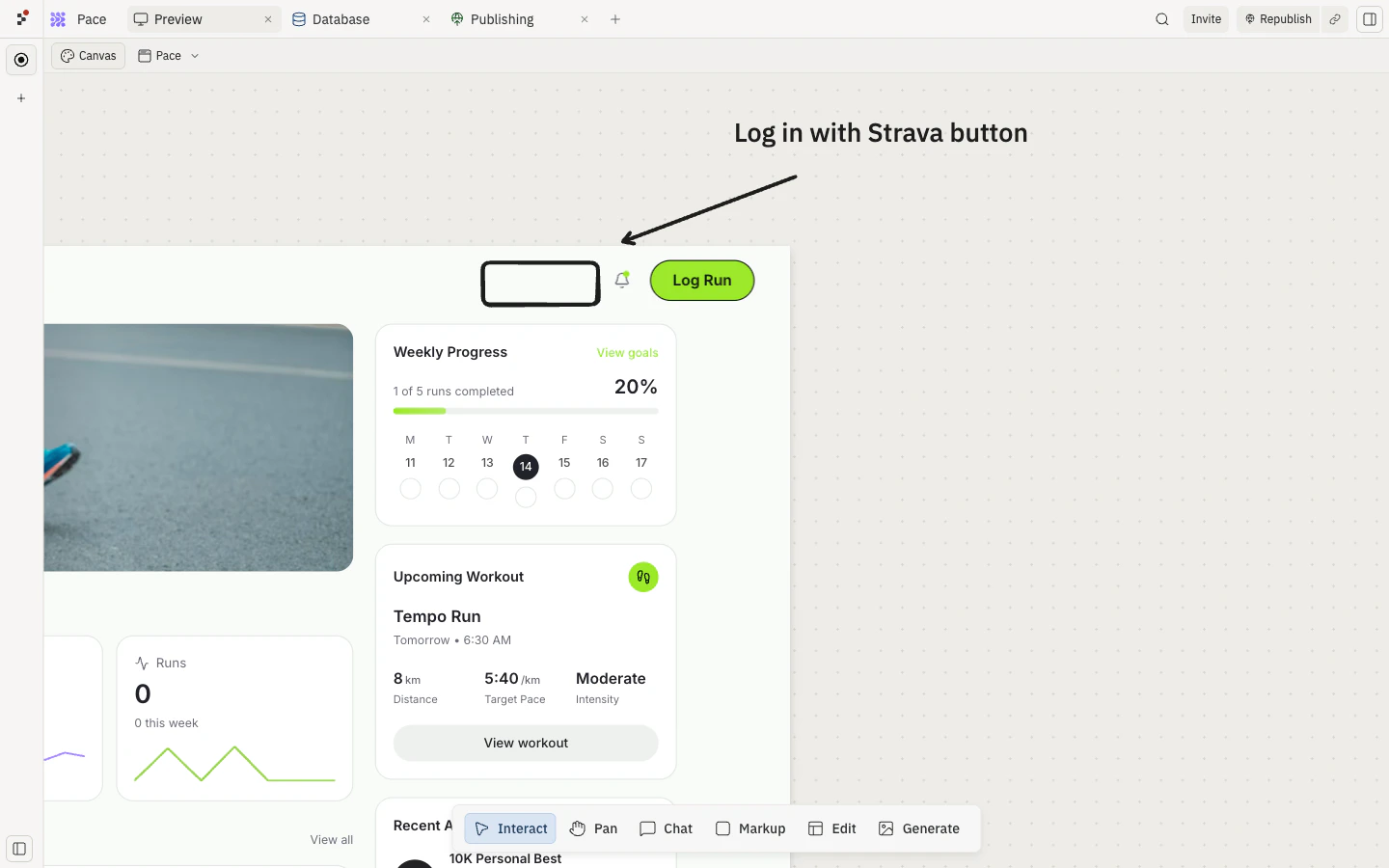
Then, use [Canvas](/learn/design/canvas) when the feedback is visual. Add notes directly on the prototype, annotate the area you want changed, and ask Agent to use those notes when it updates the app.
Use the Canvas annotations on Pace to improve the prototype.
Keep the run-logging flow unchanged.
Apply the notes to the hero section, weekly progress card, and recent runs list only.
After the update, test that logging a run still updates today's progress.
For PMs, this means the prototype works as a shared artifact: designers can annotate flows, engineers can inspect feasibility, and stakeholders can try the published version.
## 🎉 Congratulations
You've turned a product idea into a focused, shareable prototype — a working Pace dashboard that teammates and customers can try and react to. The hard part wasn't this prototype. It was learning how to reduce a broad idea to one testable flow, collect feedback in context, and decide what's worth building next.
## Next steps
Use feedback to choose one next step:
Save run history so it survives refresh.
Give each runner an account with their own progress.
Take Pace to phone-first tracking on iOS or Android.
Turn run history into progress insights.
### Build in parallel
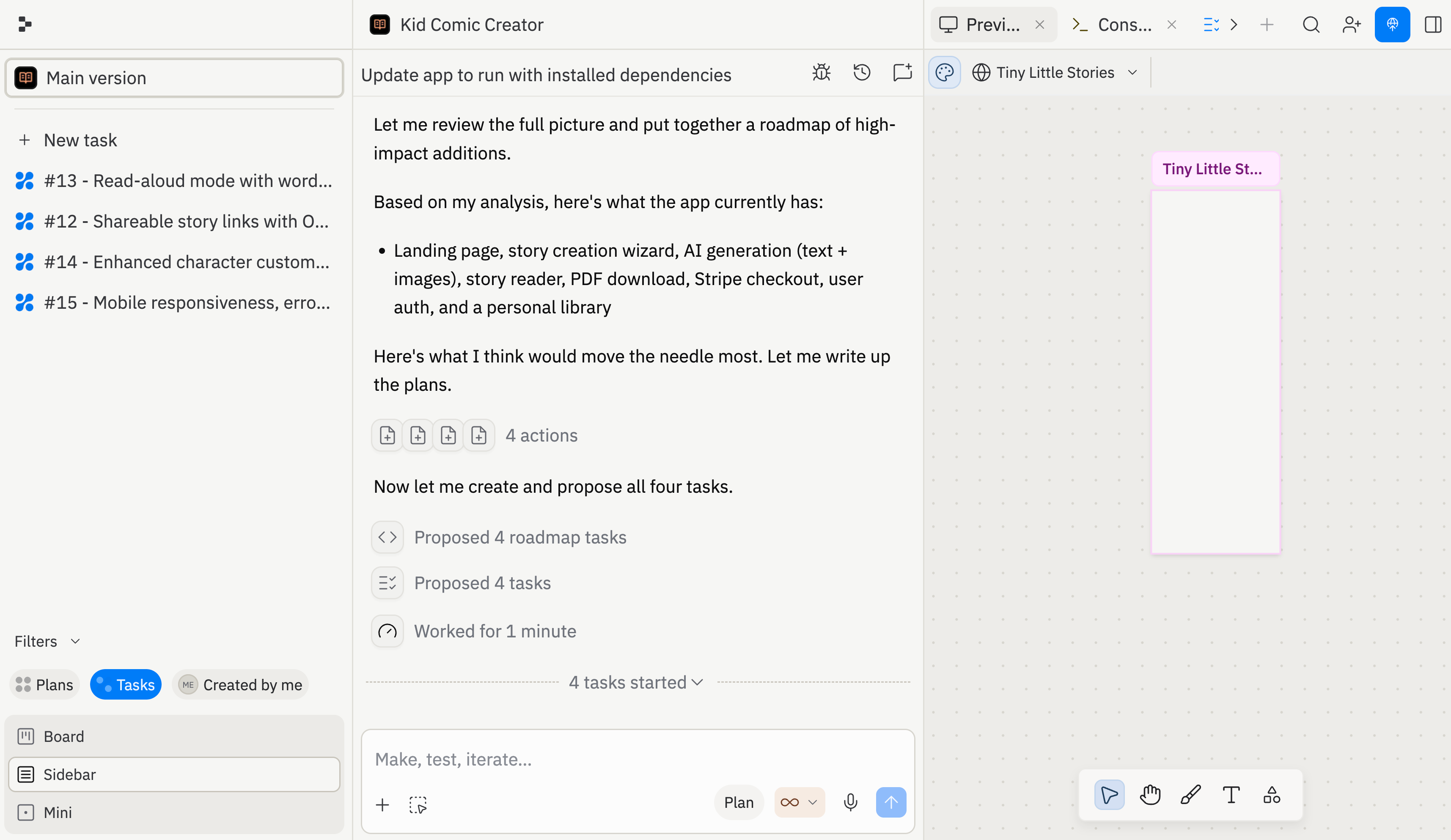
When the product question is about direction, not just implementation, exploring multiple ideas at once helps you compare options instead of committing too early. Replit Agent supports parallel tasks — you can ask Agent to work on more than one prototype, feature, or experiment at the same time and review them side by side.
For how tasks queue, run, and finish, see [Task system](/core-concepts/agent/task-system).
When you are not sure which direction is better, ask Agent to create two parallel tasks. For Pace, you could compare:
* **Motivation-first prototype**: streaks, achievements, encouraging recommendations.
* **Analytics-first prototype**: deeper stats, week-over-week trends, personal records.
Create two parallel tasks for improving Pace as a product prototype.
Task 1 should explore a motivation-first version with streaks, achievements, and encouraging recommendations.
Task 2 should explore an analytics-first version with deeper stats, week-over-week trends, and personal records.
Keep both versions small enough to test today.
For each task, define the user flow, what to build, and how I should evaluate the result.
After both tasks finish, compare them with the same feedback question:
> Which version makes you more likely to come back tomorrow, and why?
## Need further help?
* **The prototype has too many features:** ask Agent to reduce it to one target user and one flow.
* **The audience is unclear:** ask Agent to rewrite the welcome section for one target user.
* **Mocked data hides risk:** ask Agent to list what is real and what is mocked.
* **Feedback is vague:** give reviewers one task and one question.
* **Publishing fails:** use [Troubleshoot publishing](/build/troubleshooting).
## Related
* [Build and publish your first app](/build/your-first-app)
* [Vibe coding 101](/learn/foundations/vibe-coding-101)
* [Invite teammates](/build/invite-teammates)
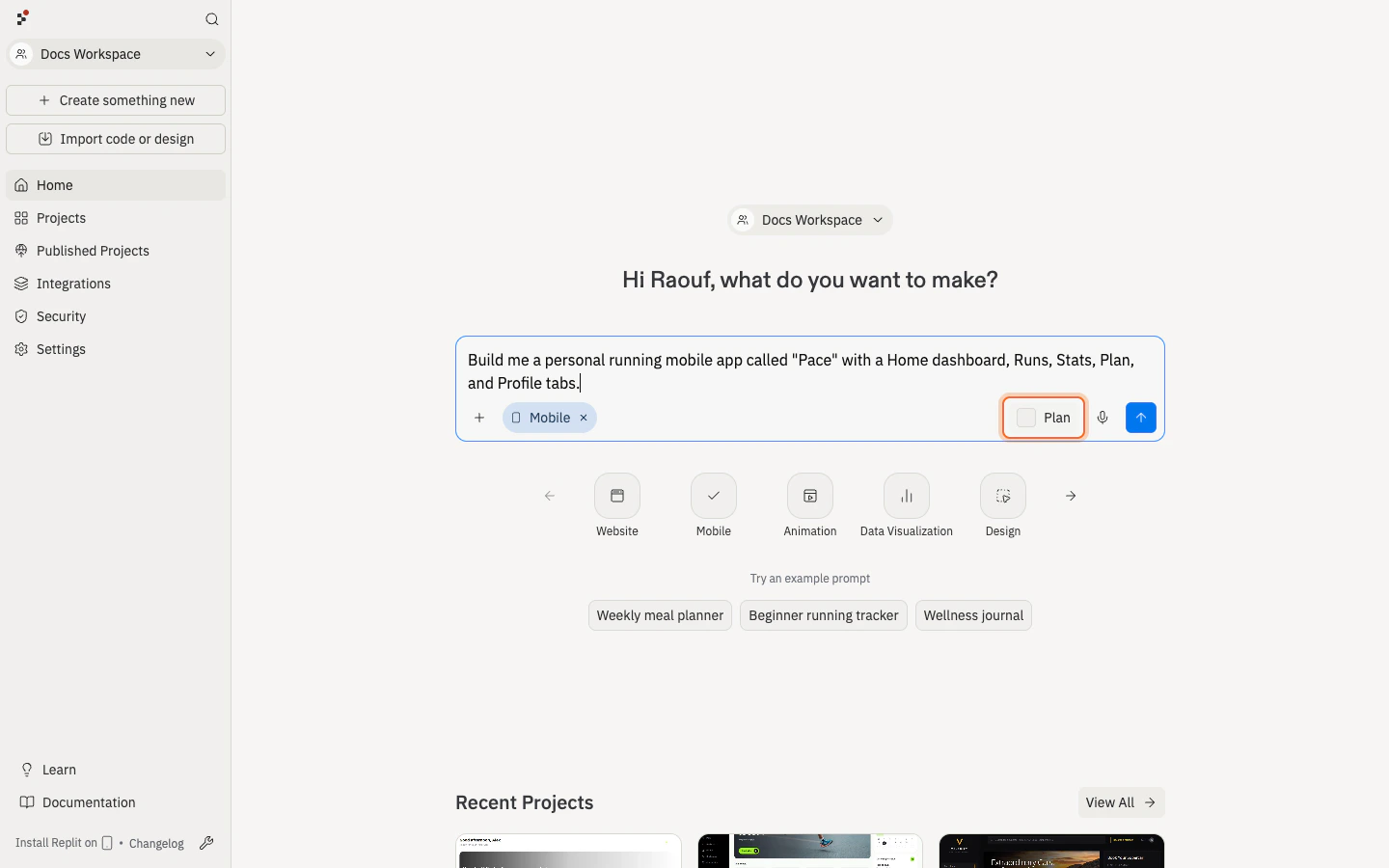 Review the plan: target user, main flow, what should be real, what can be mocked, and a test checklist. If the plan adds too many features, ask Agent to reduce it.
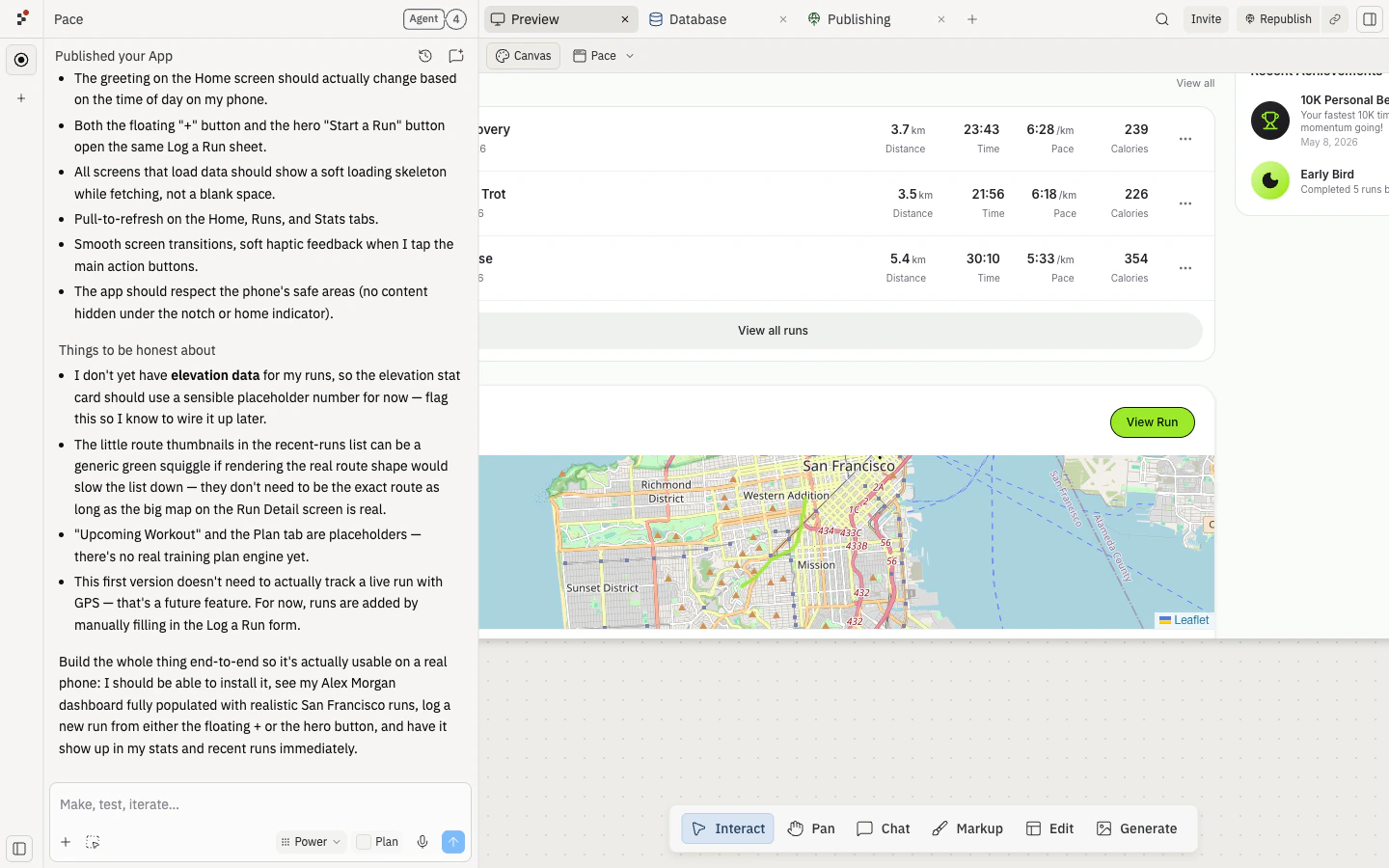
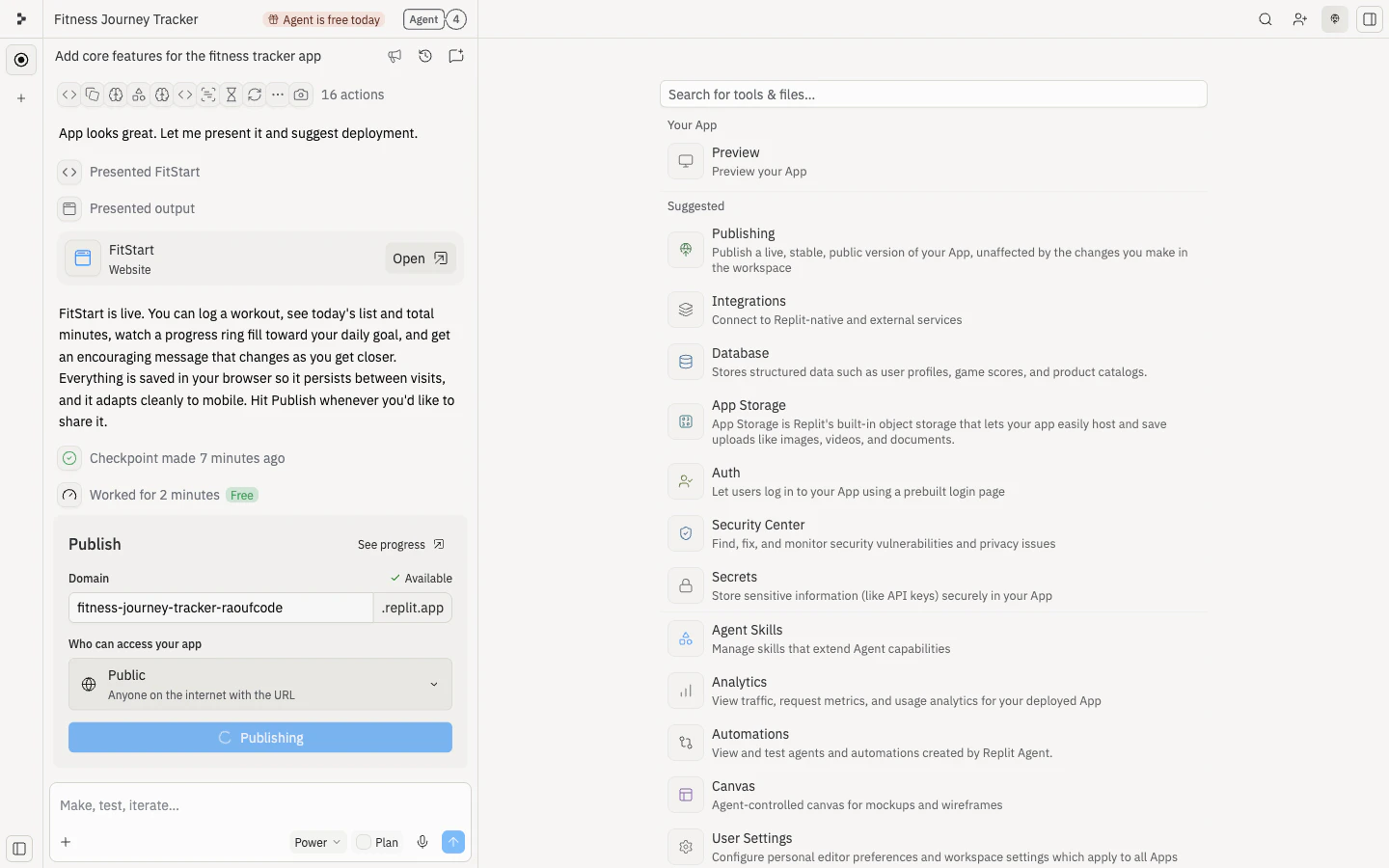 Once published, open the public URL in a new browser tab to make sure the experience works for first-time visitors before you share it.
 Share the URL with one focused task:
> Use Pace as a runner trying to track a week of training. Log one run, browse the dashboard, and tell me what feels confusing or motivating.
Good feedback should help you decide what to build next. Avoid asking, "What do you think?" unless you want vague answers.
Share the URL with one focused task:
> Use Pace as a runner trying to track a week of training. Log one run, browse the dashboard, and tell me what feels confusing or motivating.
Good feedback should help you decide what to build next. Avoid asking, "What do you think?" unless you want vague answers.
 Then, use [Canvas](/learn/design/canvas) when the feedback is visual. Add notes directly on the prototype, annotate the area you want changed, and ask Agent to use those notes when it updates the app.
 For PMs, this means the prototype works as a shared artifact: designers can annotate flows, engineers can inspect feasibility, and stakeholders can try the published version.
 For how tasks queue, run, and finish, see [Task system](/core-concepts/agent/task-system).
When you are not sure which direction is better, ask Agent to create two parallel tasks. For Pace, you could compare:
* **Motivation-first prototype**: streaks, achievements, encouraging recommendations.
* **Analytics-first prototype**: deeper stats, week-over-week trends, personal records.
For how tasks queue, run, and finish, see [Task system](/core-concepts/agent/task-system).
When you are not sure which direction is better, ask Agent to create two parallel tasks. For Pace, you could compare:
* **Motivation-first prototype**: streaks, achievements, encouraging recommendations.
* **Analytics-first prototype**: deeper stats, week-over-week trends, personal records.