> ## Documentation Index
> Fetch the complete documentation index at: https://docs.replit.com/llms.txt
> Use this file to discover all available pages before exploring further.
# Upload your app to App Store Connect
> Use Replit's Launch feature to build, sign, and upload your app to App Store Connect.
Uploading puts your app inside App Store Connect. Nothing before this point is visible to
Apple, and nothing after it, TestFlight or submitting for review, works until it's done.
You'll need an [Apple Developer account](/build/mobile-apple-account) first.
## What gets uploaded
A **build** is a real, installable copy of your app, the same kind of file you'd get from the
App Store, except it isn't published yet. Expo Go runs your code inside a shared preview app,
a build is your app on its own, which is why features like push notifications and in-app
purchases only work here.
Replit's **Launch** feature creates that build, signs it, and uploads it from the
[Publishing](/features/publishing/overview) tab.
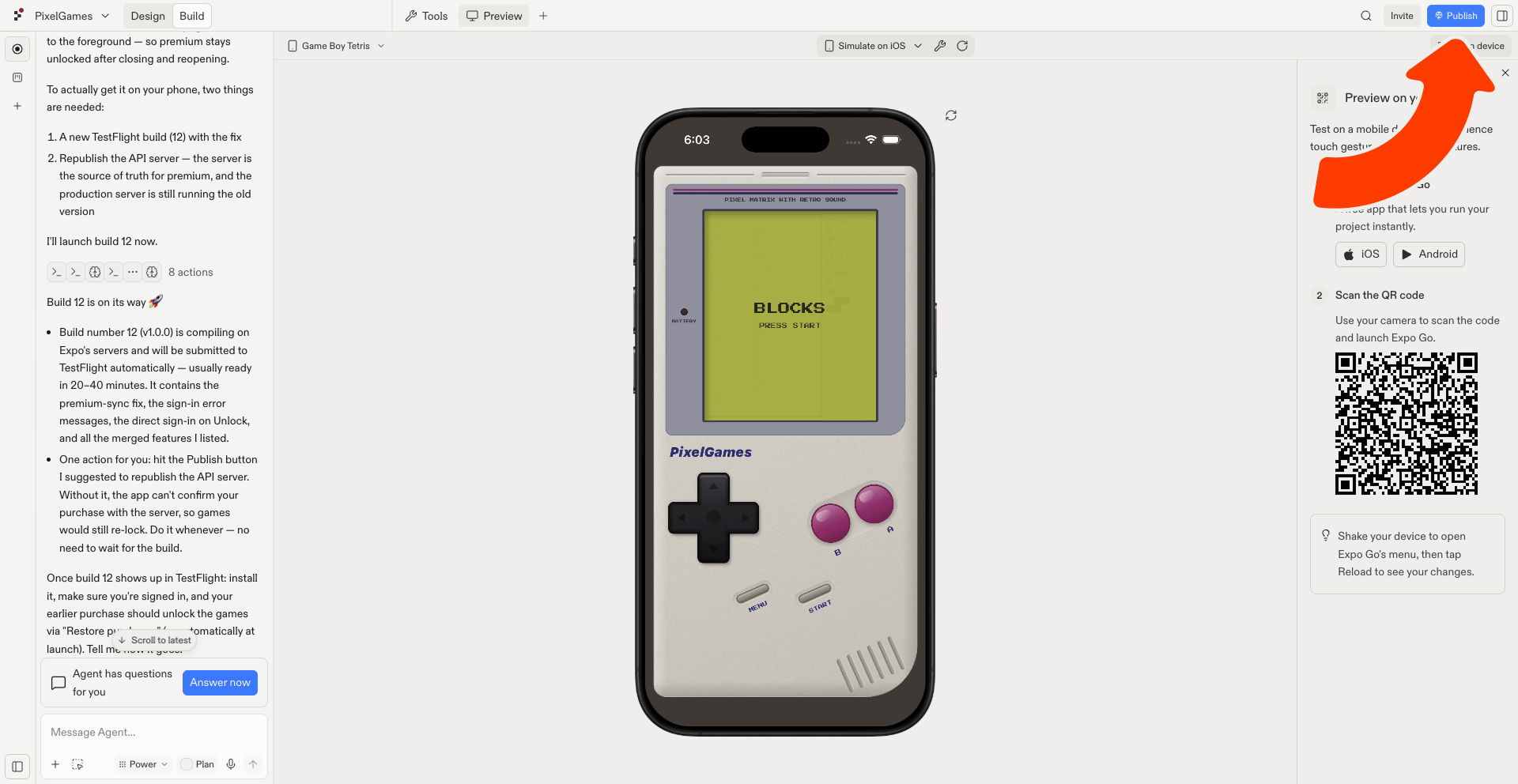
PixelGames' backend needs to be live before the App Store launch, select **Publish** at
the top of your workspace to publish it.
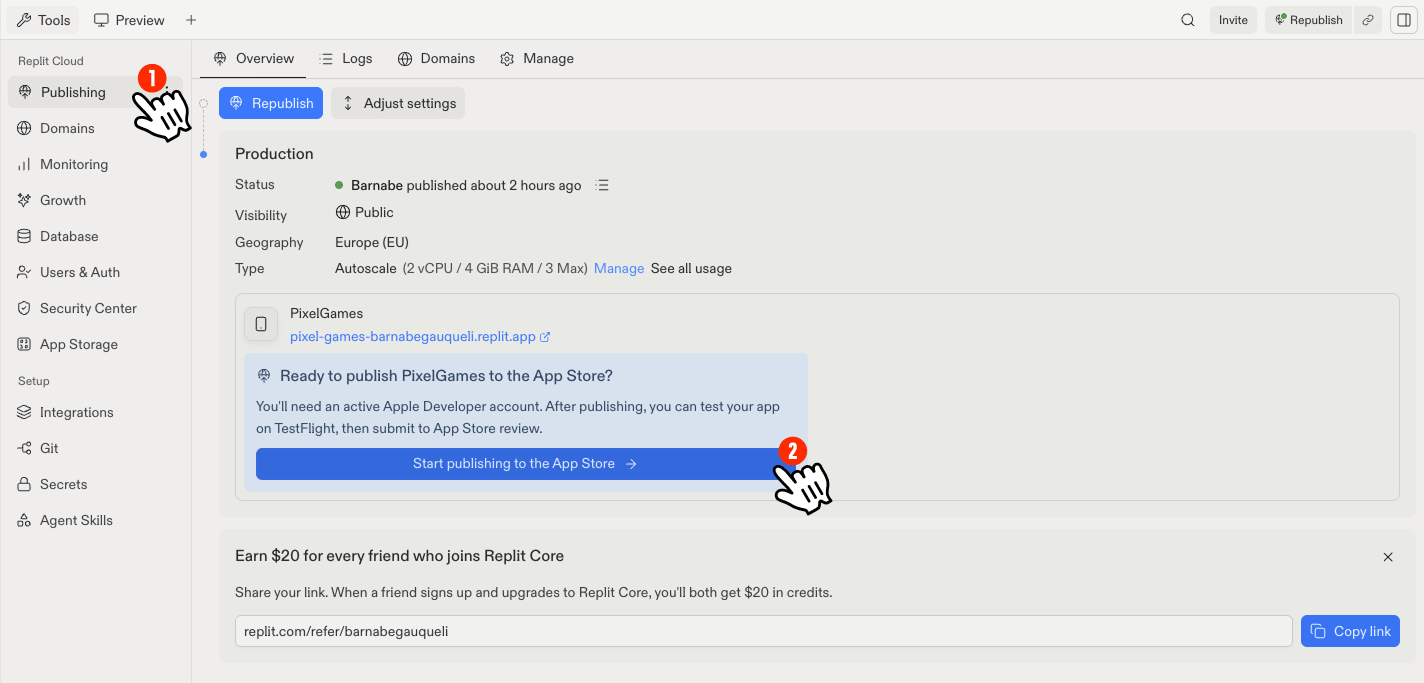
 Once the web app is published, a **Start publishing to the App Store** button appears
under **Publishing**. Select it to open the Launch wizard.
Once the web app is published, a **Start publishing to the App Store** button appears
under **Publishing**. Select it to open the Launch wizard.
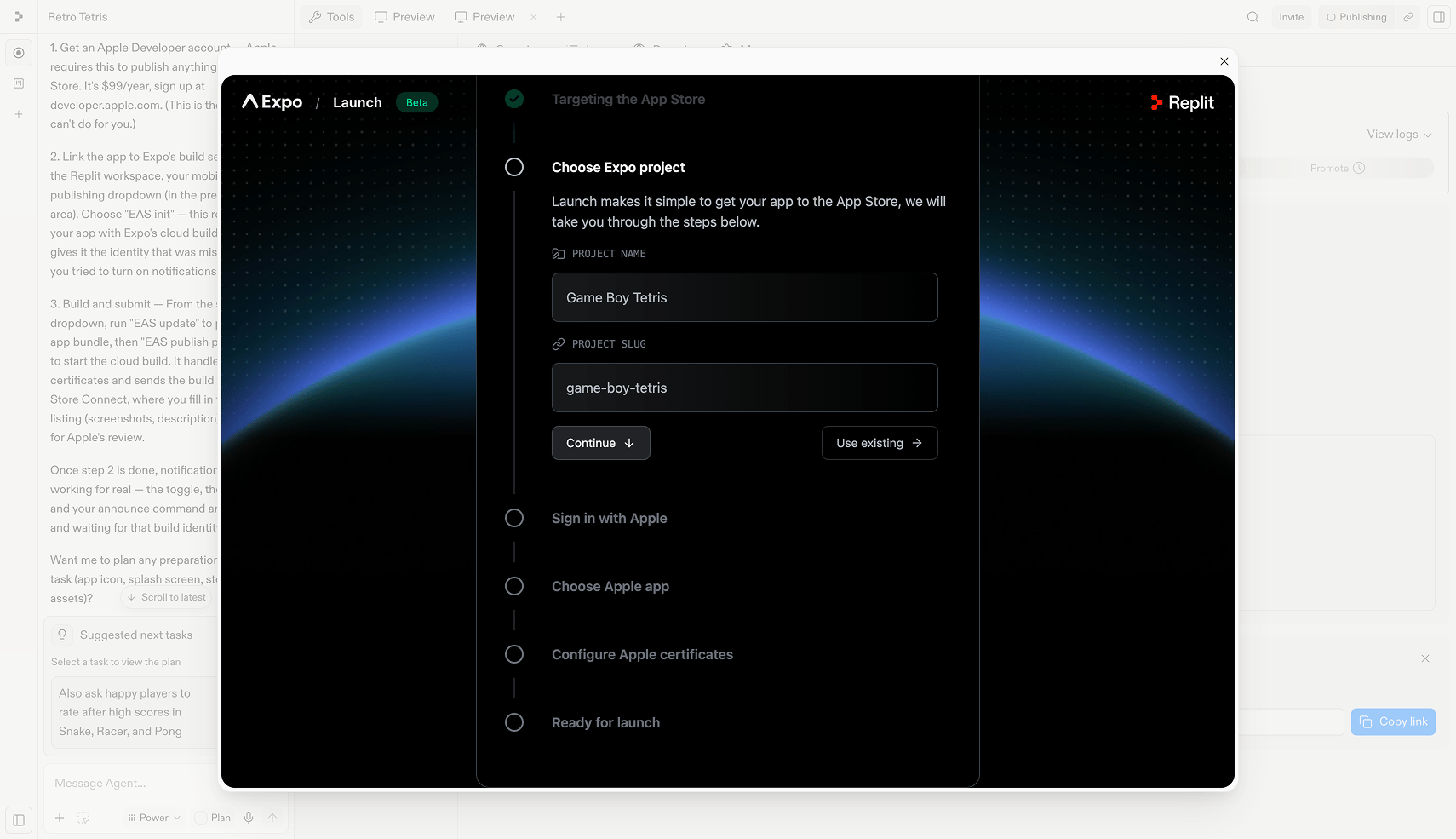
 Confirm the project name and slug, or select **Use existing** if PixelGames already has
one.
Confirm the project name and slug, or select **Use existing** if PixelGames already has
one.
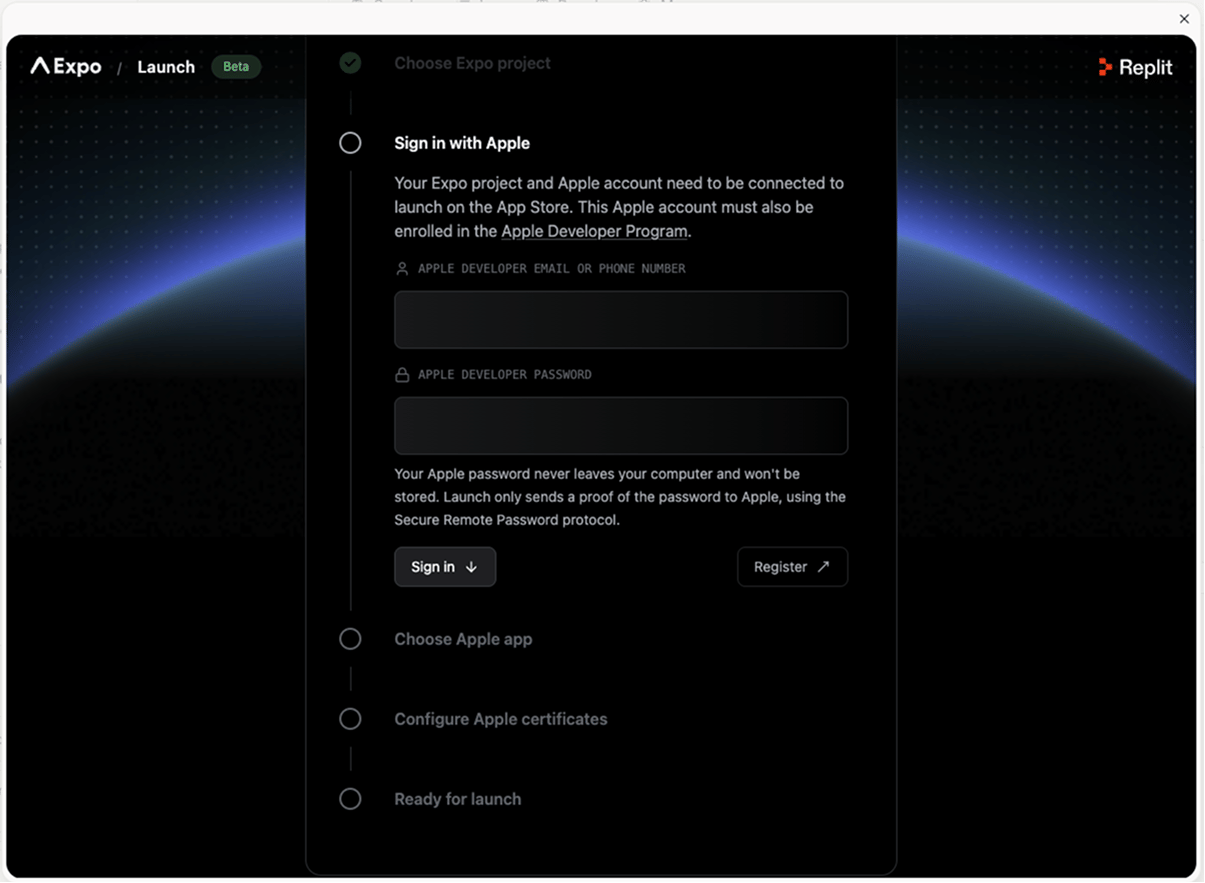
 Use the same Apple account enrolled in the Apple Developer Program. Replit uses these
credentials only to authenticate with Apple and does not store your password.
Use the same Apple account enrolled in the Apple Developer Program. Replit uses these
credentials only to authenticate with Apple and does not store your password.
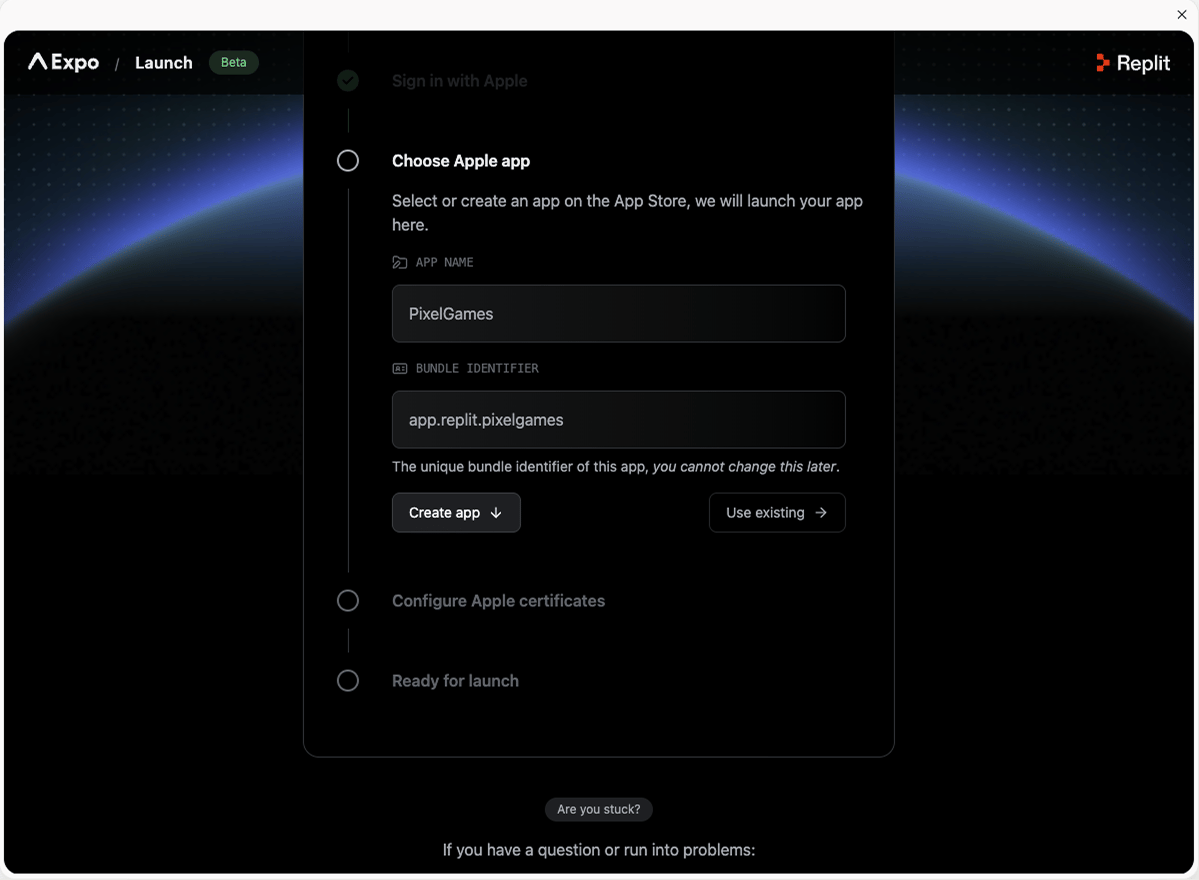
 Set the app name and bundle identifier, or select **Use existing** if you already created
one in App Store Connect. The bundle identifier can't change later.
Set the app name and bundle identifier, or select **Use existing** if you already created
one in App Store Connect. The bundle identifier can't change later.
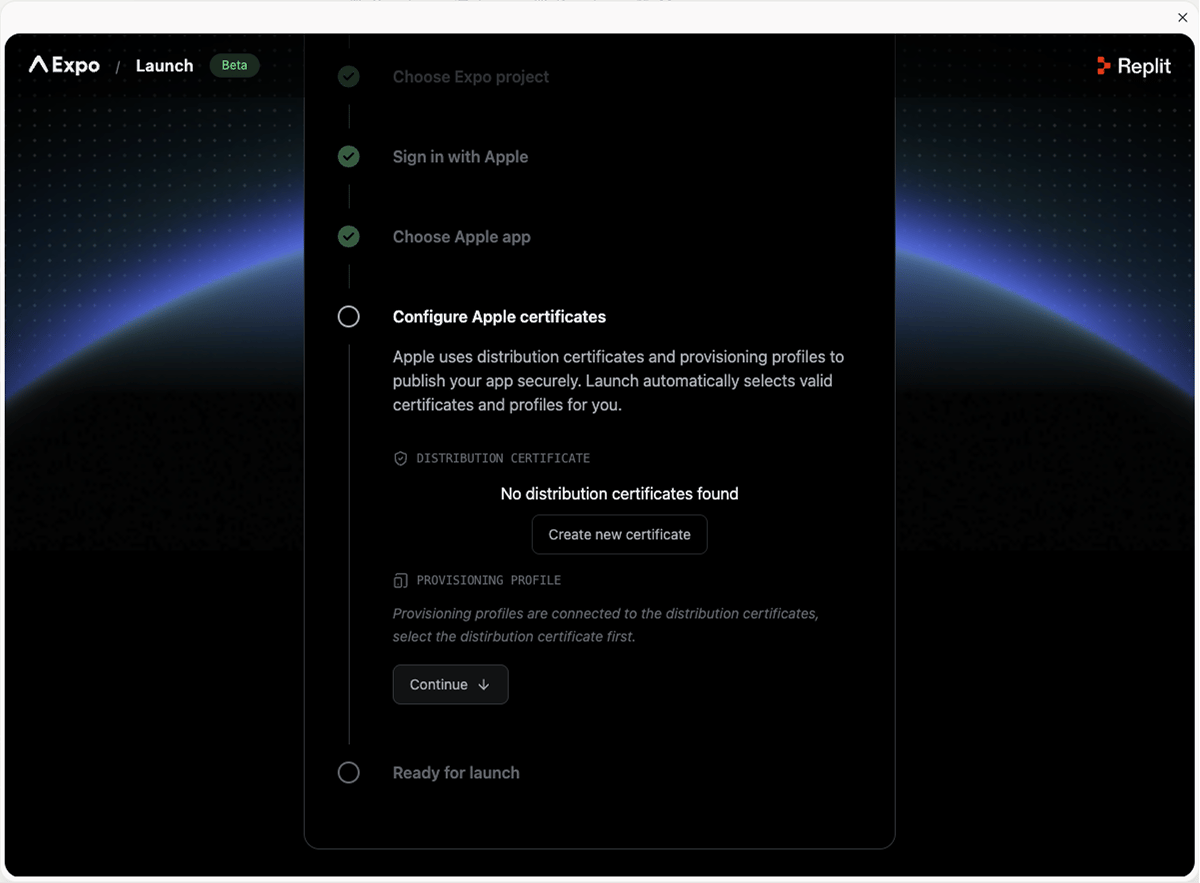
 Launch selects a valid distribution certificate and provisioning profile automatically,
or creates new ones if none exist yet.
Launch selects a valid distribution certificate and provisioning profile automatically,
or creates new ones if none exist yet.
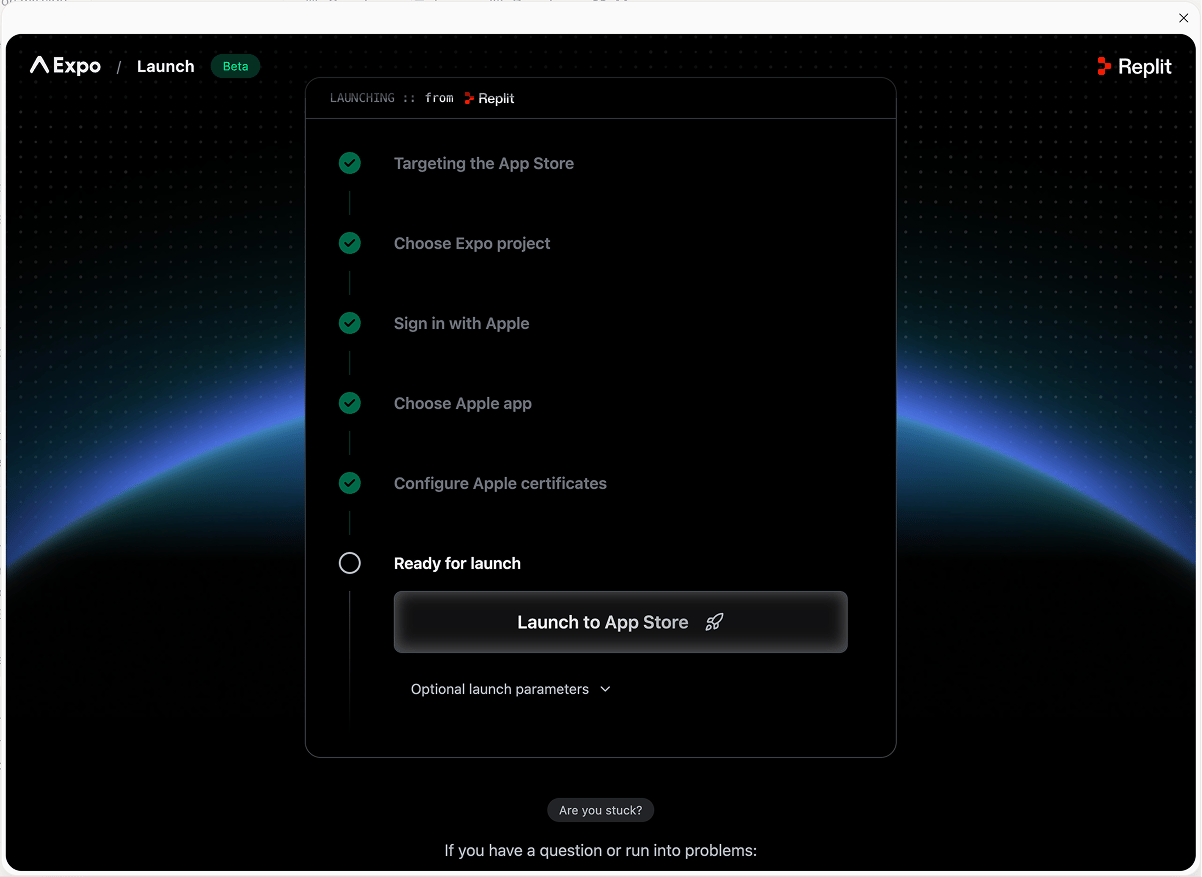
 Once every step above is checked off, select **Launch to App Store**. Your build compiles
on Expo's servers, then lands in App Store Connect.
Once every step above is checked off, select **Launch to App Store**. Your build compiles
on Expo's servers, then lands in App Store Connect.
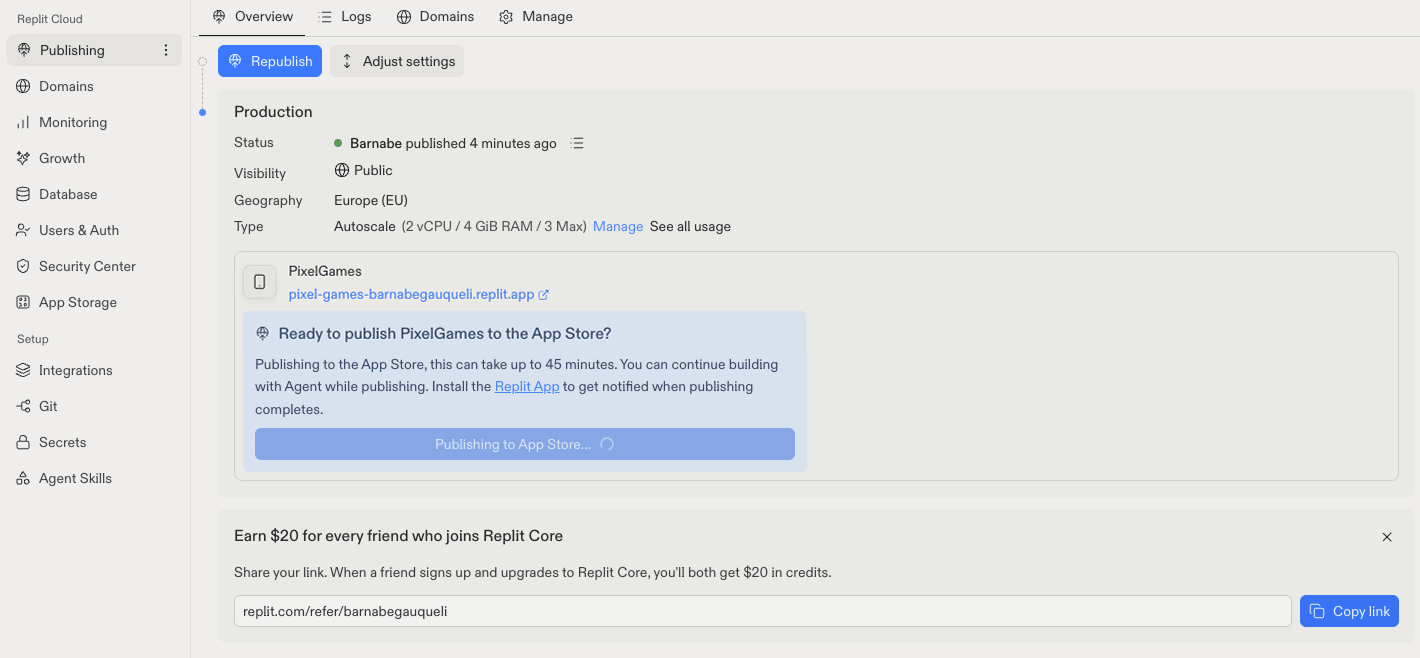
 Publishing can take up to 45 minutes. You can keep building with Agent while it runs, and
installing the Replit app gets you a notification when it completes.
Publishing can take up to 45 minutes. You can keep building with Agent while it runs, and
installing the Replit app gets you a notification when it completes.
 When publishing completes you get an email titled **"\[Your name] has invited you to test
PixelGames"**. Select **View in TestFlight** to open the app and install it on your phone.
Once it finishes, your build appears in App Store Connect under your app.
From there it can go two ways: hand it to
[testers on TestFlight](/build/mobile-testflight) first, or go straight to the listing and
[submit it for review](/build/mobile-publish-ios). Nothing is public yet either way, the
build just sits in App Store Connect until you submit it.
## Uploading again later
Changed something in PixelGames? Run the same flow again to get the new version up.
It goes much faster the second time. Your Expo project, Apple account, app, and certificates
are all still filled in, so most steps are just confirming what's already there.
## Troubleshooting
* **No distribution certificates found:** normal on a first launch, select **Create new
certificate** and Launch generates one.
* **Sign in with Apple fails:** confirm the account is enrolled in the Apple Developer
Program, not just a regular Apple ID.
* **Publishing seems stuck:** it can take up to 45 minutes, and builds are queued at peak
times. Check your Expo dashboard under **Builds** before assuming something's broken.
## What's next
Hand the uploaded build to real testers first.
Finish the listing and send it for review.
When publishing completes you get an email titled **"\[Your name] has invited you to test
PixelGames"**. Select **View in TestFlight** to open the app and install it on your phone.
Once it finishes, your build appears in App Store Connect under your app.
From there it can go two ways: hand it to
[testers on TestFlight](/build/mobile-testflight) first, or go straight to the listing and
[submit it for review](/build/mobile-publish-ios). Nothing is public yet either way, the
build just sits in App Store Connect until you submit it.
## Uploading again later
Changed something in PixelGames? Run the same flow again to get the new version up.
It goes much faster the second time. Your Expo project, Apple account, app, and certificates
are all still filled in, so most steps are just confirming what's already there.
## Troubleshooting
* **No distribution certificates found:** normal on a first launch, select **Create new
certificate** and Launch generates one.
* **Sign in with Apple fails:** confirm the account is enrolled in the Apple Developer
Program, not just a regular Apple ID.
* **Publishing seems stuck:** it can take up to 45 minutes, and builds are queued at peak
times. Check your Expo dashboard under **Builds** before assuming something's broken.
## What's next
Hand the uploaded build to real testers first.
Finish the listing and send it for review.