> ## Documentation Index
> Fetch the complete documentation index at: https://docs.replit.com/llms.txt
> Use this file to discover all available pages before exploring further.

# Upload your app to Play Console

> Build a production release and upload it to Google Play Console by hand.

export const PromptActions = ({prompt = "", campaign = "docs-prompt-actions"}) => {
  const LZ_SRC = "https://cdnjs.cloudflare.com/ajax/libs/lz-string/1.5.0/lz-string.min.js";
  const ensureLZString = () => {
    if (typeof document === "undefined") return;
    if (window.LZString) return;
    if (document.querySelector(`script[src="${LZ_SRC}"]`)) return;
    const s = document.createElement("script");
    s.src = LZ_SRC;
    s.async = true;
    document.head.appendChild(s);
  };
  const handleCopy = async e => {
    const btn = e.currentTarget;
    if (!prompt) return;
    try {
      await navigator.clipboard.writeText(prompt);
    } catch {
      const ta = document.createElement("textarea");
      ta.value = prompt;
      document.body.appendChild(ta);
      ta.select();
      try {
        document.execCommand("copy");
      } catch {}
      document.body.removeChild(ta);
    }
    const original = btn.dataset.label || btn.innerText;
    btn.dataset.label = original;
    btn.innerText = "Copied!";
    setTimeout(() => {
      if (btn.isConnected) btn.innerText = original;
    }, 1500);
  };
  const handleBuild = () => {
    if (!prompt || typeof window === "undefined") return;
    const utm = `utm_source=replit-docs&utm_medium=docs&utm_campaign=${encodeURIComponent(campaign)}&utm_content=prompt-actions`;
    let url;
    if (window.LZString) {
      const encoded = window.LZString.compressToEncodedURIComponent(prompt);
      url = `https://replit.com/?prompt=${encoded}&referrer=replit-docs&${utm}`;
    } else {
      url = `https://replit.com/?prompt=${encodeURIComponent(prompt)}&referrer=replit-docs&${utm}`;
    }
    window.open(url, "_blank", "noopener,noreferrer");
  };
  ensureLZString();
  const baseButtonStyle = {
    display: "inline-flex",
    alignItems: "center",
    gap: "6px",
    padding: "8px 16px",
    borderRadius: "8px",
    fontSize: "14px",
    fontWeight: 500,
    cursor: "pointer",
    lineHeight: 1.2,
    fontFamily: "inherit",
    textDecoration: "none"
  };
  return <div style={{
    display: "flex",
    gap: "12px",
    margin: "16px 0",
    flexWrap: "wrap",
    alignItems: "center"
  }}>
      <button type="button" onClick={handleCopy} style={{
    ...baseButtonStyle,
    background: "transparent",
    color: "inherit",
    border: "1px solid rgba(127,127,127,0.4)"
  }}>
        Copy the prompt
      </button>
      <button type="button" onClick={handleBuild} style={{
    ...baseButtonStyle,
    background: "#F26207",
    color: "#FFFFFF",
    border: "1px solid #F26207"
  }}>
        Build on Replit ↗
      </button>
    </div>;
};

export const AiPrompt = ({children}) => {
  return <CodeBlock className="relative block font-sans whitespace-pre-wrap break-words">
      <div className="pr-7">
        {children}
      </div>
    </CodeBlock>;
};

export const androidReleasePrompt = "Build a production release of PixelGames for Google Play.";

Uploading puts your app inside Play Console. Nothing before this point is visible to Google,
and nothing after it, internal testing or submitting for review, works until it's done.

You'll need a [Play Console account](/build/mobile-google-account) first.

## What gets uploaded

A **build** is a real, installable copy of your app, the same kind of file you'd get from
Google Play, except it isn't published yet. Expo Go runs your code inside a shared preview
app, a build is your app on its own, which is why features like push notifications and
in-app purchases only work here.

Android builds are `.aab` files (Android App Bundle), the format Google Play expects.

## Build it

<AiPrompt>
  {androidReleasePrompt}
</AiPrompt>

<PromptActions prompt={androidReleasePrompt} campaign="docs-mobile-upload-android" />

Agent runs a production build on Expo's servers and gives you a download link once it's
ready, typically 10 to 15 minutes. You can also find it in your Expo dashboard under
**Builds**.

## Upload it

<Steps>
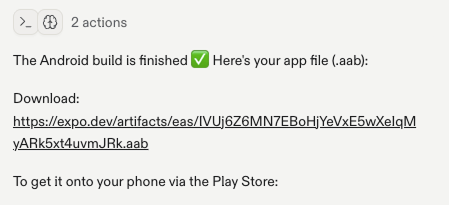
  <Step title="Download the .aab file">
    Open the build link Agent gives you and download the `.aab`.

    <Frame caption="Agent's download link for the finished .aab build.">
      <img src="https://mintcdn.com/replit/WuaQIOfW5oxRlxex/images/pixelgames/mobile/download-aab-file.png?fit=max&auto=format&n=WuaQIOfW5oxRlxex&q=85&s=21bc57dc611bcc1dcf375a876d698f71" alt="Agent chat message with a download link to the finished .aab file" data-path="images/pixelgames/mobile/download-aab-file.png" width="449" height="206" data-path="images/pixelgames/mobile/download-aab-file.png" />
    </Frame>
  </Step>

  <Step title="Create the app in Play Console">
    If you haven't already, select **Create app** in Play Console and fill in the name,
    default language, and whether it's an app or a game.
  </Step>

  <Step title="Create a release">
    Pick a track, **Internal testing** to start, then select **Create new release**.
  </Step>

  <Step title="Upload the .aab">
    Drop the file into the release, and Play Console processes it. Once it finishes, the
    build is ready to assign to testers or promote to Production.
  </Step>
</Steps>

## Troubleshooting

* **Play Console rejects the upload:** the version code has to increase with every upload.
  Ask Agent to bump it and rebuild.
* **Build stuck compiling:** builds are queued and typically take 10 to 15 minutes. Check
  your Expo dashboard under **Builds** before assuming something's broken.
* **"App signing" prompt on first upload:** let Google manage the signing key, it's the
  default and it means Google can re-sign future uploads for you.

## What's next

<CardGroup cols={2}>
  <Card title="Test on Internal Testing" icon="flask" href="/build/mobile-internal-testing">
    Hand the uploaded build to real testers first.
  </Card>

  <Card title="Submit for Play Store" icon="paper-plane" href="/build/mobile-publish-android">
    Finish the listing and send it for review.
  </Card>
</CardGroup>
