> ## Documentation Index
> Fetch the complete documentation index at: https://docs.replit.com/llms.txt
> Use this file to discover all available pages before exploring further.
# Preview and test on your phone
> Test PixelGames on your own phone with Expo Go.
Expo Go is the fastest way to see PixelGames on your own phone. Start here, and move to
TestFlight or Internal Testing once you hit what Expo Go can't do.
## What is Expo?
Expo is the toolkit Agent used to build PixelGames. It lets Agent write the app once in
JavaScript and run that same code as a real iOS app and a real Android app.
Expo Go is a free app from the App Store or Google Play. Install it once, and it can preview
any Expo project, including PixelGames, just by scanning a QR code.
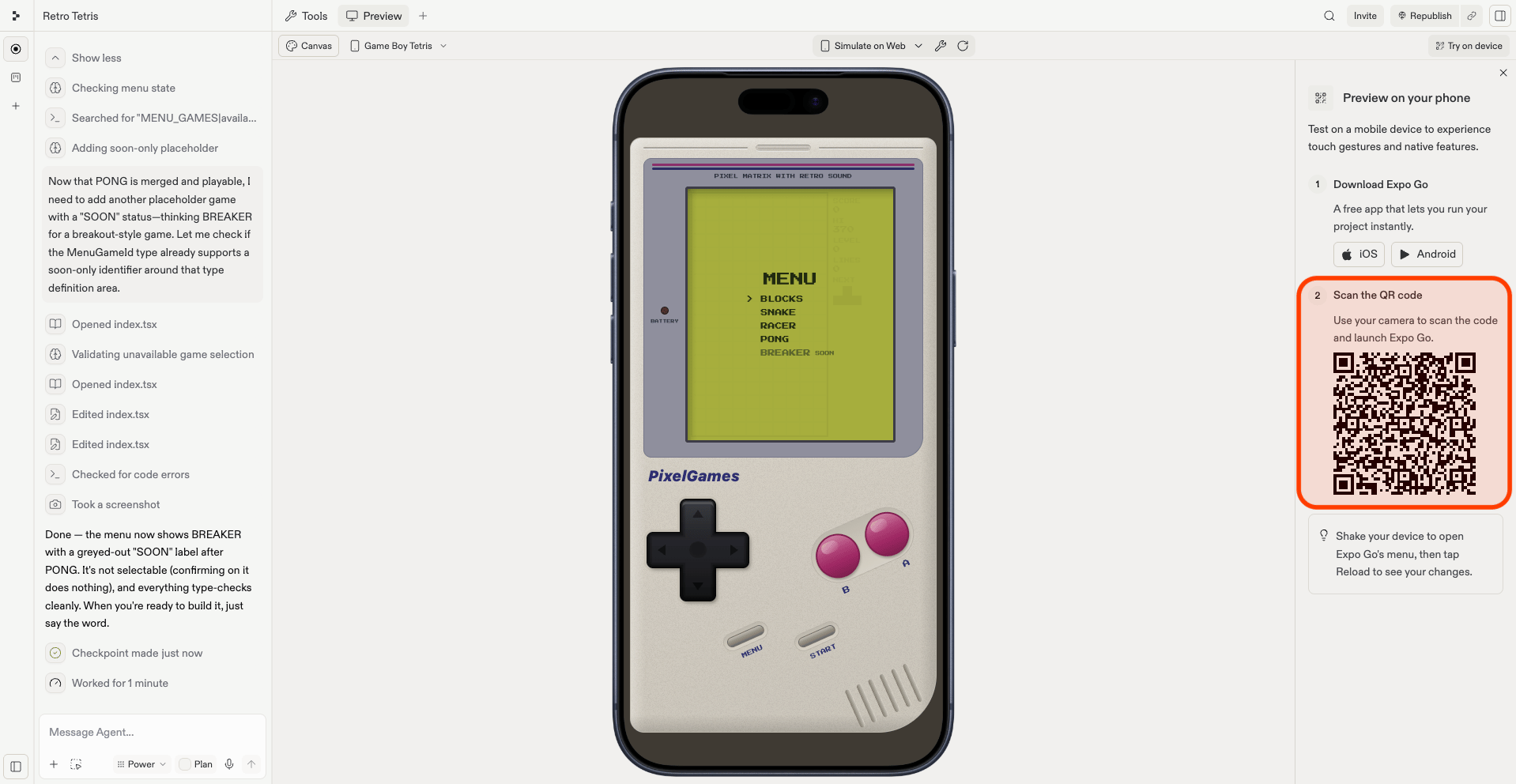
Open the **Expo Go** app on your phone (iOS or Android).
Scan the QR code Replit shows in the preview pane.
Metro, Expo's bundler, packages up PixelGames and sends it to your phone. The first
load can take a minute or two, it's faster after that.
PixelGames opens on your phone. Agent's changes show up in a few seconds, no
reinstalling.
 ## What Expo Go cannot test
Expo Go covers screens, flows, and UI. A few features only work once PixelGames runs as its
own app on the phone: **push notifications**, **in-app purchases**, and **Sign in with Apple**
are the common ones.
To test those, upload PixelGames to Apple or Google, then install it from their beta testing
track. Your app stays private to you and to the testers you invite, and you can keep iterating
before anything goes public.
* [Upload your iOS app](/build/mobile-upload-ios)
* [Upload your Android app](/build/mobile-upload-android)
## Troubleshooting
* **QR code won't scan, or the app won't connect:** confirm your phone and computer are on the
same WiFi network, some corporate and public networks block the connection between them. On
one of those, ask Agent to start the app in tunnel mode.
* **Changes aren't appearing on your phone:** shake your phone to open the Expo developer menu,
then tap **Reload** to redownload PixelGames.
* **Red error screen:** usually a JavaScript error or a missing package. The message often
points to the exact file and line, share it with Agent and ask for a fix.
* **Works on iOS, breaks on Android (or vice versa):** paste the error into Agent along with
which platform it happens on.
* **Console shell looks broken on one device:** ask Agent to check the screen size or safe area
handling for that device.
## What's next
Go beyond what Expo Go can test.
Add more device capabilities before you publish.
## Related
* [Start your first mobile app](/build/mobile-first-app)
* [Store images in your mobile app](/build/mobile-store-images)
## What Expo Go cannot test
Expo Go covers screens, flows, and UI. A few features only work once PixelGames runs as its
own app on the phone: **push notifications**, **in-app purchases**, and **Sign in with Apple**
are the common ones.
To test those, upload PixelGames to Apple or Google, then install it from their beta testing
track. Your app stays private to you and to the testers you invite, and you can keep iterating
before anything goes public.
* [Upload your iOS app](/build/mobile-upload-ios)
* [Upload your Android app](/build/mobile-upload-android)
## Troubleshooting
* **QR code won't scan, or the app won't connect:** confirm your phone and computer are on the
same WiFi network, some corporate and public networks block the connection between them. On
one of those, ask Agent to start the app in tunnel mode.
* **Changes aren't appearing on your phone:** shake your phone to open the Expo developer menu,
then tap **Reload** to redownload PixelGames.
* **Red error screen:** usually a JavaScript error or a missing package. The message often
points to the exact file and line, share it with Agent and ask for a fix.
* **Works on iOS, breaks on Android (or vice versa):** paste the error into Agent along with
which platform it happens on.
* **Console shell looks broken on one device:** ask Agent to check the screen size or safe area
handling for that device.
## What's next
Go beyond what Expo Go can test.
Add more device capabilities before you publish.
## Related
* [Start your first mobile app](/build/mobile-first-app)
* [Store images in your mobile app](/build/mobile-store-images)