> ## Documentation Index
> Fetch the complete documentation index at: https://docs.replit.com/llms.txt
> Use this file to discover all available pages before exploring further.

# Use iOS native components

> Use alerts, action sheets, SF Symbols, and more native iOS components in PixelGames.

export const PromptActions = ({prompt = "", campaign = "docs-prompt-actions"}) => {
  const LZ_SRC = "https://cdnjs.cloudflare.com/ajax/libs/lz-string/1.5.0/lz-string.min.js";
  const ensureLZString = () => {
    if (typeof document === "undefined") return;
    if (window.LZString) return;
    if (document.querySelector(`script[src="${LZ_SRC}"]`)) return;
    const s = document.createElement("script");
    s.src = LZ_SRC;
    s.async = true;
    document.head.appendChild(s);
  };
  const handleCopy = async e => {
    const btn = e.currentTarget;
    if (!prompt) return;
    try {
      await navigator.clipboard.writeText(prompt);
    } catch {
      const ta = document.createElement("textarea");
      ta.value = prompt;
      document.body.appendChild(ta);
      ta.select();
      try {
        document.execCommand("copy");
      } catch {}
      document.body.removeChild(ta);
    }
    const original = btn.dataset.label || btn.innerText;
    btn.dataset.label = original;
    btn.innerText = "Copied!";
    setTimeout(() => {
      if (btn.isConnected) btn.innerText = original;
    }, 1500);
  };
  const handleBuild = () => {
    if (!prompt || typeof window === "undefined") return;
    const utm = `utm_source=replit-docs&utm_medium=docs&utm_campaign=${encodeURIComponent(campaign)}&utm_content=prompt-actions`;
    let url;
    if (window.LZString) {
      const encoded = window.LZString.compressToEncodedURIComponent(prompt);
      url = `https://replit.com/?prompt=${encoded}&referrer=replit-docs&${utm}`;
    } else {
      url = `https://replit.com/?prompt=${encodeURIComponent(prompt)}&referrer=replit-docs&${utm}`;
    }
    window.open(url, "_blank", "noopener,noreferrer");
  };
  ensureLZString();
  const baseButtonStyle = {
    display: "inline-flex",
    alignItems: "center",
    gap: "6px",
    padding: "8px 16px",
    borderRadius: "8px",
    fontSize: "14px",
    fontWeight: 500,
    cursor: "pointer",
    lineHeight: 1.2,
    fontFamily: "inherit",
    textDecoration: "none"
  };
  return <div style={{
    display: "flex",
    gap: "12px",
    margin: "16px 0",
    flexWrap: "wrap",
    alignItems: "center"
  }}>
      <button type="button" onClick={handleCopy} style={{
    ...baseButtonStyle,
    background: "transparent",
    color: "inherit",
    border: "1px solid rgba(127,127,127,0.4)"
  }}>
        Copy the prompt
      </button>
      <button type="button" onClick={handleBuild} style={{
    ...baseButtonStyle,
    background: "#F26207",
    color: "#FFFFFF",
    border: "1px solid #F26207"
  }}>
        Build on Replit ↗
      </button>
    </div>;
};

export const AiPrompt = ({children}) => {
  return <CodeBlock className="relative block font-sans whitespace-pre-wrap break-words">
      <div className="pr-7">
        {children}
      </div>
    </CodeBlock>;
};

export const nativeAlertPrompt = `When a player tries to quit mid-game, show a native alert asking "Quit game? Your progress will be lost." with Cancel and Quit options.`;
export const nativeActionSheetPrompt = "When a player taps to change their profile photo, show the native action sheet with Camera and Photo Library options, not a custom modal.";
export const nativeSwitchesPrompt = "Add a Settings screen with native switches for sound effects and haptics.";
export const sfSymbolsPrompt = "Use SF Symbols for the settings and leaderboard icons on iOS.";
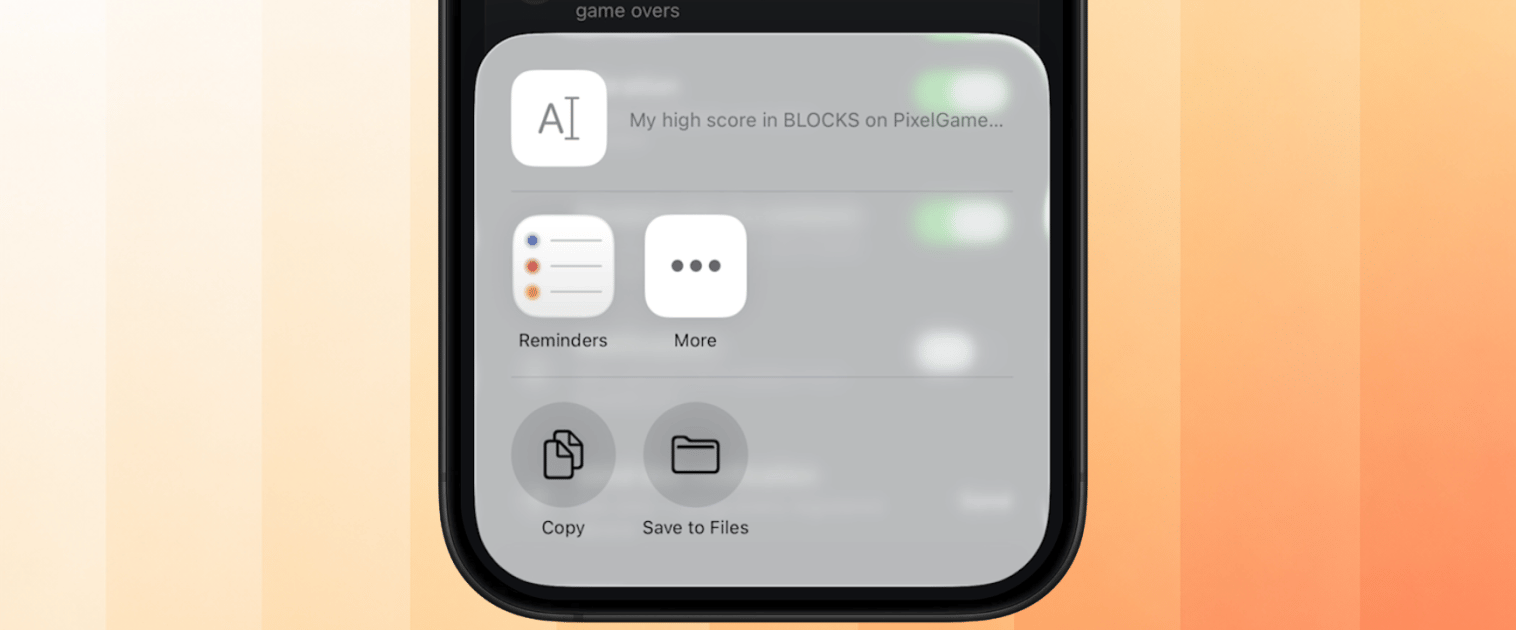
export const nativeShareSheetPrompt = "Let players share their high score using the native share sheet.";

## Why this matters

Every iPhone already has alerts, share sheets, switches, and menus built in, and players use
them in every other app they own. When your app uses those same native components, players
already know how they work before they've even tapped one, that's what makes it feel like a
real iPhone app.

Below are example prompts for native components you can add to your app: alerts, action
sheets, switches, and more.

## Native alerts

<AiPrompt>
  {nativeAlertPrompt}
</AiPrompt>

<PromptActions prompt={nativeAlertPrompt} campaign="docs-mobile-native-components" />

This renders a real `UIAlertController` alert, the same style as the popups iOS itself uses.
Reach for an alert when there's one clear decision to confirm.

<Frame caption="The native Quit game alert in PixelGames.">
  <img src="https://mintcdn.com/replit/WuaQIOfW5oxRlxex/images/pixelgames/mobile/native-alert.png?fit=max&auto=format&n=WuaQIOfW5oxRlxex&q=85&s=dd73b103564765f4a4701082e37fba59" alt="Native iOS alert asking Quit game? with Cancel and Quit options" data-path="images/pixelgames/mobile/native-alert.png" width="1516" height="258" data-path="images/pixelgames/mobile/native-alert.png" />
</Frame>

## Native action sheets

<AiPrompt>
  {nativeActionSheetPrompt}
</AiPrompt>

<PromptActions prompt={nativeActionSheetPrompt} campaign="docs-mobile-native-components" />

An action sheet is the sibling of an alert, use it when there are a few distinct options to
choose from, rather than a single yes/no decision. Android gets its own native equivalent,
Agent picks the right one per platform automatically.

<Frame caption="The native action sheet for changing a PixelGames profile photo.">
  <img src="https://mintcdn.com/replit/WuaQIOfW5oxRlxex/images/pixelgames/mobile/native-action-sheet.png?fit=max&auto=format&n=WuaQIOfW5oxRlxex&q=85&s=776916fcff3a32b3415a6cccfd683310" alt="Native iOS action sheet with Take a photo, Choose from library, and Pick a pixel avatar options" data-path="images/pixelgames/mobile/native-action-sheet.png" width="1516" height="418" data-path="images/pixelgames/mobile/native-action-sheet.png" />
</Frame>

## Native switches

<AiPrompt>
  {nativeSwitchesPrompt}
</AiPrompt>

<PromptActions prompt={nativeSwitchesPrompt} campaign="docs-mobile-native-components" />

The same on/off switch used throughout the iOS Settings app, instantly recognizable, so
players don't have to figure out a custom toggle design.

<Frame caption="Native switches for sound effects and haptics in PixelGames' Settings.">
  <img src="https://mintcdn.com/replit/WuaQIOfW5oxRlxex/images/pixelgames/mobile/native-switch.png?fit=max&auto=format&n=WuaQIOfW5oxRlxex&q=85&s=eec2b4de1408a608e8ff15b3c90e1049" alt="Native iOS switches toggling sound effects and haptics on and off" data-path="images/pixelgames/mobile/native-switch.png" width="1516" height="288" data-path="images/pixelgames/mobile/native-switch.png" />
</Frame>

## SF Symbols

<AiPrompt>
  {sfSymbolsPrompt}
</AiPrompt>

<PromptActions prompt={sfSymbolsPrompt} campaign="docs-mobile-native-components" />

SF Symbols is Apple's built-in icon set. Symbols automatically match the surrounding text
size, weight, and dark mode, something a custom icon set has to be built to do manually.

<Frame caption="SF Symbols used for the sound effects and vibration icons in Settings.">
  <img src="https://mintcdn.com/replit/WuaQIOfW5oxRlxex/images/pixelgames/mobile/native-sf.png?fit=max&auto=format&n=WuaQIOfW5oxRlxex&q=85&s=d56437f19723910a46fe0822e032be91" alt="SF Symbols icons next to Sound effects and Vibration settings" data-path="images/pixelgames/mobile/native-sf.png" width="1516" height="310" data-path="images/pixelgames/mobile/native-sf.png" />
</Frame>

<Note>
  SF Symbols is iOS-only. Ask Agent to pick a matching icon set for Android, the icons won't be
  pixel-identical between platforms, and that's expected.
</Note>

## Native share sheet

<AiPrompt>
  {nativeShareSheetPrompt}
</AiPrompt>

<PromptActions prompt={nativeShareSheetPrompt} campaign="docs-mobile-native-components" />

Opens the same system share sheet as Photos or Safari, so it lists whatever apps the player
already has installed.

<Frame caption="Sharing a PixelGames high score through the native share sheet.">
  <img src="https://mintcdn.com/replit/WuaQIOfW5oxRlxex/images/pixelgames/mobile/native-share.png?fit=max&auto=format&n=WuaQIOfW5oxRlxex&q=85&s=74cfd5dd061cbb5b128f300eb0c3126d" alt="Native iOS share sheet sharing a PixelGames high score" data-path="images/pixelgames/mobile/native-share.png" width="1516" height="630" data-path="images/pixelgames/mobile/native-share.png" />
</Frame>

## Troubleshooting

* **Alert or action sheet shows a custom modal instead:** confirm Agent used the native API
  rather than a JS-rendered lookalike, they can look similar but behave differently.
* **Icons look wrong on Android:** expected for SF Symbols specifically, they're iOS-only. Ask
  Agent what fallback icon set it used.
* **Share sheet doesn't include an app you expected:** that's controlled by the OS and the
  installed apps on the test device, not something PixelGames can add to directly.

## What's next

<CardGroup cols={2}>
  <Card title="Access contacts" icon="address-book" href="/build/mobile-contacts">
    Pair the share sheet with invite links.
  </Card>

  <Card title="Preview and test on your phone" icon="mobile" href="/build/mobile-preview-testing">
    Confirm native components render correctly on-device.
  </Card>
</CardGroup>

## Related

* [Add haptics](/build/mobile-haptics)