> ## Documentation Index
> Fetch the complete documentation index at: https://docs.replit.com/llms.txt
> Use this file to discover all available pages before exploring further.

# Add login

> Let players sign in to PixelGames using Clerk.

export const PromptActions = ({prompt = "", campaign = "docs-prompt-actions"}) => {
  const LZ_SRC = "https://cdnjs.cloudflare.com/ajax/libs/lz-string/1.5.0/lz-string.min.js";
  const ensureLZString = () => {
    if (typeof document === "undefined") return;
    if (window.LZString) return;
    if (document.querySelector(`script[src="${LZ_SRC}"]`)) return;
    const s = document.createElement("script");
    s.src = LZ_SRC;
    s.async = true;
    document.head.appendChild(s);
  };
  const handleCopy = async e => {
    const btn = e.currentTarget;
    if (!prompt) return;
    try {
      await navigator.clipboard.writeText(prompt);
    } catch {
      const ta = document.createElement("textarea");
      ta.value = prompt;
      document.body.appendChild(ta);
      ta.select();
      try {
        document.execCommand("copy");
      } catch {}
      document.body.removeChild(ta);
    }
    const original = btn.dataset.label || btn.innerText;
    btn.dataset.label = original;
    btn.innerText = "Copied!";
    setTimeout(() => {
      if (btn.isConnected) btn.innerText = original;
    }, 1500);
  };
  const handleBuild = () => {
    if (!prompt || typeof window === "undefined") return;
    const utm = `utm_source=replit-docs&utm_medium=docs&utm_campaign=${encodeURIComponent(campaign)}&utm_content=prompt-actions`;
    let url;
    if (window.LZString) {
      const encoded = window.LZString.compressToEncodedURIComponent(prompt);
      url = `https://replit.com/?prompt=${encoded}&referrer=replit-docs&${utm}`;
    } else {
      url = `https://replit.com/?prompt=${encodeURIComponent(prompt)}&referrer=replit-docs&${utm}`;
    }
    window.open(url, "_blank", "noopener,noreferrer");
  };
  ensureLZString();
  const baseButtonStyle = {
    display: "inline-flex",
    alignItems: "center",
    gap: "6px",
    padding: "8px 16px",
    borderRadius: "8px",
    fontSize: "14px",
    fontWeight: 500,
    cursor: "pointer",
    lineHeight: 1.2,
    fontFamily: "inherit",
    textDecoration: "none"
  };
  return <div style={{
    display: "flex",
    gap: "12px",
    margin: "16px 0",
    flexWrap: "wrap",
    alignItems: "center"
  }}>
      <button type="button" onClick={handleCopy} style={{
    ...baseButtonStyle,
    background: "transparent",
    color: "inherit",
    border: "1px solid rgba(127,127,127,0.4)"
  }}>
        Copy the prompt
      </button>
      <button type="button" onClick={handleBuild} style={{
    ...baseButtonStyle,
    background: "#F26207",
    color: "#FFFFFF",
    border: "1px solid #F26207"
  }}>
        Build on Replit ↗
      </button>
    </div>;
};

export const AiPrompt = ({children}) => {
  return <CodeBlock className="relative block font-sans whitespace-pre-wrap break-words">
      <div className="pr-7">
        {children}
      </div>
    </CodeBlock>;
};

export const loginPrompt = "Add sign-in to PixelGames using Clerk. Anyone can still play without an account, signing in is only for players who want one.";
export const appleSignInPrompt = "Add Sign in with Apple to PixelGames, but only show it on iOS. Keep the Android version as email and Google only.";

Add sign-in to PixelGames now, even before there's anything to save. Once a player has an
account, you can attach things to it later, high scores, unlocked games, whatever you build
next.

Use [Clerk Auth](/features/auth-and-identity/clerk-auth), Replit's built-in integration for
sign-in. Agent provisions it automatically and gives PixelGames its own branded sign-in screen.

<AiPrompt>
  {loginPrompt}
</AiPrompt>

<PromptActions prompt={loginPrompt} campaign="docs-mobile-login" />

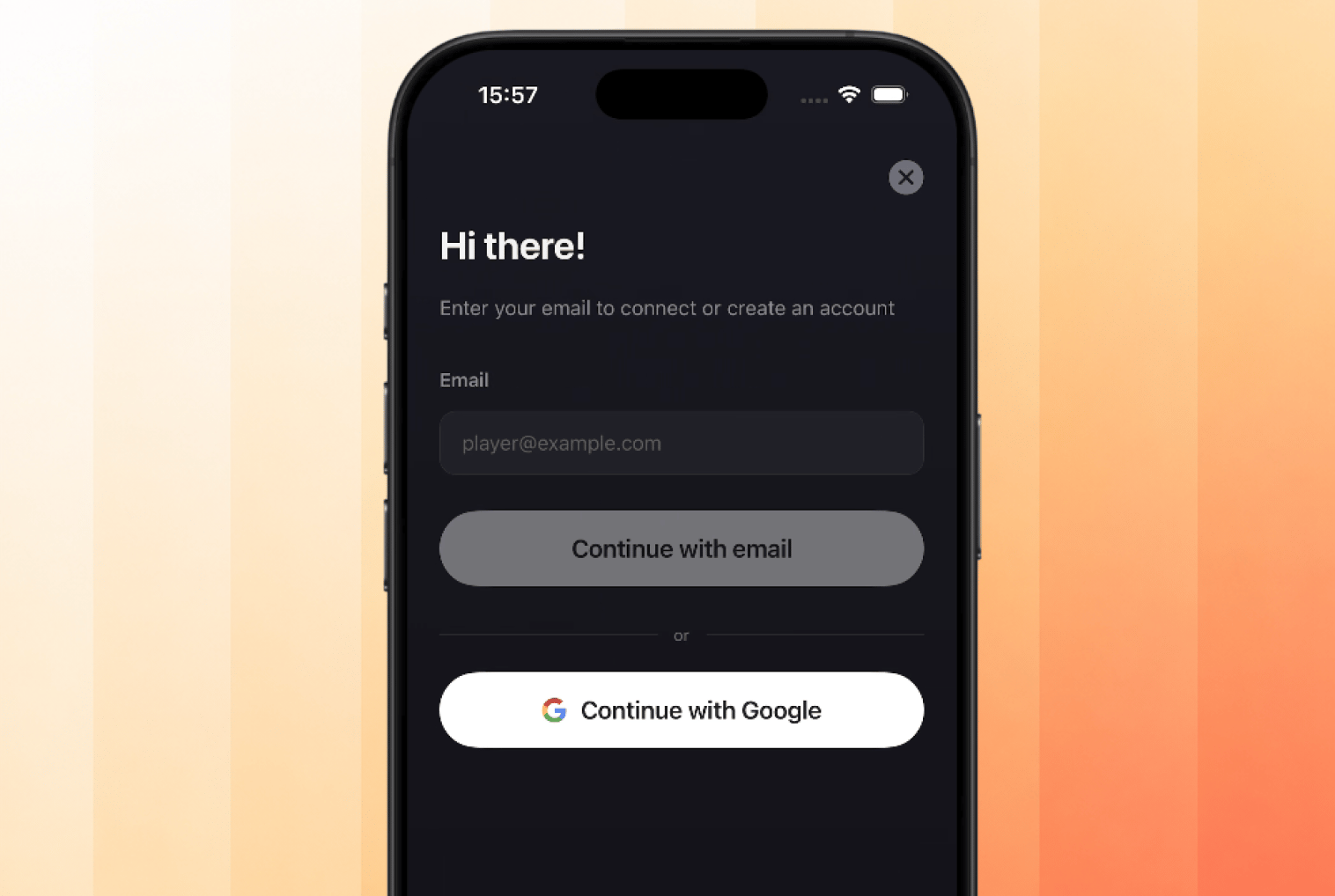
<Frame caption="PixelGames' Clerk sign-in screen, email or Google.">
  <img src="https://mintcdn.com/replit/WuaQIOfW5oxRlxex/images/pixelgames/mobile/mobile-signin.png?fit=max&auto=format&n=WuaQIOfW5oxRlxex&q=85&s=f8e1a438d8295ae53f75638579f5b5e9" alt="PixelGames sign-in modal with Continue with email and Continue with Google" data-path="images/pixelgames/mobile/mobile-signin.png" width="1516" height="1018" data-path="images/pixelgames/mobile/mobile-signin.png" />
</Frame>

## Add Sign in with Apple

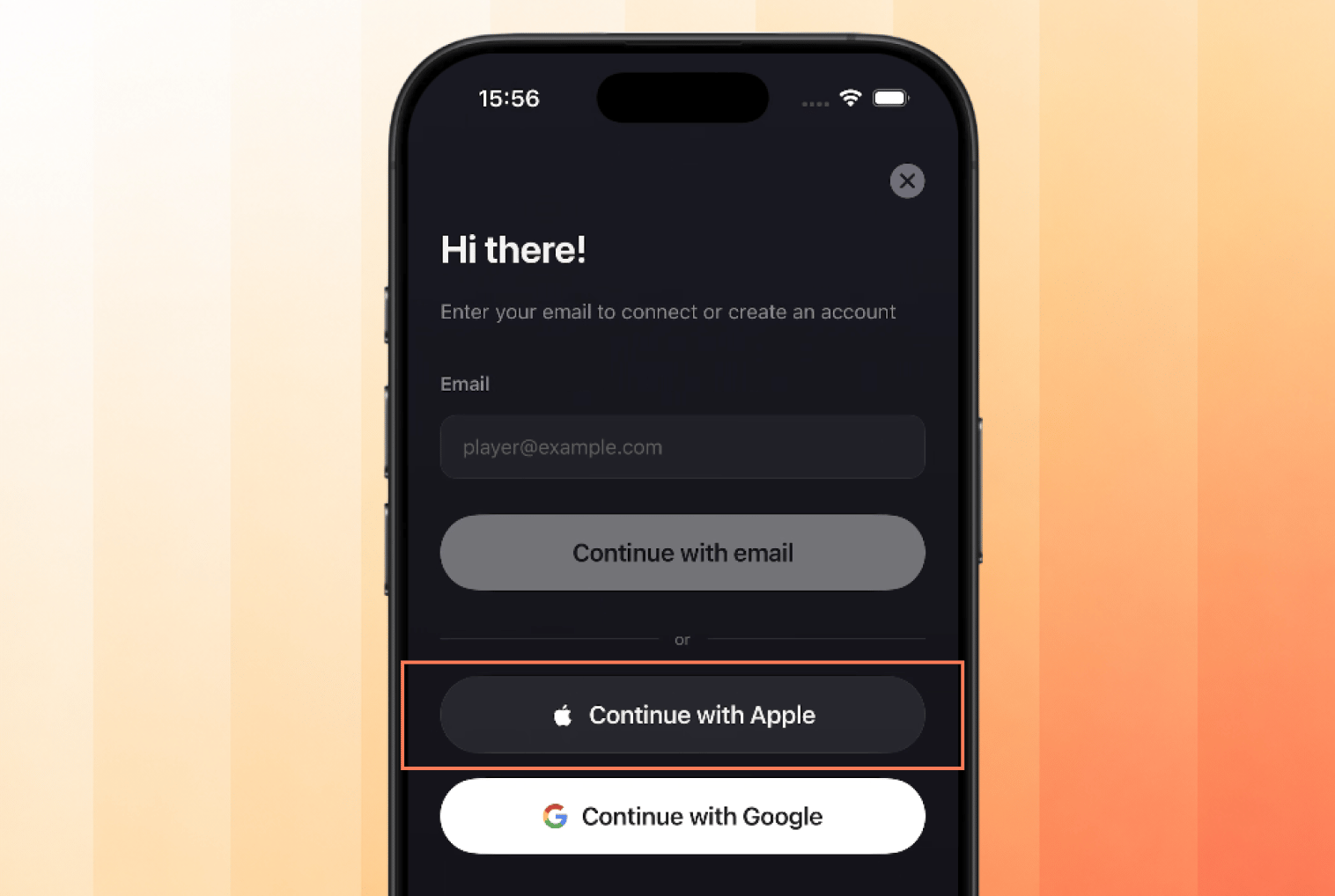
Apple's App Store review requires offering **Sign in with Apple** as an equivalent whenever
another social login, like Google, is available, but only on iOS. Android has no such
requirement.

<AiPrompt>
  {appleSignInPrompt}
</AiPrompt>

<PromptActions prompt={appleSignInPrompt} campaign="docs-mobile-login" />

<Frame caption="Sign in with Apple added alongside email and Google, iOS only.">
  <img src="https://mintcdn.com/replit/WuaQIOfW5oxRlxex/images/pixelgames/mobile/apple-mobile-signin.png?fit=max&auto=format&n=WuaQIOfW5oxRlxex&q=85&s=4e16862df7d8a1e2aa2454cc5d43793d" alt="PixelGames sign-in modal with Continue with Apple added above Continue with Google" data-path="images/pixelgames/mobile/apple-mobile-signin.png" width="1516" height="1018" data-path="images/pixelgames/mobile/apple-mobile-signin.png" />
</Frame>

## Enable the providers

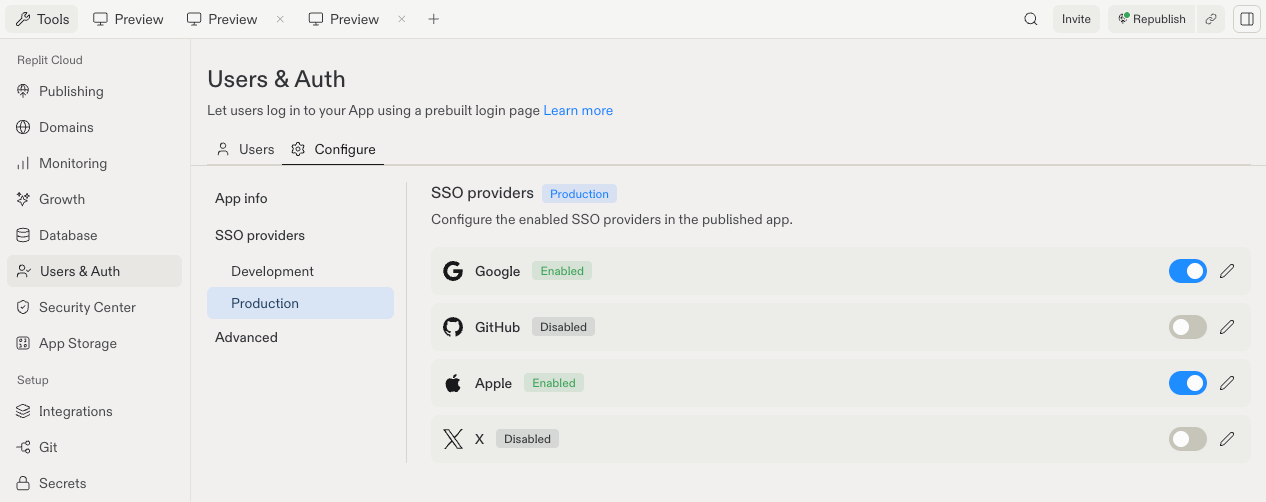
Adding a provider in the code isn't enough, each one also has to be switched on in your app's
auth settings. Open **Users & Auth → Configure → SSO providers → Production**, and confirm
**Google** and **Apple** both show as Enabled.

<Frame caption="Google and Apple enabled under SSO providers in the Production environment.">
  <img src="https://mintcdn.com/replit/wpDFPJulnZRpqmW6/images/pixelgames/mobile/sso-provider.png?fit=max&auto=format&n=wpDFPJulnZRpqmW6&q=85&s=815934835068ed80b4654da147285d29" alt="Replit Users and Auth pane showing SSO providers with Google and Apple enabled" data-path="images/pixelgames/mobile/sso-provider.png" width="1266" height="502" data-path="images/pixelgames/mobile/sso-provider.png" />
</Frame>

<Note>
  **Development** and **Production** have separate provider lists. Enabling one doesn't enable
  the other, so check Production before you publish.
</Note>

## Test it

One account isn't enough, you need two to prove PixelGames tells players apart.

1. Play a round without signing in, PixelGames should still work.
2. Sign in with your own account.
3. Sign out, then sign in with a different account and confirm you're in a separate session,
   not the first account.
4. Sign back into the first account and confirm you land back in that one.
5. On iOS, confirm **Continue with Apple** appears above Google. On Android, confirm it
   doesn't show up at all.

## What's next

<CardGroup cols={2}>
  <Card title="Store images in your mobile app" icon="image" href="/build/mobile-store-images">
    Save profile photos once players are signed in.
  </Card>

  <Card title="Add native device features" icon="camera" href="/build/mobile-camera">
    Add more capabilities to PixelGames.
  </Card>
</CardGroup>

## Related

* [Store images in your mobile app](/build/mobile-store-images)
* [Add in-app purchases](/build/mobile-payments)
* [Configure sign-in providers](/features/auth-and-identity/sign-in-providers)